Complete C# Tutorial

C#

Welcome to the Complete C# Tutorial.com

Whether you’re a beginner or a seasoned developer, our Free C# Tutorial is designed to help you learn and grow your skills effectively.


Why Choose Our C# Tutorials?

  1. Comprehensive and Beginner-Friendly: Start with the basics and progress to advanced concepts with our step-by-step guides.
  2. Interactive Learning Experience: Practice coding with real-world examples and projects.
  3. Learn at Your Pace: Our resources are available 24/7, so you can learn whenever it suits you.

Join the Best C# Course Online Free

Our platform offers a C# Course Online Free, perfect for anyone looking to upgrade their skills without breaking the bank. With complete csharp code, numerious programming examples, and hands-on exercises, you’ll gain a deep understanding of C# fundamentals, object-oriented programming, and more.


What You’ll Learn:

Dive into our Free C# Tutorial and unlock endless opportunities in software development. Our courses are tailored to empower you with the skills needed to excel in the tech world.

Explore, Learn, and Succeed !

All for Free!

Start

Chapter 1: Start your C# Journey!

Welcome to your journey into C#! In this chapter, you will learn the fundamental concepts and essential setup required to start coding in C#. We will cover:

  • What is C#? – A brief introduction to the language.List Item

  • Why should you learn C#? – Key reasons to choose C# for development.

  • What’s new in C# 13.0? – An overview of the latest features.

  • Best coding practices – Guidelines for writing clean and efficient C# code.

  • Installing .NET SDK and tools – Setting up your development environment.

  • Platforms for writing and executing C# code – Using text editors, VS Code, and online compilers.

  • Writing and executing your first C# program ("Hello, World!")

  • Understanding your first C# code – Breaking down its structure.

  • Understanding the C# compiler – How your code is compiled and executed.

This chapter is crucial because it lays the foundation for your C# learning journey. You’ll not only understand C# fundamentals but also set up your development environment and write your first program.

Don’t worry—we’ll keep things simple and concise. Each section is designed to be easy to understand and to the point.

Getting Started

Introduction to C#

  • Introduction to C#
  • Why Learn C#?
  • Overview of C# 13.0 Features
.explanation::after { font-family: "Roboto", sans-serif; content: "In this lesson, you will learn"; text-transform: uppercase; font-weight: 700; top: -19px; left: 1rem; padding: 0 0.5rem; font-size: 0.6rem; position: absolute; z-index: 1; color: #000; background: #fff; }

What is C#?

C# (pronounced “C-Sharp”) is a programming language created by Microsoft. Developers use it to build apps, games, and websites. It is easy to learn and powerful. Many famous apps, like Microsoft Office and Unity games, use C#.

C# is part of the .NET framework. This means it runs on different devices, including Windows, macOS, and Linux. With C#, you can create mobile apps, web applications, and even artificial intelligence projects.

Who Developed C# and When?

  • Developed by: Microsoft

  • Lead Developer: Anders Hejlsberg

  • Year of Development: Early 2000s

  • First Release: C# 1.0 in 2002

  • Purpose: Created for the .NET Framework to build software, web apps, and games

  • Evolution: Continues to improve with new features in each version.

What is C# Used For?

C# is a flexible language. It is used in many industries, including:

  1. Game development – Popular games like those in Unity use C#.

  2. Web applications – Websites and online tools are built with C#.

  3. Desktop applications – Software like Microsoft Office runs on C#.

  4. Mobile apps – You can create Android and iOS apps using Xamarin (C#).

  5. Cloud computing – C# helps build and manage cloud-based services.

  6. AI and machine learning – Some AI tools use C# for automation and analysis.

  7. Internet of Things (IoT) – Smart devices and gadgets work with C#.

Why Should You Learn C#?

C# is a great choice for beginners. The rules are simple, and the code is easy to read. Big companies use C#, so learning it can help you get a good job in the future.

This language is also very flexible. You can build websites, mobile apps, and even video games with it. Many popular games, like those made with Unity, use C#.

Another reason to learn C# is its strong community. Many people share code and help each other online. If you ever get stuck, you can find answers easily.

Features of C#

C# has many useful features that make coding easier:

  1. Simple and easy to learn – Great for beginners.

  2. Object-oriented – Helps organize code into reusable parts.

  3. Cross-platform support – Runs on Windows, macOS, and Linux.

  4. Strong memory management – Reduces crashes and errors.

  5. Rich libraries – Provides many built-in tools to speed up development.

  6. Secure and fast – Prevents hacking risks and runs efficiently.

  7. Automatic garbage collection – Cleans up unused memory automatically.

  8. Supports modern programming – Works well with AI, cloud, and IoT projects.

What’s New in C# 13.0?

C# keeps improving. The latest version, C# 13.0, brings new features that make coding easier. Here are some of the exciting updates:

  1. Simpler code writing – Some rules are now easier to follow.

  2. Better performance – Programs run faster and use less memory.

  3. New ways to store data – More options to organize and save information.

These improvements help developers write better programs with less effort.

C# Version History

  1. C# 1.0 (2002) – Introduced with .NET Framework 1.0
    • Basic object-oriented programming
    • Classes, structs, interfaces, and delegates
  2. C# 2.0 (2005) – Improved productivity
    • Generics
    • Anonymous methods
    • Nullable types
    • Iterators
  3. C# 3.0 (2007) – Introduced LINQ
    • Implicitly typed variables (var)
    • Lambda expressions
    • Extension methods
    • Object and collection initializers
  4. C# 4.0 (2010) – Added dynamic programming
    • Dynamic keyword (dynamic)
    • Named and optional parameters
    • COM interoperability improvements
  5. C# 5.0 (2012) – Improved asynchronous programming
    • async and await keywords
    • Caller info attributes
  6. C# 6.0 (2015) – Made syntax cleaner
    • Null-conditional operator (?.)
    • String interpolation ($"")
    • Expression-bodied members
  7. C# 7.0 (2017) – Added performance improvements
    • Tuples ((int, string))
    • Pattern matching
    • Local functions
  8. C# 8.0 (2019) – Introduced modern programming features
    • Nullable reference types
    • Default interface methods
    • Async streams
  9. C# 9.0 (2020) – Made coding more concise
    • Records (immutable objects)
    • Init-only properties
    • Top-level statements
  10. C# 10.0 (2021) – Improved performance and clarity
    • Global using directives
    • File-scoped namespaces
    • Record structs
  11. C# 11.0 (2022) – Focused on developer productivity
    • Raw string literals (""")
    • List patterns
    • Required members
  12. C# 12.0 (2023) – Added flexibility
    • Primary constructors
    • Inline arrays
    • Collection expressions
  13. C# 13.0 (2024) – Latest enhancements
    • params collections
    • Method group natural type
    • Partial properties and indexers

Basic Guideline

Basic guidelines for writing and executing C# codes

Following best coding practices in C# makes your code clean, readable, and efficient. It helps reduce bugs and errors.

  1. Improves Readability – Clean code is easy to understand.
  2. Reduces Bugs – Well-structured code has fewer errors.
  3. Makes Maintenance Easy – Updating code becomes simple.
  4. Boosts Performance – Optimized code runs faster.
  5. Enhances Security – Secure coding prevents attacks.
  6. Saves Time – Debugging and fixing issues take less time.
  7. Helps Teamwork – Other developers can understand your code.
  8. Follows Industry Standards – Makes you a better programmer.

Good coding practices help you write better and more reliable software!

Best Coding Practices in C#

1. Follow Proper Naming Conventions

✅ Use PascalCase for classes, methods, and properties.
✅ Use camelCase for variables and parameters.
✅ Use ALL_CAPS for constants.

				
					class StudentDetails  // PascalCase for class
{
    private string studentName;  // camelCase for variable

    public void GetStudentDetails() // PascalCase for method
    {
        const int MaxStudents = 50; // ALL_CAPS for constant
        Console.WriteLine("Fetching student details...");
    }
}


2. Write Clean and Readable Code

✅ Use indentation and proper spacing for better readability.
✅ Avoid long methods—keep them short and focused.

				
					public int AddNumbers(int a, int b) 
{
    return a + b; 
}				
			

3. Use Meaningful Variable and Method Names

Bad Example:

				
					int x;
void Fn() { Console.WriteLine("Hello"); }


Good Example:

				
					int studentAge;
void PrintGreetingMessage() { Console.WriteLine("Hello"); }


4. Use Comments Wisely

  • Use single-line comments (//) for short explanations.
  • Use multi-line comments (/* ... */) for detailed descriptions.
				
					// This method adds two numbers and returns the sum
public int Add(int num1, int num2) 
{
    return num1 + num2;
}


5. Avoid Hardcoding Values

Bad Example:

				
					double taxRate = 0.18; 				
			

Good Example: (Use Constants)

				
					const double TaxRate = 0.18; 				
			

6. Handle Exceptions Properly

Always handle potential errors using try-catch blocks.

				
					try
{
    int result = 10 / 0; // This will cause an error
}
catch (DivideByZeroException ex)
{
    Console.WriteLine("Error: Cannot divide by zero.");
}


7. Use String Interpolation Instead of Concatenation

Bad Example:

				
					Console.WriteLine("Hello, " + name + "! Welcome to C#.");


Good Example:

				
					Console.WriteLine($"Hello, {name}! Welcome to C#.");


8. Optimize Performance by Using StringBuilder

If you are working with large strings, avoid using + repeatedly. Use StringBuilder instead.

				
					using System.Text;

StringBuilder sb = new StringBuilder();
sb.Append("Hello, ");
sb.Append("C# is amazing!");
Console.WriteLine(sb.ToString());


9. Dispose of Unused Resources

If you are using objects that consume system resources (like file streams, database connections), always dispose of them properly using using statements.

				
					using (StreamWriter writer = new StreamWriter("file.txt"))
{
    writer.WriteLine("Hello, C#");
} // Automatically disposes of the StreamWriter


10. Follow SOLID Principles

For maintainable and scalable code, follow SOLID principles:

  • Single Responsibility Principle
  • Open/Closed Principle
  • Liskov Substitution Principle
  • Interface Segregation Principle
  • Dependency Inversion Principle

Example for Single Responsibility Principle:

Bad Example: (One class does multiple things)

				
					class Report
{
    public void GenerateReport() { }
    public void SaveToDatabase() { }
}


Good Example: (Separate concerns)

				
					class ReportGenerator { public void GenerateReport() { } }
class DatabaseSaver { public void SaveToDatabase() { } }


Final Thoughts

By following these basic guidelines and best coding practices, you will write clean, efficient, and maintainable C# code. Start with simple programs, then gradually explore advanced topics like OOP, async programming, and database operations.

Where to write c#

Set up C# development environment: Visual Studio vs VSCode vs Online

  • Best way to write and run C# code using IDE, CLI, or online compilers.
  • How to run C# code directly in your browser?
  • Set up C# development environment – Visual Studio vs VSCode vs Notepad IDE
  • How to run C# code using just Notepad and the command line?
  • Best online compilers to write and run C# code?
.explanation::after { font-family: "Roboto", sans-serif; content: "In this Lesson, you will learn:"; text-transform: uppercase; font-weight: 700; top: -19px; left: 1rem; padding: 0 0.5rem; font-size: 0.6rem; position: absolute; z-index: 1; color: #000; background: #fff; }

C# is a popular programming language. You need a place to write and run your code. Here are some common options:

  1. Visual Studio – This is the best tool for C# development. It has many features like debugging and IntelliSense.

  2. Visual Studio Code – This is a lightweight editor. You need to install the C# extension to run code.

  3. Online Compilers – Websites like .NET Fiddle and Replit let you write and run C# code in a web browser.

  4. Command Line with .NET SDK – If you install the .NET SDK, you can create and run C# programs using the command line with dotnet run.

Choose the option that best fits your needs!

Set up C# development environment - Which One Should You Use?

  • If you want full features, use Visual Studio.List Item

  • If you want a light editor, use Visual Studio Code.

  • If you don’t want to install anything, use online compilers.

  • If you like commands, use .NET SDK.

Choose the best option and start coding in C#!

Step 1: Download Visual Studio 2022

  1. Open your web browser and go to the official Visual Studio website.
  2. Click on the “Download Visual Studio” button.
  3. Choose “Visual Studio Community 2022” (it’s free).

Step 2: Run the Installer

  1. Open the downloaded file (VisualStudioSetup.exe).
  2. If asked, click “Yes” to allow changes to your computer.
  3. The Visual Studio Installer will open. Click “Continue” to start downloading the necessary files.

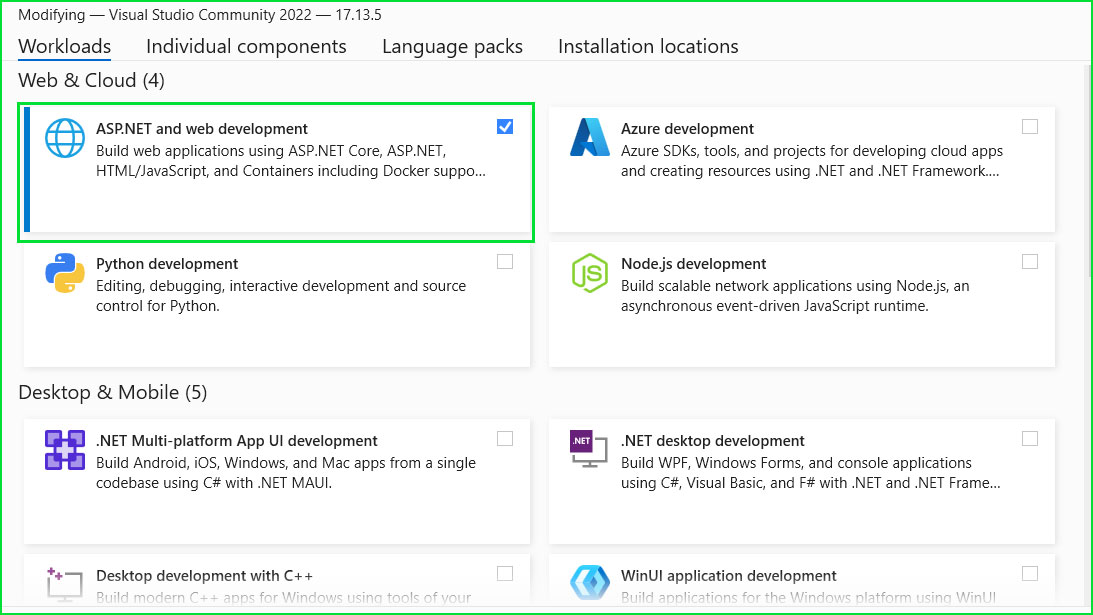
Step 3: Choose Workloads

  1. Once the installer loads, you will see different workload options.
  2. For C# development, check these workloads:
    • “.NET Desktop Development” (for Windows apps)
    • “ASP.NET and Web Development” (for web apps) (optional)
    • “.NET Core Cross-Platform Development” (optional but useful)
  3. Click “Install” at the bottom right.

Step 4: Wait for Installation

  1. Visual Studio will download and install the selected components.
  2. This may take some time, depending on your internet speed.

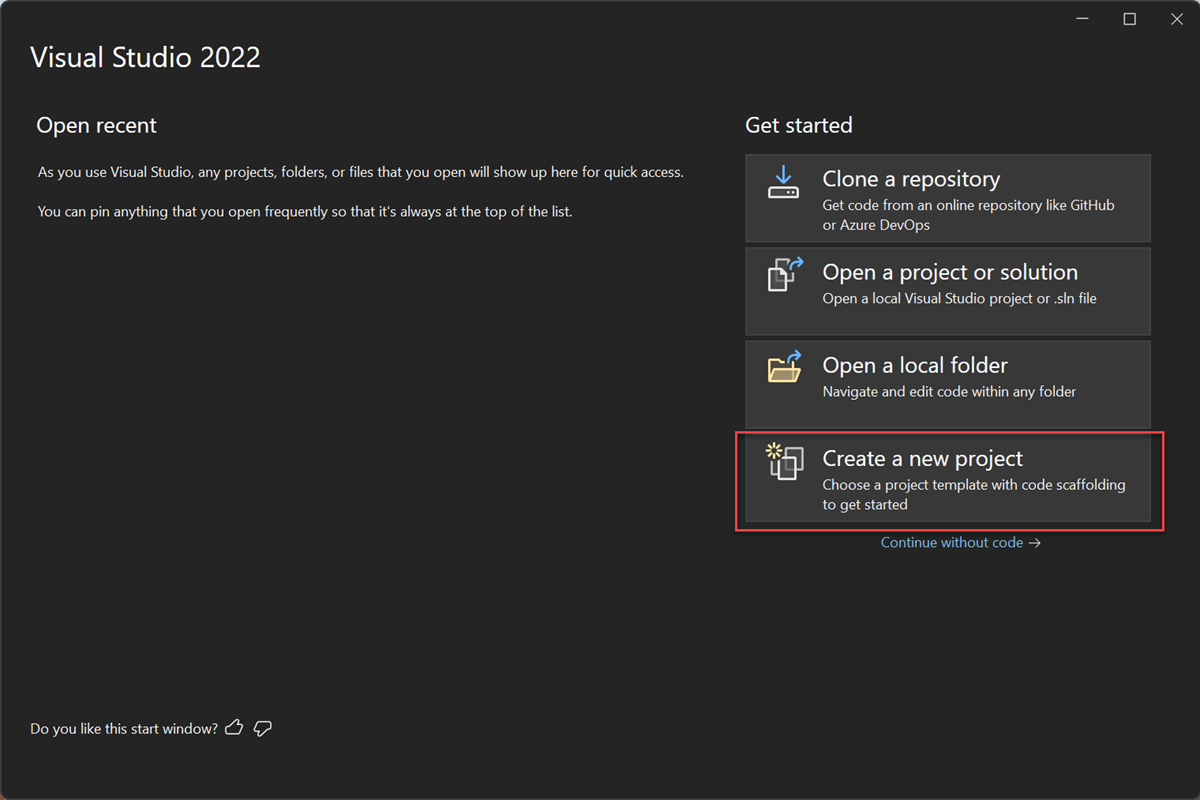
Step 5: Launch Visual Studio

  1. After installation, click “Launch” or open Visual Studio 2022 from the Start menu.
  2. You may need to sign in with a Microsoft account (optional).
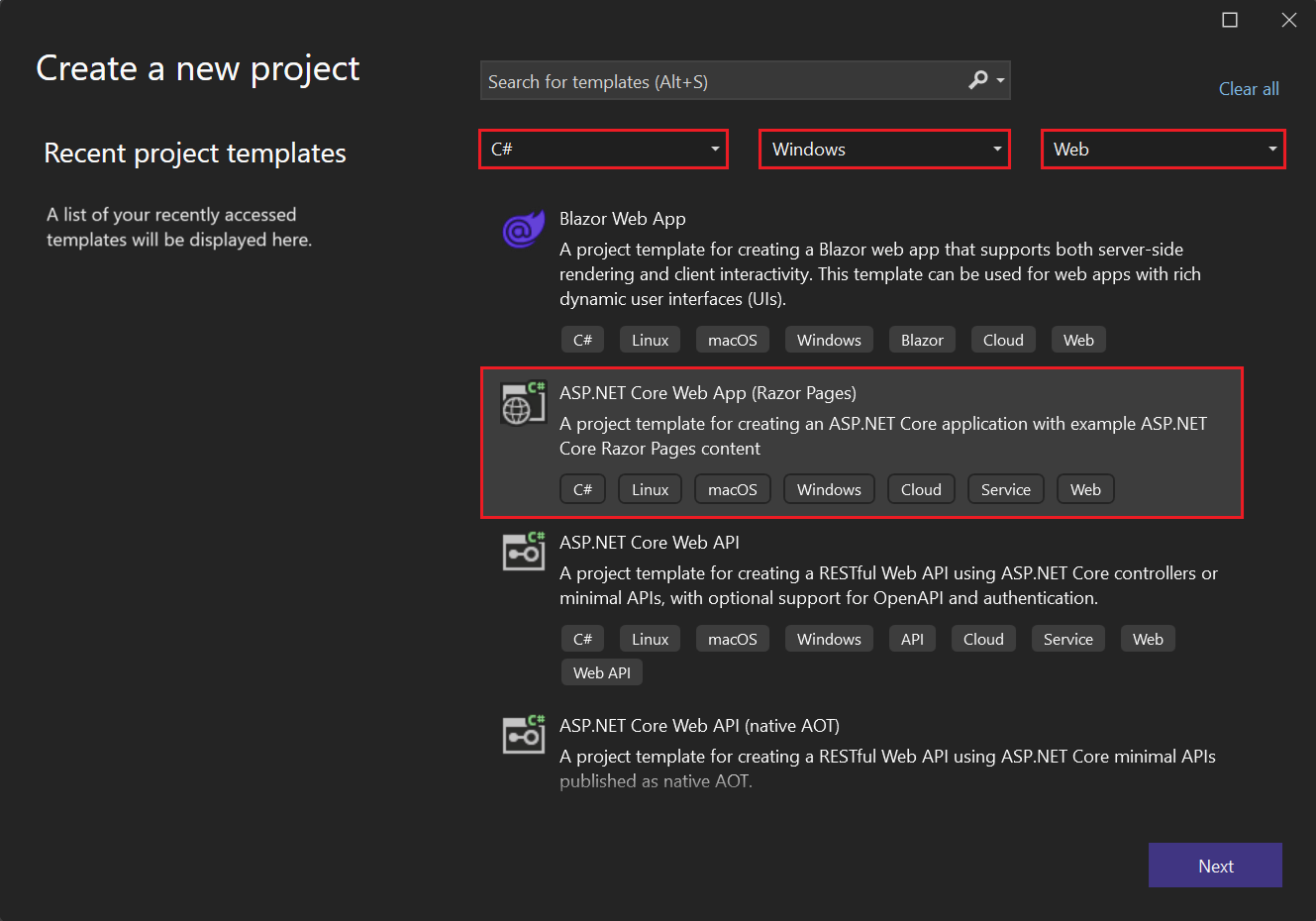
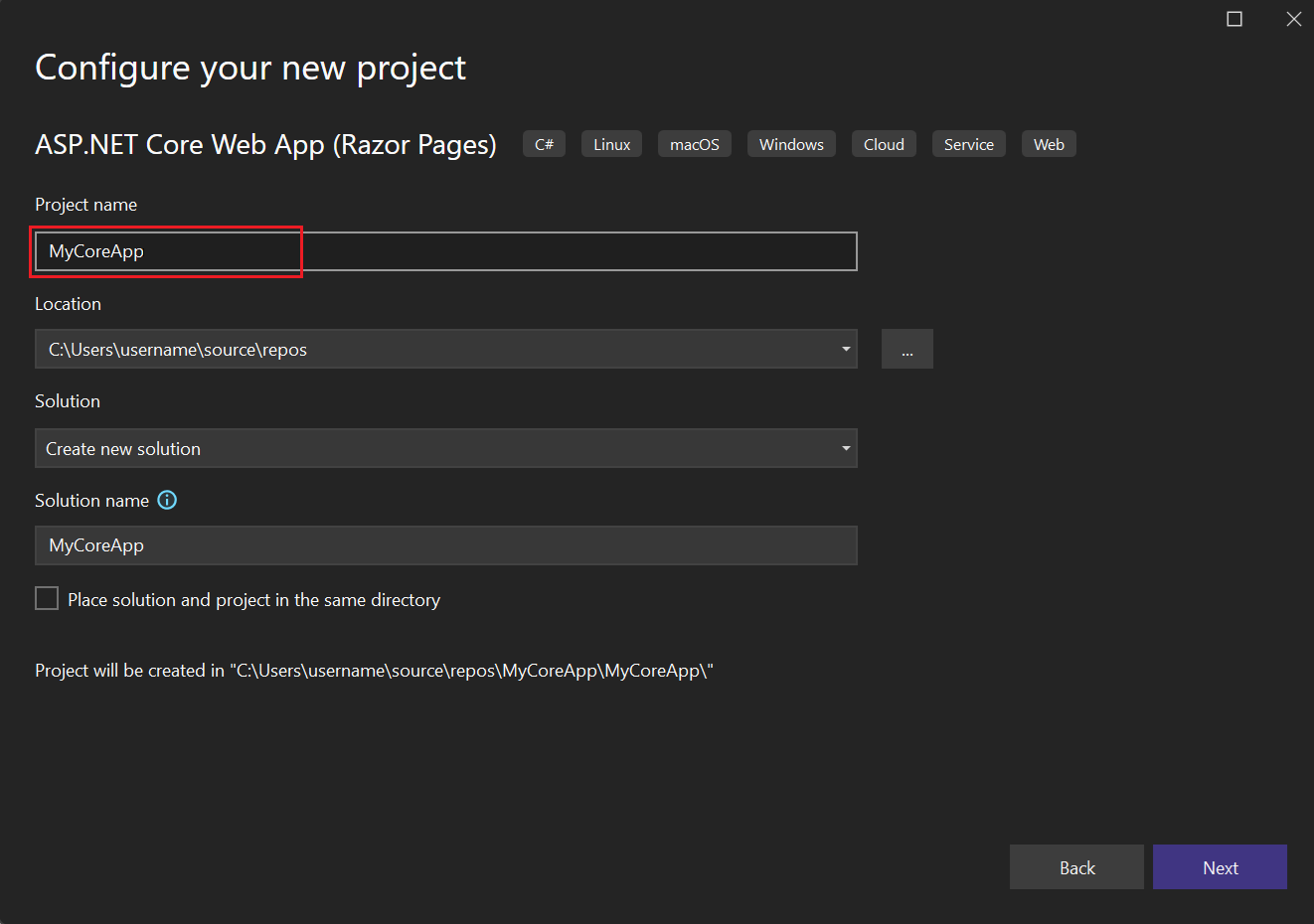
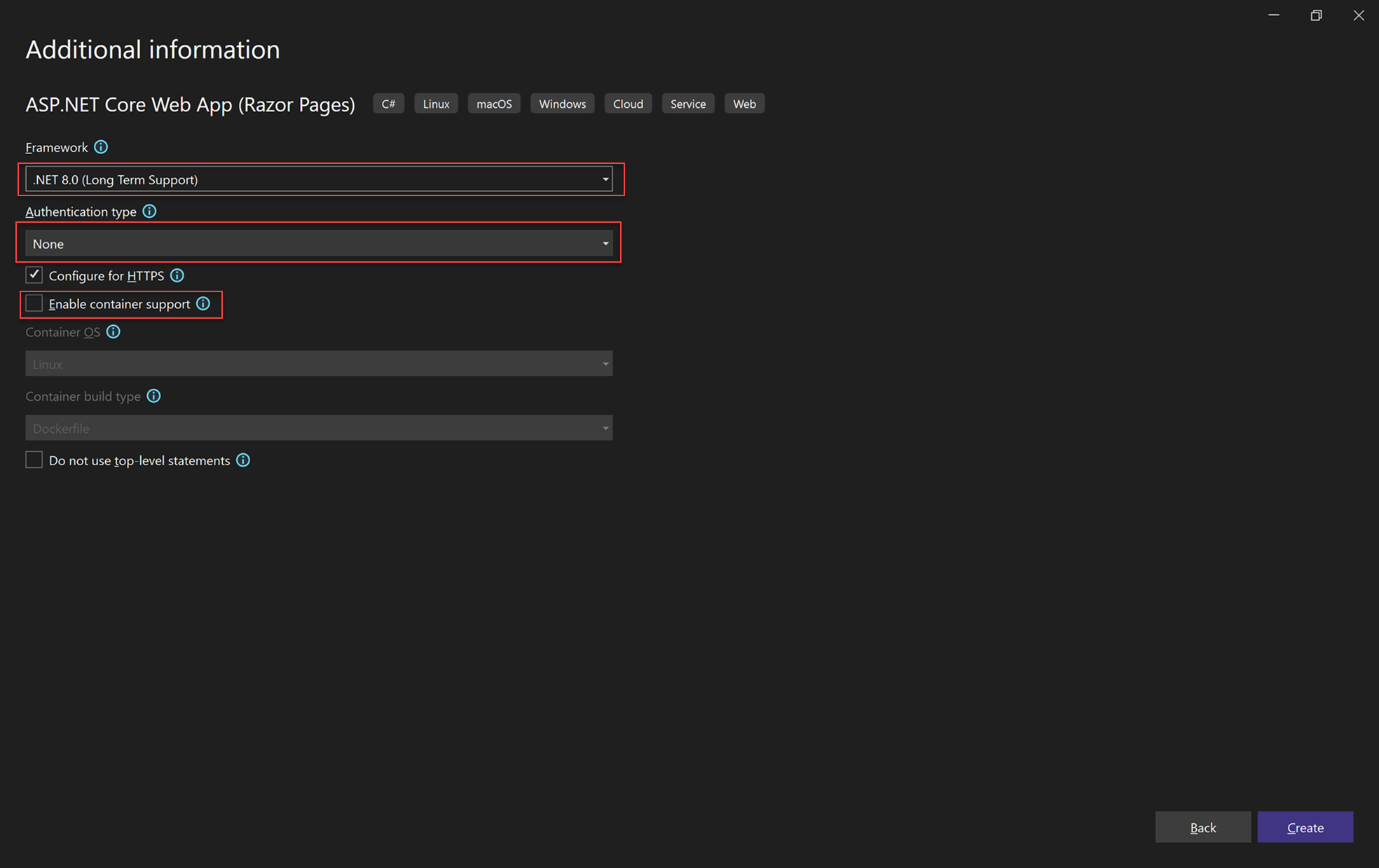
  3. Click “Create a New Project” to start coding in C#!

Step 1: Download and Install VS Code

  1. Go to the official VS Code website.
  2. Click “Download for Windows” (or choose Mac/Linux if needed).
  3. Open the downloaded file (VSCodeSetup.exe) and follow the installation steps.

Step 2: Install .NET SDK (Required for C#)

  1. Go to the official .NET SDK page.
  2. Click “Download .NET SDK” for your system.
  3. Run the installer and complete the setup.

To check if .NET is installed, open Command Prompt and type:

C:\Users\StevenClark> dotnet --version
9.0.102

If you see a version number, .NET is installed successfully.

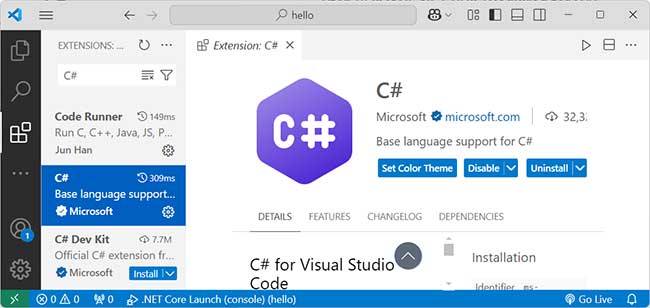
Step 3: Install C# Extension in VS Code

  1. Open Visual Studio Code.
  2. Click on the Extensions icon (or press Ctrl + Shift + X).
  3. Search for "C#".
  4. Click "Install" on the C# extension by Microsoft.

VS Code Csharp Extension

Step 4: Create a New C# Console Project

  1. Open Command Prompt (Win + R, type cmd, and press Enter).
  2. Go to the folder where you want to create the project (e.g., Documents):
    cd Documents
    
  3. Run the following command to create a new C# console app:
    dotnet new console -n MyFirstApp
    
    This will create a folder named MyFirstApp with a basic C# project.

Step 5: Open the Project in VS Code

  1. Go back to VS Code.
  2. Click File > Open Folder and select the MyFirstApp folder.
  3. Open the Program.cs file to see the default C# code.

Step 6: Run Your C# Code in VS Code

  1. Open Terminal in VS Code (Ctrl + ~).
  2. Run the following command to execute the program:
    dotnet run
  3. You should see "Hello, World!" printed in the terminal.

You have successfully installed and set up VS Code for C# development. Now, you can start writing and running C# programs!

This guide will show you how to write, compile, and run a C# program using 🗎 Notepad and Command Line (CLI) without using an IDE like Visual Studio.

Step 1: Check if .NET is Installed:

  1. Open Command Prompt (Win + R, type cmd, and press Enter).
  2. Type the following command and press Enter:
    dotnet --version
  3. If you see a version number, .NET is installed. If not, download and install it from here:
    👉 Download .NET SDK

Step 2: Create a C# File Using Notepad

  1. Open Notepad (Win + R, type notepad, and press Enter).

  2. Copy and paste the following C# code:

    using System;
    
    class Program
    {
        static void Main()
        {
            Console.WriteLine("Hello, World!");
            Console.Write("Enter your name: ");
            string name = Console.ReadLine();
            Console.WriteLine("Hello, " + name + "!");
        }
    }
    
  3. Click File > Save As...

  4. Choose a folder (e.g., C:\Users\YourName\Documents\CSharpDemo\).

  5. Set File name: Program.cs

  6. Select Save as type: All Files (*.*)

  7. Click Save.

Step 3: Open Command Prompt and Navigate to the Folder

  1. Open Command Prompt (Win + R, type cmd, and press Enter).
  2. Use the cd command to go to the folder where you saved the file:
    cd C:\Users\YourName\Documents\CSharpDemo

Step 4: Compile the C# Program Using .NET CLI

  1. Run the following command to compile the program:

    dotnet new console --force

    This sets up the necessary .NET project files.

  2. Now, compile the code:
    dotnet build

    If there are no errors, the program is successfully compiled!

Step 5: Run the C# Program

After compilation, run the program using:

dotnet run

Now, you should see this output in the terminal:

Hello, World! 
Enter your name:

Enter your name, press Enter, and it will respond with:

Hello, [YourName]!


Step 6: Running C# Code Without dotnet CLI (Optional)

If you want to run C# without dotnet run, use the csc (C# compiler) command:

  1. Compile the program using CSC (C# Compiler)

    csc Program.cs

    This creates an executable file (Program.exe).
  2. Run the Executable

    Program.exe
  3. This will execute the program without using dotnet run.

If you want to run C# code online without installing any software, online C# compilers are a great option. They allow you to write, compile, and execute C# programs quickly.

However, not all online compilers offer the same features. Some are better for debugging, while others focus on speed and ease of use.

In this comparison, we analyze four of the best online C# compilers:


MyCompiler – Fast and beginner-friendly
.NET Fiddle – Best for C# with NuGet support
OneCompiler – Simple and quick for testing
OnlineGDB – Best for debugging with user input support

Each compiler has its own strengths and weaknesses. Below is a detailed comparison, including pros, cons, and ratings to help you choose the best one for your needs!


Coding exercise

Coding Exercise - Write and Run C# program

Many beginners find it easy to understand C# concepts, but they often struggle to apply their logic in real programs.

This is completely normal!

The best way to overcome this challenge is through regular practice.

First, take your time to understand the program given below. Then, try running the C# code on your system. The more you practice, the better you will get.

So, don’t hesitate—start coding now and build your confidence step by step!

1️⃣ Print a String

Question:

Write a C# program to print "Welcome to C# Programming!".

Solution
				
					using System;

class Program
{
    static void Main()
    {
        Console.WriteLine("Welcome to C# Programming!");
    }
}
				
			
Output
				
					Welcome to C# Programming!				
			

2️⃣ Print a Boolean Value

Question:

Write a C# program to print the Boolean value true.

Solution:
				
					using System;

class Program
{
    static void Main()
    {
        Console.WriteLine(true);
    }
}
				
			
Output:
				
					True				
			

3️⃣ Print a Floating-Point Number

Question:

Write a C# program to print the floating-point number 3.14159

Solution:
				
					using System;

class Program
{
    static void Main()
    {
        Console.WriteLine(3.14159);
    }
}
				
			
Output:
				
					3.14159				
			

4️⃣ Print a Date and Time

Question:

Write a C# program to print the date January 31, 2025.

Solution:
				
					using System;

class Program
{
    static void Main()
    {
        Console.WriteLine(new DateTime(2025, 1, 31));
    }
}
				
			
Output:
				
					1/31/2025 12:00:00 AM				
			

5️⃣ Print an Arithmetic Operation Result

Question:

Write a C# program to print the result of 100 / 4.

Solution:
				
					using System;

class Program
{
    static void Main()
    {
        Console.WriteLine(100 / 4);
    }
}
				
			
Output:
				
					25				
			

Final Thoughts!

Learning C# starts with small steps. First, understand the basics. Then, practice writing and running simple programs. Each program you try makes you better. Mistakes are normal, so don’t give up. Keep practicing, explore more, and enjoy coding. The more you code, the more confident you become. So, start now and have fun with C#!

Variables and DataTypes

C# Variables and Data Types

Welcome to the Variables and Data Types chapter! Here, you’ll learn how C# stores and manages data.

After completing this chapter, you will have sound knowledge of following terms.

  • C# Code Structure – Understand how a C# program is organized.

  • Understanding Variables – Learn how to store and use data in your code.

  • Understanding Data Types – Explore different types like numbers, text, and objects.

  • Programming Examples & Codes – See real examples to practice what you learn.

By the end, you’ll be writing clean and efficient C# code with confidence! 

Let’s dive in!

Understanding Data Types

Understanding Data Types in C#: A Beginner's Guide

Think about a coffee shop, that uses different containers for different items:

  • cups for coffee
  • a basket for tea bags
  • jars for sugar.

Similarly, in C#, data types are like these containers that store different kinds of information. In C#, data types define what kind of data a variable can hold.

C# is a strongly typed language, meaning every variable must have a data type. This helps in storing, managing, and using data efficiently.

Types of Data Types in C#

In C#, data types are mainly two types:


1️⃣ Value Types

Store actual data directly. (basic types, like numbers or text)

Numeric Types:

  1. Integral Types (byte, short, int, long)
  2. Floating-Point Types (float, double)
  3. Decimal Type (decimal)

Non-Numeric Types:

  1. char (Holds single character)
  2. bool (true, false)


2️⃣ Reference Types

Store the memory address of data instead of the actual data. (like objects and arrays).

  1. String
  2. Object
  3. Dynamic

3️⃣ Other Data Types

Besides Value Types and Reference Types, there are other data types used in more advanced programming. These help you handle special tasks and make your code even more powerful.
  1. Nullable Types
  2. Enumerations (Enums) –
  3. Arrays
  4. Tuples
  5. Ref Structs
  6. Records
  7. Interfaces
  8. Delegates
  9. Events
  10. Dynamic Types

Understanding these data types helps you use memory efficiently and avoid errors in your code.

Next what !

In the next lesson, we’ll dive deeper into value type data types. You’ll learn all about them with simple programming examples.

  • First, you’ll explore integers, which are used for whole numbers.
  • Then, we’ll move on to floating-point numbers and doubles, perfect for numbers with decimals.
  • After that, we’ll cover char, which holds a single character, and bool, which is used for true or false values.

By the end of the chapter, you’ll have a solid understanding of these essential data types and how to use them in your programs!

Later in this Tutorial

You’ve learned the basics of C# value types, but there’s more to explore!

Later in this tutorial, you’ll dive into other important data types like nullable types, enums, arrays, tuples, ref structs, records, interfaces, delegates, events, and dynamic types.

These advanced types help you handle special tasks and make your code more powerful.

So, stick around—there’s a lot more to learn!

Value Type

C# Value Types Tutorial: Complete Guide for Beginners

C# value types hold data directly in memory. They are faster and work well for simple values like numbers and characters.

imagine you’re organizing a marathon race. You need to track details like:

  • Runner’s bib number (whole number) → int
  • Distance covered (decimal) → float or double
  • Time taken (decimal) → double
  • Did the runner finish? (yes/no) → bool

Since all of these are simple data types that store their actual values directly in memory, they are Value Types!

Why Are These Value Types?
  • Stored directly in memory → Fast & efficient!
    Independent copies → If you copy a value type, the original doesn’t change.
    Great for small, fixed-size data like numbers, booleans, and characters.

Your fitness tracker or smartwatch probably stores your distance, heart rate, and time using value types because they are simple and fast to process!

.explanation::after { font-family: "Roboto", sans-serif; content: "💡 Fun Fact:"; text-transform: uppercase; font-weight: 700; top: -19px; left: 1rem; padding: 0 0.5rem; font-size: 0.6rem; position: absolute; z-index: 1; color: #000; background: #fff; }

Common Data Types (Value Type)

  1. Numeric Data Types

  2. Boolean Type

  3. Character Data Type

1. Numeric Data Types

Numeric data types store numbers. There are different types of numbers, so C# provides a data type for each one. Here are the main types:

  • int: Stores whole numbers, like 1, 50, or -10.
  • long: Stores larger whole numbers, like 1000000 or 5000000000.
  • float: Stores decimal numbers, but with less precision (e.g., 3.14).
  • double: Stores decimal numbers with more precision (e.g., 3.14159).
  • decimal: Best for money or high-precision calculations (e.g., 19.99m).

An integer (int) in C# is a whole number. It can be positive, negative, or zero, like 10, -5, or 1000.

  • ✅ Stores whole numbers
    ✅ Uses int keyword
    ✅ No decimals allowed
    ✅ Example values: 1, -10, 500

Integer is useful when counting things, storing IDs, or doing simple math.

Example
				
					using System;

class Program
{
    static void Main()
    {
        int age = 25;
        Console.WriteLine("Age: " + age);
    }
}


The long data type is used to store large whole numbers (integers) that are too big for the int type. It takes 8 bytes (64 bits) of memory and can hold values from -9,223,372,036,854,775,808 to 9,223,372,036,854,775,807.

  • ✅ You need to store very large numbers.
    int is not enough (e.g., population count, financial transactions, etc.).
  • long is for very large whole numbers.
    ✅ It takes more memory than int, so use it only when needed.
    ✅ Always use L suffix for very large numbers to avoid errors.
Example
				
					using System;

class Program
{
    static void Main()
    {
        long distance = 5000000000;
        Console.WriteLine("Distance in meters: " + distance);
    }
}


A float is a number that can have a decimal point. But there’s a catch—it’s not super precise! It holds about 7 digits before it starts rounding things off.

  • Size: 4 bytes (small but powerful!)
  • Example values: 3.14, 99.99, 0.0005
  • Precision: Up to 7 digits

Imagine you’re measuring water in a glass. You might say “2.5 cups” instead of just “2 cups” because you need that little extra detail. That’s exactly what float does in C#—it helps store numbers with decimal places!

  1. Use float when you need decimals but don’t need crazy precision.
    Always add f at the end (3.14f, 5.99f) to tell C# it’s a float.
    Not good for money! It might round off cents. Use decimal instead for prices.
    Takes less memory than double, so it’s great for speed and memory-saving.

float is like a quick estimate—good for speed but not for super-precise numbers. If you’re tracking pizza slices or running speeds, it works fine. But if you’re calculating bank balances, you might want something more accurate!

Example
				
					using System;

class Program
{
    static void Main()
    {
        float pi = 3.14f;
        Console.WriteLine("Approximate value of Pi: " + pi);
    }
}


Alright, Imagine you’re a pilot flying a plane, and you need to track the speed very accurately. Airplane speed is usually measured in kilometers per hour (km/h), and small changes matter a lot!

Since double is more precise than float, it’s perfect for storing speed values.

  • Size: 8 bytes (twice as much as float)
  • Example values: 3.1415926535, 99.9999999, 0.00000012345
  • Precision: 15-16 digits (way better than float!)


A double is just like a float, but it’s more accurate. It can store decimal numbers with up to 15-16 digits without messing them up.


  • Use double when you need more precision (e.g., scientific calculations, distances, large numbers).
    No need for f at the end (unlike float). Just write the number normally!
    More memory (8 bytes), but more accurate than float.
    Not ideal for money calculations (use decimal for that).


Think of double as a better version of float. If float is like a notebook, double is like a textbook—it stores more information without errors.

				
					using System;

class Program
{
    static void Main()
    {
        double pi = 3.14159265359;
        Console.WriteLine("Precise value of Pi: " + pi);
    }
}


Think you’re at a store buying groceries. You grab some apples, milk, and bread. The total comes out to $12.99. But wait—what if the system rounds off the price and charges you $13.00 instead? That’s not fair, right?

That’s why we use the decimal data type in C#! It’s super accurate and perfect for money-related calculations.

What is decimal?

A decimal is a number with a decimal point, just like float and double, but it’s way more precise. It keeps up to 28-29 digits without messing up.

  • Size: 16 bytes (Big, but worth it!)
  • Example values: 12.99, 12345.6789, 0.0000000001
  • Precision: 28-29 digits (Better than float and double!)

Why Use decimal Instead of float or double?

  • Super accurate → No rounding issues like float or double.
    Perfect for money → Banks, stores, and accountants love it!
    Can handle large numbers → Great for big transactions.

Final Thought

If you’re dealing with money, prices, or anything that needs exact numbers, always use decimal. It saves you from rounding errors and keeps calculations fair and accurate!

				
					using System;

class Program
{
    static void Main()
    {
        decimal price = 19.99m;
        Console.WriteLine("Item Price: $" + price);
    }
}


2. Boolean Type

The bool type is used to store values that are either true or false. It’s very useful when you want to check something in your code.

✅ Stores only true or false
✅ Uses bool keyword
✅ Helps in decision-making
✅ Example values: true, false

Booleans are useful for conditions, flags, and logic in programming!

Example
				
					using System;

class Program
{
    static void Main()
    {
        bool isRaining = true;
        bool isSunny = false;

        Console.WriteLine("Is it raining? " + isRaining);
        Console.WriteLine("Is it sunny? " + isSunny);
    }
}


3. Character Data Type

The char type stores a single character, like a letter or symbol. It’s great for storing individual characters. It must be written inside single quotes (').

✅ Stores only one character
✅ Uses char keyword
✅ Always written in single quotes ('A', 'B', '1', '@')
✅ Example values: 'X', '5', '#'

The char type is useful for letters, symbols, and ASCII values in programming!

Example
				
					using System;

class Program
{
    static void Main()
    {
        char grade = 'A';
        Console.WriteLine("Your grade is: " + grade);
    }
}


Conclusion

Great job! Now you have a solid understanding of C# value types like numeric data types, bool, and char. You also got hands-on experience with examples—because, let’s be honest, coding makes more sense when you actually try it!

But wait, there’s more! Value types don’t stop here.

There are more value types in C# that we haven’t covered, like structs, enums, and nullable types. Don’t worry—we’ll get to them later in this tutorial. They’re just as important and will help you write even better C# code.

So, keep going! The best way to learn is to practice.

Reference Type

Reference Types in C# – Complete Tutorial for Beginners

Reference types in C# store memory addresses instead of actual values. They are used for complex objects and large data.

Let’s break it down super simple!

In C#, reference types don’t store actual values. Instead, they store a memory address (reference) where the real data is kept.

Think of it like saving a contact on your phone—you don’t store the actual person, just their phone number (reference) to reach them!


How is it different from value types?

  • Value types (int, double, bool) store actual values directly.
  • Reference types (string, class, array, object) store a memory reference to the actual data.


Common Reference Types in C#

  1. string → Stores text
  2. class → Custom objects (like our Person class)
  3. array → Stores multiple values
  4. object → Base type for all C# types

1. String Type Data Type

The string type stores a sequence of characters, like words or sentences.

It can hold letters, numbers, symbols, or spaces and must be written inside double quotes (" ").

✅ Stores text (multiple characters)
✅ Uses string keyword
✅ Always written in double quotes ("Hello", "123", "@C#")
✅ Example values: "John", "C# Programming", "12345"

Strings are useful for names, messages, and user input in programs!

In C#, the string data type is a reference type, even though it behaves like a value type in some cases.

				
					using System;

class Program
{
    static void Main()
    {
        string name = "Alice";
        Console.WriteLine("Hello, " + name + "!");
    }
}


A string is a sequence of characters, but it’s a reference type even though it behaves like a value type.

				
					using System;

class Program
{
    static void Main()
    {
        string name1 = "Alice";
        string name2 = name1;  // name2 gets a copy, but strings are immutable

        name1 = "Bob";  // Changing name1 does NOT change name2

        Console.WriteLine("Name1: " + name1);
        Console.WriteLine("Name2: " + name2);
    }
}
				
			
Output
				
					Name1: Bob  
Name2: Alice  				
			

Easy Example: A Printed Book

Imagine you write a book and get it printed. Once the book is printed, you cannot change the words inside it. If you need to update anything, you have to print a new version of the book instead of changing the old one.

How It Relates to Programming (Example: Strings in C#)

In C#, a string is immutable, meaning you cannot modify its content directly. Instead, if you try to change it, a new string is created.

				
					string name = "John";  
name = name + " Doe";  				
			
  1. First, "John" is stored in memory.

  2. When " Doe" is added, a new string "John Doe" is created.

  3. The old "John" string is left behind (it will be removed later by the system).

This is why strings are immutable—every change creates a new object instead of modifying the old one!

2. Class Data Type

A class is a blueprint for creating objects just like a house blueprint is used to build multiple houses.


Real world example:

1. House Blueprint

Imagine you are an architect designing houses. Before building any house, you first create a blueprint that defines:

  1. Structure: Number of rooms, windows, and doors.
  2. Features: Type of flooring, wall color, and ceiling height.
  3. Functionality: Whether it has a garage, garden, or swimming pool.

Now, this blueprint itself is not a house—it’s just a plan. But using this one blueprint, you can build many houses, each with different details like color, interior design, or furniture.

 
How This Relates to a Class
  • Blueprint (Class) → Defines the structure and properties.
  • Houses (Objects) → Different instances created from the blueprint.
  • Customization (Object Properties) → Each house can have a different color, furniture, or decorations, even though they all follow the same blueprint.
 
2. Class: Car Model
  • Blueprint: A car manufacturer designs a model like a Toyota Corolla.
  • Objects: Different cars built from this model, each with a unique color, owner, or accessories.
 
3. Class: Human
  • Blueprint: Every human has common attributes (eyes, hands, legs) and behaviors (walking, talking, eating).
  • Objects: You, your friends, and your family—all unique instances of the same “human” class.
Programming example
				
					using System;

class House  // Class (Blueprint)
{
    public string Color;
    public int Rooms;
    public int Floors;

    // Method to display house details
    public void ShowDetails()
    {
        Console.WriteLine($"Color: {Color}, Rooms: {Rooms}, Floors: {Floors}");
    }
}

class Program
{
    static void Main()
    {
        // Creating house1 with specific values
        House house1 = new House();
        house1.Color = "Red";
        house1.Rooms = 3;
        house1.Floors = 2;

        // Creating house2 with different values
        House house2 = new House();
        house2.Color = "Blue";
        house2.Rooms = 4;
        house2.Floors = 3;

        // Creating house3 with another set of values
        House house3 = new House();
        house3.Color = "Green";
        house3.Rooms = 5;
        house3.Floors = 1;

        // Displaying details of each house
        Console.WriteLine("House 1 Details:");
        house1.ShowDetails();

        Console.WriteLine("\nHouse 2 Details:");
        house2.ShowDetails();

        Console.WriteLine("\nHouse 3 Details:");
        house3.ShowDetails();
    }
}
				
			
Output
				
					House 1 Details:
Color: Red, Rooms: 3, Floors: 2

House 2 Details:
Color: Blue, Rooms: 4, Floors: 3

House 3 Details:
Color: Green, Rooms: 5, Floors: 1				
			

3. Arrays: A Fun Way to Store Multiple Things!

Imagine you have a box of chocolates 🍫. Instead of holding just one chocolate, this box can store many chocolates in different spots. This is exactly what an array does in programming—it holds multiple values in one place!

How Arrays Work in C#

An array is like a container where you can store multiple items of the same type (like numbers, words, or objects).


Key Point

✅ Arrays store multiple values in a single variable.
✅ They don’t hold values directly but store a reference (memory address).
✅ Changing one reference affects all references pointing to the same array.

Example:
A box of markers 🎨 where each slot holds a different colored marker.

				
					string[] markers = { "Red", "Blue", "Green", "Black" };


Now, markers[0] is “Red”, markers[1] is “Blue”, and so on.


Arrays Are Reference Types! What Does That Mean?

Okay, here’s where it gets interesting!

Think of an array like a TV remote 📺:

  • The remote doesn’t store the actual TV—it just points to it.
  • Similarly, an array variable doesn’t store actual values—it stores the address of where the values are in memory.

Example: If you give your friend a copy of your TV remote, they can change the channel, and you’ll see the change too!


Proof That Arrays Are Reference Types

Let’s try this in C#:

				
					using System;

class Program
{
    static void Main()
    {
        // Create an array
        int[] numbers1 = { 10, 20, 30 };

        // Assign numbers1 to numbers2 (both now point to the same memory location)
        int[] numbers2 = numbers1;

        // Change a value using numbers2
        numbers2[0] = 99;

        // Print values from both arrays
        Console.WriteLine($"numbers1[0]: {numbers1[0]}"); // 99
        Console.WriteLine($"numbers2[0]: {numbers2[0]}"); // 99
    }
}
				
			
Output
				
					numbers1[0]: 99  
numbers2[0]: 99  				
			

Explanation:

  1. numbers1 is an array {10, 20, 30} stored in memory.
  2. numbers2 = numbers1; → Instead of creating a new array, numbers2 points to the same memory location as numbers1.
  3. Changing numbers2[0] = 99; modifies the same array in memory.
  4. Since both variables refer to the same array, printing numbers1[0] also shows 99.

This confirms that arrays in C# are reference types!

4. Object Data Type – The Ultimate Storage Box!

Alright, let’s make this super simple! Ever had a mystery storage box 🏠📦 where you could put anything inside—toys, books, clothes? Well, in C#, the object data type is just like that! It can store anything—a number, text, even complex things like a car or a house! 🚗🏡


So, What Is an object in C#?

  • object is the parent of all data types in C#.
  • It can hold anything—integers, floats, strings, arrays, even your own custom classes.
  • But (big BUT! 😆), it stores data in the heap and works with references instead of direct values.

👜 Real-World Example: A Lost & Found Box!

Imagine a Lost & Found box 📦 at your school, office, or airport. People lose things like keys, wallets, and sunglasses, and instead of keeping them in their pockets, they drop them in the Lost & Found box.

Now, when someone comes looking for their lost item, they don’t get the item directly—instead, they get a claim ticket 🎟️ that points to where their item is inside the box.


How Is This Like an object in C#?

✅ The Lost & Found box = Heap memory (where objects are stored)
✅ The claim ticket 🎟️ = Reference (memory address)
✅ The lost items = Actual data (object values)

So, when you take a claim ticket, you’re not holding the actual lost item, but you know where it is. That’s exactly how an object reference works in C#! It doesn’t hold the actual data, just the address of where the data is stored.

That’s exactly how object works! It doesn’t store the actual value but a reference (memory address) to the value.

Proof That object is a Reference Type!

				
					using System;

class Program
{
    static void Main()
    {
        // Create an object and store a value
        object obj1 = 50;

        // Assign obj1 to obj2 (both point to the same memory location)
        object obj2 = obj1;

        // Change obj2's value
        obj2 = 100;

        // Print values
        Console.WriteLine($"obj1: {obj1}"); // 50
        Console.WriteLine($"obj2: {obj2}"); // 100
    }
}
				
			
Output
				
					obj1: 50
obj2: 100				
			

Wait… what? They didn’t change together? 😲
Well, that’s because integers are value types. But if we use a class (which is stored in the heap), the change will reflect. Let’s try!

 
🎭 Example with a Custom Class (Now It’s Clearly Reference Type!)
				
					using System;

class Box
{
    public int Size;
}

class Program
{
    static void Main()
    {
        // Create an object of Box class
        object obj1 = new Box();
        ((Box)obj1).Size = 10; // Casting object to Box

        // Assign obj1 to obj2 (both point to the same memory)
        object obj2 = obj1;

        // Change obj2's value
        ((Box)obj2).Size = 20;

        // Print values
        Console.WriteLine($"obj1 size: {((Box)obj1).Size}"); // 20
        Console.WriteLine($"obj2 size: {((Box)obj2).Size}"); // 20
    }
}
				
			
Output
				
					obj1 size: 20
obj2 size: 20				
			

Boom! 💥 Now you see it! Changing obj2.Size also changed obj1.Size because both variables were pointing to the same object in memory!


Key points

object is a reference type, meaning it stores a reference (memory address) instead of direct values.
✅ It can hold any data type, making it super flexible! 🎉
✅ If an object stores a value type, it creates a copy (like in the first example).
✅ If it stores a reference type (like a class), all variables point to the same memory location.


Final Thought!

Think of an object like Google Drive! ☁️ You don’t store the actual files on your laptop—you just access the reference (link) to them! And when you update a file, everyone sees the change instantly!

Conclusion

Now, you totally get reference type data types like string, class, array, and object! They don’t hold actual values, just memory addresses (references). So, when you change one, boom 💥—it affects all references pointing to it!

Remember, strings are special (immutable!), arrays are shared (be careful!), classes are blueprints, and objects? Well, they’re the ultimate storage box! 📦

But hey, we’re not done yet! There are more cool reference types waiting for you—like Delegate, Interface, and Dynamic! You’ll learn about them soon, and trust me, they’re just as exciting! 😃

So, keep going, keep exploring, and happy coding! 💻

Understand C# Code

C# Coding Structure: Learn Basic Program Syntax

So, you want to learn C#?

Great choice! C# is a powerful and beginner-friendly programming language. But before you build cool apps, you need to understand the basics.

Let’s start with a simple C# program. Don’t worry—I’ll explain everything step by step in a super simple way. By the end, you’ll know how a basic C# program works and even run your own code.

Excited? Let’s go!

1. Understanding Structure of Basic C# Code

Let’s start with a simple C# program. Don’t worry if you’re new—I’ll break everything down so it all makes sense!

Basic C# Program

				
					using System;  

class Program  
{  
    static void Main()  
    {  
        Console.WriteLine("Hello, C#!");  
    }  
}


Now, let’s go step by step and understand what’s happening here.

Breaking Down the Code

1️⃣using System;

This line tells C# that we want to use the System namespace. Think of a namespace as a collection of useful tools. In this case, System gives us access to basic functions like printing to the console.

2️⃣class Program

A class is like a blueprint. Everything in C# lives inside a class. Here, we’ve created a class named Program. You can name it anything, but “Program” is a common choice for simple examples.

3️⃣static void Main()

This is the Main method, and it’s the entry point of every C# program. When you run your code, this method executes first.

  • static means this method belongs to the class itself, not an object of the class.
  • void means it doesn’t return anything.
  • Main() is the name of the method, and every C# program must have it.

4️⃣Console.WriteLine("Hello, C#!");

This line prints text to the console.

  • Console is a built-in class that helps us interact with the console window.
  • WriteLine() prints a message and moves to the next line.
  • "Hello, C#!" is the message we want to print. You can change it to anything you like!

How It Runs

  1. The C# compiler reads the code.
  2. It starts execution from Main().
  3. It finds Console.WriteLine() and prints “Hello, C#!”.
  4. The program ends.

Try It Yourself!

Now it’s your turn! Open Visual Studio, Visual Studio Code, or an online C# compiler, type the code, and run it. You’ll see "Hello, C#!" printed on the screen.

2. Taking User Input in C#: A Simple Guide

Now that you know how a basic C# program works, let’s make it more interactive! We’ll write a simple C# program that takes user input, performs an operation, and displays the result.

Don’t worry—I’ll explain everything step by step! Let’s get started.

Basic C# Program with User Input

				
					using System;  

class Program  
{  
    static void Main()  
    {  
        // Asking for user input
        Console.Write("Enter your name: ");  
        string name = Console.ReadLine();  

        Console.Write("Enter your age: ");  
        int age = Convert.ToInt32(Console.ReadLine());  

        // Performing a simple operation
        int nextYearAge = age + 1;  

        // Displaying output
        Console.WriteLine($"Hello, {name}! Next year, you will be {nextYearAge} years old.");  
    }  
}


Breaking Down the Code

1️⃣using System;

This allows us to use built-in C# tools like Console.WriteLine() and Console.ReadLine().

2️⃣class Program

Everything in C# is inside a class. Here, we named it Program.

3️⃣static void Main()

The Main() method is where the program starts running. Every C# program must have this.

4️⃣ Taking User Input

  • Console.Write("Enter your name: "); → Prints a message asking for input.
  • string name = Console.ReadLine(); → Reads the user’s input and stores it in a variable called name.
  • Console.Write("Enter your age: "); → Asks for age input.
  • int age = Convert.ToInt32(Console.ReadLine()); → Reads the input, converts it to an integer, and stores it in age.

💡 Why Convert?

Everything from Console.ReadLine() is read as a string. Since we need a number for age, we convert it using Convert.ToInt32().

5️⃣ Performing a Simple Operation

  • int nextYearAge = age + 1; → Adds 1 to the user’s age.

6️⃣ Displaying the Output

  • Console.WriteLine($"Hello, {name}! Next year, you will be {nextYearAge} years old.");
    • The $"" is used for string interpolation, making it easy to insert variables inside a string.

How It Works

  1. The program asks for your name and age.
  2. It reads and stores the input.
  3. It adds 1 to your age.
  4. It prints a message showing your name and how old you’ll be next year.
Output
				
					Enter your name: Steven
Enter your age: 25  
Hello, Steven! Next year, you will be 26 years old.  


How It Works Step by Step:

  1. The program asks for your name → You type “Steven” and press Enter.
  2. It asks for your age → You type “25” and press Enter.
  3. The program adds 1 to your age → 25 + 1 = 26.
  4. It prints “Hello, Steven! Next year, you will be 26 years old.”

Try running it yourself with different names and ages!

Try It Yourself!

Copy and paste the code into Visual Studio, Visual Studio Code, or an online C# compiler. Run it, enter your name and age, and see the magic happen!

Final Thought !

And that’s it! You just wrote and understood your first C# program. 🎉 Now, you know how C# programs are structured, how they run, and what each part does.

This is just the beginning! As you keep learning, you’ll discover more exciting features like taking user input, working with data, and even building applications. So, keep practicing, experiment with code, and have fun! Happy coding!

Understanding Variables

Understanding Variables in C# with Examples

Imagine you have a box where you store different things—like books, clothes, or toys. Each box has a label so you know what’s inside.

In C#, variables work the same way! They are like labeled containers that store values, such as numbers, text, or true/false values.

For example, if you want to store a person’s age in a program, you can create a variable like this:

				
					int age = 25;				
			

Here, int means it’s a number (integer), age is the variable name, and 25 is the stored value.

Sounds simple? Let’s dig deeper!

What is a Variable?

A variable is a placeholder in memory where you store data. The data inside a variable can change as the program runs, just like you can replace things inside a box.

Real-Life Example

Let’s say you are running a coffee shop. You need to track how many cups of coffee you sell each day. Instead of writing the number on paper, you can use a variable in C#:

				
					int coffeeSold = 50;  
Console.WriteLine("Cups of coffee sold today: " + coffeeSold);


If more cups are sold, you update the variable:

				
					coffeeSold = coffeeSold + 10;  
Console.WriteLine("Updated coffee sales: " + coffeeSold);				
			

Now, the variable holds 60 instead of 50!

Declaring and Using Variables in C#

To create a variable, you follow this pattern:

				
					dataType variableName = value;				
			

Here’s a breakdown:

  • dataType → What kind of value will be stored (e.g., number, text, true/false).
  • variableName → A name for the variable (must be unique).
  • value → The actual data stored in the variable.

Let’s see some examples:

1. Storing Numbers

				
					int apples = 10;  
double price = 5.99;  				
			
  • int is for whole numbers (e.g., 10, 20, -5).
  • double is for decimal numbers (e.g., 5.99, 3.14).

2. Storing Text

				
					string name = "Steven";  
Console.WriteLine("Hello, " + name);				
			
  • string holds text (words, sentences, names).
  • The + operator joins text together.

3. Storing True/False Values

				
					bool isRaining = false;  
bool isWeekend = true;  				
			

bool (Boolean) holds true or false values.

Changing Variable Values

Variables can change during the program. For example:

				
					int score = 0;  
Console.WriteLine("Score: " + score);  

score = score + 10; // Updating the variable  
Console.WriteLine("New Score: " + score);				
			

Output:

				
					Score: 0  
New Score: 10  				
			

Getting User Input in a Variable

Let’s make it interactive! You can ask the user for input and store it in a variable:

				
					Console.Write("Enter your name: ");  
string userName = Console.ReadLine();  

Console.WriteLine("Welcome, " + userName + "!");				
			

Output

				
					Enter your name: Steven  
Welcome, Steven!  				
			

This is useful when you want the program to work with different users.

Conclusion

Variables are like labeled boxes in C#. They store values, and you can change them anytime. You can use them for numbers, text, or true/false values. Plus, you can even take user input and store it in variables!

As you write more programs, you’ll see how powerful variables are. Keep practicing and experiment with different types. Happy coding!

Type Conversion

Type Conversion in C# with Examples

What is Type Conversion?

Imagine you have a small backpack and a big suitcase. It’s easy to put things from the small backpack into the big suitcase because there’s plenty of room. But if you try to put everything from the big suitcase into the small backpack, it won’t fit unless you take some things out.

In the same way, type conversion in C# is when you change one data type into another.

Sometimes, the change happens automatically (like putting small things in the big suitcase). Other times, you need to help it happen (like carefully packing a small backpack).

Let’s explore this step by step!


Two Types of Type Conversion

1️⃣ Implicit Conversion (Automatic Conversion)
2️⃣ Explicit Conversion (Manual Conversion or Casting)


1️⃣ Implicit Conversion (Automatic)

C# automatically converts smaller data types into larger ones because there’s no risk of data loss.


Real-Life Example

Imagine transferring items from small backpacks to a suitcase. It fits easily, so no problem!

Code Example:
				
					using System;

class Program
{
    static void Main()
    {
        // Declare an integer variable
        int num = 100;

        // Implicit conversion: int to double
        double bigNum = num; // Automatic conversion

        // Display the result
        Console.WriteLine("Integer value: " + num);
        Console.WriteLine("Converted double value: " + bigNum);
    }
}


Output

				
					Integer value: 100
Converted double value: 100				
			

Explanation:

Implicit Conversion happens automatically because a double can hold larger values, including whole numbers, without any issues.
✅ You don’t need to do anything extra—C# does it all for you!

Common Implicit Conversions:

  1. int → long
  2. int → float
  3. int → double
  4. char → int

2️⃣ Explicit Conversion (Manual Casting)

When converting a larger type into a smaller one, C# doesn’t do it automatically. You need to force the conversion.

Real-Life Example

Imagine trying to fit all your clothes from a big suitcase into a tiny backpack. You have to be careful, or it just won’t fit!

Code Example:

				
					using System;

class Program
{
    static void Main()
    {
        // Declare a double variable with a decimal value
        double price = 9.99;

        // Manual conversion from double to int (casting)
        int roundedPrice = (int)price; // Removes the decimal part

        // Display the result
        Console.WriteLine("Original price: " + price);
        Console.WriteLine("Rounded price: " + roundedPrice);
    }
}


Output

				
					Original price: 9.99
Rounded price: 9				
			

Explanation:

Manual Casting: The (int) before the variable price tells C# to change the double value into an int. Since int can’t hold decimal numbers, it just removes the .99 part and gives you 9.

Common Explicit Conversions:

From To Method
double → int
(int) value
float → int
(int) value
long → int
(int) value

Using Convert Class for Safe Conversion

C# provides the Convert class to handle conversions safely.

Example:

				
					using System;

class Program
{
    static void Main()
    {
        // Declare a string variable with a numeric value
        string numberText = "50";

        // Convert the string to an integer using Convert.ToInt32()
        int number = Convert.ToInt32(numberText);

        // Add 10 to the converted number and display the result
        Console.WriteLine("Original number + 10 = " + (number + 10));
    }
}


Output

				
					Original number + 10 = 60				
			

Explanation:

  • Convert.ToInt32(): This method safely converts the string "50" into an integer (int).
  • After conversion, the program adds 10 to the number (50 + 10) and displays 60.

Common Conversions Using Convert Class:

Method Converts To
Convert.ToInt32(value)
int
Convert.ToDouble(value)
double
Convert.ToString(value)
string
Convert.ToBoolean(value)
bool

Using Parse() and TryParse() for Strings

If you have numbers as text, Parse() or TryParse() helps convert them.

Example with Parse() (Throws Error if Conversion Fails)

				
					using System;

class Program
{
    static void Main()
    {
        // Declare a string variable with a numeric value
        string numberText = "123";

        // Convert the string to an integer using int.Parse()
        int number = int.Parse(numberText);

        // Add 5 to the converted number and display the result
        Console.WriteLine("Converted number + 5 = " + (number + 5));
    }
}				
			

Output

				
					Converted number + 5 = 128				
			

Explanation:

  • int.Parse(): This method converts the string "123" into an integer (int).
  • After conversion, the program adds 5 to the number (123 + 5) and displays 128.

Note: If the string contains a non-numeric value (e.g., "abc"), int.Parse() will throw an exception, causing the program to crash. So be careful with its use.

Example with TryParse() (Safer Conversion)

				
					using System;

class Program
{
    static void Main()
    {
        // Declare a string variable with a numeric value
        string numberText = "123";

        // Try to convert the string to an integer using TryParse()
        bool success = int.TryParse(numberText, out int number);

        // Check if conversion was successful
        if (success)
        {
            Console.WriteLine("Converted number: " + number);
        }
        else
        {
            Console.WriteLine("Invalid number!");
        }
    }
}				
			

Output

				
					Converted number: 123				
			

Explanation:

  • int.TryParse(): This method attempts to convert a string ("123") to an integer. It returns true if successful and false if it fails.
  • If the conversion is successful, it displays the converted number.
  • If the conversion fails (e.g., the string is "abc"), it handles the failure gracefully without throwing an exception.

This approach helps avoid runtime errors when the input is not a valid number.

Conclusion

Type conversion in C# is like moving things between different-sized backpacks. Some things fit easily (automatic conversion), while others need careful packing (manual conversion).

🔹 Use implicit conversion when the backpack is big enough to fit everything.
🔹 Use explicit conversion when you need to squeeze things into a smaller backpack, but be careful not to lose anything!
🔹 Use Convert, Parse, or TryParse when you’re unsure if everything will fit—this ensures safe packing.

Keep practicing with different types of data and conversions—it’s like finding the perfect backpack for your stuff! Happy coding!

Programming Examples

C# Programming Examples Of Variables And Data Types

Hey there! Today, we’re going to play around with variables and data types in C#. Think of variables as little storage boxes where you keep different kinds of data—numbers, text, or even true/false values. And data types? Well, they tell C# what kind of data can go into those boxes.

We’ll keep things super simple with easy-to-follow examples. You’ll see how to declare variables, store values, and even convert between different types.

No boring theory

Just code, Quick explanations, and Fun!

Value Type Example

1. Declare and Print a Variable

Question:

Write a C# program to declare a variable name of type string and assign your name to it. Print the value.

Hint:
  • Use string to store text.
  • Use Console.WriteLine() to print.
Solution:
				
					using System;

class Program
{
    static void Main()
    {
        string name = "Steven";
        Console.WriteLine("My name is " + name);
    }
}


Output

				
					My name is Steven				
			

Explanation:

  • Declared a string variable name and stored "Steven".
  • Used Console.WriteLine() to print it.

2. Add Two Integers

Question:

Write a program to declare two integers and print their sum.

Hint:

  • Use int for whole numbers.
  • Use + for addition.

Solution:

				
					using System;

class Program
{
    static void Main()
    {
        int num1 = 10;
        int num2 = 20;
        int sum = num1 + num2;

        Console.WriteLine("Sum: " + sum);
    }
}


Output

				
					Sum: 30				
			

Explanation:

  • Declared two int variables and assigned values.
  • Added them and stored in sum.
  • Printed the result.

3. Boolean Variable Example

Question:

Declare a bool variable and print its value.

Hint:

  • Use true or false.

Solution:

				
					using System;

class Program
{
    static void Main()
    {
        bool isStudent = true;
        Console.WriteLine("Am I a student? " + isStudent);
    }
}


Output

				
					Am I a student? True				
			

Explanation:

  • Declared bool and assigned true.

4. Convert int to double

Question:

Declare an int, convert it to double, and print both.

Hint:

  • Use (double) to convert an int to double.

Solution:

				
					using System;

class Program
{
    static void Main()
    {
        int number = 5;
        double converted = (double)number;

        Console.WriteLine("Integer: " + number);
        Console.WriteLine("Double: " + converted);
    }
}


Output

				
					Integer: 5
Double: 5				
			

Explanation:

  • Declared an int variable.
  • Used (double) to convert it.
  • Printed both values.

5. Convert string to int

Question:

Take a number as a string, convert it to an integer, and print.

Hint:

  • Use int.Parse() to convert.

Solution:

				
					using System;

class Program
{
    static void Main()
    {
        string strNumber = "100";
        int number = int.Parse(strNumber);

        Console.WriteLine("Converted Number: " + number);
    }
}				
			

Output

				
					Converted Number: 100				
			

Explanation:

  • Stored "100" as string.
  • Used int.Parse() to convert it.
  • Printed the converted value.

6. Explicit Type Conversion (double to int)

Question:

Convert a double to an int and print both.

Hint:

  • Use (int) for explicit conversion.

Solution:

				
					using System;

class Program
{
    static void Main()
    {
        double num = 9.8;
        int intNum = (int)num;

        Console.WriteLine("Double: " + num);
        Console.WriteLine("Integer: " + intNum);
    }
}				
			

Output

				
					Double: 9.8
Integer: 9				
			

(Note: The fractional part .8 is truncated during explicit type casting from double to int.)

Explanation:

  • Stored "100" as string.
  • Used int.Parse() to convert it.
  • Printed the converted value.

Reference Data Type Example

7. String Example (Reference Behavior)

Question:

Write a program to declare two string variables. Assign one to another and modify one of them. Observe what happens when you print both.

Hint:

  • Strings are immutable (they don’t change in memory).
  • Modifying one won’t affect the other.

Solution:

				
					using System;

class Program
{
    static void Main()
    {
        string firstName = "John";
        string secondName = firstName; // Copy reference

        secondName = "David"; // Modify secondName

        Console.WriteLine("First Name: " + firstName);
        Console.WriteLine("Second Name: " + secondName);
    }
}


Explanation:

  • Assigned "John" to firstName.
  • Assigned firstName to secondName.
  • Changed secondName to "David", but firstName remains "John".
  • This proves that string variables don’t share memory locations (immutable behavior).

Output

				
					First Name: John
Second Name: David				
			

Explanation:

  • Even though we assigned firstName to secondName, strings are immutable.
  • Changing secondName to "David" does not affect firstName.

8. Class Example (Reference Sharing Behavior)

Question:

Create a Person class with a name field. Assign one object to another and modify one. Observe how both change.

Hint:

  • Classes are reference types.
  • Changing one object affects the other.

Solution:

				
					using System;

class Person
{
    public string name;
}

class Program
{
    static void Main()
    {
        Person person1 = new Person();
        person1.name = "Alice";

        Person person2 = person1; // Both refer to the same memory

        person2.name = "Bob"; // Modify person2

        Console.WriteLine("Person1 Name: " + person1.name);
        Console.WriteLine("Person2 Name: " + person2.name);
    }
}


Explanation:

  • Created a Person class with a name field.
  • person1 is assigned to person2 (both now refer to the same object).
  • Changing person2.name also affects person1.name.
  • This proves objects share the same memory when assigned.

Output

				
					Person1 Name: Bob
Person2 Name: Bob


Explanation:

  • person1 and person2 refer to the same object in memory.
  • Changing person2.name = "Bob" also changes person1.name because both point to the same instance.

9.Array Example (Reference Type Behavior)

Question:

Create an integer array. Assign one array to another and modify one of the elements. Observe how both arrays are affected.

Hint:

  • Arrays are reference types.
  • Changing one affects the other.

Solution:

				
					using System;

class Program
{
    static void Main()
    {
        int[] numbers1 = { 1, 2, 3 };
        int[] numbers2 = numbers1; // Both refer to the same memory

        numbers2[0] = 99; // Modify numbers2

        Console.WriteLine("numbers1[0]: " + numbers1[0]);
        Console.WriteLine("numbers2[0]: " + numbers2[0]);
    }
}				
			

Explanation:

  • Declared an integer array numbers1.
  • Assigned numbers1 to numbers2, making them share the same reference.
  • Modified numbers2[0] = 99, which also affected numbers1[0].
  • This proves arrays work as reference types.

Output

				
					numbers1[0]: 99
numbers2[0]: 99


Explanation:

  • Arrays are reference types, so both numbers1 and numbers2 point to the same array in memory.
  • Changing numbers2[0] = 99 also affects numbers1[0].

10. Object Example (Reference Behavior in Action)

Question:

Create a Car class with a model field. Create an object, assign it to another, and modify one. Observe how both objects change.

Hint:

  • Objects are reference types.
  • Modifying one affects the other.

Solution:

				
					using System;

class Car
{
    public string model;
}

class Program
{
    static void Main()
    {
        Car car1 = new Car();
        car1.model = "Tesla";

        Car car2 = car1; // Both refer to the same memory

        car2.model = "Ford"; // Modify car2

        Console.WriteLine("Car1 Model: " + car1.model);
        Console.WriteLine("Car2 Model: " + car2.model);
    }
}


Explanation:

Explanation:

  • Created a Car class with a model field.
  • Assigned car1 to car2, making them share the same memory reference.
  • Modified car2.model, which also changed car1.model.
  • This confirms objects are reference types.

Output

				
					Car1 Model: Ford
Car2 Model: Ford				
			

Explanation:

  • car1 and car2 share the same memory reference.
  • Modifying car2.model = "Ford" also changes car1.model.

Conclusion

Great job! 🎉 You just explored value types and reference types in C# with real examples. Now, you understand how variables, data types, and type conversion work—and how reference types behave differently from value types.

Here’s a quick recap:

Value types (int, double, bool) store data directly.
Reference types (string, class, array, object) store a memory reference instead of actual data.
Strings are immutable, so modifying one doesn’t affect its copy.
Classes, arrays, and objects share references, so changing one affects all.

The best way to master this? Experiment! Try modifying values, changing references, and observing the results. Keep coding, keep learning, and soon, you’ll be writing powerful C# programs like a pro! 💻

Programming Exercises

C# Practice Exercises: Variables, Data Types & Type Conversion

Hey there! 👋 Ready to practice some C# basics? Today, we’re going to play around with variables, data types, and type conversion. These exercises are super simple, but they’ll help you understand how data works in C#.

Don’t worry if you’re new to coding. Just take your time and try solving each problem step by step. If you get stuck, go back to the hints. And most importantly, have fun while coding! 🚀

Let’s get started! 💻😃

1. Store and Print Your Age

Description:

Write a program to store your age in a variable and print it.

Hints:

  • Use an int to store whole numbers.
  • Use Console.WriteLine() to print.

2. Swap Two Numbers

Description:

Write a program that takes two numbers, swaps their values, and prints them.

Hints:

  • Use a temporary variable to swap values.
  • Use int for whole numbers.

3. Multiply Two Floating-Point Numbers

Description:

Write a program to take two decimal numbers (like 3.5 and 2.2), multiply them, and print the result.

Hints:

  • Use double for decimal numbers.
  • Use * for multiplication.

4. Convert Integer to String

Description:

Take an integer and convert it into a string, then print it.

Hints:

  • Use ToString() or Convert.ToString().
  • Make sure to store the result in a string variable.

5. Get First Character of a String

Description:

Write a program that takes a string and prints its first character.

Hints:

  • Strings are like an array of characters.
  • Use stringVariable[0] to get the first letter.

6. Find the Length of a String

Description:

Write a program that takes a string and prints the total number of characters in it.

Hints:

  • Use stringVariable.Length to get the length.

7. Convert a Double to an Integer

Description:

Write a program that takes a decimal number, converts it to an integer, and prints both.

Hints:

  • Use (int) for explicit conversion.
  • Use Math.Round() if you want proper rounding.

8. Create and Print an Array

Description:

Create an array of 3 fruits and print each one on a new line.

Hints:

  • Use string[] to create an array of words.
  • Use Console.WriteLine() inside a loop to print each item.

9. Compare Two Numbers

Description:

Write a program that takes two numbers and checks which one is larger.

Hints:

  • Use if-else to compare the numbers.
  • Use > and < operators for comparison.

10. Create a Simple Class and Object

Description:

Create a Person class with a name variable. Then, create an object of the class and assign a name to it. Finally, print the name.

Hints:

  • Use the class keyword to define a class.
  • Use new to create an object.
  • Access the variable using objectName.variableName.

Final Tip:

Try solving each one without looking up the answer right away. If you get stuck, think logically and break the problem into smaller steps. Keep practicing, and you’ll get better at C#! 💪🔥

Conclusion

And that’s it! 🎉 You just practiced some important C# concepts like storing values, converting data types, and working with classes and arrays.

By now, you should feel more comfortable with declaring variables, using different data types, and even handling conversions. If you found some exercises tricky, don’t worry! The best way to get better is to keep practicing and experiment with your own code.

Keep coding, stay curious, and don’t be afraid to make mistakes! That’s how we all learn. 💪🔥

Basic Operators

Learn basic C# operators with examples

Hey there! 👋 So, you’re diving into C#? Awesome! Let’s start with the basic operators. These are the building blocks you’ll use every day when you’re coding. You have learned variables and data types in the previous chapter, and now, we’ll move on to operators. They help you do simple tasks like adding numbers, checking if two things are equal, or even changing a value.

Arithmetic Operators

First up, we’ve got the arithmetic operators. These are like the math tools in your toolbox. You use them for things like addition, subtraction, and multiplication. For example:
  1. + for adding
  2. - for subtracting
  3. * for multiplying
  4. / for dividing
  5. % for getting the remainder after division

Comparison Operators

Now, let’s talk about comparison operators. These help you compare two values. You might ask, “Is this number bigger than that one?” or “Are these two things equal?” Here’s what you can use:
  1. == checks if things are equal
  2. != checks if things are different
  3. > checks if something is bigger
  4. < checks if it’s smaller
  5. >= and <= check for “greater than or equal to” or “less than or equal to”

Logical Operators

Next up, logical operators. These help you combine conditions. For example, you can check if two things are true at the same time, or if one is true or the other is true. Here’s what you’ll use:
  1. && means “and” (both conditions must be true)
  2. || means “or” (at least one condition must be true)
  3. ! means “not” (it flips the value)

Increment and Decrement Operators

Ever need to add or subtract 1 from a number? Increment and decrement operators are your friends here:
  1. ++ adds 1 to a number
  2. -- subtracts 1 from a number

Assignment Operators

Now, let’s look at the Assignment operator. These allow you to assign values to variables. You can also combine them with math, like this:
  1. = is the basic assignment (like x = 10)
  2. += means “add and assign”
  3. -= means “subtract and assign”

Conditional Operator

Finally, we’ve got Conditional operators. This one is also known as the ternary operator. It’s a short way of writing an if-else statement. Here’s how it works:
  1. condition ? value_if_true : value_if_false

And that’s it for the basics! These operators will be your best friends as you write code. Once you get the hang of them, you’ll be solving problems in no time. 😎 If you’re ready to dive deeper, keep exploring – there’s so much more to learn in C#!

You will learn advanced operators in the next chapter, which covers newer C# 13.0 introduced operators. Stay tuned for more on that!

Arithmetic operators

C# Arithmetic Operators with Example – Learn Basic Math Operations

Hey! So, you’re learning about arithmetic operators in C#? Great choice! These operators are like the math tools you’ll use every day while coding. They help you perform basic math operations like adding, subtracting, multiplying, and more.


What Are Arithmetic Operators?

In C#, arithmetic operators are used to perform calculations on numbers. If you’ve used a calculator before, you’re probably already familiar with these operations. In programming, they’re used to handle numbers and values in a similar way.

Let’s go over each operator and see how it works.

1. Addition (+)

The + operator is used to add two numbers together. It’s just like the “plus” button on your calculator. For example:

				
					int sum = 5 + 3;  // sum will be 8


It adds 5 and 3 to get 8.


2. Subtraction (-)

Next up, we have the - operator. It’s used to subtract one number from another. Just like the “minus” button on a calculator. Here’s an example:

				
					int difference = 10 - 4;  // difference will be 6


It subtracts 4 from 10 to give you 6.


3. Multiplication (*)

The * operator is used to multiply numbers. Think of it as the “times” button. Let’s see an example:

				
					int product = 4 * 3;  // product will be 12


It multiplies 4 by 3 to give you 12.


4. Division (/)

Now, the / operator is for dividing numbers. Just like the “divide” button on a calculator. For example:

				
					int quotient = 20 / 4;  // quotient will be 5


It divides 20 by 4, and the result is 5. Keep in mind, C# will perform integer division if both numbers are integers. So, if you divide 7 / 3, you’ll get 2 because C# will ignore the decimal part.

But, if you want a more precise result (with decimals), you can use floating-point numbers (like float or double). Here’s an example:

				
					double preciseDivision = 7.0 / 3.0;  // preciseDivision will be 2.3333


5. Modulus (%)

The % operator is super handy! It’s used to find the remainder of a division. For example:

				
					int remainder = 7 % 3;  // remainder will be 1


It divides 7 by 3, but instead of giving the result of the division, it gives you the remainder. So in this case, 7 ÷ 3 leaves a remainder of 1.

Arithmetic operators table

Operator Description Example Output
+ (Addition) Adds two numbers int sum = 5 + 3; 8
- (Subtraction) Subtracts one number from another int diff = 10 - 4; 6
* (Multiplication) Multiplies two numbers int product = 4 * 3; 12
/ (Division) Divides one number by another int quotient = 20 / 4; 5
% (Modulus) Returns the remainder of division int remainder = 7 % 3; 1

C# Arithmetic operators with example

Now, let’s say we want to create a simple program that takes two numbers from the user and performs all arithmetic operations on them. We’ll then display the results.

				
					using System;

class ArithmeticOperatorsDemo
{
    static void Main()
    {
        // Ask the user to enter two numbers
        Console.Write("Enter the first number: ");
        int num1 = Convert.ToInt32(Console.ReadLine());

        Console.Write("Enter the second number: ");
        int num2 = Convert.ToInt32(Console.ReadLine());

        // Perform arithmetic operations
        int addition = num1 + num2;      // Adds the two numbers
        int subtraction = num1 - num2;   // Subtracts the second number from the first
        int multiplication = num1 * num2;// Multiplies the numbers
        int division = num1 / num2;      // Divides first number by second (integer division)
        int modulus = num1 % num2;       // Finds the remainder

        // Display results
        Console.WriteLine("\nResults:");
        Console.WriteLine($"Addition: {num1} + {num2} = {addition}");
        Console.WriteLine($"Subtraction: {num1} - {num2} = {subtraction}");
        Console.WriteLine($"Multiplication: {num1} * {num2} = {multiplication}");
        Console.WriteLine($"Division: {num1} / {num2} = {division}");
        Console.WriteLine($"Modulus (Remainder): {num1} % {num2} = {modulus}");
    }
}
				
			
Example Output

Let’s say the user enters 15 and 4 as input. The output would be:

				
					Enter the first number: 15  
Enter the second number: 4  

Results:  
Addition: 15 + 4 = 19  
Subtraction: 15 - 4 = 11  
Multiplication: 15 * 4 = 60  
Division: 15 / 4 = 3  
Modulus (Remainder): 15 % 4 = 3  


This program helps us understand how arithmetic operators work in C#. It’s simple, useful, and you’ll use these operators in almost every C# program you write.

Now, go ahead and try it yourself!

Final Thoughts

Arithmetic operators in C# are your go-to tools for basic math. They’re simple to use, and you’ll need them almost every time you write code. Once you get the hang of them, you’ll be solving problems faster than ever.


Next what?

Now that you’ve got a good grip on arithmetic operators, it’s time to move on. Next, you will learn about comparison operators—these help you compare values and make decisions in your code.

Comparison operators

C# Comparison Operator with Example – Learn to Compare Values

In C#, comparison operators are used to compare two values. These operators return either true or false, depending on the comparison. You can use them when you need to make decisions or check conditions in your code. Sounds useful, right?

For example, let’s say you’re building a simple age checker app. You might want to check if a person is eligible to vote, based on their age. So, you’ll need to use comparison operators to check if their age is greater than or equal to 18.

Here are the common C# comparison operators:

  1. == (Equal to)
  2. != (Not equal to)
  3. > (Greater than)
  4. < (Less than)
  5. >= (Greater than or equal to)
  6. <= (Less than or equal to)


Let’s jump right into an example to understand it better.

Real-World Example: Age Checker

Imagine you’re at the entrance of a voting booth, and you want to check if someone is eligible to vote. To do that, you compare their age with 18. If the person’s age is greater than or equal to 18, they can vote!

C# Code Example:

				
					using System;

class AgeChecker
{
    static void Main()
    {
        // Input: Enter a person's age
        Console.Write("Enter your age: ");
        int age = Convert.ToInt32(Console.ReadLine());

        // C# comparison operators used for the check
        if (age >= 18)
        {
            Console.WriteLine("You are eligible to vote!");
        }
        else
        {
            Console.WriteLine("Sorry, you are not eligible to vote yet.");
        }
    }
}


Explanation of the Code

Here’s a breakdown of the code:

  1. User Input: The program first asks the user to enter their age.
  2. Comparison Operation: It checks if the age is greater than or equal to 18 using the >= comparison operator.
  3. Decision: If the condition is true (meaning the person is 18 or older), they are eligible to vote, and the program displays a message. Otherwise, it tells them they are not eligible yet.

Example Output:

Let’s say you enter 20 as your age. The output will be:

				
					Enter your age: 20
You are eligible to vote!


But, if you enter 16:

				
					Enter your age: 16
Sorry, you are not eligible to vote yet.


Conclusion:

So, that’s a simple way to use C# comparison operators with an example! Comparison operators are powerful tools that help us make decisions in our programs. Whether you’re checking if someone can vote or comparing numbers, these operators come in handy all the time.

Now you know how to use comparison operators like ==, !=, >, <, >=, and <=. Whether you’re checking ages, prices, or other values, these operators will be there to help you make the right calls. And the best part? It’s super easy once you get the hang of it!

Next time, when you need to compare two values, just remember: C# comparison operators have got your back!

Next What?

Awesome job! Now that you’ve learned how to use C# comparison operators with an example, you’re on the right track. 🎉

But wait—there’s more! In the next lesson, you’ll learn about logical operators. Logical operators let you combine multiple conditions, making your code even more powerful and flexible. You won’t want to miss it, trust me! 😄

Logical operators

C# Logical Operator Example – Learn Logical Conditions in Code

In C#, logical operators are used to combine multiple conditions. These operators help you decide whether certain conditions are true or false. You’ll often use them in if statements to check multiple conditions at once.

There are three main logical operators:

  1. && (AND): Returns true if both conditions are true.
  2. || (OR): Returns true if at least one condition is true.
  3. ! (NOT): Reverses the result of a condition. If the condition is true, it returns false, and vice versa.


Real-World Scenario: Online Store Discount Check

Let’s say you’re building a shopping cart system for an online store. A customer should get a discount if they meet two conditions:

  1. They need to be a loyal customer (a returning customer).
  2. They should have purchased at least $50 worth of items.

You can use logical operators to check both of these conditions at the same time. If both are true, they get the discount.


C# Code Example:

				
					using System;

class DiscountChecker
{
    static void Main()
    {
        // Input: Customer status and purchase amount
        Console.Write("Are you a loyal customer? (true/false): ");
        bool isLoyalCustomer = Convert.ToBoolean(Console.ReadLine());

        Console.Write("Enter your total purchase amount: $");
        double purchaseAmount = Convert.ToDouble(Console.ReadLine());

        // Logical operators used to check the conditions
        if (isLoyalCustomer && purchaseAmount >= 50)
        {
            Console.WriteLine("You qualify for a discount!");
        }
        else
        {
            Console.WriteLine("Sorry, you don't qualify for a discount.");
        }
    }
}


Explanation of the Code

  1. User Input: The program asks if the customer is a loyal customer (true/false) and their total purchase amount.
  2. Logical AND (&&): We use the && operator to check if both conditions are true. The customer has to be loyal and have spent at least $50.
  3. Decision: If both conditions are true, the customer gets a discount. Otherwise, they don’t.


Example Output:

Let’s see how it works when you enter some data:

Case 1: Loyal Customer with a $60 Purchase

				
					Are you a loyal customer? (true/false): true
Enter your total purchase amount: $60
You qualify for a discount!


Case 2: Not a Loyal Customer with a $60 Purchase

				
					Are you a loyal customer? (true/false): false
Enter your total purchase amount: $60
Sorry, you don't qualify for a discount.


Case 3: Loyal Customer with a $40 Purchase.

				
					Are you a loyal customer? (true/false): true
Enter your total purchase amount: $40
Sorry, you don't qualify for a discount.


How the Code Works:

  1. In Case 1: The customer is loyal and their purchase is greater than or equal to $50, so they get the discount.
  2. In Case 2: The customer is not loyal, even though their purchase is over $50, so they don’t get the discount.
  3. In Case 3: The customer is loyal, but their purchase is less than $50, so they don’t get the discount either.


Conclusion:

There you have it! C# logical operators are really handy when you need to check multiple conditions at once. Whether you’re checking if a user meets all the requirements for a promotion or testing if multiple conditions are true, logical operators are a must-know tool. Once you get comfortable with C# logical operators, your code will become more powerful and efficient. 💪

Now, you can combine different conditions with AND (&&), OR (||), and NOT (!) to make smart decisions in your programs. You’ll use them all the time in real-world applications, like checking eligibility for discounts, user permissions, or more.


Next What?

Alright, you’ve made it through C# logical operators! 🎉 But don’t get too comfortable, because in the next lesson, you’ll learn about increment and decrement operators. These operators let you easily increase or decrease a number by one, which comes in handy for loops and counters. Can’t wait to dive into that with you! 😄

Increment and Decrement Operators

C# Increment and Decrement Operator Example – Learn Unary Operators

In C#, increment and decrement operators are unary operators that help you add or subtract 1 from a variable. These operators are super handy and will save you time when you need to increase or decrease a number by just 1.

You might be wondering—what exactly are these operators? Well, let’s break it down:

  1. Increment operator (++): Increases the value of a variable by 1.
  2. Decrement operator (--): Decreases the value of a variable by 1.


These operators are commonly used in loops or counters where you need to change a value by exactly 1, over and over again.

Let’s see how we can use them with a real-world scenario.


Real-World Scenario: Tracking Daily Step Count

Imagine you’re building a fitness tracker app. The app tracks the number of steps a user takes throughout the day. You can use the increment operator to update the step count each time the user takes a step, and the decrement operator to decrease the count if they undo a step (e.g., they walk backward).


C# Code Example:

				
					using System;

class StepTracker
{
    static void Main()
    {
        // Initial step count
        int steps = 0;
        
        // Incrementing the step count (user takes a step)
        steps++; // This is the increment operator
        Console.WriteLine("Steps after walking forward: " + steps); // Output: 1
        
        // Decrementing the step count (user steps back)
        steps--; // This is the decrement operator
        Console.WriteLine("Steps after walking backward: " + steps); // Output: 0
        
        // Trying out both operators multiple times
        steps++; // User takes another step forward
        steps++; // Another step forward
        Console.WriteLine("Steps after two more steps: " + steps); // Output: 2
        
        steps--; // User steps back again
        Console.WriteLine("Steps after stepping back: " + steps); // Output: 1
    }
}


Explanation of the Code

  1. Initial Step Count: We start with steps = 0 since the user hasn’t moved yet.
  2. Increment Operator (steps++): The first steps++ increases the step count by 1, so the user has taken one step. The output will be 1.
  3. Decrement Operator (steps--): The second operation steps-- decreases the step count by 1, indicating the user walked backward. The output is 0.
  4. Multiple Increments and Decrements: We then simulate two more steps forward (steps++) and one step back (steps--), updating the step count accordingly. After the operations, the output will be 2 and then 1.


Example Output:

				
					Steps after walking forward: 1
Steps after walking backward: 0
Steps after two more steps: 2
Steps after stepping back: 1


How the Code Works:

  1. First Operation: The increment operator increases the step count from 0 to 1.
  2. Second Operation: The decrement operator brings the count back down to 0 as the user steps backward.
  3. Third Operation: The increment operator is used again to increase the step count to 2 after two more steps forward.
  4. Final Operation: The decrement operator reduces the count back to 1, simulating one step backward.

Conclusion:

So, that’s how C# increment and decrement operator examples work! 🏃‍♂️ These operators are super useful when you need to change a value by just 1—whether you’re counting steps, looping through items, or simply adjusting a value. They are unary operators because they only affect one variable at a time, which makes them really quick and easy to use.

C# unary operators, like ++ and --, are a fundamental part of programming. Once you get comfortable with them, they’ll make your code more concise and readable.


Next What?

Congrats on learning about the C# increment and decrement operator example! 🎉 But don’t stop now—in the next lesson, you’ll learn about the assignment operator. This one’s essential for assigning values to variables, and you’ll use it every time you need to store or update data in your program. It’s a big one, so get ready! 😄

Assignment operators

C# Assignment Operator Example – Learn with Real-World Code

Alright, let’s talk about the assignment operator (=) in C#. This little symbol is one of the most-used operators in programming. You’ve probably seen it a hundred times already! It assigns a value to a variable, making it possible to store and manipulate data.

But wait—there’s more! C# also provides compound assignment operators like +=, -=, *=, and /= to make coding even easier. These let you perform an operation and assign the result in one step. Pretty cool, right?

Real-World Scenario: Managing a Shopping Cart

Imagine you’re building an online shopping cart for an e-commerce site. Every time a user adds an item, the total price updates. Instead of writing multiple steps, you can use assignment operators to do it in one go!

C# Assignment Operator Example: Adding Items to a Cart

				
					using System;

class ShoppingCart
{
    static void Main()
    {
        // Starting price
        double totalPrice = 0; 
        
        // Assigning a value
        totalPrice = 50; 
        Console.WriteLine("Initial Price: $" + totalPrice); // Output: 50
        
        // Adding a new item using +=
        totalPrice += 20; 
        Console.WriteLine("After Adding Item: $" + totalPrice); // Output: 70
        
        // Applying a discount using -=
        totalPrice -= 10; 
        Console.WriteLine("After Discount: $" + totalPrice); // Output: 60
        
        // Multiplying price using *= (e.g., price doubles due to a special offer)
        totalPrice *= 2;
        Console.WriteLine("After Special Offer: $" + totalPrice); // Output: 120
        
        // Dividing price using /= (e.g., a 50% discount)
        totalPrice /= 2;
        Console.WriteLine("After 50% Discount: $" + totalPrice); // Output: 60
    }
}


Explanation of the Code

  1. Basic Assignment (=): We start with totalPrice = 50, assigning an initial value.
  2. Addition (+=): When an item worth $20 is added, totalPrice += 20 increases the value to $70.
  3. Subtraction (-=): A $10 discount is applied, reducing the total to $60.
  4. Multiplication (*=): A special offer doubles the price, changing it to $120.
  5. Division (/=): A 50% discount cuts the price back down to $60.

Example Output:

				
					Initial Price: $50  
After Adding Item: $70  
After Discount: $60  
After Special Offer: $120  
After 50% Discount: $60  


Conclusion

And that’s the C# assignment operator example in action! Whether you’re updating a shopping cart, managing scores in a game, or handling calculations, assignment operators save you time and keep your code clean.

Using +=, -=, *=, and /= helps make operations faster and more readable. Once you start using them, you’ll wonder how you ever coded without them!


Next What?

You nailed the C# assignment operator example! 🎉 But guess what’s next? Conditional operators! These will help you make decisions in your code—like deciding if a user qualifies for a discount or if they need to add more items to their cart. Stay tuned! 😄

Conditional Operator

C# Conditional Operator Example – Simple & Fast Decision-Making

Alright, my friend, let’s talk about a shortcut in C# that makes decision-making super quick! 🚀 The conditional operator (?:), also known as the ternary operator, is a simple way to write if-else statements in one line. Instead of writing long if-else blocks, you can use this handy operator to keep things clean and concise.

Think of it like ordering coffee—“If I have enough money, I’ll get a latte; otherwise, I’ll settle for black coffee.” ☕ That’s exactly how the conditional operator works!

Define Conditional operator

The conditional operator (?:) in C# is a shorthand way to write an if-else statement in a single line. It is also called the ternary operator because it takes three operands:

				
					condition ? expression_if_true : expression_if_false;


Breakdown:

  • condition → A boolean expression that evaluates to true or false.
  • expression_if_true → The value assigned if the condition is true.
  • expression_if_false → The value assigned if the condition is false.

Example:

				
					int age = 20;
string result = (age >= 18) ? "Adult" : "Minor";
Console.WriteLine(result);


Output:

				
					Adult				
			

Here, if age is 18 or more, the result is "Adult", otherwise, it’s "Minor"

Real-World Scenario: Deciding Pass or Fail in an Exam

Imagine you’re building a student grading system. You need to check if a student has passed or failed based on their score. Instead of writing a long if-else statement, why not use the C# conditional operator example and make life easier?


C# Conditional Operator Example: Check Pass or Fail

				
					using System;

class StudentResult
{
    static void Main()
    {
        int score = 75; // Student's exam score

        // Conditional operator to check pass or fail
        string result = (score >= 50) ? "Passed 🎉" : "Failed 😢";

        Console.WriteLine("Student Result: " + result);
    }
}


Explanation of the Code:

  1. We set a score of 75 (you can change it to test different values).
  2. The conditional operator checks if score >= 50.
  3. If true, it assigns "Passed 🎉" to result.
  4. If false, it assigns "Failed 😢".
  5. Finally, it prints the result on the screen.


Output:

				
					Student Result: Passed 🎉


More Real-World Usage – Getting Discounts!

Let’s take a fun example! Imagine an online store where customers get a discount if they spend $100 or more. Instead of writing an if-else block, let’s use the C# conditional operator example to check for a discount!

				
					using System;

class ShoppingDiscount
{
    static void Main()
    {
        double totalBill = 120; // Total amount spent

        // Conditional operator to check for discount
        string discount = (totalBill >= 100) ? "You get a 10% discount! 🎉" : "No discount, spend more! 😅";

        Console.WriteLine(discount);
    }
}


Output:

				
					You get a 10% discount! 🎉


If the total bill was less than 100, the output would be:

				
					No discount, spend more! 😅


Conclusion

Why Use the Conditional Operator?

The C# conditional operator example shows that this little trick is a game-changer! Instead of writing multiple lines of code, you can replace if-else statements with a single line. It makes your code shorter, cleaner, and easier to read.

Whenever you find yourself writing a simple if-else, try using ?:. Once you start using it, you’ll wonder how you ever lived without it! 😆

Next What?

You just mastered the C# conditional operator example! 🎉 But what’s next? Get ready for some real programming challenges! In the next lesson, you’ll see some programming examples with solutions to help you sharpen your coding skills. Stay tuned! 🚀

Programming examples

C# Operator Programming Examples | Practice with Solutions

Before we dive into practice problems, let’s take a step back and see why operators are such a big deal in C#. You’ve already seen variables, data types, and how to store values. But what’s next? Well, we need a way to do something with those values—like adding numbers, comparing values, or making decisions. That’s where operators come in!

Think of them as tools that help you work with data. Whether you’re crunching numbers, making logical decisions, or updating values, operators make coding way easier (and fun too!). 😃

So, in this lesson, we’ll get hands-on with some simple and fun exercises. Each exercise comes with an easy explanation, hints, and expected output. By the end of this, you’ll be using these operators like a champ! 💪

Let’s get started! 🎉

1️⃣ Arithmetic Operators – Simple Calculator

Question:

Write a program that takes two numbers as input and performs basic arithmetic operations: addition (+), subtraction (-), multiplication (*), division (/), and modulus (%).

Hint:

  • Use +, -, *, /, and % to perform operations.
  • Store the results in separate variables.

Solution:

				
					using System;

class ArithmeticExample
{
    static void Main()
    {
        int num1 = 10, num2 = 3;

        Console.WriteLine("Addition: " + (num1 + num2));
        Console.WriteLine("Subtraction: " + (num1 - num2));
        Console.WriteLine("Multiplication: " + (num1 * num2));
        Console.WriteLine("Division: " + (num1 / num2));
        Console.WriteLine("Modulus: " + (num1 % num2));
    }
}


Output:

				
					Addition: 13  
Subtraction: 7  
Multiplication: 30  
Division: 3  
Modulus: 1  				
			

💡 Try changing num1 and num2 to see different results!

2️⃣ Comparison Operators – Who is Older?

Question:

Write a program that compares the ages of two people and tells who is older, younger, or if they are the same age.

Hint:

  • Use >, <, and == to compare ages.

Solution:

				
					using System;

class ComparisonExample
{
    static void Main()
    {
        int age1 = 25, age2 = 30;

        if (age1 > age2)
            Console.WriteLine("Person 1 is older.");
        else if (age1 < age2)
            Console.WriteLine("Person 2 is older.");
        else
            Console.WriteLine("Both are the same age.");
    }
}


Output:

				
					Person 2 is older.


🎯 Try changing age1 and age2 to test different scenarios!

3️⃣ Logical Operators – Can You Enter the Club?

Question:

A club allows entry only if you are 18 or older and have a VIP pass. Write a program that checks if a person can enter.

Hint:

  • Use && (AND) for both conditions.
  • Use || (OR) to check for alternative conditions.

Solution:

				
					using System;

class LogicalExample
{
    static void Main()
    {
        int age = 20;
        bool hasVipPass = true;

        if (age >= 18 && hasVipPass)
            Console.WriteLine("Welcome to the club! 🎉");
        else
            Console.WriteLine("Sorry, you can't enter. 😢");
    }
}


Output:

				
					Welcome to the club! 🎉				
			

🔥 Try changing age and hasVipPass to see when entry is allowed or denied!

4️⃣ Increment & Decrement Operators – Counting Game

Question:

Write a program that counts from 1 to 5 using increment operators and then counts backward using decrement operators.

Hint:

  • Use ++ to increase the number.
  • Use -- to decrease the number.

Solution:

				
					using System;

class IncrementDecrementExample
{
    static void Main()
    {
        int count = 1;

        Console.WriteLine("Counting up:");
        Console.WriteLine(count++); // 1
        Console.WriteLine(count++); // 2
        Console.WriteLine(count++); // 3
        Console.WriteLine(count++); // 4
        Console.WriteLine(count++); // 5

        Console.WriteLine("Counting down:");
        Console.WriteLine(count--); // 5
        Console.WriteLine(count--); // 4
        Console.WriteLine(count--); // 3
        Console.WriteLine(count--); // 2
        Console.WriteLine(count--); // 1
    }
}


Output:

				
					Counting up:  
1  
2  
3  
4  
5  

Counting down:  
5  
4  
3  
2  
1  


🔄 Experiment with ++count and --count to see the difference!

5️⃣ Assignment Operators – Bank Balance Update

Question:

You deposited some money in the bank and later withdrew some. Write a program to update your balance using assignment operators.

Hint:

  • Use += to add money.
  • Use -= to withdraw money.

Solution:

				
					using System;

class AssignmentExample
{
    static void Main()
    {
        double balance = 1000;

        balance += 500; // Deposit $500
        Console.WriteLine("After deposit: $" + balance);

        balance -= 200; // Withdraw $200
        Console.WriteLine("After withdrawal: $" + balance);
    }
}


Output:

				
					After deposit: $1500  
After withdrawal: $1300  


💰 Try different deposit and withdrawal amounts!

6️⃣ Conditional Operator – Even or Odd?

Question:

Write a program that checks if a number is even or odd using the conditional operator (?:).

Hint:

  • Use % 2 == 0 to check for even numbers.
  • Use the ?: operator for quick decisions.

Solution:

				
					using System;

class ConditionalExample
{
    static void Main()
    {
        int number = 7;

        string result = (number % 2 == 0) ? "Even" : "Odd";
        Console.WriteLine("The number is: " + result);
    }
}


Output:

				
					The number is: Odd				
			

🔢 Try changing the number to test different values!

Bonus: Use All Operators in One Program! 🎁

Here’s a challenge: Can you create a program that uses all these operators together? Try something fun, like a simple banking system or a basic calculator with conditions! 🚀

What’s Next? Get Ready to Code! 💻

Alright, you’ve learned about all these cool operators. But knowing about them isn’t enough—you’ve got to use them! 😃

In the next lesson, you’ll get some fun programming exercises where you’ll have to apply everything you’ve learned so far. Yep, this time, you’ll be the one writing the code! ✍️💡

Don’t worry—I’ll give you clear instructions and hints to help you out. Plus, you’ll see the expected output so you can check if your solution is on the right track. It’s going to be a great way to test your skills and boost your confidence. 🚀

So, are you ready? Let’s put your coding skills to the test in the next lesson! See you there! 🎉

Programming exercises

C# Operators Practice Questions - Time to Code!

Hey there! Now that you’ve learned about C# operators, it’s time to put your skills to the test. No more just reading—you’ll write the code yourself! 🎉

Below are six practice questions, each focusing on different types of operators:

✅ Arithmetic Operators
✅ Comparison Operators
✅ Logical Operators
✅ Increment & Decrement Operators
✅ Assignment Operators
✅ Conditional Operator

Each question comes with an explanation, hints, and expected output.

No solutions this time—you’ll figure them out on your own! 💪

Let’s get started!

1️⃣ Arithmetic Operators – Grocery Bill Calculator 🛒

Question:

Imagine you’re at a grocery store buying apples, bananas, and oranges. Each item has a different price. Your task is to calculate the total bill before checkout.

📌 Hint:

  • Use the addition (+) operator to add up the item costs.
  • Use the multiplication (*) operator to calculate the total price for multiple items.

🖥 Expected Output:

				
					Total cost of groceries: $27


2️⃣ Comparison Operators – Who’s Older? 👶👴

Question:

You and your friend are curious to see who’s older. Write a program that compares your ages and tells who is older.

📌 Hint:

  • Use the greater than (>) and less than (<) operators to compare ages.
  • Print a message based on the comparison.

🖥 Expected Output:

				
					You are older than your friend.


3️⃣ Logical Operators – Exam Result Checker 📚

Question:

You need at least 40 marks to pass a subject. If you pass both subjects, you pass the exam. If you fail even one, you fail. Write a program to check if a student passes or fails.

📌 Hint:

  • Use the AND (&&) operator to check if both subjects are passed.
  • Print “Passed” if both conditions are true; otherwise, print “Failed.”

🖥 Expected Output:

				
					You passed the exam! 🎉				
			

4️⃣ Increment & Decrement Operators – Countdown Timer ⏳

Question:

Write a program that starts a countdown from 5 and decreases the number one by one until it reaches 0.

📌 Hint:

  • Use the decrement operator (–) inside a loop to count down.
  • Print each number as it decreases.

🖥 Expected Output:

				
					5
4
3
2
1
Time's up! 🚀				
			

5️⃣ Assignment Operators – Pocket Money Tracker 💰

Question:

You have $100 in your savings. Every month, you add $20 to it. Write a program that updates your savings for 3 months.

📌 Hint:

  • Use the += assignment operator to add money to savings.
  • Repeat this for 3 months.

🖥 Expected Output:

				
					Month 1: $120
Month 2: $140
Month 3: $160				
			

6️⃣ Conditional Operator – Odd or Even? 🔢

Question:

Write a program that asks for a number and checks if it’s odd or even using the conditional (ternary) operator.

📌 Hint:

  • Use the ternary operator (?:) to decide between “Even” and “Odd.”
  • A number is even if it’s divisible by 2 (use the modulus % operator).

🖥 Expected Output:

				
					Enter a number: 7
7 is Odd.				
			

Conclusion 🎯

Awesome job! You’ve made it through some fun C# operators practice questions. 🎉 These exercises helped you get comfortable with arithmetic, comparison, logical, assignment, and conditional operators. The more you practice, the better you get! 💪

If you got stuck, don’t worry—that’s part of learning! Take your time, try again, and soon, these operators will feel super easy. 😃

Next What? 🚀

You’ve mastered the basics, but guess what? There’s more! In the next chapter, we’re diving into Basic C# Statements such as (var, const, this, etc.)—the cool stuff that makes coding even more powerful. Get ready to level up your skills! 🔥

See you there! 🚀

C# Advanced Operators

C# Advanced Operators – Boost Your Coding Skills

Alright, so you’ve got the basics down? That’s awesome! But wait—C# has some cool tricks up its sleeve, and that’s what we’re about to explore. We’re talking about advanced operators. These bad boys can make your code more powerful, efficient, and—dare I say—fun!

Why Bother with Advanced Operators?

Because they save you time! Instead of writing long, boring code, you can do things in just a few lines. Plus, they help you avoid silly mistakes. Imagine writing a whole loop when a single operator could do the job—ugh, no thanks!

What’s in Store for You?

Let’s break it down:

  1. Member Access Operators – Learn how to access members of a class easily.
  2. Null-Coalescing Operators – Stop worrying about null values. This operator has your back!
  3. Bitwise Operators – Ever played with bits? These let you manipulate data at the binary level. Super useful for performance-heavy tasks!
  4. Type Testing and Conversion Operators – Need to check or convert a type before using it? We got you!
  5. Lambda Expression Operator – Write short and expressive functions with ease.
  6. Index and Range Operators – Work with arrays and collections like a pro.
  7. Delegate Operators – Power up your event handling and callbacks.
  8. Await Operator – Handle asynchronous programming smoothly.
  9. Ref and Out Parameters – Modify variables efficiently inside methods.
  10. Checked and Unchecked Operators – Handle overflow situations like a pro. No more unexpected crashes!
  11. Sizeof Operator – Get the size of value types in memory.
  12. Stackalloc Operator – Allocate memory on the stack for better performance.
  13. Dynamic Operator – Work with dynamic types without strict typing.
  14. Null-Conditional Operators – Safely access object members without worrying about null.
  15. Method Group Operator – Simplify method references for delegates and LINQ.

What Next?

We’ll dive deep into each one with real-world examples and hands-on practice. Don’t worry if something seems tricky at first. We’ll break it down step by step, and soon, you’ll be using these like a champ!

So, are you ready to level up your C# skills?

Let’s get started!

Member Access Operators

C# Member Access Operator Example – Simple Explanation with Code

Alright, let’s talk about something super important in C#—the member access operator (.). This tiny dot helps you access fields, methods, and properties inside a class or struct. Without it, working with objects would be a nightmare! 😱

Here’s a quick C# member access operator example:

				
					using System;

class Person
{
    public string Name;
    public void SayHello()
    {
        Console.WriteLine("Hello, my name is " + Name);
    }
}

class Program
{
    static void Main()
    {
        Person p = new Person();
        p.Name = "Steven";
        p.SayHello();
    }
}				
			

🖥 Output:

				
					Hello, my name is Steven				
			

Real-World Scenario 🏪

Now, let’s see a C# member access operator example in a real-world situation. Imagine you’re building an online shopping app. You need to display product details, like name and price. Here’s how you can use the member access operator:

				
					using System;

class Person
{
    public string Name;
    public void SayHello()
    {
        Console.WriteLine("Hello, my name is " + Name);
    }
}

class Program
{
    static void Main()
    {
        Person p = new Person();
        p.Name = "Steven";
        p.SayHello();
    }
}				
			

🖥 Output:

				
					Product: Laptop
Price: $999.99				
			

Explanation 🔍

In both examples, the member access operator (.) is used to access variables and methods inside a class. In the first example, it helps us set the Name property and call SayHello(). Similarly, in the second example, we use it to assign values to Name and Price, then call DisplayDetails() to show the product details. Pretty simple, right? 😃

Conclusion 🎯

The C# member access operator example shows how crucial this tiny dot is. Whether you’re dealing with objects in a simple program or working on a real-world app, you’ll use this operator all the time. Without it, accessing class members would be impossible! Now that you know how it works, go ahead and try it in your own projects. 🚀

Next What? 🤔

In the next lesson, you’ll learn about Bitwise Operators. These operators help you work with binary values and perform efficient calculations.

Get ready for some bitwise magic! Stay tuned! 😃

Bitwise Operators

C# Bitwise Operators Example – Easy Explanation & Real-World Code

Alright, let’s talk about Bitwise Operators in C#. These little guys help you perform operations at the binary level. Sounds scary? Don’t worry! You don’t need to be a math genius to understand them. 😃

Think of it like switching lights on and off. Just 0s and 1s working together to get things done. If you’ve ever struggled with optimizing code, these operators are your secret weapon. Let’s break it down with a C# Bitwise Operators example.

🔍 How Bitwise Operators Work in C#

Bitwise operators work at the binary level, meaning they manipulate the individual bits of numbers. Before performing bitwise operations, C# converts numbers (integers, chars, etc.) into binary.

Each bit in a number is either 0 or 1, and bitwise operators perform operations directly on those bits.

📝 C# Bitwise Operators Table

Operator Name Description Example (Decimal) Example (Binary) Result (Decimal)
& AND Sets bit to 1 if both bits are 1, otherwise 0 5 & 3 0101 & 0011 1
| OR Sets bit to 1 if at least one bit is 1 5 | 3 0101 | 0011 7
^ XOR Sets bit to 1 if bits are different, otherwise 0 5 ^ 3 0101 ^ 0011 6
~ NOT Inverts all bits (1 → 0, 0 → 1) ~5 ~0101 -6 (Two’s Complement)
<< Left Shift Moves bits left, filling with 0 5 << 1 0101 << 1 10
>> Right Shift Moves bits right, keeping sign bit 5 >> 1 0101 >> 1 2

💡 Key Point

  • & (AND) keeps only the common 1 bits.
  • | (OR) keeps all 1 bits from both numbers.
  • ^ (XOR) flips bits where numbers differ.
  • ~ (NOT) inverts all bits (watch out for negative values).
  • << (Left Shift) doubles the number (a * 2^n).
  • >> (Right Shift) halves the number (a / 2^n).

📝 How to Get the Binary Value of a Character and Integer?

Get binary value of a char

Every character has an ASCII or Unicode value, which can be converted to binary:

				
					char letter = 'A';
int asciiValue = letter;  // Get ASCII value
Console.WriteLine($"ASCII of {letter}: {asciiValue}");
Console.WriteLine($"Binary of {letter}: {Convert.ToString(asciiValue, 2)}");


Output

				
					ASCII of A: 65
Binary of A: 1000001				
			

Here, A (65 in decimal) is 1000001 in binary.

Get binary value of an Integer

To see the binary representation of an integer, you can use Convert.ToString(value, 2).

				
					int number = 5;
Console.WriteLine(Convert.ToString(number, 2));  // Output: 101


Here, 5 is represented as 101 in binary.

🎯 Bitwise Calculation Step-by-Step

Let’s take two numbers: 5 (0101) and 3 (0011). Now, let’s apply bitwise operations:

1️⃣ AND (&) - Bitwise AND Operator

The & (bitwise AND) operator in C# checks each bit of two numbers. It keeps 1 only if both numbers have 1 in that spot. If either number has 0, the result will be 0 in that place.

If both bits are 1, the result is 1.
If either bit is 0, the result is 0.

  • Rule: 1 & 1 = 1, otherwise 0
  • Example: 5 & 3
(And) Binary Value Integer
0 1 0 1 → (5)
& 0 0 1 1 → (3)
0 0 0 1 → (1)
Each bit is compared:
  1. 0 & 0 = 0
  2. 1 & 0 = 0
  3. 0 & 1 = 0
  4. 1 & 1 = 1
				
					Console.WriteLine(5 & 3);  // Output: 1


2️⃣ OR (|) Bitwise OR Operator

The bitwise OR (|) operator compares each bit of two numbers and sets the result bit to 1 if at least one of the corresponding bits is 1. If both bits are 0, the result bit remains 0.

If at least one bit is 1, the result is 1.
If both bits are 0, the result is 0.

  • Rule:
    • 1 | 0 = 1
    • 1 | 1 = 1
  • Example: 5 | 3
(OR) Binary Value Integer
0 1 0 1 → (5)
| 0 0 1 1 → (3)
0 1 1 1 → (7)
Each bit is compared:
  1. 0 | 0 = 0
  2. 1 | 0 = 1
  3. 0 | 1 = 1
  4. 1 | 1 = 1
				
					Console.WriteLine(5 | 3);  // Output: 7				
			

3️⃣ XOR (^) - Bitwise XOR Operator

The ^ (bitwise XOR) operator compares two numbers bit by bit and follows these simple rules:

If the bits are different (0 and 1 or 1 and 0), the result is 1.
If the bits are the same (0 and 0 or 1 and 1), the result is 0.

  • Rule:
    • 1 ^ 1 = 0
    • 1 ^ 0 = 1
  • Example: 5 ^ 3
(XOR) Binary Value Integer
0 1 0 1 → (5)
^ 0 0 1 1 → (3)
0 1 1 0 → (6)
Each bit is compared:
  1. 0 ^ 0 = 0
  2. 1 ^ 0 = 1
  3. 0 ^ 1 = 1
  4. 1 ^ 1 = 0
				
					Console.WriteLine(5 ^ 3);  // Output: 6				
			

4️⃣ NOT (~) - Bitwise NOT Operator

The ~ (bitwise NOT) operator flips all the bits of a number:

0 becomes 1
1 becomes 0

  • Rule: Flips all bits
  • Example: ~5
				
					int a = 5;  //  00000000 00000000 00000000 00000101 (binary)
int result = ~a; 
Console.WriteLine(result); // Output: -6


Step-by-Step:

				
					   00000000 00000000 00000000 00000101  (5)
~  -----------------------------------
11111111 11111111 11111111 11111010  (-6 in two's complement)


👉 0 becomes 1
👉 1 becomes 0

Why is the result negative?

In C#, numbers are stored using two’s complement, so flipping all bits changes the sign of the number and adds -1.

For example:

  • ~5 gives -6
  • ~2 gives -3

5️⃣ Left Shift (<<) - Bitwise Left Shift Operator

The << (left shift) operator moves all bits to the left and fills the empty spaces with 0.

Each shift left doubles the number.

Example

				
					int a = 5;  // 00000101 (binary)
int result = a << 1; // Shift left by 1
Console.WriteLine(result); // Output: 10


Step-by-Step:

				
					   00000101  (5)
<< 1
------------
00001010  (10)


👉 Every bit moves left, and a 0 is added on the right.
👉 Shifting left by 1 is like multiplying by 2.

More Examples:

				
					int x = 3;    // 00000011 (3)
Console.WriteLine(x << 2); // 12 (multiplied by 4)


💡 3 << 2 shifts left 2 times, multiplying by 2² = 4.

6️⃣ Right Shift (>>) - Bitwise Right Shift Operator

The >> (right shift) operator moves all bits to the right and removes bits on the right.

Each shift right divides the number by 2.

Example

				
					int a = 8;  // 00001000 (binary)
int result = a >> 1; // Shift right by 1
Console.WriteLine(result); // Output: 4


Step-by-Step:

				
					   00001000  (8)
>> 1
------------
   00000100  (4)


👉 Each bit moves right, and the leftmost bit is filled based on the number type.
👉 Shifting right by 1 is like dividing by 2.

More Examples:

				
					int x = 16;    // 00010000 (16)
Console.WriteLine(x >> 2); // 4 (divided by 4)


💡 16 >> 2 shifts right 2 times, dividing by 2² = 4.

📌 Bitwise Operators in Action

Let’s see these operators in real code with output.

				
					using System;

class Program
{
    static void Main()
    {
        int a = 5, b = 3;

        Console.WriteLine($"a = {a}, b = {b}");
        Console.WriteLine($"a & b = {a & b}");  // AND
        Console.WriteLine($"a | b = {a | b}");  // OR
        Console.WriteLine($"a ^ b = {a ^ b}");  // XOR
        Console.WriteLine($"~a = {~a}");        // NOT
        Console.WriteLine($"a << 1 = {a << 1}"); // Left Shift
        Console.WriteLine($"a >> 1 = {a >> 1}"); // Right Shift
    }
}


🖥 Output:

				
					a = 5, b = 3
a & b = 1
a | b = 7
a ^ b = 6
~a = -6
a << 1 = 10
a >> 1 = 2


Wrapping It Up – You Nailed It! 🎉

Alright, buddy, you made it through all the bitwise operators! That’s awesome! 🚀

I know, at first, these symbols (&, |, ^, ~, <<, >>) might have looked scary. But now? You’ve cracked the code! 🧠💡 These operators are like tiny tools that make computers work smarter. And guess what? You just leveled up! 🎮✨

So, how do you feel? Feeling like a bitwise wizard yet? 🧙‍♂️ Or are some parts still a bit fuzzy? 🤔 That’s totally fine! Everyone struggles at first. Even pros mess up sometimes! The trick is practice—play around with them, test different numbers, and see the magic happen!

By the way, did you notice? Left shift (<<) is like multiplying, while right shift (>>) is like dividing—cool shortcut, right? 😎 And XOR (^)? That sneaky one flips bits in style! 🔄

Now, be honest—what’s your biggest struggle with bitwise operators? Is it remembering how they work? Or maybe figuring out where to use them? Tell me, I’m here to help! 🤗

Also, just for fun—try shifting 1 left four times (1 << 4). What do you get? Drop your answer! Let’s see if you’re the next bitwise champion! 🏆🔥

C# is and as Operator

C# is and as Operator – Easy Guide with Examples

Ever been stuck trying to figure out if a variable is of a certain type? Or maybe you’ve pulled your hair out because of a conversion error? Don’t worry! You’re not alone. Understanding C# Type Testing Operators (is and as Operator) with example will save you from countless debugging headaches. Let’s break it down in the simplest way possible—like we’re just chatting over coffee! ☕

Type Testing Operators in C# (is and as)

Type testing operators help us check what type a variable actually is. In C#, we have two main operators for this:
  1. The is Operator – It checks whether an object is of a particular type. If yes, it returns true; otherwise, it returns false.
  2. The as Operator – It tries to convert an object to a specific type. If it fails, instead of throwing an error, it returns null.

The  is   Operator - Type Testing Operator

Ever wondered how to check if a variable is of a specific type in C#? That’s exactly what the is operator does! Think of it like asking, “Hey, are you this type?” 🤔

✅ What Does is Do?

The is operator checks if a variable belongs to a certain data type.

✅ If yes, it returns true.
❌ If no, it returns false.

🎯 Example 1: Checking Data Type of a Variable

				
					using System;

class Program
{
    static void Main()
    {
        object value = "Hello, C#!"; // value is a string

        if (value is string)
        {
            Console.WriteLine("Yes! It's a string.");
        }

        if (value is int)
        {
            Console.WriteLine("It's an integer.");
        }
        else
        {
            Console.WriteLine("Nope! It's not an integer.");
        }
    }
}


💡 Output:

				
					Yes! It's a string.  
Nope! It's not an integer.  


👉 Here, value holds "Hello, C#!", which is a string. So, value is string returns true ✅.
👉 But value is int is false, so the else block runs. ❌


🎯 Example 2: Checking Type Before Using a Variable

Sometimes, you don’t want errors when using a variable. is helps!

				
					using System;

class Program
{
    static void Main()
    {
        object number = 100; // This is actually an integer

        if (number is int num)
        {
            Console.WriteLine($"It's an integer! The value is {num}.");
        }
        else
        {
            Console.WriteLine("Not an integer.");
        }
    }
}


💡 Output:

				
					It's an integer! The value is 100.  				
			

😎 What’s Happening?

  1. We store 100 inside an object variable called number.
  2. The line if (number is int num) checks if number is an int.
  3. If true, it automatically creates a new variable num and assigns number to it.
  4. Now, we can use num without needing to manually convert it! 🎉


🎯 Real-World Use Case: Checking User Input

Imagine you’re getting input from a user, and you need to make sure it’s a number before using it.

				
					using System;

class Program
{
    static void Main()
    {
        object userInput = 50.5; // User enters a decimal number

        if (userInput is double)
        {
            Console.WriteLine("User entered a decimal number.");
        }
        else if (userInput is int)
        {
            Console.WriteLine("User entered a whole number.");
        }
        else
        {
            Console.WriteLine("User did not enter a number.");
        }
    }
}


💡 Output:

				
					User entered a decimal number.  


🎯 When Should You Use is?

✔ When you don’t know what type a variable is.
✔ When handling user input or external data.
✔ When working with objects of different types.


🚀 Final Thoughts

The is operator is like asking, “Are you this type?” before using a variable. It helps prevent errors, makes code cleaner, and is super useful in real-world applications. So, next time you’re unsure about a variable’s type, just ask “Hey, are you this type?” using is! 😃

2. The   as   Operator - Conversion Operator

Ever tried converting one type to another and ended up with an error? 😵 That’s where the as operator comes in! It’s like politely asking, “Can you be this type?” instead of forcing it. If it works, great! If not, it just returns null instead of crashing your program.


✅ What Does the as Operator Do?

The as operator tries to convert an object to a specific type.

✅ If the conversion works, it returns the converted value.
❌ If it fails, instead of throwing an error, it returns null.

This makes it safe to use! 🚀


🎯 Example 1: Safe Type Conversion

				
					using System;

class Program
{
    static void Main()
    {
        object data = "Hello, C#"; // This is a string

        string text = data as string; // Trying to convert to string

        if (text != null)
        {
            Console.WriteLine($"Conversion successful: {text}");
        }
        else
        {
            Console.WriteLine("Conversion failed.");
        }
    }
}


💡 Output:

				
					Conversion successful: Hello, C#  


👉 data contains a string, so as string works and text gets the value "Hello, C#" ✅.


🎯 Example 2: When Conversion Fails

				
					using System;

class Program
{
    static void Main()
    {
        object number = 100; // This is an integer

        string text = number as string; // Trying to convert int to string

        if (text != null)
        {
            Console.WriteLine($"Conversion successful: {text}");
        }
        else
        {
            Console.WriteLine("Conversion failed.");
        }
    }
}


💡 Output:

				
					Conversion failed.  


👉 number is an int, but we’re trying to convert it to a string.
👉 The as operator fails but instead of throwing an error, it returns null. No crash! ✅


🎯 Real-World Example: Checking a User’s Role

Imagine you have a user system, and some users are Admins while others are Regular Users. You want to check if a user is an Admin before allowing access to admin features.

				
					using System;

class Program
{
    class Admin
    {
        public void ShowAdminPanel()
        {
            Console.WriteLine("Welcome to the Admin Panel!");
        }
    }

    static void Main()
    {
        object user = new Admin(); // Current user is an Admin

        // Try to convert user to Admin
        Admin adminUser = user as Admin;

        if (adminUser != null)
        {
            adminUser.ShowAdminPanel(); // Access admin features
        }
        else
        {
            Console.WriteLine("Access denied! You are not an Admin.");
        }
    }
}


💡 Output:

				
					Welcome to the Admin Panel!  


👉 Since user is actually an Admin, the as conversion works, and the admin panel is shown. 🎉


🛑 When Should You Use as?

✔ When you’re not sure if a conversion will work.
✔ When working with objects of different types.
✔ When handling external data to avoid crashes.


🚀 Final Thoughts

The as operator is like gently asking, “Can you be this type?”

  • ✅ If yes, great!
  • ❌ If no, it doesn’t crash—it just returns null.

It’s a safer way to convert types compared to manual casting. So, next time you’re dealing with unknown objects, try as instead of risking errors! 😃

Conclusion

Alright, You just leveled up your C# skills by learning about the is and as operators! 🎉

👉 The is operator checks if a variable is a specific type. It’s like asking, “Hey, are you this type?”
👉 The as operator tries to convert a variable to a specific type. If it works, great! If not, it just returns null instead of crashing your program. 🚀


These operators help you write safer and cleaner code. No more unexpected errors or crashes! 💡 Now, go ahead and try them in your own C# programs. And hey, if you get stuck, just ask! I’m always here to help. 😉


Next What? 🤔

Great job, champ! 🎉 You’re doing awesome! Keep pushing forward. In the next lesson, you’ll learn about Lambda Expression Operator—a super cool way to write short, efficient functions.

What part did you find easy today? Where did you struggle? Let me know! Your progress matters. Keep rocking! 🚀💙

Lambda Expression Operator

C# Lambda Expression Operator with Example – A Simple Guide

Are you struggling with writing short and clean functions in C#? Do those long function definitions drive you crazy? Don’t worry, I got your back! Today, we’re diving into C# Lambda Expression Operator with example, and trust me, it’s gonna make your coding life easier.

By the end of this lesson, you’ll be able to write functions in one line like a true coding ninja! ⚡ Plus, I’ll show you a real-world example so you can see it in action.

🔊 Sounds exciting? Let’s go! 🚀


What is a Lambda Expression?

Okay, let’s keep it super simple. A lambda expression is just a short way to write a method. Instead of creating a full function with a name, return type, and parameters, you can use lambda expressions to define them quickly in a single line.


Basic Syntax of a Lambda Expression

				
					(parameters) => expression


The => is called the lambda operator.

Example 1

Let’s say we need a method that squares a numbers. Instead of writing a full method, we can use a lambda expression:

				
					Func<int, int> square = x => x * x;
Console.WriteLine(square(5)); // Output: 25				
			

🎯 What’s happening here?

  1. x => x * x; is the Lambda Expression.
  2. It takes x as input and returns x * x as output.
  3. The Func<int, int> means this function takes an int and returns an int.

Boom! Just one line, and you have a function that squares a number! Isn’t that cool? 😎


Why Use Lambda Expressions?

Great question! Here’s why you should love them:
✔️ They make your code short and clean.
✔️ No need to define methods separately.
✔️ Works great with LINQ (you’ll love this later!).
✔️ Makes your code look professional (impress your friends! 😉).

Example 2

Let’s say we need a method that adds two numbers. Instead of writing a full method, we can use a lambda expression:

				
					Func<int, int, int> add = (a, b) => a + b;
Console.WriteLine(add(5, 3));  // Output: 8
				
			
👉 Here:
  • (a, b) are parameters.
  • a + b is the expression (logic).
  • Func<int, int, int> is a delegate that takes two int parameters and returns an int.

Multi-line Lambda Expression

If you need multiple statements, use curly braces {}:

				
					Func<int, int, int> multiply = (x, y) => 
{
    int result = x * y;
    return result;
};
Console.WriteLine(multiply(4, 5));  // Output: 20


Here, the return statement is used because we wrote multiple lines.

Real-World Example – Sorting Employees by Salary

Enough theory! Let’s see Lambda Expression Operator with example in C# in real life. Imagine you’re working on an HR software, and you need to sort employees by salary.

Here’s the code:

				
					using System;
using System.Collections.Generic;
using System.Linq;

class Program
{
    static void Main()
    {
        List<Employee> employees = new List<Employee>
        {
            new Employee { Name = "Alice", Salary = 5000 },
            new Employee { Name = "Bob", Salary = 7000 },
            new Employee { Name = "Charlie", Salary = 6000 }
        };

        // Sorting using Lambda Expression
        var sortedEmployees = employees.OrderBy(e => e.Salary).ToList();

        Console.WriteLine("Employees sorted by salary:");
        foreach (var emp in sortedEmployees)
        {
            Console.WriteLine($"{emp.Name} - ${emp.Salary}");
        }
    }
}

class Employee
{
    public string Name { get; set; }
    public int Salary { get; set; }
}


Output:

				
					Employees sorted by salary:  
Alice - $5000  
Charlie - $6000  
Bob - $7000  


Breaking Down the Code

  1. We created a list of employees with names and salaries.
  2. We used lambda expression e => e.Salary inside OrderBy() to sort employees by salary.
  3. Finally, we printed the sorted list.

Simple, right? Just one line of lambda magic, and our employees are sorted! 🚀


Wrapping It Up

So, what did we learn today? We explored the C# Lambda Expression Operator with example, saw why it’s awesome, and used it in a real-world scenario. Lambda expressions make coding short, sweet, and powerful. Now, it’s your turn to use them in your projects!

Oh, by the way, did you try writing your own lambda expression? 🤔 What did you create? If you got stuck, no worries! Drop your doubts, and I’d love to help. 😊


Next What?

Great job! 🎉 You’ve conquered lambda expressions like a champ. What’s next? In the next lesson, you’ll learn about Index and Range Operators. Trust me, they’re super useful for handling arrays like a pro. Stay tuned! 🚀

See you in the next lesson, buddy! 😃👨‍💻

Index and Range Operators

C# Index and Range Operator with Example – Easy Guide

Hey, C# Learner! 👋

Ever struggled with getting specific elements from an array? Or maybe you wanted to extract a portion of a list without writing lengthy code? Well, say hello to the Index and Range Operator in C#! 🚀

By the end of this lesson, you’ll slice arrays like a pro using just a few keystrokes. Plus, you’ll see a real-world example to understand it better. Ready? Let’s roll! 😃


What Are Index and Range Operators?

Alright, let’s break it down.

  1. The Index Operator (^) helps you access elements from the end of an array.
  2. The Range Operator (..) lets you extract a portion of an array easily.

Sounds useful, right? Let’s see them in action!


Basic Example – Get Elements from an Array

				
					using System;

class Program
{
    static void Main()
    {
        int[] numbers = { 10, 20, 30, 40, 50 };

        Console.WriteLine(numbers[^1]); // Last element: 50
        Console.WriteLine(numbers[^2]); // Second last: 40

        int[] subArray = numbers[1..4]; // Gets elements from index 1 to 3 (not 4)
        
        Console.WriteLine(string.Join(", ", subArray)); // Output: 20, 30, 40
    }
}


Output:

				
					50  
40  
20, 30, 40  


Breaking Down the Code

🔹 numbers[^1] gets the last element (50).
🔹 numbers[^2] gets the second last element (40).
🔹 numbers[1..4] gets a range from index 1 to 3 (not 4).

Easy, right? With Index and Range Operator with example in C#, you don’t need loops for simple tasks!


Real-World Example – Extracting Recent Messages in a Chat App

Imagine you’re building a chat app. You want to show the last 3 messages from a conversation. Instead of manually finding indexes, use C# Index and Range Operator with example like this:

				
					using System;

class Program
{
    static void Main()
    {
        string[] messages = 
        {
            "Hey!", 
            "How are you?", 
            "I'm good!", 
            "What about you?", 
            "I'm doing great!", 
            "Let's catch up soon!"
        };

        string[] lastMessages = messages[^3..];

        Console.WriteLine("Recent Messages:");
        foreach (var msg in lastMessages)
        {
            Console.WriteLine(msg);
        }
    }
}


Output:

				
					Recent Messages:  
What about you?  
I'm doing great!  
Let's catch up soon!  


Code Explanation

🎯 messages[^3..] grabs the last 3 messages without any loops or calculations.

🎯 No need to count elements manually. The Range Operator does it for you!

This makes coding super easy, especially when working with large data like chat logs, notifications, or even recent transactions.


Why Should You Use These Operators?

✔️ No more manual counting of indexes.
✔️ Extract portions of arrays easily.
✔️ Works great in real-world applications.
✔️ Makes your code shorter and cleaner.

So, are you excited to use these in your projects? 😃


Wrapping It Up

Today, we explored C# Index and Range Operator with example and saw how they simplify working with arrays. We also looked at a real-world chat app scenario. These operators help you write less code while doing more work.

Now, tell me – did this make your life easier? 🤔 Have you tried using them in your code? If you’re stuck, just ask! I’m here to help. 😊


Next What?

Great job! 🎉 You now know how to slice and dice arrays like a pro. What’s next? In the next lesson, you’ll learn about Delegate Operators – a game-changer for handling functions in C#!

Stay tuned, my friend! 🚀 See you in the next lesson! 😃

Delegate Operators

C# Delegate Operator with Example – A Fun and Easy Guide

Ever felt like your code is getting messy with too many methods? Or maybe you wish you could pass a method like a variable? Well, my friend, say hello to the Delegate Operator in C#! 🎉

By the end of this lesson, you’ll understand delegates, write cleaner code, and see a real-world example to make things super clear. Let’s go! 😃

What is a Delegate?

A delegate is like a function pointer. Think of it as a variable that can hold a method. Instead of calling a method directly, you can store it in a delegate and call it whenever needed.

Here’s a simple example:

				
					using System;

class Program
{
    delegate void Greet(string name); // Declaring a delegate

    static void SayHello(string name)
    {
        Console.WriteLine($"Hello, {name}! 👋");
    }

    static void Main()
    {
        Greet greetDelegate = SayHello; // Assign method to delegate
        greetDelegate("Steven"); // Call method using delegate
    }
}


Output:

				
					Hello, Steven! 👋  


Breaking Down the Code

  1. delegate void Greet(string name); → Declares a delegate that holds a method with a string parameter and void return.
  2. static void SayHello(string name) → A simple method to print a greeting.
  3. Greet greetDelegate = SayHello; → Assigns SayHello method to the delegate.
  4. greetDelegate("Steven"); → Calls the method using the delegate.

See? Instead of calling SayHello directly, we stored it in a delegate and called it dynamically! Super cool, right? 😎

Why Use Delegates?

✔️ Flexibility – Pass methods as parameters.
✔️ Cleaner Code – Reduce repetitive method calls.
✔️ Event Handling – Used in event-driven programming.
✔️ Reusability – Makes code modular and easy to maintain.

Real-World Example – Sending Notifications

Imagine you’re building a notification system. You want the flexibility to send email, SMS, or push notifications based on user choice. Instead of writing separate calls for each, let’s use a delegate!

Here’s the code:

				
					using System;

class Program
{
    // Declare delegate
    delegate void NotifyUser(string message);

    static void SendEmail(string message)
    {
        Console.WriteLine($"📧 Email sent: {message}");
    }

    static void SendSMS(string message)
    {
        Console.WriteLine($"📱 SMS sent: {message}");
    }

    static void Main()
    {
        NotifyUser notify;

        // User chooses email
        notify = SendEmail;
        notify("Your order has been shipped!");

        // User chooses SMS
        notify = SendSMS;
        notify("Your OTP is 123456.");
    }
}


Output:

				
					📧 Email sent: Your order has been shipped!  
📱 SMS sent: Your OTP is 123456.  


Code Explanation

  1. delegate void NotifyUser(string message); → Creates a delegate that holds a method with a string parameter.
  2. notify = SendEmail; → Assigns SendEmail method to notify.
  3. notify("Your order has been shipped!"); → Calls SendEmail.
  4. notify = SendSMS; → Switches to SendSMS.
  5. notify("Your OTP is 123456."); → Calls SendSMS.

Boom! 💥 No need for multiple if-else conditions! Just assign a different method to the delegate and call it. Simple and powerful! 🚀

Wrapping It Up

Today, we explored C# Delegate Operator with example and saw how it makes code more flexible and reusable. We also built a real-world notification system using delegates.

So, what do you think? 🤔 Have you tried using delegates before? If not, now’s the time! If you get stuck, don’t panic. Just ask, and I’ll help! 😊

Next What?

Awesome job! 🎉 You just unlocked the power of delegates. What’s next? In the next lesson, you’ll learn about the Await Operator – a game-changer for handling asynchronous tasks.

Stay curious, my friend! 🚀 See you in the next lesson! 😃

Async/Await Operator

C# Async and Await Operator Example – Learn Asynchronous Programming the Easy Way!

Hey, buddy! Ready to speed up your code? 🚀

Ever written a program that freezes while waiting for a file to load or data to fetch? 😡 Super annoying, right? That’s where the Async and Await Operators in C# save the day!

By the end of this lesson, you’ll know how to use async/await, understand why it’s useful, and see a real-world example. Ready? Let’s do this! 😃

What is Async and Await Operator?

The async keyword is used to define a method as asynchronous, meaning it can perform long-running tasks without blocking the main thread.

The await keyword is used to pause execution until the task completes, allowing other operations to continue in the background.

Think of it like ordering pizza 🍕:

  1. You order the pizza (start the task).
  2. Instead of just standing there (blocking the main thread), you watch TV (continue other work).
  3. When the pizza arrives (task completes), you eat it (resume execution).

That’s how async and await work together! Your program keeps running while waiting for a task to finish.

Basic Example – Simulating a Delay

				
					using System;
using System.Threading.Tasks;

class Program
{
    static async Task Main()
    {
        Console.WriteLine("Ordering pizza... 🍕");
        
        await Task.Delay(3000); // Simulating a 3-second delay
        
        Console.WriteLine("Pizza is here! Enjoy! 😃");
    }
}


Output:

				
					Ordering pizza... 🍕  
(Pauses for 3 seconds)  
Pizza is here! Enjoy! 😃  


Breaking Down the Code

  1. async Task Main() → Makes Main an asynchronous method.
  2. await Task.Delay(3000); → Waits 3 seconds before moving to the next line.
  3. Program doesn’t freeze, just pauses execution for this method.

See? Super simple! Now let’s see a real-world use case! 🚀

Real-World Example – Fetching Data from a Server

Imagine you’re building a weather app. You don’t want the app to freeze while fetching weather data. Instead, you let users browse other features while waiting.

Here’s how you do it with async and await:

				
					using System;
using System.Threading.Tasks;

class Program
{
    static async Task Main()
    {
        Console.WriteLine("Fetching weather data... 🌦️");

        string weather = await GetWeatherAsync(); // Fetching data asynchronously
        
        Console.WriteLine($"Weather Report: {weather}");
    }

    static async Task<string> GetWeatherAsync()
    {
        await Task.Delay(3000); // Simulating API delay
        return "Sunny, 25°C 🌞";
    }
}


Output:

				
					Fetching weather data... 🌦️  
(Pauses for 3 seconds)  
Weather Report: Sunny, 25°C 🌞  


Code Explanation

  1. async Task Main() → The Main method is async, allowing it to await tasks.
  2. await GetWeatherAsync(); → Fetches weather without freezing the app.
  3. async Task<string> GetWeatherAsync() → Declares an async method that returns a Task<string>.
  4. await Task.Delay(3000); → Simulates 3 seconds of waiting (like a real API call).
  5. return "Sunny, 25°C 🌞"; → Returns weather data once the task is complete.

Now your app stays responsive, even when waiting for data! No more freezing! 🎉

Why Use Async and Await Operators?

  • Prevents Freezing – Your app stays responsive.
  • Makes Code Readable – No messy Thread.Sleep() calls.
  • Handles Long Tasks – Great for downloading files, database queries, or API calls.
  • Super Easy to Use – Just add async and await, and you’re good to go!


Excited to try this in your own projects? 😃

Wrapping It Up

Today, we explored C# Async and Await Operator example and learned how it helps in asynchronous programming. We saw a real-world weather app example and how async and await make your app smooth and fast.

So, did this lesson make async programming easier for you? 🤔 Have you tried async/await in your projects? If you hit a roadblock, just ask! I’m here to help. 😊

Next What?

Awesome job! 🎉 You now know how to keep your apps fast and responsive with async and await. What’s next? In the next lesson, you’ll learn about Ref and Out Parameters – a cool way to modify values inside methods.

Stay curious, my friend! 🚀 See you in the next lesson! 😃

Ref and Out Parameters

C# Ref and Out Parameters Example – Modify Values Like a Pro!

Hey! Ever wanted a method to change a variable outside its scope? 🤔

Let’s say you’re working with a method, and you want it to modify a variable directly. Normally, methods in C# work with copies of variables, meaning the original value stays the same. But what if you want the method to update the actual variable? That’s where Ref and Out Parameters in C# come in!

By the end of this lesson, you’ll understand:
  ✅ The difference between ref and out
  ✅ When to use them in real-world coding
  ✅ How to apply them with complete examples

Sounds good? Let’s get started! 😃

What Are Ref and Out Parameters in C#?

Both ref and out allow a method to change a variable’s value outside its own scope. However, there’s a key difference:

Feature ref Parameter out Parameter
Requires Initialization Before Passing? ✅ Yes ❌ No
Can Be Modified Inside the Method? ✅ Yes ✅ Yes
Must Be Assigned a Value Inside the Method? ❌ No ✅ Yes

So, ref keeps the original value but allows changes, while out forces you to assign a value inside the method.

Basic Example of Ref Parameter

Let’s start with ref. Imagine you have some money in your bank account, and you want a method to double your balance.

				
					using System;

class Program
{
    static void Main()
    {
        int balance = 1000;
        Console.WriteLine($"Initial Balance: {balance}");

        DoubleBalance(ref balance); // Passing balance using ref

        Console.WriteLine($"Updated Balance: {balance}");
    }

    static void DoubleBalance(ref int amount)
    {
        amount *= 2; // Doubles the value
    }
}


Output:

				
					Initial Balance: 1000  
Updated Balance: 2000  


Explanation:

ref int amount → The method gets a reference to the original variable.
amount *= 2; → Directly updates balance inside Main().
✅ No need to return anything! The value is modified in place.

Pretty cool, right? Now, let’s move on to out!

Basic Example of Out Parameter

Now, let’s say you want a method that calculates the area of a rectangle but returns both area and perimeter. Instead of using multiple return values, you can use out parameters!

				
					using System;

class Program
{
    static void Main()
    {
        int area, perimeter; // No need to initialize

        CalculateRectangle(5, 10, out area, out perimeter); // Using out parameters

        Console.WriteLine($"Area: {area}");
        Console.WriteLine($"Perimeter: {perimeter}");
    }

    static void CalculateRectangle(int length, int width, out int area, out int perimeter)
    {
        area = length * width;
        perimeter = 2 * (length + width);
    }
}


Output:

				
					Area: 50  
Perimeter: 30  


Explanation:

out int area, out int perimeter → The method will assign values to these.
area = length * width;Must be assigned inside the method.
✅ No need to initialize area and perimeter in Main().

Real-World Example – Splitting a Full Name

Imagine you’re working on a user registration system. You receive a full name as a single string but need to separate first and last names. Here’s how you can do it with out:

				
					using System;

class Program
{
    static void Main()
    {
        string fullName = "Steven Smith";
        string firstName, lastName;

        SplitName(fullName, out firstName, out lastName); // Using out parameters

        Console.WriteLine($"First Name: {firstName}");
        Console.WriteLine($"Last Name: {lastName}");
    }

    static void SplitName(string fullName, out string first, out string last)
    {
        string[] parts = fullName.Split(' ');
        first = parts[0];
        last = parts[1];
    }
}


Output:

				
					First Name: Steven  
Last Name: Smith  


Why This is Useful:

✔️ The method extracts first and last names separately.
✔️ No need to create a custom return type.
✔️ Super handy in data processing, databases, and APIs.

Ref vs Out – When to Use What? 🤔

Still confused about when to use ref and when to use out? Let’s break it down:

  1. Use ref when the variable already has a value before passing and you want to modify it.
  2. Use out when you don’t need an initial value and the method must assign a value inside.

For example:

  • Ref is great for updating existing data, like doubling a bank balance.
  • Out is perfect for returning multiple values, like separating names or calculating area and perimeter.

Wrapping It Up

Wow, you made it! 🎉 Today, we explored C# Ref and Out Parameters example and learned how they allow methods to modify values outside their scope. We also saw a real-world name-splitting example!

So, what do you think? Have you ever needed to return multiple values but didn’t know how? Try using out! Or maybe you need a method to modify an existing variable? ref is your best friend! 😊

Let me know if you have any doubts. I’m always happy to help! 🤗

Next What?

Great job! 🚀 You now know how to modify values inside methods using ref and out. But what’s next? In the next lesson, you’ll learn about Checked and Unchecked Operators – super useful when handling integer overflows!

Excited? Let’s keep going! See you in the next lesson! 😃

Checked and Unchecked Operators

C# Checked and Unchecked Operators – Handle Overflows Like a Pro!

Ever Seen a Number Go Crazy? 😵

Imagine you’re working on an app that calculates large numbers. Everything seems fine, but suddenly, your values are completely wrong! That’s because of something called integer overflow.

When a number exceeds its limit, it wraps around like a speedometer resetting to zero! To avoid this, we use C# Checked and Unchecked Operators to control how the program reacts to such overflows.

By the end of this tutorial, you’ll know:

✅ What Checked and Unchecked Operators in C# do
✅ How to catch and prevent overflow errors
✅ When to use checked and unchecked
✅ Real-world examples with complete code

Ready? Let’s dive in! 😃

What Are Checked and Unchecked Operators in C#?

Before we jump into code, let’s understand the problem.

In C#, every numeric type has a fixed range. If a number exceeds this range, it overflows.
For example, an int can store values between -2,147,483,648 and 2,147,483,647. If you try to add 1 to the max value, it wraps around to a negative number!

Operator Purpose
checked Detects overflow and throws an exception
unchecked Ignores overflow and allows incorrect results

Basic Example of Overflow Without Handling

Let’s see what happens when we don’t handle overflow:

				
					using System;

class Program
{
    static void Main()
    {
        int maxValue = int.MaxValue; // 2,147,483,647
        int result = maxValue + 1;   // Overflow happens here!

        Console.WriteLine($"Result: {result}");
    }
}


Output (Incorrect Result 😱)

				
					Result: -2147483648  


What Just Happened?

  • int.MaxValue is 2,147,483,647.
  • When we add 1, it wraps around to -2,147,483,648.
  • No error, but the result is totally wrong!

How do we fix this? That’s where checked comes in!

1. Using Checked to Prevent Overflow

With checked, the program will detect overflow and throw an error instead of giving a wrong value.

				
					using System;

class Program
{
    static void Main()
    {
        int maxValue = int.MaxValue;

        try
        {
            int result = checked(maxValue + 1); // Overflow detection enabled
            Console.WriteLine($"Result: {result}");
        }
        catch (OverflowException ex)
        {
            Console.WriteLine($"Oops! Overflow detected: {ex.Message}");
        }
    }
}


Output (With Error Handling) 🚨

				
					Oops! Overflow detected: Arithmetic operation resulted in an overflow.


Explanation:

  1. checked(maxValue + 1); → C# checks for overflow.
  2. If an overflow happens, an exception is thrown.
  3. catch (OverflowException ex) → Catches the error and prevents a crash.

This is super useful when handling sensitive calculations like bank transactions, salaries, and product prices!

2. Using Unchecked to Ignore Overflow

Sometimes, you don’t care about overflow and just want the program to continue running. That’s where unchecked helps.

				
					using System;

class Program
{
    static void Main()
    {
        int maxValue = int.MaxValue;
        int result = unchecked(maxValue + 1); // Overflow ignored

        Console.WriteLine($"Result: {result}");
    }
}


Output (No Error, But Wrong Result)

				
					Result: -2147483648


Why Use Unchecked?

✔️ When performance matters more than precision.
✔️ When you know the overflow won’t break your logic.
✔️ When you’re working with low-level bit operations.

For example, in game development, some physics calculations may use unchecked to speed up performance while accepting small inaccuracies.

Real-World Example – Secure Salary Calculation 💰

Imagine a company pays employees their salaries. If the salary calculation overflows, an employee might get paid $-50,000 instead of $50,000! 😲

Let’s prevent that using checked:

				
					using System;

class Program
{
    static void Main()
    {
        try
        {
            int baseSalary = int.MaxValue;  // Huge salary (for fun)
            int bonus = 5000;              // Bonus amount

            int totalSalary = checked(baseSalary + bonus); // Ensures safe calculation

            Console.WriteLine($"Total Salary: {totalSalary}");
        }
        catch (OverflowException)
        {
            Console.WriteLine("Oops! Salary calculation failed due to overflow.");
        }
    }
}


Output (If Overflow Occurs) 💼

				
					Oops! Salary calculation failed due to overflow.


This ensures employees don’t get wrong payments, making your app safe and reliable! 🚀

Checked vs Unchecked – Which One to Use?

Use Checked When… Use Unchecked When…
You need precise results You don’t care about overflow
You’re handling money, salaries, transactions You want performance over precision
Overflow must stop the program You’re working with low-level calculations

Wrapping It Up

Boom! 🎉 You just learned how to control overflow in C# using Checked and Unchecked Operators.

Checked helps prevent incorrect calculations by detecting overflow.
Unchecked allows overflow to happen without errors (use it carefully!).
✅ These operators are super useful in areas like finance, gaming, and data processing.

So, what do you think? Ever faced an unexpected number bug in your code? Try adding checked and see if it catches something weird! 🤔

Next What?

You’ve mastered Checked and Unchecked Operators in C#. But what’s next? In the next lesson, you’ll learn about Sizeof Operator – a cool way to check the size of data types in memory!

Stay curious! See you in the next lesson! 😃🚀

Sizeof Operator

C# Sizeof Operators – Easily Measure Data Sizes in Memory!

Why Should You Care About Memory Size? 🤔

Ever wondered how much memory your variables take? Imagine you’re developing a memory-efficient application like an embedded system or a game engine. Every byte matters! If you use too much memory, your program becomes slow or even crashes.

That’s where C# Sizeof Operators come in! They help you check the size of data types in bytes so you can optimize memory usage.

Excited? Let’s go! 🚀


What is the Sizeof Operator in C#?

The sizeof operator in C# returns the size (in bytes) of a data type.

It’s mostly used for low-level memory optimization, like in performance-critical applications.

👉 Syntax:

				
					sizeof(data_type)


👉 Example:

				
					int size = sizeof(int); // Returns 4


Basic Example – Getting Data Type Size

Let’s check the sizes of different data types.

				
					using System;

class Program
{
    static void Main()
    {
        Console.WriteLine($"Size of int: {sizeof(int)} bytes");
        Console.WriteLine($"Size of double: {sizeof(double)} bytes");
        Console.WriteLine($"Size of char: {sizeof(char)} bytes");
        Console.WriteLine($"Size of bool: {sizeof(bool)} bytes");
    }
}


Output 🖥️

				
					Size of int: 4 bytes  
Size of double: 8 bytes  
Size of char: 2 bytes  
Size of bool: 1 bytes  


Explanation:

  1. int takes 4 bytes
  2. double takes 8 bytes
  3. char takes 2 bytes (because it uses Unicode)
  4. bool takes 1 byte

Pretty cool, right? Now you know how much memory these types need!

Real-World Example – Memory Optimization in IoT 🌍

Imagine you’re building a smartwatch app. It needs to store thousands of readings like heart rate, steps, and calories.

If you use large data types unnecessarily, you waste memory! Let’s check which data type uses less memory.

				
					using System;

class Program
{
    static void Main()
    {
        Console.WriteLine($"Size of int: {sizeof(int)} bytes");
        Console.WriteLine($"Size of short: {sizeof(short)} bytes");
        Console.WriteLine($"Size of byte: {sizeof(byte)} bytes");

        Console.WriteLine("\nChoosing the smallest data type to save memory!");
    }
}


Output 📊

				
					Size of int: 4 bytes  
Size of short: 2 bytes  
Size of byte: 1 byte  

Choosing the smallest data type to save memory!


Lesson Learned:

  1. Use byte (1 byte) instead of int (4 bytes) if your values are small.
  2. Choosing the right data type saves memory and improves performance!

So, the next time you’re working with large amounts of data, choose the smallest data type possible!

Can Sizeof Be Used With Custom Structs?

Yes! sizeof also works with user-defined structs, but only if they contain only value types.

Let’s check the size of a custom struct:

				
					using System;

struct Employee
{
    public int Id;
    public double Salary;
}

class Program
{
    static void Main()
    {
        Console.WriteLine($"Size of Employee struct: {sizeof(Employee)} bytes");
    }
}


Output 👔

				
					Size of Employee struct: 12 bytes  


Explanation:

  • int Id = 4 bytes
  • double Salary = 8 bytes
  • Total = 12 bytes

This is useful when designing memory-efficient structures for high-performance applications!

When to Use Sizeof?

✅ Use sizeof When… ❌ Don’t Use sizeof When…
Optimizing memory usage You don’t care about performance
Working with embedded systems You’re working with reference types (like string)
Using structs with value types You need dynamic memory calculations

Wrapping It Up 🎉

Nice job! You just learned how to use C# Sizeof Operators to measure memory sizes of data types.

  • sizeof helps you find the memory size of value types.
  • It’s super useful for memory optimization in IoT, gaming, and performance-critical applications.
  • Always choose the smallest data type possible to save memory.

Now, take a look at your own projects. Are you using memory wisely? Maybe it’s time to optimize your data types! 🚀

Next What?

Great job learning Sizeof Operators in C#! But guess what? There’s more cool stuff ahead!

👉 In the next lesson, you’ll learn about Stackalloc Operators – a powerful way to allocate memory on the stack for high-speed performance!

See you there! 😃

Stackalloc Operator

C# Stackalloc Operators – Fast Memory Allocation with Examples

Why Should You Care About Stackalloc? 🤔

Ever felt your program runs slow because of memory allocation? What if I told you there’s a way to allocate memory faster without garbage collection? Sounds cool, right? That’s exactly what C# Stackalloc Operators do!

Stack memory is fast and efficient compared to heap memory. So, if you need temporary memory for small data (like arrays), stackalloc is your friend.

Let’s get started! 🚀


What is the Stackalloc Operator in C#?

The stackalloc operator in C# is used to allocate memory on the stack instead of the heap. It is mainly used for creating small, temporary arrays that are faster and automatically deallocated when the method exits.

Why Use stackalloc?

  1. Faster Memory Allocation – Since the stack is much faster than the heap, stackalloc can improve performance.
  2. Automatic Cleanup – Memory allocated using stackalloc is freed automatically when the method completes.
  3. Avoids Garbage Collection (GC) – Since memory is not allocated on the heap, there’s no pressure on the GC.

How It Works

  • It is used with Span<T> (recommended) or pointers (unsafe code).
  • The allocated memory size must be known at compile time.

👉 Syntax:

				
					Span<int> numbers = stackalloc int[5];  


This allocates a 5-element integer array on the stack, not the heap!

Basic Example – Using Stackalloc in C#

Let’s allocate an array of 5 integers using stackalloc and print them.

				
					using System;

class Program
{
    static void Main()
    {
        Span<int> numbers = stackalloc int[5] { 10, 20, 30, 40, 50 };

        for (int i = 0; i < numbers.Length; i++)
        {
            Console.WriteLine($"Element {i}: {numbers[i]}");
        }
    }
}


Output 📊

				
					Element 0: 10  
Element 1: 20  
Element 2: 30  
Element 3: 40  
Element 4: 50  


Explanation:

✅ We created a stack-allocated array using stackalloc.
Span<int> provides a safe way to access stack memory.
✅ The array stores temporary data and is automatically cleared when the method ends.

This is much faster than creating a heap-allocated array! 🚀


Real-World Example – High-Speed Data Processing ⚡

Imagine you’re building a real-time stock market app. You need to process thousands of stock prices quickly. If you use heap allocation, it will slow down due to garbage collection.

Instead, we can store temporary data on the stack using stackalloc for blazing-fast speed!

				
					using System;

class Program
{
    static void Main()
    {
        Span<double> stockPrices = stackalloc double[3] { 120.5, 130.8, 125.3 };

        Console.WriteLine("Processing stock prices in real-time...");
        
        foreach (var price in stockPrices)
        {
            Console.WriteLine($"Stock Price: ${price}");
        }
    }
}


Output 📈

				
					Processing stock prices in real-time...  
Stock Price: $120.5  
Stock Price: $130.8  
Stock Price: $125.3  


Why Use Stackalloc Here?

  1. Super-fast memory allocation (ideal for real-time data)
  2. No heap memory usage (avoids garbage collection delays)
  3. Memory is cleared automatically (no cleanup needed)

This technique boosts performance for financial apps, gaming engines, and embedded systems!

When to Use Stackalloc?

✅ Use stackalloc When… ❌ Don’t Use stackalloc When…
You need fast temporary storage You need memory beyond method scope
Working with small arrays You’re handling large objects
Avoiding garbage collection delays The data size is unknown at compile time

Common Mistakes to Avoid 🚨

❌ Allocating too much memory – Stack size is limited (default: ~1MB).
❌ Using stackalloc in long-running methods – Stack memory is cleared after method exits.
❌ Accessing stack memory outside scope – That leads to errors!

Wrapping It Up 🎉

Awesome! Now you know how to use C# Stackalloc Operators for fast and efficient memory allocation.

  • Stackalloc creates temporary memory on the stack.
  • It’s way faster than heap memory and avoids garbage collection delays.
  • Best for real-time apps, buffers, and performance-critical operations.

Try using stackalloc in your next project and see the speed difference! 🚀

Next What?

Great job learning Stackalloc Operators in C#! But guess what? There’s more cool stuff ahead!

👉 In the next lesson, you’ll learn about Dynamic Operators – a powerful way to work with flexible data types at runtime!

See you there! 😃

Dynamic Operator

C# Dynamic Operator – Work with Flexible Data Types!

Have You Ever Faced Issues with Fixed Data Types?

C# is a strongly typed language, meaning every variable has a fixed type at compile time. But what if you don’t know the type until runtime? That’s where the C# Dynamic Operator comes to the rescue!

Imagine building a chatbot that processes different data types from users—numbers, text, dates, or even complex objects. You can’t predict the input type, right? That’s exactly when dynamic becomes super useful!

Let’s dive in! 🚀


What is the Dynamic Operator in C#?

The dynamic keyword in C# tells the compiler,


🟢 “Hey, don’t worry about the type now. We’ll figure it out at runtime!”


Basic Syntax:

				
					dynamic variableName = value;				
			

Unlike var, which is resolved at compile time, dynamic is resolved at runtime.

Example: Assigning Different Types to a Dynamic Variable

				
					dynamic data = 100;  
Console.WriteLine(data);  // 100  

data = "Hello, World!";  
Console.WriteLine(data);  // Hello, World!  

data = 12.34;  
Console.WriteLine(data);  // 12.34  


Output:

				
					100  
Hello, World!  
12.34  


See? data can hold an integer, string, and double all in one program! 🤯

Real-World Example – Chatbot That Accepts Any Data Type 🤖

Imagine you’re building a chatbot that can process different types of user input.

  • If the user types a number, it treats it as an age.
  • If they type a string, it treats it as a name.
  • If they enter a date, it responds accordingly.

Let’s see how C# Dynamic Operator makes this super easy!

				
					using System;

class Program
{
    static void ProcessInput(dynamic input)
    {
        if (input is int)
        {
            Console.WriteLine($"You entered a number: {input}");
        }
        else if (input is string)
        {
            Console.WriteLine($"Hello, {input}!");
        }
        else if (input is DateTime)
        {
            Console.WriteLine($"You entered a date: {input.ToShortDateString()}");
        }
        else
        {
            Console.WriteLine("Unknown input type!");
        }
    }

    static void Main()
    {
        ProcessInput(25);  // Integer
        ProcessInput("Alice");  // String
        ProcessInput(DateTime.Now);  // DateTime
    }
}


Output:

				
					You entered a number: 25  
Hello, Alice!  
You entered a date: 2/8/2025  


How Does This Work? 🤔

  1. We pass different data types into the ProcessInput method.
  2. Inside the method, dynamic allows us to check the type at runtime.
  3. The program responds differently based on the input type.

This makes dynamic super useful when handling user input, API responses, or database values where types can vary!

When Should You Use the Dynamic Operator?

✅ Use dynamic When… ❌ Avoid dynamic When…
You don’t know the type at compile time You know the type beforehand
Working with JSON or XML data Performance is critical (dynamic is slower)
Handling user inputs or API responses You need compile-time safety
Interacting with COM objects or reflection You want auto-completion and IntelliSense

Common Mistakes to Avoid 🚨

❌ Forgetting Type Safety – Dynamic variables don’t have IntelliSense support!
❌ Slower Performance – Since types are resolved at runtime, dynamic variables are slower.
❌ Unexpected Errors – If you call a method that doesn’t exist on the type, you’ll only see the error at runtime!

Wrapping It Up 🎉

You’ve just learned how C# Dynamic Operator makes coding more flexible by handling unknown types at runtime!

  • dynamic lets you store any type of value.
  • It’s great for chatbots, API responses, JSON data, and reflection.
  • But remember—it’s slower and lacks compile-time safety!

Try using dynamic in your next project and see how powerful it is! 🚀

Next What?

Great job learning C# Dynamic Operator! You’re getting better every day!

👉 Up next: The Null-Coalescing Operator (??) – A simple way to handle null values without writing long if-else conditions!

Stay tuned! 😃

Null-Coalescing Operators

C# Null-Coalescing Operators Example – Simple Explanation with Code

Ever been scared of null values in C#? Don’t worry, you’re not alone! 😅 Null values can be tricky, but that’s where Null-Coalescing Operators (?? and ??=) come to the rescue. These operators help you handle null values without writing long if-else statements. Pretty cool, right?

?? Operator (Null-Coalescing)

  • It checks if a value is null.
  • If it’s null, it returns a default value.
  • If it’s not null, it returns the original value.


Let’s see a C# Null-Coalescing Operators example in action:

				
					using System;

class Program
{
    static void Main()
    {
        string name = null;
        string displayName = name ?? "Guest";

        Console.WriteLine("Hello, " + displayName);
    }
}				
			

🖥 Output:

				
					Hello, Guest				
			

How It Works 🔍

  • name is null.
  • The ?? operator checks if name has a value. If not, it assigns "Guest" to displayName.
  • Instead of crashing, the program safely prints "Hello, Guest".

See? No more worrying about null values breaking your code! 😃


Real-World Scenario 🛒

Imagine you’re building an e-commerce app. A customer might not set a username, so you want to display "Anonymous" instead. Here’s how C# Null-Coalescing Operators example can help:

				
					using System;

class Customer
{
    public string Username;
}

class Program
{
    static void Main()
    {
        Customer user = new Customer();
        
        string displayName = user.Username ?? "Anonymous";
        Console.WriteLine("Welcome, " + displayName);
    }
}


🖥 Output:

				
					Welcome, Anonymous


Now, even if the username is null, your app won’t crash!

The ??= Operator 🛠

C# also has the ??= operator. It assigns a value only if the variable is null.

				
					using System;

class Program
{
    static void Main()
    {
        string userName = null;
        userName ??= "DefaultUser";

        Console.WriteLine("User: " + userName);
    }
}


🖥 Output:

				
					User: DefaultUser				
			

Here, ??= checks userName. Since it’s null, it assigns "DefaultUser". Simple and clean! 😃

Conclusion 🎯

The C# Null-Coalescing Operators example shows how you can handle null values effortlessly. Instead of writing long if-else conditions, just use ?? or ??= and keep your code neat and readable. Try using them in your own projects—you’ll love the simplicity! 🚀


Next What? 🤔

👉 Up next, we’ll talk about Null-Conditional Operator – a super handy trick to handle null values without crashes!

Stay tuned! 😃

Null-Conditional Operators

C# Null-Conditional Operator – Avoid Null Reference Errors Easily!

Ever Faced a Null Reference Exception? 😭

You’re running your C# program, everything looks fine, and then… BOOM! 💥

				
					System.NullReferenceException: Object reference not set to an instance of an object.


Sounds familiar? We’ve all been there! It happens when you try to access a property or method of a null object.

Wouldn’t it be great if there was a way to handle null values smoothly? Well, the C# Null-Conditional Operator (?.) does exactly that!

Let’s get started! 🎯


What is the Null-Conditional Operator in C#?

The Null-Conditional Operator (?.) is a lifesaver when dealing with objects that might be null. Instead of writing long if conditions, you can simply use ?. to check for null before accessing a property or method.

Basic Syntax:

				
					object?.Property  
object?.Method()  


If object is not null, it will return the value. But if object is null, it will simply return null instead of throwing an error!

Example: Using Null-Conditional Operator

Let’s say we have an employee system, but sometimes employees don’t have assigned managers. Accessing a null manager’s name would cause an error. Let’s fix it with ?..

				
					using System;

class Manager
{
    public string Name { get; set; }
}

class Employee
{
    public string Name { get; set; }
    public Manager Manager { get; set; }  // Can be null
}

class Program
{
    static void Main()
    {
        Employee emp1 = new Employee { Name = "Alice", Manager = new Manager { Name = "John" } };
        Employee emp2 = new Employee { Name = "Bob", Manager = null }; // No manager assigned

        Console.WriteLine($"{emp1.Name}'s manager: {emp1.Manager?.Name}");
        Console.WriteLine($"{emp2.Name}'s manager: {emp2.Manager?.Name ?? "No manager"}");
    }
}


Output:

				
					Alice's manager: John  
Bob's manager: No manager  


How Does This Work? 🤔

  1. emp1.Manager?.Name checks if Manager is null before accessing Name.
  2. emp2.Manager?.Name ?? "No manager" ensures that if Manager is null, we display "No manager" instead of crashing.

No more NullReferenceException errors! 🎉

Real-World Scenario – Handling API Responses 🌎

Imagine you’re working with an API that returns user profiles. Some users might have a phone number, and some might not. Without ?., you’d get a crash if you tried to access a missing phone number!

Let’s see how ?. makes it safe:

				
					class User
{
    public string Name { get; set; }
    public string PhoneNumber { get; set; }  // Can be null
}

class Program
{
    static void Main()
    {
        User user1 = new User { Name = "David", PhoneNumber = "123-456-7890" };
        User user2 = new User { Name = "Emma", PhoneNumber = null }; // No phone number

        Console.WriteLine($"{user1.Name}'s phone: {user1.PhoneNumber ?? "Not provided"}");
        Console.WriteLine($"{user2.Name}'s phone: {user2.PhoneNumber ?? "Not provided"}");
    }
}


Output:

				
					David's phone: 123-456-7890  
Emma's phone: Not provided  


Instead of crashing, the null-coalescing operator (??) ensures that "Not provided" is displayed when the value is null.

Where Should You Use the Null-Conditional Operator?

✅ Use It When… ❌ Avoid It When…
Accessing nested objects that might be null The value should never be null
Handling optional API data You need a default value instead
Working with database records You need strict type checking
Accessing nullable properties in models The code must always return a non-null value

Common Mistakes to Avoid 🚨

Forgetting the ?? operator – Without it, you might still get null in some cases.
Using ?. on non-nullable types – It only works on nullable objects, not value types like int.
Overusing it – If you know something will never be null, there’s no need to use ?..

Wrapping It Up 🎉

Congratulations! You’ve learned how C# Null-Conditional Operator helps you avoid null reference errors effortlessly.

  • ✅ It checks for null before accessing properties or methods.
  • ✅ It prevents crashes when dealing with nullable objects.
  • ✅ It’s perfect for APIs, databases, and optional data handling.

Give it a try in your own projects and say goodbye to annoying null reference exceptions! 🚀

Next What?

Great job mastering the Null-Conditional Operator! You’re improving every day.

👉 Next, we’ll explore the Method Group Operator – a cool trick that lets you pass methods as arguments without parentheses!

Stay curious and keep coding! 😃

Method Group Operator

C# Method Group Operator – Simplify Delegates & Lambda Expressions!

The method group operator in C# allows you to refer to a method without calling it. It is mainly used with delegates, event handlers, and LINQ to make code cleaner and more readable.

Let’s dive in! 🎯

What is the Method Group Operator in C#?

The Method Group Operator is a shortcut for assigning a method to a delegate without using lambda expressions. It is a shortcut that makes your code cleaner and easier to read.

A method group is just a method’s name without parentheses (()).

Instead of writing:

				
					Action greet = () => SayHello(); // Using lambda


You can simply write:

				
					Action greet = SayHello; // Method Group Operator


Both lines assign the SayHello method to the greet delegate without calling it.

Example 1: Assigning a Method to a Delegate

				
					using System;

class Program
{
    static void SayHello() => Console.WriteLine("Hello, World!");

    static void Main()
    {
        Action greet = SayHello; // Method group operator
        greet(); // Calls SayHello
    }
}


Why use the method group operator?

  • Shorter: No need to use ()=> or delegate { }.
  • More readable: The method name clearly tells what’s being called.

Example 2: Passing a Method as an Argument

				
					using System;

class Program
{
    static void PrintMessage(string message) => Console.WriteLine(message);

    static void Process(Action<string> action)
    {
        action("Hello from Process!");
    }

    static void Main()
    {
        Process(PrintMessage); // Method group operator
    }
}


✅ Instead of writing Process(msg => PrintMessage(msg));, we simply pass PrintMessage.

Example 3: Assigning a Method to a Delegate

Let’s say we have a math class that calculates squares. Normally, we’d use a lambda expression. But with the Method Group Operator, we can simplify it.

				
					using System;

class Program
{
    // Define a delegate that takes an int and returns an int
    delegate int MathOperation(int num);

    // A method that matches the delegate's signature
    static int Square(int x)
    {
        return x * x;
    }

    static void Main()
    {
        // Assign method directly using Method Group Operator
        MathOperation operation = Square; // Instead of (x) => Square(x)

        // Call the delegate
        Console.WriteLine($"Square of 5: {operation(5)}");
    }
}


Output:

				
					Square of 5: 25  


What Just Happened? 🤔

  1. Instead of writing (x) => Square(x), we directly assigned Square to the delegate.
  2. The Method Group Operator automatically converts it into a delegate reference.
  3. It makes our code shorter and cleaner.


Real-World Scenario – Using Method Group Operator in Events

Let’s say we’re building a button click event handler. Normally, we’d use an anonymous method or a lambda expression. But with Method Group Operator, we can directly assign the method!

				
					using System;

class Button
{
    public Action Click; // Delegate for event

    public void Press()
    {
        Click?.Invoke(); // Call the assigned method
    }
}

class Program
{
    static void ShowMessage()
    {
        Console.WriteLine("Button Clicked!");
    }

    static void Main()
    {
        Button btn = new Button();

        // Assign method directly using Method Group Operator
        btn.Click = ShowMessage;

        // Simulate button press
        btn.Press();
    }
}


Output:

				
					Button Clicked!  


Why is This Useful?

  1. No need for extra syntaxbtn.Click = ShowMessage; is much cleaner than using a lambda.
  2. Easy to read and maintain – The method name clearly describes what it does.
  3. Works great for events and delegates – You can assign methods without extra steps.

Method Group Operator vs Lambda Expressions 🧐

Feature Method Group Operator Lambda Expression
Syntax delegateVar = MethodName; delegateVar = (x) => MethodName(x);
Code Size Shorter Slightly longer
Performance Faster Slightly slower
Readability Clear and simple Can be cluttered for multiple parameters
Flexibility Only works if method signature exactly matches the delegate Can modify parameters before passing

So, if your method directly matches the delegate signature, Method Group Operator is the better choice!

Common Mistakes to Avoid 🚨

Adding parenthesesSquare(); will call the method instead of assigning it.
Using it on methods with mismatched signatures – It only works if the delegate’s signature matches exactly.
Trying to modify parameters – If you need to tweak parameters before passing, use a lambda instead.

Wrapping It Up 🎉

You’ve just unlocked a powerful shortcut in C#! The Method Group Operator makes code cleaner, shorter, and easier to read.

  1. ✅ It allows direct method assignment to delegates.
  2. ✅ It’s great for events, delegates, and simple function calls.
  3. ✅ It reduces unnecessary lambda expressions and improves performance.

Try using it in your next project and see the difference! 🚀

C# Basic Statements

🚀 C# Basic Statements – Code Smarter, Not Harder! 🎯

Mastering C# Statements: Your Ultimate Guide!

Ever felt stuck in a C# program, wondering why your code isn’t working as expected? Maybe you’ve been scratching your head over loops, struggling with exceptions, or just feeling lost with all those keywords. Don’t worry—I’ve got you! This tutorial is your friendly guide to understanding C# statements, and guess what? We’ll keep it simple, fun, and super interactive. 💡

Why Should You Care About C# Statements? 🤔

Think of statements as the building blocks of your code. They tell your program what to do and when to do it. Without them, your code is just a bunch of words sitting there, doing nothing! Mastering these statements will:

Make you a confident coder—you’ll understand what’s happening inside your program. ✅ Help you fix errors faster—goodbye, frustration! ✅ Level up your skills—whether you’re a beginner or already coding, this will make you better.

What You’re Going to Learn 📚

We’re covering everything you need to know about C# statements:
  1. 🔥 var & const – Understanding implicit typing and constants.
  2. 🚀 this – Referring to the current instance of a class.
  3. 🔥 Blocks & Empty Statements – Where your code lives and when to use an empty statement.
  4. 🚀 Goto & Labels – Jumping between code lines (but don’t overuse it!).
  5. 🔄 Break & Continue – Controlling loops like a pro.
  6. 🎯 Return & Throw – Exiting methods and handling errors the smart way.
  7. 📌 Checked & Unchecked – Controlling number overflows (super useful!).
  8. 🔐 Lock – Handling multi-threaded code without breaking things.
  9. 💡 Using – Automatically cleaning up resources (like magic).
  10. 📊 Enums & Structures – Organizing data neatly.
  11. 🛡 Variable Scope – Understanding local, block, class-level, and global scope in C#.

Let’s Make This Fun! 🎉

No boring theory dumps here! Instead, you’ll get real examples, easy explanations, and coding exercises to sharpen your skills. And hey, if you ever get stuck, just take a deep breath, grab a coffee (or tea ☕), and come back. You’ve got this!

So, Are You Ready? 🚀

Hit that next lesson and let’s start writing some awesome C# code together. Trust me, by the end of this, you’ll be coding like a champ! 🏆 Let’s do this! 💪🔥

var

C# var Example: Simplifying Variable Declaration

Hey there, fellow coder! 🎉 Ever wondered what this var thing in C# is all about? Why do some programmers use var instead of specifying a data type like int or string?

Well, you’re in the right place! In this lesson, you’ll learn:

Definition of var in C#

In C#, var is an implicitly typed local variable. It allows the compiler to automatically determine the variable’s type at compile-time based on the assigned value.


Key Points About var:

  1. It must be initialized when declared.
  2. The type is fixed once assigned and cannot be changed later.
  3. It helps make code cleaner and reduces redundancy.

In C#, var is a keyword that lets the compiler determine the variable’s type automatically.

				
					// Instead of writing:
int number = 10;

// You can simply write:
var number = 10; // The compiler knows it's an int.				
			

The cool thing? You don’t have to explicitly write int, string, or any other type. The compiler figures it out for you.

But wait! This doesn’t mean var is a magic keyword that makes C# dynamically typed. Nope! C# is still a strongly-typed language, and once a type is assigned, it cannot be changed.

Real-World Scenario: Shopping Cart Calculation

Imagine you’re building an online shopping cart. You want to store the total price of items, but you’re unsure if it’s going to be an int, double, or decimal. Instead of deciding upfront, you use var:

C# var Example – Shopping Cart

				
					using System;

class Program
{
    static void Main()
    {
        var item1 = 15.99; // Price of first item (double)
        var item2 = 25.50; // Price of second item (double)
        var total = item1 + item2; // Compiler understands it's a double

        Console.WriteLine($"Total Price: {total}");
    }
}


Output:

				
					Total Price: 41.49


Explanation:

1️⃣ We declare item1 and item2 using var. The compiler sees the decimal values and assigns them as double.
2️⃣ We add both prices and store the result in total, which is also automatically a double.
3️⃣ Finally, we print the total price.

See? No need to manually specify the double type. The compiler does the hard work for us!


When Should You Use var?

Use var when the type is obvious. Example:

				
					var age = 25; // Clearly an int


Use it when dealing with long and complex types. Example:

				
					var dictionary = new Dictionary<int, string>(); // Saves typing effort!


Use it for anonymous types. Example:

				
					var person = new { Name = "Steven", Age = 30 }; // No need to define a class


When NOT to Use var?

🚫 When the type isn’t clear, avoid var. It makes code harder to read.

				
					var x = GetValue(); // What type is x? No idea!  


🚫 Don’t use var just to save a few keystrokes. It’s not always a good idea!


Conclusion

So, you just learned how var works in C#. Pretty cool, right? 🤩 It makes your code cleaner and more readable—when used correctly.


Key Takeaways:

var lets the compiler figure out the type for you.
✔ It’s useful when the type is obvious or too long to write.
✔ But don’t overuse it, or your code may become confusing!

If you have any difficulties or questions, drop a comment. We’ll be happy to help you! 😊


Next What?

Now that you’re comfortable with var, let’s move on to something just as cool—the const statement! In the next lesson, you’ll learn how to declare constants in C# and when to use them. See you there! 🚀

const

C# const Example: Understanding Constants in the Easy Way

Hey there, fellow coder! 🚀 Ever needed a value in your program that never changes? Something that stays fixed forever? That’s where const comes in!

In this lesson, you’ll learn:

Introduction to const in C#

In C#, const is used to declare constant values—values that never change throughout the program.

Imagine you’re writing a program that calculates the area of a circle. You’ll need π (pi), which is always 3.14159. Instead of defining it repeatedly, you declare it as a constant:

				
					const double Pi = 3.14159;


Now, Pi cannot be changed anywhere in the program. If you try, the compiler will throw an error! 🚨

Real-World Scenario: Fuel Price Tracker

Let’s say you’re building a fuel price tracker. The government fixes a tax rate, and it doesn’t change. You can use const to store this fixed tax percentage.


C# const Example – Fuel Price Calculation

				
					using System;

class Program
{
    static void Main()
    {
        const double TaxRate = 0.18; // 18% tax (fixed)
        double fuelPrice = 100.0; // Base price of fuel

        double totalPrice = fuelPrice + (fuelPrice * TaxRate);
        
        Console.WriteLine($"Fuel Price (with tax): {totalPrice}");
    }
}


Output:

				
					Fuel Price (with tax): 118.0


Explanation:

1️⃣ We declare TaxRate as const, meaning it cannot change.
2️⃣ We set fuelPrice as 100.0.
3️⃣ We calculate the final price, adding an 18% tax.
4️⃣ Finally, we print the total price.

See how const keeps things clean and error-proof? No accidental changes to tax rates! 🎯

Key Rules for Using const

✔ Must be assigned at the time of declaration.
✔ Can only hold primitive types (int, double, string, etc.).
✔ Cannot be modified later in the program.
✔ Improves code readability and maintainability.


When NOT to Use const?

🚫 If the value might change in the future, don’t use const.
🚫 If you need calculated or runtime values, const won’t work. Use readonly instead!

Example:

				
					readonly double todayRate = GetCurrentTax(); // ✅ Allowed
const double todayRate = GetCurrentTax();    // ❌ Error! Cannot assign a method result.


Conclusion

You made it! 🎉 Now, you know what const is and how to use it.

const helps you store fixed values that never change.
✔ It makes your code clean, readable, and safe from accidental modifications.
✔ Use it when you’re 100% sure the value will never change.

👉 If you have any difficulty or questions, drop a comment. We’ll be happy to help you! 😊


Next What?

Now that you’ve nailed const, let’s move on to something exciting—the this statement! In the next lesson, you’ll see how this helps manage object references in C#. Stay tuned! 🚀

this

C# this Keyword Example: Understand It Like a Pro!

Hey there, coder! 🎉 Have you ever had a situation where your variable names clash? Maybe you’re inside a class and accidentally use a local variable name that matches a class field? That’s where this comes in to save the day! 🦸‍♂️

Introduction: What is ‘this’ in C#?

In C#, this is a special keyword used inside a class. It refers to the current instance of the class. It helps:

✅ Differentiate between class fields and method parameters with the same name.
✅ Improve code clarity and avoid confusion.
✅ Call other constructors inside the same class.


Quick Example: Avoiding Naming Conflicts

				
					class Person  
{
    private string name; // Class field

    public Person(string name)  
    {  
        this.name = name; // 'this' refers to the class field
    }  

    public void ShowName()  
    {  
        Console.WriteLine($"Name: {this.name}");  
    }  
}

class Program  
{
    static void Main()  
    {  
        Person p = new Person("Steven");  
        p.ShowName();  
    }  
}


Output

				
					Name: Steven


Explanation:

  • We have a class field name.
  • The constructor parameter is also named name.
  • Without this.name = name;, the compiler wouldn’t know which one is which!
  • this.name refers to the class field, while name refers to the parameter.

Cool, right? 😎 Let’s see a real-world use case now!


Real-World Scenario: Bank Account System

Imagine you’re building a Bank Account System. You want to initialize account details when an object is created. Without this, things can get messy!

this Keyword C# Example – Bank Account

				
					using System;

class BankAccount
{
    private string accountHolder;
    private double balance;

    public BankAccount(string accountHolder, double balance)
    {
        this.accountHolder = accountHolder;
        this.balance = balance;
    }

    public void ShowDetails()
    {
        Console.WriteLine($"Account Holder: {this.accountHolder}");
        Console.WriteLine($"Balance: ${this.balance}");
    }
}

class Program
{
    static void Main()
    {
        BankAccount myAccount = new BankAccount("John Doe", 5000);
        myAccount.ShowDetails();
    }
}


Output

				
					Account Holder: John Doe  
Balance: $5000  


Explanation:

1️⃣ We created a class BankAccount with two fields: accountHolder and balance.
2️⃣ The constructor parameters have the same names as the fields.
3️⃣ this.accountHolder = accountHolder; ensures we’re setting the class field and not the local parameter.
4️⃣ The ShowDetails() method prints the account details.

Now, imagine if we didn’t use this—it would be so confusing! 😵


Using this to Call Other Constructors

C# also allows you to call another constructor inside the same class using this(). This reduces code duplication!

				
					class Car  
{  
    private string brand;  
    private string model;  

    // Constructor 1  
    public Car() : this("Toyota", "Corolla") // Calls Constructor 2  
    {  
        Console.WriteLine("Default car created!");  
    }  

    // Constructor 2  
    public Car(string brand, string model)  
    {  
        this.brand = brand;  
        this.model = model;  
    }  

    public void ShowCar()  
    {  
        Console.WriteLine($"Car: {this.brand} {this.model}");  
    }  
}

class Program  
{
    static void Main()  
    {  
        Car myCar = new Car();  
        myCar.ShowCar();  
    }  
}


Output

				
					Default car created!  
Car: Toyota Corolla  


Explanation:

this("Toyota", "Corolla") calls the second constructor from the first constructor.
✔ This avoids duplicating initialization logic inside constructors.
✔ The output confirms that the default car is a Toyota Corolla.

Neat, right? 🎯


When to Use this in C#?

✔ When parameter names and field names are the same.
✔ When calling another constructor inside the same class.
✔ When improving code readability.

🚫 When NOT to Use this?

❌ If there’s no naming conflict, this isn’t necessary.
this doesn’t work in static methods because they belong to the class, not an instance.


Conclusion

🎉 Boom! You just mastered this in C#!

this refers to the current object instance.
✔ It helps resolve naming conflicts between class fields and parameters.
✔ It allows constructor chaining for cleaner code.

Now you can write cleaner, more readable C# code like a pro! 🚀


Next What?

You rocked this, now let’s move on to something even cooler—Block & Empty Statements in C#!

In the next lesson, you’ll see:
✅ What block statements are and why they’re important.
✅ How empty statements can be useful (yes, really!).
✅ Fun examples to help you understand them effortlessly!

See you there! 🚀

👉 If you have any difficulty or questions, drop a comment. We’ll be happy to help you! 😊

Block & Empty

C# Blocks & Empty Statements – Your First Steps to Clean Code!

Have you ever seen curly brackets { } in C# and wondered why they’re everywhere? Or maybe you saw a lonely semicolon ; just sitting there doing nothing? If so, you’re not alone! Many beginners get confused about C# Blocks & Empty Statements, but don’t worry—I’m here to make it super easy for you!

Understanding blocks will help you group your code properly so it looks neat and works as expected. And empty statements? Well, they seem useless at first, but they actually have some interesting uses!

Let’s break it down in a fun and simple way. 🔥

By the end of this, you’ll feel super confident using these concepts in your code. So, let’s dive in! 💡


🎯 What Are C# Blocks & Empty Statements?

✅ C# Block Statement

A block is simply a set of statements enclosed in { } curly brackets. It helps organize code into meaningful groups.

Think of a block as a container—just like a lunchbox. You keep all your food inside so it stays together. Similarly, in C#, a block keeps related code statements grouped.

Example of a C# Block

				
					using System;

class Program
{
    static void Main()
    {
        Console.WriteLine("Before the block.");

        // Block starts here
        {
            Console.WriteLine("Inside the block.");
            Console.WriteLine("Still inside the block.");
        } // Block ends here

        Console.WriteLine("After the block.");
    }
}


Output:

				
					Before the block.  
Inside the block.  
Still inside the block.  
After the block.


Explanation:

  1. The first Console.WriteLine("Before the block."); runs first.
  2. Then, the program enters the block { … } and executes the two statements inside.
  3. After exiting the block, it prints "After the block.".

So, blocks help you organize code logically, making it readable and structured. Pretty cool, right? 😎

🏆 Key Points About Block Statements in C#

  • A block is a group of statements enclosed in { } (curly braces).
  • Every method, loop, or conditional statement in C# requires a block { } if it contains multiple statements.
  • Blocks create a local scope, meaning variables declared inside a block cannot be accessed outside of it.
  • You can have nested blocks, where one block exists inside another.
  • Even if a block contains only one statement, using { } is considered a good practice for better readability.


✅ Empty Statements in C#

An empty statement is simply a semicolon ; without any code. It does nothing, but C# allows it.

An empty statement is just a standalone ; that tells C#:

📢 “Hey, this is a statement, but it doesn’t do anything!”

It’s like an empty coffee cup—it exists, but there’s nothing inside! ☕

Sounds weird? Let’s see an example where it actually makes sense!

Example of an Empty Statement in a Loop

				
					using System;

class Program
{
    static void Main()
    {
        int i = 0;

        // Empty statement after while loop
        while (i++ < 5) ; 

        Console.WriteLine("Value of i: " + i);
    }
}


Output:

				
					Value of i: 6


Explanation:

  1. The loop while (i++ < 5); runs 5 times, but there’s no code inside it.
  2. Because of i++, the value increases each time.
  3. When the loop ends, i is 6, and we print that value.


It might look useless, but sometimes an empty statement is handy when you just want the loop to process something in the background without writing extra code.

💡 Key Points

❌ Don’t use them accidentally—like putting a random ; after an if or for loop.
❌ Don’t overuse them—your code should be clear and readable!
✅ An empty statement is just a semicolon ; that does nothing.
✅ It’s sometimes useful in loops or conditions where no action is needed.
✅ Be careful—an accidental ; can cause unexpected behavior in your code!

🎯 Conclusion

✅ Blocks { } help group code together, making it organized.
✅ Empty statements ; can be useful in loops when needed.
✅ Without proper blocks, your code can become a mess and hard to debug!

Now, go ahead and try some blocks in your own C# programs! Trust me, the more you practice, the better you’ll get. 💪

👉 Next What?

In the next lesson, we’re diving into Goto & Labels! 🎯

Ever wanted to jump to different parts of your code? Maybe you’ve heard that goto is bad, but is it really? 🤔 Let’s find out together in the next lesson! See you there! 🚀

Goto Label

C# Goto & Labels – Easy Guide with Real-World Examples

🚀 C# Goto & Labels – Jump Around Like a Pro!

Hey there! Have you ever wanted to jump to a specific part of your code, just like in video games when you skip to the next level? 🎮 Well, C# lets you do that with Goto & Labels!

But wait! Before you get too excited, let me warn you—using goto too much can make your code messy. So, let’s learn how to use it wisely!

Sounds fun? Let’s jump right in! 😃

What is Goto & Labels in C#?

The goto statement jumps to a specific part of the code using a label. A label is just a name followed by a colon (:), like this:

				
					labelName:


So when goto labelName; is used, the program jumps straight to that label.

Think of it like a shortcut—you can skip some code and go directly where you want!

Example 1: Simple Goto & Labels in C#

				
					using System;

class Program
{
    static void Main()
    {
        Console.WriteLine("Start of the program.");

        goto JumpHere; // Jumping to the label below

        Console.WriteLine("This line will be skipped! ❌");

    JumpHere:
        Console.WriteLine("You have jumped here! 🎯");
    }
}


Output:

				
					Start of the program.
You have jumped here! 🎯				
			

Explanation:

  1. The program starts and prints "Start of the program."
  2. goto JumpHere; jumps over the next Console.WriteLine(), skipping it.
  3. It lands directly at JumpHere: and prints "You have jumped here! 🎯"

This is how C# Goto & Labels work. But let’s make it more interesting!

Real-World Scenario: Retry After Incorrect Input

Imagine you’re building a ticket booking system. If the user enters the wrong choice, you want to ask them again without restarting the entire program.

Here’s how goto can help:

				
					using System;

class Program
{
    static void Main()
    {
    Retry: // Label
        Console.WriteLine("Choose a seat: A, B, or C");
        string choice = Console.ReadLine();

        if (choice == "A" || choice == "B" || choice == "C")
        {
            Console.WriteLine($"Seat {choice} booked successfully! ✅");
        }
        else
        {
            Console.WriteLine("Invalid choice! Try again. ❌");
            goto Retry; // Jump back to Retry label
        }
    }
}


Output (Example Run):

				
					Choose a seat: A, B, or C
> X
Invalid choice! Try again. ❌

Choose a seat: A, B, or C
> B
Seat B booked successfully! ✅				
			

Explanation:

  1. The program asks the user to choose a seat.
  2. If the user enters A, B, or C, it confirms the booking.
  3. If they enter anything else, the program jumps back to Retry: and asks again.

This makes sure the user enters a correct option before moving forward. Cool, right? 😃

When Should You NOT Use Goto? (Very Important! 🚨)

When better alternatives exist! Most of the time, loops or functions can do the same thing without making your code messy.
When it makes your code hard to read. Jumping around too much can make debugging a nightmare.
When it causes infinite loops! If there’s no exit condition, your program might keep jumping forever! 😱

🎯 Conclusion

goto helps you jump to a specific part of your code.
✅ It uses labels (like Retry:) to know where to jump.
✅ It can be useful in cases like retrying an operation after an error.
✅ But be careful—using goto too much can make your code harder to understand!

Now it’s your turn! Try using goto in a small program and see how it works. 😃

👉 Next What?

In the next lesson, we’ll talk about Break & Continue statements in C#! 🚀

Ever wanted to stop a loop immediately or skip a certain iteration? That’s exactly what break and continue do! Get ready for some powerful loop control tricks! See you there! 😃

Break & Continue

C# Break & Continue – Easy Guide with Real-World Examples

🚀 C# Break & Continue – Take Control of Your Loops!

Hey there! Have you ever wanted to stop a loop when a certain condition is met? Or maybe skip just one iteration? Well, that’s exactly what break and continue do in C#!

Loops are great, but sometimes you don’t want to go through every single iteration. Instead, you might want to exit early or skip over some steps. That’s where break and continue come in handy!

Let’s make them super easy for you to understand! 😃

What is the Break Statement in C#?

The break statement completely stops a loop when a condition is met. It’s like saying, “That’s it, I’m done! No need to go further!”

Example 1: Using Break in a Loop

				
					using System;

class Program
{
    static void Main()
    {
        for (int i = 1; i <= 10; i++)
        {
            if (i == 5)
            {
                Console.WriteLine("Breaking the loop at i = " + i);
                break; // Stops the loop immediately
            }
            Console.WriteLine("i = " + i);
        }
    }
}


Output:

				
					i = 1
i = 2
i = 3
i = 4
Breaking the loop at i = 5


Explanation:

  • The loop starts at i = 1 and keeps running.
  • When i == 5, the break statement stops the loop immediately.
  • No more numbers after 5 are printed because the loop ends right there!

💡 Think of a game where you lose all lives. The game stops immediately! That’s how break works. 🎮

What is the Continue Statement in C#?

The continue statement skips the current iteration and moves to the next one. It’s like saying, “I’ll just skip this one and move on!”

Example 2: Using Continue in a Loop

				
					using System;

class Program
{
    static void Main()
    {
        for (int i = 1; i <= 5; i++)
        {
            if (i == 3)
            {
                Console.WriteLine("Skipping i = " + i);
                continue; // Skips the rest of the loop for i = 3
            }
            Console.WriteLine("i = " + i);
        }
    }
}


Output:

				
					i = 1
i = 2
Skipping i = 3
i = 4
i = 5


Explanation:

  • The loop starts at i = 1.
  • When i == 3, the continue statement skips the print statement and moves to the next iteration.
  • Everything else runs normally, but i = 3 is skipped!

💡 Think of a song playlist where you skip a song but keep playing the rest! That’s exactly what continue does! 🎵


Real-World Example: Skipping Out-of-Stock Items

Imagine you are shopping online, and some items are out of stock. You want to skip those items and only add available ones to your cart.

Here’s how you can do it with continue:

				
					using System;

class Program
{
    static void Main()
    {
        string[] items = { "Laptop", "Headphones", "Out of Stock", "Mouse", "Keyboard" };

        foreach (string item in items)
        {
            if (item == "Out of Stock")
            {
                Console.WriteLine("Skipping: " + item);
                continue; // Skip this item and move to the next one
            }
            Console.WriteLine("Adding to cart: " + item);
        }
    }
}


Output:

				
					Adding to cart: Laptop
Adding to cart: Headphones
Skipping: Out of Stock
Adding to cart: Mouse
Adding to cart: Keyboard


Explanation:

  • The loop goes through each item in the list.
  • When it finds "Out of Stock", it skips adding it to the cart using continue.
  • All other items are added normally!

✅ This makes sure the user doesn’t accidentally try to buy something unavailable! 🛒

When to Use Break & Continue?

Use break when you want to completely stop the loop.
Use continue when you just want to skip one iteration.
Don’t overuse them! Sometimes, loops and conditions can do the same job more clearly.

🎯 Conclusion

break stops a loop when a condition is met.
continue skips one iteration and moves to the next.
break is useful when you need to exit early (e.g., game over, search found).
continue is helpful when you only need to skip certain values (e.g., skipping out-of-stock items).

Now, try it out! Can you write a program that stops a loop at a certain number using break? Or maybe skips even numbers using continue? Have fun experimenting! 😃

👉 Next What?

In the next lesson, we’ll dive into Return & Throw statements in C#! 🚀

Ever got stuck wondering how to return values from a function or throw an error when something goes wrong? No worries! We’ll learn it together, break it down into simple steps, and make it super easy for you! So, stay tuned—it’s going to be fun! 😃

And hey, if you have any questions or difficulties, drop a comment! We’ll figure it out together and help you out. We’re always happy to help! 😊

Return

C# Return Example: Simple Guide with Real-World Scenario

Hey there, coding buddy! 👋 Ever got confused about return statements in C#? Well, you’re not alone! Many beginners struggle to understand when and how to use return. But don’t worry—I’ve got your back! 😃

By the end of this lesson, you’ll know exactly how the return statement works and when to use it. Plus, I’ll throw in a real-world example to make things super clear! 🚀

What is a Return Statement in C#?

The return statement is used inside a method to send back a value and stop execution. It’s like saying, “I’m done here, take this and move on!”

💡 Think of it like this: You order a burger 🍔 at a restaurant. The waiter goes to the kitchen and brings it back. That’s exactly what return does—it returns something to the caller!

C# Return Example: Simple Code

				
					using System;

class Program
{
    static int Multiply(int a, int b)
    {
        return a * b; // Returns the multiplication result
    }

    static void Main()
    {
        int result = Multiply(4, 5);
        Console.WriteLine("Multiplication Result: " + result);
    }
}


Output:

				
					Multiplication Result: 20


Explanation:

  • The method Multiply(int a, int b) takes two numbers, multiplies them, and returns the result.
  • The return statement gives back the value to Main(), which then prints it.

Pretty simple, right? 😃

Return Without a Value (For void Methods)

Not all methods return a value. If a method is void, you can use return; just to exit early.

Example:

				
					using System;

class Program
{
    static void Greet(string name)
    {
        if (string.IsNullOrEmpty(name))
        {
            Console.WriteLine("Name cannot be empty!");
            return; // Exits the method early
        }
        Console.WriteLine("Hello, " + name + "!");
    }

    static void Main()
    {
        Greet(""); // Empty name
        Greet("Steven"); // Valid name
    }
}


Output:

				
					Name cannot be empty!
Hello, Steven!


Explanation:

  1. If name is empty, the method returns early without executing further.
  2. Otherwise, it prints a greeting.

Super useful, right? 😊

Real-World Scenario: ATM Withdrawal 💰

Let’s make this even more fun! Imagine an ATM withdrawal system.

  • If your balance is enough, the method returns the new balance.
  • If not, it shows a message and exits early.

C# Return Example: ATM Withdrawal

				
					using System;

class ATM
{
    static double Withdraw(double balance, double amount)
    {
        if (amount > balance)
        {
            Console.WriteLine("Insufficient balance! ❌");
            return balance; // Returns the same balance
        }
        
        balance -= amount; // Deducts the amount
        return balance; // Returns the new balance
    }

    static void Main()
    {
        double myBalance = 500;
        
        myBalance = Withdraw(myBalance, 600); // Trying to withdraw more than balance
        Console.WriteLine("Current Balance: $" + myBalance);
        
        myBalance = Withdraw(myBalance, 200); // Valid withdrawal
        Console.WriteLine("Current Balance: $" + myBalance);
    }
}


Output:

				
					Insufficient balance! ❌
Current Balance: $500
Current Balance: $300


Why This is Awesome?

  • If there’s not enough money, it returns the same balance.
  • Otherwise, it deducts the amount and returns the updated balance.

This is exactly how real-world banking apps work! Cool, right? 💳

C# Return Example – Quick Recap

  • return sends back a value and stops method execution.
  • It can be used in both value-returning and void methods.
  • return is like a waiter bringing back your food.
  • A real-world example? ATM withdrawal!

Conclusion

And there you have it! You now understand return statements in C#. 🎉

Next time you see return, just remember:

  • If a method needs to send something back, return it.
  • If you need to exit early, use return; in a void method.

Got it? Great! 😃

If you have any difficulty or question, drop a comment. We’ll be happy to help you! 😊

Next What?

In the next lesson, you’ll learn all about Throw Statements in C#. It’s gonna be fun—so stay tuned! 🚀

Throw

C# Throw Example: Handle Errors Like a Pro!

Ever had your program crash out of nowhere? Annoying, right? 😫 What if I told you that you could take control of errors instead of letting them ruin your day? That’s where throw statements come in!

In this lesson, we’ll break down the C# throw statement with a real-world example, complete code, and step-by-step explanation. So, let’s make errors work for us instead of against us! 😃

Introduction: What is a Throw Statement in C#?

In simple words, a throw statement is used to intentionally create an error (exception) in your program. Instead of letting C# crash randomly, you tell it when and how to fail.

For example:

				
					throw new Exception("Oops! Something went wrong!");


This line stops the program and displays the error message. But why would you want that? Well, sometimes, you need to validate input or prevent serious mistakes.

Let’s see how it works in real life!

Real-World Scenario: ATM Withdrawal System 🏧

Imagine you’re using an ATM. You enter an amount, but what if it’s more than your balance? Instead of giving you money you don’t have (which would be awesome but illegal! 😂), the system throws an error and stops the transaction.

Let’s write a C# Throw Example for this! 🚀


C# Throw Example: ATM Withdrawal

💻 Code Example:

				
					using System;

class Program
{
    static void WithdrawMoney(double balance, double amount)
    {
        if (amount > balance)
        {
            throw new Exception("Insufficient balance! You can’t withdraw more than what you have.");
        }

        balance -= amount;
        Console.WriteLine($"Withdrawal successful! Your new balance is: ${balance}");
    }

    static void Main()
    {
        try
        {
            double myBalance = 500.00;
            Console.WriteLine($"Current Balance: ${myBalance}");
            
            Console.Write("Enter amount to withdraw: ");
            double withdrawAmount = Convert.ToDouble(Console.ReadLine());

            WithdrawMoney(myBalance, withdrawAmount);
        }
        catch (Exception ex)
        {
            Console.WriteLine($"Error: {ex.Message}");
        }
    }
}


Output 1 (Valid Withdrawal)

				
					Current Balance: $500
Enter amount to withdraw: 200
Withdrawal successful! Your new balance is: $300


Output 2 (Invalid Withdrawal – More Than Balance)

				
					Current Balance: $500
Enter amount to withdraw: 600
Error: Insufficient balance! You can’t withdraw more than what you have.


Breaking Down the Code 🧐

Let’s go step by step so that you fully understand this.

1️⃣ WithdrawMoney() Method

  • It checks if the withdrawal amount is greater than the balance.
  • If yes, it throws an error (throw new Exception(...)).
  • Otherwise, it deducts the amount and prints the new balance.

2️⃣ Main() Method

  • Asks the user to enter an amount.
  • Calls WithdrawMoney() with the given amount.
  • If an error happens, the catch block catches it and displays a friendly message instead of crashing.

Why Use Throw Statements? 🤔

  • Prevents bad input (e.g., withdrawing more than your balance).
  • Gives meaningful error messages instead of random crashes.
  • Stops the program from doing something it shouldn’t (like giving out free money! 💸😂).
  • Makes debugging easier because errors are controlled.

Conclusion:

See? C# throw statements aren’t scary at all! They help you handle problems smoothly instead of letting your program go crazy. You’ve just learned:

✔️ What a throw statement is.
✔️ How it prevents bad actions (like overdrawing money).
✔️ How to write and use throw in C#.
✔️ A real-world ATM example with output.

So, next time your program misbehaves, throw some errors like a pro! 😃

Next What? 🚀

In the next lesson, you’ll learn about Checked & Unchecked Statements in C#. These are super useful for handling integer overflows and unexpected calculations. It’s gonna be fun—so stay tuned! 😃

💡 If you have difficulty or a question, drop a comment. We’ll be happy to help you! 😊

Checked

C# Checked & Unchecked Example: Handle Overflow Easily

Ever faced weird number issues in C#? You add two big numbers, and boom! Instead of a massive sum, you get a strange negative number. That’s called integer overflow, and it can mess up your calculations.

Now, C# provides two cool tools to deal with this— checked and unchecked statements. They help control how C# handles overflow errors. Sounds interesting? Let’s dive in!

1. Checked Statement

Alright, let’s keep it simple! Imagine you’re carrying a glass full of water. If you keep pouring more water into it, at some point, it overflows and makes a mess. Now, what if you had a magical cup that warns you before it spills? That’s exactly what a checked statement does in C#!

When you’re working with numbers in programming, sometimes they get too big and overflow—like when a water glass can’t hold more liquid. If you don’t check for overflow, the number might turn into something completely unexpected (like negative when it should be positive). That’s a disaster, right?

This is where the checked statement comes to the rescue! It monitors your numbers and if an overflow happens, it stops the program and throws an error. That way, you know something went wrong instead of letting weird numbers ruin your calculations.

Why Use a Checked Statement?

Here are some real-world reasons why you should use it:

Prevents unexpected results – Without checking, a number can flip to something completely wrong.
Catches mistakes early – Instead of hunting down weird bugs later, your program stops immediately when an overflow happens.
Great for important calculations – If you’re dealing with money, scores, or anything critical, you don’t want errors slipping through.
Makes debugging easier – You’ll immediately know where the problem is, rather than scratching your head over mysterious numbers.

When Should You Use It?

👉 When working with large numbers – If your numbers grow big fast, better be safe than sorry.
👉 When precision matters – Financial apps, game scores, or scientific calculations should always be checked.
👉 When you want safer code – It helps you avoid sneaky bugs that can break your program later.

In short, a checked statement is like a safety net—it protects your program from number overflow disasters! 🚀

Checked Example (Throws Error on Overflow)

				
					using System;

class Program
{
    static void Main()
    {
        try
        {
            checked
            {
                int num = int.MaxValue;
                num += 1; // Overflow happens here
            }
        }
        catch (OverflowException ex)
        {
            Console.WriteLine("Oops! Overflow detected: " + ex.Message);
        }
    }
}


Output

				
					Oops! Overflow detected: Arithmetic operation resulted in an overflow.


Explanation:

  • checked ensures that overflow throws an exception.
  • int.MaxValue is the highest value an int can store.
  • Adding 1 to it causes an overflow.
  • The program catches the error and displays a friendly message.

2. Unchecked Statement

Alright, imagine you’re filling a water glass again. But this time, instead of stopping when it overflows, you just keep pouring—and whatever spills, spills. No warnings, no stopping, just let it happen. That’s exactly what an unchecked statement does in C#!

When numbers get too big in programming, they overflow. Without any checks, the program just keeps running, even if the number turns into something completely unexpected. Instead of throwing an error, it silently ignores the problem, which might lead to weird results later.

Why Use an Unchecked Statement?

There are a few reasons why you might let things slide instead of stopping the program:

Faster execution – Without checking for overflow, your program runs slightly quicker.
You know what you’re doing – If you’re handling values that are safe, checking might be unnecessary.
You don’t care about overflow – Sometimes, you just want to let numbers wrap around and move on.

When Should You Use It?

👉 When performance matters – If you’re doing a lot of number crunching and need speed, unchecked might help.
👉 When overflow isn’t a big deal – If the result doesn’t break your logic, you can ignore it.
👉 When you’re working with non-critical data – For example, in small calculations where a wrong value won’t cause a disaster.

But be careful! An unchecked statement is like driving without seat belts—it might be fine most of the time, but when things go wrong, they go really wrong. So, use it wisely! 😃

Unchecked Example (Ignores Overflow)

				
					using System;

class Program
{
    static void Main()
    {
        unchecked
        {
            int num = int.MaxValue;
            num += 1; // Overflow happens, but no error!
            Console.WriteLine("New Value: " + num);
        }
    }
}


Output

				
					New Value: -2147483648


Explanation:

  • unchecked ignores overflow. No exception is thrown.
  • Instead of crashing, the number wraps around to a negative value.
  • This can lead to unexpected bugs if not handled properly.


3. Real-World Example: Bank Account Balance Overflow

Imagine a banking system where transactions are stored in an int. If unchecked, a big deposit could break the system!

Checked for Safety

				
					using System;

class BankAccount
{
    public int Balance { get; private set; } = 1000000000; // 1 Billion

    public void Deposit(int amount)
    {
        try
        {
            checked
            {
                Balance += amount; // Prevent overflow
            }
        }
        catch (OverflowException)
        {
            Console.WriteLine("Oops! Transaction too big. Contact support.");
        }
    }
}

class Program
{
    static void Main()
    {
        BankAccount account = new BankAccount();
        account.Deposit(int.MaxValue); // Huge deposit causing overflow
        Console.WriteLine("Final Balance: " + account.Balance);
    }
}


Output

				
					Oops! Transaction too big. Contact support.
Final Balance: 1000000000


What Happened?

  • Checked prevents the balance from becoming a nonsense number.
  • Instead of corrupting data, an error message appears.
  • Without checked, the balance could have gone negative!


When to Use Checked and Unchecked?

ScenarioUse Checked?Use Unchecked?
You want to catch errors early ✅✅ Yes❌ No
You need maximum speed and don’t care about overflow❌ No✅ Yes
Dealing with critical data like money✅ Yes❌ No
Small calculations with known values❌ No✅ Yes

Conclusion

Now you know how to handle overflow like a pro! 🎉

  • checked keeps your program safe by throwing errors.
  • unchecked lets things run faster but can lead to weird results.
  • Always use checked when working with important data like money or scores.

Try out the examples and see how they work in different situations! If you have difficulty or a question, drop a comment. We will be happy to help you. 😊


Next What?

In the next lesson, you’ll learn about the Lock Statement—super useful for handling multiple threads safely. Stay tuned! 🚀

Lock

C# Lock Example: Prevent Data Issues in Multithreading

Ever tried to use an ATM while someone else is also withdrawing from the same account? If the bank doesn’t handle this properly, both transactions might go through at the same time, leading to wrong balances. That’s exactly what happens in multithreading if we don’t lock shared data!

When multiple threads access the same data, they can mess it up. One thread might be updating a value while another is reading an old value, leading to unexpected results. The lock statement in C# helps prevent this mess by allowing only one thread at a time to access the critical section of code.

Sounds important, right? Let’s see how it works!

Why Do We Need Lock?

Here’s why the lock statement is super useful:

Prevents data corruption – Ensures only one thread modifies data at a time.
Avoids unexpected results – Multiple threads won’t overwrite each other’s work.
Makes multithreading safer – Reduces race conditions, which are tricky bugs to fix.
Improves stability – Your program runs smoothly even with multiple threads.

Real-World Scenario: Bank Account Balance Issue

Imagine an online banking app. Two people, Alex and Mia, try to withdraw money at the same time from the same account.

Without a lock, both withdrawals might happen simultaneously, leading to incorrect balances. However, with a lock, one transaction completes before the next one starts, preventing issues.

C# Lock Example: Fixing the Bank Account Issue

Now, let’s write some code to simulate this problem and fix it with a lock statement.

Without Lock (Problem Scenario)

				
					using System;
using System.Threading;

class BankAccount
{
    private int balance = 1000; // Initial balance

    public void Withdraw(int amount)
    {
        if (balance >= amount)
        {
            Console.WriteLine(Thread.CurrentThread.Name + " is withdrawing $" + amount);
            Thread.Sleep(100); // Simulating delay
            balance -= amount;
            Console.WriteLine(Thread.CurrentThread.Name + " completed withdrawal. Remaining balance: $" + balance);
        }
        else
        {
            Console.WriteLine(Thread.CurrentThread.Name + " tried to withdraw, but insufficient balance.");
        }
    }
}

class Program
{
    static void Main()
    {
        BankAccount account = new BankAccount();

        Thread t1 = new Thread(() => account.Withdraw(700)) { Name = "Alex" };
        Thread t2 = new Thread(() => account.Withdraw(700)) { Name = "Mia" };

        t1.Start();
        t2.Start();

        t1.Join();
        t2.Join();
    }
}


Possible Output (Without Lock)

				
					Alex is withdrawing $700  
Mia is withdrawing $700  
Alex completed withdrawal. Remaining balance: $300  
Mia completed withdrawal. Remaining balance: -$400  ❌ (Incorrect!)


Problem Explanation:

  • Alex and Mia both check if there’s enough money at the same time.
  • Both see $1000 and decide to withdraw $700.
  • The bank should decline Mia’s request, but it doesn’t!
  • The balance goes negative, which is obviously wrong.

With Lock (Fixed Scenario)

				
					using System;
using System.Threading;

class BankAccount
{
    private int balance = 1000;
    private object lockObject = new object(); // Lock object

    public void Withdraw(int amount)
    {
        lock (lockObject) // Ensures only one thread can execute at a time
        {
            if (balance >= amount)
            {
                Console.WriteLine(Thread.CurrentThread.Name + " is withdrawing $" + amount);
                Thread.Sleep(100); // Simulating delay
                balance -= amount;
                Console.WriteLine(Thread.CurrentThread.Name + " completed withdrawal. Remaining balance: $" + balance);
            }
            else
            {
                Console.WriteLine(Thread.CurrentThread.Name + " tried to withdraw, but insufficient balance.");
            }
        }
    }
}

class Program
{
    static void Main()
    {
        BankAccount account = new BankAccount();

        Thread t1 = new Thread(() => account.Withdraw(700)) { Name = "Alex" };
        Thread t2 = new Thread(() => account.Withdraw(700)) { Name = "Mia" };

        t1.Start();
        t2.Start();

        t1.Join();
        t2.Join();
    }
}


Correct Output (With Lock)

				
					Alex is withdrawing $700  
Alex completed withdrawal. Remaining balance: $300  
Mia tried to withdraw, but insufficient balance.


What Changed?

Only one thread enters the lock at a time.
✅ When Alex is withdrawing, Mia has to wait.
✅ By the time Mia checks the balance, it’s already $300, so the withdrawal is declined.
Problem solved! No incorrect balance.


When Should You Use Lock?

Use a lock statement when:
👉 Multiple threads access and modify the same data.
👉 You need to prevent race conditions (when two threads try to modify a value at the same time).
👉 You’re handling important data like bank transactions, inventory, or user accounts.
👉 You want your program to be thread-safe and bug-free.

Conclusion

Multithreading is awesome for making your program faster, but it can also lead to weird bugs if multiple threads mess with the same data.

Using the lock statement, you can prevent conflicts and ensure your program runs smoothly without data corruption. Now, go ahead and try it yourself! If you have difficulty or a question, drop a comment. We will be happy to help you. 😊

Next What?

In the next lesson, you’ll learn about the Using Statement—a super useful way to manage resources in C#. Stay tuned! 🚀

Using

C# Using Example: The Easy Way to Handle Resources

Think about borrowing a library book 📚. When you’re done reading, you must return it so someone else can borrow it.

Now, imagine you forget to return it. The book sits at your home, and the library can’t lend it to anyone else. That’s exactly what happens in programming when you forget to release resources—they stay occupied, causing problems.

The same thing happens in programming! When you open a file, a database connection, or a network request, you must close it when you’re done. Otherwise, it stays open and wastes memory.

But, let’s be real—who wants to manually close everything? That’s where the using statement comes in! It automatically cleans up resources so you don’t have to worry about forgetting.

No forgetting, no hassle! 😊

Why Do We Need the Using Statement?

Here’s why using is awesome:

✔️Automatically closes resources – No need to manually call .Close() or .Dispose().
✔️Prevents memory leaks – Frees up memory so your program runs smoothly.
✔️Keeps code clean and simple – No extra code to handle cleanup.
✔️Avoids forgetting to close resources – You won’t accidentally leave things open.

Real-World Scenario: Forgetting to Close a File

Let’s say you’re writing to a file 📄. If you don’t close it, the file stays locked, and other programs (or even your own code) can’t access it.

Without using, you have to manually close it. But with using, it’s done automatically! Sounds good? Let’s see it in action.

C# Using Example: Handling a File Properly

Without Using (Problem Scenario)

				
					using System;
using System.IO;

class Program
{
    static void Main()
    {
        StreamWriter writer = new StreamWriter("example.txt");
        writer.WriteLine("Hello, this is a test!");
        
        // Oops! We forgot to close it.
    }
}


What’s the problem here?

🚨 The file stays open even after the program ends.
🚨 Other programs can’t modify or delete it.
🚨 You have to remember to close it manually.

With Using (The Right Way!)

				
					using System;
using System.IO;

class Program
{
    static void Main()
    {
        using (StreamWriter writer = new StreamWriter("example.txt"))
        {
            writer.WriteLine("Hello, this is a test!");
        } // Automatically closed here ✅
        
        Console.WriteLine("File written successfully!");
    }
}


Output:

				
					File written successfully!


What Changed?

No need to manually close the file – It’s closed automatically when the using block ends.
No memory leaks – The system reclaims the resource immediately.
Less chance of errors – No risk of forgetting .Close().

How Does Using Work?

The using statement works like this:

1️⃣ You declare a resource inside using(...).
2️⃣ You use it inside the block { ... }.
3️⃣ When the block ends, C# automatically calls .Dispose() to clean up.

It’s like saying: “Use this, and when I’m done, clean it up!” 🚀

When Should You Use the Using Statement?

Use using when working with:

👉 Files (StreamWriter, StreamReader) – To avoid leaving files open.
👉 Database connections (SqlConnection) – So your app doesn’t hold onto unused connections.
👉 Network requests (HttpClient) – So data is properly sent and closed.
👉 Any disposable object – If an object has .Dispose(), it’s a good sign you should use using!

Conclusion

The using statement is a lifesaver in C#! It automates resource management, preventing memory leaks and unnecessary headaches. Now, you don’t have to remember to manually close files, databases, or network connections—C# does it for you!

Try it out in your code! And if you have difficulty or a question, drop a comment. We will be happy to help you. 😊

Next What?

In the next lesson, you’ll learn about Enums in C#—a cool way to manage named constants in your code. Stay tuned! 🚀

Enum

C# Enum Example: The Best Way to Use Named Constants in Your Code

An Enum (short for Enumeration) in C# is a value type that lets you define a set of named constants. It is used when you have a fixed number of possible values and want to make your code more readable and manageable.

Instead of using magic numbers or strings, Enums provide meaningful names to values. This makes your code easier to understand and less error-prone.

Key Points About Enums:

✅ Enums store named constants (like Small, Medium, Large for sizes).
✅ Internally, each constant has an integer value (by default, starting from 0).
✅ You can assign custom values to Enum members if needed.
✅ Enums make code cleaner and prevent errors from using random numbers or strings.

Example

Imagine you’re ordering a coffee ☕. The waiter asks, “What size?” You can say:

  • Small
  • Medium
  • Large

But what if the system stored sizes using random numbers? 🤯 It might be:

  • 1 for Small
  • 2 for Medium
  • 3 for Large

You’d have to remember what 1, 2, and 3 mean—which is not fun. That’s exactly why Enums exist in C#! Instead of using random numbers or strings, Enums let you use meaningful names.

Why Should You Use Enums?

Here’s why Enums are super useful:

Makes code readable – Instead of using 1, 2, or 3, you use Small, Medium, or Large.
Prevents mistakes – No more typos in string values.
Easy to update – If you add a new option, it’s simple to manage.
Better than magic numbers – No more weird numbers floating in your code.

Real-World Scenario: Coffee Ordering System

Let’s say you’re building a coffee shop ordering system. You need to handle different coffee sizes without using random numbers. Enums to the rescue! 🚀

C# Enum Example: Coffee Size Selection

Step 1: Define an Enum

First, create an Enum to represent coffee sizes.

				
					using System;

enum CoffeeSize
{
    Small,   // 0
    Medium,  // 1
    Large    // 2
}

class Program
{
    static void Main()
    {
        CoffeeSize myCoffee = CoffeeSize.Medium;
        Console.WriteLine("You ordered a " + myCoffee + " coffee.");
    }
}


Output:

				
					You ordered a Medium coffee.


What’s Happening Here?

1️⃣ We defined an Enum named CoffeeSize.
2️⃣ It has three values: Small, Medium, and Large.
3️⃣ We assigned Medium to myCoffee.
4️⃣ When we print it, we see “Medium” instead of a number.

Using Enums with User Input

Now, let’s take input from the user and convert it into an Enum.

				
					using System;

enum CoffeeSize
{
    Small = 1,
    Medium = 2,
    Large = 3
}

class Program
{
    static void Main()
    {
        Console.WriteLine("Choose a coffee size: 1 for Small, 2 for Medium, 3 for Large");
        int choice = Convert.ToInt32(Console.ReadLine());

        CoffeeSize selectedSize = (CoffeeSize)choice;
        Console.WriteLine("You ordered a " + selectedSize + " coffee.");
    }
}
				
			
Possible Outputs:

User enters 1:

				
					You ordered a Small coffee.


User enters 3:

				
					You ordered a Large coffee.


What Changed Here?

✅ We assigned custom values (1, 2, 3) to the Enum instead of starting from 0.
✅ The user inputs a number, and we convert it to an Enum.
✅ The system prints a human-friendly name instead of a number.

Bonus: Using Enums in a Switch Statement

We can use Enums in a switch-case to handle different scenarios easily!

				
					using System;

enum CoffeeSize
{
    Small,
    Medium,
    Large
}

class Program
{
    static void Main()
    {
        CoffeeSize myCoffee = CoffeeSize.Large;

        switch (myCoffee)
        {
            case CoffeeSize.Small:
                Console.WriteLine("A small coffee? Great choice for a quick sip!");
                break;
            case CoffeeSize.Medium:
                Console.WriteLine("Medium coffee? Perfect balance!");
                break;
            case CoffeeSize.Large:
                Console.WriteLine("Large coffee? You must need extra energy!");
                break;
        }
    }
}


Output:

				
					Large coffee? You must need extra energy!


Why Use Switch with Enums?

Super easy to read – No need to compare numbers manually.
More flexible – You can handle each case separately.
Fewer bugs – No risk of using wrong values.

Conclusion

Enums make your life easier! Instead of using random numbers or strings, you can assign meaningful names to values. This makes your code clean, readable, and error-free.

Now, go ahead and use Enums in your own projects! And hey, if you have difficulty or a question, drop a comment. We will be happy to help you. 😊

Next What?

In the next lesson, you’ll learn about Structures (struct) in C#—a cool way to create lightweight data types! Stay tuned! 🚀

Structure

C# Structure Example: A Simple Way to Organize Data

A Structure (or struct) is a value type in C# that helps you store related information in one place.

Instead of creating multiple variables, you can define a struct to hold everything together.

Have you ever filled out a form at a doctor’s office? 🏥 They usually ask for:

  • Your Name
  • Your Age
  • Your Weight
  • Your Height

All these pieces of information belong together. You wouldn’t store them separately in different places, right? That would be messy!

That’s exactly why Structures (structs) exist in C#! They group related data together in a clean and organized way.


Why Use Structures in C#?

Groups related data – Keeps everything neat and organized.
Faster than classes – Structs are stored in the stack, so they are quick to access.
No need for a constructor – You can use a struct without new.
Useful for small data models – Perfect for storing simple data like points, colors, or measurements.

Real-World Example: Storing Employee Data

Let’s say you’re building an employee management system. You need to store an employee’s name, age, and salary.

Without a struct, you’d need separate variables for each employee—which is messy. Instead, let’s use a Structure C# Example to make it cleaner.

C# Structure Example: Employee Record

Step 1: Define a Structure

First, let’s create a struct to store employee details

				
					using System;

struct Employee
{
    public string Name;
    public int Age;
    public double Salary;
}

class Program
{
    static void Main()
    {
        Employee emp1;
        emp1.Name = "Steven";
        emp1.Age = 30;
        emp1.Salary = 50000;

        Console.WriteLine("Employee Details:");
        Console.WriteLine("Name: " + emp1.Name);
        Console.WriteLine("Age: " + emp1.Age);
        Console.WriteLine("Salary: $" + emp1.Salary);
    }
}


Output:

				
					Employee Details:  
Name: Steven  
Age: 30  
Salary: $50000  


Explanation:

1️⃣ We defined a struct called Employee with three fields: Name, Age, and Salary.
2️⃣ Inside Main(), we declared a variable emp1 of type Employee.
3️⃣ We assigned values to emp1 without using new because structs don’t require a constructor.
4️⃣ Finally, we printed the employee details.

Using a Struct with a Constructor

Want a cleaner way to initialize a struct? Use a constructor! 🚀

				
					using System;

struct Employee
{
    public string Name;
    public int Age;
    public double Salary;

    public Employee(string name, int age, double salary)
    {
        Name = name;
        Age = age;
        Salary = salary;
    }

    public void Display()
    {
        Console.WriteLine($"Name: {Name}, Age: {Age}, Salary: ${Salary}");
    }
}

class Program
{
    static void Main()
    {
        Employee emp2 = new Employee("Emily", 25, 60000);
        emp2.Display();
    }
}


Output:

				
					Name: Emily, Age: 25, Salary: $60000  


What’s Different Here?

✅ We added a constructor to initialize Name, Age, and Salary in one step.
✅ We added a Display() method inside the struct to make printing easier.
✅ The struct is now more reusable and cleaner.

When to Use Structs vs. Classes?

Feature Struct (struct) Class (class)
Memory Type Stored in stack Stored in heap
Performance Faster for small data Better for complex data
Data Size Best for small objects Best for large objects
Inheritance ❌ No inheritance ✅ Supports inheritance
Constructor Not required Usually needed

💡 Use structs when you need simple, lightweight data storage like points, colors, or small records.
💡 Use classes when you need complex behaviors, inheritance, or large objects.

Conclusion

Structures (structs) in C# help you organize related data in a simple and efficient way. They are lightweight, fast, and perfect for small objects that don’t need inheritance.

Now, go ahead and try using structs in your own projects! And hey, if you have difficulty or a question, drop a comment. We will be happy to help you. 😊

Next What?

In the next lesson, you’ll learn about the Scoped Statement in C#—a cool way to control variable lifetimes! Stay tuned! 

Variable Scope

C# Scope of Variable Example: A Beginner-Friendly Guide

Imagine you’re at home. You can access everything inside your room, but your neighbor can’t. However, some things, like the street outside, are accessible to everyone.

Similarly, in C#, variables have scope, meaning where they can be accessed in the program. Some variables exist only inside a method, while others are available throughout the class or even globally.

Let’s break it down step by step.

Real-World Scenario: Why Does Scope Matter?

Think of a restaurant.

  1. The chef can use ingredients inside the kitchen (local scope).
  2. The waiters can take orders anywhere in the restaurant (class-level scope).
  3. The restaurant name is known to everyone, inside and outside (global scope).

This is exactly how variable scope works in C#!


Types of Variable Scope in C# (With Examples)


1️⃣ Local Scope (Inside a Method or Block)

A local variable is declared inside a method or block. It can only be used there and disappears after execution.

Example:

				
					using System;

class Program
{
    static void ShowMessage()
    {
        string message = "Hello from inside the method!";
        Console.WriteLine(message);
    }

    static void Main()
    {
        ShowMessage();
        // Console.WriteLine(message); // ❌ ERROR: message is not accessible here
    }
}


Output:

				
					Hello from inside the method!


Explanation:

  • message is declared inside ShowMessage().
  • It cannot be accessed in Main() because it’s local to ShowMessage().

Tip: Use local variables when the data is needed only inside a specific method.


2️⃣ Class-Level Scope (Instance Variables)

A variable declared inside a class but outside methods belongs to an instance of the class.

Example:

				
					using System;

class Restaurant
{
    string restaurantName = "Foodie's Paradise"; // Class-level variable

    void ShowRestaurant()
    {
        Console.WriteLine("Welcome to " + restaurantName);
    }

    static void Main()
    {
        Restaurant res = new Restaurant();
        res.ShowRestaurant();
    }
}


Output:

				
					Welcome to Foodie's Paradise


Explanation:

  • restaurantName is available inside the entire Restaurant class.
  • It can be used in any non-static method of the class.

Tip: Use class-level variables when multiple methods need to access the same data.


3️⃣ Static Scope (Shared Across All Objects)

A static variable belongs to the class itself, not an instance. It is shared across all objects of the class.

Example:

				
					using System;

class Counter
{
    static int count = 0; // Static variable

    void Increment()
    {
        count++;
        Console.WriteLine("Count: " + count);
    }

    static void Main()
    {
        Counter c1 = new Counter();
        Counter c2 = new Counter();

        c1.Increment();
        c2.Increment();
    }
}


Output:

				
					Count: 1
Count: 2


Explanation:

  • count is shared among all objects.
  • c1 increments it to 1, and c2 increments it further to 2.

Tip: Use static when data should be shared across all instances.


4️⃣ Block Scope (Inside Loops or Conditions)

Variables declared inside {} exist only inside that block.

Example:

				
					using System;

class Program
{
    static void Main()
    {
        if (true)
        {
            int number = 10; 
            Console.WriteLine("Inside block: " + number);
        }

        // Console.WriteLine("Outside block: " + number); // ❌ ERROR: number is not accessible here
    }
}


Output:

				
					Inside block: 10


Explanation:

  • number is created inside if block and destroyed after it ends.

Tip: Use block scope for temporary variables needed only within loops or conditions.

5️⃣ Global Variables in C#

In C#, there is no true “global variable” like in some other programming languages (such as JavaScript or Python). This is because C# is an object-oriented language, and variables must belong to a class or struct. However, you can simulate global variables using static fields inside a static class.

Example: Global Variable Using Static Class

If you need a variable that can be accessed from anywhere in the program, you can use a static class with public static fields or properties.

				
					using System;

static class GlobalData
{
    public static string AppName = "C# Learning Hub";
}

class Program
{
    static void Main()
    {
        Console.WriteLine("Welcome to " + GlobalData.AppName);
    }
}


Output

				
					Welcome to C# Learning Hub


Why is this not a true global variable?

  • The variable still belongs to a class (GlobalData).
  • You must access it using the class name (GlobalData.AppName).
  • Unlike traditional global variables in some languages, this approach ensures better structure and encapsulation.

Best Practice: If you need globally accessible data, use a static class with static properties instead of traditional global variables.

Conclusion: Key Takeaways

✅ Local variables exist only inside a method or block.
✅ Class-level variables belong to an instance of a class.
✅ Static variables belong to the class itself and are shared among all instances.
✅ Block-scoped variables exist only inside {} and are destroyed after the block ends.
✅ Global variables don’t exist in C#, but you can simulate them using a static class with static fields.

Next What? 🤔

In the next lesson, we’ll explore conditional statements in C#, like If-Else, Switch-Case, etc. It’s going to be fun! Stay tuned! 🎯

👉 If you have any difficulty or questions, drop a comment. We’ll be happy to help you!

C# Advanced Statements

C# Advanced Statements - Learn Key Features with Examples

👋 Welcome to the C# Advanced Statements Chapter!

Hey there, C# enthusiast! 🎉 If you’ve mastered the basics, it’s time to level up your skills with C# advanced statements. These powerful features help you write efficient, clean, and optimized code.

In this chapter, we’ll break down complex concepts into simple, easy-to-follow lessons. Each topic is packed with practical examples, real-world use cases, and clear explanations to help you understand when and why to use them.

📚 What You Are Going to Learn

Throughout this chapter, you’ll dive deep into the following C# advanced statements:

  1. ✔️ Constructor & Destructor – 🏗️ Learn how objects are initialized and cleaned up.
  2. 🔹 sizeof – 📏 Discover how to get the memory size of data types.
  3. 🔰 nameof – 🔖 Use this for safe and flexible code referencing.
  4. 📛 Alias – 🏷️ Create alternative names for types and namespaces.
  5. Async & Await – 🚀 Master asynchronous programming for responsive applications.
  6. 🚫 Sealed – 🔒 Prevent class inheritance and ensure security.
  7. 🔄 Dynamic – 🌀 Work with dynamic types without compile-time type checking.
  8. 🌍 Global – 🌐 Understand how global accessibility works in C#.
  9. ⚠️ Required – ❗ Ensure mandatory properties in C# objects.
  10. 🔁 Iterators – 🔃 Implement custom iteration logic in collections.
  11. 📌 Yield Statement – 🎯 Simplify iterator methods and enhance performance.

By the end of this chapter, you’ll have a solid grasp of these advanced features and how to use them effectively in real-world applications. 🚀

Conclusion – Why This Chapter Matters

Mastering C# advanced statements will make you a better, more efficient C# developer. These concepts will enhance your coding abilities, improve performance, and give you more control over your programs.

So, whether you’re working on a high-performance application, optimizing code, or writing cleaner and more maintainable programs, these topics are must-know essentials!

Next What?

In the next lessons, we’ll dive into Constructors & Destructors and see how objects come to life and get cleaned up in C#. You’re going to love it!

👉 Stay tuned and get ready to code like a pro! 💡🔥

Constructor & Destructor

C# Constructor & Destructor – Explained with Examples

Hey there, C# learner! 👋

Ever wondered how objects in C# come to life and how they disappear when no longer needed? That’s where Constructors and Destructors step in!

Think of a constructor as a welcoming host at a party. The moment you arrive (create an object), they set up everything for you. On the other hand, a destructor is like the cleaning staff—they ensure everything is cleaned up after you leave (object is destroyed).

Sounds interesting? Let’s dive in and understand this with real-world examples! 🚀

By the end of this tutorial, you’ll understand how constructors initialize objects and how destructors help clean up resources in C# applications. 🚀

🎯 Constructor in C#

A constructor is a special method in a class that gets called automatically when an object is created. It helps initialize values and set up things for the object.

🛠 How to Initialize a Constructor in C#?

In C#, a constructor is a special method that has:

✔ The same name as the class
No return type (not even void)
✔ Runs automatically when an object is created

Example 1: Basic Constructor Initialization

				
					using System;

class Car
{
    public string Brand;

    // Constructor
    public Car()
    {
        Brand = "Unknown";
        Console.WriteLine("A new car is created!");
    }
}

class Program
{
    static void Main()
    {
        Car myCar = new Car(); // Constructor runs automatically
    }
}


🖥 Expected Output:

				
					A new car is created!


📝 Explanation:

✔ We created an object using new Car();
✔ The constructor ran automatically and initialized Brand with "Unknown"
✔ The message "A new car is created!" was displayed

But wait, what if we want to set values dynamically when creating an object? 🤔 Let’s explore parameterized constructors!

🚀 Initializing Constructors with Parameters

Instead of using default values, we can pass values when creating objects.


Example 2: Constructor with Parameters

				
					using System;

class Car
{
    public string Brand;

    // Parameterized Constructor
    public Car(string carBrand)
    {
        Brand = carBrand;
        Console.WriteLine($"A new {Brand} car is created!");
    }
}

class Program
{
    static void Main()
    {
        Car myCar1 = new Car("Tesla"); 
        Car myCar2 = new Car("BMW");  
    }
}


🖥 Expected Output:

				
					A new Tesla car is created!
A new BMW car is created!


📝 Explanation:

✔ We passed "Tesla" and "BMW" as arguments while creating objects.
✔ The constructor accepted the values and assigned them to the Brand property.
✔ Now, each car object has a unique brand name! 🚗

🌟 Different Ways to Initialize a Constructor

There are multiple ways to initialize a constructor based on your needs.


1️⃣ Default Constructor (No Parameters)

				
					class Person
{
    public string Name;

    // Default Constructor
    public Person()
    {
        Name = "Unknown";
    }
}


✔ Automatically assigns a default value when an object is created.

2️⃣ Parameterized Constructor (Passing Values)

				
					class Person
{
    public string Name;

    // Parameterized Constructor
    public Person(string name)
    {
        Name = name;
    }
}


✔ Allows you to set values dynamically when creating an object.

3️⃣ Constructor Overloading (Multiple Constructors)

				
					class Person
{
    public string Name;
    public int Age;

    // Default Constructor
    public Person()
    {
        Name = "Unknown";
        Age = 0;
    }

    // Parameterized Constructor
    public Person(string name, int age)
    {
        Name = name;
        Age = age;
    }
}


✔ Multiple constructors with different parameters allow flexibility.

4️⃣ Constructor with this Keyword (Calling Another Constructor)

				
					class Person
{
    public string Name;
    public int Age;

    // Constructor Chaining
    public Person(string name) : this(name, 18) // Calls another constructor
    {
    }

    public Person(string name, int age)
    {
        Name = name;
        Age = age;
    }
}


✔ The this keyword calls another constructor from the same class.

What Did We Learn?

✔ A constructor initializes objects automatically when they are created.
✔ We can initialize constructors with or without parameters.
Constructor overloading allows us to have multiple constructors for flexibility.
✔ The this keyword can be used to call another constructor inside a class.

Now that you know how to initialize constructors, try them out in your projects and see the magic! 🚀

🛑 Destructor in C#

A destructor is used to clean up resources before an object is removed from memory. It is:

Called automatically when an object is destroyed.
Used for cleanup, like closing files or releasing database connections.
Has the same name as the class, but starts with ~ (tilde).

Simple Destructor Example

				
					class Example
{
    // Constructor
    public Example()
    {
        Console.WriteLine("Object created!");
    }

    // Destructor
    ~Example()
    {
        Console.WriteLine("Object destroyed!");
    }
}

class Program
{
    static void Main()
    {
        Example obj = new Example();  // Constructor runs here
    }
}  // Destructor will run when the program ends


🖥 Expected Output:

				
					Object created!
Object destroyed!


📝 Explanation:

  • The constructor runs when the object obj is created.
  • The destructor runs when the object is no longer needed (end of the program).

🚗 Real-World Example: Car Showroom System

Imagine a car showroom where each time a car arrives, the system registers it with default settings. When a car leaves (sold or scrapped), it is removed from the system.

Here’s how constructors & destructors can be used in this scenario:

				
					using System;

class Car
{
    public string Brand;

    // Constructor
    public Car(string carBrand)
    {
        Brand = carBrand;
        Console.WriteLine($"🚗 {Brand} added to the showroom.");
    }

    // Destructor
    ~Car()
    {
        Console.WriteLine($"❌ {Brand} removed from the showroom.");
    }
}

class Program
{
    static void Main()
    {
        Car myCar1 = new Car("BMW");
        Car myCar2 = new Car("Audi");

        // Objects are destroyed automatically when program ends
    }
}


🖥 Expected Output:

				
					🚗 BMW added to the showroom.
🚗 Audi added to the showroom.
❌ Audi removed from the showroom.
❌ BMW removed from the showroom.


📝 Explanation:

✔ The constructor initializes each new car that arrives.
✔ The destructor removes cars when they are no longer needed.
✔ In C#, destructors are called automatically when the object is garbage collected.

Conclusion – Key Takeaways

Constructors help in object initialization automatically.
Destructors help in cleaning up resources before an object is destroyed.
Constructors can have parameters, but destructors cannot.
Destructors are automatically called when an object is garbage collected.
If your program uses unmanaged resources (files, database connections, etc.), use destructors!

Now you know how constructors and destructors work! Keep practicing and try using them in your projects.


Next What?

In the next lesson, we will explore sizeof in C# – a powerful statement that helps you determine the memory size of different data types. You don’t want to miss this one!

👉 Stay tuned and keep coding! 🚀


👉 If you have any difficulty or questions, drop a comment. We’ll be happy to help you! 😊

Sizeof

C# sizeof Example – Understanding Memory Size in a Fun Way!

📌 Introduction

Hey there, C# explorer! 👋 Have you ever wondered how much memory different data types use? Just like checking the size of a file before downloading it, knowing the memory size of data types is crucial for efficient programming.

In C#, the sizeof operator helps you determine how much memory a specific data type occupies. Today, we’ll explore sizeof with real-world examples, easy explanations, and hands-on code snippets. Let’s get started! 🚀

🤔 What is sizeof in C#?

The sizeof operator returns the size (in bytes) of a data type. This is especially useful when you’re working with low-level memory operations, performance optimization, or unsafe code in C#.

✅ It works directly with primitive types (int, float, double, etc.).
✅ It can also be used with structs, but requires unsafe mode.

🛠 Why is sizeof Important?

Imagine you are designing an embedded system, and you have limited memory available. You need to make sure each variable takes up the least amount of memory while still meeting the program’s needs.

For example:

  1. Using int (4 bytes) instead of long (8 bytes) when a small range is enough.
  2. Choosing bool (1 byte) instead of int (4 bytes) for flags.

Example 1: Checking the Size of Primitive Data Types

Let’s see how we can use sizeof to check the memory size of different types.

				
					using System;

class Program
{
    static void Main()
    {
        Console.WriteLine("Size of int: " + sizeof(int));
        Console.WriteLine("Size of double: " + sizeof(double));
        Console.WriteLine("Size of char: " + sizeof(char));
        Console.WriteLine("Size of bool: " + sizeof(bool));
    }
}


🖥 Expected Output:

				
					Size of int: 4  
Size of double: 8  
Size of char: 2  
Size of bool: 1  


📝 Explanation:

int takes 4 bytes (fixed in C#).
double takes 8 bytes because it holds floating-point numbers.
char takes 2 bytes (C# uses Unicode characters).
bool takes 1 byte because it holds either true or false.


Example 2: Using sizeof with a Struct (Requires Unsafe Code)

When using sizeof with a user-defined struct, you must enable unsafe mode.

				
					using System;

struct MyStruct
{
    public int num;  // 4 bytes
    public char letter; // 2 bytes
}

class Program
{
    unsafe static void Main()
    {
        Console.WriteLine("Size of MyStruct: " + sizeof(MyStruct));
    }
}


🖥 Expected Output:

				
					Size of MyStruct: 6  


📌 Why unsafe?

C# is memory-safe, so it doesn’t let you access memory directly unless you use unsafe.
sizeof for structs needs unsafe because structs can have complex memory layouts.


🎯 Real-World Scenario – Memory Optimization in IoT Devices

Let’s say you’re developing software for an IoT device with limited memory. You must ensure every variable uses only the required memory.

🔥 Example: Suppose you’re storing sensor data. Instead of using double (8 bytes), you might use float (4 bytes) to save space while maintaining accuracy.

				
					float temperature = 26.5f; // Uses 4 bytes instead of 8 (double)
Console.WriteLine("Size of float: " + sizeof(float)); // Outputs: 4


This small optimization multiplies memory savings when handling thousands of sensor readings!


Conclusion – Why Use sizeof?

✔ The sizeof operator helps you analyze memory consumption in C#.
✔ It’s especially useful in performance tuning and embedded systems.
✔ Works with primitive types directly and structs using unsafe mode.

Now that you understand sizeof, try experimenting with different data types and see how much memory they take! 🚀


Next What?

In the next lesson, we’ll explore nameof in C#, a handy feature to get the name of a variable, method, or class as a string. Stay tuned! 😊

👉 If you have any difficulty or questions, drop a comment. We’ll be happy to help you! 🚀

Nameof

C# Nameof Example – A Simple Guide to Clean and Maintainable Code

Introduction – Why Should You Care About nameof?

Ever renamed a variable and later found that some string-based references didn’t update? Or maybe you’ve struggled to track down the exact property name in an error message?

That’s where nameof in C# comes in! It helps you get the name of a variable, method, or property as a string—without the risk of typos or outdated references.

Let’s start with a simple example to see nameof in action!

Example 1: The Basics of nameof

				
					using System;

class Program
{
    static void Main()
    {
        string myVariable = "Hello, C#!";
        Console.WriteLine(nameof(myVariable));
    }
}


Output:

				
					myVariable


Explanation:

Instead of hardcoding "myVariable", we use nameof(myVariable), which dynamically returns the variable name as a string. If you rename myVariable, nameof updates automatically—no risk of broken references!


Real-World Scenario: Debugging and Logging Made Easy

Let’s say you’re working on a user registration system, and you need to validate user input. If something is missing or invalid, you want clear error messages. Instead of manually writing property names in strings, nameof makes it safer and cleaner.

Example 2: Nameof in Validation Messages

				
					using System;

class User
{
    public string FirstName { get; set; }
    public int Age { get; set; }

    public void Validate()
    {
        if (string.IsNullOrEmpty(FirstName))
        {
            Console.WriteLine($"Error: {nameof(FirstName)} cannot be empty.");
        }

        if (Age < 0)
        {
            Console.WriteLine($"Error: {nameof(Age)} cannot be negative.");
        }
    }
}

class Program
{
    static void Main()
    {
        User user = new User { FirstName = "", Age = -5 };
        user.Validate();
    }
}


Output:

				
					Error: FirstName cannot be empty.  
Error: Age cannot be negative.  


Why This is Better?

  • No more hardcoded property names – If you rename FirstName to GivenName, nameof(FirstName) updates automatically!
  • Easier debugging – Error messages clearly show the property name without any risk of typos.


Other Practical Uses of nameof

1️⃣ Nameof in Method Parameters (Avoid Magic Strings)

Instead of manually typing parameter names in error messages, nameof ensures accuracy.

				
					using System;

class MathOperations
{
    static void Divide(int dividend, int divisor)
    {
        if (divisor == 0)
        {
            throw new ArgumentException($"{nameof(divisor)} cannot be zero.");
        }

        Console.WriteLine($"Result: {dividend / divisor}");
    }

    static void Main()
    {
        Divide(10, 0);
    }
}


Output:

				
					Unhandled Exception: System.ArgumentException: divisor cannot be zero.


Why This is Useful?

💡 If you rename divisor to denominator, nameof(divisor) updates automatically. No need to hunt for every occurrence in your code!


2️⃣ Nameof with Classes and Methods

Logging method names can be tricky. nameof makes it easy and error-proof.

				
					using System;

class OrderService
{
    public void ProcessOrder()
    {
        Console.WriteLine($"Executing {nameof(ProcessOrder)} method...");
    }
}

class Program
{
    static void Main()
    {
        OrderService service = new OrderService();
        service.ProcessOrder();
    }
}


Output:

				
					Executing ProcessOrder method...


Why This Helps?

  1. Clear logs – You instantly know which method is running.
  2. No risk of mismatched names – If you rename ProcessOrder, nameof updates automatically.


Key Takeaways

nameof returns the name of a variable, property, method, or class as a string.
✔ It reduces errors and makes debugging easier and safer.
✔ It helps in logging, exception handling, and validation.
✔ It makes refactoring hassle-free—no more outdated hardcoded names!


Next What?

Now that you know how nameof keeps your code clean and maintainable, let’s explore something cool next—alias statements in C#!

👉 If you have any questions or got stuck somewhere, drop a comment. We’re happy to help! 😊

Alias

C# Alias Example – Simplify Your Code with Type and Namespace Aliases

Introduction – Why Use an Alias in C#?

Ever worked on a project where you had to write long, complex namespace names repeatedly? Or maybe you had a custom class name that clashed with a built-in C# class?

That’s where aliases in C# come to the rescue! They help you create shorter, easier-to-read names for namespaces and types, making your code cleaner and more manageable.

Let’s jump straight into an easy example to see how it works!

Example 1: Basic Namespace Alias

				
					using System;
using D = System.Diagnostics;

class Program
{
    static void Main()
    {
        D.Stopwatch stopwatch = new D.Stopwatch();
        Console.WriteLine("Namespace alias is working!");
    }
}


Output:

				
					Namespace alias is working!


Explanation:

Instead of writing System.Diagnostics.Stopwatch every time, we create an alias D for System.Diagnostics. Now, we can use D.Stopwatch, making our code shorter and easier to read.


Real-World Scenario: Resolving Name Conflicts

Sometimes, you might have a class name that clashes with a built-in C# class. This happens often when dealing with System.Threading.Tasks.Task and a custom class named Task.

Let’s see how aliases help in this case.

Example 2: Resolving Class Name Conflict

				
					using System;
using T = System.Threading.Tasks;

class Task  // Custom class with the same name as System.Threading.Tasks.Task
{
    public void PrintMessage()
    {
        Console.WriteLine("This is a custom Task class.");
    }
}

class Program
{
    static void Main()
    {
        Task myTask = new Task();
        myTask.PrintMessage();

        T.Task delayTask = T.Task.Delay(1000);
        Console.WriteLine("System Task alias is working!");
    }
}


Output:

				
					This is a custom Task class.  
System Task alias is working!


Why Use an Alias Here?

  1. Our project has a custom Task class, but we still need System.Threading.Tasks.Task.
  2. By creating an alias T for System.Threading.Tasks, we can use T.Task without any conflicts.
  3. This makes it clear which Task class we are referring to and prevents errors.


Other Uses of Aliases in C#

1️⃣ Alias for Nested Namespaces

If you’re working with deeply nested namespaces, aliases help shorten them.

				
					using SIO = System.IO;

class Program
{
    static void Main()
    {
        SIO.File.WriteAllText("test.txt", "Hello, Alias!");
        Console.WriteLine("File written successfully!");
    }
}


Output:

				
					File written successfully!


Why This is Useful?

  •  Instead of System.IO.File.WriteAllText, we just use SIO.File.WriteAllText.
  • This makes the code cleaner and saves time!

2️⃣ Alias for Complex Data Types (Using using for Type Alias)

You can also create an alias for a complex generic type.

				
					using IntDictionary = System.Collections.Generic.Dictionary<int, string>;

class Program
{
    static void Main()
    {
        IntDictionary students = new IntDictionary();
        students.Add(1, "Alice");
        students.Add(2, "Bob");

        Console.WriteLine($"Student ID 1: {students[1]}");
    }
}


Output:

				
					Student ID 1: Alice


Why This Helps?

💡 Instead of writing Dictionary<int, string> everywhere, we use IntDictionary. It’s shorter, cleaner, and more readable!


Key Takeaways

Namespace aliases help simplify long or deeply nested namespace names.
Type aliases make complex data types easier to read and use.
Aliases prevent name conflicts when you have custom class names clashing with built-in C# types.
✔ They improve code readability and maintainability in large projects.

Conclusion

Aliases in C# are a simple yet powerful tool that make your code cleaner, more readable, and easier to maintain. Whether you’re shortening long namespaces, avoiding name conflicts, or simplifying complex types, aliases help you write better code with less effort.

Next time you find yourself typing long namespaces or dealing with class name conflicts, remember to use aliases! They’ll save you time and frustration.

Next What?

Now that you’ve mastered C# aliases, it’s time to level up! 🚀 In the next lesson, we’ll dive into Async & Await in C#—a game-changer for handling asynchronous programming smoothly!

👉 If you have any difficulty or questions, drop a comment. We’ll be happy to help you! 😊

Async & Await

C# Async & Await Example – Master in Asynchronous Programming!

Introduction – Why Should You Care About Async & Await?

Imagine you’re ordering a pizza online. You place the order, and while waiting for it to arrive, you watch TV, chat with friends, or scroll through your phone. You’re not just sitting there staring at the clock, right?

Now, think of a C# program that downloads a file or fetches data from an API. If it waits and does nothing else until the operation is complete, the application freezes, making the user frustrated.

That’s where Async & Await in C# come in! They allow your program to work on other tasks while waiting for something to finish—just like you multitasking while waiting for pizza! 🍕

Let’s dive in and see how it works!

Example 1: A Simple Async & Await Example

				
					using System;
using System.Threading.Tasks;

class Program
{
    static async Task Main()
    {
        Console.WriteLine("Ordering pizza...");
        await MakePizzaAsync();
        Console.WriteLine("Pizza is ready! Enjoy your meal.");
    }

    static async Task MakePizzaAsync()
    {
        Console.WriteLine("Baking pizza...");
        await Task.Delay(3000);  // Simulates a 3-second delay
        Console.WriteLine("Pizza is baked!");
    }
}


Output:

				
					Ordering pizza...
Baking pizza...
(Pause for 3 seconds)
Pizza is baked!
Pizza is ready! Enjoy your meal.


Explanation:

  • async tells C# that a method will be asynchronous.
  • await Task.Delay(3000) pauses the method for 3 seconds but doesn’t freeze the program.
  • The program continues running and only waits for the result when needed.

Now, let’s see how async and await help in real-world scenarios!


Real-World Scenario: Downloading Data Without Freezing the App

Let’s say we’re building an application that fetches data from a server. Without async and await, the app stops responding while waiting for the server. Not good!

Here’s how async and await keep the app responsive.

Example 2: Fetching Data Asynchronously

				
					using System;
using System.Net.Http;
using System.Threading.Tasks;

class Program
{
    static async Task Main()
    {
        Console.WriteLine("Fetching data...");
        string data = await FetchDataAsync();
        Console.WriteLine($"Received Data: {data.Substring(0, 50)}..."); // Display first 50 characters
    }

    static async Task<string> FetchDataAsync()
    {
        using HttpClient client = new HttpClient();
        return await client.GetStringAsync("https://jsonplaceholder.typicode.com/posts");
    }
}


Expected Output:

				
					Fetching data...
(Pause while fetching)
Received Data: [{"userId": 1, "id": 1, "title": "sunt aut facere re...


Why Use Async & Await Here?

Without Async: The program would freeze while waiting for the data.
With Async: The program remains responsive and continues executing other tasks.

How Does Async & Await Work?

Let’s break it down step by step:

1️⃣ async in a method

  • Marks the method as asynchronous.
  • It allows await to be used inside the method.

2️⃣ await before a task

  • Tells the program to wait for the task without blocking other operations.

3️⃣ Task-based asynchronous methods

  • Methods that return Task or Task<T> work well with async and await.


Common Mistakes to Avoid

🚫 Forgetting await in front of an asynchronous method

				
					MakePizzaAsync();  // ❌ Wrong! This runs but doesn’t wait for the method to finish.


Use await to ensure execution completes before moving forward

				
					await MakePizzaAsync();  // ✅ Correct!


🚫 Blocking the main thread using .Result or .Wait()

				
					string data = FetchDataAsync().Result;  // ❌ This blocks execution and can cause deadlocks.


Use await instead

				
					string data = await FetchDataAsync();  // ✅ Correct!


🚫 Mixing async and non-async code incorrectly

				
					static void Main()  // ❌ Wrong! Main should be async when using await.


Use async Task Main() in modern C#

				
					static async Task Main()  // ✅ Correct!


Key Takeaways

async and await make your C# programs faster and more responsive.
✔ They allow your application to continue working while waiting for long-running tasks.
✔ Use await to pause execution without blocking other operations.
✔ Avoid .Result or .Wait(), as they can cause deadlocks.
✔ Always mark asynchronous methods with async, and return Task or Task<T>.

Conclusion

And there you have it! 🎉 You’ve just taken a big step into the world of asynchronous programming in C#.

With async and await, your applications won’t freeze while waiting for things like API responses, file downloads, or database queries. Instead, they’ll stay responsive and let other tasks run smoothly—just like multitasking in real life!

So, the next time you’re writing a long-running operation, don’t forget to use async and await. Your users (and your future self) will thank you for it! 😉

Now, give it a try in your own projects! 🚀

Next What?

You’ve just unlocked the power of asynchronous programming in C#! 🎉 Now, let’s take it a step further!

Next, we’ll explore Sealed Classes in C#—an important concept that helps you control inheritance and design better object-oriented code!

👉 If you have any difficulty or questions, drop a comment. We’ll be happy to help you! 😊

Sealed

C# Sealed Tutorial - Easy Guide with Real-World Example

Introduction – What is Sealed in C#?

Imagine you just bought a brand-new mobile phone 📱. It works great, and you love it! But when you try to open it up and change the battery… guess what? It’s sealed! 🔒

Manufacturers don’t want you messing with the hardware, so they seal it.

In C#, we use the sealed keyword to do the same thing in code! When you seal a class, you prevent other classes from inheriting it. This ensures that no one can modify or extend its functionality, keeping it secure and stable.

What is a Sealed Class in C#?

A sealed class is a class that cannot be inherited. That’s it! If you try to inherit it, BOOM! C# throws an error.

Real-World Example – Bank Accounts! 🏦

Think of a bank account system. The bank has a special class BankAccount that holds critical financial data.

The bank doesn’t want anyone to extend or modify this class (for security reasons). So, they seal it! That way, no unauthorized changes can be made.

C# Sealed Example

				
					using System;

sealed class BankAccount  // Sealing the class
{
    public void ShowBalance()
    {
        Console.WriteLine("Your balance is $5000");
    }
}

// Trying to inherit from a sealed class (This will cause an error!)
// class SavingsAccount : BankAccount { } // ❌ ERROR

class Program
{
    static void Main()
    {
        BankAccount myAccount = new BankAccount();
        myAccount.ShowBalance();
    }
}


Output:

				
					Your balance is $5000


Code Explanation

  1. sealed class BankAccount → We sealed the class, so no one can inherit from it.
  2. ShowBalance() → A simple method to display balance.
  3. BankAccount myAccount = new BankAccount(); → We created an object and called the method.
  4. Trying to inherit from BankAccount → It throws an error! 🚫

Why Do We Need Sealed Classes?

Here’s why the sealed keyword is super useful:

🔒 Security: No one can inherit and create a fake account.
🚀 Performance: Sealed classes are optimized for performance.
Stability: Prevents unintended modifications in your system.

Example: Sealed Class Restricting Inheritance

				
					using System;

sealed class ParentClass
{
    public void Display()
    {
        Console.WriteLine("Hello from the sealed class!");
    }
}

// ❌ ERROR: Cannot inherit from a sealed class
class ChildClass : ParentClass  
{
    public void ShowMessage()
    {
        Console.WriteLine("Trying to inherit from a sealed class.");
    }
}

class Program
{
    static void Main()
    {
        ParentClass obj = new ParentClass();
        obj.Display();
    }
}


If you try to compile this, you’ll see an error like this:

				
					error CS0509: 'ChildClass': cannot derive from sealed type 'ParentClass'


🔍 Why This Happens?

  • ParentClass is marked as sealed, which means no other class can inherit from it.
  • When ChildClass tries to inherit ParentClass, C# immediately throws an error and stops compilation.
  • However, you can still create objects of a sealed class and use its methods, like we did in Main().

Conclusion – Why Sealed is Important?

The sealed keyword is like a lock on a bank vault. It prevents unauthorized modifications and inheritance, keeping your class safe and secure. It also improves performance because the compiler knows that the class won’t be extended.

Now you know why and when to use sealed classes in C#! 🚀

Next What?

In the next lesson, you’ll learn about the Dynamic Expression in C#! It’s going to be fun, so stay tuned! 🎉

Dynamic

C# Dynamic Tutorial: Dynamic Example C# with Real-World Use Case

Hey, there! 👋 Have you ever written code where you weren’t sure about the data type? Maybe the data comes from a user, a file, or an API, and you just want C# to figure it out at runtime. Well, that’s where the dynamic type comes in!

C# usually loves strict typing, meaning you have to declare data types explicitly. But with dynamic, you get the freedom to change the type at runtime. Cool, right? 😃

Let’s break it down with a fun real-world scenario, examples, and a complete Dynamic Example C#. Ready? Let’s go! 🚀

What is Dynamic in C#?

The dynamic keyword allows you to skip specifying a data type. Instead, the type is determined at runtime. Think of it as a flexible variable that can change its type on the fly.

Real world example

Imagine you have a magic backpack 🎒 that can change its size and shape based on what you put inside. If you throw in a book 📚, it becomes a book bag. If you drop in a water bottle 🧴, it reshapes into a bottle holder. And if you stuff in a laptop 💻, boom! It transforms into a laptop bag.

That’s exactly how dynamic works in C#! It’s a special type that adapts at runtime—it can be a number, a string, a date, or even an object, depending on what you assign to it. Cool, right? 😃

Example: Dynamic in Action

				
					using System;

class Program
{
    static void Main()
    {
        dynamic myValue = 10;
        Console.WriteLine($"Value: {myValue}, Type: {myValue.GetType()}");

        myValue = "Hello, Dynamic!";
        Console.WriteLine($"Value: {myValue}, Type: {myValue.GetType()}");

        myValue = 3.14;
        Console.WriteLine($"Value: {myValue}, Type: {myValue.GetType()}");
    }
}


Output:

				
					Value: 10, Type: System.Int32  
Value: Hello, Dynamic!, Type: System.String  
Value: 3.14, Type: System.Double  


See what happened? We assigned an integer, then a string, and then a double—and C# just rolled with it! 🎉

Real-World Example: Using Dynamic in a Chatbot

Imagine you’re building a chatbot. Users can ask anything, and the bot’s response could be text, a number, or even an object. Instead of defining a fixed return type, we use dynamic to handle any response type!

Dynamic Example C#: Chatbot Response

				
					using System;

class Chatbot
{
    public dynamic GetResponse(string question)
    {
        if (question.Contains("time"))
        {
            return DateTime.Now;  // Returning a DateTime object
        }
        else if (question.Contains("pi"))
        {
            return 3.14159;  // Returning a double
        }
        else
        {
            return "I don't know! 🤷‍♂️";  // Returning a string
        }
    }
}

class Program
{
    static void Main()
    {
        Chatbot bot = new Chatbot();

        dynamic response1 = bot.GetResponse("What is the time?");
        Console.WriteLine($"Bot: {response1}, Type: {response1.GetType()}");

        dynamic response2 = bot.GetResponse("What is the value of pi?");
        Console.WriteLine($"Bot: {response2}, Type: {response2.GetType()}");

        dynamic response3 = bot.GetResponse("Who is the president?");
        Console.WriteLine($"Bot: {response3}, Type: {response3.GetType()}");
    }
}


Output:

				
					Bot: 2/14/2025 12:34:56 PM, Type: System.DateTime  
Bot: 3.14159, Type: System.Double  
Bot: I don't know! 🤷‍♂️, Type: System.String  


How It Works?

✔️ The chatbot returns different data types based on the question.
✔️ It returns a DateTime if the question is about time.
✔️ It returns a number if the question is about Pi.
✔️ Otherwise, it returns a string.

That’s the power of dynamic—it adapts as needed! 🤯

When Should You Use Dynamic?

🟢 Good Use Cases:

✅ When working with JSON, APIs, or Reflection where types are unknown.
✅ In chatbots, AI, or automation where responses vary.
✅ When using COM objects or dynamic data sources.

🔴 Avoid When:

❌ You need strict type safety.
❌ Performance is critical (dynamic can be slower).
❌ You want compile-time error checking (dynamic errors show up only at runtime).

Conclusion

So, what did we learn? Dynamic lets us skip specifying data types and adjusts at runtime. It’s super flexible and great for handling unknown or varying data types. However, use it wisely because C# loses some of its safety checks!

If you have difficulty or questions, drop a comment. We will be happy to help you. 😊

Next What?

Up next, we’re diving into “Global” expressions in C#. Ever wanted global variables or settings? Well, that’s exactly what we’ll explore next! Stay tuned, and let’s keep learning together! 🚀

Global

C# Global Tutorial – Easy Global Example with Full Code

Imagine you just moved into a new house 🏡. You start unpacking, but every time you need something—like a toothbrush 🪥 or your phone charger 🔌—you have to search through different boxes in different rooms. Annoying, right? 😖

Now, imagine if you had one special box labeled “Important Stuff” 📦, which always contains your most-used items. No more searching—just grab and go! That’s exactly what the global statement in C# does! It allows you to define commonly used namespaces globally, so you don’t have to include them in every file.

Let’s dive in and see how it works! 🚀

What is the Global Statement in C#?

The global statement in C# allows you to declare namespaces once and use them across your entire project. Before this feature, you had to include using statements in every file. But now, with global using directives, you can reduce redundancy and keep your code clean!

Before Global Statements (Old Way) 🤯

If you had multiple files, you’d have to repeat the same using statements everywhere:


File 1: Person.cs
				
					using System; // Required in every file

class Person
{
    public void SayHello()
    {
        Console.WriteLine("Hello from Person class!");
    }
}
				
			
File 2: Program.cs
				
					using System; // Required again!

class Program
{
    static void Main()
    {
        Person person = new Person();
        person.SayHello();
    }
}


After Global Statements (New Way) 🎉

Now, you can define common namespaces globally in one place and remove them from individual files!


File 1: GlobalUsings.cs (Create This File Once)
				
					global using System; // This is now available everywhere!				
			
File 2: Person.cs (No Need to Include ‘using System’)
				
					class Person
{
    public void SayHello()
    {
        Console.WriteLine("Hello from Person class!");
    }
}
				
			
File 3: Program.cs (No Need to Include ‘using System’)
				
					class Program
{
    static void Main()
    {
        Person person = new Person();
        person.SayHello();
    }
}


Real-World Example: A Global Toolbox for a Car Workshop 🚗

Imagine you run a car repair shop 🛠️. You have different mechanics working on different tasks.

  • One mechanic fixes engines.
  • Another checks tires.
  • Someone else handles paint jobs.

But all of them need basic tools like wrenches, screwdrivers, and hammers 🔧🔨. Instead of making each mechanic carry their own toolbox, you create a shared toolbox 🧰 that everyone can access.

This is exactly what global using directives do—they create a shared toolbox of namespaces that every file in your project can use!

Complete Global Example C#

Let’s create a car repair system using the global statement to keep the code clean.


Step 1: Create a GlobalUsings.cs File (Shared Toolbox)

				
					global using System;
global using System.Collections.Generic;


Step 2: Create a Car.cs File (A Car Object)

				
					class Car
{
    public string Model { get; set; }

    public Car(string model)
    {
        Model = model;
    }
}


Step 3: Create a Mechanic.cs File (Mechanic Working on the Car)

				
					class Mechanic
{
    public void Repair(Car car)
    {
        Console.WriteLine($"Mechanic is repairing the {car.Model}");
    }
}


Step 4: Create a Program.cs File (Main Program Execution)

				
					class Program
{
    static void Main()
    {
        Car myCar = new Car("Tesla Model S");
        Mechanic mechanic = new Mechanic();
        mechanic.Repair(myCar);
    }
}


Expected Output:

				
					Mechanic is repairing the Tesla Model S


How This Works?

✔️ We declared System and System.Collections.Generic globally in GlobalUsings.cs.
✔️ We did not include using System; in any other files.
✔️ The code still works perfectly because the global statement made those namespaces available everywhere.
✔️ Our files are now cleaner and easier to read! 🎉

When Should You Use Global Statements?

🟢 Good Use Cases:

✅ In large projects where you use the same namespaces repeatedly.
✅ When working with .NET APIs that require frequent imports.
✅ To keep code clean and organized.

🔴 Avoid When:

❌ You’re working on small projects (it won’t make much difference).
❌ You need specific namespaces only in certain files.

Conclusion

So, what did we learn today? Global statements let us declare namespaces once and use them everywhere. It’s like having a shared toolbox for all your files! This makes code cleaner, removes repetition, and improves readability. 🚀

Next What?

In the next lesson, you’ll learn about the ‘Required’ expression in C#. Ever wanted to make sure an object always has certain properties set? That’s exactly what we’ll explore next! Stay tuned and keep coding! 💡🔥

If you have difficulty or questions, drop a comment. We will be happy to help you. 😊

Required

C# Required Tutorial – Required Example with Real-World Scenario

Imagine you’re filling out a passport application form 🛂. You enter your name, birth date, and nationality. But when you try to submit it without adding a passport-size photo 📸, the system won’t let you! Why? Because that field is required!

That’s exactly what the required keyword in C# does! It forces you to provide values for certain properties before an object is used. No more missing important details—C# ensures your object has all necessary information before running! 😃

What is the Required Keyword in C#?

The required keyword in C# was introduced in C# 11. It ensures that certain properties must be initialized when an object is created.

Before required, you could create an object without setting important properties, which could lead to bugs and unexpected behavior. But now, with required, C# makes sure you don’t forget them!

Real-World Example: A Flight Ticket Booking System ✈️

Let’s say you’re booking a flight ticket online. Some details, like:

  1. Passenger Name
  2. Passport Number
  3. Flight Date

are mandatory. Without them, you can’t complete your booking!

Similarly, in C#, we can force certain properties to be filled when an object is created.

Required Example C# – Complete Code

Let’s create a FlightBooking system where some properties must be set before using an object.

Step 1: Create the FlightBooking Class

				
					class FlightBooking
{
    public required string PassengerName { get; set; }
    public required string PassportNumber { get; set; }
    public DateTime FlightDate { get; set; }
}


Here, PassengerName and PassportNumber must be provided before an object is created.

Step 2: Try Creating an Object Without Required Properties

				
					class Program
{
    static void Main()
    {
        FlightBooking booking = new FlightBooking();
    }
}


Output:

				
					Error: Required member 'PassengerName' must be set.
Error: Required member 'PassportNumber' must be set.


Oops! 🚨 C# won’t let us create an object without these properties!

Step 3: Create an Object Correctly (With Required Properties)

				
					class Program
{
    static void Main()
    {
        FlightBooking booking = new FlightBooking
        {
            PassengerName = "Steven Johnson",
            PassportNumber = "AB123456",
            FlightDate = new DateTime(2025, 5, 10)
        };

        Console.WriteLine($"Booking Confirmed for {booking.PassengerName} on {booking.FlightDate.ToShortDateString()}");
    }
}


Output:

				
					Booking Confirmed for Steven Johnson on 10-05-2025


Now, it works perfectly! 🎉

How This Works?

✔️ The required keyword ensures that PassengerName and PassportNumber must be set.
✔️ When we forgot to initialize them, C# gave an error.
✔️ Once we provided values, the object was created without any issues.

This is super helpful when working with important data that should never be left empty!

When Should You Use Required?

🟢 Use required when:

✅ You have important properties that must always have a value.
✅ You want to avoid missing data errors.
✅ You are designing strict data models where every object must have necessary details.

🔴 Don’t use required when:

❌ Some properties can be optional.
❌ You allow default values or lazy initialization.

Conclusion

So, what did we learn today? The required keyword makes sure that critical properties always have values before an object is used. This helps prevent missing data issues, reduce errors, and improve code reliability. 🚀

Next What?

In the next lesson, you’ll learn about Iterators in C#! Ever wondered how foreach works behind the scenes? Or how you can iterate over collections in a smart way? That’s exactly what we’ll explore next! Stay tuned and happy coding! 💡🔥

Iterators

C# Iterators Tutorial – Learn Iterators with a Simple Example

Real-World Example: A Candy Dispenser 🍬

Imagine you have a candy dispenser filled with chocolates. 🏺🍫

  • When you press the button, it releases one candy at a time.
  • You don’t get all the candies at once; you get them one by one as you keep pressing the button.

💡 This is exactly how an iterator works in C#! It gives you one item at a time instead of dumping everything at once.

What Are Iterators in C#?

An iterator is a way to loop through a collection one item at a time without exposing the whole list.

Instead of getting everything at once, we get each item only when needed.

Simple Iterators Example in C#

Let’s create a CandyDispenser that releases one candy at a time using an iterator!

Step 1: Create a Simple Iterator Class

				
					using System;
using System.Collections;
using System.Collections.Generic;

class CandyDispenser
{
    private string[] candies = { "Chocolate 🍫", "Lollipop 🍭", "Gummy Bear 🧸", "Mint 🍬" };

    public IEnumerable<string> GetCandies()
    {
        foreach (var candy in candies)
        {
            yield return candy; // Gives one candy at a time
        }
    }
}


Here’s what’s happening:

✔️ We have an array of candies.
✔️ Instead of giving all candies at once, the yield return statement gives one candy at a time.

Step 2: Use the Iterator in Main Method

				
					class Program
{
    static void Main()
    {
        CandyDispenser dispenser = new CandyDispenser();

        Console.WriteLine("🍬 Getting Candies from the Dispenser:");
        foreach (var candy in dispenser.GetCandies())
        {
            Console.WriteLine("👉 " + candy);
        }
    }
}


Output:

				
					🍬 Getting Candies from the Dispenser:
👉 Chocolate 🍫
👉 Lollipop 🍭
👉 Gummy Bear 🧸
👉 Mint 🍬


How Does This Work?

✔️ GetCandies() doesn’t return all candies at once.
✔️ Instead, yield return returns one candy at a time when the foreach loop asks for it.
✔️ This makes the code more memory-efficient and flexible.

Why Should You Use Iterators?

🟢 Use iterators when:

✅ You want to process large collections one item at a time.
✅ You don’t need all items at once (saves memory).
✅ You want clean and efficient looping.

🔴 Don’t use iterators when:

❌ You need random access (iterators work sequentially).
❌ You want all data immediately.

Conclusion

So, we learned that iterators are like a candy dispenser! 🍬 They give one item at a time instead of dumping everything at once. This makes looping simple, smart, and efficient. 🚀

If you have difficulty or questions, drop a comment. We will be happy to help you. 😊

Next What?

In the next lesson, you’ll learn about the yield keyword in C#! Want to know how iterators work internally? Or how to create custom data streams? That’s exactly what we’ll explore next! Stay tuned and keep coding! 🔥🚀

Yield

C# Yield Example: A Fun Way to Handle Iterators!

Ever been in a long queue at a restaurant? You order food, but instead of waiting for the entire order to be prepared, the waiter serves one dish at a time. That way, you can start eating while they cook the rest. 🍕🍔

That’s exactly how yield works in C#! Instead of returning everything at once, it sends data one item at a time, making things more efficient and faster.

What is Yield in C#?

The yield statement simplifies iteration by allowing you to return items one at a time, instead of creating a whole collection.

Think of yield as a lazy waiter who doesn’t rush to bring everything at once. Instead, he serves one item at a time only when requested.

There are two types of yield statements:

  1. yield return – Returns the next value in the sequence.
  2. yield break – Stops the iteration when a condition is met.

Real-World Scenario: Generating Even Numbers

Let’s say we want to generate even numbers one by one instead of creating a list in memory. A normal method would return all numbers at once, but using yield will make it more efficient.

C# Yield Example: Generating Even Numbers One by One

				
					using System;
using System.Collections.Generic;

class Program
{
    static void Main()
    {
        Console.WriteLine("Even Numbers:");
        
        foreach (int num in GetEvenNumbers(10))
        {
            Console.Write(num + " ");
        }
    }

    static IEnumerable<int> GetEvenNumbers(int max)
    {
        for (int i = 2; i <= max; i += 2)
        {
            yield return i;  // Returns one number at a time
        }
    }
}


Output:

				
					Even Numbers:  
2 4 6 8 10  


Explanation:

1️⃣ The GetEvenNumbers() method does not return a full list. Instead, it uses yield return to return one even number at a time.
2️⃣ In Main(), we use foreach to fetch numbers one by one.
3️⃣ Instead of storing numbers in memory, yield return saves resources by generating values only when needed.

Using yield break to Stop Early

Let’s say we want to stop generating numbers when we reach 6. We can use yield break to exit early.

				
					using System;
using System.Collections.Generic;

class Program
{
    static void Main()
    {
        Console.WriteLine("Even Numbers:");
        
        foreach (int num in GetEvenNumbers(10))
        {
            Console.Write(num + " ");
        }
    }

    static IEnumerable<int> GetEvenNumbers(int max)
    {
        for (int i = 2; i <= max; i += 2)
        {
            if (i > 6)
                yield break; // Stops when i is greater than 6
            
            yield return i;
        }
    }
}


Output:

				
					Even Numbers:  
2 4 6  


What Changed?

✅ The loop stops early when i > 6.
yield break ends the iteration completely.
✅ It prevents unnecessary work when we don’t need more values.

Why Use Yield Instead of Lists?

FeatureWithout yieldWith yield
Memory UsageUses more memoryUses less memory
PerformanceSlower for large dataFaster for large data
ProcessingComputes everything at onceComputes values only when needed

💡 Use yield when you want to process large collections efficiently without keeping everything in memory!

Conclusion

The yield statement in C# makes iterators super efficient. Instead of returning all values at once, it returns them one by one, saving memory and improving performance. It’s like a waiter serving food dish by dish instead of bringing everything at once. 🍕

Now, go ahead and try it out yourself! And hey, if you have difficulty or a question, drop a comment. We will be happy to help you. 😊

Next What?

Now, what if you want to make decisions in your code? 🤔 Like, “If I have snacks, eat them. Otherwise, buy some!”

Well, that’s where Conditional Statements in C# come in! In the next chapter, you’ll learn how to make smart decisions in your programs using if, else, and switch statements. 🚀

Stay curious, keep learning, and see you in the next lesson! 😃

Conditional statements

C# Conditional Statements – The Complete Guide

Hey there, future C# expert! 👋 Ever wondered how your code makes decisions? Whether it’s checking a user’s login, calculating discounts, or choosing a game mode—conditional statements are everywhere!

In this chapter, you’ll learn how to control the flow of your program using:

If-Else Statements – Making decisions based on conditions.
Switch Case – A cleaner way to handle multiple conditions.

By the end of this, you’ll be able to write smart, efficient, and readable C# programs! 😎

What Will You Learn? 📚

🟢 If-Else Statements (The Basics of Decision Making 🤔)

You’ll start with if-else statements, the building blocks of decision-making in C#. We’ll cover:

✔️ if statement – Runs code only if a condition is true.
✔️ if-else statement – Adds an alternative option when the condition is false.
✔️ else-if statement – Checks multiple conditions.
✔️ Nested if statements – One if inside another for complex decisions.

🔵 Switch Case (For Multiple Choices 🎯)

When you have many conditions to check, switch case makes your code cleaner and easier to read. You’ll learn:

Traditional Switch Statement – The classic way to handle multiple conditions. 🏛️
Switch Expression (C# 8.0+) – A shorter, cleaner way to write switch cases. 📝
Pattern Matching in Switch (C# 9.0+) – A smarter way to handle different types of data. 🎯
Switch with When Clause – Adding extra conditions inside a switch case. 🔍

🟢 Advanced Conditional Statements:

Conditional statements in C# can be enhanced using advanced features that improve efficiency and readability. These features help developers write more concise and optimized code.

&& (Logical AND) and || (Logical OR) – Combining conditions.
?? (Null-Coalescing) and ?. (Null-Conditional) – Handling null values safely.
goto case and goto default – Jumping between switch cases.
Short-Circuit Evaluation – Optimizing performance in condition checks.


🟣 Programming Examples

– Practical examples to apply your knowledge.

🟠 Exercises

Practice problems to test your skills.

Each lesson comes with easy-to-understand examples and real-world scenarios to help you grasp these concepts faster! 🚀

Why Should You Learn This? 🤷‍♂️

  • Make your programs smarter – Let them decide what to do!
  • Avoid unnecessary code repetition – Keep it clean and efficient.
  • Handle user inputs like a pro – Build dynamic applications!

If-Else and Switch Case form the foundation of every C# program, so mastering them will make you a better developer! 😎


Conclusion 🎯

Woohoo! 🎉 You’re about to level up your C# skills by mastering conditional statements. Whether it’s if-else or switch case, you’ll soon be writing code that thinks and makes decisions like a pro!

👉 Ready? Let’s dive into If-Else Statements first! 🚀

If-else

C# if else Example: Easy Guide with if, else-if & Nested if

Hey there, future C# pro! 👋 Ever wondered how to make your code smarter? Imagine telling your program, “Hey, if this happens, do that. Otherwise, do something else!” That’s exactly what if else in C# does. It’s like giving your code decision-making power! 💡

What is if else in C#?

The if-else statement is like a crossroads. Your program checks a condition, and based on whether it’s true or false, it picks a different path. Let’s take a simple example before we jump into the real-world scenario.

Basic Example

				
					int age = 18;

if (age >= 18)
{
    Console.WriteLine("You can vote!");
}
else
{
    Console.WriteLine("Sorry, you are too young to vote.");
}


Output:

				
					You can vote!


Explanation:

  • If age is 18 or more, the program prints “You can vote!”
  • Otherwise, it prints “Sorry, you are too young to vote.”

Simple, right? Now, let’s make it fun with a real-world example! 🎉

Real-World Example: Coffee Shop Discount ☕

Imagine you run a coffee shop. You want to give a 10% discount to customers who spend $50 or more. If they spend less, they pay the full price. Let’s write a program for that!

C# if else Example: Coffee Shop Discount

				
					using System;

class CoffeeShop
{
    static void Main()
    {
        Console.Write("Enter your bill amount: $");
        double billAmount = Convert.ToDouble(Console.ReadLine());

        double finalAmount;

        if (billAmount >= 50)
        {
            finalAmount = billAmount * 0.9; // 10% discount
            Console.WriteLine("Congrats! You got a 10% discount. Your final bill is: $" + finalAmount);
        }
        else
        {
            finalAmount = billAmount; // No discount
            Console.WriteLine("No discount applied. Your final bill is: $" + finalAmount);
        }
    }
}


Sample Output 1 (When user enters $60)

				
					Enter your bill amount: $60  
Congrats! You got a 10% discount. Your final bill is: $54  


Sample Output 2 (When user enters $40)

				
					Enter your bill amount: $40  
No discount applied. Your final bill is: $40  


How Does It Work?

  • The program asks for the bill amount.
  • If it’s $50 or more, it applies a 10% discount.
  • Otherwise, the user pays the full amount.
  • The output changes dynamically based on what the user enters.

Cool, right? Now, imagine you could add a loyalty program or special discounts for birthdays. That’s how powerful if else C# can be! 🚀

Alright, buddy! Now, let’s check out the different flavors of C# If-Else statements. 🍕😃

  1. If Statement – A simple check ✅
  2. If-Else Statement – Choose between two options 🤔
  3. Else-if Statement – Handle multiple conditions 🏗️
  4. Nested If – When one condition depends on another 🔄


1. if Statement (The Simple Check ✅)

The if statement checks one condition. If it’s true, the code inside runs. Otherwise, it’s skipped.

Example: Checking if a number is positive

				
					int number = 10;

if (number > 0)
{
    Console.WriteLine("The number is positive.");
}


Output:

				
					The number is positive.


How It Works:

  1. The program checks if number > 0.
  2. Since 10 is positive, it prints “The number is positive.”


If number was -5, nothing would happen! That’s where if-else comes in.

2. if-else Statement (The Either-Or Decision 🤔)

Sometimes, you need two choices. If the condition is true, do one thing. Otherwise, do something else.

Example: Voting Eligibility

				
					int age = 17;

if (age >= 18)
{
    Console.WriteLine("You can vote!");
}
else
{
    Console.WriteLine("Sorry, you're too young to vote.");
}


Output:

				
					Sorry, you're too young to vote.


How It Works:

  1. If age >= 18, it prints “You can vote!”
  2. Otherwise, it prints “Sorry, you’re too young to vote.”

3. else-if Ladder (Multiple Conditions 🏗️)

What if we need more than two choices? That’s where else-if helps!

Example: Movie Ticket Pricing 🎬

				
					int age = 12;

if (age < 5)
{
    Console.WriteLine("Ticket is free!");
}
else if (age <= 12)
{
    Console.WriteLine("Child ticket: $5");
}
else if (age <= 18)
{
    Console.WriteLine("Teen ticket: $8");
}
else
{
    Console.WriteLine("Adult ticket: $12");
}


Output:

				
					Child ticket: $5


How It Works:

  • If age < 5, the ticket is free.
  • If age is 5-12, it’s $5.
  • If age is 13-18, it’s $8.
  • Otherwise, it’s $12.

4. Nested if (Conditions Inside Conditions 🔄)

A nested if means an if inside another if. This is useful when one condition depends on another.

Example: Restaurant Discount 🍽️

				
					double billAmount = 60;
bool isMember = true;

if (billAmount > 50)
{
    Console.WriteLine("You qualify for a discount!");

    if (isMember)
    {
        Console.WriteLine("Since you're a member, you get 20% off!");
    }
    else
    {
        Console.WriteLine("You get 10% off.");
    }
}
else
{
    Console.WriteLine("No discount applied.");
}


Output:

				
					You qualify for a discount!  
Since you're a member, you get 20% off!


How It Works:

  • If the bill is more than $50, the user qualifies for a discount.
  • If they are a member, they get 20% off.
  • If not, they get 10% off.

Conclusion 🎯

Boom! 🎉 You just mastered if, if-else, else-if, and nested if in C#! These are super useful in games, apps, and websites. Now, your programs can make decisions like a pro!

Next What? 🚀

Great job! You’re on fire! 🔥 But what if you have tons of conditions? Checking each one with if-else could be messy. That’s where switch case comes in! In the next lesson, we’ll make decision-making even easier!

👉 Tell me—what part confused you the most? Let’s crack it together! 😊

Switch case (Classic)

C# Switch Case Example: Simple Guide with Real-World Code

Hey there, future C# ninja! 👋 Ever felt like writing a ton of if-else statements just to check multiple conditions? Well, there’s a better way! Say hello to switch case in C#—a cleaner, faster, and more efficient way to handle multiple choices. 🚀

Before we dive into a real-world example, let’s start with the basics.

What is Switch Case in C#? 🤔

The switch statement is like a smart decision-maker. It checks a value and matches it with different cases. When it finds a match, it runs that block of code.

Basic Example: Day of the Week 📅

				
					int day = 3;

switch (day)
{
    case 1:
        Console.WriteLine("Monday");
        break;
    case 2:
        Console.WriteLine("Tuesday");
        break;
    case 3:
        Console.WriteLine("Wednesday");
        break;
    default:
        Console.WriteLine("Invalid day");
        break;
}


Output:

				
					Wednesday


How It Works:

  • The program checks the day variable.
  • Since day = 3, it matches case 3 and prints “Wednesday”.
  • If no cases match, the default case runs.

Easy, right? Now, let’s use switch case C# in a fun, real-world scenario.

Real-World Example: Coffee Machine ☕

Imagine you own a coffee vending machine. Customers press a number to select their drink. Let’s write a C# switch case example for that!

C# Switch Case Example: Coffee Machine

				
					using System;

class CoffeeMachine
{
    static void Main()
    {
        Console.WriteLine("Select a drink:");
        Console.WriteLine("1. Espresso");
        Console.WriteLine("2. Cappuccino");
        Console.WriteLine("3. Latte");
        Console.WriteLine("4. Black Coffee");

        Console.Write("Enter your choice (1-4): ");
        int choice = Convert.ToInt32(Console.ReadLine());

        switch (choice)
        {
            case 1:
                Console.WriteLine("You selected Espresso. Enjoy your coffee! ☕");
                break;
            case 2:
                Console.WriteLine("You selected Cappuccino. Enjoy your coffee! ☕");
                break;
            case 3:
                Console.WriteLine("You selected Latte. Enjoy your coffee! ☕");
                break;
            case 4:
                Console.WriteLine("You selected Black Coffee. Enjoy your coffee! ☕");
                break;
            default:
                Console.WriteLine("Invalid choice! Please select a number between 1 and 4.");
                break;
        }
    }
}


Sample Output 1 (User selects 2)

				
					Select a drink:  
1. Espresso  
2. Cappuccino  
3. Latte  
4. Black Coffee  
Enter your choice (1-4): 2  
You selected Cappuccino. Enjoy your coffee! ☕  


Sample Output 2 (User enters 5 – an invalid option)

				
					Select a drink:  
1. Espresso  
2. Cappuccino  
3. Latte  
4. Black Coffee  
Enter your choice (1-4): 5  
Invalid choice! Please select a number between 1 and 4.  


How Does It Work?

  • The program displays coffee options to the user.
  • It asks for a number input (1-4).
  • Based on the choice, the program prints the selected drink.
  • If the user enters something invalid, it shows an error message.

Pretty cool, right? This is why switch case C# is way cleaner than a long if-else ladder! 🎉

Why Use Switch Case Instead of If-Else? 🤷‍♂️

  1. Cleaner Code – No messy if-else if-else statements.
  2. Faster Execution – Switch is optimized for multiple conditions.
  3. Easier to Read – Looks structured and neat.

If you’re dealing with multiple fixed values (like menu items, weekdays, or user options), switch case is your best friend!

Conclusion 🎯

Awesome! 🎉 You just learned how to use switch case in C# with a real-world coffee machine example. Now, you can build programs that handle multiple choices in a clean and efficient way!

Next What? 🚀

Hey, you’re doing awesome! 🔥 But guess what? We’re just getting started!

So far, you’ve got the basics of switch case in C#. But there’s more cool stuff ahead! In the next lesson, we’ll level up and dive into Advanced Switch Case Statements. 🎯

Here’s what you’ll master next:

Switch Expression (C# 8.0+) – A shorter, cleaner approach ✂️
Pattern Matching in switch (C# 9.0+) – Smarter decision-making 🎯
Switch with when Clause – Adding conditions for more control 🔍

You’ll learn how to write switch cases like a pro, making your code cleaner, faster, and smarter! 😎

👉 Excited? Ready to level up? Let’s crush it in the next lesson! 🚀

Switch Expression (C# 8.0+)

C# Switch Expression – A Shorter, Cleaner Way!

Hey there, C# learner! 👋 Ever felt frustrated writing long switch statements with all those case and break keywords? 😵 Traditional switch cases work fine, but they take up too much space and look repetitive.

Good news! C# 8.0 introduced the switch Expression – a shorter and cleaner way to write switch cases. 🎉 No more endless break statements!

Why Use Switch Expression? 🤔

  1. Less code, more readability – No need for case and break.
  2. Faster execution – It’s optimized for better performance.
  3. More fun to write! – Who doesn’t love cleaner code? 😎

Syntax of Switch Expression in C#

Alright, buddy! Before we jump into more examples, let’s crack the syntax of the switch Expression in C#. Don’t worry—it’s super simple! 😎

Here’s what it looks like:

				
					variable = input switch
{
    case1 => result1,
    case2 => result2,
    case3 => result3,
    _ => defaultResult // Default case (optional)
};


Breaking it Down Like a Pro 🔍

  1. No case or break needed – Just write caseValue => result.
  2. Each case is separated by a comma (,) – No {} or : needed!
  3. The _ (underscore) means “default case” – It handles all unmatched cases.

Now, let’s turn this into a real-life example!

Example: Convert Numbers to Words

				
					int number = 3;

string word = number switch
{
    1 => "One",
    2 => "Two",
    3 => "Three",
    _ => "Unknown"
};

Console.WriteLine(word);


Output (if number = 3):

				
					Three


Pretty cool, right? 😃 No case, no break, just clean code!

Why is Switch Expression Better?

Less typing – Saves time and effort!
Easier to read – No case blocks cluttering your code.
No missing break errors – One less thing to worry about!

Now that you know the syntax, go ahead and try it in your own programs! 🚀

Real-World Example: Order Processing System

Imagine you are building an e-commerce website. Users order different items, and each item has a delivery time:

  • Electronics take 7 days 📱
  • Clothing takes 3 days 👕
  • Books take 2 days 📚
  • Other items take 5 days 📦

Instead of writing a long switch statement, let’s simplify it with a switch Expression in C#!

C# Switch Expression Example 📌

				
					using System;

class Program
{
    static void Main()
    {
        string itemCategory = "Electronics"; // Try changing this to "Books" or "Clothing"

        int deliveryDays = itemCategory switch
        {
            "Electronics" => 7,
            "Clothing" => 3,
            "Books" => 2,
            _ => 5 // Default case for other items
        };

        Console.WriteLine($"Your {itemCategory} will be delivered in {deliveryDays} days.");
    }
}


Output (if itemCategory = "Electronics"):

				
					Your Electronics will be delivered in 7 days.


How Does This Code Work? 🧐

  1. The user selects an item category (e.g., "Electronics").
  2. The switch Expression checks the category and returns the delivery time.
  3. No need for case, break, or return. Just clean, simple code!
  4. If the category doesn’t match, the default case (_) returns 5 days.

See how much cleaner this is compared to a traditional switch? 🚀

Conclusion 🎯

The switch Expression in C# is a game-changer for writing short, clean, and readable code. Instead of using traditional switch statements, you can save time and avoid unnecessary lines of code.

Next time you write a switch case, ask yourself: Can I use a switch Expression instead? If yes, go for it! 😎

Next What? 🚀

You’re doing great! 🔥 But there’s more awesomeness ahead.

In the next lesson, we’ll explore Pattern Matching – a powerful way to make your switch statements even smarter! 🧠

👉 Excited? Let’s dive into Pattern Matching next! 🚀

Pattern Matching in switch (C# 9.0+)

C# Pattern Matching – The Smart Way to Make Decisions 🤖

Hey there, C# learner! 👋 Ever struggled with writing if-else chains or nested switch cases just to check types or conditions? 😵

Well, C# 9.0+ has something cool for you—Pattern Matching! 🎉 It makes your code smarter, shorter, and cleaner.

Imagine you have different types of data (like numbers, strings, objects), and you need to handle them differently. Instead of writing messy if-else statements, Pattern Matching lets you match data directly inside a switch expression! 🚀

Why Use Pattern Matching? 🤔

No need for extra type checks – C# does it for you!
Less code, more readability – No more nested if-else.
Works with numbers, strings, objects, and more!

Syntax of Pattern Matching in C#

Here’s how Pattern Matching works inside a switch statement:

				
					switch (variable)
{
    case Type1 varName1:
        // Code for Type1
        break;

    case Type2 varName2 when (condition):
        // Code for Type2 with condition
        break;

    case Type3:
        // Code for Type3
        break;

    default:
        // Default case (if no match)
        break;
}


Breaking it Down 🧐

  1. variable → The value being checked.
  2. case Type1 varName1 → Matches if variable is of Type1.
  3. case Type2 varName2 when (condition) → Matches Type2 only if the when condition is true.
  4. case Type3 → Matches specific values or types.
  5. default → If nothing matches, this block executes.

Example: Pattern Matching in Switch Case (Checking Different Types) 🚀

Let’s say you’re building a smart response system that reacts differently based on the type of input.

				
					using System;

class Program
{
    static void Main()
    {
        object input = 42; // Try changing to "Hello" or 3.14

        switch (input)
        {
            case int number when number > 0:
                Console.WriteLine("Positive Number ✅");
                break;

            case int number when number < 0:
                Console.WriteLine("Negative Number ❌");
                break;

            case string text:
                Console.WriteLine($"It's a string: {text} ✍️");
                break;

            case double decimalNumber:
                Console.WriteLine($"It's a decimal number: {decimalNumber} 🔢");
                break;

            default:
                Console.WriteLine("Unknown Type 🤷‍♂️");
                break;
        }
    }
}


Output Examples (Based on Input)

If input = 42

				
					Positive Number ✅


If input = "Hello"

				
					It's a string: Hello ✍️


If input = 3.14

				
					It's a decimal number: 3.14 🔢


Key Features of Pattern Matching in Switch Case

  1. Checks types dynamically (e.g., int, string, double).
  2. Uses when to add conditions inside cases.
  3. No need for type casting! 🚀
  4. Handles multiple cases smoothly without long if-else chains.

Final Thoughts 💡

Now you know how Pattern Matching in Switch Case makes your code smarter, cleaner, and more powerful! 🎯

👉 Try changing the input value and see how it reacts! Which type will you test next? Let’s have fun coding! 😃🚀

Conclusion 🎯

Pattern Matching in C# saves you time and effort by letting you match types directly inside a switch expression. Instead of writing long if-else statements, you can write cleaner and smarter code! 🚀

Next time you need to check an object’s type, ask yourself: Can I use Pattern Matching instead? If yes, go for it! 😎

Next What? 🚀

Great job! 🎉 You’re getting better and better at writing smart C# code!

In the next lesson, you’ll learn about Switch with When Clause – a powerful way to add extra conditions inside a switch case! 🧐

👉 Excited? Let’s jump to the next lesson! 🚀

Switch with when Clause

C# Switch with When Clause Example – Smarter Condition Handling!

Hey There! Ready to Level Up Your Switch Case? 🎯

So, you’ve mastered the basic switch case in C#, right? But here’s the thing—what if you need extra conditions inside a switch case? 🤔

That’s where when Clause comes in! It adds conditions inside case statements to make your switch even more powerful! 🚀

Let’s dive into this awesome feature with real-world examples! 🎉

🎯 What is Switch with When Clause?

A when Clause in a switch statement lets you add conditions to specific case labels. It helps avoid unnecessary nested if-else statements and makes your code easier to read! 😍


📌 Syntax of Switch with When Clause in C#

				
					switch (expression)
{
    case pattern1 when (condition1):
        // Code block 1
        break;

    case pattern2 when (condition2):
        // Code block 2
        break;

    default:
        // Default case
        break;
}


when (condition) → Adds extra logic to a case.
Executes only if both pattern & condition match.

💡 Real-World Example: Movie Ticket Pricing 🎟️

Imagine you’re building a movie ticket system. The price depends on:
🎯 Age of the customer (kids & seniors get discounts).
🎯 Time of the day (morning shows are cheaper).

Here’s how switch with when Clause makes this super easy! 🚀

				
					using System;

class Program
{
    static void Main()
    {
        int age = 65;   // Try changing to 10, 30, or 80
        string time = "morning";  // Try changing to "evening"

        int ticketPrice = (age, time) switch
        {
            (<= 12, _) => 5,  // Kids get $5 tickets anytime
            (>= 60, "morning") => 6,  // Seniors get $6 tickets in the morning
            (>= 60, "evening") => 8,  // Seniors pay $8 in the evening
            (_, "morning") => 10,  // Morning show for adults is $10
            (_, "evening") => 15,  // Evening show for adults is $15
            _ => 12 // Default price
        };

        Console.WriteLine($"Ticket Price: ${ticketPrice}");
    }
}


📌 Code Breakdown – What’s Happening?

  • Checks age & time inside a switch expression.
  • Uses _ wildcard when a condition isn’t needed.
  • Short and clean! No need for long if-else statements.

🎬 Output Examples

If age = 65 and time = "morning"

				
					Ticket Price: $6


(Senior discount for morning shows! 🎉)

If age = 10 and time = "evening"

				
					Ticket Price: $5


(Kids always get the cheapest tickets! 🧒🎟️)

If age = 30 and time = "evening"

				
					Ticket Price: $15


(Full price for an evening movie! 🌆🎥)

🎯 Why Use Switch with When Clause?

Removes unnecessary if-else chains 🏗️
Handles multiple conditions easily 🛠️
More readable & cleaner code 🧼
Perfect for complex decision-making 🤖


🔥 Conclusion

See how switch with when Clause C# example makes your code simpler & smarter? You can add extra conditions without messy if-else statements! 🎯

So, what’s next? Try modifying the code! Change the age and time, and see how it reacts! Let’s have some fun with it! 😃

Next What? 🚀

Great job, buddy! 🎉 Now that you’ve mastered switch with when Clause C# example, let’s level up even more!

👉 In the next lesson, you will learn Advanced Conditional Statements! Get ready for some next-level C# magic! 🔥

Stay curious & keep coding! See you in the next lesson! 🚀💡

Advanced Conditional Statement

Advanced Conditional Features in C# – A Complete Guide!

By now, you’ve got a solid grip on if-else and switch-case, right? But guess what? There’s more! 🎉

C# gives you powerful conditional features that make your code shorter, cleaner, and smarter! 🤓

So, let’s explore these awesome features one by one! 🚀

🟢 && (Logical AND) and || (Logical OR) in C#

These operators help us combine multiple conditions inside an if statement.

  1. && (AND) → Both conditions must be true.
  2. || (OR) → At least one condition should be true.

🚗 Real-World Example: Checking Car Rental Eligibility

Let’s say a person needs to rent a car. The conditions:
  ✔ Age should be at least 21.
  ✔ Must have a valid driving license.

				
					using System;

class Program
{
    static void Main()
    {
        int age = 22;
        bool hasLicense = true;

        if (age >= 21 && hasLicense)
        {
            Console.WriteLine("✅ You can rent a car!");
        }
        else
        {
            Console.WriteLine("❌ Sorry, you cannot rent a car.");
        }
    }
}


🖥 Output

				
					✅ You can rent a car!


🎯 Modify age and hasLicense to test different cases!


🟢 ?? (Null-Coalescing) and ?. (Null-Conditional) in C#

One of the most annoying errors in C#? NullReferenceException! 😡

To avoid this, C# gives us two lifesavers:

  1. ?. (Null-Conditional Operator) → Prevents accessing properties/methods on null.
  2. ?? (Null-Coalescing Operator) → Provides a default value if something is null.

📱 Real-World Example: Handling Missing Usernames

				
					using System;

class Program
{
    static void Main()
    {
        string? userName = null;  // Change to "Steven" and test!

        // ?. prevents calling .ToUpper() on null
        Console.WriteLine($"Hello, {userName?.ToUpper() ?? "Guest"}!");
    }
}


🖥 Output

				
					Hello, Guest!


Try setting userName = "Steven" and see what happens!

👉 Want to master ?? and ?. like a pro? Head over to our in-depth guide and level up your C# skills!

🟢 goto case and goto default in C#

Sometimes, in a switch-case, we need to jump to another case without breaking. That’s where goto case and goto default come in!

🎮 Real-World Example: Gaming Levels System

				
					using System;

class Program
{
    static void Main()
    {
        int level = 2;  // Try changing to 1, 3, or any other value!

        switch (level)
        {
            case 1:
                Console.WriteLine("Beginner Level 🎮");
                break;

            case 2:
                Console.WriteLine("Intermediate Level 🔥");
                goto case 1;  // Jump to case 1

            case 3:
                Console.WriteLine("Advanced Level 🚀");
                goto default;  // Jump to default case

            default:
                Console.WriteLine("Unknown Level ❓");
                break;
        }
    }
}


🖥 Output (if level = 2)

				
					Intermediate Level 🔥
Beginner Level 🎮


Notice how goto case 1; jumped to the Beginner Level!


🟢 Short-Circuit Evaluation in C#

Ever heard of lazy evaluation? That’s exactly what short-circuiting does! 🚀

  1. In && (AND), if the first condition is false, it won’t check the second!
  2. In || (OR), if the first condition is true, it won’t check the second!

🏃‍♂️ Real-World Example: Speed Test

				
					using System;

class Program
{
    static bool IsFast() 
    {
        Console.WriteLine("Checking speed...");
        return false;
    }

    static void Main()
    {
        bool isRunning = false;

        if (isRunning && IsFast())  // Short-circuits! Doesn't call IsFast()
        {
            Console.WriteLine("🏃‍♂️ Fast mode enabled!");
        }
        else
        {
            Console.WriteLine("🚶‍♂️ Normal mode.");
        }
    }
}


🖥 Output

				
					🚶‍♂️ Normal mode.


Notice “Checking speed…” never printed? That’s because isRunning is false, so && didn’t even bother checking IsFast()! 🔥

🔥 Conclusion

You just unlocked some of the coolest advanced conditional features in C#! 🚀

Logical AND && and OR || – Combine multiple conditions easily.
?? and ?. – Save yourself from annoying NullReferenceException.
goto case and goto default – Jump between switch cases.
Short-Circuit Evaluation – Speed up your conditions!

Now it’s time for you to try these out! Modify the examples, break things, and learn by doing! 🎯

Next What? 🚀

You’re on fire! 🔥 Next up, we’ll dive even deeper into Advanced Conditional Statements & Expressions in C#! Stay tuned! 🚀

💬 Got stuck? Have questions? Let me know in the comments! Let’s keep learning together! 🎉

Programming examples

C# Conditional Statements – Fun and Easy Coding Examples

Time to Get Your Hands Dirty! ⌨️🚀

Hey there, coding champ! 😃 You’ve learned if-else statements like a pro. You also got the hang of switch cases and even tackled some advanced conditional statements. That’s amazing! 🎉

But here’s the thing… learning without practice is like having a car but never driving it. 🚗💨 Now, it’s time to put your knowledge to the test with some fun coding exercises!

Don’t worry, I’ve got your back. 😉 These examples are super easy to understand and will help you gain confidence in writing conditional statements like a boss. Let’s dive in! 💪🔥

1️⃣ If-Else Statement Example – “Can You Ride the Roller Coaster?” 🎢

Ever been to an amusement park and seen the “You must be this tall to ride” sign? Well, let’s write a C# program to check if a person is tall enough to ride a roller coaster! Sounds fun, right? Let’s do this!

Question:

A roller coaster has a height requirement. A person must be at least 120 cm tall to ride. Write a program that asks for the person’s height and prints:


“Enjoy your ride!” if they meet the height requirement.
“Sorry, you are not tall enough to ride.” if they don’t.

Hint:

Use an if-else statement. If the height is 120 or more, print “Enjoy your ride!” Otherwise, print “Sorry, you are not tall enough to ride.”

Solution:

				
					using System;

class Program
{
    static void Main()
    {
        Console.Write("Enter your height in cm: ");
        int height = Convert.ToInt32(Console.ReadLine());

        if (height >= 120)
        {
            Console.WriteLine("Enjoy your ride!");
        }
        else
        {
            Console.WriteLine("Sorry, you are not tall enough to ride.");
        }
    }
}


Output Example:

				
					Enter your height in cm: 130
Enjoy your ride!


or

				
					Enter your height in cm: 110
Sorry, you are not tall enough to ride.


Explanation:

  • The program asks for the person’s height in cm.
  • If the height is 120 cm or more, the program prints “Enjoy your ride!” 🎢
  • Otherwise, it prints “Sorry, you are not tall enough to ride.” 😔

2️⃣ Switch Case Example – “What’s the Day?” 📅

Question:

You need to write a program that takes a number (1-7) from the user and prints the corresponding day of the week. For example, 1 = Monday, 2 = Tuesday, etc.

Hint:

  • Use a switch statement. If the user enters 1
  • Print “Monday”. If 2
  • Print “Tuesday”, and so on.
  • If they enter a number outside 1-7, print “Invalid day number!”

Solution:

				
					using System;

class Program
{
    static void Main()
    {
        Console.Write("Enter a number (1-7): ");
        int day = Convert.ToInt32(Console.ReadLine());

        switch (day)
        {
            case 1: Console.WriteLine("Monday"); break;
            case 2: Console.WriteLine("Tuesday"); break;
            case 3: Console.WriteLine("Wednesday"); break;
            case 4: Console.WriteLine("Thursday"); break;
            case 5: Console.WriteLine("Friday"); break;
            case 6: Console.WriteLine("Saturday"); break;
            case 7: Console.WriteLine("Sunday"); break;
            default: Console.WriteLine("Invalid day number!"); break;
        }
    }
}


Output Example:

				
					Enter a number (1-7): 3
Wednesday


or

				
					Enter a number (1-7): 8
Invalid day number!


Explanation:

  • The program asks for a number.
  • The switch statement matches the number with the correct day.
  • If the number is not between 1-7, it prints “Invalid day number!”

3️⃣ Advanced Conditional Statement Example – “Should You Take an Umbrella?” ☔

Question:

Imagine you are planning to go out. You need a program that asks two things:

  1. Is it raining? (Yes/No)
  2. Do you have an umbrella? (Yes/No) If it’s raining and you don’t have an umbrella, print “Stay inside!”. Otherwise, print “You can go out!”

Hint:

Use && (Logical AND) to check if both conditions are true.

Solution:

				
					using System;

class Program
{
    static void Main()
    {
        Console.Write("Is it raining? (yes/no): ");
        string raining = Console.ReadLine().ToLower();

        Console.Write("Do you have an umbrella? (yes/no): ");
        string umbrella = Console.ReadLine().ToLower();

        if (raining == "yes" && umbrella == "no")
        {
            Console.WriteLine("Stay inside!");
        }
        else
        {
            Console.WriteLine("You can go out!");
        }
    }
}


Output Example:

				
					Is it raining? (yes/no): yes
Do you have an umbrella? (yes/no): no
Stay inside!


Or

				
					Is it raining? (yes/no): yes
Do you have an umbrella? (yes/no): yes
You can go out!


Explanation:

  • The program asks if it’s raining and if you have an umbrella.
  • If both answers are “yes” and “no” (meaning it’s raining and you don’t have an umbrella), it prints “Stay inside!”
  • Otherwise, it prints “You can go out!”

Next What? 🚀

You’ve got the basics down! Now, it’s time to test your skills. In the next lesson, you’ll get some fun programming exercises on if-else statements, switch cases, and advanced conditions. So, get ready to challenge yourself! 💪🔥

Programming exercises

C# Conditional Statements Coding Exercises

Hey there, future C# pro! 🚀 If you’re just getting started with conditional statements, you’re in the right place. In this lesson, we’ll put your skills to the test with some easy coding exercises. You’ll get hands-on practice with if-else, switch-case, and a few advanced conditions.

No worries—I’ll guide you with hints, but the solutions are all yours to figure out! Ready? Let’s dive in!


Exercise 1: Grading System (if-else)

Problem:

Write a C# program that takes a student’s score (0-100) as input and prints their grade based on the following rules:

  • 90-100 → A
  • 80-89 → B
  • 70-79 → C
  • 60-69 → D
  • Below 60 → F

Hint:

Use if-else statements to check the range of the score and print the corresponding grade.

Output:

				
					Enter your score: 85				
			
				
					Your grade is: B


 Exercise 2: Odd or Even (if-else)

Problem:

Create a program that asks the user for a number and determines whether it’s odd or even.

Hint:

Use the modulus operator % to check if a number is divisible by 2.

Output 1:

				
					Enter a number: 7				
			
				
					7 is an odd number.


Output 2:

				
					Enter a number: 10				
			
				
					10 is an even number.


 Exercise 3: Simple Calculator (switch-case)

Problem:

Write a basic calculator that takes two numbers and an operator (+, -, *, /) as input, then performs the corresponding operation and displays the result.

Hint:

Use a switch-case statement to handle different operators. Don’t forget to handle division by zero!

Output:

				
					Enter first number: 10  
Enter operator (+, -, *, /): *  
Enter second number: 5  


					Result: 10 * 5 = 50				
			

 Exercise 4: Day of the Week (switch-case)

Problem:

Write a program that takes a number (1-7) as input and prints the corresponding day of the week. For example, input 1 should output Monday, 2 should output Tuesday, and so on.

Hint:

Use switch-case to match numbers to days. Handle invalid inputs too!

Output:

				
					Enter a number (1-7): 3				
			
				
					Wednesday


 Exercise 5: Leap Year Checker (Advanced Conditionals)

Problem:

Create a program that asks the user for a year and checks if it’s a leap year. A leap year:

  • Is divisible by 4
  • But not divisible by 100 unless it is also divisible by 400

Hint:

Use a combination of if-else statements and logical operators (&&, ||) to check the conditions.

Output 1:

				
					Enter a year: 2024				
			
				
					2024 is a leap year.


Output 2:

				
					Enter a year: 2023


					2023 is not a leap year.


 Exercise 6: Login System (Advanced Conditionals)

Problem:

Build a simple login system where the user enters a username and password. If the username is "admin" and the password is "pass123", display “Login successful.” Otherwise, show “Invalid credentials.”

Hint:

Use an if-else condition to compare the user’s input with stored credentials.

Output 1:

				
					Enter username: admin  
Enter password: pass123  


					Login successful.


Output 2:

				
					Enter username: user  
Enter password: wrongpass  


					Invalid credentials.


Conclusion

And that’s a wrap! 🎉 You just tackled some fun coding exercises on conditional statements in C#. These are essential for making real-world applications, from simple decision-making to handling multiple conditions.

Want a challenge? Try modifying these programs with extra features, like handling invalid inputs or adding more conditions! 

🚀 Next What?

Hey, congrats! 🎉 You’ve just wrapped up the chapter on conditional statements—including if-else, switch-case, and other decision-making structures. That’s a big step forward! 🙌 These tools are super useful when you need your program to make choices.

But wait, what if you need to repeat a task multiple times without writing the same code again and again? 🤔 That’s where loops come in! 🌀

👉 In the next chapter, you’ll dive into C# Loops, where you’ll learn how to:

✅ Repeat actions efficiently 💪
✅ Use different types of loops like for, while, and foreach 🔄
✅ Make your programs smarter and more efficient 🚀

Keep coding, and see you in the next lesson! 🚀

C# Loop

Loops in C#: Complete Guide with Examples, Exercises & Tips

Welcome to the Ultimate Guide on Loops in C#!

Imagine you’re making a coffee for each of your friends, one by one. Would you rather repeat the same steps for everyone, or have a way to automatically brew coffee for all? That’s exactly what loops in C# do in programming—they save you from repeating code and make your life easier!

In this series, we’ll explore different types of loops, when to use them, and how to write clean, efficient code. With real-world examples, hands-on exercises, and a friendly vibe, you’ll breeze through these lessons—even if you’re just starting out! 🚀


What You Are Going to Learn

Here’s a sneak peek at the exciting lessons ahead:


🔄 Basic Loops:

  1. For Loop – Repeat tasks with a counter. Perfect for when you know how many times you need to loop.
  2. Foreach Loop – Ideal for cycling through arrays, lists, and collections. No messy counters—just smooth iterations!
  3. While Loop – Keep looping until a condition changes. Great for when you don’t know how many times to repeat.
  4. Do-While Loop – Similar to the while loop, but it always runs at least once.

Advanced Loops:

  1. Parallel.For – Speed things up by running loops simultaneously. Perfect for heavy tasks and large data sets.
  2. Parallel.ForEach – Like foreach, but faster! Learn how to boost performance with parallel execution.
  3. goto Loop – Explore this lesser-used loop for special cases. Use with caution—it can get tricky! 😅

🔁 Beyond Loops:

  1. Recursion – A function that calls itself? Mind-blowing! Discover how recursion can solve complex problems elegantly.

💻 Hands-On Practice:

  1. Programming Examples – See real-world scenarios with complete code and outputs.
  2. Programming Exercises – Test your skills with fun, challenging problems. Hints included to keep you motivated! 😉


Why Learn Loops in C#?

Loops are essential building blocks in programming. Without them, you’d be stuck writing repetitive code (and no one wants that!). By mastering loops, you’ll:

✅ Write cleaner, more efficient code
✅ Handle large amounts of data effortlessly
✅ Save time by automating repetitive tasks
✅ Build a strong foundation for more advanced C# concepts


Who Is This For?

Whether you’re a beginner exploring programming or someone brushing up on your skills, these lessons are crafted with you in mind. We keep things simple, interactive, and fun—because learning should never be boring! 😎


Ready to Start Your Loop Journey?

👉 Begin with the For Loop Lesson →

Let’s dive in and make looping in C# your new superpower! 💪

For loop

C# For Loop Tutorial – Simple Explanation with Example

Imagine This…

Think about counting push-ups during a workout. 🏋️ You decide to do 10 push-ups and count them one by one:

🔢➡️ 1, 2, 3… all the way to 10!

This is exactly how a for loop works in C#! It repeats an action a specific number of times—just like counting push-ups!

Now, let’s dive into C# For Loop Tutorial with an easy For loop Example C# and a fun explanation.

What is a For Loop in C#?

A for loop is used when you know how many times you want to repeat an action. It consists of three parts:

  1. Initialization → Start counting (int i = 1;)
  2. Condition → Keep going until a limit (i <= 10;)
  3. Increment → Increase the count (i++)

For Loop Example C# (Counting Push-ups 💪)

Let’s write a simple C# program that counts push-ups using a for loop:

				
					using System;

class Program
{
    static void Main()
    {
        Console.WriteLine("Let's do 10 push-ups!");

        for (int i = 1; i <= 10; i++)  // Loop from 1 to 10
        {
            Console.WriteLine($"Push-up {i}"); // Display each count
        }

        Console.WriteLine("Great job! Workout complete! 🎉");
    }
}


Expected Output

				
					Let's do 10 push-ups!
Push-up 1
Push-up 2
Push-up 3
Push-up 4
Push-up 5
Push-up 6
Push-up 7
Push-up 8
Push-up 9
Push-up 10
Great job! Workout complete! 🎉


How Does This Code Work?

  1. Step 1: The loop starts with i = 1.
  2. Step 2: It checks i <= 10. If true, it runs the loop.
  3. Step 3: It prints "Push-up X", then increases i by 1.
  4. Step 4: When i becomes 11, the condition i <= 10 becomes false, so the loop stops.

Why Use a For Loop?

  • Saves time – No need to write the same code 10 times!
  • Less mistakes – Everything runs smoothly without forgetting a step.
  • Easy to manage – Just change the limit, and you’re good to go!

Conclusion

Now you know how a for loop works in C#! 🎉 It’s super useful when you need to repeat something a fixed number of times—like counting, printing, or even workouts!

If you have difficulty or a question, drop a comment. We will be happy to help you! 😊

Next What?

In the next chapter, you will learn about the Foreach loop in C#! It’s another cool way to loop through items easily. Stay tuned! 🚀

Foreach loop

C# Foreach Loop Tutorial – Let’s Make Looping Fun!

Imagine This…

You just opened a big box of chocolates. 🍫 Yummy! Now, you want to pick each chocolate one by one and eat them (of course!). You don’t need to count them or track which one you ate last—you just grab the next one until the box is empty.

That’s exactly how a foreach loop works in C#! It helps you go through each item in a collection without worrying about index numbers. Cool, right? 😃

Let’s break it down with a simple and fun example!

What is a Foreach Loop in C#?

A foreach loop is a super easy way to go through each item in a collection like an array, list, or dictionary. The best part? No need for messy index tracking! 🚀

💡 Think of it like this: Instead of saying, “Hey, give me the first chocolate, then the second, then the third,” you just say, “Give me chocolates one by one until I finish.”

Example 1: Using Foreach with List – The Chocolate Box 🍫

Let’s write a simple C# program that loops through a list of chocolates and prints each one:

				
					using System;
using System.Collections.Generic;

class Program
{
    static void Main()
    {
        // A list of chocolates
        List<string> chocolates = new List<string> { "Dark", "Milk", "White", "Hazelnut" };

        Console.WriteLine("Here are your chocolates:");

        // Using foreach to loop through each chocolate
        foreach (string choco in chocolates)  
        {
            Console.WriteLine($"- {choco} Chocolate");  // Printing each chocolate
        }

        Console.WriteLine("Enjoy your chocolates! 🍫");
    }
}


Expected Output

				
					Here are your chocolates:
- Dark Chocolate
- Milk Chocolate
- White Chocolate
- Hazelnut Chocolate
Enjoy your chocolates! 🍫


How Does This Work?

  1. Step 1: We create a list of chocolates.
  2. Step 2: The foreach loop automatically picks each chocolate from the list.
  3. Step 3: It prints the chocolate type.
  4. Step 4: The loop stops when all chocolates are printed.

See? No need for counting or index numbers—just grab and go! 😎

Example 2: Using Foreach with an Array

Arrays are fixed-size collections, and the foreach loop works just as smoothly with them!

				
					using System;

class Program
{
    static void Main()
    {
        // An array of numbers
        int[] numbers = { 10, 20, 30, 40, 50 };

        Console.WriteLine("Numbers in the array:");

        // Using foreach to loop through the array
        foreach (int num in numbers)
        {
            Console.WriteLine(num);
        }
    }
}


Expected Output

				
					Numbers in the array:
10
20
30
40
50


Example 3: Using Foreach with a Dictionary (Key-Value Collection)

A Dictionary is a collection of key-value pairs. Let’s use a foreach loop to display student grades.

				
					using System;
using System.Collections.Generic;

class Program
{
    static void Main()
    {
        // Dictionary with student names and grades
        Dictionary<string, int> studentGrades = new Dictionary<string, int>()
        {
            { "Alice", 90 },
            { "Bob", 85 },
            { "Charlie", 88 }
        };

        Console.WriteLine("Student Grades:");

        // Loop through the dictionary
        foreach (KeyValuePair<string, int> student in studentGrades)
        {
            Console.WriteLine($"{student.Key}: {student.Value}");
        }
    }
}


Expected Output

				
					Student Grades:
Alice: 90
Bob: 85
Charlie: 88


Why Should You Use a Foreach Loop?

🚀 Super easy to use – No need to mess with indexes!
🎯 Perfect for collections – Works with lists, arrays, and dictionaries.
📝 Cleaner code – No more for (int i = 0; i < list.Length; i++).

Final Thoughts 🤔

Now you know how the foreach loop makes your life so much easier in C#! Next time you’re looping through a collection, think of it as picking chocolates one by one 🍫—just way less calories! 😂

If you have any questions or got stuck somewhere, drop a comment! We’d love to help! 😊

Next What? 🚀

Next up, we’re going to explore the While loop in C#! It’s another cool way to loop until a condition is met. Stay tuned, and let’s keep learning together! 💡

While loop

C# While Loop Tutorial – Simple While Loop Example C#

Imagine This…

You’re playing a game 🎮, and you keep collecting coins until you reach 100. You don’t know exactly how many rounds it will take, but you keep going as long as your total coins are less than 100.

That’s exactly how a while loop works! It keeps running until a certain condition is met. Sounds cool, right? 😃

Let’s explore how it works with real-world examples!

What is a While Loop in C#?

A while loop is used when you don’t know exactly how many times you need to repeat something. It keeps running as long as the condition is true.

💡 Think of it like this: You keep eating 🍕 while you’re hungry. The moment you’re full, you stop.

Syntax of While Loop in C#

				
					while (condition)
{
    // Code to execute while condition is true
}


👉 The loop keeps running as long as the condition is true.
👉 The moment the condition turns false, the loop stops.

While Loop Example C# – Collecting Coins 💰

Let’s say you’re playing a game. You need to collect at least 100 coins to win. Let’s see how a while loop helps you!

Example 1: Using While Loop to Collect Coins

				
					using System;

class Program
{
    static void Main()
    {
        int coins = 0; // Starting with 0 coins

        Console.WriteLine("Collecting coins...");

        // Keep collecting coins while we have less than 100
        while (coins < 100)
        {
            coins += 10; // Collect 10 coins in each round
            Console.WriteLine($"Collected 10 coins! Total now: {coins}");
        }

        Console.WriteLine("You have 100 coins! 🎉 You win!");
    }
}


Expected Output

				
					Collecting coins...
Collected 10 coins! Total now: 10
Collected 10 coins! Total now: 20
Collected 10 coins! Total now: 30
...
Collected 10 coins! Total now: 100
You have 100 coins! 🎉 You win!


How Does This Work?

  1. Step 1: We start with 0 coins.
  2. Step 2: The while loop keeps running while coins are less than 100.
  3. Step 3: Each time, we add 10 coins.
  4. Step 4: When we hit 100, the loop stops, and we win the game! 🎉

Example 2: Countdown Timer ⏳

Let’s say you’re waiting for a rocket launch 🚀, and we need a countdown. A while loop is perfect for this!

				
					using System;

class Program
{
    static void Main()
    {
        int countdown = 5; // Start countdown from 5

        Console.WriteLine("Rocket launch in:");

        while (countdown > 0)
        {
            Console.WriteLine(countdown);
            countdown--; // Reduce countdown by 1
        }

        Console.WriteLine("🚀 Blast Off!");
    }
}


Expected Output

				
					Rocket launch in:
5
4
3
2
1
🚀 Blast Off!


How Does This Work?

  1. Step 1: Start from 5.
  2. Step 2: The while loop runs until countdown hits 0.
  3. Step 3: Each time, we decrease the number by 1.
  4. Step 4: When it reaches 0, we print "Blast Off!". 🚀

Example 3: Asking for Correct Password 🔒

Imagine a login system where the user must enter the correct password to continue. We use a while loop to keep asking until they enter the right one!

				
					using System;

class Program
{
    static void Main()
    {
        string password = "secret";  // Correct password
        string userInput = "";       // User input

        while (userInput != password)
        {
            Console.Write("Enter password: ");
            userInput = Console.ReadLine();
        }

        Console.WriteLine("✅ Access granted!");
    }
}


Expected Output (if user enters incorrect password first)

				
					Enter password: 1234
Enter password: hello
Enter password: secret
✅ Access granted!


How Does This Work?

  1. Step 1: The correct password is "secret".
  2. Step 2: The loop keeps running until the user enters the right password.
  3. Step 3: Once correct, it stops and grants access.

Why Should You Use a While Loop?

🎯 Perfect for unknown repetitions – Runs until the condition is met.
🚀 Ideal for input validation – Keep asking for correct data.
📝 Great for real-world tasks – Timers, login systems, collecting data.

Final Thoughts 🤔

The while loop is super useful when you don’t know how many times you’ll need to repeat something. Whether you’re collecting coins, waiting for a launch, or asking for a password, while loops have got your back!

If you have any questions or got stuck, drop a comment! We’d love to help! 😊

Next What? 🚀

In the next chapter, you’ll learn about do-while loops in C#! It’s like a while loop, but it always runs at least once. Stay tuned, and let’s keep coding together! 💡

Do while loop

C# do While loop Tutorial – A Fun and Easy Guide!

Ever Tried Unlocking Your Phone? 📱

Imagine you’re trying to unlock your phone. You must enter your PIN or use your fingerprint at least once to check if it’s correct. If it’s wrong, your phone keeps asking for the right PIN until you enter it correctly (or get locked out! 😅).

That’s exactly how a do-while loop works in C#! It runs at least once, no matter what, and then keeps running as long as a condition is met. 🚀

Understanding the do-while Loop

Syntax of do-while Loop in C#

				
					do
{
    // Code to execute at least once
} while (condition);


🔥 Key takeaway? The loop executes the code first and checks the condition later.

Basic do While loop Example C#

Let’s start with something simple. Say we want to print numbers from 1 to 5.

				
					using System;

class Program
{
    static void Main()
    {
        int num = 1; 

        do
        {
            Console.WriteLine("Number: " + num);
            num++;
        } while (num <= 5);
    }
}


Output

				
					Number: 1
Number: 2
Number: 3
Number: 4
Number: 5


Explanation

1️⃣ The do block runs first and prints “Number: 1”.
2️⃣ Then, it checks the condition (num <= 5). Since it’s true, it loops again.
3️⃣ This repeats until num becomes 6, at which point the condition fails, and the loop stops.

do-while vs while Loop: What's the Difference? 🤔

The major difference is:

do-while runs at least once (even if the condition is false from the start).
while first checks the condition, and if it’s false, it never runs.

Check this out:

				
					int count = 10;

while (count < 5)  // Condition is false from the start
{
    Console.WriteLine("This will never run!");
}

do
{
    Console.WriteLine("This will run at least once!");
} while (count < 5);


Output

				
					This will run at least once!


👉 The while loop doesn’t run at all.
👉 The do-while loop runs once before realizing the condition is false.

Real-World Example: User Login Simulation 🔑

Imagine a login system where a user gets one chance to enter their password and keeps trying if they fail.

				
					using System;

class Program
{
    static void Main()
    {
        string correctPassword = "hello123";
        string userInput;

        do
        {
            Console.Write("Enter your password: ");
            userInput = Console.ReadLine();
        } while (userInput != correctPassword);

        Console.WriteLine("Access Granted! 🎉");
    }
}


Output (Example Run)

				
					Enter your password: test
Enter your password: 1234
Enter your password: hello123
Access Granted! 🎉


How it Works?

✅ The user must enter their password at least once.
✅ If it’s incorrect, the loop repeats.
✅ Once the correct password is entered, it stops and prints “Access Granted!”.

Conclusion 🎯

So, you just mastered the do-while loop in C#! 🚀 It’s perfect when you need to execute code at least once before checking a condition. Whether it’s game retries, login attempts, or menu loops, this loop has got your back! 💪

💡 Remember: If you want a loop to always run at least once, the do-while loop is your best friend!

👉 If you have difficulty or a question, drop a comment. We will be happy to help you! 😊

Next What? 🚀

Guess what? In the next chapter, you’ll learn about Parallel.For loop in C#! 🔥 Ever wondered how to run multiple loops at the same time to boost performance? Well, you’re in for a treat! Stay tuned! 😃

Parallel.For

C# Parallel.For Tutorial | Easy Parallel.For Example C#

Hey buddy, ever wished loops could run faster? 🚀

Imagine you’re baking 10 pizzas 🍕. If you bake them one by one, it takes a long time. But what if you use five ovens and bake five pizzas at once? Much faster, right?

That’s exactly how Parallel.For works in C#! Instead of executing tasks sequentially, it splits them across multiple CPU cores, making your program run much faster.

What is Parallel.For in C#?

The Parallel.For loop is a multi-threaded version of the normal for loop. It allows multiple iterations to run at the same time, making execution faster.

🔹 Introduced in: .NET Framework 4.0 (C# 4.0)
🔹 Namespace Required: System.Threading.Tasks

Syntax of Parallel.For

Here’s how Parallel.For works:

				
					Parallel.For(startIndex, endIndex, (index) =>
{
    // Code to execute in parallel
});
				
			
  1. startIndex: The loop starting point (like 0).\
  2. endIndex: The loop stopping condition (endIndex - 1).
  3. index: The loop variable for each iteration.

Parallel.For Example C# (Easy One First!)

Let’s compare a normal for loop with a Parallel.For loop.

👎 Normal For Loop (Slow)

				
					using System;
using System.Diagnostics;

class Program
{
    static void Main()
    {
        Stopwatch sw = new Stopwatch();
        sw.Start();

        for (int i = 0; i < 10; i++)
        {
            Console.WriteLine($"Task {i} running...");
            System.Threading.Thread.Sleep(500); // Simulate work
        }

        sw.Stop();
        Console.WriteLine($"Time taken: {sw.ElapsedMilliseconds} ms");
    }
}


Output (Normal For Loop)

				
					Task 0 running...
Task 1 running...
Task 2 running...
...
Task 9 running...
Time taken: 5000 ms (approx.)


💡 Each iteration runs one after another, making it slow.

🚀 Parallel.For Loop (Faster Execution!)

				
					using System;
using System.Diagnostics;
using System.Threading.Tasks;

class Program
{
    static void Main()
    {
        Stopwatch sw = new Stopwatch();
        sw.Start();

        Parallel.For(0, 10, i =>
        {
            Console.WriteLine($"Task {i} running...");
            System.Threading.Thread.Sleep(500); // Simulate work
        });

        sw.Stop();
        Console.WriteLine($"Time taken: {sw.ElapsedMilliseconds} ms");
    }
}


Output (Parallel.For Loop)

				
					Task 3 running...
Task 7 running...
Task 1 running...
Task 6 running...
Task 2 running...
...
Time taken: 1000 - 1500 ms (approx.)


💡 Notice how tasks run at the same time? The total time is much shorter because multiple iterations execute concurrently! 🚀

💡 When Should You Use Parallel.For?

🟢 Use Parallel.For when:

✅ You have tasks that take longer to process.
✅ The iterations don’t depend on each other.
✅ You want to speed up execution using multiple CPU cores.

🔴 Avoid it when:

❌ The workload is small (Parallel overhead makes it slower).
❌ Iterations must run in sequence (like calculations with dependencies).
❌ It involves UI updates (UI updates should be done on the main thread).

Parallel.For Example C# (Super Simple!)

Let’s start with two easy examples before moving to a real-world example.

1️⃣ Simple Example: Print Numbers Faster

				
					using System;
using System.Threading.Tasks;

class Program
{
    static void Main()
    {
        Parallel.For(1, 6, i =>
        {
            Console.WriteLine($"Task {i} running...");
        });
    }
}


Possible Output:

				
					Task 3 running...
Task 1 running...
Task 4 running...
Task 2 running...
Task 5 running...


See the magic? 😲 The numbers don’t print in order because multiple threads execute at the same time!

2️⃣ Parallel.For vs Normal For Loop (Speed Test!)

				
					using System;
using System.Diagnostics;
using System.Threading;
using System.Threading.Tasks;

class Program
{
    static void Main()
    {
        Stopwatch sw = new Stopwatch();

        // Normal For Loop
        sw.Start();
        for (int i = 1; i <= 5; i++)
        {
            Console.WriteLine($"Processing task {i}...");
            Thread.Sleep(500); // Simulate work
        }
        sw.Stop();
        Console.WriteLine($"Normal For Loop Time: {sw.ElapsedMilliseconds} ms\n");

        // Parallel.For Loop
        sw.Restart();
        Parallel.For(1, 6, i =>
        {
            Console.WriteLine($"Processing task {i}...");
            Thread.Sleep(500); // Simulate work
        });
        sw.Stop();
        Console.WriteLine($"Parallel.For Time: {sw.ElapsedMilliseconds} ms");
    }
}


Possible Output:

				
					Processing task 1...
Processing task 2...
Processing task 3...
Processing task 4...
Processing task 5...
Normal For Loop Time: 2500 ms

Processing task 3...
Processing task 1...
Processing task 5...
Processing task 2...
Processing task 4...
Parallel.For Time: 1000 ms


😎 Parallel.For completed in ~1000 ms instead of 2500 ms! Faster execution! 🚀

3️⃣ Real-World Example: Downloading Files in Parallel!

Imagine you are downloading five files from the internet. A normal loop downloads them one by one. But using Parallel.For, we can download all at the same time!

				
					using System;
using System.Threading;
using System.Threading.Tasks;

class Program
{
    static void Main()
    {
        string[] files = { "File1", "File2", "File3", "File4", "File5" };

        Parallel.For(0, files.Length, i =>
        {
            Console.WriteLine($"Downloading {files[i]} started...");
            Thread.Sleep(2000); // Simulating download
            Console.WriteLine($"Downloading {files[i]} completed!");
        });

        Console.WriteLine("All downloads completed!");
    }
}


Possible Output:

				
					Downloading File3 started...
Downloading File1 started...
Downloading File4 started...
Downloading File2 started...
Downloading File5 started...
Downloading File3 completed!
Downloading File1 completed!
Downloading File4 completed!
Downloading File2 completed!
Downloading File5 completed!
All downloads completed!


All files download at the same time! Much faster than one by one. 🚀

Conclusion

So, my friend, now you know how Parallel.For can speed things up! 🎉 If your program has independent tasks, you can split the work across multiple CPU cores and get things done in a fraction of the time. 🚀

If you’re still unsure about anything, drop a comment below. We’d love to help! 😊

Next What?

Guess what? Parallel.ForEach works just like Parallel.For, but for lists and collections! Sounds cool, right? In the next chapter, you’ll learn about Parallel.ForEach in C# and how to process lists and arrays in parallel. Stay tuned! 🚀

Parallel.ForEach

C# Parallel.ForEach Tutorial | Parallel.ForEach Example C#

Hey buddy, do you want to speed up loops? 🚀

Imagine you have 100 packages 📦 to deliver. If one person delivers them one by one, it takes forever! But what if five delivery guys deliver five packages at the same time? Boom! Much faster, right?

That’s exactly what Parallel.ForEach does in C#! It helps you process lists and collections in parallel, making your program way faster. 🚀

What is Parallel.ForEach in C#?

Parallel.ForEach is just like a foreach loop, but it runs iterations in parallel on multiple CPU cores. That means faster execution! 🚀

🔹 Introduced in: .NET Framework 4.0 (C# 4.0)
🔹 Namespace Required: System.Threading.Tasks

Syntax of Parallel.ForEach

Here’s the basic syntax:

				
					Parallel.ForEach(collection, (item) =>
{
    // Code to execute in parallel
});


🔹 collection: The list, array, or collection to process.
🔹 item: The current element being processed in parallel.

Parallel.ForEach Example C# (Super Simple!)

Let’s start with two easy examples before moving to a real-world example.

1️⃣ Simple Example: Print Items Faster

				
					using System;
using System.Collections.Generic;
using System.Threading.Tasks;

class Program
{
    static void Main()
    {
        List<string> fruits = new List<string> { "Apple", "Banana", "Cherry", "Mango", "Orange" };

        Parallel.ForEach(fruits, fruit =>
        {
            Console.WriteLine($"Processing: {fruit}");
        });
    }
}


Possible Output:

				
					Processing: Mango
Processing: Apple
Processing: Orange
Processing: Cherry
Processing: Banana


Notice that the order is random? 🤯 That’s because multiple threads run at the same time!

2️⃣ Parallel.ForEach vs Normal ForEach (Speed Test!)

				
					using System;
using System.Collections.Generic;
using System.Diagnostics;
using System.Threading;
using System.Threading.Tasks;

class Program
{
    static void Main()
    {
        List<int> numbers = new List<int> { 1, 2, 3, 4, 5 };
        Stopwatch sw = new Stopwatch();

        // Normal ForEach Loop
        sw.Start();
        foreach (var num in numbers)
        {
            Console.WriteLine($"Processing {num}...");
            Thread.Sleep(500); // Simulate work
        }
        sw.Stop();
        Console.WriteLine($"Normal ForEach Time: {sw.ElapsedMilliseconds} ms\n");

        // Parallel.ForEach Loop
        sw.Restart();
        Parallel.ForEach(numbers, num =>
        {
            Console.WriteLine($"Processing {num}...");
            Thread.Sleep(500); // Simulate work
        });
        sw.Stop();
        Console.WriteLine($"Parallel.ForEach Time: {sw.ElapsedMilliseconds} ms");
    }
}


Possible Output:

				
					Processing 1...
Processing 2...
Processing 3...
Processing 4...
Processing 5...
Normal ForEach Time: 2500 ms

Processing 3...
Processing 1...
Processing 5...
Processing 2...
Processing 4...
Parallel.ForEach Time: 1000 ms


Parallel.ForEach finishes in ~1000 ms instead of 2500 ms! That’s way faster! 🚀

3️⃣ Real-World Example: Resizing Multiple Images in Parallel

Imagine you have 5 images 🖼️ and need to resize them quickly. Instead of resizing them one by one, let’s resize them in parallel!

				
					using System;
using System.Collections.Generic;
using System.Threading;
using System.Threading.Tasks;

class Program
{
    static void Main()
    {
        List<string> images = new List<string> { "Image1.jpg", "Image2.jpg", "Image3.jpg", "Image4.jpg", "Image5.jpg" };

        Parallel.ForEach(images, image =>
        {
            Console.WriteLine($"Resizing {image} started...");
            Thread.Sleep(2000); // Simulate resizing
            Console.WriteLine($"Resizing {image} completed!");
        });

        Console.WriteLine("All images resized!");
    }
}


Possible Output:

				
					Resizing Image3.jpg started...
Resizing Image1.jpg started...
Resizing Image4.jpg started...
Resizing Image2.jpg started...
Resizing Image5.jpg started...
Resizing Image3.jpg completed!
Resizing Image1.jpg completed!
Resizing Image4.jpg completed!
Resizing Image2.jpg completed!
Resizing Image5.jpg completed!
All images resized!


All images process at the same time! That’s much faster than processing them one by one. 🚀

When Should You Use Parallel.ForEach?

🟢 Use Parallel.ForEach when:

✅ You have a list or collection to process.
✅ Each task does not depend on another.
✅ You need to speed up execution using multiple CPU cores.

🔴 Avoid it when:

❌ The collection is too small (Parallel overhead may slow things down).
❌ Order matters (Parallel execution does not maintain order).
❌ The task involves UI updates (UI updates should be done on the main thread).

Conclusion

So, buddy, now you know how Parallel.ForEach can make your code super fast! 🚀 If your program has a list of tasks, you can process them all at once instead of waiting for one by one execution. That’s a huge performance boost! 🎉

If you still have doubts, drop a comment below. We’d love to help! 😊

Next What?

Guess what? C# has something called Goto Loop that lets you jump to a specific part of your code. Sounds crazy, right? In the next chapter, you’ll learn about Goto Loop in C# and when to use (or avoid) it! Stay tuned! 🚀

goto loop

C# Goto Loop Tutorial | Easy Goto Loop Example in C#

Hey buddy, ever wanted to skip steps? 🚀

Imagine you’re in a queue at a theme park 🎢, and there’s a fast pass that lets you skip ahead. That’s what the goto statement does in C#! It lets you jump to a different part of the program instead of following the normal flow.

Sounds cool? Well, hold on! While goto is powerful, it can make code messy if not used properly. But don’t worry—I’ll make sure you understand it in a fun way! 😃

What is Goto in C#?

The goto statement allows you to jump to a labeled section in your code. Instead of running code line by line, it skips to another part of the program based on a condition.

It’s like saying, “Hey, forget everything, jump to this part!” 😆

Syntax of Goto in C#

				
					goto labelName; // Jump to a label

labelName:  
// Code that runs when the jump happens


How it Works?

1️⃣ goto labelName; makes the program jump to a specific label.
2️⃣ labelName: is where the program lands after the jump.

Goto Loop Example C# (Basic One First!)

Let’s start with a simple example before moving to a real-world scenario.

1️⃣ Repeat a Loop Using Goto

				
					using System;

class Program
{
    static void Main()
    {
        int number = 1;

    startLoop:  // Label
        Console.WriteLine($"Number: {number}");
        number++;

        if (number <= 5)
        {
            goto startLoop;  // Jump back to startLoop
        }

        Console.WriteLine("Loop finished!");
    }
}


Output:

				
					Number: 1
Number: 2
Number: 3
Number: 4
Number: 5
Loop finished!
				
			
How does this work?
  • The program prints number, then increments it.
  • If number is ≤ 5, it jumps back to startLoop and repeats.
  • Once number is 6, the jump stops, and it prints "Loop finished!".

2️⃣ Real-World Example: Vending Machine 🥤

Imagine you’re buying a soda from a vending machine. If you enter an invalid choice, it should ask again until you enter a valid option.

Let’s see how goto helps!

				
					using System;

class Program
{
    static void Main()
    {
    start: // Label

        Console.WriteLine("Choose a drink:");
        Console.WriteLine("1. Cola");
        Console.WriteLine("2. Orange Juice");
        Console.WriteLine("3. Water");
        Console.Write("Enter your choice: ");

        int choice = Convert.ToInt32(Console.ReadLine());

        if (choice == 1)
            Console.WriteLine("You selected Cola. Enjoy! 🥤");
        else if (choice == 2)
            Console.WriteLine("You selected Orange Juice. Refreshing! 🍊");
        else if (choice == 3)
            Console.WriteLine("You selected Water. Stay hydrated! 💧");
        else
        {
            Console.WriteLine("Invalid choice! Try again.\n");
            goto start; // Jump back to the menu
        }

        Console.WriteLine("Thank you for your purchase! 😊");
    }
}


Example Output:

				
					Choose a drink:
1. Cola
2. Orange Juice
3. Water
Enter your choice: 5
Invalid choice! Try again.

Choose a drink:
1. Cola
2. Orange Juice
3. Water
Enter your choice: 2
You selected Orange Juice. Refreshing! 🍊
Thank you for your purchase! 😊


🔹 If the user enters 1, 2, or 3, it displays the drink.
🔹 If the user enters an invalid number, it jumps back to start.
🔹 This ensures the user keeps trying until they enter a valid option.

When Should You Use Goto?

Error Handling (e.g., invalid user input).
Breaking out of deeply nested loops (but break is usually better).

However…

❌ Avoid using it too much! It makes code hard to read.
❌ Instead, use loops and functions when possible.

Conclusion

Alright, my friend! You now understand how the goto statement works in C#! 🎉

It’s like a shortcut in your code that jumps to another part when needed. But be careful—if you overuse it, your code might become a mess! 😵

Still confused? No worries! Drop a comment below. We’d love to help! 😊

Next What?

Hey, guess what? There’s something even cooler—Recursion in C#! 🤯 It’s when a function calls itself, kind of like an infinite mirror. In the next chapter, we’ll explore recursion with fun examples. Stay tuned! 🚀

Recursion

C# Recursion Tutorial | Easy Recursion Example in C#

Hey buddy, have you ever seen a mirror inside a mirror? 🤯

Imagine you’re standing between two mirrors 🪞, and you see endless reflections of yourself. That’s kind of how recursion works in programming!

A recursive function is a function that calls itself until a certain condition is met. It’s like asking yourself a question over and over until you get the right answer. Pretty cool, right? 😃

But wait… does this mean infinite loops? Nope! There’s always a way to stop recursion, or else your program will crash! 😅 Don’t worry, I’ll make it super easy for you. Let’s go! 🚀

What is Recursion in C#?

Recursion means a function calls itself to solve a problem. Each time the function calls itself, it gets closer to the final answer.

Think of it like peeling an onion 🧅. Each layer gets you closer to the center (the solution).

Syntax of Recursion in C#

				
					void RecursiveFunction()
{
    if (condition) // Base case (stopping condition)
    {
        return; 
    }
    
    RecursiveFunction(); // Recursive call (calling itself)
}


How it Works?

1️⃣ The function checks a condition (base case).
2️⃣ If the condition is met, it stops (to prevent infinite recursion).
3️⃣ Otherwise, it calls itself again.

Recursion Example C# (Basic One First!)

Let’s start with a simple example before moving to a real-world scenario.

1️⃣ Printing Numbers Using Recursion

				
					using System;

class Program
{
    static void PrintNumbers(int num)
    {
        if (num == 0) // Base condition (stopping point)
            return;

        Console.WriteLine(num);
        PrintNumbers(num - 1); // Recursive call
    }

    static void Main()
    {
        PrintNumbers(5);
    }
}


Output:

				
					5
4
3
2
1


How Does It Work?

  • The function PrintNumbers(5) prints 5, then calls PrintNumbers(4).
  • It keeps calling itself with num - 1 until num becomes 0.
  • When num == 0, the function stops (base case).

So, it’s like counting backward using recursion! 😃

2️⃣ Real-World Example: Factorial Calculation! 🎲

Ever played with factorials? The factorial of a number n is:

				
					n! = n × (n-1) × (n-2) × ... × 1


Let’s calculate it recursively!

				
					using System;

class Program
{
    static int Factorial(int n)
    {
        if (n == 1) // Base case
            return 1;

        return n * Factorial(n - 1); // Recursive call
    }

    static void Main()
    {
        Console.Write("Enter a number: ");
        int num = Convert.ToInt32(Console.ReadLine());

        int result = Factorial(num);
        Console.WriteLine($"Factorial of {num} is {result}");
    }
}


Output:

				
					Enter a number: 5
Factorial of 5 is 120


How Does It Work?

  • Factorial(5) calls Factorial(4), which calls Factorial(3), and so on…
  • When it reaches Factorial(1), it stops.
  • Then, all functions return their values back up and multiply them.

So, it’s like unfolding a puzzle piece by piece! 🧩

3️⃣ Find the Sum of Digits Using Recursion

Let’s say you have a number 1234. You want to find the sum of its digits (1+2+3+4 = 10).

Here’s how you do it with recursion:

				
					using System;

class Program
{
    static int SumOfDigits(int num)
    {
        if (num == 0) // Base case
            return 0;

        return (num % 10) + SumOfDigits(num / 10); // Recursive call
    }

    static void Main()
    {
        Console.Write("Enter a number: ");
        int num = Convert.ToInt32(Console.ReadLine());

        int result = SumOfDigits(num);
        Console.WriteLine($"Sum of digits: {result}");
    }
}


Output:

				
					Enter a number: 1234
Sum of digits: 10


How It Works?

  • 1234 % 10 = 4 (takes the last digit).
  • Calls SumOfDigits(123), then SumOfDigits(12), then SumOfDigits(1), then SumOfDigits(0).
  • When it reaches 0, it stops and adds up all the digits.

Pretty neat, huh? 😃

4️⃣ Fibonacci Series Using Recursion

The Fibonacci sequence is 0, 1, 1, 2, 3, 5, 8, 13…
Each number is the sum of the previous two numbers.

Here’s how you can generate Fibonacci numbers recursively:

				
					using System;

class Program
{
    static int Fibonacci(int n)
    {
        if (n <= 1) // Base case
            return n;

        return Fibonacci(n - 1) + Fibonacci(n - 2); // Recursive calls
    }

    static void Main()
    {
        Console.Write("Enter the position: ");
        int n = Convert.ToInt32(Console.ReadLine());

        Console.WriteLine($"Fibonacci number at position {n} is {Fibonacci(n)}");
    }
}


Output:

				
					Enter the position: 6
Fibonacci number at position 6 is 8


How It Works?

  • Fibonacci(6) calls Fibonacci(5) + Fibonacci(4), which calls more functions…
  • It keeps breaking down until it reaches Fibonacci(1) or Fibonacci(0), which are base cases.

When Should You Use Recursion?

✅ When a problem is naturally recursive (like factorial, Fibonacci, tree traversal).
✅ When breaking down the problem into smaller problems makes sense.

However…

❌ Don’t use it if it causes too many function calls, as it may lead to stack overflow.
❌ Sometimes, loops (for, while) are better and faster than recursion.

Conclusion

Congrats, my friend! 🎉 You just learned C# Recursion in an easy way! 😃

Recursion is like a function calling itself until it reaches the answer. It’s useful for solving problems step by step but must be used wisely to avoid infinite loops.

Got stuck? No worries! Drop a comment, and we’ll be happy to help! 😊

Next What?

Okay, you’ve mastered recursion! Now, it’s time to learn Encapsulation and Abstraction in C#! 🏆

These concepts will help you organize your code better and make it secure. Stay tuned! 🚀

Programming examples

C# Loop Examples: Easy and Practical code Examples in C#

Hey there, coding buddy! 👋 Ready to dive into the world of C# loop examples? Loops are like magic tools in programming—they help you repeat tasks without writing the same code over and over. Imagine having to print numbers from 1 to 100 manually… Sounds tiring, right? 😅 That’s where loops come to the rescue! 🦸‍♂️

In this lesson, you’ll explore various loop examples in C# like for, foreach, while, and even advanced ones like Parallel.For. Don’t worry, I’ll keep things simple, fun, and easy to understand. Plus, you’ll find real-world examples that you can actually relate to. So, how about we get started? 🚀

🌀 1. For Loop

✅ Solution:

				
					using System;

class Program {
    static void Main() {
        for (int i = 1; i <= 5; i++) {
            Console.WriteLine(i);
        }
    }
}


📝 Code Explanation:

  • int i = 1: Start from 1.
  • i <= 5: Run until i is 5.
  • i++: Increase i by 1 each loop.

➡️ Output:

				
					1  
2  
3  
4  
5  


🔄 2. Foreach Loop

✅ Solution:

				
					using System;

class Program {
    static void Main() {
        string[] fruits = { "Apple", "Banana", "Cherry" };
        foreach (string fruit in fruits) {
            Console.WriteLine(fruit);
        }
    }
}


📝 Code Explanation:

  • foreach (string fruit in fruits): Loops through each item in fruits.

➡️ Output:

				
					Apple  
Banana  
Cherry  


🔁 3. While Loop

✅ Solution:

				
					using System;

class Program {
    static void Main() {
        int i = 1;
        while (i <= 3) {
            Console.WriteLine(i);
            i++;
        }
    }
}


📝 Code Explanation:

  • Starts at 1, prints it, then increments until i > 3.

➡️ Output:

				
					1  
2  
3  


🔂 4. Do-While Loop

✅ Solution:

				
					using System;

class Program {
    static void Main() {
        int i = 1;
        do {
            Console.WriteLine(i);
            i++;
        } while (i <= 3);
    }
}


📝 Code Explanation:

  • Executes code block first, checks condition later.

➡️ Output:

				
					1  
2  
3  


⚡ 5. Parallel.For Loop (For Multithreading)

✅ Solution:

				
					using System;
using System.Threading.Tasks;

class Program {
    static void Main() {
        Parallel.For(1, 6, i => {
            Console.WriteLine($"Number: {i}");
        });
    }
}


📝 Code Explanation:

  • Runs iterations simultaneously for speed.

➡️ Output:

				
					Number: 3  
Number: 1  
Number: 5  
Number: 2  
Number: 4  


⚡ 6. Parallel.ForEach Loop

✅ Solution:

				
					using System;
using System.Threading.Tasks;

class Program {
    static void Main() {
        string[] colors = { "Red", "Green", "Blue" };
        Parallel.ForEach(colors, color => {
            Console.WriteLine(color);
        });
    }
}


📝 Code Explanation:

  • Each item is processed in parallel, speeding up execution.

➡️ Output:

				
					Red  
Green  
Blue  				
			

🚀 7. Goto Loop (Use with caution!)

✅ Solution:

				
					using System;

class Program {
    static void Main() {
        int i = 1;
    start:
        if (i <= 3) {
            Console.WriteLine(i);
            i++;
            goto start;
        }
    }
}


📝 Code Explanation:

  • Not recommended for general use, but useful in certain cases.

➡️ Output:

				
					1  
2  
3  


🔄 8. Recursion (Functions calling themselves!)

✅ Solution:

				
					using System;

class Program {
    static void PrintNumbers(int n) {
        if (n > 3) return; // Base case
        Console.WriteLine(n);
        PrintNumbers(n + 1); // Recursive call
    }

    static void Main() {
        PrintNumbers(1);
    }
}


📝 Code Explanation:

  • Calls PrintNumbers until n > 3.

➡️ Output:

				
					1  
2  
3  


🏆 Conclusion

Woohoo! 🎉 You made it through the world of loops! Feeling like a coding wizard yet? 🧙‍♀️✨ Loops are a huge part of programming, and now you know how to use them to make your code shorter, faster, and more powerful. From the simple for loop to the brainy recursion, you’ve tackled them all. High five! 🙌

Remember, loops are all about repetition with purpose. So, keep practicing and you’ll get better and faster at spotting when to use which loop. You’ve got this! 💪

🚀 Next What?

Alright, rockstar! 🌟 You’ve just mastered the basics of loops. But wait—it’s time for a challenge! In the next lesson, you’ll get to practice some cool coding exercises on loops. 🎯 Yep, you’ll solve real-world problems, write your own code, and feel super accomplished. How exciting is that? 😎

So, are you ready to put those looping skills to the test? Grab your favorite drink ☕, fire up your code editor, and let’s get coding in the next chapter! 🚀

Programming exercises

Loop Practice Questions C#: Fun & Easy Loop Exercises

Hey there, coder! 👋 You’ve learned about loops, but can you actually use them? It’s time to put your skills to the test with these fun and simple Loop practice questions C#! 🚀

Each problem has a hints, so you only need to focus on writing the loop. Plus, I’ve included the expected output so you can check if you got it right. No solutions here—because I believe in you! 💪

So, grab your keyboard, take a deep breath, and let’s dive into some awesome C# loop practice questions! 💡

🔢 1. For Loop

Expected Output:

				
					for (/* your logic here */)
{
    if (i % 2 == 0) // Check if the number is even
    {
        // Print even number
    }
}


					2  
4  
6  
8  
10  
12  
14  
16  
18  
20  


Expected Output:

				
					for (/* your logic here */)
{
    //print numbers
}


					3  
6  
9  
12  
15  
18  
21  
24  
27  
30  


🔄 2. Foreach Loop

				
					string[] fruits = { "Apple", "Banana", "Cherry", "Date" };  
foreach (/* your loop here */)  
{  
    // Prints fruits
}  


Expected Output:

				
					Apple  
Banana  
Cherry  
Date  


					string[] cities = { "New York", "London", "Tokyo", "Sydney" };
foreach (/* your loop here */)
{
    // Print city name
}


Expected Output:

				
					New York  
London  
Tokyo  
Sydney  


🔁 3. While Loop

				
					int number = 5;  
while (/* condition */)  
{  
    Console.WriteLine(number);  
    number--;  
}  


Expected Output:

				
					5  
4  
3  
2  
1  


					int num = 1;
while (num <= 5)
{
    // Print num and increase it
}


Expected Output:

				
					1  
2  
3  
4  
5  


🔃 4. Do While Loop

				
					int count = 0;  
do  
{  
    Console.WriteLine("Coding is fun!");  
    count++;  
} while (/* condition */);  


Expected Output:

				
					Coding is fun!  
Coding is fun!  
Coding is fun!  


					string input;
do
{
    Console.WriteLine("Type 'yes' to continue:");
    input = Console.ReadLine();
} while (input != "yes");


Expected Output:

				
					Type 'yes' to continue: no  
Type 'yes' to continue: maybe  
Type 'yes' to continue: yes  


⚡ 5. Parallel.For

				
					Parallel.For(/* start */, /* end */, i =>  
{  
    Console.WriteLine(i);  
});  


Expected Output:

				
					1  
3  
2  
5  
4  


					Parallel.For(1, 6, i =>
{
    Console.WriteLine($"Welcome User {i}"); // Print welcome message
});


Expected Output:

				
					Welcome User 1  
Welcome User 3  
Welcome User 2  
Welcome User 5  
Welcome User 4  


🚀 6. Parallel.ForEach

				
					List<string> languages = new List<string> { "C#", "Java", "Python" };
Parallel.ForEach(languages, lang =>
{
    Console.WriteLine(lang);
});


Expected Output:

				
					Java  
C#  
Python  


					string[] fruits = { "Apple", "Banana", "Orange", "Grapes", "Mango" };

Parallel.For(0, fruits.Length, i =>
{
    Console.WriteLine($"Fruit: {fruits[i]}"); // Print fruit name
});


Expected Output:

				
					Fruit: Apple  
Fruit: Banana  
Fruit: Orange  
Fruit: Grapes  
Fruit: Mango  


🌀 7. Goto Loop

				
					int count = 1;
start:
Console.WriteLine(count);
count++;
if (count <= 3) goto start;


Expected Output:

				
					1  
2  
3  


					start:
Console.Write("Enter a positive number: ");
int number = Convert.ToInt32(Console.ReadLine());

if (number <= 0)
{
    Console.WriteLine("Oops! That's not a positive number. Try again.");
    goto start; // Go back to the input step
}

Console.WriteLine($"Great! You entered: {number}");


Expected Output:

				
					Enter a positive number: -2  
Oops! That's not a positive number. Try again.  
Enter a positive number: 0  
Oops! That's not a positive number. Try again.  
Enter a positive number: 5  
Great! You entered: 5  


🔄 8. Recursion

				
					void PrintNumbers(int n)
{
    if (n > 4) return;
    Console.WriteLine(n);
    PrintNumbers(n + 1);
}
PrintNumbers(1);


Expected Output:

				
					1  
2  
3  
4  


					int SumNumbers(int n)
{
    if (n == 1)
        return 1; // Base case

    return n + SumNumbers(n - 1); // Recursive call
}


Expected Output:

				
					Enter a positive number: 5  
Sum of numbers from 1 to 5 is: 15  


🏆 Conclusion

Boom! 💥 You just nailed some loop practice questions C#! How do you feel? Hopefully, a bit more confident with loops now! 😊 Loops are super useful, and the more you practice, the better you’ll get.

Did you get all the outputs right? If not, don’t worry—learning to debug is part of the journey! 🚀 Keep practicing, stay curious, and most importantly, have fun with coding! 💪

🚀 Next What?

Alright, champ! 🏆 You’ve conquered loop practice questions C#, but what’s next? It’s time to level up with Classes and Methods in C#! 🎯

In the next chapter, you’ll learn how to organize code better, create powerful objects, and make your programs super efficient. It’s going to be awesome! 😎

So, ready for the next challenge? Let’s keep coding and dive into Classes and Methods! 🚀

Methods, Classes & Objects (Basic)

Methods, Classes, and Objects in C# – Learn with Examples

👋 Welcome to Methods, Classes & Objects in C#!

Imagine you’re building a house. You need:

🏠 A blueprint (Class)
🛠️ Tools to build things (Methods)
🏡 Actual houses (Objects)

That’s exactly how Methods, Classes, and Objects in C# work together!

  • 🏠 A Class is like a blueprint that defines the properties and behaviors.
  • 🛠️ A Method is like a tool that performs an action inside the class.
  • 🏡 An Object is the real-world instance created from a class.

Without these three, C# programming would be a mess! 😵 But don’t worry, this chapter will make everything super easy and fun!

📖 Chapter Content – What’s Inside?

  1. 🛠️ Methods in C# – Learn how to write functions that perform actions 🎯
  2. 📦 Classes in C# – Discover how to create blueprints for objects 🏗️
  3. 📌 Objects in C# – Understand how to create real-world instances 🚀

⏭️ Next What?

First, let’s start with Methods in C#! 🛠️

You’ll learn:

✔️ What methods are and why they are useful
✔️ How to create and call methods in C#
✔️ Real-world examples with complete code

Ready to boost your C# skills? Let’s go! 🚀

Methods

Mastering Methods in C# – Make Your Code Reusable and Clean!

👋 Introduction – Why Do We Need Methods in C#?

Imagine you’re writing a game. Your character needs to jump, run, and attack. Instead of writing the same code repeatedly, you define a method once and call it whenever needed. This makes your program clean, organized, and easy to maintain.

Methods (or functions in C#) help you reuse code, reduce errors, and make programs modular. Think of them as a to-do list for your program—they handle tasks when called.

Let’s break it down step by step! 🚀

📝 What Are Methods in C#?

A method is a block of code that performs a specific task. Instead of writing the same code multiple times, you define a method once and call it whenever needed.

📌 Basic Syntax of a Method in C#

				
					returnType MethodName(parameters)  
{  
    // Code to execute  
    return value; // (if needed)  
}  
				
			
  • returnType – The type of value the method returns (e.g., int, string, void).
  • MethodName – The name of the method.
  • parameters – Optional inputs the method takes.
  • return – Sends back a value (only if the method is not void).

🎯 Example 1 – A Simple Method (No Parameters, No Return Type)

				
					using System;

class Program  
{  
    static void Greet()  
    {  
        Console.WriteLine("Hello, Welcome to C#!");  
    }  

    static void Main()  
    {  
        Greet(); // Calling the method  
    }  
}
				
			
🖥️ Output:
				
					Hello, Welcome to C#!


🔍 Explanation:

  • We defined a method Greet() that prints a welcome message.
  • Inside Main(), we called Greet();, and it executed the code inside it.

🎯 Example 2 – Method with Parameters (Takes Input)

				
					using System;

class Program  
{  
    static void SayHello(string name)  
    {  
        Console.WriteLine("Hello, " + name + "!");  
    }  

    static void Main()  
    {  
        SayHello("Steven"); // Calling method with an argument  
    }  
}
				
			
🖥️ Output:
				
					Hello, Steven!


🔍 Explanation:

  • SayHello(string name) takes a parameter name and prints a greeting.
  • We called SayHello("Steven"), so "Steven" was passed to name and printed.

🎯 Example 3 – Method with Return Type (Gives Output Back)

				
					using System;

class Program  
{  
    static int AddNumbers(int a, int b)  
    {  
        return a + b;  
    }  

    static void Main()  
    {  
        int sum = AddNumbers(5, 7); // Calling method and storing result  
        Console.WriteLine("Sum: " + sum);  
    }  
}
				
			
🖥️ Output:
				
					Sum: 12


🔍 Explanation:

  • AddNumbers(int a, int b) returns the sum of two numbers.
  • We store the result in sum and print it.

🌍 Real-World Example – Billing System

Let’s say you are calculating the bill for an online store. Instead of writing the same logic multiple times, you can create a method to calculate the total price.

				
					using System;

class Program  
{  
    static double CalculateBill(double price, int quantity)  
    {  
        return price * quantity;  
    }  

    static void Main()  
    {  
        double total = CalculateBill(499.99, 2);  
        Console.WriteLine("Total Bill: $" + total);  
    }  
}
				
			
🖥️ Output:
				
					Total Bill: $999.98


Now, if a customer buys 3 items instead of 2, just change the argument! No need to rewrite the calculation. That’s the power of methods in C#!

💡 Why Use Methods in C#?

  • Avoid Repetition – Write once, use multiple times!
  • Better Code Organization – Your code looks clean and structured.
  • Easier Debugging – If something goes wrong, fix the method instead of searching the entire program.
  • Scalability – Makes future modifications easy.

⚠️ Common Mistakes to Avoid

❌ Forgetting to call the method (MethodName();)
❌ Using void when you need to return a value
❌ Mismatching parameter types (int vs string)
❌ Not handling null values properly


✅ Conclusion – You’ve Got This!

Methods in C# make your life so much easier! They save time, reduce errors, and make your code look super clean. Whether you’re building games, e-commerce sites, or simple console apps, functions in C# will always be your best friend.

Now that you understand methods, try creating one yourself. Maybe a method to calculate discounts or convert temperatures. Go ahead, experiment, and have fun! 🎯


⏭️ Next What? (Classes in C# 13.0)

Great job! You’ve just learned methods in C# and how they make your code clean, modular, and efficient. 🎉

Next up, we’ll explore Classes in C# 13.0! 🏆
You’ll learn how to create objects, manage data, and build real-world applications.

Excited? Let’s keep going! 🚀

Classes

Classes in C# – Learn Classes with Easy Examples

👋 Introduction – Why Do We Need Classes in C#?

Imagine you’re designing a video game. You have a player, enemies, weapons, and levels. Instead of writing separate code for each, you create a template (class) and use it to make multiple game objects.

That’s what classes in C# do! They help you organize code, avoid repetition, and make your program more structured.

Think of a class as a blueprint for an object. Just like a car blueprint defines how every car of that model is built, a class defines how objects are created and behave. 🚗💨

📌 What Are Classes in C#?

A class in C# is a blueprint for creating objects. It defines properties (data) and methods (behavior) that objects will have.


📌 Basic Syntax of a Class in C#

				
					class ClassName  
{  
    // Properties (Variables)  
    // Methods (Functions)  
}  
				
			
  • class – Keyword to define a class
  • ClassName – Name of the class
  • Inside { } – We define properties (variables) and methods (functions)

🎯 Example 1 – Defining and Using a Simple Class

Let’s create a Car class with properties and a method.

				
					using System;

class Car  
{  
    public string brand = "Toyota"; // Property  

    public void ShowBrand() // Method  
    {  
        Console.WriteLine("Car Brand: " + brand);  
    }  
}

class Program  
{  
    static void Main()  
    {  
        Car myCar = new Car(); // Creating an object  
        myCar.ShowBrand(); // Calling method  
    }  
}
				
			
🖥️ Output:
				
					Car Brand: Toyota


🔍 Explanation:

  • Class Car has a property brand and a method ShowBrand().
  • Inside Main(), we created an object myCar and called the method.

That’s how easy classes in C# make programming! 🚀

🎯 Example 2 – Class with Constructor

A constructor is a method that runs when an object is created. Let’s see how it works.

				
					using System;

class Car  
{  
    public string brand;  

    public Car(string carBrand) // Constructor  
    {  
        brand = carBrand;  
    }  

    public void ShowBrand()  
    {  
        Console.WriteLine("Car Brand: " + brand);  
    }  
}

class Program  
{  
    static void Main()  
    {  
        Car myCar = new Car("Ford"); // Passing value to constructor  
        myCar.ShowBrand();  
    }  
}
				
			
🖥️ Output:
				
					Car Brand: Ford


🔍 Explanation:

  • The constructor Car(string carBrand) initializes the brand property.
  • When we create an object new Car("Ford"), "Ford" is passed and stored.

Now, every time you create a Car, you can give it a different brand! 🚗

🎯 Example 3 – Real-World Scenario (Student Class)

Let’s say we are creating a student management system. Every student has a name, age, and grade. Instead of writing separate code for each student, we use a Student class.

				
					using System;

class Student  
{  
    public string name;  
    public int age;  
    public char grade;  

    public Student(string studentName, int studentAge, char studentGrade)  
    {  
        name = studentName;  
        age = studentAge;  
        grade = studentGrade;  
    }  

    public void DisplayInfo()  
    {  
        Console.WriteLine("Student: " + name + ", Age: " + age + ", Grade: " + grade);  
    }  
}

class Program  
{  
    static void Main()  
    {  
        Student student1 = new Student("Steven", 20, 'A');  
        student1.DisplayInfo();  
    }  
}
				
			
🖥️ Output:
				
					Student: Steven, Age: 20, Grade: A


🔍 Explanation:

  • We created a Student class with name, age, and grade properties.
  • The constructor initializes values when creating an object.
  • The DisplayInfo() method prints student details.

Now, we can create multiple students without rewriting code! 🎓

💡 Why Use Classes in C#?

  1. Organizes Code – Groups related data and methods together.
  2. Reusability – Create multiple objects from the same class.
  3. Encapsulation – Protects data from unwanted modification.
  4. Scalability – Makes your program expandable and maintainable.

Without classes, managing large programs would be a nightmare! 🏗️


⚠️ Common Mistakes to Avoid

Forgetting to create an object before calling a method
Using static methods when instance methods are needed
Not initializing properties properly
Confusing classes with objects (A class is a template, an object is an instance of that class)


✅ Conclusion

You’ve just mastered classes in C#! 🎉

Now, you know how to define a class, create objects, use constructors, and apply classes to real-world scenarios. This is a huge step toward becoming a C# developer! 🚀

Go ahead, try creating your own classes for a Bank Account, Library Book, or Employee Management System. The more you practice, the better you’ll get! 💡


⏭️ Next What?

Great job! You now understand classes in C#, but what about objects? 🤔

In the next chapter, we’ll dive deep into Objects in C#, learn how they work, and explore real-world coding examples!

Are you ready? Let’s keep going! 🚀

Objects

Understanding Objects in C# – The Building Blocks of Code!

👋 Introduction – Why Do We Need Objects in C#?

Imagine you’re a car manufacturer. You have a blueprint (class) for a car, but you need actual cars on the road! 🚗🚗🚗

That’s exactly what objects in C# do!

A class is a blueprint, but an object is a real-world instance of that class. Without objects, a class is just an idea—it doesn’t do anything!

For example, a Car class defines the properties of a car, like brand, color, and speed. But to actually create a Toyota, a BMW, or a Tesla, we need objects of that class.

📌 What Are Objects in C#?

An object in C# is a real instance of a class. It holds actual data and can perform actions using methods.

Think of a class as a recipe 🍕 and an object as the actual pizza you make using that recipe!


📌 Basic Syntax of an Object in C#

				
					ClassName objectName = new ClassName();
				
			
  • ClassName – The class from which the object is created
  • objectName – The name of the object
  • new ClassName() – Creates a new instance (object)

🎯 Example 1 – Creating and Using an Object

Let’s create a Car class and make an object of it!

				
					using System;

class Car  
{  
    public string brand = "Toyota"; // Property  

    public void ShowBrand() // Method  
    {  
        Console.WriteLine("Car Brand: " + brand);  
    }  
}

class Program  
{  
    static void Main()  
    {  
        Car myCar = new Car(); // Creating an object  
        myCar.ShowBrand(); // Calling method  
    }  
}
				
			
🖥️ Output:
				
					Car Brand: Toyota


🔍 Explanation:

  • We created a Car class with a property brand and a method ShowBrand().
  • Then, inside Main(), we created an object myCar and called the method.

That’s how simple objects in C# are!

🎯 Example 2 – Multiple Objects from One Class

Let’s create two different cars from the same Car class!

				
					using System;

class Car  
{  
    public string brand;  

    public Car(string carBrand) // Constructor  
    {  
        brand = carBrand;  
    }  

    public void ShowBrand()  
    {  
        Console.WriteLine("Car Brand: " + brand);  
    }  
}

class Program  
{  
    static void Main()  
    {  
        Car car1 = new Car("Ford");  
        Car car2 = new Car("BMW");  

        car1.ShowBrand();  
        car2.ShowBrand();  
    }  
}
				
			
🖥️ Output:
				
					Car Brand: Ford
Car Brand: BMW


🔍 Explanation:

  • We created a constructor to set the brand name dynamically.
  • car1 and car2 are two different objects of the same class.
  • Each object holds its own data (Ford and BMW).

This is the power of objects in C#they allow multiple instances of the same class!

🎯 Example 3 – Real-World Scenario (Bank Account)

Now, let’s create a Bank Account system using objects.

				
					using System;

class BankAccount  
{  
    public string accountHolder;  
    public double balance;  

    public BankAccount(string name, double initialBalance)  
    {  
        accountHolder = name;  
        balance = initialBalance;  
    }  

    public void Deposit(double amount)  
    {  
        balance += amount;  
        Console.WriteLine(accountHolder + " deposited $" + amount + ". New Balance: $" + balance);  
    }  
}

class Program  
{  
    static void Main()  
    {  
        BankAccount acc1 = new BankAccount("Steven", 500);  
        acc1.Deposit(200);  
    }  
}
				
			
🖥️ Output:
				
					Steven deposited $200. New Balance: $700


🔍 Explanation:

  • We created a BankAccount class with accountHolder and balance properties.
  • The Deposit() method adds money to the account.
  • When we create an object acc1, it stores Steven’s account details and performs transactions.

See how objects in C# help organize real-world concepts into easy-to-use programs? 💰

💡 Why Use Objects in C#?

✅ Encapsulation – Keeps related data and methods together
✅ Code Reusability – Create multiple objects from the same class
✅ Better Organization – Helps structure large programs
✅ Scalability – Makes adding new features easier

Without objects, programming would be chaotic! 😵‍💫


⚠️ Common Mistakes to Avoid

Forgetting to create an object before using class properties or methods
Not initializing object properties properly
Using static methods when instance methods are needed

Always create an object first before using class members!


✅ Conclusion

You just mastered objects in C#! 🎉

Now, you know how to create objects, use constructors, and apply objects in real-world scenarios. This is a huge step toward writing powerful C# programs! 🚀

Go ahead, create objects for an Employee System, Library, or Shopping Cart. The more you practice, the better you’ll get! 💡


⏭️ Next What?

Awesome! You now understand objects in C#, but what about passing data to methods? 🤔

In the next chapter, we’ll learn Working with Parameters in C# and explore value, reference, and output parameters with fun coding examples!

Let’s keep the momentum going! 🚀

Working with parameter

Welcome to the Working with Parameters in C#

📝 Introduction:

Hey there, coding explorer! 👋 Ready to level up your C# skills? Imagine ordering a pizza without telling what toppings you want—sounds confusing, right? 🍕 Well, in programming, parameters are like those toppings; they let you pass information to methods so they know what to do! Without them, methods would be pretty useless. 😅

In this chapter, we’ll make sure you fully understand how parameters work in C#. We’ll break down different types of parameters, use fun real-world examples, and include plenty of code to get your hands dirty (in a good way 😉). By the end, you’ll know when to use ref, out, params, and more.

Whether you’re just starting or polishing your coding superpowers, this chapter is here to make learning easy, friendly, and fun! 🌟

🏗️ Chapter Outline:

  1. 🚦 Understanding Parameter – What are parameters and why should you care?
  2. 📝 Value Type Parameter – Learn how value types work when passed to methods.
  3. 🔗 Reference Type Parameter – Understand how to pass objects and modify them.
  4. 🧭 Output Parameter – Return multiple values with ease.
  5. 📦 Parameter Arrays (params) – Pass a variable number of arguments.
  6. 🖥️ Command-line Argument – Accept input directly from the command line.
  7. 🧩 Optional & Named Parameters – Write flexible and readable methods.
  8. 🛡️ Best Practices and Common Mistakes – Code smarter and avoid pitfalls.

🌍 Why This Chapter Matters:

Imagine building a coffee ordering app ☕ without parameters—how would you specify the coffee size or add-ons? Parameters solve that problem! Understanding them makes your code more adaptable, efficient, and professional. Plus, you’ll avoid those “Wait, why is this not working?!” moments. 😅


💪 Ready to Dive In?

Grab your favorite drink, fire up your IDE, and let’s get started! 🚀 Every lesson is packed with examples, interactive explanations, and tips to make learning feel like a chat with a friend. Coding doesn’t have to be boring—let’s make it fun and exciting! 🎉


👉 Next What?

Your first stop: Understanding Parameter. Let’s unravel what parameters are and why you’ll love using them! See you there! 😎

Understanding parameter

Understanding Parameter in C#: A Beginner-Friendly Guide

🌟 Introduction

Ever wondered how to pass information into a method?

Imagine ordering a pizza 🍕 over the phone 📞. You tell them the pizza size, toppings, and delivery address—these details are like parameters in programming! Without them, how would the pizza guy know what you want?

Similarly, in C#, parameters help pass values to methods to perform specific tasks.

Today, you’ll dive into Understanding Parameter in C# with practical examples, simple words, and fun scenarios. Don’t worry if you find parameters confusing at first—we’ll tackle them together step by step! 😎

🧐 1. What is a Parameter and Why It Is Important?

A parameter is like a placeholder for information you pass into a method. Think of it like filling in blanks in a sentence:

“I want a ___ pizza with ___ toppings.”

Here, the blanks are parameters that you fill when placing your order. Similarly, in C#, parameters allow methods to accept inputs and perform actions with those inputs.

🌈 Why are parameters important?

  • They make methods flexible and reusable.
  • Reduce code repetition.
  • Make programs easier to maintain and understand.

🔑 Without parameters: You’d need separate methods for every scenario.
✅  With parameters: One method can handle multiple scenarios.

💻 2. Basic Syntax and Usage

Here’s the simple syntax for using parameters in C#:

				
					returnType MethodName(parameterType parameterName)  
{  
    // Method body  
}


🎯 Example:

				
					using System;  

class Program  
{  
    static void GreetUser(string name)  
    {  
        Console.WriteLine($"Hello, {name}!");  
    }  

    static void Main()  
    {  
        GreetUser("Steven");  // Passing "Steven" as a parameter  
    }  
}


📝 Output:

				
					Hello, Steven!


🔍 Explanation:

  • GreetUser is the method.
  • (string name) is the parameter—it expects a string input.
  • "Steven" is the argument passed to the parameter.

💡 Real-World Example:
Imagine your fitness app greets you with your name each morning. That’s parameters in action!

🧩 3. Types of Parameters in C#

C# offers several types of parameters to fit different scenarios. Let’s explore them with simple examples!

1️⃣ Value Type Parameters

📦 What is it?

  • Passes a copy of the value.
  • Changes inside the method don’t affect the original variable.
				
					using System;  

class Program  
{  
    static void DoubleIt(int number)  
    {  
        number *= 2;  
        Console.WriteLine($"Inside Method: {number}");  
    }  

    static void Main()  
    {  
        int myNumber = 5;  
        DoubleIt(myNumber);  
        Console.WriteLine($"Outside Method: {myNumber}");  
    }  
}


📝 Output:

				
					Inside Method: 10  
Outside Method: 5  


🔎 Why?

Only a copy is changed inside DoubleIt. The original myNumber remains the same!

💡 Real-World Example:

Think of photocopying a document. You can scribble on the copy without touching the original.

2️⃣ Reference Type Parameters

📦 What is it?

  • Passes the reference (address) of the variable.
  • Changes inside the method do affect the original variable.
				
					using System;  

class Program  
{  
    static void AddItem(string[] items)  
    {  
        items[0] = "Updated Item";  
    }  

    static void Main()  
    {  
        string[] shoppingList = { "Milk", "Eggs" };  
        AddItem(shoppingList);  
        Console.WriteLine(shoppingList[0]);  
    }  
}


📝 Output:

				
					Updated Item  				
			

💡 Real-World Example:

Imagine lending your friend your only shopping list. If they scribble on it, your list changes too!

3️⃣ Output Parameters (out)

📦 What is it?

  • Returns multiple values from a method.
  • Must be assigned inside the method.
				
					using System;  

class Program  
{  
    static void GetUserInfo(out string name, out int age)  
    {  
        name = "Steven";  
        age = 25;  
    }  

    static void Main()  
    {  
        GetUserInfo(out string userName, out int userAge);  
        Console.WriteLine($"{userName} is {userAge} years old.");  
    }  
}


📝 Output:

				
					Steven is 25 years old.  


💡 Real-World Example:

Think of ordering food. You get both pizza 🍕 and drinks 🥤 in one go—just like returning multiple values!

4️⃣ Parameter Arrays (params)

📋 What is it?

  • Passes a variable number of arguments.
  • Handy when you don’t know how many inputs you’ll get.
				
					using System;  

class Program  
{  
    static void ShowNumbers(params int[] numbers)  
    {  
        foreach (var num in numbers)  
        {  
            Console.Write($"{num} ");  
        }  
    }  

    static void Main()  
    {  
        ShowNumbers(1, 2, 3, 4, 5);  
    }  
}


📝 Output:

				
					1 2 3 4 5  				
			

💡 Real-World Example:

Inviting friends to a party 🎉—you don’t know how many will show up, but your door’s open! 🚪

5️⃣ Optional Parameters

🎁 What is it?

  • Provides default values if no argument is passed.
				
					using System;  

class Program  
{  
    static void Greet(string name = "Guest")  
    {  
        Console.WriteLine($"Hello, {name}!");  
    }  

    static void Main()  
    {  
        Greet();        // Uses default value  
        Greet("Steven"); // Passes "Steven"  
    }  
}


📝 Output:

				
					Hello, Guest!  
Hello, Steven!  				
			

💡 Real-World Example:

Ordering coffee ☕—if you don’t specify, they give you the regular.

6️⃣ Named Parameters

🏷️ What is it?

  • Passes arguments by name, improving clarity.
  • Order doesn’t matter!
				
					using System;  

class Program  
{  
    static void OrderPizza(string size, string topping)  
    {  
        Console.WriteLine($"Ordered a {size} pizza with {topping}.");  
    }  

    static void Main()  
    {  
        OrderPizza(topping: "Pepperoni", size: "Large");  
    }  
}


📝 Output:

				
					Ordered a Large pizza with Pepperoni.  


💡 Real-World Example:

Like filling out an online form—you select fields in any order!

🎉 Conclusion

Woohoo! 🎊 You’ve just tackled Understanding Parameter in C#! We covered what parameters are, why they matter, their syntax, and different types with fun examples. 🚀 Parameters make methods versatile and save you from writing repetitive code. Don’t be shy—experiment with them! Have you tried using named or optional parameters yet? 😉

👉 Next what?

Ready for the next adventure? 🌟 In the next chapter, you’ll dive deep into Value Type Parameters. Get excited—it’s gonna be fun and super useful! See you there! 👋

Value type parameter

Learn Value Type Parameter in C# with Simple and Fun Examples

👋 Introduction

Ever wondered how information is passed to methods in C#?

Imagine lending your friend a copy of your notes instead of the original. They can scribble on it, tear it, or even draw pizza on it 🍕—and guess what? Your original notes stay safe!

This is exactly how value type parameters work in C#. When you pass a value type parameter, you’re giving a copy of the value to the method. So, the original value remains untouched! 😎

If you’ve ever asked yourself:

  • ❓ “Why does my original data not change after passing it to a method?”
  • ❓ “How can I make sure my original data remains safe?”

You’re in the right place, my friend! 🙌

And hey, learning is supposed to be fun—so let’s keep it chill and interactive. Ready? Let’s dive in! 🌊

🧐 1. What is a Value Type Parameter in C# and Why It Is Important?

A value type parameter in C# means the method receives a copy of the argument’s value. The original value stays safe and unchanged, no matter what the method does to the copy.

🔔 Why is it important?

  • Keeps your original data safe.
  • Useful when you don’t want methods to alter your data.
  • Makes programs predictable and less error-prone.

💡 Real-World Example:

Imagine you have your favorite burger 🍔 recipe. Your friend asks for it, so you hand them a copy. They add pineapple to it (yikes!), but your original recipe remains pineapple-free! 😂

That’s exactly how value type parameters work—only the copy changes, not the original!

📝 2. Basic Syntax and Usage

Here’s the simple syntax for a value type parameter in C#:

				
					returnType MethodName(dataType parameterName)  
{  
    // Method body  
}  


👉 Explanation:

  • returnType: The type of value the method returns (use void if it returns nothing).
  • MethodName: Your method’s name.
  • dataType: Type of the parameter (like int, double, char, etc.).
  • parameterName: Your parameter’s name.

🎯 Simple Example:

				
					using System;

class Program  
{
    static void DisplayNumber(int num)  
    {  
        num = num + 10;  
        Console.WriteLine("Inside method: " + num);  
    }  

    static void Main()  
    {  
        int number = 5;  
        DisplayNumber(number);  
        Console.WriteLine("Outside method: " + number);  
    }  
}


🔎 Output:

				
					Inside method: 15  
Outside method: 5  


💥 What’s Happening Here?

  • Inside the DisplayNumber method, num (copy of number) is increased by 10.
  • But outside the method, the original number stays 5.
  • Why? Because only the copy was changed!

See? No surprises. Your original data remains untouched! 🙌

🌍 3. Types of Value Types with Real-World Examples

Let’s explore some C# value type parameter examples with fun, relatable scenarios.

🥇 Example 1: Passing Integers (Age Check)

				
					using System;

class Program  
{
    static void IncreaseAge(int age)  
    {  
        age += 1;  
        Console.WriteLine("Inside method: Age next year: " + age);  
    }  

    static void Main()  
    {  
        int myAge = 25;  
        IncreaseAge(myAge);  
        Console.WriteLine("Outside method: My current age: " + myAge);  
    }  
}


🔎 Output:

				
					Inside method: Age next year: 26  
Outside method: My current age: 25 				
			

🎉 Real-World Scenario:

You tell your friend you’ll turn 26 next year, but right now, you’re still 25. The method calculates future age but doesn’t change your current age!

🍩 Example 2: Passing Characters (Initials Fun)

				
					using System;

class Program  
{
    static void ChangeInitial(char initial)  
    {  
        initial = 'Z';  
        Console.WriteLine("Inside method: New initial: " + initial);  
    }  

    static void Main()  
    {  
        char myInitial = 'S';  
        ChangeInitial(myInitial);  
        Console.WriteLine("Outside method: My initial: " + myInitial);  
    }  
}


🔎 Output:

				
					Inside method: New initial: Z  
Outside method: My initial: S  


🎯 What does this show?

No matter what happens inside the method, your initial remains the same outside. No identity theft here! 😅

💸 Example 3: Passing Doubles (Shopping Discounts)

				
					using System;

class Program  
{
    static void ApplyDiscount(double price)  
    {  
        price -= 10.0;  
        Console.WriteLine("Inside method: Discounted price: $" + price);  
    }  

    static void Main()  
    {  
        double itemPrice = 50.0;  
        ApplyDiscount(itemPrice);  
        Console.WriteLine("Outside method: Original price: $" + itemPrice);  
    }  
}


🔎 Output:

				
					Inside method: Discounted price: $40  
Outside method: Original price: $50  


💡 Real-World Scenario:

Imagine trying a discount in a shopping cart without finalizing the order. The displayed price changes, but your original budget stays safe!

🧪 4. Optional and Named Parameters with Value Types

Optional parameters let you skip passing some arguments by providing default values.

Named parameters allow specifying arguments by name, making the code clearer.

🍕 Example 4: Ordering Pizza with Optional and Named Parameters

				
					using System;

class Program  
{
    static void OrderPizza(string size = "Medium", int slices = 6)  
    {  
        Console.WriteLine($"Ordering a {size} pizza with {slices} slices!");  
    }  

    static void Main()  
    {  
        OrderPizza();  // Uses default values  
        OrderPizza("Large");  // Overrides size only  
        OrderPizza(slices: 8);  // Named parameter for slices  
    }  
}


🔎 Output:

				
					Ordering a Medium pizza with 6 slices!  
Ordering a Large pizza with 6 slices!  
Ordering a Medium pizza with 8 slices!  


🎯 Why is this cool?

  • You get flexibility in your code.
  • Pass only what you need and skip the rest! 😎

🏆 Conclusion

🎉 Woohoo! You’ve just mastered the value type parameter in C#!

Here’s a quick recap:
✅ Value type parameters pass a copy—not the original.
✅ Your data stays safe and untouched.
✅ Real-world scenarios like age, pizza orders, and discounts make it fun! 🍕💸

Remember, understanding the C# value type parameter is key to writing safe and predictable code. Keep experimenting and practicing! 💪


🚀 Next What?

Guess what’s next? 🎁 In the next chapter, you’ll explore reference type parameters—where changes do affect the original data! Excited? You should be! 😄

👉 Let’s dive into the next lesson and level up your C# skills even further! 🚀

Reference type parameter

Reference Type Parameter in C# - Learn with Example

👋 Introduction

Ever asked a friend to edit a shared Google Doc? 📝 When they change something, you see it right away because you both are working on the same document. That’s exactly how a reference type Parameter in C# works—the method edits the original variable directly, just like your friend editing the same document!

Similarly, in programming, sometimes you want to send a variable to a method and let that method make changes directly. That’s where the reference type Parameter in C# comes in!

Struggling to understand how variables can change outside methods? Don’t worry—you’re not alone! I’m here to walk you through this step-by-step. It’s easier than you think, and I promise, you’ll have fun along the way.

Ready? Let’s dive in! 🏊‍♀️

🔑 What is a Reference Type Parameter in C#?

When you pass a reference type Parameter in C# to a method, you’re sending a reference (or address) to the actual variable. Any changes made inside the method will reflect outside.

👉 Why should you care?

Because sometimes you want methods to directly modify your variables—like updating a user profile, changing settings, or adjusting prices!

📝 Syntax

Here’s how you use it:

				
					void MethodName(ref DataType parameterName)
{
    // Code that changes the parameter
}
				
			
  • Use the ref keyword both when declaring and calling the method.
  • Without ref, the changes wouldn’t reflect outside the method.

🚀 Example 1: Simple Demonstration

				
					using System;

class Program
{
    static void UpdateValue(ref int number)
    {
        number += 10;  // Adds 10 to the number
    }

    static void Main()
    {
        int value = 5;
        Console.WriteLine("Before method call: " + value);  // Output: 5

        UpdateValue(ref value);  // Pass by reference

        Console.WriteLine("After method call: " + value);   // Output: 15
    }
}


🧐 Explanation:

  1. value starts as 5.
  2. We pass it to UpdateValue using ref.
  3. Inside the method, number += 10; adds 10 to the original variable.
  4. After the call, value becomes 15.

Without ref, the output would stay 5.

🌍 Example 2: Real-World Scenario – Shopping Cart Update

Imagine you’re building a shopping cart system. You want to apply a discount to the total price.

				
					using System;

class Program
{
    static void ApplyDiscount(ref double price)
    {
        price *= 0.9;  // 10% discount
    }

    static void Main()
    {
        double totalPrice = 100;
        Console.WriteLine("Total Price Before Discount: $" + totalPrice);  // $100

        ApplyDiscount(ref totalPrice);  

        Console.WriteLine("Total Price After Discount: $" + totalPrice);   // $90
    }
}


📝 Explanation:

  1. 💵 Started with $100.
  2. 💥 Applied a 10% discount using ref.
  3. 🎉 New total is $90.

See how easy that was? You passed the variable by reference and saved money (literally and figuratively 😉)!

🚗 Example 3: Real-World Scenario – Fuel Refill Tracker

				
					using System;

class Program
{
    static void RefillFuel(ref int fuelLevel)
    {
        fuelLevel = 100;  // Tank is now full
    }

    static void Main()
    {
        int fuel = 40;
        Console.WriteLine("Fuel Level Before Refill: " + fuel + "%");  // 40%

        RefillFuel(ref fuel);  

        Console.WriteLine("Fuel Level After Refill: " + fuel + "%");   // 100%
    }
}


🚙 Explanation:

  1. Fuel was at 40%. We used ref to refill it. Now, the tank is full at 100%!

🏠 Example 4: Real-World Scenario – Change User Name

				
					using System;

class Program
{
    static void ChangeName(ref string name)
    {
        name = "Steven";  // New name assigned
    }

    static void Main()
    {
        string userName = "Alex";
        Console.WriteLine("Name Before Change: " + userName);  // Alex

        ChangeName(ref userName);  

        Console.WriteLine("Name After Change: " + userName);   // Steven
    }
}


🔑 Explanation:

  1. Alex went in. Steven came out. 🧙‍♂️ Magic? Nope, just the C# reference type Parameter at work!

🎯 Conclusion

High five! 🙌 You’ve just learned how the reference type Parameter in C# lets you modify variables directly inside methods. Whether you’re adjusting prices, refilling fuel, or changing names, ref makes it quick and efficient.

Still wondering if you got it right? Try changing the examples or creating your own. Make it fun! And hey, mistakes are okay—they’re just stepping stones to success. You’ve got this! 🚀


🧭 Next What?

Feeling pumped? Awesome! In the next chapter, you’ll explore Output type parameters—a super cool way to return multiple values from a method. Trust me, you won’t want to miss it! 😉

Output parameter

Learn Output Type Parameter in C# the Easy and Fun Way!

Introduction 🎯

Imagine you’re ordering food online. 🍕 You enter your order number into the app, and it shows you the restaurant name, estimated delivery time, and delivery person’s contact info.

Similarly, in C#, the Output type Parameter (using out) allows a method to return multiple values (restaurant, time, and contact). Instead of returning just one value, it fills multiple variables with results!

Sounds cool? Let’s break it down step by step. 😃

What is an Output Type Parameter in C#? 🤔

An Output type Parameter in C# allows a method to return multiple values using the out keyword. Unlike normal parameters, out parameters do not need to be initialized before passing them to a method.

Basic Syntax of out Parameter

				
					void MethodName(out DataType parameter1, out DataType parameter2) 
{
    parameter1 = value1;
    parameter2 = value2;
}


Simple Example: Finding Sum and Product

Let’s start with a simple example. Imagine you need a method that calculates both the sum and product of two numbers. Normally, a method returns just one value, but with out, we can return both!

				
					using System;

class Program
{
    static void Calculate(int a, int b, out int sum, out int product)
    {
        sum = a + b;
        product = a * b;
    }

    static void Main()
    {
        int x = 5, y = 3;
        Calculate(x, y, out int resultSum, out int resultProduct);
        
        Console.WriteLine($"Sum: {resultSum}");
        Console.WriteLine($"Product: {resultProduct}");
    }
}


Output:

				
					Sum: 8  
Product: 15  


Explanation:

  1. We pass x and y to the Calculate method.
  2. The method calculates the sum and product and assigns them to out parameters.
  3. The Main method prints both values!

Pretty simple, right? 😃

Real-World Example: Splitting Full Name into First and Last Name

Imagine you’re building a registration system. Users enter their full name, but we need to separate it into first name and last name. Let’s do it with out parameters!

				
					using System;

class Program
{
    static void SplitName(string fullName, out string firstName, out string lastName)
    {
        string[] parts = fullName.Split(' ');
        firstName = parts[0];
        lastName = parts.Length > 1 ? parts[1] : "Unknown";
    }

    static void Main()
    {
        string name = "John Doe";
        SplitName(name, out string first, out string last);
        
        Console.WriteLine($"First Name: {first}");
        Console.WriteLine($"Last Name: {last}");
    }
}


Output:

				
					First Name: John  
Last Name: Doe  


Explanation:

  1. The user enters "John Doe".
  2. The method splits the name into two parts and assigns them using out.
  3. The first name and last name are displayed separately!

This is super useful in forms, databases, or user management systems! 🎯

More C# Out Parameter Examples 🚀

Example 1: Checking Even or Odd

				
					using System;

class Program
{
    static void CheckEvenOdd(int number, out bool isEven)
    {
        isEven = (number % 2 == 0);
    }

    static void Main()
    {
        int num = 10;
        CheckEvenOdd(num, out bool result);
        
        Console.WriteLine($"{num} is {(result ? "Even" : "Odd")}");
    }
}


Output:

				
					10 is Even  


Example 2: Getting Maximum and Minimum from an Array

				
					using System;

class Program
{
    static void FindMinMax(int[] numbers, out int min, out int max)
    {
        min = numbers[0];
        max = numbers[0];

        foreach (int num in numbers)
        {
            if (num < min) min = num;
            if (num > max) max = num;
        }
    }

    static void Main()
    {
        int[] nums = { 5, 2, 8, 1, 9 };
        FindMinMax(nums, out int minValue, out int maxValue);
        
        Console.WriteLine($"Minimum: {minValue}");
        Console.WriteLine($"Maximum: {maxValue}");
    }
}


Output:

				
					Minimum: 1  
Maximum: 9  


Key Takeaways 🎯

out parameters let a method return multiple values
✅ You don’t need to initialize out parameters before passing them
✅ They are great for splitting data, performing calculations, and handling multiple outputs
✅ Used in real-world applications like user registration, math operations, and data analysis

Next What? 🚀

Now that you’ve mastered Output type Parameter in C#, what’s next?

In the next lesson, we’ll explore Parameter Arrays (params)—a super handy feature for handling variable-length arguments in methods!

Excited? Stay tuned for more C# magic! 🎩✨

Parameter Arrays (params)

Learn Params in C# - Parameter Arrays Examples Made Easy

Introduction 🎯

Ever gone grocery shopping without knowing how many items you’ll buy? 🛒 Sometimes it’s just milk, and other times it’s a whole cart full! Similarly, what if you need to pass a variable number of arguments to a method in C#?

That’s where the params in C# keyword comes in handy! 🙌 It lets you pass zero, one, or many parameters without creating multiple overloaded methods.

Sounds awesome, right? Let’s explore this with fun and relatable examples! 😃

What is Params in C#? 🤔

The params keyword allows you to pass a variable number of arguments to a method. This means you can pass any number of values—even none at all!

It’s super useful when you don’t know how many inputs you’ll need ahead of time.

Why Use Params in C#? 💡

✅ Makes your methods flexible and clean
✅ Avoids writing multiple overloaded methods
✅ Perfect when you don’t know how many arguments you’ll need
✅ Handles zero to many parameters easily

Syntax of Params in C#:

				
					returnType MethodName(params DataType[] parameterName)
{
    // Method body
}


🔑 Important:

  • params must be the last parameter in the method.
  • You can pass no arguments or multiple arguments.
  • Only one params parameter is allowed per method.

Simple Example: Adding Numbers 🧮

Let’s start with a basic example. Imagine you’re making a calculator that adds numbers. You don’t want to create separate methods for 2, 3, or 10 numbers, right? 😅

Here’s how params in C# can save you!

Code:

				
					using System;

class Program
{
    static void AddNumbers(params int[] numbers)
    {
        int sum = 0;
        foreach (int num in numbers)
        {
            sum += num;
        }
        Console.WriteLine($"Sum: {sum}");
    }

    static void Main()
    {
        AddNumbers(1, 2, 3);      // Passing 3 numbers
        AddNumbers(5, 10);        // Passing 2 numbers
        AddNumbers();             // Passing no numbers
    }
}


Output

				
					Sum: 6  
Sum: 15  
Sum: 0  


Explanation:

  • In AddNumbers, we use params int[] numbers.
  • You can pass any number of integers—even none!
  • The method adds all provided numbers.

Super flexible, right? 😎

Real-World Example: Sending Notifications 📩

Imagine you’re building an app that sends notifications. Sometimes you notify one user, and other times, many users.

Let’s see how C# Parameter Arrays examples can make this easy:

Code:

				
					using System;

class Program
{
    static void SendNotification(params string[] users)
    {
        if (users.Length == 0)
        {
            Console.WriteLine("No users to notify.");
            return;
        }

        foreach (var user in users)
        {
            Console.WriteLine($"Notification sent to {user}");
        }
    }

    static void Main()
    {
        SendNotification("Alice");                       // Single user
        SendNotification("Bob", "Charlie", "David");     // Multiple users
        SendNotification();                              // No users
    }
}


Output:

				
					Notification sent to Alice  
Notification sent to Bob  
Notification sent to Charlie  
Notification sent to David  
No users to notify.  


Explanation:

  • SendNotification uses params string[] users.
  • You can pass any number of user names.
  • No users? It gracefully handles that too! 🥳

Think about how useful this is for messaging apps or email systems! 📬

More C# Parameter Arrays Examples 🚀

Example 1: Printing Shopping List 🛍️

You never know how many items you’ll buy. Let’s handle that with params:

				
					using System;

class Program
{
    static void PrintShoppingList(params string[] items)
    {
        if (items.Length == 0)
        {
            Console.WriteLine("Shopping list is empty.");
            return;
        }

        Console.WriteLine("Shopping List:");
        foreach (var item in items)
        {
            Console.WriteLine($"- {item}");
        }
    }

    static void Main()
    {
        PrintShoppingList("Milk", "Eggs", "Bread");
        PrintShoppingList("Apples");
        PrintShoppingList();  // No items
    }
}


Output:

				
					Shopping List:  
- Milk  
- Eggs  
- Bread  

Shopping List:  
- Apples  

Shopping list is empty.  


See how it adapts to different input sizes? So handy! 🛒

Example 2: Calculating Average Scores 📊

Teachers often enter different numbers of scores. Let’s make it easy for them!

				
					using System;

class Program
{
    static void CalculateAverage(params double[] scores)
    {
        if (scores.Length == 0)
        {
            Console.WriteLine("No scores provided.");
            return;
        }

        double total = 0;
        foreach (double score in scores)
        {
            total += score;
        }

        double average = total / scores.Length;
        Console.WriteLine($"Average Score: {average:F2}");
    }

    static void Main()
    {
        CalculateAverage(85.5, 90.0, 78.5);
        CalculateAverage(100.0);
        CalculateAverage();  // No scores
    }
}


Output:

				
					Average Score: 84.67  
Average Score: 100.00  
No scores provided.  


Perfect for grading apps or survey tools! ✅

Example 3: Concatenating Strings ✨

Want to merge different strings into one sentence? Let’s do it!

				
					using System;

class Program
{
    static void Concatenate(params string[] words)
    {
        string sentence = string.Join(" ", words);
        Console.WriteLine($"Sentence: {sentence}");
    }

    static void Main()
    {
        Concatenate("Hello", "world!");
        Concatenate("Coding", "is", "fun!");
        Concatenate();  // No words
    }
}


Output:

				
					Sentence: Hello world!  
Sentence: Coding is fun!  
Sentence:   


Super useful for creating dynamic messages! 📝

🏁 Conclusion

Awesome job making it to the end! 🎉 Now you know how to use parameter arrays (params) in C# to pass a variable number of arguments to methods. This is super helpful when you don’t know how many values you’ll need to pass. Instead of creating multiple overloaded methods, you can just use params and keep your code clean and flexible!

Remember how we compared it to ordering pizza with different toppings? 🍕 Whether you have just one topping or a dozen, the params keyword handles it all. Pretty cool, right? 😎 Plus, you’ve seen how this concept can be applied in real-world scenarios like calculating expenses or printing shopping lists.

If you found this lesson helpful, you’re on the right track! Keep practicing and try creating your own methods using params. You’ll be surprised how often this comes in handy.


🚀 Next what?

You did it! 🎉 You’ve mastered params in C# and seen how it simplifies code!

But wait—there’s more! 😉

In the next chapter, you’ll learn about Optional & Named Parameters. These gems make your method calls even more flexible! Excited? Stay tuned! 🚀✨

Optional & Named Parameters

Optional and Named Parameters in C# with Easy Examples

👋 Introduction

Hey there! 😊 Have you ever filled out an online form where some fields are optional? Like, you can add your phone number, but it’s not required? That’s exactly what Optional Parameters in C# are like!

Similarly, have you ever ordered a coffee where you specify the details like, “I want a latte with 2 sugars and extra foam“? That’s how Named Parameters in C# work—they let you specify which argument goes where. Cool, right? ☕🍩

In this lesson, you’ll learn how to make your methods more flexible and user-friendly using Optional Parameters and Named Parameters. No more confusing overloaded methods! Plus, I promise to make it super simple and fun. Let’s get started! 🚀

🧩 1. What are Optional Parameters in C#?

Optional Parameters in C# let you define default values for parameters in methods. If you don’t pass a value, C# will use the default. Simple and super helpful! 🙌

📝 Syntax:

				
					void MethodName(parameter1, parameter2 = defaultValue) 
{
    // method body
}


🚀 Example 1: Simple Optional Parameter

				
					using System;

class Program
{
    static void Greet(string name = "Friend")
    {
        Console.WriteLine($"Hello, {name}!");
    }

    static void Main()
    {
        Greet();           // Uses default value
        Greet("Steven");   // Overrides default value
    }
}


🖥️ Output:

				
					Hello, Friend!  
Hello, Steven!  


🔍 Explanation:

  • When you call Greet() without an argument, it uses the default value "Friend".
  • Calling Greet("Steven") overrides the default value.

😎 Easy, right? No need for method overloads anymore!

🌍 Real-World Example: Optional Parameters

Imagine you’re sending birthday invites. Some people provide their email, while others don’t. Here’s how you handle that with Optional Parameters in C#:

				
					using System;

class Program
{
    static void SendInvite(string name, string email = "No email provided")
    {
        Console.WriteLine($"Inviting {name}. Contact: {email}");
    }

    static void Main()
    {
        SendInvite("Steven", "[email protected]");
        SendInvite("Emma");  // No email provided
    }
}


🖥️ Output:

				
					Inviting Steven. Contact: [email protected]  
Inviting Emma. Contact: No email provided  


💡 Why this is useful:

Saves you from writing extra methods for different cases. Simple and efficient!

🧩 2. What are Named Parameters in C#?

Named Parameters in C# let you specify the name of the parameter while calling the method. This makes your code more readable and flexible.

📝 Syntax:

				
					MethodName(parameterName: value);


🚀 Example 2: Simple Named Parameter

				
					using System;

class Program
{
    static void OrderCoffee(string size, string type)
    {
        Console.WriteLine($"Order: {size} {type}");
    }

    static void Main()
    {
        OrderCoffee("Large", "Latte");                // Regular call  
        OrderCoffee(type: "Espresso", size: "Small"); // Named parameters  
    }
}


🖥️ Output:

				
					Order: Large Latte  
Order: Small Espresso  


🔍 Explanation:

  • You can pass arguments in any order using Named Parameters in C#.
  • This improves readability, especially with multiple parameters.

🙌 Super helpful when methods have many parameters, right?

🌍 Real-World Example: Named Parameters

Let’s say you’re booking a flight. You might specify the date and destination in any order:

				
					using System;

class Program
{
    static void BookFlight(string destination, string date)
    {
        Console.WriteLine($"Flight booked to {destination} on {date}");
    }

    static void Main()
    {
        BookFlight("New York", "2025-03-15");  
        BookFlight(date: "2025-04-01", destination: "London"); // Named parameters  
    }
}


🖥️ Output:

				
					Flight booked to New York on 2025-03-15  
Flight booked to London on 2025-04-01  


🌟 Why use this?

It makes your code understandable, especially when you revisit it later!

🔥 3. Using Both Optional & Named Parameters Together

You can use Optional Parameters in C# with Named Parameters in C# for ultimate flexibility!

🚀 Example 3: Both in Action

				
					using System;

class Program
{
    static void ScheduleMeeting(string title, string date = "TBD", string time = "10:00 AM")
    {
        Console.WriteLine($"Meeting: {title}, Date: {date}, Time: {time}");
    }

    static void Main()
    {
        ScheduleMeeting("Project Kickoff");  
        ScheduleMeeting("Client Call", time: "2:00 PM");  
        ScheduleMeeting("Team Sync", "2025-03-10");  
    }
}


🖥️ Output:

				
					Meeting: Project Kickoff, Date: TBD, Time: 10:00 AM  
Meeting: Client Call, Date: TBD, Time: 2:00 PM  
Meeting: Team Sync, Date: 2025-03-10, Time: 10:00 AM  


💡 Notice how you can skip some parameters and name others? Super handy!

🏡 Real-World Scenario: Pizza Ordering App 🍕

Imagine you’re building a pizza ordering app. Not everyone wants extra toppings or a special note. Here’s how Optional Parameters in C# and Named Parameters in C# make it simple:

				
					using System;

class Program
{
    static void OrderPizza(string size, string crust = "Regular", string toppings = "Cheese")
    {
        Console.WriteLine($"Pizza Order: Size: {size}, Crust: {crust}, Toppings: {toppings}");
    }

    static void Main()
    {
        OrderPizza("Medium");  
        OrderPizza("Large", toppings: "Pepperoni");  
        OrderPizza("Small", "Thin Crust", "Veggies");  
    }
}


🖥️ Output:

				
					Pizza Order: Size: Medium, Crust: Regular, Toppings: Cheese  
Pizza Order: Size: Large, Crust: Regular, Toppings: Pepperoni  
Pizza Order: Size: Small, Crust: Thin Crust, Toppings: Veggies  


😋 Isn’t that relatable? Everyone loves pizza! 🍕

🏁 Conclusion

Woohoo! 🎉 You did it! You now know how Optional Parameters in C# and Named Parameters in C# make methods flexible and code cleaner. No more worrying about endless overloads or confusing parameter orders! 🙌

Whether you’re ordering coffee, booking flights, or making pizza orders in code, you’ve got the tools to handle it like a pro. Keep practicing, and you’ll be amazed at how much easier coding becomes. 💪


🚀 Next what?

In the next chapter, we’ll explore Command Line Arguments in C#. Curious about how programs accept input from the command line? Stay tuned—it’s going to be exciting! 😎 See you there! 👋

Command-line argument

Learn Command Line Arguments in C# with Easy Examples

👋 Introduction

Hey there! 👋 We all know that we can pass parameters to a function as arguments. But have you ever wondered about the Main(string[] args) method? Can we pass parameters to the Main() method in C#? 🤔 The answer is yes! You can pass parameter(s) to the Main() method, and this is known as command line arguments.

The Main() method is the starting point where a C# program begins its execution. However, it doesn’t accept parameters from other methods. Instead, it receives parameters directly from the command line. These parameters are passed as an array, which means it can hold any number of values at runtime! 🎯

In Main(string[] args), the args is simply a string array that can store multiple parameters provided when you run the program. Pretty cool, right? 😎

💡 1. What are Command Line Arguments in C#?

Command Line Arguments in C# are values you pass to your program when you run it. They help you control the program without changing the code. Pretty neat, right?

📝 Syntax:

				
					static void Main(string[] args)  
{
    // args is an array containing command line arguments
}


Here, args is an array of strings that stores the arguments you pass.

🚀 Example 1: Basic Command Line Arguments

				
					using System;

class Program
{
    static void Main(string[] args)
    {
        Console.WriteLine("Number of arguments: " + args.Length);

        foreach (string arg in args)
        {
            Console.WriteLine("Argument: " + arg);
        }
    }
}


🖥️ How to Run:

In your terminal or command prompt:

				
					dotnet run arg1 arg2 arg3  


🖥️ Output:

				
					Number of arguments: 3  
Argument: arg1  
Argument: arg2  
Argument: arg3  


🔍 Explanation:

  • args.Length shows how many arguments you passed.
  • The foreach loop prints each argument.

😎 Simple, right? No complex code—just straightforward input!

🌍 Real-World Example 1: Greeting Users

Let’s make a program that greets users by their name using Command Line Arguments in C#.

				
					using System;

class Program
{
    static void Main(string[] args)
    {
        if (args.Length > 0)
        {
            Console.WriteLine($"Hello, {args[0]}!");
        }
        else
        {
            Console.WriteLine("Hello, Friend!");
        }
    }
}


🖥️ How to Run:

In your terminal or command prompt:

				
					dotnet run Steven  


🖥️ Output:

				
					Hello, Steven!  


If you run it without arguments:

				
					Hello, Friend!  


💡 Why this helps:

Perfect for personalization! Imagine an app welcoming users with their names. Feels special, right? 😊

🧮 Example 2: Simple Calculator Using Arguments

Let’s build a basic calculator that adds two numbers passed through the command line. 🧮

				
					using System;

class Program
{
    static void Main(string[] args)
    {
        if (args.Length == 2)
        {
            int num1 = int.Parse(args[0]);
            int num2 = int.Parse(args[1]);
            int sum = num1 + num2;

            Console.WriteLine($"Sum: {sum}");
        }
        else
        {
            Console.WriteLine("Please provide two numbers.");
        }
    }
}


🖥️ How to Run:

In your terminal or command prompt:

				
					dotnet run 5 7  


🖥️ Output:

				
					Sum: 12  


🔍 Explanation:

  • args[0] and args[1] take the numbers.
  • We convert them from strings to integers with int.Parse().
  • Finally, we display their sum.

🙌 Quick calculations made easy—no GUI required!

🎛️ Example 3: Temperature Converter 🌡️

Let’s build a temperature converter that converts Celsius to Fahrenheit using a command line argument.

				
					using System;

class Program
{
    static void Main(string[] args)
    {
        if (args.Length == 1)
        {
            double celsius = double.Parse(args[0]);
            double fahrenheit = (celsius * 9 / 5) + 32;

            Console.WriteLine($"{celsius}°C = {fahrenheit}°F");
        }
        else
        {
            Console.WriteLine("Please provide the temperature in Celsius.");
        }
    }
}


🖥️ How to Run:

In your terminal or command prompt:

				
					dotnet run 25  


🖥️ Output:

				
					25°C = 77°F  


🔥 Quick conversions without any hassle! Perfect for your weather app or science projects. 🌦️

🏁 Conclusion

Yay! 🎉 You’ve just learned how to use Command Line Arguments in C# like a pro! Whether you’re greeting users, reading files, or building apps, command line arguments make your programs more flexible and interactive. 🌟

So, how’s it going so far? Having fun? Coding can be challenging at times, but you’re doing great! 💪 Keep experimenting—try changing the arguments and see what happens. The best way to learn is to play around and have fun! 😎


🚀 Next what?

Up next: Best Practices and Common Mistakes when using parameters in C#! Want to avoid silly errors and write cleaner code? Stay tuned—it’s going to be super helpful! See you there! 👋

Best Practices and Common Mistakes

Best Practices and Common Mistakes when using Parameters in C#

📝 Introduction – Why Should You Care?

Imagine this: You’re working on a group project. You give instructions to a friend, but they misinterpret them. The result? A total mess! 😅 This happens in programming too when we don’t use parameters correctly.

Parameters help us pass information to methods, just like giving clear instructions to your friend. But if you mess up the way you pass them, things can get confusing fast. That’s why knowing the best practices when using parameters and avoiding common mistakes when using parameter is super important.

Let me walk you through some practical tips and pitfalls! 🚀

🏆 Best Practices When Using Parameters

✅ 1. Use Meaningful Parameter Names

Using vague names like x, y, or data might save time, but it confuses everyone (even you later).

🔔 Tip: Use names that describe what the parameter does.

Example:

Bad:

				
					public void Print(string s) { Console.WriteLine(s); }


Good:

				
					public void PrintMessage(string message) { Console.WriteLine(message); }


👉 See the difference? message tells you exactly what the parameter is for!

✅ 2. Limit the Number of Parameters

Too many parameters can be overwhelming. 😵‍💫 If you have more than 4 or 5, consider creating a class or using a parameter object.

Example:

Messy:

				
					public void CreateUser(string name, int age, string address, string phone, string email) { }


Cleaner:

				
					public class UserInfo {
    public string Name { get; set; }
    public int Age { get; set; }
    public string Address { get; set; }
    public string Phone { get; set; }
    public string Email { get; set; }
}

public void CreateUser(UserInfo user) { }


👉 This keeps things tidy and easy to read! 😍

✅ 3. Use Default and Named Parameters

Default values prevent unnecessary overloads. Named parameters make your code more readable.

Example:

				
					public void GreetUser(string name = "Guest") {
    Console.WriteLine($"Hello, {name}!");
}

GreetUser();       // Output: Hello, Guest!
GreetUser("John"); // Output: Hello, John!


👉 Easy, right? No more writing multiple methods for different cases.

🚫 Common Mistakes When Using Parameter

❌ 1. Forgetting Parameter Order

When using positional parameters, messing up the order leads to unexpected results. 😬

Example:

				
					public void DisplayInfo(string name, int age) {
    Console.WriteLine($"{name} is {age} years old.");
}

DisplayInfo(25, "Steven"); // Oops! Compilation error.  


Fix: Use the correct order or named parameters:

				
					DisplayInfo(name: "Steven", age: 25); // Perfect!  


❌ 2. Ignoring Parameter Validation

What if someone passes null or an invalid value? Without checks, your program might crash. 😱

Example:

				
					public void PrintMessage(string message) {
    if (string.IsNullOrWhiteSpace(message)) {
        Console.WriteLine("Message cannot be empty.");
        return;
    }
    Console.WriteLine(message);
}


👉 Always validate your inputs! 🚦

❌ 3. Overloading Confusion

Overloading methods with similar parameters can be confusing. Be careful!

Example:

				
					public void ProcessData(int data) { }
public void ProcessData(string data) { } // Might confuse readers  


Tip: Use clear method names like ProcessIntData and ProcessStringData.

🌍 Real-World Scenario – Pizza Ordering System 🍕

Imagine you’re coding a pizza ordering app. You need to pass details like size, toppings, and crust type. Let’s see how to do this using best practices:

				
					public class PizzaOrder {
    public string Size { get; set; }
    public string[] Toppings { get; set; }
    public string CrustType { get; set; }

    public void PlaceOrder() {
        Console.WriteLine($"Ordering a {Size} pizza with {string.Join(", ", Toppings)} on a {CrustType} crust.");
    }
}

class Program {
    static void Main() {
        var order = new PizzaOrder {
            Size = "Large",
            Toppings = new string[] { "Cheese", "Pepperoni" },
            CrustType = "Thin"
        };
        order.PlaceOrder();
    }
}


✅ Output:

				
					Ordering a Large pizza with Cheese, Pepperoni on a Thin crust.


👉 See how using a class cleaned up the parameters? Plus, it’s easier to manage! 🍕💖

📝 Conclusion – Wrap Up! 🎁

Phew! We covered a lot. Understanding best practices when using parameters and avoiding common mistakes when using parameter will make your code cleaner, easier to read, and less buggy. 🙌

Remember:

✅ Name your parameters clearly.
✅ Keep the number of parameters manageable.
✅ Use defaults and named parameters.
✅ Validate your inputs.
✅ Be mindful of method overloading.

Practice these tips, and your future self (and your team) will thank you! 😎💪


🚀 Next What?

In the next fun chapter, you’ll explore Arrays in C#! 🎉 Arrays let you store multiple values in a single variable. Trust me, you don’t want to miss it. See you there! 👋

Array

Welcome to the Ultimate Guide on Array in C#

👋 Hey there, coder!

Are you ready to master Array in C#?

Whether you’re just starting out or brushing up on your knowledge, this chapter has got your back! Arrays might seem tricky at first, but once you get the hang of them, they’ll make your coding life a whole lot easier. Imagine you’re organizing your favorite playlist or keeping track of your shopping list—yep, arrays help you do that in code!

In this chapter, we’ll break things down into bite-sized lessons. No jargon, no confusion—just simple, friendly explanations with tons of examples. Plus, we’ll talk about common mistakes and how to avoid them. Because let’s face it, we’ve all been there! 😅


🚀 What You’re Going to Learn in This Chapter:

Here’s a sneak peek of the exciting lessons waiting for you:

  1. 📦 Understanding Array: Learn what arrays are and why they’re so useful.
  2. 🧮 Single Dimensional Arrays: The basics of arrays and how to use them.
  3. 🗂️ Multi Dimensional Arrays: Think of spreadsheets—arrays can do that too!
  4. 🧩 Jagged Arrays: Perfect when you need rows with different lengths.
  5. 🔄 Iterating Through Arrays: Explore different ways to loop through arrays.
  6. 📤 Passing Array as Parameter: Learn how to pass arrays to methods like a pro.
  7. 📥 Returning Arrays from Methods: Return arrays and make your code reusable.
  8. 🛠️ Sort, Search, Reverse and, Copy Array: Sorting, searching, and modifying arrays made easy.
  9. 🏷️ Array Class in C#: Discover built-in methods to make your life simpler.


🎯 Why Learn Arrays?

Arrays are everywhere in programming! Need to store multiple values without creating dozens of variables? Arrays are your solution. By the end of this chapter, you’ll know how to use them effectively, write cleaner code, and avoid those frustrating bugs.

And don’t worry—we’ll keep things fun and interactive. Expect relatable real-world examples, clear explanations, and friendly encouragement along the way! 💪


📚 Ready to dive in?

Let’s kick things off with the first lesson: Working with Array in C#. Trust me, you’ll wonder why you ever found arrays confusing! 😎

👉 Next up: [Working with Array in C# 🚀]

Understanding Array

Array in C# - Learn with Real-Life Examples and Easy Code

👋 Hey there, future C# pro!

Ever tried keeping track of your shopping list in your head? 🛒 Imagine you need to buy milk, eggs, bread, and fruits. Remembering them individually can be confusing. Instead, you’d write them all down in one list, right?

That’s exactly what an Array in C# does! It stores multiple values in a single variable, making your coding life so much easier.

In this lesson, we’re going to explore C# Array Examples with relatable scenarios, clear code snippets, and detailed explanations. Don’t worry if arrays seem a bit confusing right now—by the end of this tutorial, you’ll be using them like a pro. Plus, we’ll have fun along the way! 😎

🧩 What is an Array in C#?

An Array in C# is like a container that holds multiple values of the same type. Instead of creating separate variables for each item, you can use an array to store them together.

🔎 Why use arrays?

  1. Organize data efficiently.
  2. Access elements easily using an index.
  3. Reduce clutter in your code.

👉 Quick Fact: Array indices in C# start from 0. So the first element is at index 0, the second at 1, and so on.

🧩 How Arrays Work in C#: Simple and Fun!

Ever wondered how arrays store values? Or why we start counting from zero? Don’t worry—I’ve got you covered. Let’s break it down with some fun examples! 😎


📦 How Does an Array Store Values?

Imagine a row of lockers at school. Each locker holds one item, and they’re all lined up next to each other. That’s exactly how arrays store values—side by side in memory. This setup makes it super quick to grab what you need!

💡 Why side by side?

Because it helps your program find things faster! Like knowing how many steps to take to reach your locker without checking every one. 🚀


🔢 What’s an Index?

Indexes are like locker numbers. They tell you where your value is stored. But here’s the twist: arrays start counting from 0 instead of 1. Weird? Maybe. But you’ll get used to it! 😉

Check out this example:

				
					int[] numbers = { 10, 20, 30, 40, 50 };


Here’s how it looks:

IndexValue
010
120
230
340
450

Want the value 30? Just use the index 2:

				
					Console.WriteLine(numbers[2]); // Output: 30


Easy, right? 😄

🏠 Understanding Array Using a Real-Life Example

Let’s say you’re planning a movie night with friends. 🎬 You need to remember the list of movies to choose from:

Instead of:

				
					string movie1 = "Inception";
string movie2 = "Avengers";
string movie3 = "Interstellar";


Why not just use an array?

				
					string[] movies = { "Inception", "Avengers", "Interstellar" };


See? So much cleaner! Plus, you can easily loop through and display them.


🧮 Types of Arrays in C#

In C#, arrays come in different shapes and sizes.

  1. Single Dimensional Array
  2. Multi Dimensional Array
  3. Jagged Array (Array of Arrays)

Don’t worry! You will learn about these arrays in the upcoming lessons. 😊

✅ 1. C# Array Example: Store Student Scores.

				
					using System;

class Program
{
    static void Main()
    {
        int[] scores = { 85, 90, 78, 92, 88 };
        Console.WriteLine("Student Scores:");
        
        foreach (int score in scores)
        {
            Console.WriteLine(score);
        }
    }
}


🔔 Output:

				
					Student Scores:
85
90
78
92
88


💡 Explanation:
We created an integer array scores with 5 elements. The foreach loop makes it easy to print all scores. Simple and neat, right? 😃

✅ 2. C# Array Example: Store the names of your favorite fruits 🍎

Let’s say you want to store the names of your favorite fruits. Instead of creating separate variables for each fruit, you can use a string array! 🍎🍌🍇

🧑‍💻 Code Example:

				
					using System;

class Program
{
    static void Main()
    {
        // Creating a string array of fruits
        string[] fruits = { "Apple", "Banana", "Cherry", "Grapes", "Orange" };

        // Displaying the fruits
        Console.WriteLine("My favorite fruits:");
        for (int i = 0; i < fruits.Length; i++)
        {
            Console.WriteLine($" - {fruits[i]}");
        }
    }
}


💻 Output:

				
					My favorite fruits:
 - Apple
 - Banana
 - Cherry
 - Grapes
 - Orange


🧐 Explanation:

Creating the array:
string[] fruits = { "Apple", "Banana", "Cherry", "Grapes", "Orange" };
This line creates an array named fruits with 5 string elements.

Accessing elements:
You can access items using an index:

  • fruits[0] → “Apple”
  • fruits[1] → “Banana”
  • and so on…

Looping through the array:
The for loop displays each fruit one by one.

🎉 Conclusion

Learning about Array in C# doesn’t have to be complicated. Arrays help you manage data neatly and efficiently, just like making organized lists in real life. By understanding single-dimensional, multi-dimensional, and jagged arrays, you’re building a solid foundation in C#. Plus, with these C# Array Examples, you’ll be ready to tackle any coding challenge that comes your way. 🚀

So, how are you feeling so far? Ready to take on more? I bet you are! Keep practicing, play with these examples, and don’t hesitate to try your variations. You’ve got this! 💪


🏆 Next what?

Get ready for some hands-on fun! In the next chapter, we’ll dive deep into Single Dimensional Arrays. It’s going to be super easy and even more exciting! Let’s keep this momentum going! 😎

👉 Next up: [Single Dimensional Array in C# ➡️]

Single Dimensional Array

Single Dimensional Array in C# with Examples and Simple Guide

🚀 Introduction

Hey there, coding champ! 👋 Ever found yourself juggling too many variables? Like trying to remember a grocery list without writing it down? 🛒 Well, arrays are here to save your day! Today, we’ll dive into the Single Dimensional Array in C#, the simplest and most useful type of array.

By the end of this lesson, you’ll know how to create, use, and rock arrays in your programs. Ready? Let’s roll! 😎

🧩 What is a Single Dimensional Array in C#?

Imagine you have 5 exam scores to store. You could create 5 separate variables… or just use one array to store them all. That’s where a Single Dimensional Array in C# shines!

👉 It’s like a row of boxes, each holding a value, neatly arranged side-by-side.


🍕 Real-Life Scenario

Think of a pizza 🍕 sliced into 8 pieces. Each slice has a number (index), starting from 0. Want the 3rd slice? Grab the one at index 2. Arrays work just like that—easy peasy!


🖥️ Declaring and Initializing a C# Single Dimensional Array

📝 Syntax:

				
					datatype[] arrayName = new datatype[size];
				
			
  • datatype: Type of values (int, string, etc.)
  • arrayName: Your chosen name.
  • size: Number of elements.


💻 Example 1: Declaring and Initializing an Array

				
					int[] numbers = new int[5]; // Declares an array of 5 integers
numbers[0] = 10;  
numbers[1] = 20;  
numbers[2] = 30;  
numbers[3] = 40;  
numbers[4] = 50;  


🧐 Explanation:

  • int[] numbers declares an integer array.
  • new int[5] creates space for 5 integers.
  • Indexes start from 0. So, numbers[0] holds 10, numbers[1] holds 20, and so on.


🚀 Example 2: Initializing Directly

				
					string[] fruits = { "Apple", "Banana", "Cherry", "Mango" };
Console.WriteLine(fruits[2]); // Output: Cherry


🔍 Explanation:

  • We created and initialized the array in one line.
  • fruits[2] prints "Cherry", since indexing starts at 0.


🏃‍♂️ Example 3: Iterating Through an Array

Let’s print all elements using a loop:

				
					int[] ages = { 21, 25, 30, 35, 40 };

for (int i = 0; i < ages.Length; i++)
{
    Console.WriteLine($"Age at index {i}: {ages[i]}");
}


🖥️ Output:

				
					Age at index 0: 21  
Age at index 1: 25  
Age at index 2: 30  
Age at index 3: 35  
Age at index 4: 40  


💡 Pro Tip: Using .Length helps avoid going out of bounds! 😎


🍿 Example 4: Real-World Scenario

🎬 Imagine booking seats in a cinema hall. Each seat is numbered, and you want to check which ones are booked.

				
					bool[] seatsBooked = { true, false, true, false, true };

for (int i = 0; i < seatsBooked.Length; i++)
{
    string status = seatsBooked[i] ? "Booked" : "Available";
    Console.WriteLine($"Seat {i + 1}: {status}");
}


🖥️ Output:

				
					Seat 1: Booked  
Seat 2: Available  
Seat 3: Booked  
Seat 4: Available  
Seat 5: Booked  


🔥 Pretty relatable, right? Now you can track seats like a pro! 🎟️


🧨 Common Mistakes to Avoid:

🚫 1. Forgetting zero-based indexing:

				
					Console.WriteLine(fruits[4]); // Error! fruits has only 4 elements (0-3)


Solution: Always check the length using .Length.


🚫 2. Not initializing the array:

				
					int[] arr;
Console.WriteLine(arr[0]); // Error! Array not initialized


Solution: Always use new or initialize directly.


🎉 Conclusion

Woohoo! 🎊 You just mastered the Single Dimensional Array in C#! Arrays help you organize data like a champ and make your code super clean. With just one variable, you can hold tons of values. Cool, right? 😎

Feeling confident? Or still puzzled by something? Either way, you’re making amazing progress—keep it up! 🚀


👉 Next what?

Up next: Multi Dimensional Array in C#! Ready to level up with arrays that have rows and columns? Think spreadsheets and grids—this will be fun! 😄

Multi dimensional array

Multi Dimensional Array in C#: Easy Guide with Examples

Introduction

Imagine you’re designing a seating chart for a cinema. You need rows and columns to represent the seats. A simple list (or one-dimensional array) won’t be enough—this is where a multi dimensional array in C# comes to the rescue!

Multi-dimensional arrays help you store data in a table-like structure. Whether it’s for managing seating arrangements, game boards, or spreadsheets, these arrays make complex data handling a breeze.

What is a Multi Dimensional Array in C#?

A multi-dimensional array is like a table or a cube where data is stored in multiple layers. The most common ones are:

  • 2D arrays (like a table with rows and columns)
  • 3D arrays (think of multiple tables stacked together)

These arrays are super useful when you need to work with grid-like data.

Syntax of Multi Dimensional Arrays

1. Declaring a Multi-Dimensional Array:

				
					// 2D array declaration  
datatype[,] arrayName = new datatype[rows, columns];

// 3D array declaration  
datatype[,,] arrayName = new datatype[x, y, z];


2. Initializing with Values:

				
					int[,] numbers = {
    {1, 2, 3},
    {4, 5, 6},
    {7, 8, 9}
};


Working with 2D Arrays in C#

Example: Accessing and Printing a 2D Array

				
					using System;

class Program
{
    static void Main()
    {
        int[,] matrix = {
            {1, 2, 3},
            {4, 5, 6},
            {7, 8, 9}
        };

        Console.WriteLine("2D Array Elements:");
        for (int i = 0; i < 3; i++)
        {
            for (int j = 0; j < 3; j++)
            {
                Console.Write(matrix[i, j] + " ");
            }
            Console.WriteLine();
        }
    }
}


Output:

				
					2D Array Elements:  
1 2 3  
4 5 6  
7 8 9  


💡 Real-world scenario: Imagine this matrix as a tic-tac-toe board. Multi-dimensional arrays make it easy to manage game states! 🎮

🧠 Explanation:

  • int[,] means you’re declaring a two-dimensional array of integers.
  • The [,] indicates it has two dimensions—think of it like rows and columns in a table.
  • { {1, 2, 3}, {4, 5, 6}, {7, 8, 9} } initializes the array with 3 rows and 3 columns.


📊 Visual Representation:

Column 0 Column 1 Column 2
1 2 3
4 5 6
7 8 9

🚀 Accessing Elements:

				
					Console.WriteLine(matrix[1, 2]);  // Output: 6


🧠 What’s Happening?

  • matrix[1, 2] accesses the element at Row 1, Column 2.
  • Remember: Array indices start at 0, so matrix[1, 2] gives you the value 6.

🚀 Looping Through the 2D Array:

				
					for (int i = 0; i < 3; i++)  // Loops through rows
{
    for (int j = 0; j < 3; j++)  // Loops through columns
    {
        Console.Write(matrix[i, j] + " ");  // Prints each element
    }
    Console.WriteLine();  // Moves to the next row
}


🧠 Explanation:

  1. Outer loop (i): Iterates through the rows.
  2. Inner loop (j): Iterates through the columns in each row.
  3. Output:
				
					1 2 3  
4 5 6  
7 8 9  


👉 Think of i as choosing a row and j as selecting a column within that row.

Working with 3D Arrays in C#

Example: Initializing and Accessing a 3D Array

				
					using System;

class Program
{
    static void Main()
    {
        int[,,] cube = new int[2, 2, 2] 
        {
            { {1, 2}, {3, 4} },
            { {5, 6}, {7, 8} }
        };

        Console.WriteLine("3D Array Elements:");
        for (int i = 0; i < 2; i++)
        {
            for (int j = 0; j < 2; j++)
            {
                for (int k = 0; k < 2; k++)
                {
                    Console.WriteLine($"cube[{i},{j},{k}] = {cube[i, j, k]}");
                }
            }
        }
    }
}


Output:

				
					3D Array Elements:  
cube[0,0,0] = 1  
cube[0,0,1] = 2  
cube[0,1,0] = 3  
cube[0,1,1] = 4  
cube[1,0,0] = 5  
cube[1,0,1] = 6  
cube[1,1,0] = 7  
cube[1,1,1] = 8  


🎯 Real-world scenario: Use 3D arrays for storing RGB values in images or managing data across different layers in a 3D game.

🧠 Explanation:

  • int[,,] declares a three-dimensional array of integers.
  • The [2, 2, 2] means:
    • 2 layers
    • 2 rows in each layer
    • 2 columns in each row

🧩 Visualizing the 3D Array:

Layer 0:

Column 0 Column 1
1 2
3 4

Layer 1:

Column 0 Column 1
5 6
7 8

🚀 Accessing Elements:

				
					Console.WriteLine(cube[1, 0, 1]);  // Output: 6


🧠 What’s Happening?

  • cube[1, 0, 1] means:
    • Layer 1 (second layer)
    • Row 0 (first row in that layer)
    • Column 1 (second column in that row)
  • This points to the number 6.

🚀 Looping Through the 3D Array:

				
					for (int i = 0; i < 2; i++)  // Loops through layers
{
    for (int j = 0; j < 2; j++)  // Loops through rows in each layer
    {
        for (int k = 0; k < 2; k++)  // Loops through columns in each row
        {
            Console.WriteLine($"cube[{i},{j},{k}] = {cube[i, j, k]}");
        }
    }
}


🧠 Explanation:

  1. Outer loop (i): Iterates through layers.
  2. Middle loop (j): Iterates through rows in the current layer.
  3. Inner loop (k): Iterates through columns in the current row.

📦 Output:

				
					cube[0,0,0] = 1  
cube[0,0,1] = 2  
cube[0,1,0] = 3  
cube[0,1,1] = 4  
cube[1,0,0] = 5  
cube[1,0,1] = 6  
cube[1,1,0] = 7  
cube[1,1,1] = 8  


👉 Picture i selecting the layer, j choosing the row, and k picking the column.

📝 Why Use 2D vs. 3D Arrays?

2D Arrays 3D Arrays
Great for tables, grids, and matrices Perfect for layered data like cubes
Easier to visualize and manage Can handle complex, multi-layered data
Examples: Seating charts, spreadsheets Examples: 3D games, RGB image data

🚀 Quick Recap:

2D arrays = rows and columns (like a chessboard) ♟️
3D arrays = layers of 2D arrays (like a stack of pizzas 🍕)
✅ Use nested loops to access and manipulate data effectively.

Programming Example: Seat Booking System

Let’s build a simple seat booking system for a theater using a 2D array! 🎟️

				
					using System;

class Program
{
    static void Main()
    {
        string[,] seats = {
            {"Available", "Available", "Booked"},
            {"Available", "Booked", "Available"},
            {"Booked", "Available", "Available"}
        };

        Console.WriteLine("Theater Seat Status:");
        for (int i = 0; i < seats.GetLength(0); i++)
        {
            for (int j = 0; j < seats.GetLength(1); j++)
            {
                Console.Write(seats[i, j] + "\t");
            }
            Console.WriteLine();
        }
    }
}


Output:

				
					Theater Seat Status:  
Available	Available	Booked  
Available	Booked	Available  
Booked	Available	Available  


👉 Imagine how easily you can upgrade this to an interactive booking app!

Common Mistakes and How to Avoid Them

Index Out of Range Error:
Forgetting that arrays are zero-indexed can lead to errors. Always ensure your loop indices are within the array’s bounds.

Solution:
If int[,] arr = new int[3,4];, valid indices range from arr[0,0] to arr[2,3].


Confusing Dimensions:
Remember that the first index represents rows, the second represents columns in 2D arrays.

Tip:
Visualize your data! Drawing it out often helps prevent confusion.

Best Practices for Multi Dimensional Arrays

✅ Use clear and meaningful variable names.
✅ Keep arrays manageable in size to avoid performance issues.
✅ Prefer jagged arrays when dealing with uneven rows (for better memory usage).

🎯 Conclusion

So, that’s it! 😊 2D arrays are great when you need to work with things like tables or seating charts. They’re simple and easy to handle. 3D arrays, on the other hand, are like layers stacked together—perfect for more complicated stuff like 3D games or colorful images.

👉 Quick tip: If you’re just starting out, try playing with 2D arrays first. Once you’re comfy, you can jump into 3D arrays. Keep practicing, and you’ll get the hang of it! 🚀


Next What?

Ready to level up? 🚀 In the next tutorial, you’ll dive into Jagged Arrays in C#—a flexible alternative to multi-dimensional arrays! Don’t miss it!

Jagged Arrays

Jagged Array in C# - Easy Guide with Examples and Code

👋 Introduction

Hey there! 😊 Ever tried fitting different-sized books into shelves? Some shelves are wide, some narrow. Similarly, in coding, sometimes you need arrays with rows of different lengths. That’s where a jagged array in C# comes to the rescue!

Unlike regular arrays (which are neat and equal), C# jagged arrays are flexible. Each row can have a different number of elements—just like those bookshelves. 📚 Pretty cool, right?

🧪 What is a Jagged Array in C#?

A jagged array in C# is an array of arrays. Think of it like a row of mailboxes, each with different numbers of letters inside. ✉️ Some have 2 letters, some have 5!

👉 Unlike multi-dimensional arrays (which are like perfect tables), C# jagged arrays let each row be as long or short as you need. Flexibility at its best! 🙌

📝 Syntax of Jagged Array in C#:

				
					// Declaring a jagged array
int[][] jaggedArray = new int[3][];

// Initializing each row
jaggedArray[0] = new int[2]; // 2 elements
jaggedArray[1] = new int[3]; // 3 elements
jaggedArray[2] = new int[1]; // 1 element


🧩 Explanation:

  • int[][] means an array of integer arrays.
  • new int[3][] creates a jagged array with 3 rows.
  • Each row is initialized separately. This gives you the freedom to vary lengths! 🎯

💻 Example 1: Basic Jagged Array Program

Let’s write a simple program to see how it works. 🚀

				
					using System;

class Program
{
    static void Main()
    {
        int[][] jaggedArray = new int[3][];  
        
        jaggedArray[0] = new int[] { 1, 2 };        
        jaggedArray[1] = new int[] { 3, 4, 5 };     
        jaggedArray[2] = new int[] { 6 };           

        for (int i = 0; i < jaggedArray.Length; i++)
        {
            Console.Write($"Row {i + 1}: ");
            foreach (int num in jaggedArray[i])
            {
                Console.Write(num + " ");
            }
            Console.WriteLine();
        }
    }
}


💥 Output:

				
					Row 1: 1 2  
Row 2: 3 4 5  
Row 3: 6  


🔍 Code & Output Explained:

  • We created a C# jagged array with 3 rows.
  • The first row has 2 numbers, the second has 3, and the third has 1.
  • The foreach loop makes it easy to display the numbers.
  • Notice how the rows aren’t equal? That’s the beauty of jagged arrays in C#! 😎


Here’s a table that visualizes a jagged array to help you understand it better:

Outer Array IndexInner Array Elements
010, 20, 30
140, 50
260, 70, 80, 90

How to Read the Table:

  • The Outer Array has 3 elements (indices: 0, 1, 2).
  • Each element in the outer array points to an inner array with different lengths.
  • For example:
    • array[0]{10, 20, 30} (3 elements)
    • array[1]{40, 50} (2 elements)
    • array[2]{60, 70, 80, 90} (4 elements)

This uneven structure is what makes it a jagged array! 😊

🌍 Example 2: Real-World Scenario – Movie Showtimes 🎥🍿

Imagine you manage movie showtimes at different theaters. Each theater shows a different number of movies. Let’s model that!

				
					using System;

class Program
{
    static void Main()
    {
        int[][] showtimes = new int[3][];  

        showtimes[0] = new int[] { 10, 13 };          
        showtimes[1] = new int[] { 11, 14, 17, 20 };  
        showtimes[2] = new int[] { 9, 12, 15 };       

        for (int i = 0; i < showtimes.Length; i++)
        {
            Console.Write($"Theater {i + 1} showtimes: ");
            foreach (int time in showtimes[i])
            {
                Console.Write(time + " ");
            }
            Console.WriteLine();
        }
    }
}


💥 Output:

				
					Theater 1 showtimes: 10 13  
Theater 2 showtimes: 11 14 17 20  
Theater 3 showtimes: 9 12 15  


📝 Explanation:

  • Each theater (row) has its own set of showtimes.
  • Theater 2 has more showtimes than Theater 1 and 3.
  • This unevenness is why a jagged array in C# is perfect for this scenario.

🧮 Example 3: Student Test Scores 📊

Different students took different numbers of tests. Let’s track their scores!

				
					using System;

class Program
{
    static void Main()
    {
        int[][] studentScores = new int[2][];
        
        studentScores[0] = new int[] { 85, 90, 78 };  
        studentScores[1] = new int[] { 92, 88 };      

        for (int i = 0; i < studentScores.Length; i++)
        {
            Console.Write($"Student {i + 1} scores: ");
            foreach (int score in studentScores[i])
            {
                Console.Write(score + " ");
            }
            Console.WriteLine();
        }
    }
}


💥 Output:

				
					Student 1 scores: 85 90 78  
Student 2 scores: 92 88  


🧩 Explanation:

  • Student 1 took 3 tests; Student 2 took 2.
  • Perfect example of when a C# jagged array is a lifesaver! 🎯

🚀 Example 4: Weekly Temperature Records 🌡️

Record varying temperatures over different days.

				
					using System;

class Program
{
    static void Main()
    {
        int[][] weeklyTemps = new int[3][];
        
        weeklyTemps[0] = new int[] { 22, 24, 23 };    
        weeklyTemps[1] = new int[] { 19, 20 };        
        weeklyTemps[2] = new int[] { 25, 27, 26, 28 };

        for (int i = 0; i < weeklyTemps.Length; i++)
        {
            Console.Write($"Day {i + 1} temperatures: ");
            foreach (int temp in weeklyTemps[i])
            {
                Console.Write(temp + "°C ");
            }
            Console.WriteLine();
        }
    }
}


💥 Output:

				
					Day 1 temperatures: 22°C 24°C 23°C  
Day 2 temperatures: 19°C 20°C  
Day 3 temperatures: 25°C 27°C 26°C 28°C  


📝 Why this example rocks:

  • Different days have different readings.
  • That’s why C# jagged arrays are so useful in real life! 🌍

🏆 Why Use Jagged Arrays?

✅ Save memory by having varying lengths.
✅ Handle real-world data effortlessly.
✅ Flexible and super easy to use.


🎯 Conclusion

Phew! 🎉 You’ve just mastered jagged arrays in C#! They’re like magic shelves—flexible, easy to manage, and perfect for uneven data. Whether it’s movie times, scores, or temperatures, C# jagged arrays have your back.

👉 Keep practicing! Play around with different sizes and data. You’ll be amazed at how handy they are! 😎


🔜 Next What?

Up next, we’ll explore Iterating Through Arrays in C#! 🎢 Ready to make looping through data a breeze? Stay tuned and keep that coding spirit alive! 💻🔥

Iterating Through Arrays

Iterating Through Arrays in C#: Simple Guide with Examples

👋 Introduction

Hey there! 😃 Have you ever wondered how to go through each item in an array without manually accessing them one by one? Imagine checking every book on a shelf—picking them one at a time would be tiring, right? Well, that’s where Iterating Through Arrays in C# saves the day! It’s like having a robot pick each book for you. 📚

In this lesson, you’ll explore different ways to iterate through arrays in a super fun and friendly way. So, grab your coding gear and let’s dive in! 🚀

1️⃣ Iterating Through Single Dimensional Arrays

🛠️ 1. Using the for Loop: The Classic Way

📝 Syntax:

				
					for (int i = 0; i < array.Length; i++) {
    // Access array elements using array[i]
}


💻 Example:

Let’s say you have a list of your favorite snacks. 🥨🍕🍫

				
					using System;

class Program {
    static void Main() {
        string[] snacks = { "Chips", "Pizza", "Chocolate" };

        Console.WriteLine("My favorite snacks:");
        for (int i = 0; i < snacks.Length; i++) {
            Console.WriteLine($"Snack {i + 1}: {snacks[i]}");
        }
    }
}


🖥️ Output:

				
					My favorite snacks:
Snack 1: Chips
Snack 2: Pizza
Snack 3: Chocolate


🤔 Explanation:

  • for (int i = 0; i < snacks.Length; i++): Starts from index 0 and runs until the end of the array.
  • snacks[i]: Accesses each snack in the array.
  • Easy, right? It’s like checking every item in your shopping list! 🛒

🔄 2. Using the foreach Loop: Simpler and Cleaner

📝 Syntax:

				
					foreach (var item in array) {
    // item represents the current element
}


💻 Example:

Imagine reading names from your class attendance list. 📝

				
					using System;

class Program {
    static void Main() {
        string[] students = { "Steven", "Emma", "Olivia" };

        Console.WriteLine("Class Attendance:");
        foreach (string student in students) {
            Console.WriteLine(student);
        }
    }
}


🖥️ Output:

				
					Class Attendance:
Steven
Emma
Olivia


🤓 Why use foreach?

  • No need to worry about indexes.
  • Perfect for when you just need the item, not the index.
  • Super clean and beginner-friendly! 🌟

⏳ 3. Using the while Loop: When You Need More Control

📝 Syntax:

				
					int i = 0;
while (i < array.Length) {
    // Do something with array[i]
    i++;
}


💻 Example:

Let’s count the coins in a piggy bank! 🐷💰

				
					using System;

class Program {
    static void Main() {
        int[] coins = { 1, 5, 10, 25 };
        int i = 0;

        Console.WriteLine("Counting coins:");
        while (i < coins.Length) {
            Console.WriteLine($"Coin: {coins[i]} cents");
            i++;
        }
    }
}


🖥️ Output:

				
					Counting coins:
Coin: 1 cents
Coin: 5 cents
Coin: 10 cents
Coin: 25 cents


🤔 Why use while?

  • Great when the loop depends on conditions other than just reaching the end.
  • More flexibility, but remember to increment i or you’ll loop forever! 😱

🔁 4. Using the do-while Loop: Do First, Check Later!

📝 Syntax:

				
					int i = 0;
do {
    // Do something with array[i]
    i++;
} while (i < array.Length);


💻 Example:

Imagine playing a song playlist that plays at least once. 🎵

				
					using System;

class Program {
    static void Main() {
        string[] songs = { "Song A", "Song B", "Song C" };
        int i = 0;

        Console.WriteLine("Playing songs:");
        do {
            Console.WriteLine(songs[i]);
            i++;
        } while (i < songs.Length);
    }
}


🖥️ Output:

				
					Playing songs:
Song A
Song B
Song C


🤔 Why use do-while?

  • Guarantees the code runs at least once.
  • Useful when you want an action before checking conditions.

🌍 Real-World Scenario: Checking Student Grades

Imagine you’re a teacher checking students’ scores. You want to know who passed. 🎓

				
					using System;

class Program {
    static void Main() {
        int[] scores = { 85, 60, 90, 40, 70 };
        int passMark = 60;

        Console.WriteLine("Pass/Fail Report:");
        for (int i = 0; i < scores.Length; i++) {
            if (scores[i] >= passMark) {
                Console.WriteLine($"Student {i + 1}: Passed ✅");
            } else {
                Console.WriteLine($"Student {i + 1}: Failed ❌");
            }
        }
    }
}


🖥️ Output:

				
					Pass/Fail Report:
Student 1: Passed ✅
Student 2: Passed ✅
Student 3: Passed ✅
Student 4: Failed ❌
Student 5: Passed ✅


😎 Explanation:

  • Iterates through the scores array.
  • Checks if each score meets the pass mark.
  • Perfect for reports or evaluations. 📊

2️⃣ Iterating Through Multidimensional Arrays: Rows and Columns!

Alright, let’s level up! 🌟 A multidimensional array is like a grid—a table with rows and columns.

📝 Syntax:

				
					for (int i = 0; i < rows; i++) {
    for (int j = 0; j < columns; j++) {
        // Access element with array[i, j]
    }
}


💻 Example 1: Seating Arrangement

Imagine you’re checking seat numbers in a classroom. 🪑

				
					using System;

class Program {
    static void Main() {
        int[,] seats = {
            {101, 102, 103},
            {201, 202, 203},
            {301, 302, 303}
        };

        Console.WriteLine("Seating Arrangement:");
        for (int i = 0; i < seats.GetLength(0); i++) {
            for (int j = 0; j < seats.GetLength(1); j++) {
                Console.Write($"{seats[i, j]} ");
            }
            Console.WriteLine(); // Move to next row
        }
    }
}


🖥️ Output:

				
					Seating Arrangement:
101 102 103 
201 202 203 
301 302 303 


🧐 Explanation:

  • seats.GetLength(0): Number of rows.
  • seats.GetLength(1): Number of columns.
  • Loops through each row and column to print seat numbers.
  • Feels like checking seating in a theater! 🎭

💻 Example 2: Student Grades Table

Let’s create a grades table. Imagine checking test scores for students. 📊

				
					using System;

class Program {
    static void Main() {
        int[,] grades = {
            {85, 90, 78}, // Student 1 scores
            {88, 76, 92}, // Student 2 scores
            {91, 89, 95}  // Student 3 scores
        };

        Console.WriteLine("Student Grades:");
        for (int i = 0; i < grades.GetLength(0); i++) {
            Console.Write($"Student {i + 1}: ");
            for (int j = 0; j < grades.GetLength(1); j++) {
                Console.Write($"{grades[i, j]} ");
            }
            Console.WriteLine();
        }
    }
}


🖥️ Output:

				
					Student Grades:
Student 1: 85 90 78 
Student 2: 88 76 92 
Student 3: 91 89 95 


😎 Why it’s useful:

  • Quickly see how each student performed.
  • Great for handling data like spreadsheets. 📑

🌍 Real-World Scenario: Monthly Sales Report

Imagine managing sales for a store over three months. You want to see how each product performed. 🛍️💵

				
					using System;

class Program {
    static void Main() {
        int[,] sales = {
            {100, 120, 130}, // Product A sales
            {80, 90, 100},   // Product B sales
            {150, 160, 170}  // Product C sales
        };

        Console.WriteLine("Monthly Sales Report:");
        for (int i = 0; i < sales.GetLength(0); i++) {
            Console.Write($"Product {Convert.ToChar('A' + i)}: ");
            for (int j = 0; j < sales.GetLength(1); j++) {
                Console.Write($"{sales[i, j]} ");
            }
            Console.WriteLine();
        }
    }
}


🖥️ Output:

				
					Monthly Sales Report:
Product A: 100 120 130 
Product B: 80 90 100 
Product C: 150 160 170 


😃 Explanation:

  • Loops through rows (products) and columns (months).
  • Quick way to analyze trends.
  • Useful for reports and analytics! 📈

🎯 Conclusion

Wow! You’ve just mastered Iterating Through Arrays in C#! 🎉 Isn’t it cool how you can explore every element without the hassle? Whether you’re checking items, counting coins, or reviewing grades, knowing how to iterate arrays is super handy.

I know it might feel like a lot, but don’t worry—you’ve got this! 😎 Keep practicing, play around with examples, and soon it’ll feel like second nature. Coding should be fun, right? 😉


🚀 Next what?

Guess what’s next? In the upcoming chapter, you’ll learn Passing Array as Parameter in C#. Imagine sending a whole list to a method and saving tons of time! Stay excited, keep coding, and see you there! 🎯💪

Passing array as parameter

Mastering Arrays: How to Pass Array as Parameter in C#

🌟 Introduction

Ever tried to carry a bunch of grocery bags at once? 🛍️ It’s tough, right? Instead, you grab a basket to hold them all. Similarly, in C#, arrays act like baskets that carry multiple values. But what if you want to hand that basket to a method? That’s where passing arrays as parameters comes in!

Sometimes, you might think, “How do I avoid writing the same code for multiple numbers?” Or, “Is there a way to process a whole list at once?” Well, good news—you can! Passing arrays to methods makes your code cleaner, faster, and more efficient. Plus, it saves you from typing the same thing over and over!

📝 Syntax of Passing an Array as a Parameter

Here’s the basic way to pass an array:

				
					public void MethodName(dataType[] arrayName)  
{
    // Code to work with the array
}


🔍 Explanation:

  • public void MethodName(...): Defines a method named MethodName.
  • dataType[] arrayName: Takes an array of the specified data type as a parameter.
  • Inside the curly braces {}, you can process the entire array.

💻 Example 1: Simple Program to Pass an Array

				
					using System;

class Program
{
    static void PrintNumbers(int[] numbers)
    {
        Console.WriteLine("Numbers in the array:");
        foreach (int num in numbers)
        {
            Console.Write(num + " ");
        }
        Console.WriteLine();  
    }

    static void Main()
    {
        int[] myArray = { 10, 20, 30, 40, 50 };
        PrintNumbers(myArray); // Passing the array to the method
    }
}


🔔 Output:

				
					Numbers in the array:
10 20 30 40 50


🗣️ What’s Happening Here?

  • We created a method called PrintNumbers that takes an integer array.
  • The foreach loop goes through each number in the array.
  • We pass myArray to the PrintNumbers method, and it prints all the numbers.

👉 See how easy that was? Imagine having to write a print statement for each number. Total headache! This saves you so much time!

🌍 Example 2: Real-World Scenario - Shopping Cart Prices

Let’s say you have prices of items in your shopping cart. You want to find the total cost. Let’s do it! 🛒

				
					using System;

class Program
{
    static void CalculateTotal(double[] prices)
    {
        double total = 0;
        foreach (double price in prices)
        {
            total += price;  
        }
        Console.WriteLine($"Total Price: ${total}");
    }

    static void Main()
    {
        double[] itemPrices = { 12.99, 23.50, 9.75, 5.00 };
        CalculateTotal(itemPrices); // Passing array to calculate total
    }
}


🔔 Output:

				
					Total Price: $51.24


🧠 Explanation:

  • The method CalculateTotal adds up all item prices.
  • We pass itemPrices to the method.
  • It sums them up and prints the total cost.

🙌 Imagine buying groceries and instantly knowing your total before checkout. Handy, right?

🔥 Example 3: Finding Maximum Value in an Array

				
					using System;

class Program
{
    static void FindMax(int[] numbers)
    {
        int max = numbers[0];
        foreach (int num in numbers)
        {
            if (num > max)
                max = num;
        }
        Console.WriteLine($"Maximum Value: {max}");
    }

    static void Main()
    {
        int[] scores = { 88, 92, 75, 99, 85 };
        FindMax(scores); // Passing array to find the highest score
    }
}


🔔 Output:

				
					Maximum Value: 99


💡 Why This Is Cool:

  • FindMax checks each score to find the highest.
  • Instead of comparing values one by one, you let the method do the heavy lifting!

🤔 Ever wanted to find the top scorer in a class quickly? Here’s your solution! 🎓

🎲 Example 4: Updating Array Values (Applying Discounts)

				
					using System;

class Program
{
    static void ApplyDiscount(double[] prices, double discountPercentage)
    {
        for (int i = 0; i < prices.Length; i++)
        {
            prices[i] -= prices[i] * (discountPercentage / 100);  
        }

        Console.WriteLine("Prices after discount:");
        foreach (double price in prices)
        {
            Console.Write($"{price:F2} ");
        }
        Console.WriteLine();  
    }

    static void Main()
    {
        double[] itemPrices = { 50.00, 30.00, 20.00 };
        ApplyDiscount(itemPrices, 10); // Passing array with discount
    }
}


🔔 Output:

				
					Prices after discount:
45.00 27.00 18.00


🚀 What’s Happening:

  • ApplyDiscount reduces each price by the given discount.
  • We pass the prices and the discount percentage.
  • The array is updated, and new prices are displayed.

💥 Who doesn’t love discounts? Now your code can handle them too! 😎

🎉 Conclusion:

So, how are you feeling? Confident? Passing arrays as parameters isn’t as scary as it sounds, right? 😊 By using arrays, you make your code neat, organized, and super efficient. Plus, you save yourself from repetitive work. Next time someone asks you “How to pass array as parameter in C#?”—you’ll be ready to show off your skills!

👉 Remember, practice makes perfect! Keep experimenting with different arrays and methods.


🚀 Next What?

Hey! 😃 You’ve just learned how to pass an array as a parameter—that’s awesome! 🎉 I hope it wasn’t too tricky. You’re doing great, so keep it up!

Now, are you ready for the next exciting part? In the next chapter, you’ll learn how to return an array from a method. 🎁 This means you can send back a whole bunch of values at once—pretty cool, right? Let’s keep the learning fun and easy. See you there! 🚀

Returning Arrays from Methods

Returning Array from Methods in C# with Easy Examples

👋 Introduction

Hey friend! Have you ever wanted to perform a task in a method and get back a bunch of values at once? 🤔 Imagine you ask your friend to grab snacks 🍫🍿🍩 and they come back with a whole bag full of goodies—that bag is like an array being returned from a method!

In C#, methods can return arrays, allowing you to send back multiple values neatly packed together. This is super useful when you need more than just one piece of information. Sounds exciting, right? 😃 Let’s learn how!

📝 Basic Syntax:

Here’s how you define and use a method that returns an array:

				
					returnType[] MethodName(parameters)
{
    // Create an array
    return arrayName;  // Return the array
}
				
			
  • returnType[]: Type of array returned (e.g., int[], string[]).
  • MethodName: Name of the method.
  • return: Sends the array back to where the method was called.

💻 Example 1: Return an Array of Integers

Let’s start with a simple program that returns numbers.

				
					using System;

class Program
{
    // Method returning an integer array
    static int[] GetNumbers()
    {
        int[] numbers = { 10, 20, 30, 40, 50 };
        return numbers;  // Returning the array
    }

    static void Main()
    {
        int[] result = GetNumbers();  // Call method and get array
        Console.WriteLine("Returned Array: " + string.Join(", ", result));
    }
}


🎯 Output:

				
					Returned Array: 10, 20, 30, 40, 50


🧠 Explanation:

  • GetNumbers() creates an array of integers and returns it.
  • In Main(), the returned array is stored in result.
  • string.Join(", ", result) displays the array nicely.

👉 Easy peasy, right? Like grabbing a handful of candies! 🍬

🍎 Example 2: Return an Array of Strings (Favorite Fruits)

Let’s return some delicious fruits! 🍌🍓🍍

				
					using System;

class Program
{
    // Method returning a string array
    static string[] GetFruits()
    {
        return new string[] { "Apple", "Banana", "Cherry", "Date" };
    }

    static void Main()
    {
        string[] fruits = GetFruits();  // Call method to get fruits
        Console.WriteLine("Fruits: " + string.Join(", ", fruits));
    }
}


🎯 Output:

				
					Fruits: Apple, Banana, Cherry, Date


👉 Like ordering a fruit basket and getting back all the goodies! 🥭🍒

🧮 Example 3: Return an Array from Calculations (Squares of Numbers)

Let’s make a method that returns the squares of numbers. Ready? 😎

				
					using System;

class Program
{
    // Method that returns an array of squares
    static int[] GetSquares(int count)
    {
        int[] squares = new int[count];
        for (int i = 0; i < count; i++)
        {
            squares[i] = (i + 1) * (i + 1);  // Calculate square
        }
        return squares;  // Return the array
    }

    static void Main()
    {
        int[] squares = GetSquares(5);  // Get first 5 squares
        Console.WriteLine("Squares: " + string.Join(", ", squares));
    }
}


🎯 Output:

				
					Squares: 1, 4, 9, 16, 25


🧠 Explanation:

  • GetSquares calculates and returns an array of square numbers.
  • The loop fills the array with squares of numbers from 1 to count.
  • The result is displayed using string.Join.

👉 Math made fun! Your calculator might get jealous. 🧷😄

🌍 Example 4: Real-World Scenario - Weekly Temperatures 🌡️

Imagine you’re tracking daily temperatures for a week. Here’s how you return that data!

				
					using System;

class Program
{
    // Method returning an array of temperatures
    static double[] GetWeeklyTemperatures()
    {
        return new double[] { 72.5, 74.0, 73.2, 71.8, 75.6, 76.1, 74.4 };
    }

    static void Main()
    {
        double[] temps = GetWeeklyTemperatures();  // Get temperatures
        Console.WriteLine("Weekly Temperatures: " + string.Join("°F, ", temps) + "°F");
    }
}


🎯 Output:

				
					Weekly Temperatures: 72.5°F, 74°F, 73.2°F, 71.8°F, 75.6°F, 76.1°F, 74.4°F


👉 Now you can plan whether it’s a beach day or a hot cocoa day! 🏖️☕

💡 Why Use Returning Array from Methods in C#?

✅ Handle multiple values easily.
✅ Keep your code clean and organized.
✅ Reuse methods for different data.
✅ Make your programs more dynamic and fun! 🎮


🎉 Conclusion:

And that’s how you handle returning Array from methods in C#! 🎁 Whether you’re sending back numbers, strings, or data from calculations, arrays let you pack everything neatly. It’s like receiving a gift box full of surprises—who doesn’t love that? 😃


🚀 Next What?

Hey superstar! 🌟 Ready to take your array skills to the next level? In the next chapter, you’ll learn how to Sort, Search, Reverse, and Copy Arrays in C#. It’s going to be fun—don’t miss it! 🚀

Sort, Search, Reverse, and Copy Arrays

Sort, Search, Reverse, and Copy Arrays in C# with Examples

🎉 Introduction

Imagine you have a messy drawer full of socks. 🧦 Some are mismatched, others are hiding in the back. You want to organize them, find a specific pair, flip the order, or even make a backup collection. Sounds relatable? Well, arrays in C# can be like that drawer! Sometimes you need to sort array, search array, reverse array, or copy array to get things neat and accessible.

Ever wondered how to find a value in an array quickly? Or how to arrange numbers without writing tons of code? Don’t worry—I’ve got you covered! 😊 Let’s explore these array operations in C# together. It’s easier than you think—and fun too! 🎊

🛠️ 1. How to Sort Array in C# 🗂️

Sorting helps arrange data in order. Just like organizing books on a shelf or putting your playlist in alphabetical order. 🎵 Easy, right?

🔑 Syntax:

				
					Array.Sort(arrayName);


💻 Simple Example:

				
					using System;

class Program
{
    static void Main()
    {
        int[] numbers = { 42, 17, 8, 23, 56 };
        Console.WriteLine("Before Sorting: " + string.Join(", ", numbers));

        Array.Sort(numbers);  // Sort array in ascending order

        Console.WriteLine("After Sorting: " + string.Join(", ", numbers));
    }
}


🎯 Output:

				
					Before Sorting: 42, 17, 8, 23, 56  
After Sorting: 8, 17, 23, 42, 56


🧠 Explanation:

  • Array.Sort(numbers) arranges the elements from smallest to largest.
  • No need for complicated loops. Just one line and boom—sorted! 🎉

🌍 Real-World Example: Sorting Student Scores 🎓

Imagine you’re a teacher wanting to rank students’ scores. You can sort array to get the order easily!

				
					using System;

class Program
{
    static void Main()
    {
        int[] scores = { 75, 88, 92, 67, 85 };
        Console.WriteLine("Original Scores: " + string.Join(", ", scores));

        Array.Sort(scores);  // Sort array of scores

        Console.WriteLine("Sorted Scores: " + string.Join(", ", scores));
    }
}


🎯 Output:

				
					Original Scores: 75, 88, 92, 67, 85  
Sorted Scores: 67, 75, 85, 88, 92


👉 Sorting makes it easy to spot the top performers. Isn’t that cool? 😎

🔍 2. How to Search Array in C# 🔑

Lost something? Like your keys? 🔑 Searching in arrays is just like that—but faster! 😅

🔑 Syntax:

				
					int index = Array.IndexOf(arrayName, value);


💻 Simple Example:

				
					using System;

class Program
{
    static void Main()
    {
        string[] fruits = { "Apple", "Banana", "Cherry", "Date" };
        int position = Array.IndexOf(fruits, "Cherry");  // Search array

        if (position != -1)
            Console.WriteLine($"'Cherry' found at index: {position}");
        else
            Console.WriteLine("Fruit not found!");
    }
}


🎯 Output:

				
					'Cherry' found at index: 2


🧠 Explanation:

  • Array.IndexOf looks for the value and returns its position (starting from 0).
  • If it can’t find the item, it returns -1.

👉 Like using a search bar but for arrays. Handy, right? 😍

🌍 Real-World Example: Finding a Name in a Guest List 🎉

Let’s say you’re checking if a guest has RSVP’d. 🥳

				
					using System;

class Program
{
    static void Main()
    {
        string[] guests = { "Alice", "Bob", "Charlie", "Diana" };
        string nameToFind = "Charlie";

        int index = Array.IndexOf(guests, nameToFind);  // Search array for guest

        Console.WriteLine(index != -1 ? $"{nameToFind} is coming! 🎊" : "Not on the list.");
    }
}


🎯 Output:

				
					Charlie is coming! 🎊


💡 Finding guests has never been this easy! 🎈

🔄 3. How to Reverse Array in C# 🔄

Sometimes you just need to flip things. Like flipping a pancake… or an array! 🥞

🔑 Syntax:

				
					Array.Reverse(arrayName);


💻 Simple Example:

				
					using System;

class Program
{
    static void Main()
    {
        int[] numbers = { 10, 20, 30, 40, 50 };
        Console.WriteLine("Original Order: " + string.Join(", ", numbers));

        Array.Reverse(numbers);  // Reverse array

        Console.WriteLine("Reversed Order: " + string.Join(", ", numbers));
    }
}


🎯 Output:

				
					Original Order: 10, 20, 30, 40, 50  
Reversed Order: 50, 40, 30, 20, 10


🧠 Explanation:

  • Array.Reverse flips the elements.
  • Perfect for countdowns or reversing data.

👉 Feels like rewinding your favorite song—so satisfying! 🎶

🌍 Real-World Example: Countdown Timer ⏳

Need a quick countdown? Reversing helps!

				
					using System;

class Program
{
    static void Main()
    {
        int[] countdown = { 1, 2, 3, 4, 5 };
        Array.Reverse(countdown);  // Reverse array for countdown

        Console.WriteLine("Countdown: " + string.Join(", ", countdown));
    }
}


🎯 Output:

				
					Countdown: 5, 4, 3, 2, 1


👉 3…2…1…Go! Feels like starting a race! 🏁

📋 4. How to Copy Array in C# 📝

Need a backup? Copying arrays saves time and effort. 🗄️

🔑 Syntax:

				
					Array.Copy(sourceArray, destinationArray, length);


💻 Simple Example:

				
					using System;

class Program
{
    static void Main()
    {
        int[] original = { 1, 2, 3, 4, 5 };
        int[] copy = new int[original.Length];

        Array.Copy(original, copy, original.Length);  // Copy array

        Console.WriteLine("Original Array: " + string.Join(", ", original));
        Console.WriteLine("Copied Array: " + string.Join(", ", copy));
    }
}


🎯 Output:

				
					Original Array: 1, 2, 3, 4, 5  
Copied Array: 1, 2, 3, 4, 5


🧠 Explanation:

  • Array.Copy duplicates the data.
  • Great when you need the same data in two places.

👉 Like saving a backup of your playlist—just in case! 🎧

🌍 Real-World Example: Backup of High Scores 🕹️

Want to keep original scores safe before updating?

				
					using System;

class Program
{
    static void Main()
    {
        int[] highScores = { 1200, 1500, 1800, 2000 };
        int[] backupScores = new int[highScores.Length];

        Array.Copy(highScores, backupScores, highScores.Length);  // Copy array

        Console.WriteLine("High Scores: " + string.Join(", ", highScores));
        Console.WriteLine("Backup Scores: " + string.Join(", ", backupScores));
    }
}


🎯 Output:

				
					High Scores: 1200, 1500, 1800, 2000  
Backup Scores: 1200, 1500, 1800, 2000


👉 High scores safe and sound—no worries if something breaks! 🎮

🎉 Conclusion:

See? Sort array, search array, reverse array, and copy array in C# aren’t scary at all! 😄 With just a few simple methods, you can handle arrays like a pro.

👉 How’s it going so far? Tried these examples? Got stuck? No stress—I’m here for you! 💪 Keep practicing—you’re doing awesome! 🙌


🧭 Next What?

Ready to level up? In the next chapter, you’ll learn about the Array Class in C#—and trust me, it’s going to be super helpful and exciting! 🎊 See you there, friend! 🚀

Array Class in C#

Array Class in C# - Learn with Codes and Examples

👋 Introduction

Hey there! 😃 Ever felt like working with arrays in C# is a bit like organizing a messy closet? 🧥 Well, what if I told you there’s a magical toolbox to make it super easy? Enter the Array class in C#—your ultimate helper to sort, search, copy, resize, and clean up arrays with just a single line of code! ✨

Imagine finding your favorite T-shirt in seconds or flipping through a photo album instantly—that’s what the Array class can do for your data! 🧙‍♂️ Let’s jump in and make your arrays behave! 🚀

🔎 What is the Array Class in C#?

The Array class is a built-in class in the System namespace that gives you powerful methods to manipulate arrays effortlessly. Whether you want to sort, search, reverse, or resize arrays, this class has your back! 🙌

💡 Why use the Array class?

  • Saves time: No more writing complex loops! 🕒
  • Clean code: Makes your programs neat and readable. 🧹
  • Powerful features: Ready-made methods for common tasks. ⚡

🚀 Popular Methods of the C# Array Class

Method Description Use Case
Array.Sort() Sorts the elements of an array in ascending order. 🔑 Use it when you need to organize data quickly!
Array.Reverse() Reverses the order of the elements in the entire array. 🔄 Perfect for flipping arrays without manual effort!
Array.IndexOf() Finds the index of the first occurrence of a value. 🔍 Need to search for something? This is your go-to!
Array.LastIndexOf() Finds the index of the last occurrence of a value. 🔎 Helpful when duplicates exist and you want the last one!
Array.Copy() Copies elements from one array to another. 📋 Great for duplicating arrays or parts of them.
Array.Clear() Clears all elements, setting them to default values. 🧹 Need a clean slate? Use this!
Array.Exists() Checks if an element exists in the array. ✔️ Quickly verify if an item is present.
Array.Find() Finds the first element matching a condition. 🔎 Super handy when dealing with conditions and filters.
Array.FindAll() Finds all elements that match a given condition. 📃 Retrieve multiple matching elements with ease.
Array.FindIndex() Finds the index of the first element that matches a condition. 🧭 Perfect for condition-based searches!
Array.TrueForAll() Checks if all elements satisfy a specific condition. ✅ Great for validations and checks!
Array.Resize() Changes the size of an existing array. 🔄 Resize arrays without creating a new one.
Array.BinarySearch() Performs a binary search on a sorted array. 🕵️‍♂️ Fast searching, but remember—it must be sorted first!
Array.ConstrainedCopy() Copies a range of elements with extra safety checks. 🛡️ Safer alternative to Array.Copy.
Array.GetLength() Gets the length of a specific dimension in a multidimensional array. 📏 Helpful for multi-dimensional array navigation.

1️⃣ Array.Sort() – Sort Your Data Like a Pro!

🔑 Use it when you need to organize data quickly!

Imagine you run a fruit shop 🍎🍌 and want to sort the prices:

				
					using System;

class Program
{
    static void Main()
    {
        int[] prices = { 50, 20, 80, 30, 10 };
        Console.WriteLine("Before Sorting: " + string.Join(", ", prices));

        Array.Sort(prices);  // Sorts in ascending order
        Console.WriteLine("After Sorting: " + string.Join(", ", prices));
    }
}


🖥️ Output:

				
					Before Sorting: 50, 20, 80, 30, 10  
After Sorting: 10, 20, 30, 50, 80  


Why use it? It’s perfect when you need things neat and organized!

2️⃣ Array.Reverse() – Flip It Like a Pancake! 🥞

🔄 Perfect for flipping arrays without manual effort!

Let’s reverse your morning routine tasks:

				
					using System;

class Program
{
    static void Main()
    {
        string[] tasks = { "Wake up", "Brush", "Exercise", "Work" };
        Console.WriteLine("Before Reverse: " + string.Join(", ", tasks));

        Array.Reverse(tasks);  // Reverses the array
        Console.WriteLine("After Reverse: " + string.Join(", ", tasks));
    }
}


🖥️ Output:

				
					Before Reverse: Wake up, Brush, Exercise, Work  
After Reverse: Work, Exercise, Brush, Wake up  


Why use it? It flips your array instantly—no loops needed!

3️⃣ Array.IndexOf() – Find Things Fast! 🔍

🔍 Need to search for something? This is your go-to!

Find where your favorite score is:

				
					using System;

class Program
{
    static void Main()
    {
        int[] scores = { 55, 70, 85, 90, 85 };
        int position = Array.IndexOf(scores, 85);  // Finds first occurrence

        Console.WriteLine($"First occurrence of 85 is at index: {position}");
    }
}


🖥️ Output:

				
					First occurrence of 85 is at index: 2  


Why use it? Quickly find where an element is located!

4️⃣ Array.LastIndexOf() – Find the Last Occurrence! 🔎

🔎 Helpful when duplicates exist and you want the last one!

				
					using System;

class Program
{
    static void Main()
    {
        int[] scores = { 55, 70, 85, 90, 85 };
        int lastPosition = Array.LastIndexOf(scores, 85);  // Finds last occurrence

        Console.WriteLine($"Last occurrence of 85 is at index: {lastPosition}");
    }
}


🖥️ Output:

				
					Last occurrence of 85 is at index: 4  


Why use it? Perfect when you need the last matching element!

5️⃣ Array.Copy() – Duplicate Without Drama! 📋

📋 Great for duplicating arrays or parts of them.

				
					using System;

class Program
{
    static void Main()
    {
        int[] original = { 10, 20, 30 };
        int[] backup = new int[3];

        Array.Copy(original, backup, original.Length);  // Copies array
        Console.WriteLine("Backup: " + string.Join(", ", backup));
    }
}


🖥️ Output:

				
					Backup: 10, 20, 30  


Why use it? Keep your data safe with easy backups!

6️⃣ Array.Clear() – Start Fresh! 🧹

🧹 Need a clean slate? Use this!

				
					using System;

class Program
{
    static void Main()
    {
        int[] numbers = { 1, 2, 3, 4, 5 };
        Array.Clear(numbers, 1, 3);  // Clears elements from index 1 to 3

        Console.WriteLine("After Clear: " + string.Join(", ", numbers));
    }
}


🖥️ Output:

				
					After Clear: 1, 0, 0, 0, 5  


Why use it? Quickly reset parts of an array!

7️⃣ Array.Exists() – Check If It’s There! ✔️

✔️ Quickly verify if an item is present.

				
					using System;

class Program
{
    static void Main()
    {
        int[] ages = { 18, 21, 25, 30 };
        bool exists = Array.Exists(ages, age => age == 25);  // Checks existence

        Console.WriteLine($"Is 25 in the array? {exists}");
    }
}


🖥️ Output:

				
					Is 25 in the array? True  


Why use it? Saves time when checking for items!

8️⃣ Array.Find() – First Match Finder! 🔎

🔎 Super handy when dealing with conditions and filters.

				
					using System;

class Program
{
    static void Main()
    {
        int[] temperatures = { 23, 28, 31, 35 };
        int hotDay = Array.Find(temperatures, temp => temp > 30);  // Finds first match

        Console.WriteLine($"First hot day temperature: {hotDay}");
    }
}


🖥️ Output:

				
					First hot day temperature: 31  


Why use it? Quickly locate the first matching element!

9️⃣ Array.FindAll() – Find All Matches! 📃

📃 Retrieve multiple matching elements with ease.

				
					using System;

class Program
{
    static void Main()
    {
        int[] temperatures = { 23, 28, 31, 35 };
        int[] hotDays = Array.FindAll(temperatures, temp => temp > 30);  // Finds all matches

        Console.WriteLine("Hot days: " + string.Join(", ", hotDays));
    }
}


🖥️ Output:

				
					Hot days: 31, 35  


Why use it? Retrieve all elements that fit a condition easily!

🔟 Array.FindIndex() – Find Index with Conditions! 🧭

🧭 Perfect for condition-based searches!

				
					using System;

class Program
{
    static void Main()
    {
        int[] temperatures = { 23, 28, 31, 35 };
        int index = Array.FindIndex(temperatures, temp => temp > 30);  // Finds first match index

        Console.WriteLine($"First hot day index: {index}");
    }
}


🖥️ Output:

				
					First hot day index: 2  


Why use it? Quickly find where conditions are met!

1️⃣1️⃣ Array.TrueForAll() – Check All Elements! ✅

Great for validations and checks.

				
					using System;

class Program
{
    static void Main()
    {
        int[] scores = { 85, 90, 95 };
        bool allPassed = Array.TrueForAll(scores, score => score >= 80);  // Checks all elements

        Console.WriteLine($"Did everyone pass? {allPassed}");
    }
}


🖥️ Output:

				
					Did everyone pass? True  


Why use it? Quickly validate entire arrays!

1️⃣2️⃣ Array.Resize() – Change Array Size! 🔄

🔄 Resize arrays without creating a new one.

				
					using System;

class Program
{
    static void Main()
    {
        int[] numbers = { 1, 2, 3 };
        Array.Resize(ref numbers, 5);  // Expands the array

        Console.WriteLine("After Resize: " + string.Join(", ", numbers));
    }
}


🖥️ Output:

				
					After Resize: 1, 2, 3, 0, 0  


Why use it? Add space to existing arrays easily!

1️⃣3️⃣ Array.BinarySearch() – Fast Searching! 🕵️‍♂️

🕵️‍♂️ Fast searching, but remember—it must be sorted first!

				
					using System;

class Program
{
    static void Main()
    {
        int[] sortedNumbers = { 10, 20, 30, 40, 50 };
        int position = Array.BinarySearch(sortedNumbers, 30);  // Binary search

        Console.WriteLine($"30 found at index: {position}");
    }
}


🖥️ Output:

				
					30 found at index: 2  


Why use it? Lightning-fast searching in sorted arrays!

1️⃣4️⃣ Array.ConstrainedCopy() – Safe Copying! 🛡️

🛡️ Safer alternative to Array.Copy.

				
					using System;

class Program
{
    static void Main()
    {
        int[] source = { 1, 2, 3 };
        int[] destination = new int[3];

        Array.ConstrainedCopy(source, 0, destination, 0, 3);  // Safe copy
        Console.WriteLine("Destination: " + string.Join(", ", destination));
    }
}


🖥️ Output:

				
					Destination: 1, 2, 3  


Why use it? Provides extra safety during copying!

1️⃣5️⃣ Array.GetLength() – Know Your Array Size! 📏

📏 Helpful for multi-dimensional array navigation.

				
					using System;

class Program
{
    static void Main()
    {
        int[,] matrix = { {1, 2}, {3, 4}, {5, 6} };
        int rows = matrix.GetLength(0);  // Number of rows
        int columns = matrix.GetLength(1);  // Number of columns

        Console.WriteLine($"Rows: {rows}, Columns: {columns}");
    }
}


🖥️ Output:

				
					Rows: 3, Columns: 2  


Why use it? Navigate multi-dimensional arrays with ease!

Array Class Properties

Ever wondered how to check the size of an array, know if it can be resized, or if it’s safe to use in multi-threading? 🤔 Don’t worry! In this guide, I’ll explain some popular array properties with:

  1. Length
    – Gets the total number of elements in the array.
    📏 Perfect for knowing how many items are inside!
  2. Rank
    – Returns the number of dimensions (rank) of the array.
    🧭 Handy when working with multidimensional arrays!
  3. LongLength
    – Gets the total number of elements as a long integer.
    🔢 Great for very large arrays!
  4. IsFixedSize
    – Indicates whether the array has a fixed size.
    🔒 Helps you know if you can resize it or not!
  5. IsReadOnly
    – Checks if the array is read-only.
    📝 Useful to prevent unwanted modifications.
  6. SyncRoot
    – Provides an object to synchronize access to the array.
    🛡️ Essential for thread-safe operations!
  7. IsSynchronized
    – Indicates if the array is thread-safe.
    🕹️ Helpful in multithreading scenarios!

🧩 1. Length – Count Elements

🔎 What it does: Gives the total number of elements in the array.
📏 Perfect for knowing how many items are inside!

💻 Example:

				
					using System;

class Program
{
    static void Main()
    {
        int[] numbers = { 5, 10, 15, 20 };
        Console.WriteLine("Length of the array: " + numbers.Length);
    }
}


📝 Output:

				
					Length of the array: 4


Explanation:

The array has 4 elements, so numbers.Length returns 4. Simple and handy! 🙌

🧭 2. Rank – Number of Dimensions

🔎 What it does: Shows how many dimensions (or “layers”) the array has.
🧭 Useful when working with multi-dimensional arrays!

💻 Example:

				
					using System;

class Program
{
    static void Main()
    {
        int[] singleArray = { 1, 2, 3 };
        int[,] multiArray = { { 1, 2 }, { 3, 4 } };

        Console.WriteLine("Rank of singleArray: " + singleArray.Rank);
        Console.WriteLine("Rank of multiArray: " + multiArray.Rank);
    }
}


📝 Output:

				
					Rank of singleArray: 1  
Rank of multiArray: 2  


Explanation:

  • singleArray is one-dimensional, so it returns 1.
  • multiArray has two dimensions (like a grid), so it returns 2.

🔢 3. LongLength – Count Elements (Long Type)

🔎 What it does: Like Length, but returns a long integer for large arrays.
🔢 Great when dealing with huge arrays!

💻 Example:

				
					using System;

class Program
{
    static void Main()
    {
        int[] numbers = new int[100];
        Console.WriteLine("LongLength of the array: " + numbers.LongLength);
    }
}


📝 Output:

				
					LongLength of the array: 100


Explanation:

It works just like Length, but is safer for large arrays with millions of elements.

🔒 4. IsFixedSize – Check if Size Can Change

🔎 What it does: Tells if the array size is fixed.
🔒 Helps you know if you can resize it or not!

💻 Example:

				
					using System;

class Program
{
    static void Main()
    {
        int[] fixedArray = { 1, 2, 3 };
        Console.WriteLine("Is the array fixed size? " + fixedArray.IsFixedSize);
    }
}


📝 Output:

				
					Is the array fixed size? True


Explanation:

Arrays in C# have a fixed size by default. To resize, you’d use methods like Array.Resize().

📝 5. IsReadOnly – Check Read-Only Status

🔎 What it does: Tells if the array is read-only.
📝 Useful to prevent unwanted changes!

💻 Example:

				
					using System;
using System.Collections;

class Program
{
    static void Main()
    {
        int[] numbers = { 1, 2, 3 };
        Array readOnlyArray = Array.AsReadOnly(numbers);

        Console.WriteLine("Is the array read-only? " + readOnlyArray.IsReadOnly);
    }
}


📝 Output:

				
					Is the array read-only? True


Explanation:

When you use Array.AsReadOnly(), you can’t change the array elements. Helpful for safe data handling!

🛡️ 6. SyncRoot – Synchronize Access

🔎 What it does: Provides an object to lock arrays for safe multi-threaded use.
🛡️ Essential for thread-safe operations!

💻 Example:

				
					using System;
using System.Collections;

class Program
{
    static void Main()
    {
        int[] numbers = { 1, 2, 3 };
        lock (((ICollection)numbers).SyncRoot)
        {
            Console.WriteLine("Array is now locked for safe access.");
        }
    }
}


📝 Output:

				
					Array is now locked for safe access.				
			

Explanation:

SyncRoot helps prevent issues when multiple threads access the array at the same time.

🕹️ 7. IsSynchronized – Check Thread-Safety

🔎 What it does: Tells if the array is safe to use with multiple threads.
🕹️ Helpful in multithreading scenarios!

💻 Example:

				
					using System;
using System.Collections;

class Program
{
    static void Main()
    {
        int[] numbers = { 1, 2, 3 };
        Console.WriteLine("Is array synchronized? " + ((ICollection)numbers).IsSynchronized);
    }
}


📝 Output:

				
					Is array synchronized? False


Explanation:

By default, arrays aren’t thread-safe. Use SyncRoot to lock them when needed.

🎁 Conclusion:

Wow, you made it! 🎊 You now know how to master the Array class in C# and use methods to sort, search, reverse, copy, resize, and more! Your code is now cleaner, faster, and way more fun to write! 😎

Feeling excited? Go ahead, try these methods in your projects, and see how they save time and make life easier! 💪


🚀 Next What?

🎉 Awesome work! You’ve just wrapped up learning about the Array class in C# with its cool methods and properties. Understanding arrays is a big step in handling data effectively! 💪

👉 Up next: You’ll dive into the world of Exception Handling in C#. 🛡️ Learn how to manage errors gracefully, prevent crashes, and make your programs more reliable and user-friendly! 🚫💥➡️✅

🔔 Get ready! Handling exceptions is a superpower every developer needs! 🦸‍♀️🚀

Exception Handling

C# Exception Handling – A Complete Beginner’s Guide

💡 Why Learn C# Exception Handling?

Mistakes happen! But in programming, an unhandled error can crash your entire application. That’s where C# Exception Handling comes in! 🚀 It helps you catch, manage, and fix errors gracefully so your app keeps running smoothly.

Whether you’re a beginner or an experienced developer, understanding C# Exception Handling will make you a better coder. In this chapter, you’ll learn everything from basic try-catch blocks to advanced exception handling techniques.

🔥 Why Is This Important?

✅ Keeps your application stable & user-friendly.
✅ Prevents unexpected crashes & data loss.
✅ Helps in debugging issues faster.
✅ Makes your code more professional & reliable.


🎯 Who Is This For?

This chapter is for everyone! Whether you’re a beginner or an experienced C# developer, mastering C# Exception Handling will level up your skills.


🚀 Ready? Let’s Dive In!

Click on any topic above to start learning. By the end of this chapter, you’ll be handling errors like a pro!

Next up: 👉 We begin with the Exception Overview! 😃

Exception Overview

Exception Handling in C# with Examples and Easy Explanation

🎯 Introduction

Ever had your computer freeze or an app suddenly crash? 😩 Annoying, right? Imagine writing a program and bam!—it crashes when the user enters something unexpected. This is where Exception Handling in C# comes to the rescue! 🚀

Think of it like seatbelts in cars. You don’t plan to crash, but if you do, seatbelts protect you. Likewise, exception handling saves your program from crashing when things go wrong.

📝 What is Exception in C#?

In simple words, an exception is an error that happens when your program runs. Like trying to divide a number by zero or opening a file that doesn’t exist. Without handling it, your program might just crash. 😬

Exception Handling in C# helps you catch these errors, handle them gracefully, and keep your program running smoothly. You can show friendly messages instead of confusing error codes.

Exception examples

Sometimes your code will misbehave in ways you didn’t expect. 🙈 These examples will show you what can go wrong and how exceptions pop up.

💻 Example 1: Divide By Zero Exception

Steven wants to share candies, but what if there are no friends to share with? 🍬❌

				
					using System;

class Program
{
    static void Main()
    {
        int candies = 10;
        int friends = 0; // Oops! No friends
        int candiesPerFriend = candies / friends; // Raises exception
        Console.WriteLine($"Each friend gets {candiesPerFriend} candies.");
    }
}


🖥️ Output:

				
					Unhandled Exception: System.DivideByZeroException: Attempted to divide by zero.


👉 Why This Happens:

You can’t divide by zero—C# stops and shouts, “Hey, that’s not allowed!” 😱

💻 Example 2: Null Reference Exception

Steven tries to send a message but forgets to write one. What happens?

				
					using System;

class Program
{
    static void Main()
    {
        string message = null; // No message written
        Console.WriteLine(message.Length); // Raises exception
    }
}


🖥️ Output:

				
					Unhandled Exception: System.NullReferenceException: Object reference not set to an instance of an object.


👉 Why This Happens:

You can’t check the length of nothing! It’s like trying to count the pages of an empty book. 📖❌

💻 Example 3: Index Out Of Range Exception

Steven has 3 pets but tries to name a fourth one. 🐶🐱🐰… Wait, what fourth pet?

				
					using System;

class Program
{
    static void Main()
    {
        string[] pets = { "Dog", "Cat", "Rabbit" };
        Console.WriteLine(pets[3]); // There's no pet at index 3!
    }
}


🖥️ Output:

				
					Unhandled Exception: System.IndexOutOfRangeException: Index was outside the bounds of the array.


👉 Why This Happens:

Arrays start at index 0, so pets[3] doesn’t exist! It’s like looking for a seat that’s not there. 🪑❌

💻 Example 4: File Not Found Exception

Steven wants to read a file that doesn’t exist. Let’s see the code:

				
					using System;
using System.IO;

class Program
{
    static void Main()
    {
        string filePath = "missingFile.txt"; // File doesn't exist
        string content = File.ReadAllText(filePath); // Raises exception
        Console.WriteLine(content);
    }
}


🖥️ Output:

				
					Unhandled Exception: System.IO.FileNotFoundException: Could not find file 'missingFile.txt'.


👉 Why This Happens:

You can’t read what isn’t there! It’s like opening an empty mailbox hoping for letters. 📬❌

How to Handle Exception in C#?

Oops! 😬 Exceptions can really mess things up, can’t they? One moment your program is running smoothly, and the next—boom! It crashes unexpectedly.

But don’t worry! 😊 There’s a way to stop your program from breaking when things go wrong. In C#, you can handle exceptions and make sure your program stays calm even when something unexpected happens.

Sounds cool, right? 😎 You might be wondering how to do that.

Well, hold tight! In the next lesson, I’ll walk you through the steps to handle exceptions one by one. It’s easier than you think, and you’ll have fun learning it. Stay tuned! 🚀

🚀 Next what?

Awesome job, my friend! 🎉 You’ve just learned what an exception is and now have a solid understanding of it. Feels good, right? 😎 But wait, there’s more! In the next chapter, you’ll dive into common exceptions in C# that pop up in everyday coding.

💡 You will learn 15 of the most common and popular exceptions along with their solutions. This will help you avoid those annoying surprises and handle errors like a pro! 😅

So, are you ready to level up your coding game? Let’s jump into the next chapter together! 🚀

Common Exceptions

Top 15 Common Exception in C# with Examples and Try-Catch Solutions

🎯 Introduction

Ever been in the middle of coding when—bam!—your program crashes? 😱 It’s frustrating, especially when you have no idea why. But hey, you’re not alone! These unexpected hiccups are called exceptions, and C# has a powerful way to handle them: try-catch blocks.

In this friendly guide, you’ll explore the top 15 common exceptions in C# with easy-to-understand examples, real-life scenarios, and simple solutions. No boring jargon—just fun, relatable content to help you master exception handling. 😎

🛡️ Top 15 Common Exception in C# with Try-Catch Solutions

  1. NullReferenceException – Happens when you try to use an object that’s null.
  2. IndexOutOfRangeException – Occurs when you access an array or list element beyond its limit.
  3. DivideByZeroException – Raised when you divide a number by zero. 🚫
  4. FormatException – Thrown when data format isn’t correct (like converting letters to numbers).
  5. InvalidCastException – Happens when a conversion between incompatible data types is attempted.
  6. ArgumentException – Occurs when a method receives an invalid argument.
  7. ArgumentNullException – Raised when a null argument is passed where it shouldn’t be.
  8. ArgumentOutOfRangeException – Occurs when an argument is out of its valid range.
  9. OverflowException – Happens when arithmetic operations exceed the limit of the data type.
  10. StackOverflowException – Raised when there’s infinite recursion causing the stack to overflow.
  11. OutOfMemoryException – Occurs when the system runs out of memory (rare but possible!).
  12. IOException – Happens during input/output operations that fail (like file read errors).
  13. FileNotFoundException – Raised when a specified file can’t be found.
  14. KeyNotFoundException – Occurs when a key doesn’t exist in a dictionary.
  15. NotImplementedException – Thrown when a method hasn’t been implemented yet.

1️⃣ NullReferenceException – "Oops! Something’s Missing!"

This happens when you try to use an object that hasn’t been set (it’s null).

🔔 Real-World Example:

Imagine trying to call your friend 📞, but you don’t have their number saved. You’d get stuck, right? That’s exactly what happens when you reference something that doesn’t exist!

👉 Code Example:

				
					string name = null;
Console.WriteLine(name.Length); // 💥 Throws NullReferenceException


🖥️ Output:

				
					Unhandled Exception: System.NullReferenceException: Object reference not set to an instance of an object.


Why it happens:

You’re trying to get the length of a null string. Since there’s nothing there, C# throws a fit! 😅


👉 How to fix it:

				
					try
{
    string name = null;
    Console.WriteLine(name.Length); // 💥 Throws NullReferenceException
}
catch (NullReferenceException ex)
{
    Console.WriteLine($"Oops! {ex.Message}");
}


💡 Output:

				
					Oops! Object reference not set to an instance of an object.


🔍 Explanation:

The try block runs your code. If it runs into a null object, the catch block jumps in to handle the error. No crashing—just a friendly message! 😎

2️⃣ IndexOutOfRangeException – "Hey! That’s Out of Bounds!"

This happens when you access an array or list element that doesn’t exist.

🔔 Real-World Example:

Imagine ordering seat #10 in a 5-seat theater 🎬. Not gonna happen, right? Accessing an invalid array index works the same way.

👉 Code Example:

				
					int[] numbers = { 1, 2, 3 };
Console.WriteLine(numbers[5]); // 💥 Throws IndexOutOfRangeException


🖥️ Output:

				
					Unhandled Exception: System.IndexOutOfRangeException: Index was outside the bounds of the array.


Why it happens:

You’re trying to access the 6th element in a 3-element array. C# won’t let that slide! 🚫

👉 How to fix it:

				
					try
{
    int[] numbers = { 1, 2, 3 };
    Console.WriteLine(numbers[5]); // 💥 Throws IndexOutOfRangeException
}
catch (IndexOutOfRangeException ex)
{
    Console.WriteLine($"Oops! {ex.Message}");
}


💡 Output:

				
					Oops! Index was outside the bounds of the array.


🔍 Explanation:

The catch block saves the day by catching the error before it causes trouble! 🙌

3️⃣ DivideByZeroException – "Oops! Can’t Divide by Zero!"

This happens when you try to divide a number by zero.

🔔 Real-World Example:

Sharing pizza 🍕 with zero friends? Not possible! Same goes for division by zero in C#.

👉 Code Example:

				
					int x = 10;
int y = 0;
Console.WriteLine(x / y); // 💥 Throws DivideByZeroException


🖥️ Output:

				
					Unhandled Exception: System.DivideByZeroException: Attempted to divide by zero.


Why it happens:

Dividing by zero is mathematically impossible, so C# throws this error.

👉 How to fix it:

				
					try
{
    int x = 10;
    int y = 0;
    Console.WriteLine(x / y); // 💥 Throws DivideByZeroException
}
catch (DivideByZeroException ex)
{
    Console.WriteLine($"Oops! {ex.Message}");
}


💡 Output:

				
					Oops! Attempted to divide by zero.


🔍 Explanation:

Always check for zero before dividing. Your code (and pizza) will thank you! 😄

4️⃣ FormatException – "Wait, That’s Not the Right Format!"

This happens when you try to convert something into the wrong format.

🔔 Real-World Example:

Entering letters instead of numbers at an ATM won’t work 🏦. Similarly, C# throws this error for invalid formats.

👉 Code Example:

				
					string input = "Hello";
int number = int.Parse(input); // 💥 Throws FormatException


🖥️ Output:

				
					Unhandled Exception: System.FormatException: Input string was not in a correct format.


Why it happens:

You can’t turn “Hello” into a number. C# just can’t do magic like that! 🎩🚫

👉 How to fix it:

				
					try
{
    string input = "Hello";
    int number = int.Parse(input); // 💥 Throws FormatException
}
catch (FormatException ex)
{
    Console.WriteLine($"Oops! {ex.Message}");
}


💡 Output:

				
					Oops! Input string was not in a correct format.


🔍 Explanation:

Validate inputs before converting. Saves a lot of headaches! 😅

5️⃣ InvalidCastException – "Can’t Turn That Into This!"

This happens when you try to cast objects into incompatible types.

🔔 Real-World Example:

Trying to wear shoes on your hands? 🧤👟 Weird and just doesn’t work! Same goes for casting unrelated types.

👉 Code Example:

				
					object obj = "Steven";
int number = (int)obj; // 💥 Throws InvalidCastException


🖥️ Output:

				
					Unhandled Exception: System.InvalidCastException: Unable to cast object of type 'System.String' to type 'System.Int32'.


Why it happens:

You can’t turn a string into an integer directly. C# says nope! 🙅‍♂️

👉 How to fix it:

				
					try
{
    object obj = "Steven";
    int number = (int)obj; // 💥 Throws InvalidCastException
}
catch (InvalidCastException ex)
{
    Console.WriteLine($"Oops! {ex.Message}");
}


💡 Output:

				
					Oops! Unable to cast object of type 'System.String' to type 'System.Int32'.


🔍 Explanation:

Use safe casting methods like as or is to avoid surprises. 😎

6️⃣ ArgumentException – "Wait! That Argument Looks Weird!"

This happens when you pass an invalid argument to a method.

🔔 Real-World Example:

Imagine ordering coffee ☕ with a flavor that doesn’t exist. The barista would be confused, right? That’s exactly what happens when you give a method an invalid argument!

👉 Code Example:

				
					string number = "abc";
int result = int.Parse(number); // 💥 Throws ArgumentException


🖥️ Output:

				
					Unhandled Exception: System.ArgumentException: Input string was not in a correct format.


Why it happens:

You’re trying to parse a non-numeric string into an integer. C# can’t convert "abc" into a number—so it throws a fit! 😅

👉 How to fix it:

				
					try
{
    string number = "abc";
    int result = int.Parse(number); // 💥 Throws ArgumentException
}
catch (ArgumentException ex)
{
    Console.WriteLine($"Oops! {ex.Message}");
}


💡 Output:

				
					Oops! Input string was not in a correct format.


🔍 Explanation:

The try block attempts to parse the string. When it fails, the catch block handles the error gracefully. No crashes—just helpful feedback! 😎

7️⃣ ArgumentNullException – "Hey! You Forgot Something!"

This happens when you pass null to a method that doesn’t accept it.

🔔 Real-World Example:

Like handing a blank form 📝 to someone and expecting them to process it. Confusing, right? That’s what happens when you forget to provide a required value!

👉 Code Example:

				
					string text = null;
Console.WriteLine(text.ToUpper()); // 💥 Throws ArgumentNullException


🖥️ Output:

				
					Unhandled Exception: System.ArgumentNullException: Value cannot be null. (Parameter 'text')


Why it happens:

You’re trying to convert a null string to uppercase. Without a value, C# doesn’t know what to process! 🚫

👉 How to fix it:

				
					try
{
    string text = null;
    Console.WriteLine(text.ToUpper()); // 💥 Throws ArgumentNullException
}
catch (ArgumentNullException ex)
{
    Console.WriteLine($"Oops! {ex.Message}");
}


💡 Output:

				
					Oops! Value cannot be null. (Parameter 'text')


🔍 Explanation:

The catch block saves the day, handling the null value so your program keeps running smoothly! 🦸‍♂️

8️⃣ ArgumentOutOfRangeException – "Whoa! That’s Too Far!"

This happens when you use a value outside the acceptable range.

🔔 Real-World Example:

Trying to book a hotel room 🏨 for -2 nights? Not possible! That’s what happens when you use an out-of-range value.

👉 Code Example:

				
					string name = "Steven";
Console.WriteLine(name.Substring(10)); // 💥 Throws ArgumentOutOfRangeException


🖥️ Output:

				
					Unhandled Exception: System.ArgumentOutOfRangeException: StartIndex cannot be larger than length of string. (Parameter 'startIndex')


Why it happens:

The Substring method expects a valid index. Since the string "Steven" is only 6 characters long, index 10 is way out of range! 🚫

👉 How to fix it:

				
					try
{
    string name = "Steven";
    Console.WriteLine(name.Substring(10)); // 💥 Throws ArgumentOutOfRangeException
}
catch (ArgumentOutOfRangeException ex)
{
    Console.WriteLine($"Oops! {ex.Message}");
}


💡 Output:

				
					Oops! StartIndex cannot be larger than length of string. (Parameter 'startIndex')


🔍 Explanation:

Using try-catch helps prevent unexpected crashes and provides a user-friendly error message. ✅

9️⃣ OverflowException – "Oops! That’s Too Big to Handle!"

This happens when a calculation exceeds the data type’s limit.

🔔 Real-World Example:

Filling a glass beyond its capacity 🥤—it spills over! The same thing happens when numbers go beyond their limits.

👉 Code Example:

				
					checked
{
    int max = int.MaxValue;
    int result = max + 1; // 💥 Throws OverflowException
}


🖥️ Output:

				
					Unhandled Exception: System.OverflowException: Arithmetic operation resulted in an overflow.


Why it happens:

int.MaxValue is the highest number an integer can hold. Adding 1 pushes it beyond that limit—boom! 💥

👉 How to fix it:

				
					try
{
    checked
    {
        int max = int.MaxValue;
        int result = max + 1; // 💥 Throws OverflowException
    }
}
catch (OverflowException ex)
{
    Console.WriteLine($"Oops! {ex.Message}");
}


💡 Output:

				
					Oops! Arithmetic operation resulted in an overflow.


🔍 Explanation:

The checked keyword detects overflows. Pair it with try-catch to handle issues safely! 🛡️

🔟 StackOverflowException – "Too Much Recursion!"

This happens when methods call themselves infinitely.

🔔 Real-World Example:

Looking into two mirrors facing each other 🪞—endless reflections! Infinite recursion works the same way.

👉 Code Example:

				
					void RecursiveMethod() => RecursiveMethod(); // 💥 Infinite recursion
RecursiveMethod();


🖥️ Output:

				
					Unhandled Exception: System.StackOverflowException


Why it happens:

There’s no stopping condition in the recursive call, causing the stack to overflow! 😵

👉 How to fix it:

				
					try
{
    RecursiveMethod();
}
catch (StackOverflowException ex)
{
    Console.WriteLine($"Oops! {ex.Message}");
}

void RecursiveMethod()
{
    // Add a base condition to avoid infinite recursion
    Console.WriteLine("Base case reached!");
}


💡 Output:

				
					Oops! Process is terminated due to StackOverflowException.


🔍 Explanation:

Always include a base condition in recursive methods to prevent infinite loops. 🔁✅

1️⃣1️⃣ OutOfMemoryException – "Out of Space! 😬"

This happens when there isn’t enough memory for an operation.

🔔 Real-World Example:

Trying to fit a giant couch into a tiny room 🛋️—no chance! That’s how C# feels when memory runs out.

👉 Code Example:

				
					int[] hugeArray = new int[int.MaxValue]; // 💥 Throws OutOfMemoryException


🖥️ Output:

				
					Unhandled Exception: System.OutOfMemoryException: Array dimensions exceeded supported range.


Why it happens:

You’re trying to create an array that’s way too large. The system simply can’t handle it! 🚫

👉 How to fix it:

				
					try
{
    int[] hugeArray = new int[int.MaxValue]; // 💥 Throws OutOfMemoryException
}
catch (OutOfMemoryException ex)
{
    Console.WriteLine($"Oops! {ex.Message}");
}


💡 Output:

				
					Oops! Array dimensions exceeded supported range.


🔍 Explanation:

Plan your memory usage wisely and avoid creating massive data structures. 🧠💡

1️⃣2️⃣ IOException – "Uh-oh! File Trouble!"

This happens when something goes wrong with input/output operations.

🔔 Real-World Example:

Trying to open a locked door without a key 🗝️—no luck! File issues work similarly.

👉 Code Example:

				
					using var reader = new StreamReader("nonexistent.txt"); // 💥 Throws IOException
Console.WriteLine(reader.ReadToEnd());


🖥️ Output:

				
					Unhandled Exception: System.IO.IOException: Could not find file 'nonexistent.txt'.


Why it happens:

The file you’re trying to read doesn’t exist. C# can’t find what’s not there! 📂❓

👉 How to fix it:

				
					try
{
    using var reader = new StreamReader("nonexistent.txt"); // 💥 Throws IOException
    Console.WriteLine(reader.ReadToEnd());
}
catch (IOException ex)
{
    Console.WriteLine($"Oops! {ex.Message}");
}


💡 Output:

				
					Oops! Could not find file 'nonexistent.txt'.


🔍 Explanation:

Always check if files exist before accessing them. 🗂️✔️

1️⃣3️⃣ FileNotFoundException – "Where’s That File?"

This happens when a file can’t be found at the specified path.

🔔 Real-World Example:

Searching for your keys 🔑 in an empty drawer—frustrating, right?

👉 Code Example:

				
					File.ReadAllText("missingFile.txt"); // 💥 Throws FileNotFoundException


🖥️ Output:

				
					Unhandled Exception: System.IO.FileNotFoundException: Could not find file 'missingFile.txt'.


Why it happens:

C# is looking for a file that doesn’t exist at the given location. 🚫

👉 How to fix it:

				
					try
{
    File.ReadAllText("missingFile.txt"); // 💥 Throws FileNotFoundException
}
catch (FileNotFoundException ex)
{
    Console.WriteLine($"Oops! {ex.Message}");
}


💡 Output:

				
					Oops! Could not find file 'missingFile.txt'.


🔍 Explanation:

Verify file paths and names to prevent this error. 🗂️✅

1️⃣4️⃣ KeyNotFoundException – "Oops! That Key Doesn’t Exist!"

This happens when you access a dictionary with a non-existent key.

🔔 Real-World Example:

Trying to open a locker with the wrong key 🔒—nope!

👉 Code Example:

				
					var myDictionary = new Dictionary<string, int>();
Console.WriteLine(myDictionary["age"]); // 💥 Throws KeyNotFoundException


🖥️ Output:

				
					Unhandled Exception: System.Collections.Generic.KeyNotFoundException: The given key 'age' was not present in the dictionary.


Why it happens:

You’re accessing a key that doesn’t exist. C# can’t find what’s not there! 🚪❓

👉 How to fix it:

				
					try
{
    var myDictionary = new Dictionary<string, int>();
    Console.WriteLine(myDictionary["age"]); // 💥 Throws KeyNotFoundException
}
catch (KeyNotFoundException ex)
{
    Console.WriteLine($"Oops! {ex.Message}");
}


💡 Output:

				
					Oops! The given key 'age' was not present in the dictionary.


🔍 Explanation:

Check if the key exists using ContainsKey() before accessing it. 🗝️✅

1️⃣5️⃣ NotImplementedException – "Not Ready Yet! 🚧"

This happens when you call a method that hasn’t been implemented.

🔔 Real-World Example:

Seeing a “Coming Soon” sign 🏗️ at your favorite restaurant. No food yet! 🍔⏳

👉 Code Example:

				
					void NotReadyMethod()
{
    throw new NotImplementedException("This feature is coming soon!"); // 💥 Throws NotImplementedException
}

NotReadyMethod();


🖥️ Output:

				
					Unhandled Exception: System.NotImplementedException: This feature is coming soon!


Why it happens:

You’re calling a method that’s just a placeholder—no code inside! 🚧

👉 How to fix it:

				
					try
{
    NotReadyMethod();
}
catch (NotImplementedException ex)
{
    Console.WriteLine($"Oops! {ex.Message}");
}

void NotReadyMethod()
{
    throw new NotImplementedException("This feature is coming soon!");
}


💡 Output:

				
					Oops! This feature is coming soon!


🔍 Explanation:

Make sure to implement methods before calling them. 🚀✅

🏆 Conclusion

Exceptions happen to the best of us, but with try-catch, you’re fully equipped to handle them like a coding superhero! 🦸‍♀️💻 Keep practicing, stay curious, and never be afraid to make mistakes—they’re just stepping stones to becoming awesome! 🙌


🚀 Next What?

Woohoo! 🎉 You just learned how to handle the top 10 Common Exception in C# with ease! Feeling more confident? I bet you are! 😎

👉 Coming up next: We’ll dive into Try Catch Finally in C# and discover how to clean up resources like a pro. Don’t miss it! 🚀


Let me know if you got stuck anywhere or need more examples. I’m here to help! 😊

Try Catch Finally

Mastering Try Catch Finally in C# - No More Crashes!

🚀 Introduction – Why Do You Need Try Catch Finally?

Imagine you’re using an ATM to withdraw cash. Suddenly, the machine runs out of money! 😱 What happens? Does it swallow your card and shut down? No! It handles the situation properly, shows an error message, and lets you try again.

Similarly, in C#, errors (exceptions) can occur, but we don’t want our program to crash. That’s where Try Catch Finally comes in! It helps us catch the error, display a friendly message, and continue running smoothly.

It’s like having a safety net for your code. If something goes wrong, you catch it, fix it, and keep going. Sounds cool, right? 😎 Stick with me, and you’ll master it in no time! Let’s learn how!

🧩 What is Try Catch Finally in C#?

The Try Catch Finally block helps you handle exceptions gracefully. Instead of crashing, your program catches the error, deals with it, and moves on.

Here’s how it works:

  • try: Put risky code here (the part that might throw an exception).
  • catch: If an error occurs, this block catches it.
  • finally: Runs no matter what—whether there’s an error or not! Perfect for cleanup tasks.

🏗️ Syntax of Try Catch Finally in C#

Here’s how the Try Catch Finally structure looks in C#:

				
					try  
{  
    // Code that may cause an exception  
}  
catch (Exception ex)  
{  
    // Code to handle the error  
}  
finally  
{  
    // Code that will always execute  
}


💻 Example 1: Basic Try Catch Finally in C#

Let’s start with a simple program that tries to divide a number by zero (which is not allowed).

				
					using System;

class Program
{
    static void Main()
    {
        try
        {
            int num1 = 10;
            int num2 = 0;
            int result = num1 / num2; // This will cause an exception
            Console.WriteLine($"Result: {result}");
        }
        catch (DivideByZeroException ex)
        {
            Console.WriteLine("Oops! You can't divide by zero. Try again with a valid number.");
        }
        finally
        {
            Console.WriteLine("Execution completed.");
        }
    }
}


🖥️ Output:

				
					Oops! You can't divide by zero. Try again with a valid number.  
Execution completed.


👉 What Happened?

  • The try block attempted to divide by zero.
  • C# detected an error and jumped to the catch block.
  • Instead of crashing, the program displayed a friendly error message.
  • The finally block ran at the end no matter what.

💻 Example 2: Null Reference Scenario

Steven forgets to write a message. Let’s catch that slip-up!

				
					using System;

class Program
{
    static void Main()
    {
        string message = null;

        try
        {
            Console.WriteLine(message.Length); // Risky!
        }
        catch (NullReferenceException)
        {
            Console.WriteLine("Oops! You forgot to write the message. ✉️");
        }
        finally
        {
            Console.WriteLine("Message check complete. ✔️");
        }
    }
}


🖥️ Output:

				
					Oops! You forgot to write the message. ✉️  
Message check complete. ✔️  


👉 Explanation:

  • Accessing message.Length when message is null causes an exception.
  • The catch block handles it with a friendly message.
  • The finally block ensures you get notified the check is over.

💻 Example 3: Real-World Scenario - File Reading 📂

Steven tries to open a file that doesn’t exist. Let’s handle it:

				
					using System;
using System.IO;

class Program
{
    static void Main()
    {
        string filePath = "nonexistent.txt";

        try
        {
            string content = File.ReadAllText(filePath); // Risky read!
            Console.WriteLine(content);
        }
        catch (FileNotFoundException)
        {
            Console.WriteLine("File not found! Did you mistype the name? 🕵️‍♂️");
        }
        finally
        {
            Console.WriteLine("File check complete. 📁");
        }
    }
}


🖥️ Output:

				
					File not found! Did you mistype the name? 🕵️‍♂️  
File check complete. 📁  


👉 Explanation:

  • The try block attempts to read a missing file.
  • The catch block saves the day with a helpful message.
  • The finally block ensures the check completes no matter what.

💻 Example 4: Multiple Catch Blocks 🎯

What if you face different exceptions? Steven’s got you covered!

				
					using System;
using System.IO;

class Program
{
    static void Main()
    {
        try
        {
            int[] numbers = { 1, 2, 3 };
            Console.WriteLine(numbers[5]); // Index out of range!
            string content = File.ReadAllText("missing.txt"); // File not found!
        }
        catch (IndexOutOfRangeException)
        {
            Console.WriteLine("Whoa! You're accessing the wrong index. 📊");
        }
        catch (FileNotFoundException)
        {
            Console.WriteLine("Oops! Can't find the file. 🗂️");
        }
        finally
        {
            Console.WriteLine("All checks done! ✅");
        }
    }
}


🖥️ Output:

				
					Whoa! You're accessing the wrong index. 📊  
All checks done! ✅  


👉 Explanation:

  • The first error (IndexOutOfRangeException) gets caught immediately.
  • The second error never executes because the first one stops the flow.
  • finally still runs, ensuring cleanup.

🏆 Why Use Try Catch Finally in C#?

Imagine driving without seat belts. Dangerous, right? 😬 Try Catch Finally in C# is your code’s safety belt. It helps:

✅ Prevent program crashes.
✅ Handle errors gracefully.
✅ Clean up resources (like closing files or database connections).


📝 Conclusion

See how easy that was? 😎 Exceptions don’t have to be scary. With Try Catch Finally in C#, you catch errors, handle them like a pro, and keep things running smoothly. 💪 Mistakes happen—but you’ve got the tools to deal with them!


🚀 Next what?

You’ve nailed exception handling! 🎉 Ready to take things up a notch? In the next chapter, you’ll learn how to throw exceptions yourself using Throw statements in C#. Imagine having the power to create custom errors for better control! Stay tuned, my friend—it’s going to be fun! 😃

Throw statements

Throw Statement in C# - Learn How to Throw Exceptions Easily

🎯 Introduction

Ever wished you could warn your program before something goes wrong? Imagine Steven lending books to friends. If a friend asks for zero books, shouldn’t he raise an alert? 📢 That’s where the throw statement in C# comes in! It’s like saying, “Hey, something’s wrong—stop and fix it!” 🚦

Sometimes, your code knows there’s a problem before C# does. Instead of waiting for an automatic exception, you can throw your own. Pretty cool, right? 😎 Stick with me, and you’ll be a pro in no time!

🧩 What is the Throw Statement in C#?

The throw statement in C# lets you intentionally raise an exception. Think of it like a fire alarm. 🚨 If something’s off, you can alert the system before things get worse.

You might use it when:

✅ Input values are invalid.
✅ A method is used incorrectly.
✅ You want to pass the problem to higher-level code.

📝 Syntax:

				
					throw new ExceptionType("Your custom error message");


👉 Replace ExceptionType with a valid exception like ArgumentException, InvalidOperationException, or even a custom one.

Simple enough, right? Let’s check out some real examples! 🚀

💻 Example 1: Basic Throw Statement in C#

Steven wants to buy candies but hates negative numbers. Let’s help him out:

				
					using System;

class Program
{
    static void BuyCandies(int quantity)
    {
        if (quantity < 0)
            throw new ArgumentException("Quantity can't be negative! ❌");

        Console.WriteLine($"Buying {quantity} candies. 🍬");
    }

    static void Main()
    {
        try
        {
            BuyCandies(-5); // Risky input!
        }
        catch (ArgumentException ex)
        {
            Console.WriteLine($"Error: {ex.Message}");
        }
    }
}


🖥️ Output:

				
					Error: Quantity can't be negative! ❌


👉 Explanation:

  • The BuyCandies method checks if quantity is negative.
  • If it is, it throws an ArgumentException with a custom message.
  • The catch block handles it and shows a friendly error message.

Easy peasy, right? 🍭

💻 Example 2: Real-World Scenario - Bank Withdrawal 🏦

Steven tries to withdraw money. What if he requests more than his balance? Let’s handle that:

				
					using System;

class BankAccount
{
    public int Balance { get; set; }

    public BankAccount(int initialBalance)
    {
        Balance = initialBalance;
    }

    public void Withdraw(int amount)
    {
        if (amount > Balance)
            throw new InvalidOperationException("Insufficient balance! 💸");

        Balance -= amount;
        Console.WriteLine($"Withdrawal successful! New balance: ${Balance}");
    }
}

class Program
{
    static void Main()
    {
        var account = new BankAccount(100);

        try
        {
            account.Withdraw(150); // Too much!
        }
        catch (InvalidOperationException ex)
        {
            Console.WriteLine($"Error: {ex.Message}");
        }
    }
}


🖥️ Output:

				
					Error: Insufficient balance! 💸


👉 Explanation:

  • If the withdrawal exceeds the balance, an exception is thrown.
  • The program warns Steven instead of going negative.
  • No hidden surprises—just clear, friendly feedback! 😊

💻 Example 3: Throwing Exceptions in Methods 🚀

Steven divides numbers but wants to avoid zero as the divisor. Let’s make it safe:

				
					using System;

class Calculator
{
    public static int Divide(int a, int b)
    {
        if (b == 0)
            throw new DivideByZeroException("Can't divide by zero! 🧨");

        return a / b;
    }
}

class Program
{
    static void Main()
    {
        try
        {
            int result = Calculator.Divide(10, 0); // Risky!
            Console.WriteLine($"Result: {result}");
        }
        catch (DivideByZeroException ex)
        {
            Console.WriteLine($"Error: {ex.Message}");
        }
    }
}


🖥️ Output:

				
					Error: Can't divide by zero! 🧨


👉 Explanation:

  • The Divide method checks for zero divisors.
  • Instead of crashing, it throws an exception with a clear message.
  • Steven stays safe, and you learn a valuable lesson! 😄

💻 Example 4: Re-throwing Exceptions 🔄

What if you want to catch an error but pass it along? Let’s see:

				
					using System;

class Program
{
    static void ValidateName(string name)
    {
        try
        {
            if (string.IsNullOrWhiteSpace(name))
                throw new ArgumentException("Name can't be empty! ✋");
        }
        catch (ArgumentException ex)
        {
            Console.WriteLine($"Caught inside method: {ex.Message}");
            throw; // Re-throwing the exception
        }
    }

    static void Main()
    {
        try
        {
            ValidateName(""); // Empty name!
        }
        catch (Exception ex)
        {
            Console.WriteLine($"Caught in Main: {ex.Message}");
        }
    }
}


🖥️ Output:

				
					Caught inside method: Name can't be empty! ✋  
Caught in Main: Name can't be empty! ✋  


👉 Explanation:

  • The method catches the error but re-throws it for higher-level handling.
  • This helps when you want to log the error but still let the main program know.
  • Steven gets double protection—just like you should in coding! 😎

🏆 Why Use the Throw Statement in C#?

👉 Catch issues before they become bigger problems.
👉 Provide clear, friendly error messages.
👉 Make your code safer and easier to debug.
👉 Keep users (and Steven) happy with helpful feedback! 😃


📝 Conclusion

Wow, you’ve come so far! 🎉 The throw statement in C# gives you the power to spot problems and alert your program before it crashes. No more surprises—just clean, controlled code. 💪 So, how do you feel? Pretty awesome, right? I knew you’d rock this! 😎


🚀 Next what?

Ready to level up? In the next chapter, you’ll learn how to create your own custom exceptions using user-defined exceptions in C#. Imagine designing your own warning signs for your code! 🚦 Stay tuned—it’s going to be a blast! 🎊

User defined exception

User Defined Exception in C# - Create Custom Exceptions Easily

🎯 Introduction

Imagine Emma managing a library system. 📚 She wants to make sure no one borrows more than 5 books at a time. What if someone tries to borrow 10? Emma needs a special alert for that. Unfortunately, built-in exceptions don’t cover such specific rules. That’s when user defined exceptions in C# come to the rescue! 🦸‍♀️

Sometimes, your program faces problems that standard exceptions just can’t describe. In such cases, creating your own custom exceptions lets you handle those situations with style and precision. Cool, right? 😎 Let’s explore how you can be the boss of your errors!

📝 What is a User Defined Exception in C#?

A user defined exception in C# (also called a C# custom exception) is a special error you create to handle situations not covered by built-in exceptions.

Think of it like this: You know your program better than anyone. If you see a specific condition that should raise a red flag, you create your own exception! 🚩

🖥️ Syntax to Create a User Defined Exception

Here’s how you define your custom exception:

				
					public class MyCustomException : Exception  
{  
    public MyCustomException(string message) : base(message)  
    {  
    }  
}


💡 Explanation:

  • MyCustomException: Name of your custom exception class.
  • : Exception: Inherits from the built-in Exception class.
  • base(message): Passes your custom message to the base Exception class.

🛠️ Example 1: Simple Custom Exception

Scenario: Oliver wants a program that stops users from entering negative ages.

				
					using System;

public class NegativeAgeException : Exception
{
    public NegativeAgeException(string message) : base(message) { }
}

public class Program
{
    public static void Main()
    {
        Console.Write("Enter your age: ");
        int age = int.Parse(Console.ReadLine());

        if (age < 0)
            throw new NegativeAgeException("Age cannot be negative!");

        Console.WriteLine($"Your age is {age}.");
    }
}


🖨️ Output:

				
					Enter your age: -5  
Unhandled exception. NegativeAgeException: Age cannot be negative!


🔍 Explanation:

When the user enters -5, the code throws NegativeAgeException. Without it, the program wouldn’t alert the user in a friendly way. This shows how helpful custom exceptions are! 😃

🛠️ Example 2: Real World Scenario - Bank Withdrawal System

Scenario:Sophia wants her banking app to block withdrawals beyond the account balance.

				
					using System;

public class InsufficientBalanceException : Exception
{
    public InsufficientBalanceException(string message) : base(message) { }
}

public class BankAccount
{
    public double Balance { get; private set; }

    public BankAccount(double balance) => Balance = balance;

    public void Withdraw(double amount)
    {
        if (amount > Balance)
            throw new InsufficientBalanceException("Insufficient balance!");

        Balance -= amount;
        Console.WriteLine($"Withdrawal successful! New balance: ${Balance}");
    }
}

public class Program
{
    public static void Main()
    {
        BankAccount account = new BankAccount(1000);
        Console.WriteLine($"Current balance: ${account.Balance}");

        Console.Write("Enter withdrawal amount: ");
        double amount = double.Parse(Console.ReadLine());

        account.Withdraw(amount);
    }
}


🖨️ Output:

				
					Current balance: $1000  
Enter withdrawal amount: 1500  
Unhandled exception. InsufficientBalanceException: Insufficient balance!


🔍 Explanation:

When the user tries to withdraw $1500, the InsufficientBalanceException is triggered. Without this check, users could overdraw their accounts. 🚫💸

🛠️ Example 3: Student Grade Validation

Scenario:Noah wants to ensure grades are between 0 and 100.

				
					using System;

public class InvalidGradeException : Exception
{
    public InvalidGradeException(string message) : base(message) { }
}

public class Student
{
    public void SetGrade(int grade)
    {
        if (grade < 0 || grade > 100)
            throw new InvalidGradeException("Grade must be between 0 and 100.");

        Console.WriteLine($"Grade set to: {grade}");
    }
}

public class Program
{
    public static void Main()
    {
        Student student = new Student();

        Console.Write("Enter student grade: ");
        int grade = int.Parse(Console.ReadLine());

        student.SetGrade(grade);
    }
}


🖨️ Output:

				
					Enter student grade: 105  
Unhandled exception. InvalidGradeException: Grade must be between 0 and 100.


🔍 Explanation:

Grades like 105 aren’t valid. Noah’s custom exception makes sure no such mistakes slip through! 📝✅

🛠️ Example 4: Parking Lot Capacity Check

Scenario:Liam manages a parking lot with a max capacity of 50 cars. No more should enter when full.

				
					using System;

public class ParkingFullException : Exception
{
    public ParkingFullException(string message) : base(message) { }
}

public class ParkingLot
{
    public int Capacity { get; }
    public int CarsParked { get; private set; }

    public ParkingLot(int capacity) => Capacity = capacity;

    public void ParkCar()
    {
        if (CarsParked >= Capacity)
            throw new ParkingFullException("Parking lot is full!");

        CarsParked++;
        Console.WriteLine($"Car parked! Total cars: {CarsParked}");
    }
}

public class Program
{
    public static void Main()
    {
        ParkingLot lot = new ParkingLot(2);

        try
        {
            lot.ParkCar(); // 1st car
            lot.ParkCar(); // 2nd car
            lot.ParkCar(); // 3rd car throws exception
        }
        catch (ParkingFullException ex)
        {
            Console.WriteLine(ex.Message);
        }
    }
}


🖨️ Output:

				
					Car parked! Total cars: 1  
Car parked! Total cars: 2  
Parking lot is full!


🔍 Explanation:

When the third car tries to park, the ParkingFullException prevents overcrowding. 🅿️🚗🚫

🏆 Conclusion

You’ve just unlocked the power of user defined exceptions in C#! 🚀 Creating custom exceptions allows you to handle unique problems with clarity. Whether it’s controlling library books, managing bank withdrawals, or preventing parking chaos, you’re now ready to make your programs smarter and safer. 🛡️


👉 Next what?

Excited to take your exception-handling skills further? 😃 In the next chapter, you’ll learn about nested & multiple catch in C#. It’s like having multiple safety nets for different types of errors! Stay tuned—your C# journey just keeps getting better! 🎉🔥

Nested & Multiple Catch

Nested & Multiple Catch in C# - Handle Errors Like a Pro

🎯 Introduction

Ever tried fixing one problem only to run into another? 😅 Imagine Mia cooking her favorite dish. She burns the veggies (oops! 🔥) and then spills the sauce. Sounds chaotic, right? Cooking and coding aren’t that different—unexpected things can happen at any step!

That’s where Nested & Multiple Catch in C# swoop in like superheroes. 🦸‍♂️ They help your program catch different errors at different stages. So, no matter what goes wrong, your code can handle it smoothly. Cool, isn’t it? 😎

🧐 What is Nested & Multiple Catch in C#?

🔥 Nested Catch:

A nested catch block means you place a try-catch inside another catch block. This helps when handling an error might lead to another error! 😅

🔥 Multiple Catch:

Multiple catch blocks let you catch different types of exceptions separately. Each catch block handles a specific error. No mix-ups—just clean, targeted error handling! 🎯


📝 Syntax for Multiple Catch:

				
					try  
{  
    // Code that might throw exceptions  
}  
catch (ExceptionType1 ex)  
{  
    // Handle ExceptionType1  
}  
catch (ExceptionType2 ex)  
{  
    // Handle ExceptionType2  
}  
catch (Exception ex)  
{  
    // Catch-all block for other exceptions  
}


📝 Syntax for Nested Catch:

				
					try  
{  
    // Outer try block  
}  
catch (Exception ex)  
{  
    try  
    {  
        // Inner try block inside catch  
    }  
    catch (Exception innerEx)  
    {  
        // Handle inner exception  
    }  
}


🛠️ Example 1: Multiple Catch Blocks - Handle Different Errors

Scenario: Liam is building a calculator. Users might divide by zero or enter invalid numbers.

🚀 Code:

				
					using System;

public class Program
{
    public static void Main()
    {
        try
        {
            Console.Write("Enter first number: ");
            int num1 = int.Parse(Console.ReadLine());

            Console.Write("Enter second number: ");
            int num2 = int.Parse(Console.ReadLine());

            int result = num1 / num2;
            Console.WriteLine($"Result: {result}");
        }
        catch (FormatException)
        {
            Console.WriteLine("Invalid input! Please enter numeric values.");
        }
        catch (DivideByZeroException)
        {
            Console.WriteLine("Oops! Cannot divide by zero.");
        }
        catch (Exception ex)
        {
            Console.WriteLine($"Unexpected error: {ex.Message}");
        }
    }
}


🖨️ Output:

				
					Enter first number: 10  
Enter second number: 0  
Oops! Cannot divide by zero.


					Enter first number: ten  
Invalid input! Please enter numeric values.


🔍 Explanation:

  • Entering 0 in the second number triggers DivideByZeroException.
  • Typing letters like ten triggers FormatException.
  • The last catch block covers any other unexpected errors.

This is like having different friends ready to help with different problems. 👫👬 Cool teamwork!

🛠️ Example 2: Nested Catch - Handle Errors Within Errors

Scenario:Emma’s program reads a file. If the file is missing, it tries to create one—but what if creation fails? 😱

🚀 Code:

				
					using System;
using System.IO;

public class Program
{
    public static void Main()
    {
        try
        {
            string content = File.ReadAllText("data.txt");
            Console.WriteLine(content);
        }
        catch (FileNotFoundException)
        {
            Console.WriteLine("File not found. Trying to create one...");
            try
            {
                File.WriteAllText("data.txt", "Hello, World!");
                Console.WriteLine("File created successfully.");
            }
            catch (Exception ex)
            {
                Console.WriteLine($"Failed to create file: {ex.Message}");
            }
        }
    }
}


🖨️ Output:

				
					File not found. Trying to create one...  
File created successfully.


🔍 Explanation:

  • The outer catch handles the missing file.
  • Inside it, another try handles file creation errors.
  • If creating the file fails, the inner catch steps in.

It’s like having a backup plan for your backup plan! 🛡️🔄

🛠️ Example 3: Real-World Scenario - ATM Withdrawal

Scenario: Noah’s ATM program should handle invalid PINs, network errors, and low balances.

🚀 Code:

				
					using System;

public class InsufficientFundsException : Exception
{
    public InsufficientFundsException(string message) : base(message) { }
}

public class Program
{
    public static void Main()
    {
        try
        {
            Console.Write("Enter PIN: ");
            int pin = int.Parse(Console.ReadLine());

            if (pin != 1234)
                throw new UnauthorizedAccessException("Incorrect PIN!");

            Console.Write("Enter withdrawal amount: ");
            double amount = double.Parse(Console.ReadLine());

            double balance = 500;
            if (amount > balance)
                throw new InsufficientFundsException("Insufficient balance!");

            Console.WriteLine($"Withdrawal successful! New balance: ${balance - amount}");
        }
        catch (UnauthorizedAccessException ex)
        {
            Console.WriteLine(ex.Message);
        }
        catch (InsufficientFundsException ex)
        {
            Console.WriteLine(ex.Message);
        }
        catch (FormatException)
        {
            Console.WriteLine("Please enter valid numeric values.");
        }
        catch (Exception ex)
        {
            Console.WriteLine($"Something went wrong: {ex.Message}");
        }
    }
}


🖨️ Output:

				
					Enter PIN: 4321  
Incorrect PIN!


					Enter PIN: 1234  
Enter withdrawal amount: 600  
Insufficient balance!


🔍 Explanation:

  • Wrong PIN? Caught!
  • Amount too high? Caught!
  • Non-numeric input? Also caught!

With multiple catch blocks, every issue is handled perfectly. 🎯

🛠️ Example 4: Nested & Multiple Catch Combo - Online Order System

Scenario:Sophia’s online shop checks payment and stock. Payment failures and out-of-stock items need different handling.

🚀 Code:

				
					using System;

public class OutOfStockException : Exception
{
    public OutOfStockException(string message) : base(message) { }
}

public class Program
{
    public static void Main()
    {
        try
        {
            Console.Write("Enter payment amount: ");
            double payment = double.Parse(Console.ReadLine());

            if (payment <= 0)
                throw new ArgumentException("Payment must be greater than zero!");

            try
            {
                int stock = 0; // No items in stock
                if (stock <= 0)
                    throw new OutOfStockException("Sorry, the item is out of stock!");
            }
            catch (OutOfStockException ex)
            {
                Console.WriteLine(ex.Message);
            }
        }
        catch (ArgumentException ex)
        {
            Console.WriteLine(ex.Message);
        }
        catch (FormatException)
        {
            Console.WriteLine("Invalid payment amount. Please enter numbers.");
        }
    }
}


🖨️ Output:

				
					Enter payment amount: 100  
Sorry, the item is out of stock!


					Enter payment amount: -50  
Payment must be greater than zero!


🔍 Explanation:

  • Outer catch handles invalid payment.
  • Inner catch deals with stock issues.

It’s like double-checking your order before confirming! 🛍️✅

🏆 Conclusion

You’ve just leveled up your error-handling game with Nested & Multiple Catch in C#! 🚀 These tools ensure your programs catch problems at every step. No more unexpected crashes—just smooth, reliable code. 😎

Struggling at any point? Don’t worry! Mistakes are just stepping stones. Keep practicing, have fun, and you’ll get better every day. 💪🎉


👉 Next what?

Ready for more? In the next chapter, you’ll learn about common exception in C#. You’ll discover the errors that pop up often and how to tackle them easily. Don’t miss it—see you there! 😃🔥

Complete system exception

Complete List of System Exceptions in C#

C# provides a rich set of built-in exceptions under the System namespace to handle various runtime errors. These exceptions help you identify and handle different error conditions in your code effectively.

Below is a comprehensive list of System exceptions in C#:

Commonly Used Exceptions

  1. ArgumentException – Invalid argument passed to a method.
  2. ArgumentNullException – Argument passed is null where it shouldn’t be.
  3. ArgumentOutOfRangeException – Argument value is out of acceptable range.
  4. ArithmeticException – Arithmetic operation errors (like division by zero).
  5. ArrayTypeMismatchException – Type mismatch while storing an element in an array.
  6. DivideByZeroException – Attempt to divide a number by zero.
  7. FormatException – Invalid format conversion (e.g., converting letters to a number).
  8. IndexOutOfRangeException – Accessing an invalid index in arrays or collections.
  9. InvalidCastException – Invalid type casting operation.
  10. InvalidOperationException – Method call is invalid for the object’s current state.
  11. KeyNotFoundException – Accessing a non-existent key in a dictionary.
  12. NotImplementedException – Method or operation is not implemented.
  13. NullReferenceException – Trying to access a member of a null object.
  14. ObjectDisposedException – Accessing a disposed object.
  15. OutOfMemoryException – Insufficient memory to continue execution.
  16. OverflowException – Arithmetic operation exceeds data type limits.
  17. StackOverflowException – Call stack limit exceeded (often due to recursion).


📁 File and I/O Related Exceptions

  1. DirectoryNotFoundException – Directory path is invalid or doesn’t exist.
  2. DriveNotFoundException – Specified drive is unavailable.
  3. EndOfStreamException – End of a stream is reached unexpectedly.
  4. FileLoadException – Failure loading a file.
  5. FileNotFoundException – Requested file not found.
  6. IOException – General I/O operation errors.
  7. PathTooLongException – File or directory path is too long.


🌐 Security and Permissions Exceptions

  1. SecurityException – Security violation occurs.
  2. UnauthorizedAccessException – Unauthorized access to a resource.


🧮 Serialization and Reflection Exceptions

  1. InvalidProgramException – Code generation error by the compiler.
  2. MemberAccessException – Access to class members fails.
  3. MissingFieldException – Referencing a non-existent field.
  4. MissingMethodException – Referencing a non-existent method.
  5. NotSupportedException – Operation not supported.
  6. ReflectionTypeLoadException – Type loading error via reflection.
  7. TypeInitializationException – Failure during static constructor execution.
  8. TypeLoadException – Failure to load a specified type.


🛡️ Threading and Task Exceptions

  1. OperationCanceledException – Operation was canceled.
  2. ThreadAbortException – Thread is being aborted.
  3. ThreadInterruptedException – Interrupted while in a waiting state.
  4. TimeoutException – Operation took too long to complete.


🗄️ Other Important Exceptions

  1. AccessViolationException – Unauthorized memory access.
  2. InsufficientExecutionStackException – Insufficient stack for execution.
  3. PlatformNotSupportedException – Operation not supported on the platform.
  4. RankException – Array dimension mismatch during an operation.
  5. SynchronizationLockException – Object synchronization error.
  6. UriFormatException – Invalid URI format.

🏁 Conclusion

Phew! That was quite the journey through the land of common exceptions in C#, wasn’t it? 🎢 We looked at how errors like NullReferenceException, FileNotFoundException, and ArgumentException occur—and more importantly—how to handle them gracefully. 💪 Remember, exceptions aren’t your enemy; they’re helpful signals guiding you toward writing safer, more reliable code. 🛡️

Here’s the takeaway: always expect the unexpected. Things like user input errors, missing files, or invalid data will sneak in. With proper exception handling, your programs will be rock solid and user-friendly. Your future self (and your users) will thank you! 🙌


🔮 Next what?

So, what’s next on this coding adventure? 🎯 In the upcoming chapter, we’ll explore the checked and unchecked statements in Exception Handling. Curious about how to manage arithmetic overflows and avoid sneaky calculation errors? 😯 Don’t miss out—it’s going to be eye-opening (and fun)! 🌟

Stay curious, keep coding, and I’ll catch you in the next lesson! 🚀💻

Checked and unchecked statements

Using checked and unchecked with Try-Catch in C#: Explained with Examples

Hey buddy! 😃 Have you ever wondered how checked and unchecked work with try-catch blocks in C#? Well, you’re in the right place! 🙌 Today, you’ll learn how to use these keywords to handle arithmetic overflows—without getting confused. Plus, I’ll throw in some fun examples and real-life scenarios! 🎯

Why Do You Need checked and unchecked with Try-Catch?

Imagine you’re coding a shopping cart 🛒. You add up the prices, and—boom!—you hit a number too big for an integer. Without proper handling, your app might show crazy numbers! 😱

Here’s where checked (to catch errors) and unchecked (to skip checks) come in handy—especially when wrapped in a try-catch block to handle exceptions gracefully. 🙌

📝 Syntax

				
					try
{
    checked
    {
        // Code that checks for arithmetic overflow
    }
}
catch (OverflowException ex)
{
    Console.WriteLine("Exception caught: " + ex.Message);
}

try
{
    unchecked
    {
        // Code that ignores overflow
    }
}
catch (Exception ex)
{
    Console.WriteLine("Exception caught: " + ex.Message); // Usually won’t catch overflow here
}


💻 Example 1: checked Inside Try-Catch (Safe and Secure)

				
					using System;

class Program
{
    static void Main()
    {
        try
        {
            int max = int.MaxValue;
            int result = checked(max + 1);  // This will throw an exception
            Console.WriteLine("Result: " + result);
        }
        catch (OverflowException ex)
        {
            Console.WriteLine("Exception caught: " + ex.Message);
        }
    }
}


🔍 Output:

				
					Exception caught: Arithmetic operation resulted in an overflow.


👉 Explanation:

  • What’s happening? You’re trying to add 1 to the largest possible integer (int.MaxValue).
  • Why the exception? Because checked forces C# to notice the overflow.
  • Why use try-catch? It helps you handle the error without crashing the program. 🛡️

💡 Real-world scenario: Imagine adding reward points in a loyalty app. If someone magically earns too many points, you’d want to catch that issue, right? 😅

💻 Example 2: unchecked Inside Try-Catch (Risky Business)

				
					using System;

class Program
{
    static void Main()
    {
        try
        {
            int max = int.MaxValue;
            int result = unchecked(max + 1);  // Overflow is ignored
            Console.WriteLine("Result: " + result);
        }
        catch (Exception ex)
        {
            Console.WriteLine("Exception caught: " + ex.Message);  // Won’t be triggered
        }
    }
}


🔍 Output:

				
					Result: -2147483648


👉 Explanation:

  • Why no exception? Because unchecked tells C# to ignore the overflow.
  • Result? The value wraps around to the negative side (which can cause sneaky bugs! 😬).

💡 When to use? In performance-critical code where speed matters more than safety (but be careful!).

💻 Example 3: Combining checked and unchecked (Best of Both Worlds)

				
					using System;

class Program
{
    static void Main()
    {
        try
        {
            int safeResult = checked(100 + 50);  // No overflow, safe addition
            Console.WriteLine("Safe Result: " + safeResult);

            int riskyResult = unchecked(int.MaxValue + 1);  // Overflow ignored
            Console.WriteLine("Risky Result: " + riskyResult);
        }
        catch (OverflowException ex)
        {
            Console.WriteLine("Exception caught: " + ex.Message);
        }
    }
}


🔍 Output:

				
					Safe Result: 150
Risky Result: -2147483648


👉 Explanation:

  • First calculation: No overflow, so checked is happy! 😊
  • Second calculation: unchecked lets the overflow slide, giving a weird negative number.

🌍 Real-World Scenario: Budget Calculator

Imagine you’re building a budget calculator 💵. If someone inputs insanely large expenses, you’d want to catch the overflow using checked. Otherwise, your app might show crazy negative balances! 😲

				
					using System;

class BudgetCalculator
{
    static void Main()
    {
        try
        {
            int budget = 2000000000;
            int expenses = 1000000000;

            int total = checked(budget + expenses);  // Might overflow
            Console.WriteLine("Total Budget: " + total);
        }
        catch (OverflowException)
        {
            Console.WriteLine("Oops! The total budget is too large to handle. 🛑");
        }
    }
}


🔍 Output:

				
					Oops! The total budget is too large to handle. 🛑


👉 Why this matters: No one wants to see a negative budget in a financial app! 😅

🥳 Conclusion:

Use checked when you need safety.
⚠️ Use unchecked when you’re okay with risky overflows.
💡 Wrap them in try-catch to handle errors gracefully.

Remember, buddy: better safe than sorry! 😉 Your users will thank you for error-free apps! 🙌


🚀 Next What?

Awesome work! 🙌 You just learned how to use checked and unchecked statements with exception handling. Not too tricky, right? 😎 Up next, we’re diving into something super useful—file handling in C#! 📄✨ Get ready to learn how to read, write, and manage files like a pro. Can’t wait to see you there! 🚀🎉

File Handling - Basic

Basic File Handling in C# – Learn File Operations with Examples

Welcome to the File Handling – Basic chapter! 🎉 In this section, we’ll dive into how to work with files and directories in C# using the System.IO namespace. Whether you’re a beginner or brushing up on your skills, this guide will help you create, read, write, append, delete, and manage files effortlessly.

File handling is an essential skill for storing data, working with logs, processing files, and building real-world applications. By the end of this chapter, you’ll have a solid understanding of how file operations work in C# and how to handle them efficiently and safely.

📚 Contents

  • 📂 Introduction to File Handling – Overview of why file handling is important and different ways to work with files in C#.
  • 📁 System.IO Namespace – Learn about the System.IO namespace and how it helps manage files, directories, and streams.
  • 📝 Creating Files in C# – Discover how to create new files using File.Create(), FileStream, and StreamWriter.
  • ✍️ Writing to Files in C# – Learn different ways to write data to files using StreamWriter and File.WriteAllText().
  • Appending Data to Files – Understand how to add new content to an existing file without overwriting it.
  • 📖 Reading from Files in C# – Explore how to read file content using StreamReader, File.ReadAllText(), and File.ReadLines().
  • 🗑️ Deleting and Moving Files – Master how to delete, move, and rename files using methods like File.Delete() and File.Move().
  • 📁 Working with Directories – Learn how to create, delete, and navigate directories using the Directory and DirectoryInfo classes.
  • 🛤️ Path Class – Understand how the Path class helps in managing file paths, extensions, and directory names.
  • ⚠️ Exception Handling in File Operations – Discover common file handling errors and how to use try-catch blocks to prevent crashes.
  • Best Practices and Common Mistakes in File Handling – Get practical tips to write efficient, secure, and reliable file-handling code while avoiding common pitfalls.

🎯 Why Learn File Handling in C#?

Work with real-world data – Read/write log files, save settings, and manage user data.
Automate repetitive tasks – Generate reports, parse text files, and update records.
Improve application efficiency – Handle files and directories effectively in desktop and web applications.


🎯 Who is This Chapter For?

✅ Beginners who are new to file handling in C#.
✅ Developers looking to improve their file I/O operations.
✅ Anyone who wants to write efficient, error-free file-handling code.


🚀 Let’s Get Started!

Are you ready to master basic file handling in C#? Click on the first lesson and begin your journey toward efficient file operations! 🔥

Introduction to File Handling

Mastering the Basics: Introduction to File Handling in C#

👋 Hey there! Ready to unlock the world of File Handling in C#?

Imagine you’ve been jotting down your daily tasks in a notebook. But what if you need those tasks saved on your computer instead? That’s exactly where file handling comes into play! It helps your program create, read, write, and delete files just like saving documents or notes on your PC.

Let’s say you want to save your weekend plans or store user data for your app—file handling makes it all possible. Without it, you’d lose important information every time you close your program. 😱 Sounds scary, right? Don’t worry! I’m here to make it super easy for you. 😎

📘 Why File Handling Matters

Without file handling, any data you input into your program disappears when it ends. Imagine using a notepad that erases itself every time you close it. Not helpful, right? With file handling, you can store data permanently. Whether you’re saving a game score 🕹️, storing customer info for an app, or just keeping personal notes, file handling makes it all possible.

File handling in C# lets you store and manage data in files. It helps in:

📌 Creating files – Making new files in your system.
📌 Writing to files – Storing data inside files.
📌 Reading files – Retrieving data from stored files.
📌 Appending files – Adding more data without deleting the old content.
📌 Deleting files – Removing unwanted files permanently.

All this is possible using the System.IO namespace, which provides built-in classes to handle files easily.

🧑‍💻 Basic Syntax for File Handling in C#

C# uses the System.IO namespace to work with files and directories. Here’s the basic syntax:

				
					// To create a file
File.Create("filename.txt");

// To write text to a file
File.WriteAllText("filename.txt", "Hello, File!");

// To read text from a file
string content = File.ReadAllText("filename.txt");

// To delete a file
File.Delete("filename.txt");


Pretty straightforward, right? Let’s break it down with examples you can try out. 🙌

📝 Example 1: Creating and Writing to a File

🔔 Real-World Scenario:

Imagine you just got a new diary and wrote your first entry. That’s like creating and writing to a file in programming!

👉 Code Example:

				
					using System;
using System.IO;

class Program
{
    static void Main()
    {
        string fileName = "MyPlans.txt";
        string content = "1. Go hiking\n2. Watch a movie\n3. Read a book 📚";

        // Create and write to the file
        File.WriteAllText(fileName, content);
        Console.WriteLine("Plans saved successfully!");
    }
}


💡 Output:

				
					Plans saved successfully!


🔍 Explanation:

This code creates a file named MyPlans.txt and writes your weekend plans into it. If the file already exists, it replaces the old content. Pretty cool, right? 😎

📖 Example 2: Reading from a File

🔔 Real-World Scenario:

You want to check your saved weekend plans. How do you do it? By reading the file—just like flipping open your diary! 📝

👉 Code Example:

				
					using System;
using System.IO;

class Program
{
    static void Main()
    {
        string fileName = "MyPlans.txt";

        // Read and display the content
        if (File.Exists(fileName))
        {
            string content = File.ReadAllText(fileName);
            Console.WriteLine("Your Weekend Plans:\n" + content);
        }
        else
        {
            Console.WriteLine("No plans found. Create some first! 😅");
        }
    }
}


💡 Output:

				
					Your Weekend Plans:
1. Go hiking
2. Watch a movie
3. Read a book 📚


🔍 Explanation:

The program checks if MyPlans.txt exists. If it does, it reads and displays your plans. Otherwise, it reminds you to create the file first. No more forgotten weekend fun! 🎉

🗑️ Example 3: Deleting a File

🔔 Real-World Scenario:

Finished with your weekend plans and want to clear them? It’s like tearing out an old diary page. 🗑️

👉 Code Example:

				
					using System;
using System.IO;

class Program
{
    static void Main()
    {
        string fileName = "MyPlans.txt";

        // Delete the file if it exists
        if (File.Exists(fileName))
        {
            File.Delete(fileName);
            Console.WriteLine("Plans deleted successfully! 🧹");
        }
        else
        {
            Console.WriteLine("No plans to delete! 🙃");
        }
    }
}


💡 Output:

				
					Plans deleted successfully! 🧹


🔍 Explanation:

This code removes the file, giving you a clean slate for new plans. Refreshing, isn’t it? 😊

➕ Example 4: Appending Data to a File

🔔 Real-World Scenario:

Added a new plan to your weekend list? Append it to the file without losing the old ones—just like adding a new diary entry! 🖊️

👉 Code Example:

				
					using System;
using System.IO;

class Program
{
    static void Main()
    {
        string fileName = "MyPlans.txt";
        string newPlan = "4. Go cycling 🚴‍♂️";

        // Append the new plan
        File.AppendAllText(fileName, "\n" + newPlan);
        Console.WriteLine("New plan added successfully!");
    }
}


💡 Output:

				
					New plan added successfully!


🔍 Explanation:

The program adds a new plan at the end of the existing file. No overwriting, just smooth additions. 📝✨

🏆 Conclusion:

Congrats, buddy! 🎉 You’ve just learned the introduction to file handling in C#. You now know how to create, read, write, append, and delete files with ease. These basic operations form the backbone of storing and managing data in your programs.

Keep experimenting! The more you practice, the more confident you’ll get. Need help? I’m just a chat away! 😇


🔜 Next What?

In the next chapter, we’ll explore the System.IO Namespace in C#. This is where all the magic behind file handling happens. Get ready to meet the classes that make file operations a breeze! 🪄✨

System.IO Namespace

System.IO Namespace in C# - File Handling Made Easy

👋 Hey there! Ready to explore System.IO?

Imagine you want to store user data, logs, or game progress in your C# program. How do you do it? 🤔 You can’t just store everything in variables—they disappear when the program closes! That’s where System.IO comes in.

The System.IO namespace in C# provides classes and methods to work with files, directories, and streams. It helps you create, read, write, move, and delete files effortlessly. 🚀

📘 What is System.IO Namespace?

The System.IO namespace in C# is like your personal toolbox for handling files and data streams.

🛠️ It provides classes to create, read, write, and manage files and directories on your system. Whether you need to save a document, read a text file, or manage folders, System.IO has got you covered! It includes powerful classes like File, Directory, StreamReader, StreamWriter, TextReader, TextWriter, and many more.

🚀 You’ll use this namespace in real-world applications like logging systems, data storage, and file transfers. Stay tuned, because we’ll explore these in detail with fun and easy examples! 😎

The System.IO namespace provides classes and methods to handle files and directories in C#. With it, you can:

  • 📁 Work with files – Create, read, write, append, and delete files.
  • 📂 Manage directories – Create and delete folders.
  • 📄 Read & write data streams – Handle large data efficiently.

It contains several useful classes that make file handling easy. Let’s explore them! 🚀

🚀 Common and Popular Classes in System.IO

Here are the most important classes in System.IO:

Class NameWhat It Does (Easy Explanation)
BinaryReaderReads data in binary format (like numbers and text) from a file or stream.
BinaryWriterWrites data in binary format to a file or stream.
BufferedStreamSpeeds up reading and writing by storing data temporarily.
DirectoryHelps create, move, delete, and list folders.
DirectoryInfoGives more details about a folder and allows operations like renaming and deleting.
DriveInfoProvides information about drives (like free space and type of drive).
FileProvides quick ways to create, delete, move, and copy files.
FileInfoGives detailed information about a file and allows changes to it.
FileSystemInfoBase class for FileInfo and DirectoryInfo, provides common properties.
FileStreamReads and writes data to a file, like opening a file in a text editor.
MemoryStreamWorks like a file but stores data in memory instead of on disk.
PathHelps work with file and folder paths, like extracting file names and extensions.
StreamReaderReads text from files easily.
StreamWriterWrites text into files easily.
TextReaderReads text from any input source (base class of StreamReader and StringReader).
TextWriterWrites text to any output source (base class of StreamWriter and StringWriter).
StringReaderReads text from a string, like reading a file but in memory.
StringWriterWrites text into a string, like saving content before writing it to a file.
FileSystemWatcherMonitors folders and files for any changes (like new files or deletions).

🔎 Common Properties in System.IO

Properties help get useful details about files, folders, and drives.

Class Name Property Name What It Does (Easy Explanation)
FileInfo Length Shows the file size (in bytes).
FileInfo DirectoryName Tells which folder the file is inside.
DirectoryInfo Parent Shows the parent folder (where the current folder is located).
DirectoryInfo Root Tells the main root folder (like C:\ on Windows).
DriveInfo AvailableFreeSpace Shows how much free space is left.
DriveInfo DriveType Tells if it’s a Hard Drive, SSD, or USB.
DriveInfo IsReady Checks if the drive is connected.
Path DirectorySeparatorChar Shows the slash (/ or \) used in file paths.
Path PathSeparator Shows the character used to separate paths in system variables.
FileSystemInfo Exists Checks if a file or folder exists.
FileSystemInfo FullName Returns the full path of a file or folder.

🛠 Common Methods in System.IO

Methods allow you to perform actions like creating, deleting, or modifying files, folders, and text.

Class Name Method Name What It Does (Easy Explanation)
FileInfo Create() Makes a new empty file.
Delete() Removes a file forever.
CopyTo("newPath") Copies a file to another location.
MoveTo("newPath") Moves a file to another folder.
DirectoryInfo Create() Makes a new folder.
Delete(true/false) Deletes a folder (if true, deletes everything inside too).
GetFiles() Lists all files inside a folder.
  GetDirectories() Lists all subfolders inside a folder.
DriveInfo GetDrives() Lists all available drives on the system.
Path Combine("folder", "file.txt") Joins folder and file names into a full path.
GetExtension("file.txt") Gets the file extension (.txt, .jpg, etc.).
GetFileName("C:\Docs\file.txt") Extracts just the file name (file.txt).
StreamReader ReadToEnd() Reads the whole file as text.
StreamWriter Write("Hello!") Writes text into a file.
TextReader ReadLine() Reads one line of text.
TextWriter WriteLine("Hello!") Writes text with a new line.
StringReader ReadToEnd() Reads the entire string content.
StringWriter ToString() Returns the written content as a string.

📢 Events in System.IO (FileSystemWatcher)

Events help you track changes in folders and files.

Event Name What It Does (Easy Explanation)
ChangedTriggers when a file is modified (like if someone edits it).
CreatedTriggers when a new file or folder is added.
DeletedTriggers when a file or folder is removed.
RenamedTriggers when a file or folder is renamed.
ErrorTriggers when an error happens (like if a file is suddenly locked).

🚨 Common Exceptions in File Handling (C#)

When working with files in C#, you might run into various exceptions. Below is a list of common file handling exceptions, along with simple explanations.

Exception Name What It Means (Easy Explanation)
IOExceptionGeneral file-related error (like reading a locked file).
FileNotFoundExceptionThe file you’re trying to open doesn’t exist.
DirectoryNotFoundExceptionThe folder path is incorrect or missing.
UnauthorizedAccessExceptionNo permission to access the file or folder.
PathTooLongExceptionThe file path or name is too long for the system to handle.
NotSupportedExceptionThe file path format is incorrect or not supported.
EndOfStreamExceptionTrying to read beyond the end of the file.
DriveNotFoundExceptionThe drive (like USB or external hard disk) is missing.
FileLoadExceptionThe file is found but can’t be loaded (maybe corrupted).
InvalidDataExceptionThe file contains invalid or unexpected data.
SecurityExceptionSecurity settings are preventing access to the file.
ArgumentExceptionThe file path contains invalid characters.
ObjectDisposedExceptionYou are trying to use a file that has already been closed.

🏆 Conclusion

Congratulations! 🎉 You’ve just explored the System.IO namespace in C# and got a glimpse of how it helps in file handling, directories, and streams. 🚀

We covered various classes, methods, properties, events, and exceptions that make it easier to work with files and data streams. These tools are crucial for building real-world applications like logging systems, data storage, and document management.

But don’t worry if it feels like a lot! 🤯 You’ll learn each of these in detail in the upcoming chapters, with hands-on examples to make things fun and easy. 😎


🔜 Next What?

Now that you understand System.IO, it’s time to get practical! In the next chapter, you’ll learn how to create files in C# file handling. 📂✍️

So, get ready to start working with actual files! See you there! 🚀

Creating Files in C#

How to Create Files in C# Using File Handling

👋 Introduction: Why Learn File Creation in C#?

Imagine you are working on a to-do list app where users can save their tasks to a file. Or maybe you want to store user preferences in a text file. In such cases, you need file handling to create and manage files.

In this lesson, you will learn how to create files in C# using different methods. Don’t worry, it’s super easy!

📌 Methods to Create Files in C#

You can create files using multiple methods in C#. Let’s explore them one by one.

1️⃣ Using File.Create()

This method creates a new empty file. If the file already exists, it overwrites it.

📌 Syntax:

				
					File.Create("filename.txt");


📌 Example:

				
					using System;
using System.IO; // Required for File Handling

class Program
{
    static void Main()
    {
        string filePath = "myFile.txt";

        try
        {
            // Creating a file
            File.Create(filePath).Close();
            Console.WriteLine("File created successfully!");
        }
        catch (Exception ex)
        {
            Console.WriteLine("Error: " + ex.Message);
        }
    }
}


📝 Output:

				
					File created successfully!


📌 Explanation:

  • The File.Create() method creates a new file.
  • .Close() ensures the file is properly closed after creation.
  • We use try-catch to handle potential errors, like permission issues.

2️⃣ Using StreamWriter (Better Method!)

A more common way to create files in C# is using StreamWriter. It creates a file and allows writing to it.

📌 Example:

				
					using System;
using System.IO;

class Program
{
    static void Main()
    {
        string filePath = "notes.txt";

        try
        {
            using (StreamWriter sw = new StreamWriter(filePath))
            {
                Console.WriteLine("File created successfully!");
            }
        }
        catch (Exception ex)
        {
            Console.WriteLine("Error: " + ex.Message);
        }
    }
}


📝 Output:

				
					File created successfully!


📌 Explanation:

  • StreamWriter creates the file if it does not exist.
  • Using using ensures the file closes automatically after execution.

🛠 Real-World Example: Creating a Log File

Imagine you’re building a banking system that logs user transactions. You can create a log file to store all transactions.

📌 Example:

				
					using System;
using System.IO;

class BankLogger
{
    static void Main()
    {
        string logFile = "banklog.txt";

        try
        {
            using (StreamWriter sw = new StreamWriter(logFile, true))
            {
                sw.WriteLine(DateTime.Now + " - Transaction Successful!");
            }
            Console.WriteLine("Transaction logged!");
        }
        catch (Exception ex)
        {
            Console.WriteLine("Error: " + ex.Message);
        }
    }
}


📝 Output (File Content in banklog.txt):

				
					2025-02-25 10:30 AM - Transaction Successful!


📌 Explanation:

  • The log file keeps appending new entries using true in StreamWriter(file, true).
  • This is useful for logging errors, transactions, or activity history.

🎯 Summary: What Did You Learn?

✅ You learned how to create files in C# using File.Create() and StreamWriter.
✅ You saw a real-world example of logging transactions in a banking system.
✅ Now, you’re ready to write data into files in the next lesson.

➡️ Next What?

Awesome! You just learned how to create files in C# using file handling. Now, what’s next? 🤔

In the next chapter, you will learn how to write text into files in C#. Stay tuned because it’s going to be super fun and useful! 🚀🔥

Writing to Files in C#

How to Write Files in C# Using File Handling

👋 Introduction: Why Write Files in C#?

Imagine you’re building a note-taking app where users save their notes to a file. Or maybe you’re developing a log system to keep track of important events. In both cases, you need file handling to write data to a file.

In this lesson, you’ll learn how to write files in C# using different methods. It’s easy, and I’ll guide you step by step! 😊

📌 Methods to Write Files in C#

There are multiple ways to write files in C#. Let’s explore them one by one.


1️⃣ Using File.WriteAllText() (Simplest Way!)

If you want a quick and easy way to write a small amount of text to a file, use File.WriteAllText().

📌 Syntax:

				
					File.WriteAllText("filename.txt", "Your text here");


📌 Example:

				
					using System;
using System.IO; // Required for File Handling

class Program
{
    static void Main()
    {
        string filePath = "notes.txt";
        string content = "Hello, this is my first note!";

        try
        {
            File.WriteAllText(filePath, content);
            Console.WriteLine("File written successfully!");
        }
        catch (Exception ex)
        {
            Console.WriteLine("Error: " + ex.Message);
        }
    }
}


📝 Output:

				
					File written successfully!


📌 Explanation:

  • The File.WriteAllText() method creates the file if it doesn’t exist and writes text into it.
  • If the file already exists, it overwrites the content.
  • We use try-catch to handle any errors.

2️⃣ Using StreamWriter (For Writing Multiple Lines)

If you need to write multiple lines to a file, StreamWriter is a better option.

📌 Example:

				
					using System;
using System.IO;

class Program
{
    static void Main()
    {
        string filePath = "journal.txt";

        try
        {
            using (StreamWriter sw = new StreamWriter(filePath))
            {
                sw.WriteLine("Day 1: Learning C# is fun!");
                sw.WriteLine("Day 2: I wrote my first program.");
                sw.WriteLine("Day 3: Now, I can write files in C#!");
            }
            Console.WriteLine("File written successfully!");
        }
        catch (Exception ex)
        {
            Console.WriteLine("Error: " + ex.Message);
        }
    }
}


📝 Output:

				
					File written successfully!


📌 Explanation:

  • StreamWriter creates the file and writes multiple lines.
  • The using statement ensures the file closes properly after writing.

🛠 Real-World Example: Writing a Log File

Imagine you are creating a banking system that logs every transaction. You can write these logs into a file for future reference.

📌 Example:

				
					using System;
using System.IO;

class BankLogger
{
    static void Main()
    {
        string logFile = "transaction_log.txt";

        try
        {
            using (StreamWriter sw = new StreamWriter(logFile, true))
            {
                sw.WriteLine(DateTime.Now + " - $500 deposited to account.");
            }
            Console.WriteLine("Transaction logged successfully!");
        }
        catch (Exception ex)
        {
            Console.WriteLine("Error: " + ex.Message);
        }
    }
}


📝 Output (File Content in transaction_log.txt):

				
					2025-02-25 10:30 AM - $500 deposited to account.


📌 Explanation:

  • The log file appends new transactions using true in StreamWriter(file, true).
  • This is useful for tracking user activity or storing system logs.

🎯 Summary: What Did You Learn?

✅ You learned how to write files in C# using File.WriteAllText(), StreamWriter, and File.AppendAllText().
✅ You saw a real-world example of logging transactions in a banking system.
✅ Now, you’re ready to read files in C# in the next lesson.

➡️ Next What?

Awesome! You just learned how to write files in C# using file handling. 🎉

But what if you want to add more data to an existing file without overwriting it? 🤔

In the next chapter, you will learn how to append data to a file in C#. Stay tuned—it’s going to be super useful! 🚀🔥

Appending Data to Files

How to Append Text to Files in C#

Introduction

Imagine you are keeping a daily journal in a text file. Each day, you need to add new entries without deleting previous ones. How do you do that? 🤔

That’s where appending text to files in C# comes in! Instead of overwriting the file, you can simply add new content at the end. Super useful, right? Let’s see how it works! 🚀

📝 What Does “Appending Text” Mean?

Appending text means adding new content to an existing file without deleting the previous data. This is different from writing to a file, which replaces the old content.

C# provides multiple ways to append text to files, such as:

  1. File.AppendAllText() – Easiest way to add text to a file
  2. StreamWriter – Gives more control over writing

Now, let’s see them in action!

🖥️ Method 1: Using File.AppendAllText() (Quick & Simple)

The easiest way to append text to a file in C# is by using File.AppendAllText().

Syntax:

				
					File.AppendAllText(filePath, textToAppend);
				
			
  • filePath → The location of the file
  • textToAppend → The text that you want to add


📌 Example 1: Appending a Single Line

				
					using System;
using System.IO;

class Program
{
    static void Main()
    {
        string path = "notes.txt";
        string newText = "This is a new line added to the file.\n";

        File.AppendAllText(path, newText);

        Console.WriteLine("Text appended successfully!");
    }
}


✅ Output:

				
					Text appended successfully!


This code adds "This is a new line added to the file." to “notes.txt” without deleting the existing content.

🖥️ Method 2: Using StreamWriter (More Control)

If you need more flexibility, such as writing multiple lines or controlling encoding, use StreamWriter.


📌 Example 2: Appending Multiple Lines

				
					using System;
using System.IO;

class Program
{
    static void Main()
    {
        string path = "log.txt";

        using (StreamWriter writer = new StreamWriter(path, true))  // 'true' means append mode
        {
            writer.WriteLine("Log Entry: " + DateTime.Now);
            writer.WriteLine("User performed an action.");
            writer.WriteLine("----------------------------------");
        }

        Console.WriteLine("Log updated successfully!");
    }
}


✅ Output:

				
					Log updated successfully!


Each time you run this program, it will add new log entries instead of replacing the file. Perfect for maintaining logs or reports! 📑

📌 Real-World Example: Updating a To-Do List

Imagine you are building a To-Do List app where users can add tasks to a file without deleting previous tasks.


📌 Example 3: Appending Tasks to a To-Do List

				
					using System;
using System.IO;

class Program
{
    static void Main()
    {
        string path = "tasks.txt";

        Console.Write("Enter your new task: ");
        string newTask = Console.ReadLine();

        File.AppendAllText(path, newTask + "\n");

        Console.WriteLine("Task added successfully!");
    }
}


✅ Sample Output:

				
					Enter your new task: Buy groceries
Task added successfully!


Now, every time you run the program, a new task will be added to “tasks.txt”, keeping all previous tasks. ✅

⚠️ Common Mistakes & How to Avoid Them

Forgetting the \n → If you don’t add \n, all appended text will be in one line.
Solution: Always add \n at the end of each line.

File Not Found Errors → If the file does not exist, File.AppendAllText() creates it, but StreamWriter might throw an error.
Solution: Use File.Exists(path) to check if the file exists before appending.

Not Closing StreamWriter Properly → If you don’t use using(), the file may stay open and lock the file.
Solution: Always use using(StreamWriter writer = new StreamWriter(...)) to auto-close the file.


🔚 Conclusion

Awesome job! 🎉 Now, you know how to append text to files in C# using File.AppendAllText() and StreamWriter. Whether you’re updating logs, maintaining a to-do list, or adding new data to a file, you now have the tools to do it efficiently.

Remember: Appending text does not erase existing content, so always use it when you want to add new data while keeping the old data intact.

Keep practicing, experiment with different methods, and have fun coding! 🚀


➡️ Next What?

Great job! 🎉 Now, you know how to append text to files in C# like a pro.

But wait… What if you want to read the content of a file after appending text? 🤔

In the next chapter, you’ll learn how to read files in C# using file handling. Stay excited—it’s going to be fun! 🚀🔥

Reading from Files in C#

Reading Files in C# – Learn How to Read Files Easily!

Hey there, coder! 👋 Ever wondered how to read files in C#? Whether you’re fetching user data, loading configuration settings, or processing logs, reading files is super important


📂 Introduction – Why Read Files?

Imagine you are working on a task manager app. You save user tasks in a file, and now you need to display them back whenever the user logs in. How do you get that data? You read the file!

Reading files in C# is super easy, and there are multiple ways to do it. Let’s explore them one by one! 🧐

📌 Method 1: Using File.ReadAllText()

The simplest way to read an entire file is by using File.ReadAllText(). It reads the entire content as a string.


📌 Example 1: Reading an Entire File

				
					using System;
using System.IO;

class Program
{
    static void Main()
    {
        string filePath = "example.txt";

        // Writing some text to the file first
        File.WriteAllText(filePath, "Hello, this is a test file!");

        // Reading the file
        string content = File.ReadAllText(filePath);
        Console.WriteLine("File Content: " + content);
    }
}


🖥️ Output:

				
					File Content: Hello, this is a test file!


📌 Explanation:

1️⃣ The program writes “Hello, this is a test file!” to a file.
2️⃣ File.ReadAllText(filePath) reads the file and stores it in a string.
3️⃣ The content is then displayed on the console.

Simple, right? 😃

📌 Method 2: Using File.ReadAllLines()

If you want to read a file line by line, use File.ReadAllLines(). It returns an array of strings, where each element is a line from the file.


📌 Example 2: Reading a File Line by Line

				
					using System;
using System.IO;

class Program
{
    static void Main()
    {
        string filePath = "example.txt";

        // Writing multiple lines to the file
        File.WriteAllLines(filePath, new string[] { "Line 1", "Line 2", "Line 3" });

        // Reading file line by line
        string[] lines = File.ReadAllLines(filePath);
        
        Console.WriteLine("File Content:");
        foreach (string line in lines)
        {
            Console.WriteLine(line);
        }
    }
}


🖥️ Output:

				
					File Content:
Line 1
Line 2
Line 3


📌 Explanation:

1️⃣ The program writes three lines to a file.
2️⃣ File.ReadAllLines(filePath) reads the file and stores each line in an array.
3️⃣ We then loop through the array and print each line.

This method is great when you need to process each line separately.

📌 Method 3: Using StreamReader (Best for Large Files)

StreamReader is useful when you need to read large files efficiently without loading everything into memory at once.


📌 Example 3: Reading a File Using StreamReader

				
					using System;
using System.IO;

class Program
{
    static void Main()
    {
        string filePath = "example.txt";

        // Writing some text to the file
        File.WriteAllText(filePath, "Line A\nLine B\nLine C");

        // Reading file using StreamReader
        using (StreamReader reader = new StreamReader(filePath))
        {
            string line;
            while ((line = reader.ReadLine()) != null)
            {
                Console.WriteLine(line);
            }
        }
    }
}


🖥️ Output:

				
					Line A
Line B
Line C


📌 Explanation:

1️⃣ StreamReader reads the file line by line without loading the entire file into memory.
2️⃣ The while loop continues reading until there are no more lines.
3️⃣ It prints each line one by one.

This method is best for large files where loading everything at once isn’t practical.

🌍 Real-World Scenario: Loading a Configuration File

Imagine you’re developing a game, and you need to load game settings stored in a file. Here’s how you can read settings using C#:

				
					using System;
using System.IO;

class Program
{
    static void Main()
    {
        string filePath = "config.txt";

        // Writing config settings
        File.WriteAllLines(filePath, new string[] { "Volume=80", "Resolution=1920x1080", "Fullscreen=True" });

        Console.WriteLine("Game Settings:");

        // Reading settings from file
        foreach (string setting in File.ReadAllLines(filePath))
        {
            Console.WriteLine(setting);
        }
    }
}


🖥️ Output:

				
					Game Settings:
Volume=80
Resolution=1920x1080
Fullscreen=True


This is how real-world applications store and read configuration settings from a file. 🚀

Conclusion

Great job! 🎉 You now know how to read files in C# using different methods like File.ReadAllText(), File.ReadAllLines(), and StreamReader.

Remember:
✔️ Use File.ReadAllText() for small files.
✔️ Use File.ReadAllLines() when you need line-by-line processing.
✔️ Use StreamReader for large files to avoid memory issues.

Now, try reading different types of files on your own. If you get stuck, don’t worry—I’m here to help! 😃


Next What?

Awesome! You just mastered reading files in C#. But what if you want to delete or move files? No worries! In the next chapter, you’ll learn how to delete and move files in C# easily.

So, stay tuned and keep coding! 🚀

Deleting and Moving Files

Deleting and Moving Files in C# – A Complete Guide!

🌟 Introduction

Hey there, coder! 👋 Have you ever needed to delete a file you no longer need or move files to another location? Imagine you’re building a file manager app, and users keep uploading unnecessary files. You’d want a way to delete them. Or, if you’re organizing photos, you may need to move them to different folders.

That’s where deleting and moving files in C# comes in! These file-handling operations help you manage files efficiently, ensuring everything is neat and tidy.

In this lesson, we’ll explore how to delete files permanently and move files between locations using simple C# code. Don’t worry—I’ll keep it fun and easy! Ready? Let’s go! 🚀

🗑️ Why Delete or Move Files?

Think about how much junk collects on your computer—old documents, outdated downloads, duplicate photos… 🤯

Now, imagine an automated tool that deletes useless files and organizes your data. That’s exactly what you can build using deleting and moving files in C#! Let’s see how.

📌 How to Delete a File in C#

Deleting a file is easy! Just use File.Delete(). It removes the file permanently from the system.


📌 Example 1: Delete a File

				
					using System;
using System.IO;

class Program
{
    static void Main()
    {
        string filePath = "test.txt";

        // Creating a file first
        File.WriteAllText(filePath, "This is a sample file.");

        // Check if file exists before deleting
        if (File.Exists(filePath))
        {
            File.Delete(filePath);
            Console.WriteLine("File deleted successfully!");
        }
        else
        {
            Console.WriteLine("File not found!");
        }
    }
}


🖥️ Output:

				
					File deleted successfully!


📌 Explanation:

1️⃣ We create a file test.txt with some sample content.
2️⃣ Before deleting, we check if it exists using File.Exists().
3️⃣ If it exists, File.Delete(filePath) removes it permanently.

⚠️ Warning: Once deleted, a file cannot be recovered. Be careful! 😬

📌 How to Move a File in C#

To move a file, we use File.Move(). This method moves a file from one location to another.


📌 Example 2: Move a File

				
					using System;
using System.IO;

class Program
{
    static void Main()
    {
        string sourcePath = "source.txt";
        string destinationPath = "moved.txt";

        // Creating a file first
        File.WriteAllText(sourcePath, "This file will be moved!");

        // Moving the file
        if (File.Exists(sourcePath))
        {
            File.Move(sourcePath, destinationPath);
            Console.WriteLine("File moved successfully!");
        }
        else
        {
            Console.WriteLine("Source file not found!");
        }
    }
}


🖥️ Output:

				
					File moved successfully!


📌 Explanation:

1️⃣ We create a file source.txt.
2️⃣ We check if it exists before moving.
3️⃣ File.Move(sourcePath, destinationPath) moves the file to moved.txt.

Now, source.txt is gone, and its content is inside moved.txt. Simple, right? 😃

📌 Moving a File to Another Folder

Sometimes, you need to move files between folders. Let’s do that!


📌 Example 3: Move a File to Another Folder

				
					using System;
using System.IO;

class Program
{
    static void Main()
    {
        string sourcePath = "example.txt";
        string destinationFolder = "Backup";
        string destinationPath = Path.Combine(destinationFolder, "example.txt");

        // Creating a file
        File.WriteAllText(sourcePath, "This file is being moved to another folder!");

        // Create destination folder if it doesn’t exist
        if (!Directory.Exists(destinationFolder))
        {
            Directory.CreateDirectory(destinationFolder);
        }

        // Move file to the folder
        if (File.Exists(sourcePath))
        {
            File.Move(sourcePath, destinationPath);
            Console.WriteLine("File moved to Backup folder!");
        }
        else
        {
            Console.WriteLine("Source file not found!");
        }
    }
}


🖥️ Output:

				
					File moved to Backup folder!


🌍 Real-World Scenario: Organizing Log Files

Imagine you’re working on a logging system. Every day, a new log file is generated. You want to move old logs to an “Archive” folder and delete logs older than 7 days.

				
					using System;
using System.IO;

class Program
{
    static void Main()
    {
        string logFile = "log_2025-02-25.txt";
        string archiveFolder = "LogsArchive";
        string archivePath = Path.Combine(archiveFolder, logFile);

        // Create an example log file
        File.WriteAllText(logFile, "Log file contents...");

        // Ensure the archive folder exists
        if (!Directory.Exists(archiveFolder))
        {
            Directory.CreateDirectory(archiveFolder);
        }

        // Move log file to the archive folder
        if (File.Exists(logFile))
        {
            File.Move(logFile, archivePath);
            Console.WriteLine("Log file moved to archive!");
        }
        else
        {
            Console.WriteLine("Log file not found!");
        }

        // Delete old log files (simulate deleting logs older than 7 days)
        foreach (var file in Directory.GetFiles(archiveFolder))
        {
            FileInfo fileInfo = new FileInfo(file);
            if (fileInfo.CreationTime < DateTime.Now.AddDays(-7))
            {
                File.Delete(file);
                Console.WriteLine($"Deleted old log: {file}");
            }
        }
    }
}


🖥️ Output:

				
					Log file moved to archive!
Deleted old log: LogsArchive/log_2025-02-18.txt


With this approach, you can keep your logs organized and delete outdated files automatically. Neat, right? 😎

📝 Conclusion

Awesome job! 🎉 You just learned how deleting and moving files in C# works.

🔹 Use File.Delete() to remove files permanently.
🔹 Use File.Move() to relocate files.
🔹 Always check if the file exists before performing any operation.

Now, try it out yourself! If you get stuck, don’t worry—I’ve got your back! 😊


⏭️ Next What?

You’re now a pro at deleting and moving files in C#! But what if you need to work with directories—create, delete, or list folders? 🤔

In the next chapter, you’ll learn Working with Directories in C#! Stay tuned and keep coding! 🚀

Working with Directories

Working with Directories in C# – Create, Delete & Manage

🌟 Introduction

Hey there, coder! 👋 Have you ever had tons of files cluttering your desktop? Imagine your downloads folder is a mess, filled with random PDFs, images, and videos. Wouldn’t it be awesome to organize everything into separate folders automatically?

Well, that’s exactly what we’ll learn today! 🤩

With Working with Directories in C#, you can create, delete, move, and list folders dynamically. Whether you’re building a file manager, a backup system, or just organizing your project files, handling directories is a must-have skill.

So, let’s clean up that digital mess and start coding! 🚀

📂 How to Create a Directory in C#

Creating a folder is super simple in C#. Just use Directory.CreateDirectory().


📌 Example 1: Creating a Directory

				
					using System;
using System.IO;

class Program
{
    static void Main()
    {
        string folderPath = "MyNewFolder";

        // Create directory if it doesn't exist
        if (!Directory.Exists(folderPath))
        {
            Directory.CreateDirectory(folderPath);
            Console.WriteLine("Folder created successfully!");
        }
        else
        {
            Console.WriteLine("Folder already exists!");
        }
    }
}


🖥️ Output:

				
					Folder created successfully!


📌 Explanation:

1️⃣ We define the folder name MyNewFolder.
2️⃣ Before creating it, we check if it already exists using Directory.Exists().
3️⃣ If it doesn’t exist, we create it using Directory.CreateDirectory().

Simple, right? 😃

🗑️ How to Delete a Directory in C#

Need to remove an empty folder? Use Directory.Delete().


📌 Example 2: Deleting a Directory

				
					using System;
using System.IO;

class Program
{
    static void Main()
    {
        string folderPath = "MyOldFolder";

        // Create the folder first
        Directory.CreateDirectory(folderPath);

        // Delete folder if it exists
        if (Directory.Exists(folderPath))
        {
            Directory.Delete(folderPath);
            Console.WriteLine("Folder deleted successfully!");
        }
        else
        {
            Console.WriteLine("Folder not found!");
        }
    }
}


🖥️ Output:

				
					Folder deleted successfully!


⚠️ Warning:

 Directory.Delete() only works if the folder is empty. If it has files, you’ll need to delete them first!

📦 How to Move a Directory in C#

Want to move a folder? Just use Directory.Move().


📌 Example 3: Moving a Directory

				
					using System;
using System.IO;

class Program
{
    static void Main()
    {
        string sourceFolder = "SourceFolder";
        string destinationFolder = "MovedFolder";

        // Create source folder
        Directory.CreateDirectory(sourceFolder);

        // Move the folder
        if (Directory.Exists(sourceFolder))
        {
            Directory.Move(sourceFolder, destinationFolder);
            Console.WriteLine("Folder moved successfully!");
        }
        else
        {
            Console.WriteLine("Source folder not found!");
        }
    }
}


🖥️ Output:

				
					Folder moved successfully!


📌 Explanation:

1️⃣ We create a folder called SourceFolder.
2️⃣ We check if it exists before moving.
3️⃣ Directory.Move(source, destination) moves it to MovedFolder.

Now, the old folder is gone, and its contents are in the new location. Neat, right? 🤩

📋 How to List Directories and Files

Let’s say you want to list all files and folders inside a directory. Use Directory.GetFiles() and Directory.GetDirectories().


📌 Example 4: Listing Files and Directories

				
					using System;
using System.IO;

class Program
{
    static void Main()
    {
        string folderPath = "MyDocuments";

        // Create folder and sample files
        Directory.CreateDirectory(folderPath);
        File.WriteAllText(Path.Combine(folderPath, "file1.txt"), "Hello!");
        File.WriteAllText(Path.Combine(folderPath, "file2.txt"), "C# is fun!");

        // List all files
        Console.WriteLine("Files in the folder:");
        foreach (var file in Directory.GetFiles(folderPath))
        {
            Console.WriteLine(file);
        }

        // List all directories
        Console.WriteLine("Subdirectories:");
        foreach (var dir in Directory.GetDirectories(folderPath))
        {
            Console.WriteLine(dir);
        }
    }
}


🖥️ Output:

				
					Files in the folder:
MyDocuments\file1.txt
MyDocuments\file2.txt
Subdirectories:


🌍 Real-World Scenario: Organizing Project Files

Let’s say you’re working on a C# project. Your files are all over the place—source code, images, logs, and reports. You want to automatically organize them into proper folders.


📌 Example: Auto-Sorting Files into Directories

				
					using System;
using System.IO;

class Program
{
    static void Main()
    {
        string baseFolder = "ProjectFiles";
        string imagesFolder = Path.Combine(baseFolder, "Images");
        string docsFolder = Path.Combine(baseFolder, "Documents");

        // Create folders if they don't exist
        Directory.CreateDirectory(imagesFolder);
        Directory.CreateDirectory(docsFolder);

        // Sample files
        string[] files = { "pic1.jpg", "report.pdf", "pic2.png", "notes.docx" };

        foreach (var file in files)
        {
            string destinationFolder = file.EndsWith(".jpg") || file.EndsWith(".png") ? imagesFolder : docsFolder;
            string destinationPath = Path.Combine(destinationFolder, file);
            
            File.WriteAllText(destinationPath, "Sample content");
            Console.WriteLine($"{file} moved to {destinationFolder}");
        }
    }
}


🖥️ Output:

				
					pic1.jpg moved to ProjectFiles\Images
report.pdf moved to ProjectFiles\Documents
pic2.png moved to ProjectFiles\Images
notes.docx moved to ProjectFiles\Documents


Now, files are automatically sorted into folders based on type! 🚀

📝 Conclusion

Wow! You just mastered Working with Directories in C#! 🎉

🔹 Create folders using Directory.CreateDirectory().
🔹 Delete folders using Directory.Delete().
🔹 Move folders using Directory.Move().
🔹 List files and subdirectories using Directory.GetFiles() and Directory.GetDirectories().

This knowledge will supercharge your file-handling skills! Try it out, experiment, and have fun! 🚀


⏭️ Next What?

You’re now a pro at Working with Directories in C#! But what if you need to manipulate file paths, get file extensions, or extract folder names? 🤔

In the next chapter, you’ll learn Path Class in C#! Stay tuned and keep coding! 🚀

Path Class

Path Class in C# – Manage File Paths Easily!

🌟 Introduction

Ever tried finding a file on your computer but got lost in a maze of folders? 🧐 Imagine you need to access a document deep inside C:\Users\YourName\Documents\Projects\Files\Report.pdf. Manually handling these paths can be a nightmare!

That’s where the Path Class in C# comes to the rescue! 🎯 It helps us:

✅ Extract file names and extensions
✅ Get the directory path
✅ Combine folder paths dynamically
✅ Perform path manipulations easily

No more headaches dealing with long, complicated file paths. Let’s simplify things and start coding! 💻🔥

📌 What is the Path Class in C#?

The Path class is part of the System.IO namespace. It helps in managing file and directory paths easily. Instead of manually breaking down paths, you can use built-in methods like:

🔹 Path.GetFileName() – Get the file name from a path
🔹 Path.GetExtension() – Get the file extension
🔹 Path.GetDirectoryName() – Get the folder path
🔹 Path.Combine() – Combine folder names into a full path

Path Class - Methods and Properties

In C#, the Path class (found in System.IO namespace) provides various methods and properties for handling file and directory paths. It is a static class, meaning you don’t need to create an instance to use it.

🔹 Methods of Path Class

Here are some commonly used methods:

📁 Path Operations

  1. Path.Combine(string path1, string path2): Combines two paths into one.
  2. Path.GetFullPath(string path): Returns the absolute path.
  3. Path.GetRelativePath(string basePath, string targetPath): Returns a relative path from basePath to targetPath.
  4. Path.GetTempPath(): Returns the path to the temp directory.


📄 File Name & Extension Operations

  1. Path.GetFileName(string path): Extracts the file name from a path.
  2. Path.GetFileNameWithoutExtension(string path): Gets the file name without the extension.
  3. Path.GetExtension(string path): Retrieves the file extension.
  4. Path.ChangeExtension(string path, string extension): Changes the file extension.


📂 Directory Operations

  1. Path.GetDirectoryName(string path): Extracts the directory name from a file path.
  2. Path.HasExtension(string path): Checks whether the file has an extension.


🔀 Path Validation & Formatting

  1. Path.IsPathRooted(string path): Checks if the path contains a root.
  2. Path.GetPathRoot(string path): Returns the root of a given path.
  3. Path.GetInvalidPathChars(): Returns invalid path characters.
  4. Path.GetInvalidFileNameChars(): Returns invalid file name characters.


Temporary File Handling

  1. Path.GetTempFileName(): Creates a temporary file and returns its full path.


🔹 Properties of Path Class

The Path class has only one property:

  1. Path.DirectorySeparatorChar: Returns the default directory separator (\ in Windows, / in Linux/macOS).
  2. Path.AltDirectorySeparatorChar: Alternative directory separator (/ in Windows).
  3. Path.PathSeparator: Character used to separate paths in environment variables (; in Windows, : in Linux/macOS).
  4. Path.VolumeSeparatorChar: Character used to separate the drive letter and path (: in C:\ on Windows).

📂 Example 1: Extracting File Name and Extension

				
					using System;
using System.IO;

class Program
{
    static void Main()
    {
        string filePath = @"C:\Users\Steven\Documents\report.pdf";

        Console.WriteLine("Full Path: " + filePath);
        Console.WriteLine("File Name: " + Path.GetFileName(filePath));
        Console.WriteLine("Extension: " + Path.GetExtension(filePath));
    }
}


🖥️ Output:

				
					Full Path: C:\Users\Steven\Documents\report.pdf
File Name: report.pdf
Extension: .pdf


📌 Explanation:

1️⃣ We define a file path C:\Users\Steven\Documents\report.pdf.
2️⃣ Path.GetFileName() extracts report.pdf from the path.
3️⃣ Path.GetExtension() gives us .pdf as the file extension.

Easy, right? 😃

📦 Example 2: Getting the Folder Path from a File Path

				
					using System;
using System.IO;

class Program
{
    static void Main()
    {
        string filePath = @"C:\Projects\MyApp\log.txt";

        Console.WriteLine("Full Path: " + filePath);
        Console.WriteLine("Directory Name: " + Path.GetDirectoryName(filePath));
    }
}


🖥️ Output:

				
					Full Path: C:\Projects\MyApp\log.txt
Directory Name: C:\Projects\MyApp


📌 Explanation:

1️⃣ The full file path is C:\Projects\MyApp\log.txt.
2️⃣ Path.GetDirectoryName() extracts C:\Projects\MyApp, which is the folder containing the file.

This is useful when you need to find the directory where a file is stored! 🗂️

🔗 Example 3: Combining Paths Dynamically

Manually writing paths can be a pain, especially when working with different operating systems. Windows uses \, while Linux/macOS uses /. Instead of worrying about this, we use Path.Combine().

				
					using System;
using System.IO;

class Program
{
    static void Main()
    {
        string baseFolder = @"C:\Users\Steven\Documents";
        string subFolder = "Projects";
        string fileName = "report.docx";

        string fullPath = Path.Combine(baseFolder, subFolder, fileName);

        Console.WriteLine("Full File Path: " + fullPath);
    }
}


🖥️ Output:

				
					Full File Path: C:\Users\Steven\Documents\Projects\report.docx


📌 Explanation:

1️⃣ Instead of concatenating strings manually, we use Path.Combine().
2️⃣ It correctly formats paths based on the operating system.
3️⃣ The final path is: C:\Users\Steven\Documents\Projects\report.docx.

This method is super useful when working with user-generated folders or dynamically creating file paths! 🚀

🌍 Real-World Scenario: Organizing Files Automatically

Let’s say you are building a file organizer that sorts documents into different folders based on their extensions.


📌 Example: Sorting Files into Different Folders

				
					using System;
using System.IO;

class Program
{
    static void Main()
    {
        string baseFolder = "SortedFiles";
        Directory.CreateDirectory(baseFolder);

        string[] files = { "invoice.pdf", "photo.jpg", "notes.txt", "report.docx" };

        foreach (var file in files)
        {
            string extension = Path.GetExtension(file);
            string folderName = extension switch
            {
                ".pdf" => "PDFs",
                ".jpg" => "Images",
                ".txt" => "TextFiles",
                ".docx" => "WordDocs",
                _ => "Others"
            };

            string destinationFolder = Path.Combine(baseFolder, folderName);
            Directory.CreateDirectory(destinationFolder);

            string destinationPath = Path.Combine(destinationFolder, file);
            File.WriteAllText(destinationPath, "Sample content");

            Console.WriteLine($"{file} moved to {destinationFolder}");
        }
    }
}


🖥️ Output:

				
					invoice.pdf moved to SortedFiles\PDFs
photo.jpg moved to SortedFiles\Images
notes.txt moved to SortedFiles\TextFiles
report.docx moved to SortedFiles\WordDocs


📌 Explanation:

1️⃣ The program checks file extensions and assigns them to different folders.
2️⃣ It uses Path.GetExtension() to get the file type.
3️⃣ Path.Combine() is used to generate folder paths dynamically.

With this, you can easily sort and organize files automatically! 😍

📝 Conclusion

You just mastered the Path Class in C#! 🎉

🔹 Extract file names and extensions using Path.GetFileName() and Path.GetExtension().
🔹 Get directory names with Path.GetDirectoryName().
🔹 Combine paths dynamically with Path.Combine().
🔹 Use it to sort and organize files automatically.

With the Path Class in C#, handling file paths has never been easier! 🚀


⏭️ Next What?

You’re now a pro at handling file paths! But what if your file operations fail due to missing files or permission issues? 🤔

In the next chapter, you’ll learn Exception Handling in File Operations in C#! Stay tuned, and happy coding! 🎯

Exception Handling in File Operations

Exception Handling in File Operations in C# – Avoid Errors!

😱 Introduction

Have you ever tried opening a file that doesn’t exist? Or maybe attempted to write to a file that’s already in use? If you’ve faced these issues, you know how frustrating it can be. 😩

Imagine you’re developing an app that reads user data from a file. Suddenly, the file goes missing! Your program crashes, leaving users confused. This is a disaster! 🚨

That’s why Exception Handling in File Operations in C# is super important. It helps you catch and fix errors before they break your program. Let’s dive in and make sure your code is rock solid! 💪

⚡ What is Exception Handling in File Operations in C#?

Exception handling helps your program deal with unexpected errors gracefully instead of crashing. In C#, we use try, catch, and finally blocks to handle errors.

Here’s how it works:

				
					try  
{  
    // Code that may cause an error  
}  
catch (Exception ex)  
{  
    // Handle the error  
}  
finally  
{  
    // Code that always runs  
}


Now, let’s see this in action! 🎬

🛑 Example 1: Handling File Not Found Error

Let’s say you want to read a file, but it doesn’t exist. Without exception handling, your program will crash!

				
					using System;
using System.IO;

class Program
{
    static void Main()
    {
        try
        {
            string content = File.ReadAllText("nonexistent.txt");
            Console.WriteLine(content);
        }
        catch (FileNotFoundException ex)
        {
            Console.WriteLine("🚨 Error: File not found!");
            Console.WriteLine(ex.Message);
        }
    }
}


🖥️ Output:

				
					🚨 Error: File not found!
Could not find file 'nonexistent.txt'.


📌 Explanation:

1️⃣ The program tries to read a file that doesn’t exist.
2️⃣ Instead of crashing, it catches the FileNotFoundException and shows a friendly error message.
3️⃣ The user knows what went wrong and can fix it!

Problem solved! 😃

🔒 Example 2: Handling Permission Errors

What if your program tries to write to a file that is read-only? Let’s handle that!

				
					using System;
using System.IO;

class Program
{
    static void Main()
    {
        try
        {
            File.WriteAllText(@"C:\Windows\system32\config.txt", "Hello!");
            Console.WriteLine("File written successfully.");
        }
        catch (UnauthorizedAccessException ex)
        {
            Console.WriteLine("⛔ Error: You don't have permission to write to this file!");
            Console.WriteLine(ex.Message);
        }
    }
}


🖥️ Output:

				
					⛔ Error: You don't have permission to write to this file!
Access to the path 'C:\Windows\system32\config.txt' is denied.


📌 Explanation:

1️⃣ The program tries to write to a restricted folder.
2️⃣ The system denies access, but instead of crashing, we catch the UnauthorizedAccessException.
3️⃣ A friendly message explains the problem.

This helps users fix permissions or choose a different location. 🛠️

⚠️ Example 3: Handling Any File Exception

Sometimes, we don’t know what error might happen. Instead of handling specific exceptions, we can use a generic Exception to catch any error.

				
					using System;
using System.IO;

class Program
{
    static void Main()
    {
        try
        {
            string content = File.ReadAllText("data.txt");
            Console.WriteLine(content);
        }
        catch (Exception ex)
        {
            Console.WriteLine("⚠️ Oops! Something went wrong with file operations.");
            Console.WriteLine(ex.Message);
        }
    }
}


🖥️ Output (if file is missing):

				
					⚠️ Oops! Something went wrong with file operations.
Could not find file 'data.txt'.


📌 Explanation:

1️⃣ The program tries to read a file.
2️⃣ If any error occurs, we catch it and show a friendly message.

Now, your program won’t crash, even if unexpected errors happen! 🎉

🌍 Real-World Scenario: Safe File Reading

Imagine you are building a notepad application that loads a file on startup. If the file is missing, you don’t want the app to crash. Instead, you should create a new file automatically.


📌 Example: Creating a File If It Doesn’t Exist

				
					using System;
using System.IO;

class Program
{
    static void Main()
    {
        string filePath = "notes.txt";

        try
        {
            if (!File.Exists(filePath))
            {
                File.WriteAllText(filePath, "Welcome to your notes!");
                Console.WriteLine("📄 New file created: notes.txt");
            }
            else
            {
                string content = File.ReadAllText(filePath);
                Console.WriteLine("📜 File content: " + content);
            }
        }
        catch (Exception ex)
        {
            Console.WriteLine("⚠️ Error handling file: " + ex.Message);
        }
    }
}


🖥️ Output (if file doesn’t exist):

				
					📄 New file created: notes.txt


📌 Explanation:

1️⃣ The program checks if the file exists.
2️⃣ If not, it creates a new file with default content.
3️⃣ If it exists, it reads and displays the content.

This approach ensures that your app always works smoothly! 🚀

📝 Conclusion

Now, you’re a pro at Exception Handling in File Operations in C#! 🎉

✔️ Catch errors to prevent program crashes
✔️ Handle missing files, permission issues, and other errors
✔️ Use try-catch to show friendly error messages
✔️ Build safe, reliable applications

With this knowledge, your apps will never crash unexpectedly again! 🚀


⏭️ Next What?

Great job! But wait… what about best practices? What are common mistakes you should avoid? 🤔

In the next chapter, you’ll learn Best Practices and Common Mistakes in File Handling in C#! Stay tuned for expert tips! 🎯

Best Practices and Common Mistakes in File Handling

Best Practices and Common Mistakes in File Handling in C#

😵 Introduction

Have you ever written a file and later found out it didn’t save properly? Or maybe your program crashed while reading a file? Annoying, right? 😩

Imagine you’re building a log file system for an application. Everything seems fine, but one day, a user complains:
💀 “The logs disappeared! What happened?”

Turns out, your program overwrote the logs instead of appending them. Oops! 😱

That’s why following best practices and avoiding common mistakes in file handling is super important. Let’s make sure this never happens to you! 🚀

🚀 Best Practices in File Handling in C#

Here are some golden rules to make sure your file operations work smoothly and never break your program.

✅ 1. Always Check If a File Exists

Before you try reading a file, check if it exists! Otherwise, your program might crash.

				
					using System;
using System.IO;

class Program
{
    static void Main()
    {
        string filePath = "data.txt";

        if (File.Exists(filePath))
        {
            string content = File.ReadAllText(filePath);
            Console.WriteLine("📄 File content: " + content);
        }
        else
        {
            Console.WriteLine("🚨 File does not exist!");
        }
    }
}
				
			
🖥️ Output (if file doesn’t exist):
				
					🚨 File does not exist!


📌 Why is this important?

✔️ Prevents crashes when trying to read a non-existent file.
✔️ Lets you handle the situation gracefully.

✅ 2. Use using Statements for File Handling

Forgetting to close a file can lock it and cause issues. Using a using statement ensures the file closes automatically.

				
					using System;
using System.IO;

class Program
{
    static void Main()
    {
        string filePath = "example.txt";

        using (StreamWriter writer = new StreamWriter(filePath))
        {
            writer.WriteLine("Hello, World!");
        }

        Console.WriteLine("✅ File written successfully!");
    }
}


📌 Why is this important?

✔️ Automatically closes the file, avoiding memory leaks.
✔️ Prevents file lock issues.

✅ 3. Use AppendText to Prevent Overwriting

Want to add data to a file without deleting the old content? Use AppendText().

				
					using System;
using System.IO;

class Program
{
    static void Main()
    {
        string filePath = "log.txt";

        using (StreamWriter writer = File.AppendText(filePath))
        {
            writer.WriteLine(DateTime.Now + " - User logged in.");
        }

        Console.WriteLine("📜 Log updated!");
    }
}
				
			
🖥️ Output (inside log.txt file after multiple runs):
				
					2/25/2025 10:45 AM - User logged in.
2/25/2025 10:46 AM - User logged in.


📌 Why is this important?

✔️ Preserves old data, instead of overwriting it.
✔️ Super useful for log files.

✅ 4. Handle Exceptions Properly

Always use try-catch blocks to handle errors gracefully.

				
					using System;
using System.IO;

class Program
{
    static void Main()
    {
        string filePath = "protected.txt";

        try
        {
            File.WriteAllText(filePath, "This might fail.");
            Console.WriteLine("✅ File written successfully!");
        }
        catch (UnauthorizedAccessException)
        {
            Console.WriteLine("⛔ Error: You don’t have permission to write to this file!");
        }
        catch (Exception ex)
        {
            Console.WriteLine("⚠️ Unexpected error: " + ex.Message);
        }
    }
}


📌 Why is this important?

✔️ Prevents your program from crashing.
✔️ Gives clear error messages to users.

😵 Common Mistakes in File Handling in C#

Now, let’s look at some common mistakes developers make. Avoid these at all costs!

❌ 1. Forgetting to Close the File

🚨 Problem: Keeping a file open locks it, making it unusable for other programs.

				
					StreamWriter writer = new StreamWriter("data.txt");
writer.WriteLine("Hello, World!");
// Forgot to close the file! 😱


🚀 Fix: Use using or call writer.Close();.

❌ 2. Overwriting Files by Mistake

🚨 Problem: This code replaces the file instead of adding new content.

				
					File.WriteAllText("log.txt", "New Log Entry"); // OLD data is LOST! 😭


🚀 Fix: Use AppendText(), like this:

				
					using (StreamWriter writer = File.AppendText("log.txt"))
{
    writer.WriteLine("New Log Entry");
}


❌ 3. Ignoring Exceptions

🚨 Problem: If an error occurs, your program crashes.

				
					File.WriteAllText("C:\\restricted\\data.txt", "Oops!"); // This may fail


🚀 Fix: Always use try-catch blocks.

				
					try
{
    File.WriteAllText("C:\\restricted\\data.txt", "Oops!");
}
catch (UnauthorizedAccessException)
{
    Console.WriteLine("⛔ You don't have permission!");
}


🌍 Real-World Scenario: Safe File Logging

Imagine you’re building a logging system for a bank’s ATM. You need to ensure every transaction is recorded properly.


📌 Example: Safe Transaction Logging

				
					using System;
using System.IO;

class Program
{
    static void Main()
    {
        string logFile = "transactions.log";

        try
        {
            using (StreamWriter writer = File.AppendText(logFile))
            {
                writer.WriteLine(DateTime.Now + " - Withdraw: $100");
            }

            Console.WriteLine("✅ Transaction recorded!");
        }
        catch (Exception ex)
        {
            Console.WriteLine("⚠️ Error writing log: " + ex.Message);
        }
    }
}
				
			
🖥️ Output (inside transactions.log):
				
					2/25/2025 11:00 AM - Withdraw: $100


Now, your ATM logs will never be lost! 🎉

📝 Conclusion

Now, you know the Best Practices and Common Mistakes in File Handling in C#!

✔️ Check if files exist before reading
✔️ Use using statements to avoid file lock issues
✔️ Handle exceptions properly
✔️ Append instead of overwriting when needed

These simple steps will save you hours of debugging! 😃


⏭️ Next What?

So far, we’ve covered the basics—reading, writing, appending, and handling errors properly. But what if you need to:

🔹 Work with binary files instead of plain text?
🔹 Perform file operations asynchronously to avoid slowing down your application?
🔹 Compress files to save space?

These are real-world problems, especially when handling large files or high-performance applications. Imagine a cloud storage system that needs to upload/download files without freezing the app. That’s where asynchronous file operations come in! 🚀

In the next chapter, you’ll learn Advanced File Handling in C# (Binary files, Asynchronous operations, File Compression, and more!). Stay tuned! 🚀

File Handling - Advance

Advanced File Handling in C# – Learn Streams, Async, Security & More

Introduction – Why File Handling Matters?

Imagine you’re working on an application that processes massive log files, stores user data, or handles real-time document updates. How do you make sure your app reads, writes, and manages files efficiently? That’s where Advanced File Handling in C# comes into play! 🚀

In this chapter, you’ll go beyond basic file operations and dive deep into techniques like buffered streams, asynchronous file access, security permissions, and even real-time file monitoring. Whether you’re building high-performance applications or secure data systems, mastering these concepts will take your C# skills to the next level.

📖 Chapter Content

  1. 📂 File Streams and Buffering – Learn how streams work and why buffering matters for performance.
  2. 💾 Binary File Handling – Read and write raw binary data efficiently.
  3. ⚡ Asynchronous File Operations – Speed up file handling with async and await.
  4. 📦 File Compression and Decompression – Reduce file sizes without losing data.
  5. 📝 Working with Temporary Files – Manage temporary data the right way.
  6. 🔒 File Access Permissions and Security – Protect files with permission controls.
  7. 📡 FileSystemWatcher – Real-time File Monitoring – Track file changes instantly.
  8. 🗄️ Large Files and Memory Optimization – Process huge files without running out of memory.

✅ Conclusion

Mastering advanced file handling in C# is essential for building high-performance and secure applications. Whether you’re working with logs, processing large data files, or securing sensitive information, the techniques in this chapter will help you write efficient and robust code. By the time you finish, you’ll have complete control over file operations in your C# projects.


⏭️ Next What?

Now that you have an overview, let’s start with File Streams and Buffering! 🎯 Understanding streams is the foundation of advanced file handling. In the next lesson, you’ll learn how buffering improves performance, how different stream types work, and how to read/write files like a pro.

Excited? Let’s jump right in! 🚀

File Streams and Buffering

Mastering File Streams and Buffering in C# – Efficient File Handling!

📖 Introduction – Why File Streams and Buffering Matter?

Imagine you’re writing a diary on your computer. You don’t want to open and close the file every time you write a sentence, right? That’s where File Streams in C# come in!

A File Stream allows data to flow between your program and a file, just like water through a pipe. But wait, what if the pipe is too narrow? That’s where Buffering in C# helps—it stores data in small chunks, making file operations faster and smoother.

Without streams and buffering, your program would slow down, crash, or lose data. Sounds scary? Don’t worry! By the end of this lesson, you’ll handle files like a pro! 🚀

📝 What is a File Stream in C#?

A File Stream is like a water pipe that lets data flow between your program and a file. You can read, write, or both using streams.

C# provides the FileStream class to work with streams. Here’s how it works:

  • FileStream opens a file for reading, writing, or both.
  • It reads or writes data byte by byte.
  • It is part of the System.IO namespace.

📌 Basic Syntax of FileStream

				
					FileStream fileStream = new FileStream("myfile.txt", FileMode.OpenOrCreate, FileAccess.Write);


📝 Explanation:

  • "myfile.txt" → The file to read or write.
  • FileMode.OpenOrCreate → Opens the file if it exists, or creates it if not.
  • FileAccess.Write → We are opening it only for writing.

💡 Writing to a File Using File Streams in C#

Let’s write data to a file using FileStream and StreamWriter:

				
					using System;
using System.IO;

class Program
{
    static void Main()
    {
        string path = "example.txt";
        
        using (FileStream fs = new FileStream(path, FileMode.Create, FileAccess.Write))
        using (StreamWriter writer = new StreamWriter(fs))
        {
            writer.WriteLine("Hello, File Streams in C#!");
            writer.WriteLine("This is an example of writing using FileStream.");
        }

        Console.WriteLine("File written successfully! ✅");
    }
}


📌 Output:

				
					File written successfully! ✅


📌 Explanation:

✔ We used FileStream to create or overwrite example.txt.
StreamWriter writes text to the file line by line.
✔ The using block automatically closes the file after writing.

📖 Reading from a File Using File Streams in C#

Now, let’s read the same file using FileStream and StreamReader:

				
					using System;
using System.IO;

class Program
{
    static void Main()
    {
        string path = "example.txt";

        using (FileStream fs = new FileStream(path, FileMode.Open, FileAccess.Read))
        using (StreamReader reader = new StreamReader(fs))
        {
            string content = reader.ReadToEnd();
            Console.WriteLine("File Content: 📄");
            Console.WriteLine(content);
        }
    }
}


📌 Output:

				
					File Content: 📄
Hello, File Streams in C#!
This is an example of writing using FileStream.


📌 Explanation:

FileStream opens example.txt in read mode.
StreamReader reads the entire content.
✔ The file closes automatically after reading.

⚡ What is Buffering in C#?

Buffering in C# makes file handling faster and more efficient by storing data in memory before writing or reading it.

Imagine you are filling a water bottle using a tiny spoon. It’s slow, right? Instead, you fill a jug first, then pour it into the bottle. That’s buffering!

By default, StreamWriter and StreamReader use buffering to speed things up. You can control it manually like this:

				
					using (StreamWriter writer = new StreamWriter("buffered.txt", false, System.Text.Encoding.UTF8, 4096))
{
    writer.WriteLine("This file uses a 4KB buffer.");
}


Here, 4096 bytes (4KB) is the buffer size. Bigger buffers = faster file operations.

🏆 Real-World Example – Logging System Using Buffering in C#

Let’s create a log file that writes system events efficiently using buffering:

				
					using System;
using System.IO;

class Program
{
    static void Main()
    {
        string logFile = "systemlog.txt";

        using (StreamWriter writer = new StreamWriter(logFile, true, System.Text.Encoding.UTF8, 8192))
        {
            writer.WriteLine($"[{DateTime.Now}] Application Started...");
            writer.WriteLine($"[{DateTime.Now}] User Logged In.");
            writer.WriteLine($"[{DateTime.Now}] User Performed Some Actions.");
        }

        Console.WriteLine("Logs saved successfully! ✅");
    }
}


📌 Output (Inside systemlog.txt)

				
					[2025-02-28 10:00:00] Application Started...
[2025-02-28 10:05:12] User Logged In.
[2025-02-28 10:07:45] User Performed Some Actions.


📌 Explanation:

✔ We buffered the writes using StreamWriter.
✔ Logs are written in chunks, making the process faster and efficient.

Why Are File Streams and Buffering Important?

Imagine you’re a game developer working on a high-speed racing game. Players race on different tracks, and the game needs to save their progress—lap times, car customizations, and achievements.


🚗 Scenario Without File Streams and Buffering

If your game writes each small piece of data separately, it would:

Slow down the game (writing data too frequently).
Increase the chances of data corruption (if the game crashes mid-save).
Consume more resources, making the game lag.


✅ How File Streams and Buffering Solve This?

By using File Streams in C#, your game can:

Batch save data efficiently instead of writing every tiny update separately.
Use buffering to hold data in memory before writing it in one go, improving speed.
Ensure game progress is saved safely with fewer disk writes.

🎯 Conclusion

Great job! You now understand File Streams in C# and Buffering in C#! You saw:

✔ How File Streams let data flow between files and your program.
✔ How Buffering speeds up file handling.
✔ How to write and read files using FileStream, StreamWriter, and StreamReader.
✔ A real-world logging system using buffering.

Now you can handle files smoothly and efficiently! 🚀


🔜 Next What?

In the next chapter, you’ll learn Binary File Handling in C#. Get ready to work with raw bytes and store complex data in files. Stay excited! 🚀

Binary File Handling

Mastering Binary File Handling in C# – Read & Write Like a Pro!

👋 Welcome to the World of Binary File Handling in C#!

Have you ever wondered how computers store images, videos, or even your favorite games? Unlike text files, these files store raw binary data (1s and 0s) for efficiency and faster processing.

Let’s say you’re saving a game’s progress. Would you store it as plain text? No way! That would be slow and inefficient. Instead, you save it in binary format so the system can read and write quickly without any unnecessary conversions.

That’s where Binary File Handling in C# comes in! It helps you store and retrieve data in its purest, rawest form—faster and more securely.

🚀 What is Binary File Handling in C#?

Binary file handling allows us to store and retrieve raw data in a compact and efficient way. Unlike text files, which store human-readable characters, binary files store machine-readable bytes.


💡 Why Use Binary Files?

✅ Faster read and write operations
✅ Saves space compared to text files
✅ Ideal for storing multimedia, game progress, and encrypted data
✅ Prevents unauthorized access to readable data

Imagine you’re building a music player. If you store song files in text format, you’d lose sound quality, and it would take forever to load. Instead, using binary files ensures high quality and instant access!

✍️ Writing to a Binary File in C#

Let’s create a binary file and write some data using BinaryWriter.


Example 1: Writing Binary Data

				
					using System;
using System.IO;

class Program
{
    static void Main()
    {
        string filePath = "data.bin";

        // Create a binary writer
        using (BinaryWriter writer = new BinaryWriter(File.Open(filePath, FileMode.Create)))
        {
            writer.Write(101);   // Writing an integer
            writer.Write(99.99); // Writing a double
            writer.Write("Hello, Binary!"); // Writing a string
        }

        Console.WriteLine("Binary data written successfully!");
    }
}
				
			
🖥️ Output:
				
					Binary data written successfully!


(There’s no visible output because the file is binary. You won’t be able to read it in a text editor!)

📌 Explanation:

✔ We use BinaryWriter to write different types of data (int, double, string).
✔ The file data.bin is created and stores this information in binary format.
✔ This is more compact than saving data in a text file.

📖 Reading from a Binary File in C#

Now, let’s read the binary data we just wrote.


Example 2: Reading Binary Data

				
					using System;
using System.IO;

class Program
{
    static void Main()
    {
        string filePath = "data.bin";

        // Create a binary reader
        using (BinaryReader reader = new BinaryReader(File.Open(filePath, FileMode.Open)))
        {
            int number = reader.ReadInt32();     // Reading an integer
            double price = reader.ReadDouble();  // Reading a double
            string message = reader.ReadString(); // Reading a string

            Console.WriteLine($"Number: {number}");
            Console.WriteLine($"Price: {price}");
            Console.WriteLine($"Message: {message}");
        }
    }
}
				
			
🖥️ Output:
				
					Number: 101
Price: 99.99
Message: Hello, Binary!


📌 Explanation:

✔ We use BinaryReader to read the binary data.
✔ The values are read in the same order they were written.
✔ This ensures data integrity and efficient retrieval.

🌍 Real-World Scenario: Secure User Data Storage

Imagine you’re developing a secure login system. Instead of storing passwords in plain text (which is a huge security risk), you store them in binary format with encryption. This keeps them safe from hackers!

Let’s simulate a simple secure user database:


Example 3: Storing User Data in Binary File

				
					using System;
using System.IO;

class Program
{
    static void Main()
    {
        string filePath = "users.dat";

        // Writing secure user data
        using (BinaryWriter writer = new BinaryWriter(File.Open(filePath, FileMode.Create)))
        {
            writer.Write("Steven");  // Username
            writer.Write(1234);      // PIN (For example purpose)
        }

        // Reading user data securely
        using (BinaryReader reader = new BinaryReader(File.Open(filePath, FileMode.Open)))
        {
            string username = reader.ReadString();
            int pin = reader.ReadInt32();

            Console.WriteLine($"User: {username}");
            Console.WriteLine($"PIN: {pin} (Stored securely in binary format!)");
        }
    }
}
				
			
🖥️ Output:
				
					User: Steven
PIN: 1234 (Stored securely in binary format!)


(Again, you won’t be able to read the users.dat file in a text editor!)

📌 Explanation:

Prevents plaintext leaks – Sensitive data is not readable in a text editor.
Efficient storage – Takes up less space than text-based formats.
Faster processing – Works directly with raw bytes.

🎯 Conclusion

Binary File Handling in C# is essential for fast and secure data storage.
✅ It stores data in raw format, making file operations more efficient.
✅ You learned how to write, read, and secure data using binary files.
Real-world scenarios include game progress saving, user authentication, and multimedia storage.

Now, go ahead and try it yourself! 💪 If you have any doubts, feel free to ask—I’m here to help! 😊 Happy coding! 🚀🎉


🚀 Next What?

You’ve now mastered Binary File Handling in C#! 🎉

But wait, there’s more! What if you want to perform file operations asynchronously? 🤔 That’s where Asynchronous File Operations in C# come in!

📌 In the next lesson, you’ll learn how to speed up file handling using async and await. Get ready for blazing-fast performance! 🚀

Asynchronous File Operations

Asynchronous File Operations in C# - No More Freezing!

👋 Why Should You Care About Asynchronous File Operations in C#?

Ever tried opening a huge file and your program froze? Annoying, right? 😖

Imagine you’re building a music streaming app. When a user selects a song, the app should start playing instantly while fetching more songs in the background. If file operations were synchronous, the app would freeze until all songs were loaded!

This is where Asynchronous File Operations in C# come to the rescue! 🚀

With async file handling, your program can continue running while reading or writing files in the background—making everything faster and smoother!

💡 What Are Asynchronous File Operations in C#?

By default, file operations in C# are synchronous, meaning the program waits until the file operation is done before moving to the next task. This blocks the application, causing lags and UI freezes. 😞

With asynchronous file operations in C#, your program can continue executing while reading or writing files in the background. This improves performance, prevents freezing, and makes your app more responsive.

📖 Reading Files Asynchronously in C#

Let’s start with reading a file asynchronously using ReadAllTextAsync.


Example 1: Asynchronous File Reading

				
					using System;
using System.IO;
using System.Threading.Tasks;

class Program
{
    static async Task Main()
    {
        string filePath = "example.txt";

        // Read file asynchronously
        string content = await File.ReadAllTextAsync(filePath);

        Console.WriteLine("File Content: ");
        Console.WriteLine(content);
    }
}


📌 Explanation:

await File.ReadAllTextAsync(filePath) reads the file without blocking the program.
✔ The program can perform other tasks while waiting for the file to be read.
async Task Main() allows the await keyword inside Main().

Output:
				
					File Content:
(This will display the content of example.txt)


Your program won’t freeze, even if the file is huge! 🚀

✍️ Writing Files Asynchronously in C#

Now, let’s see how to write to a file asynchronously using WriteAllTextAsync.


Example 2: Asynchronous File Writing

				
					using System;
using System.IO;
using System.Threading.Tasks;

class Program
{
    static async Task Main()
    {
        string filePath = "output.txt";
        string content = "Hello, this is an async write operation!";

        // Write file asynchronously
        await File.WriteAllTextAsync(filePath, content);

        Console.WriteLine("File written successfully!");
    }
}


📌 Explanation:

await File.WriteAllTextAsync(filePath, content) writes the content to the file without blocking the program.
✔ The app can continue executing while the file is being written.
✔ This is perfect for logging systems, reports, and saving user data.

Output:
				
					File written successfully!


Your app remains fast and responsive, even when dealing with large files! 🚀

🔄 Handling Large Files with Asynchronous Streams

When working with huge files, it’s better to read and write in chunks instead of loading the entire file into memory.


Example 3: Reading a Large File in Chunks Asynchronously

				
					using System;
using System.IO;
using System.Threading.Tasks;

class Program
{
    static async Task Main()
    {
        string filePath = "largefile.txt";

        using (StreamReader reader = new StreamReader(filePath))
        {
            while (!reader.EndOfStream)
            {
                string line = await reader.ReadLineAsync();
                Console.WriteLine(line);
            }
        }
    }
}


📌 Explanation:

✔ The file is read line by line, instead of loading everything into memory.
Great for handling big log files, CSVs, and reports.
✔ Prevents memory overload and keeps the app fast.

🌍 Real-World Scenario: Fast Image Processing

Imagine you’re building a photo editing app. Users upload large images, and your app processes them in real-time.

Would you want your UI to freeze while saving an image? Of course not! 😵

By using asynchronous file handling, the app can save images in the background while allowing the user to continue working.

Let’s see how we can handle large file processing asynchronously.


Example 4: Asynchronous Image Saving

				
					using System;
using System.IO;
using System.Threading.Tasks;

class Program
{
    static async Task Main()
    {
        string sourcePath = "input-image.jpg";
        string destinationPath = "output-image.jpg";

        Console.WriteLine("Saving image... Please wait.");

        // Copy image file asynchronously
        await CopyImageAsync(sourcePath, destinationPath);

        Console.WriteLine("Image saved successfully!");
    }

    static async Task CopyImageAsync(string source, string destination)
    {
        using (FileStream sourceStream = new FileStream(source, FileMode.Open, FileAccess.Read, FileShare.Read, 4096, true))
        using (FileStream destinationStream = new FileStream(destination, FileMode.Create, FileAccess.Write, FileShare.None, 4096, true))
        {
            await sourceStream.CopyToAsync(destinationStream);
        }
    }
}


📌 Code Explanation:

🔹 CopyImageAsync() Method

✔ Opens the source image using FileStream in asynchronous mode (true as the last parameter).
✔ Creates a new file at the destination path.
✔ Uses CopyToAsync(destinationStream) to copy the image without blocking the program.
✔ The program continues running while the image is being copied.

Output (Console)
				
					Saving image... Please wait.
Image saved successfully!


Without async: The UI would freeze until the image is copied.
With async: The app remains smooth, allowing users to edit more images while saving. 🚀


💡 Why is This Useful?

✔ Perfect for photo editors, video converters, and media apps.
✔ Prevents freezing when dealing with large files.
✔ Allows users to keep working while files are processed in the background.

🎯 Conclusion

Asynchronous File Operations in C# make your programs fast and responsive.
✅ Prevents UI freezing while reading/writing files.
✅ Perfect for large files, real-time applications, and background tasks.
✅ Used in music apps, video editors, logging systems, and cloud storage.

Now it’s your turn! 🚀 Try writing and reading files asynchronously and see the speed boost yourself! If you have any questions, feel free to ask. Happy coding! 😊🎉


🚀 Next What?

You’ve now mastered Asynchronous File Operations in C#! 🎉

But wait—what if you want to compress and decompress files to save space and transfer data faster?

📌 In the next lesson, you’ll learn File Compression and Decompression in C# to make your files smaller and more efficient! Stay tuned! 🚀

File Compression and Decompression

Easy File Compression and Decompression in C# - Make Your Files Smaller!

📌 Introduction: Why Do We Need File Compression?

Imagine you need to send a 1GB file over email, but the email service only allows attachments up to 25MB. What would you do? 😟

That’s where File Compression and Decompression in C# helps! It allows you to reduce file size, making it easier to store, transfer, and manage files efficiently. When needed, you can decompress it back to its original form. 🚀

🗜️ How File Compression and Decompression Works in C#

C# provides the GZipStream and DeflateStream classes inside the System.IO.Compression namespace. These classes help you compress and decompress files efficiently.

Let’s dive into some practical examples!

Example 1: Compress a File Using GZipStream

Code: Compress a File

				
					using System;
using System.IO;
using System.IO.Compression;

class Program
{
    static void Main()
    {
        string sourceFile = "example.txt";
        string compressedFile = "example.gz";

        CompressFile(sourceFile, compressedFile);
        Console.WriteLine("File compressed successfully!");
    }

    static void CompressFile(string source, string destination)
    {
        using (FileStream originalFileStream = new FileStream(source, FileMode.Open, FileAccess.Read))
        using (FileStream compressedFileStream = new FileStream(destination, FileMode.Create))
        using (GZipStream compressionStream = new GZipStream(compressedFileStream, CompressionMode.Compress))
        {
            originalFileStream.CopyTo(compressionStream);
        }
    }
}
				
			
Output:
				
					File compressed successfully!


Explanation:

FileStream opens the file to be compressed.
GZipStream compresses the data while copying it to the new file.
✔ The new compressed file will be smaller in size, making storage and transfer easier!

Example 2: Decompress a GZip File

Code: Decompress a File

				
					using System;
using System.IO;
using System.IO.Compression;

class Program
{
    static void Main()
    {
        string compressedFile = "example.gz";
        string decompressedFile = "example_decompressed.txt";

        DecompressFile(compressedFile, decompressedFile);
        Console.WriteLine("File decompressed successfully!");
    }

    static void DecompressFile(string source, string destination)
    {
        using (FileStream compressedFileStream = new FileStream(source, FileMode.Open))
        using (FileStream decompressedFileStream = new FileStream(destination, FileMode.Create))
        using (GZipStream decompressionStream = new GZipStream(compressedFileStream, CompressionMode.Decompress))
        {
            decompressionStream.CopyTo(decompressedFileStream);
        }
    }
}
				
			
Output:
				
					File decompressed successfully!


Explanation:

Reads the compressed file using GZipStream.
Decompresses it while copying the content to a new file.
✔ You get back the original file in its full size!

Example 3: Compress a Folder (Multiple Files) Using ZipArchive

Sometimes, you may need to compress an entire folder instead of a single file. Let’s see how to do that.

Code: Zip a Folder

				
					using System;
using System.IO;
using System.IO.Compression;

class Program
{
    static void Main()
    {
        string sourceFolder = "MyFolder";
        string zipFile = "MyFolder.zip";

        ZipFile.CreateFromDirectory(sourceFolder, zipFile);
        Console.WriteLine("Folder compressed successfully!");
    }
}


Explanation:

✔ Uses ZipFile.CreateFromDirectory to compress an entire folder.
✔ Creates a ZIP file containing all files from MyFolder.
✔ Super useful for backups, sharing multiple files, or archiving data!

Example 4: Extract a Zip File

Want to extract a ZIP file back to its original form? Here’s how:

Code: Unzip a Folder

				
					using System;
using System.IO;
using System.IO.Compression;

class Program
{
    static void Main()
    {
        string zipFile = "MyFolder.zip";
        string extractPath = "ExtractedFiles";

        ZipFile.ExtractToDirectory(zipFile, extractPath);
        Console.WriteLine("Files extracted successfully!");
    }
}


Explanation:

✔ Uses ZipFile.ExtractToDirectory to unzip all files into a new folder.
✔ This makes it easy to restore backups, retrieve archived data, or unzip shared files.

🎯 Real-World Scenario: Why Is This Important?

Imagine you run a cloud storage service like Google Drive or Dropbox. Users upload and download files all the time.

  • Without compression, transferring large files would be slow and require more bandwidth.
  • With compression, files are sent faster, take up less space, and save costs!

When needed, users can decompress the files back to normal. This makes cloud storage, backups, and file transfers much more efficient! 🚀

✅ Conclusion

We just saw how File Compression and Decompression in C# helps in:

Reducing file sizes for faster transfer.
Saving storage space by compressing multiple files into one.
Improving performance in cloud storage and data backups.

With GZipStream, DeflateStream, and ZipFile, C# makes compression super easy! Try these programs and see how it helps in your projects. 😊


⏭️ Next What?

Now that you know how to compress and decompress files, let’s move to the next step! In the next lesson, you’ll learn about Working with Temporary Files in C#—an important feature for handling temporary data. Stay tuned! 🚀

Working with Temporary Files

Working with Temporary Files in C# – Simple Guide with Examples

👋 Introduction

Imagine writing something on a sticky note and throwing it away later. That’s how temporary files work!

Programs use temporary files to store short-term data. Once done, the file is deleted. This helps keep things clean and efficient.

For example, when you download a file, the system first saves it as a temporary file. If the download completes, it is renamed. If it fails, the temp file is deleted.

Let’s see how Working with Temporary Files in C# makes coding easy!

📝 What Are Temporary Files?

Temporary files store data for a short time. They are automatically deleted when no longer needed.

C# provides simple ways to create and manage them using:

  • Path.GetTempFileName() – Creates a temp file.
  • Path.GetTempPath() – Gets the temp folder path.

🛠️ Create a Temporary File in C#

Let’s create and write a temporary file.


Example 1: Create, Write, and Read a Temp File

				
					using System;
using System.IO;

class Program
{
    static void Main()
    {
        string tempFile = Path.GetTempFileName();
        Console.WriteLine($"Temporary File: {tempFile}");

        File.WriteAllText(tempFile, "Hello from temp file!");
        string content = File.ReadAllText(tempFile);

        Console.WriteLine($"File Content: {content}");

        File.Delete(tempFile);
        Console.WriteLine("Temporary file deleted.");
    }
}


🔍 Explanation:

  1. Path.GetTempFileName() creates a temp file.
  2. File.WriteAllText() writes text to it.
  3. File.ReadAllText() reads the content.
  4. File.Delete() removes the file.
 
💻 Output:
				
					Temporary File: C:\Users\User\AppData\Local\Temp\tmp123.tmp  
File Content: Hello from temp file!  
Temporary file deleted.  


🚀 Real-World Example: Safe File Downloads

Downloading a file? Save it as a temp file first! If the download succeeds, rename it. If it fails, delete it.


Example 2: Download File Using Temporary Storage

				
					using System;
using System.IO;
using System.Net.Http;
using System.Threading.Tasks;

class Program
{
    static async Task Main()
    {
        string tempFile = Path.Combine(Path.GetTempPath(), "download.tmp");
        
        using (HttpClient client = new HttpClient())
        {
            byte[] data = await client.GetByteArrayAsync("https://example.com/sample.pdf");
            await File.WriteAllBytesAsync(tempFile, data);
        }

        Console.WriteLine($"File saved temporarily: {tempFile}");

        string finalPath = "C:\\FinalLocation\\sample.pdf";
        File.Move(tempFile, finalPath);

        Console.WriteLine("File moved to final location.");
    }
}


🔍 Explanation:

  1. The file downloads into a temp folder.
  2. If successful, it moves to the final location.
  3. If something goes wrong, the temp file is deleted.
				
					Temporary File: C:\Users\User\AppData\Local\Temp\tmp123.tmp  
File Content: Hello from temp file!  
Temporary file deleted.  


🗑️ Delete Temporary Files Automatically

Instead of deleting manually, use FileOptions.DeleteOnClose.


Example 3: Auto-Delete Temp File

				
					using System;
using System.IO;

class Program
{
    static void Main()
    {
        string tempFile = Path.GetTempFileName();

        using (var stream = new FileStream(tempFile, FileMode.Open, FileAccess.ReadWrite, FileShare.None, 4096, FileOptions.DeleteOnClose))
        {
            byte[] data = System.Text.Encoding.UTF8.GetBytes("Temporary data");
            stream.Write(data, 0, data.Length);
        }

        Console.WriteLine("Temporary file deleted automatically.");
    }
}


🔍 Explanation:

  1. The file is deleted as soon as it is closed.
				
					Temporary File: C:\Users\User\AppData\Local\Temp\tmp123.tmp  
File Content: Hello from temp file!  
Temporary file deleted.  


🎯 Best Practices for Temporary Files

✅ Delete temporary files when done.
✅ Use Path.GetTempFileName() to store temp data.
✅ Use DeleteOnClose for automatic cleanup.
✅ Use temp files for large downloads before finalizing.

🔚 Conclusion

Wow! You’ve learned how Working with Temporary Files in C# makes handling short-term data super easy. 🚀

Temporary files are like sticky notes—they help store data for a while and disappear when no longer needed. You saw how to create them, use them, and even delete them automatically. Plus, we explored a real-world example where temp files make downloading safer!

Remember, always clean up temp files to keep your system clutter-free. And if you want them to vanish automatically, FileOptions.DeleteOnClose is your best friend!


⏭️ Next What?

That’s it for temporary files, but what about security? 🤔

In the next chapter, we’ll dive into File Access Permissions and Security in C#. You’ll learn how to protect your files from unwanted access and keep your data safe. It’s going to be super useful!

So, stay tuned, and let’s keep learning together! 💡🔥

File Access Permissions and Security

Mastering File Access Permissions and Security in C#

🎯 Introduction

Imagine you have a diary where you write all your secrets. Would you want anyone to open it and read it? No way! You’d want to lock it up or give access only to trusted people. Well, in C#, file security works the same way!

When working with files in C#, you must control who can read, write, or modify them. Otherwise, anyone (or any program) could steal, change, or delete important data. 😲

So, how do you protect your files? That’s exactly what we’ll learn today!

🔐 Understanding File Access Permissions in C#

In C#, you can control access to a file using permissions. Permissions decide who can do what with the file. These are the common types:

  1. Read – Can open and read the file.
  2. Write – Can modify or delete the file.
  3. Execute – Can run the file (if it’s an application).
  4. Full Control – Can do anything with the file.


🛠 Setting Permissions Using FileSecurity

C# provides the FileSecurity class to modify file permissions. You can use it to grant or restrict access.

Let’s see a simple example!


✨ Example 1: Setting File Permissions in C#

				
					using System;
using System.IO;
using System.Security.AccessControl;

class Program
{
    static void Main()
    {
        string filePath = "securefile.txt";

        // Create a file (if it doesn't exist)
        File.WriteAllText(filePath, "Confidential Data!");

        // Get File Security
        FileSecurity fileSecurity = File.GetAccessControl(filePath);

        // Set Read-only Permission for Everyone
        fileSecurity.SetAccessRule(new FileSystemAccessRule("Everyone", 
                               FileSystemRights.Read, AccessControlType.Allow));

        // Apply the permissions
        File.SetAccessControl(filePath, fileSecurity);

        Console.WriteLine("Read-only permission set for 'Everyone'.");
    }
}


🔍 Explanation

  • Creates a file called securefile.txt.
  • Gets current file security settings using File.GetAccessControl().
  • Sets the file to Read-only for Everyone using SetAccessRule().
  • Applies the permission changes with File.SetAccessControl().
 
✅ Output
				
					Read-only permission set for 'Everyone'.


✨ Example 2: Restricting File Access to Specific Users

				
					using System;
using System.IO;
using System.Security.AccessControl;

class Program
{
    static void Main()
    {
        string filePath = "salaryData.txt";

        // Create a file
        File.WriteAllText(filePath, "Employee Salary Details");

        // Get File Security
        FileSecurity fileSecurity = File.GetAccessControl(filePath);

        // Deny Write access to all users except Admin
        fileSecurity.SetAccessRule(new FileSystemAccessRule("Users", 
                                FileSystemRights.Write, AccessControlType.Deny));

        // Apply the security settings
        File.SetAccessControl(filePath, fileSecurity);

        Console.WriteLine("Write access denied to regular users.");
    }
}
				
			
✅ Output
				
					Write access denied to regular users.


🔍 Explanation

  • Creates a file called salaryData.txt.
  • Deny write access to all users except Admin.
  • Only administrators can edit the file.

This ensures that sensitive data is safe from unauthorized changes.

🔑 Checking File Permissions

How do you check if a file has restricted access? Let’s find out!


✨ Example 3: Checking File Permissions

				
					using System;
using System.IO;
using System.Security.AccessControl;

class Program
{
    static void Main()
    {
        string filePath = "securefile.txt";

        // Get File Security Info
        FileSecurity fileSecurity = File.GetAccessControl(filePath);

        // Get Access Rules
        AuthorizationRuleCollection rules = fileSecurity.GetAccessRules(true, true, typeof(System.Security.Principal.NTAccount));

        foreach (FileSystemAccessRule rule in rules)
        {
            Console.WriteLine($"User/Group: {rule.IdentityReference.Value} - Access: {rule.FileSystemRights}");
        }
    }
}
				
			
✅ Output
				
					User/Group: Everyone - Access: Read
User/Group: Administrators - Access: FullControl


This program checks who has access to the file and what permissions they have! 🕵️‍♂️

🛡️ Encrypting a File for Extra Security

To add extra security, you can encrypt files so only the creator can read them!


✨ Example 4: Encrypting a File

				
					using System;
using System.IO;

class Program
{
    static void Main()
    {
        string filePath = "secretData.txt";

        // Create and write a file
        File.WriteAllText(filePath, "This is top-secret data!");

        // Encrypt the file (Only accessible to the creator)
        File.Encrypt(filePath);

        Console.WriteLine("File encrypted successfully.");
    }
}
				
			
✅ Output
				
					File encrypted successfully.


🔍 Explanation

  • Encrypts the file so only the user who encrypted it can access it.
  • No other user (even Admin) can open it! 😎

🎯 Conclusion

File security is super important to prevent unauthorized access and data loss. You now know how to:

Set file permissions in C#.
Restrict access to important files.
Check who has access to a file.
Encrypt a file for extra security.

Now, go ahead and secure your files like a pro! 🚀


🔜 Next What?

In the next lesson, you’ll learn how to monitor file changes using FileSystemWatcher in C#. So, if you want to track file modifications like a detective 🕵️‍♂️, stay tuned!

FileSystemWatcher - Realtime File Monitoring

FileSystemWatcher in C# – Monitor File Changes in Real-Time

👋 Introduction – Why FileSystemWatcher in C# Matters?

Imagine you’re working on an important project, and someone accidentally deletes or modifies a file in your system. Wouldn’t it be great if you could get notified instantly?

That’s where FileSystemWatcher in C# comes to the rescue! It helps you track file changes in real-time, whether files are created, modified, renamed, or deleted.

Think of it like a security camera watching over your files. Whenever something changes, it instantly notifies you! Sounds cool, right? Let’s dive in.

Sounds exciting? Let’s dive in! 😃

🔍 What is FileSystemWatcher in C#?

FileSystemWatcher is a class in System.IO that allows you to monitor a directory (folder) and detect changes in files and subdirectories.


📌 What Can It Track?

Created – Detect when a new file is added.
Changed – Detect when an existing file is modified.
Deleted – Detect when a file is removed.
Renamed – Detect when a file is renamed.

💻 Basic Syntax of FileSystemWatcher in C#

Here’s how to create a FileSystemWatcher:

				
					using System;
using System.IO;

class Program
{
    static void Main()
    {
        FileSystemWatcher watcher = new FileSystemWatcher();
        watcher.Path = @"C:\MyFolder";  // Folder to monitor

        watcher.NotifyFilter = NotifyFilters.FileName | NotifyFilters.LastWrite;

        watcher.Changed += OnChanged;
        watcher.Created += OnChanged;
        watcher.Deleted += OnChanged;
        watcher.Renamed += OnRenamed;

        watcher.EnableRaisingEvents = true;  // Start monitoring

        Console.WriteLine("Monitoring started... Press Enter to exit.");
        Console.ReadLine();
    }

    private static void OnChanged(object sender, FileSystemEventArgs e)
    {
        Console.WriteLine($"File {e.ChangeType}: {e.FullPath}");
    }

    private static void OnRenamed(object sender, RenamedEventArgs e)
    {
        Console.WriteLine($"File renamed from {e.OldFullPath} to {e.FullPath}");
    }
}


📌 Explanation of the Code

  1. Set the folder path: watcher.Path = @"C:\MyFolder"; – This is the folder we are monitoring.
  2. Choose what to monitor: NotifyFilters.FileName | NotifyFilters.LastWrite means we track file name changes and modifications.
  3. Subscribe to events:
    • watcher.Changed → Detects file modifications.
    • watcher.Created → Detects new file creation.
    • watcher.Deleted → Detects file deletion.
    • watcher.Renamed → Detects renaming of files.
  4. Enable monitoring: watcher.EnableRaisingEvents = true;

Now, run the program and create, rename, edit, or delete a file in C:\MyFolder. You’ll see real-time updates in the console! 🖥️

Example: Logging File Changes to a Text File

Instead of printing to the console, let’s log changes into a text file.

				
					using System;
using System.IO;

class FileLogger
{
    static void Main()
    {
        string path = @"C:\MyFolder";
        string logFile = @"C:\MyFolder\log.txt";

        FileSystemWatcher watcher = new FileSystemWatcher();
        watcher.Path = path;
        watcher.Filter = "*.*";
        watcher.EnableRaisingEvents = true;

        // Write logs to a file
        watcher.Changed += (s, e) => File.AppendAllText(logFile, $"Modified: {e.FullPath} at {DateTime.Now}\n");
        watcher.Created += (s, e) => File.AppendAllText(logFile, $"Created: {e.FullPath} at {DateTime.Now}\n");
        watcher.Deleted += (s, e) => File.AppendAllText(logFile, $"Deleted: {e.FullPath} at {DateTime.Now}\n");

        Console.WriteLine("Logging changes... Press any key to exit.");
        Console.ReadKey();
    }
}
				
			
🖥️ Output in log.txt
				
					Created: C:\MyFolder\document.txt at 2025-02-28 14:30:21
Modified: C:\MyFolder\document.txt at 2025-02-28 14:32:10
Deleted: C:\MyFolder\document.txt at 2025-02-28 14:35:45


Tip: This is useful for tracking who made changes in a team project folder.

🌍 Real-World Example – Why Do We Need FileSystemWatcher?

📁 Scenario: Auto Backup System

Imagine a company that automatically backs up important files whenever changes are detected. Instead of waiting for manual backups, a FileSystemWatcher can trigger an action instantly.

Let’s build a simple Auto Backup System!

				
					using System;
using System.IO;

class AutoBackup
{
    static void Main()
    {
        string sourceFolder = @"C:\Source";
        string backupFolder = @"C:\Backup";

        FileSystemWatcher watcher = new FileSystemWatcher();
        watcher.Path = sourceFolder;
        watcher.NotifyFilter = NotifyFilters.FileName | NotifyFilters.LastWrite;
        watcher.Created += (s, e) => File.Copy(e.FullPath, Path.Combine(backupFolder, Path.GetFileName(e.FullPath)), true);

        watcher.EnableRaisingEvents = true;
        Console.WriteLine("Auto Backup is running... Press Enter to exit.");
        Console.ReadLine();
    }
}


📝 Explanation:

  • This monitors C:\Source for new files.
  • When a new file is added, it is automatically copied to C:\Backup.

🔥 Try it yourself! Add a file to C:\Source, and it will instantly appear in C:\Backup! 🥳

🎯 More Use Cases for FileSystemWatcher in C#

✔️ Log File Monitoring – Keep track of changes in log files and analyze errors automatically.
✔️ Sync Folders – Detect changes in a folder and sync it to a cloud drive or another location.
✔️ Security Alerts – Detect unauthorized file access or tampering in sensitive directories.


⚠️ Common Pitfalls & Best Practices

🚨 Don’t monitor large directories – It can slow down performance.
🚨 Use filters wisely – Track only needed changes (NotifyFilters.FileName, LastWrite, etc.).
🚨 Always handle exceptions – Files can be locked or inaccessible.


🎉 Conclusion – You Are Now a File Monitoring Pro!

Congratulations! 🎊 Now you know how to use FileSystemWatcher in C# like a pro. You’ve seen how it works, built real-world examples, and learned best practices.

What’s next? 🤔 Let’s level up! 🚀


Next What?

In the next chapter, you will learn Handling Large Files and Memory Optimization in C#. If you deal with big files, memory issues can slow down your app. But don’t worry—we’ll fix that together! See you there! 😊

Large Files and Memory Optimization

Large Files and Memory Optimization in C# – Best Practices & Examples

📢 Introduction – The Struggle is Real!

Imagine this: You’re working with huge files – maybe gigabytes of data, and suddenly, your app freezes. Your system slows down, and you wonder, “What just happened?!” 😵

Handling large files in C# without optimizing memory usage can cause crashes, slowdowns, and even out-of-memory errors. But don’t worry! Today, you’ll learn how to efficiently handle large files in C# while keeping your app smooth and fast. 🚀

🧐 Why is Large Files and Memory Optimization in C# Important?

Let’s take an example: You’re building a log analysis tool that processes a 10GB log file. If you try to load the entire file into memory using File.ReadAllText(), your app will crash!

💡 The Solution ✅? Use streaming methods that read files in chunks instead of loading everything at once. This keeps your memory usage low and performance high.

📝 Method 1: Reading Large Files Efficiently Using Streams


Bad Approach – Reading the Entire File at Once

				
					string content = File.ReadAllText("bigfile.txt");
Console.WriteLine(content);


🚨 Problem:

  • This loads the entire file into memory.
  • If the file is too large, your app will crash.


Better Approach – Read Line by Line Using StreamReader

				
					using System;
using System.IO;

class Program
{
    static void Main()
    {
        string filePath = "bigfile.txt";

        using (StreamReader reader = new StreamReader(filePath))
        {
            string line;
            while ((line = reader.ReadLine()) != null)
            {
                Console.WriteLine(line);
            }
        }
    }
}


Why This Works?

✔️ Uses only a small amount of memory at a time.
✔️ Reads one line at a time, instead of the whole file.
✔️ Prevents memory crashes even with huge files.

📝 Method 2: Writing Large Files Efficiently

When writing large files, the wrong approach can also cause memory issues. Let’s see how to do it right!


Bad Approach – Writing the Entire File at Once

				
					string[] lines = new string[1000000]; // Large array
File.WriteAllLines("output.txt", lines);


🚨 Problem:

  • 🚨 Problem: This stores all data in memory before writing, which is very slow and inefficient.


Better Approach – Write Line by Line Using StreamWriter

				
					using System;
using System.IO;

class Program
{
    static void Main()
    {
        string filePath = "output.txt";

        using (StreamWriter writer = new StreamWriter(filePath))
        {
            for (int i = 0; i < 1000000; i++)
            {
                writer.WriteLine($"This is line {i}");
            }
        }

        Console.WriteLine("File written successfully!");
    }
}


Why This Works?

✔️ Writes one line at a time, keeping memory usage low.
✔️ Much faster than loading everything into memory first.

📝 Method 3: Processing Large Files in Chunks

Instead of reading line by line, we can process files in chunks (buffers) for even better performance.


🚀 Reading Large Files in Chunks

				
					using System;
using System.IO;

class Program
{
    static void Main()
    {
        string filePath = "bigfile.txt";
        byte[] buffer = new byte[1024]; // 1KB buffer

        using (FileStream fs = new FileStream(filePath, FileMode.Open, FileAccess.Read))
        {
            int bytesRead;
            while ((bytesRead = fs.Read(buffer, 0, buffer.Length)) > 0)
            {
                Console.WriteLine($"Read {bytesRead} bytes");
            }
        }
    }
}


Why This Works?

✔️ Reads chunks of data instead of loading everything.
✔️ Prevents memory issues with huge files.
✔️ Great for binary files (videos, images, etc.).

🌍 Real-World Example: Log File Processing

📌 Scenario: You need to analyze server logs (big files with millions of lines).

Solution: Read the file line by line and filter important data without loading everything into memory.


🚀 Optimized Code for Log Processing

				
					using System;
using System.IO;

class Program
{
    static void Main()
    {
        string logFile = "serverlogs.txt";

        using (StreamReader reader = new StreamReader(logFile))
        {
            string line;
            while ((line = reader.ReadLine()) != null)
            {
                if (line.Contains("ERROR"))  // Only process error logs
                {
                    Console.WriteLine(line);
                }
            }
        }
    }
}


Why This Works?

✔️ Processes huge log files efficiently.
✔️ Uses minimum memory by reading one line at a time.
✔️ Filters only important information (e.g., errors).

🎯 Conclusion – What Did You Learn?

✔️ Large Files and Memory Optimization in C# is crucial for handling big data.
✔️ Use StreamReader & StreamWriter to process text files efficiently.
✔️ Read and write in chunks for large binary files.
✔️ Always avoid loading entire files into memory at once.

Now, you’re ready to handle large files like a pro! 🚀


⏭️ Next What?

Awesome! 🎉 You’ve just learned how to handle large files efficiently and optimize memory usage in C#. Now, you can work with massive data files without slowing down your application. Cool, right? 😎

But wait, there’s more! Up next, we’re diving into one of the most important OOP concepts—Classes and Objects in C#. This is where the real magic of object-oriented programming begins! ✨ You’ll learn how to create classes, instantiate objects, and bring your code to life with reusable and structured components.

Stay tuned—it’s going to be fun! 🔥 See you in the next chapter! 🚀

OOPs - Classes, Methods & Objects

Welcome to Classes and Methods in C#!

👋 Introduction:

Hey there, coding champ! 🌟 Ever wondered how large programs stay organized and easy to manage? Well, that’s where Classes in C# and Methods in C# come to the rescue! Think of classes as blueprints for creating objects, while methods are like instructions telling those objects what to do. Pretty cool, right? 😎

Imagine you’re designing a robot. The class is the robot’s blueprint, and the methods are the robot’s actions—like walk, talk, and dance! 💃🤖 This chapter will take you on a fun journey through classes, objects, and methods with easy words, real-world examples, and lots of hands-on coding. 🚀

📖 What You Are Going to Learn in This Chapter:

Here’s what’s lined up for you:

  1. 🏗️ Classes in C# – Understand how to create blueprints for your objects.
  2. 🏠 Constructor & Destructor – Learn how objects are built and cleaned up.
  3. 🧩 Static, Partial & Nested Class – Explore different types of classes and their uses.
  4. 🛡️ Access Modifiers in Classes – Control who can access what in your code.
  5. 🧬 Inheritance – Reuse code by inheriting features from other classes.
  6. 🧸 Objects in C# – Bring your classes to life by creating objects.
  7. 📝 Methods in C# – Discover how to define actions for your objects.
  8. 🌱 Best Practices for Writing Clean Classes and Methods – Write neat and maintainable code.
  9. 🚫 Common Mistakes to Avoid with Classes and Methods – Steer clear of common pitfalls.

Each lesson is designed to be simple, fun, and packed with examples that make sense. Plus, you’ll get practical tips along the way. You got this! 💪

🏁 Conclusion:

By the end of this chapter, you’ll have a solid grip on Classes in C# and Methods in C#. You’ll know how to build structured programs, reuse code efficiently, and write clean, understandable code. 💻✨ Just remember: practice is the key! Even if you stumble, keep going—every coder starts somewhere. 🚀

📅 Next What?

Woohoo! 🎉 You’re about to dive deep into each topic and get your hands dirty with code. In the next lesson, we’ll kick things off with Classes in C#—the backbone of object-oriented programming. Get ready to create your first class and see how it all works in action! 🙌

Classes in C#

C# Classes with Examples - Easy and Friendly Guide for Beginners

👋 Introduction:

Hey there, coding buddy! 👋 Have you ever wondered how you can organize your code when things start getting complicated? That’s where Classes in C# come to the rescue! 🦸‍♀️ Classes help you structure your code, making it neat, reusable, and super easy to manage. Think of them like blueprints for creating objects in your program.

Imagine you’re building a video game. You’ll have players, enemies, and obstacles, right? 🕹️ Each of these can be represented using a class. The class describes what the object is and what it can do. Simple, right? 😎 Don’t worry—we’ll break it down step-by-step with plenty of examples!

📝 What is a Class in C#?

A class is like a blueprint for creating objects. It defines properties (data) and methods (actions) that the objects will have.

💡 Real-world example:

Imagine you’re designing cars in a factory. 🚗 The class is the blueprint (Car), and each car you make is an object created from that blueprint. The blueprint defines that a car has wheels, color, and speed, and actions like drive or stop.

🛠️ Syntax of a Class in C#:

				
					class ClassName  
{  
    // Fields (Variables)  
    // Methods (Functions)  
}


🔑 Explanation:

  • class ClassName: Defines a class with the name ClassName.
  • Inside the class, you define variables (fields) and functions (methods) to describe the object’s behavior and attributes.

🖥️ Simple Program to Demonstrate Classes in C#:

Let’s create a simple Car class and see how it works! 🚗

				
					using System;

class Car  
{
    public string color;  // Field  
    public void Drive()   // Method  
    {
        Console.WriteLine("The car is driving.");  
    }
}

class Program  
{
    static void Main()  
    {
        Car myCar = new Car();     // Creating an object of Car  
        myCar.color = "Red";       // Setting the color  
        Console.WriteLine("Car color: " + myCar.color);  
        myCar.Drive();             // Calling the method  
    }
}


🖨️ Output:

				
					Car color: Red  
The car is driving.  


🔍 Code Explanation:

  • We created a class named Car with a field color and a method Drive().
  • Inside Main(), we created an object myCar from the Car class.
  • We set the color field to "Red" and called the Drive() method.
  • The output shows the car’s color and that it’s driving. 🚗💨

🌍 Real-World Scenario Example:

Let’s say you’re running a school management system. 🏫 You need to represent students with their names and ages. Sounds like a perfect job for classes!

				
					using System;

class Student  
{
    public string name;  
    public int age;  

    public void DisplayInfo()  
    {
        Console.WriteLine($"Name: {name}, Age: {age}");  
    }
}

class Program  
{
    static void Main()  
    {
        Student student1 = new Student();  
        student1.name = "Steven";  
        student1.age = 20;  
        student1.DisplayInfo();  

        Student student2 = new Student();  
        student2.name = "Emma";  
        student2.age = 22;  
        student2.DisplayInfo();  
    }
}


🖨️ Output:

				
					Name: Steven, Age: 20  
Name: Emma, Age: 22  


🔍 Code Explanation:

  • We created a Student class with name and age fields and a method DisplayInfo().
  • In Main(), we created two student objects, assigned values, and displayed their information. 🎓
  • This example shows how you can easily manage data for multiple students using classes.

🧩 Different Types of Classes in C#:

C# offers various types of classes to handle different scenarios. Let’s explore some of them with examples! 🌟

1️⃣ Static Class:

A static class can’t be instantiated. You can only call its static members.

				
					using System;

static class MathHelper  
{
    public static int Add(int a, int b) => a + b;  
}

class Program  
{
    static void Main()  
    {
        int result = MathHelper.Add(5, 3);  
        Console.WriteLine($"Sum: {result}");  
    }
}


🖨️ Output:

				
					Sum: 8  


👉 Why use it?
Use static classes when you need utility functions like calculations or helper methods.

2️⃣ Partial Class:

Breaks a class into multiple files, making large classes manageable.

				
					// File: PersonPart1.cs
public partial class Person  
{
    public string FirstName;  
}

// File: PersonPart2.cs
public partial class Person  
{
    public string LastName;  

    public void DisplayFullName()  
    {
        Console.WriteLine($"Full Name: {FirstName} {LastName}");  
    }
}

// Main Program
class Program  
{
    static void Main()  
    {
        Person person = new Person { FirstName = "Steven", LastName = "Smith" };  
        person.DisplayFullName();  
    }
}


🖨️ Output:

				
					Full Name: Steven Smith  


👉 Why use it?
Great for teamwork where multiple developers work on the same class! 👥

3️⃣ Nested Class:

A class inside another class. Useful for closely related functionalities.

				
					using System;

class Outer  
{
    public class Inner  
    {
        public void Show() => Console.WriteLine("Hello from Inner Class!");  
    }
}

class Program  
{
    static void Main()  
    {
        Outer.Inner inner = new Outer.Inner();  
        inner.Show();  
    }
}


🖨️ Output:

				
					Hello from Inner Class!  


👉 Why use it?
Helps in logically grouping classes that are only used in one place.

4️⃣ Abstract Class:

Can’t be instantiated. Designed to be a base class for other classes.

				
					using System;

abstract class Shape  
{
    public abstract void Draw();  
}

class Circle : Shape  
{
    public override void Draw() => Console.WriteLine("Drawing Circle.");  
}

class Program  
{
    static void Main()  
    {
        Shape shape = new Circle();  
        shape.Draw();  
    }
}


🖨️ Output:

				
					Drawing Circle.  


👉 Why use it?
Perfect for defining a base template that other classes can extend.

5️⃣ Sealed Class:

Prevents other classes from inheriting from it.

				
					using System;

sealed class Calculator  
{
    public int Multiply(int a, int b) => a * b;  
}

class Program  
{
    static void Main()  
    {
        Calculator calc = new Calculator();  
        Console.WriteLine($"Product: {calc.Multiply(4, 5)}");  
    }
}


🖨️ Output:

				
					Product: 20  


👉 Why use it?
Use when you want to restrict inheritance for safety or design reasons.

🏁 Conclusion:

Woohoo! 🎉 You’ve just explored different types of Classes in C# and how they work with real-world examples. Classes make coding so much easier and organized. 💡 With this knowledge, you can handle complex projects with ease. So, keep experimenting and stay curious! 🚀

📅 Next What?

Awesome job! 🎉 You’ve just finished learning about Classes in C#. Feeling more confident? I bet you are! 😎

Next up, we’re diving into Objects in C#. You’ll discover how to create, use, and play around with objects—because what’s a class without its object buddies? 😉 Get ready for some fun and interactive examples!

Objects in C#

Objects in C# Examples - Easy Guide with Real-World Examples

👋 Introduction

Imagine you’re ordering coffee from your favorite café. ☕ The café’s menu is like the class—it describes what coffee options are available. When you place an order, the barista makes your coffee—that’s the object! Each cup (object) is created based on the menu (class), but you can have different types: latte, cappuccino, or black coffee. Pretty relatable, right? 😎

In this lesson, we’ll break down how Objects in C# work. Don’t worry if it seems tricky—I’ve got you covered with easy words, fun examples, and real-world connections! 🙌

🧩 What is an Object in C#?

An object is an instance of a class. Think of it like making a pizza 🍕 from a pizza recipe (class). Each pizza you make is an object!

📝 Syntax:

				
					ClassName objectName = new ClassName();
				
			
  • ClassName: Name of the class.
  • objectName: Name you give to the object.
  • new: Keyword to create a new object.
  • ClassName(): Calls the constructor.

💻 Example 1: Basic Object Creation

🎯 Real-world scenario:

Let’s create a Car class and make a car object. 🚗

				
					using System;

class Car
{
    public string brand = "Toyota";
    public int year = 2022;
}

class Program
{
    static void Main()
    {
        Car myCar = new Car();  // Creating an object
        Console.WriteLine($"Brand: {myCar.brand}");
        Console.WriteLine($"Year: {myCar.year}");
    }
}


Output:

				
					Brand: Toyota  
Year: 2022  


🔍 Explanation:

  • We created a Car class with two fields: brand and year.
  • The object myCar was created using the new keyword.
  • We accessed object properties using the dot (.) operator.

See? That wasn’t hard! 🚀

💻 Example 2: Multiple Objects

🎯 Real-world scenario:

What if you have two different cars? Let’s create them! 🚘🚙

				
					using System;

class Car
{
    public string brand;
    public int year;

    public Car(string b, int y)
    {
        brand = b;
        year = y;
    }
}

class Program
{
    static void Main()
    {
        Car car1 = new Car("Honda", 2020);  
        Car car2 = new Car("Ford", 2023);  

        Console.WriteLine($"Car 1: {car1.brand}, Year: {car1.year}");
        Console.WriteLine($"Car 2: {car2.brand}, Year: {car2.year}");
    }
}


Output:

				
					Car 1: Honda, Year: 2020  
Car 2: Ford, Year: 2023  


🔍 Explanation:

  • The Car class now has a constructor to set values.
  • We created two objects: car1 and car2.
  • Each object holds different values but shares the same class structure.

💻 Example 3: Object Methods

🎯 Real-world scenario:

Let’s make a Dog class where each dog can bark. 🐶

				
					using System;

class Dog
{
    public string name;

    public Dog(string dogName)
    {
        name = dogName;
    }

    public void Bark()
    {
        Console.WriteLine($"{name} says Woof!");
    }
}

class Program
{
    static void Main()
    {
        Dog dog1 = new Dog("Buddy");
        Dog dog2 = new Dog("Charlie");

        dog1.Bark();  
        dog2.Bark();  
    }
}


Output:

				
					Buddy says Woof!  
Charlie says Woof!  


🔍 Explanation:

  • The Dog class has a method called Bark.
  • We created two objects with different names.
  • Each object can call the Bark method.

💻 Example 4: Real-World Example – Bank Account

🎯 Real-world scenario:

Imagine you have a bank account. Let’s model it! 🏦

				
					using System;

class BankAccount
{
    public string accountHolder;
    public double balance;

    public BankAccount(string name, double initialBalance)
    {
        accountHolder = name;
        balance = initialBalance;
    }

    public void Deposit(double amount)
    {
        balance += amount;
        Console.WriteLine($"{accountHolder} deposited ${amount}. New balance: ${balance}");
    }
}

class Program
{
    static void Main()
    {
        BankAccount account = new BankAccount("Steven", 500.00);  
        account.Deposit(200.00);  
    }
}


Output:

				
					Steven deposited $200. New balance: $700  


🔍 Explanation:

  • BankAccount class models a real-life bank account.
  • We created an object account for Steven.
  • Using the Deposit method, we updated the balance.

🏆 Conclusion

Objects are the backbone of Classes in C#. They bring classes to life! You’ve seen how to create objects, use methods, and model real-world things. 💡

How’s it going so far? Feeling confident? Or maybe a tiny bit confused? That’s okay! You can always come back and re-read the examples. We’re here to make learning fun and easy! 😊

👉 Next what?

Woohoo! 🎉 You’ve just nailed down the concept of Objects in C# examples!

Up next? We’re diving into Static, Partial & Nested Class. You’ll see how classes can get more powerful and flexible. Ready to level up? 🚀

Static, Partial & Nested Class

Static, Partial & Nested Class in C# - Learn with Example

🌟 Introduction:

Hey there, coding champ! 👋 Ever had a toolbox with different compartments for screws, nails, and hammers? That’s kind of how classes in C# work! Sometimes, you need tools that are global (like a hammer everyone uses), parts of a tool separated for convenience, or tiny compartments inside a big one. Well, Static, Partial & Nested Class in C# work just like that!

Ready to open the coding toolbox? 🧰 Let’s dive in! 🚀

🧩 1. Static Class:

🔑 What is it?

A static class in C# can’t be instantiated. It holds static members (methods, fields, etc.) that belong to the class, not individual objects. Think of it like a utility toolbox used by everyone—no need to create multiple instances!

🌍 Real-World Example:

Imagine a calculator app. You don’t need to create a new calculator object every time you add numbers. Just call the Calculator class directly!

📝 Syntax:

				
					static class ClassName  
{  
    static returnType MethodName() { }  
}


💻 Code Example:

				
					using System;

static class Calculator
{
    public static int Add(int a, int b)
    {
        return a + b;
    }
}

class Program
{
    static void Main()
    {
        int sum = Calculator.Add(5, 10);  // Directly calling static method
        Console.WriteLine($"Sum: {sum}");
    }
}


🔍 Output:

				
					Sum: 15


🧠 Explanation:

  • The Calculator class is static.
  • We didn’t create an object—just called Calculator.Add() directly.
  • Easy, right? No unnecessary objects floating around! 😎


🧩 2. Partial Class:

🔑 What is it?

A partial class lets you split a class into multiple files. This is super handy when working on big projects or with teams!

🌍 Real-World Example:

Imagine you’re building a robot with your friends. One person works on the robot’s arms, another on the legs. Similarly, with partial classes, you and your team can work on different parts of the same class separately! 🤖

📝 Syntax:

				
					// File1.cs
partial class Robot  
{  
    public void Start() => Console.WriteLine("Robot started.");  
}  

// File2.cs
partial class Robot  
{  
    public void Stop() => Console.WriteLine("Robot stopped.");  
}  


💻 Code Example:

				
					using System;

// RobotPart1.cs
partial class Robot
{
    public void Start() => Console.WriteLine("Robot started.");
}

// RobotPart2.cs
partial class Robot
{
    public void Stop() => Console.WriteLine("Robot stopped.");
}

class Program
{
    static void Main()
    {
        Robot myRobot = new Robot();
        myRobot.Start();
        myRobot.Stop();
    }
}


🔍 Output:

				
					Robot started.  
Robot stopped.  


🧠 Explanation:

  • Robot class is split into two files but works as one.
  • Makes large codebases more manageable.
  • Perfect for teamwork and cleaner code organization! 🙌


🧩 3. Nested Class:

🔑 What is it?

A nested class is a class defined inside another class. It’s great for logically grouping classes that are only used by their containing class.

🌍 Real-World Example:

Think of a Car 🚗 that has an Engine. The engine is part of the car, not something you’d use separately. That’s a perfect use for a nested class!

📝 Syntax:

				
					class OuterClass  
{  
    class InnerClass  
    {  
        // Inner class members  
    }  
}  


💻 Code Example:

				
					using System;

class Car
{
    public void Drive() => Console.WriteLine("Car is driving.");

    public class Engine
    {
        public void Start() => Console.WriteLine("Engine started.");
    }
}

class Program
{
    static void Main()
    {
        Car myCar = new Car();
        myCar.Drive();

        Car.Engine myEngine = new Car.Engine();  // Accessing nested class
        myEngine.Start();
    }
}


🔍 Output:

				
					Car is driving.  
Engine started.  


🧠 Explanation:

  • Engine is inside Car.
  • You access it like Car.Engine.
  • Keeps related classes bundled together—nice and neat! 😇

🚀 Conclusion:

Woohoo! 🎉 You’ve just unlocked the magic behind Static, Partial & Nested Class in C#! Each serves a unique purpose:

  1. Static classes for utility methods you can call directly.
  2. Partial classes to split big classes for better organization.
  3. Nested classes to group related logic neatly.

Feeling confident? You should be! You’re doing amazing—keep that momentum going! 💪

🔎 Next what?

Guess what’s next? In the upcoming lesson, you’ll explore Access Specifier in C#! 🚀 You’ll learn how to control who can access your classes and methods—like having VIP passes for your code! 🎫

Keep coding, keep smiling! 😎💻

Access Modifiers in Classes

Access Specifiers for Classes in C# - Simple Guide with Examples

👋 Introduction

Imagine you’re organizing a party 🎉.

🌍 Some areas are open to everyone (like the living room). – Public
🛡️ Some are just for close friends (kitchen snacks area!). – Protected
🔒 And others are private (your bedroom 🛏️). – Private

Access specifiers in C# work the same way! They control who can “enter” or access certain classes and their members. Pretty relatable, right? 😎

In this lesson, you’ll learn how access specifiers define the visibility of classes. We’ll break it down with friendly explanations, real-world scenarios, and easy-to-follow code examples. Ready? Let’s dive in! 🚀

What are Access Specifiers in C#?

Access specifiers (or access modifiers) control how accessible a class or its members (fields, methods, etc.) are from other parts of the code.


Why are they important?

They help:

  • Protect sensitive data.
  • Maintain code security.
  • Organize code better.
  • Avoid unintended changes.


Access Specifiers Applicable to Classes:

In C#, only two access specifiers are applicable directly to classes:

  1. public – The class is accessible from anywhere.
  2. internal – The class is accessible only within the same project or assembly.
📝 Note:

Classes cannot be declared as private, protected, or protected internal at the top level. Those are used within classes for members.

💡 1. public Access Specifier

A public class can be accessed from any other class, even outside the project (if referenced).

🎯 Real-World Scenario:

Think of a public park. Anyone can enter and enjoy! 🌳

📝 Example Code:

				
					// File: Animal.cs
public class Animal
{
    public void Speak()
    {
        Console.WriteLine("The animal makes a sound.");
    }
}

// File: Program.cs
class Program
{
    static void Main()
    {
        Animal animal = new Animal();
        animal.Speak();  // Accessible because Animal is public
    }
}


🖥️ Output:

				
					The animal makes a sound.


🔍 Explanation:

  • The Animal class is public, so it can be accessed from the Program class.
  • Imagine the Animal class is like a public park—any code in the project can “enter” and use it! 🌳

💡 2. internal Access Specifier

An internal class is accessible only within the same project.

🎯 Real-World Scenario:

Think of a company cafeteria 🍔—only employees (inside the company) can access it. Outsiders can’t.

📝 Example Code:

				
					// File: Employee.cs
internal class Employee
{
    public void Work()
    {
        Console.WriteLine("Employee is working.");
    }
}

// File: Program.cs
class Program
{
    static void Main()
    {
        Employee emp = new Employee();
        emp.Work();  // Accessible because it's in the same project
    }
}


🖥️ Output:

				
					Employee is working.


🔍 Explanation:

  • The Employee class is internal.
  • You can use it inside the same project (like employees accessing the cafeteria).
  • If you try to access it from another project, C# will stop you! 🚫

🧩 What if I Make a Class private or protected?

Classes cannot be private or protected at the top level in C#.

However, nested classes (classes inside other classes) can use private, protected, and protected internal.

💡 3. private Access Specifier (Nested Class Example)

A private nested class is accessible only inside its containing class.

🎯 Real-World Scenario:

Imagine a diary inside your drawer 📔—only you can read it!

📝 Example Code:

				
					class Person
{
    private class Secret
    {
        public void ShowSecret()
        {
            Console.WriteLine("This is a private secret.");
        }
    }

    public void RevealSecret()
    {
        Secret secret = new Secret();
        secret.ShowSecret();
    }
}

class Program
{
    static void Main()
    {
        Person person = new Person();
        person.RevealSecret();  // Allowed

        // Person.Secret mySecret = new Person.Secret(); // ❌ Error: Inaccessible
    }
}


🖥️ Output:

				
					This is a private secret.


🔍 Explanation:

  • Secret is a private nested class.
  • It can only be used inside the Person class.
  • Trying to access it directly from Program throws an error. 🚫

💡 4. protected internal Access Specifier (Nested Class Example)

A protected internal nested class is accessible within the same project or in derived classes.

🎯 Real-World Scenario:

Like a family recipe 🥘—shared with relatives or within your house.

📝 Example Code:

				
					class Recipe
{
    protected internal class SecretIngredient
    {
        public void ShowIngredient()
        {
            Console.WriteLine("The secret ingredient is love!");
        }
    }
}

class Chef : Recipe
{
    public void UseSecretIngredient()
    {
        SecretIngredient ingredient = new SecretIngredient();
        ingredient.ShowIngredient();
    }
}

class Program
{
    static void Main()
    {
        Chef chef = new Chef();
        chef.UseSecretIngredient();  // Allowed
    }
}


🖥️ Output:

				
					The secret ingredient is love!


🔍 Explanation:

  • SecretIngredient is protected internal.
  • Accessible from the derived Chef class or within the same project.

🏆 Conclusion

Access specifiers are like security guards 🚪 controlling who can “enter” your code’s rooms (classes).

✅ Use public when you want everyone to access the class.
✅ Use internal to restrict access within the project.
✅ Use private, protected, or protected internal for nested classes when you need extra privacy.

🎯 By now, you should feel confident about how access specifiers work with classes. You’ve got this! 💪

👉 Next what?

Guess what? You’ve just unlocked another level in your C# journey! 🚀 Up next, you’ll dive into Constructors and Destructors in C#—where you’ll learn how objects are born and cleaned up. Sounds cool, right? 😎 Stay tuned!

Constructor & Destructor

Constructors and Destructors Examples | Learn Easily in C#

👋 Introduction:

Hey friend! Ever wondered how objects in your code automatically “start up” or “clean up”? Imagine when you walk into your room and the lights turn on automatically, and when you leave, they switch off. That’s how constructors and destructors work in C#! Constructors “turn on the lights” when an object is created, while destructors “turn them off” when it’s no longer needed.

Sounds cool, right? 😎 Let’s dive in and make it super easy for you!

🛠️ What is a Constructor?

A constructor is a special method that automatically runs when you create an object. It’s like setting up your game before you start playing.

🔑 Syntax of a Constructor:

				
					class ClassName  
{  
    public ClassName()  
    {  
        // Code to initialize the object  
    }  
}


👉 Key Points:

  • It has the same name as the class.
  • No return type (not even void).
  • Runs automatically when you create an object.

📝 Simple Example of a Constructor:

				
					using System;

class Car  
{  
    public Car()  
    {  
        Console.WriteLine("A new car is created! 🚗");  
    }  
}

class Program  
{  
    static void Main()  
    {  
        Car myCar = new Car();  // Constructor is called automatically  
    }  
}


🎮 Output:

				
					A new car is created! 🚗


💡 Explanation:

When you create the object myCar, the Car() constructor runs automatically and prints the message. Easy, right? 😊

🧩 Real-World Scenario:

Imagine you’re registering new users for an app. When a user signs up, their details should be set automatically.

				
					using System;

class User  
{  
    public string Name;  
    public int Age;  

    public User(string name, int age)  
    {  
        Name = name;  
        Age = age;  
        Console.WriteLine($"User {Name}, Age {Age} registered! 🎉");  
    }  
}

class Program  
{  
    static void Main()  
    {  
        User user1 = new User("Steven", 25);  
        User user2 = new User("Emma", 30);  
    }  
}


🎮 Output:

				
					User Steven, Age 25 registered! 🎉
User Emma, Age 30 registered! 🎉


👉 Why This Matters:

The constructor saves you time by initializing values automatically. No need to write extra code to set each property later. 🙌

🧹 What is a Destructor?

A destructor cleans up when your object is no longer needed, just like you clean your desk after studying (hopefully! 😅).

🔑 Syntax of a Destructor:

				
					class ClassName  
{  
    ~ClassName()  
    {  
        // Cleanup code here  
    }  
}


👉 Key Points:

  • Same name as the class but with a ~ (tilde) prefix.
  • No parameters, no return type.
  • Called automatically before the object is destroyed.

📝 Simple Destructor Example:

				
					using System;

class Book  
{  
    public Book()  
    {  
        Console.WriteLine("Book opened! 📖");  
    }  

    ~Book()  
    {  
        Console.WriteLine("Book closed! 🧹");  
    }  
}

class Program  
{  
    static void Main()  
    {  
        Book myBook = new Book();  
    }  
}


🎮 Output:

				
					Book opened! 📖
Book closed! 🧹


👉 Explanation:

The constructor opens the book (initializing the object), and the destructor closes it when done. How neat is that? 😃

🌍 Real-World Scenario with Destructor:

Let’s say you’re working with a file. You open it to read, and once done, you should close it automatically.

				
					using System;
using System.IO;

class FileHandler  
{  
    private StreamReader reader;  

    public FileHandler(string filePath)  
    {  
        reader = new StreamReader(filePath);  
        Console.WriteLine("File opened! 🗂️");  
    }  

    public void ReadFile()  
    {  
        Console.WriteLine(reader.ReadToEnd());  
    }  

    ~FileHandler()  
    {  
        reader.Close();  
        Console.WriteLine("File closed! ✅");  
    }  
}

class Program  
{  
    static void Main()  
    {  
        FileHandler file = new FileHandler("test.txt");  
        file.ReadFile();  
    }  
}


🎮 Output:

				
					File opened! 🗂️  
[File content appears here]  
File closed! ✅  


👉 Why This is Useful:
You don’t have to remember to close the file; the destructor handles it for you! Less worry, more coding fun! 😎

📝 Conclusion:

Congrats! 🎉 You now understand how Constructors and Destructors in C# work. Constructors help you set things up automatically, while destructors handle cleanup. They’re like a helpful friend who sets up your party and cleans up afterward! 🎊

👉 Next what?

Great work! 🎉 You’ve just wrapped up learning about Constructors and Destructors in C#. How are you feeling? Hopefully, more confident and ready for the next step! 😎

Up next, we’re diving into the world of Inheritance in C#. You’ll learn how classes can pass down properties and methods—just like traits in families! 👨‍👩‍👧‍👦 Sounds interesting, right? Get ready for some cool examples and real-world scenarios. 🚀

Inheritance

C# Inheritance Tutorial with Real-Life Examples

🚀 Introduction:

Hey there, coding champ! 😊 Have you ever wondered why you should rewrite code when you can just reuse it? Imagine you are designing a video game. You have a base character that can run, jump, and attack. Instead of coding all these actions again for every character, you just inherit them from the base character. Sounds cool, right? That’s exactly what inheritance in C# helps you with—reusing code effortlessly!

In simple words, inheritance lets one class use properties and methods from another. It’s like getting your driving skills from your parents—no need to start from scratch! 😉

🧩 What is Inheritance in C#?

Inheritance in C# is a way to create a new class (child class) from an existing class (parent class). The child class inherits the properties and methods of the parent class and can have its own features too!

Why use inheritance?

  1. Reuse existing code
  2. Make your code organized and clean
  3. Reduce duplication

📝 Syntax:

				
					class ParentClass  
{  
    // Parent properties and methods  
}  

class ChildClass : ParentClass  
{  
    // Additional properties and methods  
}  


Here, ChildClass inherits from ParentClass using the : symbol.

💻 Example 1: Basic Inheritance Example (Inheritance example c#)

Let’s start simple.

				
					using System;

class Animal  
{
    public void Eat()  
    {  
        Console.WriteLine("Animal is eating.");  
    }  
}

class Dog : Animal  
{
    public void Bark()  
    {  
        Console.WriteLine("Dog is barking.");  
    }  
}

class Program  
{
    static void Main()  
    {
        Dog dog = new Dog();  
        dog.Eat();  // Inherited method  
        dog.Bark(); // Dog's own method  
    }  
}


Output:

				
					Animal is eating.  
Dog is barking.  


🧠 Explanation:

The Dog class inherits the Eat method from Animal. So, even though Dog didn’t define Eat, it can still use it. Pretty neat, right? 😎

🌍 Example 2: Real-World Scenario - Vehicles (C# Inheritance Tutorial)

Imagine you’re designing a vehicle system. All vehicles can move, but cars and bikes have their unique actions.

				
					using System;

class Vehicle  
{
    public void Move()  
    {  
        Console.WriteLine("Vehicle is moving.");  
    }  
}

class Car : Vehicle  
{
    public void Honk()  
    {  
        Console.WriteLine("Car is honking.");  
    }  
}

class Bike : Vehicle  
{
    public void KickStart()  
    {  
        Console.WriteLine("Bike is kick-starting.");  
    }  
}

class Program  
{
    static void Main()  
    {
        Car car = new Car();  
        car.Move();  
        car.Honk();  

        Bike bike = new Bike();  
        bike.Move();  
        bike.KickStart();  
    }  
}


Output:

				
					Vehicle is moving.  
Car is honking.  
Vehicle is moving.  
Bike is kick-starting.  


💡 Why is this useful?

Instead of writing the Move method in both Car and Bike, we wrote it once in Vehicle and inherited it. Less work, fewer bugs! 🎉

🏠 Example 3: Real-Life Family Inheritance (Inheritance example c#)

Let’s take a family scenario—parents and children.

				
					using System;

class Parent  
{
    public void FamilyValues()  
    {  
        Console.WriteLine("Family values passed to children.");  
    }  
}

class Child : Parent  
{
    public void Play()  
    {  
        Console.WriteLine("Child is playing.");  
    }  
}

class Program  
{
    static void Main()  
    {
        Child child = new Child();  
        child.FamilyValues();  
        child.Play();  
    }  
}


Output:

				
					Family values passed to children.  
Child is playing.  


🧩 Explanation:

The Child class inherits FamilyValues from Parent, just like how children often pick up habits from their parents. 😉

🏢 Example 4: Office Hierarchy (C# Inheritance Tutorial)

Let’s explore how inheritance can work in an office setting.

				
					using System;

class Employee  
{
    public void Work()  
    {  
        Console.WriteLine("Employee is working.");  
    }  
}

class Manager : Employee  
{
    public void ManageTeam()  
    {  
        Console.WriteLine("Manager is managing the team.");  
    }  
}

class Program  
{
    static void Main()  
    {
        Manager manager = new Manager();  
        manager.Work();  
        manager.ManageTeam();  
    }  
}


Output:

				
					Employee is working.  
Manager is managing the team.  


📝 Takeaway:

The Manager class uses Work from Employee and adds its own method. This makes managing classes and methods easy! 😄

🎯 Conclusion:

Woohoo! 🎉 You just nailed the concept of inheritance in C#. With it, you can reuse code, reduce duplication, and make your programs cleaner. Remember, inheritance is like getting free perks from your parent class—why not use them? 😉

If you’re still scratching your head or need help, drop a comment below. We’d be happy to help you! 🙌

🚀 Next What?

Guess what’s coming next? 🎯 You’re going to dive into Methods in C#! It’s where you’ll learn how to write reusable blocks of code and make your programs even cooler. See you there, buddy! 😎👋

Methods in C#

Methods in C#: Simple Guide with Easy Example

🎉 Introduction:

Hey there, coding champ! Ever felt like you’re writing the same code over and over again? 😅 Don’t worry—you’re not alone! Imagine you’re at a coffee shop. Every time someone orders coffee, you manually grind beans, boil water, and pour the coffee. Sounds exhausting, right? What if you had a button to make coffee instantly? ☕

That’s what Methods in C# do! They’re like that magical coffee button—reusable chunks of code that save you time and effort. Intrigued? Let’s dive in! 🚀

📚 What are Methods in C#?

In simple words, a method is a block of code that performs a specific task. Instead of writing the same code repeatedly, you create a method and call it whenever needed. Pretty cool, right?

🔑 Syntax:

				
					<access_modifier> <return_type> <method_name>(parameters)
{
    // Code to execute
}


Example:

				
					public void SayHello()
{
    Console.WriteLine("Hello, friend! 👋");
}


👉 Here, public is the access modifier, void means it returns nothing, and SayHello is the method name.

1️⃣ Simple Method Example:

🎯 Scenario:

Think of a calculator that adds two numbers. Instead of writing the addition code every time, create a method!

				
					using System;

class Calculator
{
    public int AddNumbers(int a, int b)
    {
        return a + b;
    }

    static void Main()
    {
        Calculator calc = new Calculator();
        int sum = calc.AddNumbers(5, 7);  
        Console.WriteLine("Sum: " + sum);  // Output: Sum: 12
    }
}


💡 Explanation:

  • AddNumbers takes two integers and returns their sum.
  • We called the method inside Main without rewriting the addition logic.

Output:

				
					Sum: 12


Feels like magic, doesn’t it? 😍

2️⃣ Method with Return Value Example:

🚗 Real-World Scenario:

Imagine you’re booking a cab. The app calculates the fare based on distance. Let’s code that!

				
					using System;

class CabService
{
    public double CalculateFare(double distance)
    {
        double ratePerKm = 10.0;
        return distance * ratePerKm;
    }

    static void Main()
    {
        CabService cab = new CabService();
        double fare = cab.CalculateFare(8.5);  
        Console.WriteLine("Fare: ₹" + fare);  // Output: Fare: ₹85
    }
}


💡 Explanation:

  • CalculateFare multiplies distance with rate per km.
  • You just enter the distance—boom! Fare calculated. 🎉

Output:

				
					Fare: ₹85


3️⃣ Method with Parameters Example:

🚗 Real-World Scenario:

Ordering pizza? 🥳 You select size and toppings. Let’s build that using methods!

				
					using System;

class PizzaOrder
{
    public void PlaceOrder(string size, string topping)
    {
        Console.WriteLine($"Order placed: {size} pizza with {topping} 🍕");
    }

    static void Main()
    {
        PizzaOrder order = new PizzaOrder();
        order.PlaceOrder("Large", "Pepperoni");  
        order.PlaceOrder("Medium", "Mushrooms");  
    }
}


💡 Explanation:

  • The PlaceOrder method takes two parameters—size and topping.
  • No need to repeat code for each order. Just call the method with new inputs!

Output:

				
					Order placed: Large pizza with Pepperoni 🍕  
Order placed: Medium pizza with Mushrooms 🍕  


4️⃣ Method Overloading Example:

🚗 Real-World Scenario:

A calculator that can handle both integers and doubles. Handy, right?

				
					using System;

class MathOperations
{
    public int Multiply(int a, int b) => a * b;
    public double Multiply(double a, double b) => a * b;

    static void Main()
    {
        MathOperations math = new MathOperations();
        Console.WriteLine("Int Multiply: " + math.Multiply(3, 4));  // 12
        Console.WriteLine("Double Multiply: " + math.Multiply(2.5, 4.2));  // 10.5
    }
}


💡 Explanation:

  • Same method name Multiply, different parameters—this is method overloading.
  • It makes code clean and easy to read!

Output:

				
					Int Multiply: 12  
Double Multiply: 10.5  				
			

🎯 Conclusion:

Yay! 🎉 You’ve just unlocked the power of Methods in C#! They make your code clean, reusable, and super-efficient—just like your favorite coffee machine ☕. Remember, methods are your coding BFFs. Feeling pumped? I bet you are! 🚀

⏭️ Next what?

Guess what? Next up is Best Practices for Writing Clean Classes and Methods. You’ll learn how to make your code sparkle ✨ and avoid common pitfalls. It’s gonna be fun and helpful! Don’t miss it! 😉

Best Practices for Writing Clean Classes and Methods

Best Practices for Writing Clean Classes and Methods with Examples

👋 Introduction:

Hey there, coding champ! 🌟 Have you ever looked at your code and thought, “Whoa, what did I just write?” Don’t worry, we’ve all been there! Writing code is cool, but writing clean and understandable code? That’s a superpower! 💪

Imagine lending your notes to a friend. If they’re messy, your friend won’t understand a thing. Similarly, messy code confuses others—and even future you! 😅 That’s why learning Best Practices for Writing Clean Classes and Methods is a must. It saves time, reduces bugs, and makes you a coding hero! 🦸‍♀️🦸‍♂️

🧼 Why Clean Code Matters:

Think of assembling IKEA furniture without instructions. Frustrating, right? Code is the same! Clean code is like clear instructions—it makes everything easier. Your future projects (and teammates) will thank you! 🙌


🌟 Best Practices for Writing Clean Classes and Methods:

1️⃣ Use Meaningful Names

Using names like x or data is like calling your dog “Thing.” Confusing, huh? Instead, use descriptive names.

🚀 Example:

				
					// Not clean 😬
public class C { public void M() { Console.WriteLine("Hi"); } }

// Clean and clear ✅
public class Greeter
{
    public void DisplayGreeting()
    {
        Console.WriteLine("Hi, friend! 👋");
    }
}


🔎 Why this works:
“Greeter” and “DisplayGreeting” instantly tell you what’s going on. No detective work needed! 🕵️‍♀️


2️⃣ Keep Methods Short and Sweet

Long methods are like endless lectures—boring and confusing! Keep them under 20 lines if possible.

🚀 Example:

				
					public class Calculator
{
    public int Add(int a, int b) => a + b;  // Simple and clear!  
}


💡 Tip: If your method looks like a novel 📖, break it into smaller ones.


3️⃣ Use Access Modifiers Wisely

Don’t leave everything public! Use private, public, and protected properly.

🚀 Example:

				
					public class BankAccount
{
    private double balance;  // Hidden for safety 🔒

    public void Deposit(double amount)
    {
        balance += amount;
        Console.WriteLine($"Deposited: ${amount}");
    }
}


Why this matters: It keeps sensitive data (like balance) safe from unintended changes.


4️⃣ Follow Consistent Naming Conventions

Consistency = clarity. Pick a style and stick to it.

🚀 Example:

				
					public class Student
{
    public string FirstName { get; set; }  // PascalCase for properties
    public string LastName { get; set; }

    public void PrintFullName()
    {
        Console.WriteLine($"{FirstName} {LastName}");
    }
}


🧠 Remember: Classes and methods use PascalCase; variables and parameters use camelCase.


🌍 Real-World Scenario:

Imagine you’re building an app for a coffee shop. ☕ Customers place orders, and you need clean classes to handle them. Let’s see how messy code versus clean code compares:


❌ Messy Code:

				
					public class o { public void p() { Console.WriteLine("Order placed"); } }


😵 Confusing! What’s o? What’s p? No clue!


✅ Clean Code:

				
					public class Order
{
    public void PlaceOrder()
    {
        Console.WriteLine("Order placed successfully! ☕");
    }
}


🎉 Now it’s crystal clear: The class handles orders, and the method places them. Simple and sweet!


🚫 Common Mistakes to Avoid with Classes and Methods:

  1. 🔍 1. God Classes (Doing Too Much)
    Classes that handle everything are overwhelming. Split them up!
  2. 🔍 2. Long Methods (Code Monsters 😱)
    Break complex logic into smaller chunks.
  3. 🔍 3. Poor Naming (No Guessing Games! 🎲)
    Avoid names like temp, stuff, or thingy.
  4. 🔍 4. Ignoring Access Modifiers (Privacy Matters 🕵️)
    Always protect sensitive data.
  5. 🔍 5. Forgetting Comments (Helpful Hints 📝)
    Use comments for complex logic—but don’t overdo it!

Best Practices for Writing Clean Classes help you dodge these mistakes and write code you’ll be proud of!

💻 Programming Examples:

🥇 Example 1: Employee Class

				
					public class Employee
{
    public string Name { get; set; }
    public double Salary { get; set; }

    public void DisplayInfo()
    {
        Console.WriteLine($"Employee: {Name}, Salary: ${Salary}");
    }
}

// Usage
Employee emp = new Employee { Name = "Steven", Salary = 50000 };
emp.DisplayInfo();


🎯 Output:

				
					Employee: Steven, Salary: $50000


💬 Why this works: Clear names and a focused method. Easy to read and use!

🥈 Example 2: Car Class with Methods

				
					public class Car
{
    public string Model { get; set; }

    public void StartEngine()
    {
        Console.WriteLine($"{Model} engine started! 🚗");
    }
}

// Usage
Car car = new Car { Model = "Tesla Model 3" };
car.StartEngine();


🎯 Output:

				
					Tesla Model 3 engine started! 🚗


🚀 Easy peasy: You instantly get what’s happening!

🥉 Example 3: Library Book Management

				
					public class Book
{
    public string Title { get; set; }

    public void BorrowBook()
    {
        Console.WriteLine($"You've borrowed \"{Title}\". 📚");
    }
}

// Usage
Book book = new Book { Title = "C# Made Easy" };
book.BorrowBook();


🎯 Output:

				
					You've borrowed "C# Made Easy". 📚


📢 Clean code = happy readers and happier coders!

🏆 Example 4: Online Order with Private Fields

				
					public class OnlineOrder
{
    private int orderId;

    public OnlineOrder(int id)
    {
        orderId = id;
    }

    public void ConfirmOrder()
    {
        Console.WriteLine($"Order #{orderId} confirmed! ✅");
    }
}

// Usage
OnlineOrder order = new OnlineOrder(101);
order.ConfirmOrder();


🎯 Output:

				
					Order #101 confirmed! ✅


💡 Notice: orderId is private, protecting order details from accidental changes!

🎯 Conclusion:

You made it! 🥳 Writing clean classes and methods isn’t just for neat freaks—it’s for every coder who wants to write code that’s easy to read, use, and maintain. Remember the Best Practices for Writing Clean Classes: use meaningful names, keep methods short, use access modifiers wisely, and avoid common pitfalls. It’s like cleaning your room—tedious at first but oh-so-satisfying! 🧹✨

What challenges do you face while coding? Let’s tackle them together! 💬


👉 Next What?

Feeling good about clean classes and methods? Great! 🎉 In the next chapter, we’ll dive into Constructors and Destructors in C#—trust me, you won’t want to miss it! See you there! 👋

OOPs - Constructors & Destructors

🚀 Welcome to Constructors & Destructors in C#!

Hey there, future C# expert! 👋 Ready to unlock the secrets of object creation and destruction in C#? 🚀

Objects are the building blocks of every C# program. But do you know how they are created and destroyed efficiently? 🤔 That’s exactly what you’ll learn in this chapter!

We’ve made everything super simple, with real-world examples, clear explanations, and hands-on coding. By the end, you’ll be able to manage memory like a pro and write efficient, bug-free code! 💪

📚 Chapter Content

  1. 🛠️ Constructors – What is a constructor, and why is it important?
  2. 📂 Types of Constructors – Explore default, parameterized, copy, and static constructors in action!
  3. 🔄 Constructor Overloading – Learn how to create multiple constructors in the same class to provide flexibility.
  4. 🗑️ Destructor (~) in C# – Discover how objects are automatically cleaned up when they are no longer needed.
  5. ♻️ Dispose() Method in C# – Take manual control of resource cleanup and avoid memory leaks!

🎯 Why Should You Learn This?

Master object lifecycle management to write optimized, efficient code.
Understand automatic vs. manual resource cleanup for better performance.
Improve memory management in C# applications.
Avoid common programming mistakes that lead to memory leaks and crashes.

By the end of this chapter, you’ll have a strong grip on constructors, destructors, and the Dispose() method, making your C# applications faster and more reliable! 🚀

📌 Let’s Get Started!

Click below to begin your journey! 🎉

👉 Start with Constructors ➡️

Constructor

Constructors in C# – Learn with Examples and Code

👋 Welcome to Constructors in C#!

Imagine you just bought a new smartphone 📱. The moment you turn it on, it comes with pre-installed apps, default settings, and some initial configurations. You don’t have to set up everything manually – it just works!

In C#, constructors do the same thing! They automatically initialize objects when they are created. No extra effort is needed. Sounds cool, right? Let’s dive in and understand how they work!

🔍 What is a Constructor in C#?

A constructor is a special method that runs automatically when an object is created. It initializes an object and sets default values.


💡 Why Do We Need Constructors?

Without constructors, every time we create an object, we’d have to manually set values. That’s repetitive and boring! Constructors make coding easier by automating object initialization.


🛠️ Constructor Syntax:

				
					class ClassName  
{  
    public ClassName() // Constructor  
    {  
        // Initialization code here  
    }  
}


A constructor has:

✅ The same name as the class
No return type (not even void)
✅ Runs automatically when an object is created

🔍 Simple Program

				
					using System;

class Person  
{
    public string Name;

    // Constructor
    public Person()  
    {  
        Name = "Unknown";  
        Console.WriteLine("A new person object is created!");
    }  
}

class Program  
{
    static void Main()  
    {
        Person p = new Person();  
        Console.WriteLine($"Person's Name: {p.Name}");  
    }  
}
				
			
📌 Output:
				
					A new person object is created!  
Person's Name: Unknown  
				
			
🔍 Explanation:

✅ The constructor runs automatically when the Person object is created.
✅ It initializes the Name property to "Unknown".
✅ The message "A new person object is created!" is printed, showing that the constructor is working.

This is a basic example that helps you understand how constructors work in C#.

📝 Example 1: A Simple Constructor in C#

				
					using System;

class BankAccount  
{
    public string AccountHolder;
    public double Balance;

    // Constructor
    public BankAccount()  
    {  
        AccountHolder = "Unknown";  
        Balance = 0.0;  
        Console.WriteLine("A new bank account has been created!");
    }  
}

class Program  
{
    static void Main()  
    {
        BankAccount account = new BankAccount();  
        Console.WriteLine($"Holder: {account.AccountHolder}, Balance: ${account.Balance}");  
    }  
}
				
			
📌 Output:
				
					A new bank account has been created!  
Holder: Unknown, Balance: $0.0  
				
			
  • The constructor runs automatically when we create the object.
  • It sets default values without needing extra code.

📝 Example 2: Using a Constructor to Initialize Values

Let’s say we want to initialize the account holder’s name while creating the object.

				
					using System;

class BankAccount  
{
    public string AccountHolder;
    public double Balance;

    // Constructor with a parameter
    public BankAccount(string name)  
    {  
        AccountHolder = name;  
        Balance = 0.0;  
    }  
}

class Program  
{
    static void Main()  
    {
        BankAccount myAccount = new BankAccount("Steven");  
        Console.WriteLine($"Holder: {myAccount.AccountHolder}, Balance: ${myAccount.Balance}");  
    }  
}
				
			
📌 Output:
				
					Holder: Steven, Balance: $0.0  
				
			
  • Now, we can pass values to the constructor while creating the object.
  • The constructor automatically assigns the name.

📝 Example 3: Constructor with Multiple Parameters

What if we want to set both name and balance at the time of account creation? Let’s modify our constructor.

				
					using System;

class BankAccount  
{
    public string AccountHolder;
    public double Balance;

    // Constructor with parameters
    public BankAccount(string name, double initialBalance)  
    {  
        AccountHolder = name;  
        Balance = initialBalance;  
    }  
}

class Program  
{
    static void Main()  
    {
        BankAccount myAccount = new BankAccount("Steven", 1000);  
        Console.WriteLine($"Holder: {myAccount.AccountHolder}, Balance: ${myAccount.Balance}");  
    }  
}
				
			
📌 Output:
				
					Holder: Steven, Balance: $1000.0  
				
			
  • The constructor now accepts multiple values.
  • We initialize both name and balance at object creation.

💡 Real-World Scenario: A Car Factory 🚗

Think of a car factory. Every car needs:

✅ A brand name
✅ A model name
✅ A price

Instead of setting these manually for each car, we use a constructor.

				
					using System;

class Car  
{
    public string Brand;
    public string Model;
    public double Price;

    // Constructor
    public Car(string brand, string model, double price)  
    {  
        Brand = brand;  
        Model = model;  
        Price = price;  
    }  
}

class Program  
{
    static void Main()  
    {
        Car myCar = new Car("Tesla", "Model S", 79999);  
        Console.WriteLine($"Car: {myCar.Brand} {myCar.Model}, Price: ${myCar.Price}");  
    }  
}
				
			
📌 Output:
				
					Car: Tesla Model S, Price: $79999.0  
				
			
  • The constructor initializes the car details as soon as an object is created.
  • No need for extra code – everything happens automatically.

🎯 Key Takeaways

✔️ A constructor in C# is a special method that runs automatically when an object is created.
✔️ It initializes values and makes coding easier.
✔️ We can create parameterized constructors to pass values at object creation.
✔️ Constructors help in real-world scenarios like bank accounts, car factories, and product catalogs.


⏭️ Next What?

Now that you know what a constructor is, let’s take it a step further! In the next chapter, you’ll learn different types of constructors in C#.

Stay excited, and let’s keep learning! 🚀

Types of Constructors

Understanding Types of Constructors in C# with Simple Examples

👋 Introduction: Why Do We Need Constructors?

Hey there, future C# expert! Ever wondered why objects need constructors? Let’s say you’re creating a car racing game. Every new car should have a default speed and fuel level, right? Imagine setting these values manually for every new car—ugh, what a pain! 😫

That’s where constructors come to the rescue! They automatically initialize objects, saving you time and preventing errors. In this guide, we’ll break down different types of constructors in C# with real-world examples and simple code explanations. So, let’s dive in! 🚀

🔥 What is a Constructor in C#?

A constructor is a special method that runs automatically when an object is created. It has the same name as the class and doesn’t have a return type.

💡 Why are constructors important?

✔️ They initialize object properties automatically
✔️ They prevent errors by setting default values
✔️ They make code shorter, cleaner, and easier to manage

🏗️ Types of Constructors in C#

In C#, a constructor is a special method used to initialize objects when they are created. There are different types of constructors in C#, each serving a unique purpose. These constructors help in setting default values, passing parameters, copying objects, and handling static data efficiently. Here’s a list of the main types of constructors:

1️⃣ Default Constructor – Initializes an object with predefined values.
2️⃣ Parameterized Constructor – Accepts arguments to assign custom values.
3️⃣ Copy Constructor – Creates a new object by copying another object.
4️⃣ Static Constructor – Runs only once to initialize static data.
5️⃣ Private Constructor – Restricts object creation outside the class.

Each constructor type plays a crucial role in object-oriented programming, making object initialization smooth and efficient! 🚀

1️⃣ Default Constructor (No Parameters)

A default constructor is the simplest type. It has no parameters and assigns default values to object properties.

Example:
				
					using System;

class Car
{
    public string Brand;

    // Default Constructor
    public Car()
    {
        Brand = "Toyota";
        Console.WriteLine("A new car has been created!");
    }
}

class Program
{
    static void Main()
    {
        Car myCar = new Car();  // Constructor is called automatically
        Console.WriteLine($"Car Brand: {myCar.Brand}");
    }
}
				
			
Output:
				
					A new car has been created!  
Car Brand: Toyota  


🛠️ Code Explanation:

  • The constructor Car() is called automatically when new Car() is used.
  • It sets the Brand property to "Toyota".
  • We don’t need to manually assign a brand—it’s done inside the constructor!

2️⃣ Parameterized Constructor (With Parameters)

A parameterized constructor lets you pass values while creating an object.

Example:
				
					class Laptop
{
    public string Model;

    // Parameterized Constructor
    public Laptop(string modelName)
    {
        Model = modelName;
    }
}

class Program
{
    static void Main()
    {
        Laptop myLaptop = new Laptop("Dell XPS"); // Passing "Dell XPS"
        Console.WriteLine($"Laptop Model: {myLaptop.Model}");
    }
}
				
			
Output:
				
					Laptop Model: Dell XPS  


🛠️ Code Explanation:

  • The constructor Laptop(string modelName) takes a parameter.
  • When we create myLaptop, "Dell XPS" is passed to the constructor and stored in Model.
  • Now, different objects can have different values!

3️⃣ Copy Constructor (Cloning an Object)

A copy constructor creates a duplicate of an existing object.

Example:
				
					class Book
{
    public string Title;

    // Normal Constructor
    public Book(string title)
    {
        Title = title;
    }

    // Copy Constructor
    public Book(Book oldBook)
    {
        Title = oldBook.Title;
    }
}

class Program
{
    static void Main()
    {
        Book book1 = new Book("C# Mastery");
        Book book2 = new Book(book1);  // Cloning book1

        Console.WriteLine($"Book 1: {book1.Title}");
        Console.WriteLine($"Book 2: {book2.Title}");
    }
}
				
			
Output:
				
					Book 1: C# Mastery  
Book 2: C# Mastery  


🛠️ Code Explanation:

  • Book book2 = new Book(book1); copies the title from book1 to book2.
  • Both objects now have the same title, without re-entering the value!

4️⃣ Static Constructor (Runs Only Once)

A static constructor runs only once, when the class is accessed for the first time.

Example:
				
					class Database
{
    static Database()
    {
        Console.WriteLine("Database Connection Established!");
    }
}

class Program
{
    static void Main()
    {
        Database d1 = new Database();
        Database d2 = new Database();
    }
}
				
			
Output:
				
					Database Connection Established!  


(Even though we created two objects, the constructor ran only once!)

🛠️ Code Explanation:

  • A static constructor is declared using static.
  • It is called automatically when the class is accessed for the first time.

5️⃣ Private Constructor (Preventing Object Creation)

A private constructor is a constructor that cannot be accessed outside its own class. This means you cannot create objects using new ClassName() from another class.

Example:

Let’s say we have a Logger class that writes logs to a file. We don’t want multiple instances of this class because logging should be handled by a single object.

				
					using System;

class Logger
{
    private static Logger instance;

    // Private Constructor - Cannot be accessed outside this class
    private Logger()
    {
        Console.WriteLine("Logger Initialized!");
    }

    // Public Method to Get the Single Instance
    public static Logger GetInstance()
    {
        if (instance == null)
        {
            instance = new Logger();
        }
        return instance;
    }

    public void LogMessage(string message)
    {
        Console.WriteLine($"Log: {message}");
    }
}

class Program
{
    static void Main()
    {
        // Logger logger1 = new Logger(); ❌ This will cause an error!

        Logger logger1 = Logger.GetInstance();
        Logger logger2 = Logger.GetInstance();

        logger1.LogMessage("Application started.");
        logger2.LogMessage("User logged in.");

        Console.WriteLine(ReferenceEquals(logger1, logger2)); // Should print True
    }
}
				
			
Output:
				
					Logger Initialized!  
Log: Application started.  
Log: User logged in.  
True  


🛠️ Code Explanation:

1️⃣ Private Constructor (private Logger())

  • Prevents direct object creation (new Logger()) from outside the class.

2️⃣ Static Instance (private static Logger instance;)

  • Stores the only allowed instance of the class.

3️⃣ Public Method (GetInstance())

  • Checks if an instance already exists. If not, it creates one.
  • Ensures only one object is ever created.

4️⃣ Using the Singleton (Logger.GetInstance())

  • logger1 and logger2 refer to the same instance.
  • This is why ReferenceEquals(logger1, logger2) prints True.

🏦 Real-World Example: Creating a Bank Account

Let’s say we want to open a bank account with an initial deposit. A constructor can handle this for us!

Example:
				
					class BankAccount
{
    public string AccountHolder;
    public double Balance;

    // Constructor
    public BankAccount(string name, double initialBalance)
    {
        AccountHolder = name;
        Balance = initialBalance;
    }

    public void ShowDetails()
    {
        Console.WriteLine($"Account Holder: {AccountHolder}");
        Console.WriteLine($"Balance: ${Balance}");
    }
}

class Program
{
    static void Main()
    {
        BankAccount account1 = new BankAccount("Alice", 500.00);
        account1.ShowDetails();
    }
}
				
			
Output:
				
					Account Holder: Alice  
Balance: $500.00  


🛠️ Code Explanation:

  • The constructor takes two parameters: name and initialBalance.
  • When account1 is created, it automatically sets AccountHolder and Balance.
  • No need to manually assign values—the constructor does the work!

🎯 Conclusion: Why Are Constructors Important?

🚀 Constructors save time and reduce errors by automatically initializing objects.


Key Takeaways:

✔️ Default Constructor assigns fixed values
✔️ Parameterized Constructor allows custom values
✔️ Copy Constructor duplicates an object
✔️ Static Constructor runs only once


🔜 Next What?

In the next chapter, you’ll learn about constructor overloading in C#—using multiple constructors in one class. It’s gonna be fun! 🎉

Constructor overloading

Mastering Constructors Overloading in C# – A Fun & Easy Guide!

👋 Introduction: Why Learn Constructors Overloading?

Hey! 🎉 Ever felt frustrated writing multiple constructors for different situations? Imagine creating a Car class where some cars have a default color, some have a custom color, and some have both color and speed. Should you write multiple classes for this? Nope!

That’s where constructors overloading in C# saves the day! 🦸‍♂️ It allows you to create multiple constructors with different parameters in the same class. This makes your code clean, flexible, and super efficient!

Ready to master this awesome concept? Let’s dive in! 🚀

🤔 What is Constructors Overloading in C#?

In C#, constructor overloading means defining multiple constructors in a class with different parameter lists. The right constructor is automatically chosen based on the arguments passed when creating an object.

💡 Why is it Important?

✅ Flexibility – Allows creating objects in multiple ways
✅ Code Reusability – No need for separate initialization methods
✅ Better Readability – Code looks clean and professional


🏗️ Example 1: Basic Constructor Overloading

Let’s start with a simple example! Imagine a Car class where:

  • Some cars don’t have a specified brand (Default constructor).
  • Some cars have a brand name (Parameterized constructor).
 

🖥️ Code Example:

				
					using System;

class Car
{
    public string Brand;

    // Default Constructor
    public Car()
    {
        Brand = "Toyota";
        Console.WriteLine("Car created with default brand!");
    }

    // Parameterized Constructor
    public Car(string brand)
    {
        Brand = brand;
        Console.WriteLine($"Car created with brand: {Brand}");
    }
}

class Program
{
    static void Main()
    {
        Car car1 = new Car(); // Calls Default Constructor
        Car car2 = new Car("BMW"); // Calls Parameterized Constructor
    }
}
				
			
🖥️ Output:
				
					Car created with default brand!  
Car created with brand: BMW  


🛠️ Code Explanation:

  • Car() runs when no arguments are given, assigning "Toyota" as the default brand.
  • Car(string brand) runs when a brand name is provided.

Boom! 🎉 The right constructor gets picked automatically based on the parameters!

🏎️ Example 2: Overloading with Multiple Parameters

Now, let’s add more details! Some cars might have a brand AND a speed.


🖥️ Code Example:

				
					class Car
{
    public string Brand;
    public int Speed;

    // Default Constructor
    public Car()
    {
        Brand = "Toyota";
        Speed = 100;
    }

    // Constructor with Brand
    public Car(string brand)
    {
        Brand = brand;
        Speed = 100;
    }

    // Constructor with Brand and Speed
    public Car(string brand, int speed)
    {
        Brand = brand;
        Speed = speed;
    }

    public void ShowDetails()
    {
        Console.WriteLine($"Brand: {Brand}, Speed: {Speed} km/h");
    }
}

class Program
{
    static void Main()
    {
        Car car1 = new Car();
        Car car2 = new Car("BMW");
        Car car3 = new Car("Ferrari", 300);

        car1.ShowDetails();
        car2.ShowDetails();
        car3.ShowDetails();
    }
}
				
			
🖥️ Output
				
					Brand: Toyota, Speed: 100 km/h  
Brand: BMW, Speed: 100 km/h  
Brand: Ferrari, Speed: 300 km/h  


🛠️ Code Explanation:

  • No parameters? Default brand = "Toyota", speed = 100.
  • One parameter? Sets brand but keeps default speed.
  • Two parameters? Assigns both brand and speed.

Neat, right? You can create different types of cars without extra effort! 🚗💨

🏦 Real-World Example: Bank Account System

Imagine you are building a bank system.

  • Some accounts have only names.
  • Some accounts have names and initial deposits.
  • Some accounts have names, deposits, and account types.

Let’s use constructor overloading in C# to handle this!


🖥️ Code Example:

				
					class BankAccount
{
    public string AccountHolder;
    public double Balance;
    public string AccountType;

    // Constructor with only Name
    public BankAccount(string name)
    {
        AccountHolder = name;
        Balance = 0.0;
        AccountType = "Savings";
    }

    // Constructor with Name and Initial Balance
    public BankAccount(string name, double balance)
    {
        AccountHolder = name;
        Balance = balance;
        AccountType = "Savings";
    }

    // Constructor with Name, Balance, and Account Type
    public BankAccount(string name, double balance, string type)
    {
        AccountHolder = name;
        Balance = balance;
        AccountType = type;
    }

    public void ShowDetails()
    {
        Console.WriteLine($"Account Holder: {AccountHolder}, Balance: ${Balance}, Type: {AccountType}");
    }
}

class Program
{
    static void Main()
    {
        BankAccount acc1 = new BankAccount("Alice");
        BankAccount acc2 = new BankAccount("Bob", 500.00);
        BankAccount acc3 = new BankAccount("Charlie", 1000.00, "Current");

        acc1.ShowDetails();
        acc2.ShowDetails();
        acc3.ShowDetails();
    }
}
				
			
🖥️ Output
				
					Account Holder: Alice, Balance: $0, Type: Savings  
Account Holder: Bob, Balance: $500, Type: Savings  
Account Holder: Charlie, Balance: $1000, Type: Current  


🛠️ Code Explanation:

  • The right constructor is picked based on the arguments given.
  • Saves time and effort in handling different types of accounts.
  • Makes the code clean and efficient!

🎯 Conclusion

🚀 Constructors overloading in C# is super helpful when you need to initialize objects in different ways. It makes your code:

✔️ Flexible – Create objects with different data sets
✔️ Readable – Code looks clean and structured
✔️ Efficient – No need for extra initialization methods

You’ve got this! Now go and try constructor overloading in your own projects! 🚀🔥


🔜 Next What?

In the next chapter, you’ll learn about Destructor (~) in C# – what happens when an object is destroyed. It’s going to be exciting! 🎉

Destructor (~)

💀 Destructor (~) in C# – Say Goodbye to Unused Objects!

👋 Introduction: What Happens When an Object is No Longer Needed?

Hey there, C# learner! 🎉 Ever wondered what happens when an object is no longer needed? Does it just sit there wasting memory? Nope! C# has a smart feature called the Garbage Collector (GC) that automatically frees up memory. But what if you need to clean up resources manually before the object is destroyed?

That’s where the Destructor (~) in C# comes in! 🗑️ It helps in cleaning up memory just before an object is removed from memory. Sounds cool, right? Let’s dive in! 🚀

🧐 What is a Destructor (~) in C#?

A Destructor (~) is a special method that automatically gets called when an object is about to be destroyed. It is used to free up resources like files, database connections, or network streams before the object is removed from memory.


💡 Key Features of a Destructor (~) in C#:

✔️ Has the same name as the class but starts with ~
✔️ No return type, no parameters
✔️ Cannot be called manually – It is triggered automatically
✔️ Used to clean up unmanaged resources (like files and database connections)


🚀 How Garbage Collector in C# Works with Destructors?

The Garbage Collector (GC) in C# automatically deletes objects when they are no longer in use. But before doing that, if the class has a Destructor (~), the GC will call it first to clean up resources.

Think of it like this:

🧹 Garbage Collector in C# = A robot that cleans memory
🗑️ Destructor (~) in C# = A final goodbye method before deletion

Now, let’s see it in action! 🎬

🛠️ Syntax of Destructor (~) in C#

The Destructor (~) in C# follows a simple syntax:

				
					class ClassName  
{  
    // Constructor  
    public ClassName()  
    {  
        Console.WriteLine("Constructor: Object Created!");  
    }  

    // Destructor  
    ~ClassName()  
    {  
        Console.WriteLine("Destructor: Object Destroyed!");  
    }  
}


📌 Explanation of Syntax:

  • class ClassName → Defines a class in C#.
  • public ClassName() → This is the constructor that runs when an object is created.
  • ~ClassName() → This is the destructor that runs before an object is destroyed.
  • No parameters, no return type → Unlike normal methods, destructors don’t accept parameters and don’t return anything.
  • Called automatically → The Garbage Collector in C# calls the destructor when needed.

This ensures automatic memory cleanup and helps avoid memory leaks! 🚀

🏗️ Example 1: Basic Destructor in C#

Let’s create a class with a destructor and see when it gets called.


🖥️ Code Example:

				
					using System;

class Demo
{
    public Demo()
    {
        Console.WriteLine("Constructor: Object Created!");
    }

    ~Demo()
    {
        Console.WriteLine("Destructor: Object Destroyed!");
    }
}

class Program
{
    static void Main()
    {
        Demo obj1 = new Demo();
    }
}
				
			
🖥️ Output (May vary due to Garbage Collection timing):
				
					Constructor: Object Created!  
Destructor: Object Destroyed!  


📌 Explanation of Syntax:

  • The constructor runs when the object is created.
  • The destructor (~Demo) runs when the object is destroyed.
  • The Garbage Collector in C# calls the destructor automatically.

Easy, right? Now, let’s take it up a notch! 🚀

📁 Example 2: Destructor for Cleaning File Resources

Imagine you open a file to write data, but forget to close it. That could cause memory leaks! Let’s fix that using a Destructor (~) in C#.


🖥️ Code Example:

				
					using System;
using System.IO;

class FileHandler
{
    StreamWriter writer;

    public FileHandler()
    {
        writer = new StreamWriter("example.txt");
        writer.WriteLine("Hello, Destructor!");
        Console.WriteLine("File Opened and Written!");
    }

    ~FileHandler()
    {
        writer.Close();
        Console.WriteLine("Destructor: File Closed!");
    }
}

class Program
{
    static void Main()
    {
        FileHandler obj = new FileHandler();
    }
}
				
			
🖥️ Output
				
					File Opened and Written!  
Destructor: File Closed!  


📌 Explanation of Syntax:

  • The constructor opens the file and writes data.
  • The destructor closes the file automatically before the object is deleted.
  • The Garbage Collector in C# calls the destructor when memory needs to be freed.

No more memory leaks! 🎉

🏦 Real-World Example: Bank Account System

Imagine a bank system that connects to a database. Before an account object is deleted, it must disconnect from the database.


🖥️ Code Example:

				
					using System;

class BankAccount
{
    public BankAccount()
    {
        Console.WriteLine("Database Connection Opened!");
    }

    ~BankAccount()
    {
        Console.WriteLine("Destructor: Database Connection Closed!");
    }
}

class Program
{
    static void Main()
    {
        BankAccount acc1 = new BankAccount();
    }
}
				
			
🖥️ Output
				
					Database Connection Opened!  
Destructor: Database Connection Closed!  


📌 Explanation of Syntax:

  • The constructor opens the database connection.
  • The destructor closes the connection when the object is deleted.
  • The Garbage Collector in C# ensures no resources are wasted.

🎯 Why is Destructor (~) in C# Important?

🎯 Destructor (~) in C# is useful because:

✔️ It prevents memory leaks by cleaning up resources.
✔️ It ensures files, database connections, and network resources are closed properly.
✔️ It works automatically, so you don’t have to worry about it.

Without destructors, unused objects could eat up memory and slow down your application. So, always free up resources when you don’t need them! 🚀

🎉 Conclusion

💡 Destructor (~) in C# is a lifesaver when it comes to freeing up memory and cleaning up resources.
💡 It works with the Garbage Collector in C# to delete objects when they’re no longer needed.
💡 It’s simple, automatic, and prevents memory leaks.

You’ve now mastered destructors! 🎓 Time to use them in your projects! 🚀


🔜 Next What?

In the next chapter, you’ll learn about Dispose() Method in C# – how to clean memory instantly! 💪

Dispose() Method

🗑️ Dispose() Method in C# – Take Control of Resource Cleanup!

👋 Introduction: Why Do We Need Dispose() Method in C#?

Hey there, C# learner! 🎉 Ever faced memory leaks or issues where your program keeps files locked even after use? You’re not alone! This happens when resources like files, databases, or network connections aren’t released properly.

C# has a Garbage Collector (GC), but it doesn’t always clean unmanaged resources like file handles, database connections, or network streams. That’s where Dispose() method in C# comes in! 💡

It frees up resources immediately, instead of waiting for the Garbage Collector to clean them later. Sounds great, right? Let’s dig in! 🚀

🧐 What is Dispose() Method in C#?

The Dispose() method in C# is used to release unmanaged resources (like files, database connections, or network sockets) manually instead of waiting for the Garbage Collector.


💡 Key Features of Dispose() Method in C#

✔️ Part of IDisposable interface.
✔️ Allows manual resource cleanup.
✔️ Works immediately when called.
✔️ Helps avoid memory leaks and performance issues.


🔍 Dispose() vs Destructor (~) – What’s the Difference?

FeatureDispose() MethodDestructor (~)
When is it called?Manually by programmerAutomatically by Garbage Collector
Immediate cleanup?✅ Yes❌ No (waits for GC)
Used for?Unmanaged resources (files, DB, network)General cleanup
Performance impact?No delay, works instantlyCleanup might be delayed

Simply put, if you need instant cleanup, use Dispose(). If you can wait, the destructor (~) will handle it for you. 🚀

📌 Syntax of Dispose() Method in C#

To use the Dispose() method in C#, a class must implement the IDisposable interface and define the Dispose() method inside it.


🔍 Basic Syntax:

				
					class ClassName : IDisposable  
{  
    public void Dispose()  
    {  
        // Code to release resources  
    }  
}


🛠️ Explanation:

  • The class implements IDisposable.
  • The Dispose() method contains code to release unmanaged resources.

🏗️ Example 1: Using Dispose() for File Handling

Imagine you open a file to write data but forget to close it. This could cause memory leaks! 😨 Let’s fix that using Dispose() method in C#.


🖥️ Code Example:

				
					using System;
using System.IO;

class FileHandler : IDisposable
{
    StreamWriter writer;

    public FileHandler()
    {
        writer = new StreamWriter("example.txt");
        writer.WriteLine("Hello, Dispose Method!");
        Console.WriteLine("File Opened and Written!");
    }

    public void Dispose()
    {
        writer.Close();
        Console.WriteLine("Dispose Method: File Closed!");
    }
}

class Program
{
    static void Main()
    {
        using (FileHandler obj = new FileHandler())
        {
            // File is being used here
        } // Dispose() is automatically called here
    }
}
				
			
📌 Output:
				
					File Opened and Written!  
Dispose Method: File Closed!  


🛠️ Code Explanation:

  • The constructor opens a file and writes data.
  • The Dispose() method closes the file when called.
  • The using statement ensures Dispose() is automatically called when obj goes out of scope.

Nice and clean! No more locked files or memory leaks. 😃

🏦 Real-World Example: Database Connection

Think about a banking system that connects to a database. If a connection remains open, it could slow down the system. Let’s fix that!


🖥️ Code Example:

				
					using System;
using System.Data.SqlClient;

class BankDatabase : IDisposable
{
    SqlConnection conn;

    public BankDatabase()
    {
        conn = new SqlConnection("your_connection_string_here");
        conn.Open();
        Console.WriteLine("Database Connection Opened!");
    }

    public void Dispose()
    {
        conn.Close();
        Console.WriteLine("Dispose Method: Database Connection Closed!");
    }
}

class Program
{
    static void Main()
    {
        using (BankDatabase db = new BankDatabase())
        {
            // Perform database operations here
        } // Dispose() is automatically called here
    }
}
				
			
📌 Output:
				
					Database Connection Opened!  
Dispose Method: Database Connection Closed!  


🛠️ Code Explanation:

  • The constructor opens a database connection.
  • The Dispose() method closes the connection to prevent memory leaks.
  • The using statement ensures Dispose() is called when db is no longer needed.

Imagine a bank server crashing because too many open connections are not closed. Dispose() method in C# prevents such disasters! 💡

🔥 Example 3: Manually Calling Dispose()

If you don’t use using, you can call Dispose() manually.


🖥️ Code Example:

				
					class SampleResource : IDisposable
{
    public void Dispose()
    {
        Console.WriteLine("Dispose Method Called!");
    }
}

class Program
{
    static void Main()
    {
        SampleResource obj = new SampleResource();
        obj.Dispose(); // Manually calling Dispose()
    }
}
				
			
📌 Output:
				
					Dispose Method Called!  


🛠️ Code Explanation:

  • Instead of using, we manually call Dispose().
  • This works fine but using using is safer as it prevents forgetting to call Dispose().

🎯 Why is Dispose() Method in C# Important?

🎯 Dispose() method in C# is important because:

✔️ It prevents memory leaks by releasing unmanaged resources.
✔️ It ensures files, database connections, and network resources are closed properly.
✔️ It works immediately, unlike destructors (~), which wait for Garbage Collector.
✔️ It improves performance by freeing memory faster.

Without Dispose(), your program might keep files locked, keep unnecessary database connections open, and slow down performance. 🚀


🎉 Conclusion

💡 Dispose() method in C# is the best way to free up unmanaged resources immediately.
💡 It is faster and safer than waiting for the Garbage Collector.
💡 It prevents memory leaks and keeps your application efficient.

Now that you’ve mastered Dispose(), start using it in your C# projects for better performance! 🚀


🔜 Next What?

In the next chapter, you’ll learn about Encapsulation in C# – a powerful way to protect your data like a pro! 💪

OOPs - Encapsulation

Encapsulation in C# – The Ultimate Guide for Beginners

Welcome to the Encapsulation in C# Tutorial! 🎉

Hey there, coding buddy! 👋 Ever wondered how you can protect your data in C# and control access to it? Well, that’s exactly what you’re going to learn in this chapter on Encapsulation in C#!


What is Encapsulation? 🤔

Encapsulation is like putting your important stuff in a locker and giving the key only to trusted people. In coding terms, it means hiding the internal details of a class and exposing only what’s necessary. This helps in security, code maintenance, and reducing complexity.

For example, think about a bank account system. You don’t want anyone to directly change your account balance, right? Instead, banks provide a secure way (methods) to deposit or withdraw money. That’s Encapsulation in C# at work!


Why Should You Learn Encapsulation?

  • Protects data from accidental modification 🚀
  • Makes your code more structured and easy to maintain 🛠️
  • Ensures security by controlling who can access what 🔒
  • Encourages reusability by keeping code modular 🧩


What You Are Going to Learn in This Chapter?

We’ve got an amazing journey ahead! Here’s what you’ll learn in this Encapsulation in C# tutorial:

  1. Introduction to Encapsulation – What it is and why it matters.
  2. Access Specifiers in C# – Controlling access to your data.
  3. Public – Anyone can access it.
  4. Private – Only the class itself can access it.
  5. Protected – Access limited to derived classes.
  6. Internal – Accessible within the same assembly.
  7. Protected Internal – Combination of protected and internal.
  8. Getters and Setters in C# – Controlling how data is retrieved or modified.

Sounds fun, right? By the end of this chapter, you’ll be a pro at protecting your data in C#! 🚀


Ready to Dive In?

If you’re excited to master Encapsulation in C#, let’s get started with the first lesson: Introduction to Encapsulation!

And hey, if you have any questions or face any challenges, drop a comment – we’re always happy to help! 😊

Understanding concepts

Understanding Encapsulation in C# – A Beginner-Friendly Guide

Hey there, coding buddy! 👋 Have you ever worked on a project where you accidentally messed up a variable in one part of the code, and suddenly everything broke? Frustrating, right? 😩 Well, that’s where Encapsulation in C# comes to the rescue! 🚀

In this lesson, we’ll break down Encapsulation in C# in the simplest way possible. I’ll also give you some real-world examples to make sure you never forget this concept again. So, grab your coffee ☕, sit back, and let’s get started!

What is Encapsulation? 🤔

Think of Encapsulation like your smartphone. You use apps, make calls, and send messages. But do you have direct access to the complex circuits and software inside? Nope! The internal functionality is hidden, and you only interact with buttons, icons, and screens. That’s exactly what Encapsulation in C# does in programming!

In simple words, Encapsulation is like a capsule that hides important things inside and only allows controlled access. You wrap up your data (variables) and methods (functions) inside a class, and you restrict direct access to the data. Instead, you allow access through specific methods.

Why is Encapsulation Important?

Encapsulation in C# is super useful because:

✔️ It protects your data – No one can randomly change your variables!
✔️ It makes your code clean – You control how the data is accessed.
✔️ It prevents accidental modification – Only allowed methods can change values.
✔️ It helps in debugging – Less risk of unexpected changes.

💡 Encapsulation in Action! (Super Simple Explanation)

Imagine you have a Person class. You want to store a person’s name, but you don’t want anyone messing with it directly. That’s where encapsulation comes in! 🚀

				
					using System;

class Person  
{
    private string name;  // Private variable (can't be accessed directly)

    public void SetName(string newName)  
    {
        name = newName;  
    }

    public string GetName()  
    {
        return name;  
    }
}

class Program  
{
    static void Main()  
    {
        Person p = new Person();  
        p.SetName("Steven");  // Setting name using method
        Console.WriteLine("Person's name: " + p.GetName());  // Getting name using method

        // Trying to access 'name' directly - This will cause an error!
        // Console.WriteLine(p.name); // ❌ ERROR: 'name' is private!
    }
}


Expected Output:

				
					Person's name: Steven


💻 What Just Happened?

We wrote a program where:

✅ A private variable name stores a person’s name.
✅ We used public methods (SetName() and GetName()) to safely set and get the name.
✅ We tried to access name directly, but it gave an error (because it’s private).

This proves that encapsulation protects data and only allows access through controlled methods.

Breaking the Code

				
					class Person  
{
    private string name;  // ❌ Can't be accessed directly

    public void SetName(string newName)  
    {
        name = newName;  // ✅ Safe way to set name
    }

    public string GetName()  
    {
        return name;  // ✅ Safe way to get name
    }
}


name is private, so it’s hidden from the outside world.
SetName() is used to assign a name safely.
GetName() is used to retrieve the name safely.

Encapsulation hides the details and provides controlled access to data. This protects our program from accidental changes and bugs. 💪

Real-World Example: Bank Account 🏦

Let’s say you have a bank account. You don’t want people to directly change your balance, right? Instead, they should deposit or withdraw money through proper methods.

That’s exactly what C# encapsulation with example does!

💻 C# Code Example: Bank Account with Encapsulation

				
					using System;

class BankAccount  
{
    private double balance;  // Private variable, cannot be accessed directly

    public BankAccount(double initialBalance)  
    {
        balance = initialBalance;  
    }

    public void Deposit(double amount)  
    {
        if (amount > 0)  
        {
            balance += amount;
            Console.WriteLine($"Deposited: ${amount}. New Balance: ${balance}");
        }  
        else  
        {
            Console.WriteLine("Deposit amount must be positive!");
        }  
    }

    public void Withdraw(double amount)  
    {
        if (amount > 0 && amount <= balance)  
        {
            balance -= amount;
            Console.WriteLine($"Withdrawn: ${amount}. Remaining Balance: ${balance}");
        }  
        else  
        {
            Console.WriteLine("Invalid withdrawal amount!");
        }  
    }

    public double GetBalance()  
    {
        return balance;  // Only way to check balance
    }
}

class Program  
{
    static void Main()  
    {
        BankAccount myAccount = new BankAccount(500);  

        myAccount.Deposit(200);  
        myAccount.Withdraw(100);  

        Console.WriteLine($"Final Balance: ${myAccount.GetBalance()}");
    }
}


Output:

				
					Deposited: $200. New Balance: $700  
Withdrawn: $100. Remaining Balance: $600  
Final Balance: $600  


What’s Happening Here? 🤔

  • The balance is private, meaning it cannot be accessed directly from outside the class.
  • We use public methods (Deposit(), Withdraw(), and GetBalance()) to interact with the balance securely.
  • If someone tries to withdraw more than the available balance, the program prevents it.

This is C# encapsulation with example at work! It protects your data and provides a secure way to access it.

Another Fun Example – Car Speed Control 🚗💨

Imagine you own a car. You want to control the speed, but you don’t want random people to set any speed they like.

💻 C# Code Example: Car Speed Control

				
					using System;

class Car  
{
    private int speed;  // Private field, can't be accessed directly

    public void SetSpeed(int newSpeed)  
    {
        if (newSpeed >= 0 && newSpeed <= 200)  
        {
            speed = newSpeed;
            Console.WriteLine($"Car speed set to: {speed} km/h");
        }  
        else  
        {
            Console.WriteLine("Invalid speed! Enter a value between 0 and 200.");
        }  
    }

    public int GetSpeed()  
    {
        return speed;  // Controlled access to speed
    }
}

class Program  
{
    static void Main()  
    {
        Car myCar = new Car();  
        myCar.SetSpeed(100);  
        Console.WriteLine($"Current speed: {myCar.GetSpeed()} km/h");
    }
}


Output:

				
					Car speed set to: 100 km/h  
Current speed: 100 km/h  


Here, Encapsulation ensures that the speed cannot be modified directly. Instead, you must use SetSpeed() to change it and GetSpeed() to read it.

Final Thoughts – Why Should You Care?

Imagine writing a big application without Encapsulation. It would be a mess! Every variable would be accessible from anywhere, and a single mistake could crash everything. 😵 Encapsulation saves you from this nightmare!

I hope this guide made C# encapsulation with example super clear for you. Now, let’s move on to the next lesson where we will dive deeper into Access Specifiers! 🚀

And hey, if you have any questions or doubts, just drop a comment – we’d love to help! 😊

Next What?

In the next chapter, we’ll learn Access Specifiers in C#! This will help you fully control how your class members (variables & methods) are accessed. Get ready for another fun lesson! 🚀

Access Specifiers

C# Access Specifiers: Controlling Who Gets In and Who Stays Out!

👋 Welcome, Future C# Pro!

Ever wondered how to control access to variables and methods in C#? Imagine your house. You don’t want strangers walking into your bedroom, right? But your family members can enter. This is exactly how C# Access Specifiers work! They decide who can access what in your code.

🔍 What Are Access Specifiers in C#?

Access Specifiers are keywords in C# that restrict or allow access to classes, variables, and methods. They act as security guards, making sure only the right people (or code) can enter!

C# provides five main access specifiers:

1️⃣ Public – Anyone can access.
2️⃣ Private – Only within the same class.
3️⃣ Protected – Accessible within the same class and derived classes.
4️⃣ Internal – Accessible within the same assembly.
5️⃣ Protected Internal – A mix of Protected + Internal.

🏠 Real-World Example: Access Specifiers as House Security

Think of a house:

  1. Public 🏡: The front yard—everyone can see and enter.
  2. Private 🔒: Your bedroom—only you have access.
  3. Protected 🚪: The living room—family members (inherited classes) can enter.
  4. Internal 🏠: The house—only people inside (same assembly) can access.
  5. Protected Internal 🚪🏠: Family members inside the house can access.

📝 Example Code: Access Specifiers in Action!

				
					using System;

class House  
{
    public string frontYard = "Front Yard (Public)";  
    private string bedroom = "Bedroom (Private)";  
    protected string livingRoom = "Living Room (Protected)";  
    internal string kitchen = "Kitchen (Internal)";  
    protected internal string garage = "Garage (Protected Internal)";  

    public void ShowAccess()  
    {
        Console.WriteLine(frontYard);  // ✅ Allowed
        Console.WriteLine(bedroom);    // ✅ Allowed (private but accessed within the class)
        Console.WriteLine(livingRoom); // ✅ Allowed
        Console.WriteLine(kitchen);    // ✅ Allowed
        Console.WriteLine(garage);     // ✅ Allowed
    }
}

class FamilyMember : House  
{
    public void ShowFamilyAccess()  
    {
        Console.WriteLine(frontYard);  // ✅ Allowed
        // Console.WriteLine(bedroom); // ❌ ERROR! Private can't be accessed.
        Console.WriteLine(livingRoom); // ✅ Allowed (Protected)
        Console.WriteLine(kitchen);    // ✅ Allowed (Internal)
        Console.WriteLine(garage);     // ✅ Allowed (Protected Internal)
    }
}

class Program  
{
    static void Main()  
    {
        House myHouse = new House();
        Console.WriteLine(myHouse.frontYard);  // ✅ Allowed
        // Console.WriteLine(myHouse.bedroom); // ❌ ERROR! Private can't be accessed.
        // Console.WriteLine(myHouse.livingRoom); // ❌ ERROR! Protected can't be accessed.
        Console.WriteLine(myHouse.kitchen);    // ✅ Allowed (Internal)
        Console.WriteLine(myHouse.garage);     // ✅ Allowed (Protected Internal)

        FamilyMember member = new FamilyMember();
        member.ShowFamilyAccess();
    }
}


Output

				
					Front Yard (Public)
Kitchen (Internal)
Garage (Protected Internal)
Front Yard (Public)
Living Room (Protected)
Kitchen (Internal)
Garage (Protected Internal)


📌 Understanding the Code & Output

1️⃣ The frontYard (public) can be accessed from anywhere.
2️⃣ The bedroom (private) is restricted inside the House class.
3️⃣ The livingRoom (protected) is accessible in FamilyMember but not in Program.
4️⃣ The kitchen (internal) is accessible within the same assembly.
5️⃣ The garage (protected internal) is available in the House class and derived classes.

Why Are Access Specifiers Important?

✅ They protect sensitive data (like private bedroom access).
✅ They control access to methods (so only the right code can use them).
✅ They enhance security by hiding unnecessary details.
✅ They promote modular code (which is easier to manage).

Conclusion: Keep Your Code Safe!

Access Specifiers in C# act like security guards for your code. They prevent unwanted access and ensure that only the right parts of your program can interact with specific data. Think of them like house rules—some areas are public, some are private!

Next What?

In the next chapter, you’ll learn about Public Access Specifiers in C#. Stay tuned! 🚀

Public

C# Public Access Specifiers Explained with Examples

Hey there! Ready to Unlock the Power of Public Access? 🚀

Imagine you live in an apartment. Some areas, like your bedroom, are private—only you can enter. But the main gate? It’s public! Anyone can walk in freely.

This is exactly how Public Access Specifiers work in C#! When you mark something as public, it’s open for everyone—just like an open door. In this lesson, you’ll learn:

What is Public Access Specifier? 🤔

In C#, public means completely accessible. If a class member (variable or method) is declared as public, it can be accessed from anywhere—inside or outside the class. No restrictions!

Syntax:

				
					public class ClassName  
{  
    public dataType variableName;  // Public variable  
    public returnType MethodName()  
    {  
        // Public method  
    }  
}


Now, let’s make it real with a fun and relatable example!

Real-World Example: Public Access in Action! 🚗

Imagine you own a car rental business. The cars are available for everyone, so customers can access them anytime. The rental cars are publicly accessible—just like public members in C#!

Let’s see how this works in C#.

C# Public Access Specifiers Example 🚗

				
					using System;

class CarRental  
{  
    public string carBrand = "Tesla";  // Public variable  

    public void ShowCar()  // Public method  
    {  
        Console.WriteLine("This car is available for rent: " + carBrand);
    }  
}

class Program  
{  
    static void Main()  
    {  
        CarRental rental = new CarRental();  

        // Accessing public variable  
        Console.WriteLine("Customer sees: " + rental.carBrand);  

        // Accessing public method  
        rental.ShowCar();  
    }  
}


Output:

				
					Customer sees: Tesla  
This car is available for rent: Tesla  


What Just Happened? 🧐

  1. We created a class CarRental with a public variable (carBrand) and a public method (ShowCar()).
  2. In the Main() method, we created an object of CarRental and accessed the public members directly.
  3. Since they are public, they can be accessed from anywhere!

It’s like renting a car—if it’s public, anyone can book it! 🚗💨

Why and When Should You Use Public Access? 🤷‍♂️

Use public members when you want them to be accessible from anywhere.
✅ Public methods are great for providing services that anyone can use.
✅ However, be careful! Too many public members can lead to security risks—not everything should be accessible!

Conclusion 🎯

So, now you know what Public Access Specifiers are and how they work in C#! Just like an open door or a rental car, public members can be accessed by anyone. But with great power comes great responsibility—so use them wisely!

If you have difficulty or question, drop a comment. We will happy to help you. 😊

Next What? 🚀

In the next chapter, you’ll learn about Private Access Specifiers in C#—where things are locked down tight! 🔒 Stay tuned!

Let me know—was this explanation helpful? Did you understand how public access works? 😃

Private

Learn Private Access Specifiers C# with Examples and Easy Explanations

Introduction

Okay, picture this… You’ve got a secret diary 📖. It’s full of personal stuff, and you don’t want anyone peeking at it. So, you lock it up! 🔒 That’s exactly what C# Private Access Specifiers do for your code.

They keep certain things (like variables and methods) private. No one from the outside can mess with them. Cool, right? 😎 Let’s see how it works!

What are Private Access Specifiers in C#?

In simple words:

👉 C# Private Access Specifiers hide things inside a class.
👉 Only that class can use them.
👉 Outsiders? Nope, they can’t touch it! 🙅

You use the private keyword to do this. It’s like saying, “Hey, this is my stuff. Hands off!” 😄

Syntax

				
					private dataType variableName;  

private returnType MethodName()  
{  
    // Code inside  
}  


See? Not scary at all! 🙌

Let’s See a Simple Example

				
					using System;

class Person
{
    private string name;  // Private variable

    public void SetName(string newName)
    {
        name = newName;  // Allowed inside the class
    }

    public void ShowName()
    {
        Console.WriteLine("Name: " + name);  // Works just fine here
    }
}

class Program
{
    static void Main()
    {
        Person person = new Person();
        person.SetName("Steven");  // We set the name using a public method
        person.ShowName();         // Show the name

        // person.name = "John";  // 🚫 Nope! This causes an error. It's private!
    }
}


Output:

				
					Name: Steven


What’s Going On Here? 🤔

Alright, let’s break it down:

  • We made a Person class with a private variable called name. No one outside can touch it.
  • But hey, how do we set the name? Easy! We created a public method SetName to handle that.
  • Wanna see the name? We got you covered with ShowName.
  • In Main, we used those public methods. Worked like a charm! ✨
  • Tried to access name directly? C# said, “No way!” 🙅‍♂️ Private means private, my friend.

Real-World Example: Bank Account 🏦

Imagine you have a bank account. You wouldn’t let just anyone change your balance, right? That’d be crazy! 😱 Let’s use Private Access Specifiers C# to protect it:

				
					using System;

class BankAccount
{
    private double balance;  // Private variable

    public void Deposit(double amount)
    {
        if (amount > 0)
        {
            balance += amount;
            Console.WriteLine($"Deposited: ${amount}");
        }
        else
        {
            Console.WriteLine("Deposit must be positive!");
        }
    }

    public void ShowBalance()
    {
        Console.WriteLine($"Current Balance: ${balance}");
    }
}

class Program
{
    static void Main()
    {
        BankAccount account = new BankAccount();
        account.Deposit(200);    // Money in! 💵
        account.ShowBalance();  // Show me the money! 🤑

        // account.balance = 1000;  // 🚫 Nope, can't touch the private balance!
    }
}


Output:

				
					Deposited: $200  
Current Balance: $200  


Why This Example Rocks 🤩

  • Your balance is private, just like your actual bank account info.
  • Only the Deposit method can add money safely.
  • ShowBalance tells you how much you’ve got.
  • Tried to change balance directly? C# blocked it! 🙅 Security for the win! 🏆

Conclusion

So, what did we learn? 🤔 C# Private Access Specifiers keep your data safe. They’re like personal bodyguards 🛡️ for your code. If you don’t want anyone messing with certain parts of your class, make them private. Simple, right?

Use them wisely, and your code will be neat, secure, and happy! 😄

Next what?

Woohoo! 🎉 You just nailed Private Access Specifiers C#! Feeling good? I bet you are! 🙌 Next up, we’ll explore Protected Access Specifiers in C#. It’s like giving special access to close family members. Sounds interesting, huh? Stay tuned, buddy! 😎

Protected

Understanding C# Protected Access Specifiers with Examples

Introduction

Imagine you have a secret recipe 📝 for your grandma’s delicious cookies 🍪. You don’t want the whole world to know it, but you’d love to pass it down to your kids. That means the recipe should stay within the family.

That’s exactly how C# Protected Access Specifiers work! They allow access within a class and its child (derived) classes, but no outsiders can touch it.

Sounds interesting? Let’s break it down! 😃

What are Protected Access Specifiers in C#?

A protected member is like a family secret—only the class itself and its children (derived classes) can access it.

Key points:

🔹 Declared using the protected keyword.
🔹 Accessible in the same class and in derived (child) classes.
🔹 Not accessible outside the class hierarchy.

Syntax

				
					protected dataType variableName;

protected returnType MethodName()  
{  
    // Code inside  
}


It’s as simple as adding the protected keyword before a variable or method! 🙌

Simple Example to Understand Protected Access

				
					using System;

class Animal
{
    protected string name;  // Protected variable

    public void SetName(string animalName)
    {
        name = animalName;  // Can be accessed inside this class
    }
}

// Dog is inheriting from Animal
class Dog : Animal
{
    public void ShowName()
    {
        Console.WriteLine("Dog's Name: " + name);  // Can access 'name' inside derived class
    }
}

class Program
{
    static void Main()
    {
        Dog myDog = new Dog();
        myDog.SetName("Buddy");  // Setting name using public method
        myDog.ShowName();        // Displaying name using protected access

        // myDog.name = "Max";  // ❌ Error! 'name' is protected and can't be accessed directly.
    }
}


Output

				
					Dog's Name: Buddy


Code and Output Explanation

Alright, let’s go step by step! 📝

  • We created an Animal class with a protected variable name.
  • SetName is a public method that assigns a value to name.
  • The Dog class inherits from Animal, so it can access name inside the ShowName method.
  • In Main, we created a Dog object, set its name, and displayed it.
  • If we try to access name directly outside the class, C# yells at us! 🚫

The magic? ✨ The protected variable is hidden from outsiders but is available inside child classes.

Real-World Example: Employee System 🏢

Imagine a company where every employee has a salary. This salary should not be changed directly, but a manager (who is also an employee) should be able to see it. Let’s code that!

				
					using System;

class Employee
{
    protected double salary;  // Protected variable

    public void SetSalary(double amount)
    {
        if (amount > 0)
        {
            salary = amount;
        }
        else
        {
            Console.WriteLine("Invalid salary amount!");
        }
    }
}

class Manager : Employee
{
    public void ShowSalary()
    {
        Console.WriteLine($"Manager's Salary: ${salary}");  // Accessing protected variable
    }
}

class Program
{
    static void Main()
    {
        Manager manager = new Manager();
        manager.SetSalary(5000);  // Setting salary
        manager.ShowSalary();      // Displaying salary

        // manager.salary = 10000;  // ❌ Error! 'salary' is protected.
    }
}


Output

				
					Manager's Salary: $5000


Breaking Down the Real-World Example

  • The Employee class has a protected salary variable.
  • The SetSalary method ensures salaries are set properly.
  • The Manager class inherits from Employee, so it can access salary inside ShowSalary.
  • In Main, we created a Manager object, set a salary, and displayed it.
  • Protected saved the day! No one outside the class hierarchy can mess with salary.

Real-world security in action! 🔥

Conclusion

So, what did we learn today? 🤔

C# Protected Access Specifiers are like family secrets—they stay within the class and its children. They provide controlled access, making sure only the right people can use them.

When should you use protected? Whenever you want child classes to have access to something but keep it hidden from outsiders. Pretty handy, right? 😃

Next what?

Boom! 💥 You just mastered C# Protected Access Specifiers! Feeling like a pro? You should! 😎

Next up, we’ll dive into Internal Access Specifiers in C#. It’s another cool way to control access in your code. Don’t miss it! 🚀

Internal

Master C# Internal Access Specifiers with Easy Examples and Real-Life Scenarios

Introduction

Imagine you’re working in a company building software. Your team has tools (classes and methods) everyone inside the company can use. However, you don’t want people from outside companies accessing them. That’s where C# Internal Access Specifiers come into play!

Think of it like your office pantry. 🥤 Anyone in the office can grab snacks, but visitors can’t. The internal keyword works just like that—it keeps things accessible only within the same project.

Sounds simple, right? Let’s explore more! 😃

What are Internal Access Specifiers in C#?

C# Internal Access Specifiers limit access to the current project or assembly.

👉 Classes, methods, or variables marked as internal are accessible anywhere inside the same project.
👉 However, code outside the project cannot access them.
👉 It’s great for hiding details from external users while keeping things available for your team.

Syntax

				
					internal dataType variableName;

internal returnType MethodName()  
{  
    // Code inside  
}


Just use the internal keyword, and you’re good to go! 🎯

Simple Example to Understand Internal Access

				
					using System;

internal class Calculator
{
    internal int Add(int a, int b)
    {
        return a + b;  // Simple addition
    }
}

class Program
{
    static void Main()
    {
        Calculator calc = new Calculator();  
        int result = calc.Add(5, 7);  
        Console.WriteLine("Sum: " + result);  // Output: Sum: 12
    }
}


Output:

				
					Sum: 12


Explanation of the Code and Output

Let’s break it down step by step:

🔹 We created an internal class called Calculator.
🔹 Inside it, there’s an internal method Add that adds two numbers.
🔹 In the Main method, we created an object of Calculator and called Add.
🔹 Since everything is in the same project, it worked perfectly! ✅
🔹 If you try to use the Calculator class from another project, C# will say: “Access denied!” 🚫

Easy-peasy, right? 😎

Real-World Example: Library System 📚

Let’s say you’re building a library system. Some details, like book stock, should only be available within the library’s software. People outside shouldn’t access that data directly. Let’s use an Internal Specifier example C# to see how that works:

				
					using System;

internal class Library
{
    internal int totalBooks = 100;  // Only accessible within the same project

    internal void ShowTotalBooks()
    {
        Console.WriteLine($"Total Books: {totalBooks}");
    }
}

class Staff
{
    public void CheckBooks()
    {
        Library lib = new Library();
        lib.ShowTotalBooks();  // Allowed! Same project access
    }
}

class Program
{
    static void Main()
    {
        Staff staff = new Staff();
        staff.CheckBooks();  // Staff can access library details

        // Library lib = new Library();  // Allowed in the same project
        // Trying from another project? 🚫 No luck!
    }
}


Output:

				
					Total Books: 100


Explanation of the Real-World Example

👉 The Library class and its members are marked internal.
👉 The Staff class can access Library because they’re in the same project.
👉 The ShowTotalBooks method displays the number of books.
👉 If someone from another project tries to use Library, they’ll be blocked. 🙅‍♂️

Pretty cool, right? You keep things accessible where needed and hidden where not! 🔒

Conclusion

So, what’s the takeaway? 🤔

👉 C# Internal Access Specifiers help you control access within the same project.
👉 They’re perfect when you want code to be used internally but hidden from outside users.
👉 Use internal to keep your code organized, safe, and professional. 😎

Remember, good code isn’t just about making things work—it’s about keeping things safe and clean too! 💪

Next what?

Yay! 🎉 You just cracked the code on C# Internal Access Specifiers! Feels good, huh? 😃 But hold on, we’re not done yet!

Next up, we’ll explore Protected Internal Access Specifiers in C#—it’s like getting the best of both worlds. Curious? Stay tuned, friend! 🚀

Protected Internal

C# Protected Internal Access Specifiers - Easy Guide with Clear Examples

Introduction

Imagine you’re part of a big family with cousins living in different houses. You’ve got a cool secret handshake 🤝 that only your family members and close cousins know. Outsiders? Nope, they can’t join in. That’s how C# Protected Internal Access Specifiers work!

They let members of the same project and child classes from other projects access certain parts of your code. Pretty cool, right? It’s like sharing secrets only with your family, even if they live elsewhere! 😎

What are Protected Internal Access Specifiers in C#?

Alright, let’s break it down:

🔑 Protected means access is limited to the class and its derived (child) classes.
🏠 Internal means access is restricted to the current project.
💥 Protected Internal combines both!

👉 Members are accessible within the same project (like internal).
👉 Plus, they’re accessible in derived classes from other projects (like protected).

In short, it’s the best of both worlds! 🌍💪

Syntax

				
					protected internal dataType variableName;

protected internal returnType MethodName()  
{  
    // Code inside  
}


Just add protected internal before your variable or method. That’s it! 🎯

Simple Example to Understand Protected Internal Access

				
					using System;

class Vehicle
{
    protected internal string brand = "Toyota";  // Accessible within project and derived classes
}

class Car : Vehicle
{
    public void ShowBrand()
    {
        Console.WriteLine("Car brand: " + brand);  // Accessing protected internal variable
    }
}

class Program
{
    static void Main()
    {
        Car myCar = new Car();
        myCar.ShowBrand();  // Works perfectly! 🚗💨
    }
}


Output:

				
					Car brand: Toyota


Code and Output Explained

Let’s go through it step by step: 📝

  1. The Vehicle class has a protected internal variable brand.
  2. The Car class inherits from Vehicle, so it can access brand.
  3. In Main, we created a Car object and called ShowBrand.
  4. Result? The brand name displays like a charm! 😍

👉 If you try to access brand from a class outside the project without inheritance, C# will block you. 🚫

Real-World Example 1: University System 🎓

Let’s say you’re creating a university management system. Professors and staff should access certain data within the same project. Plus, related systems in partner universities (derived classes) should also access it.

Here’s a Protected Internal Specifier example C# for you:

				
					using System;

class University
{
    protected internal string announcement = "Exam starts next Monday! 📝";
}

class Professor : University
{
    public void ShowAnnouncement()
    {
        Console.WriteLine("Professor sees: " + announcement);  // Accessible through inheritance
    }
}

class Staff
{
    public void DisplayAnnouncement()
    {
        University uni = new University();
        Console.WriteLine("Staff sees: " + uni.announcement);  // Accessible within the same project
    }
}

class Program
{
    static void Main()
    {
        Professor prof = new Professor();
        prof.ShowAnnouncement();  // Access via inheritance ✅  

        Staff staff = new Staff();
        staff.DisplayAnnouncement();  // Access within the project ✅  
    }
}


Output:

				
					Professor sees: Exam starts next Monday! 📝  
Staff sees: Exam starts next Monday! 📝  


Explanation of the Real-World Example

👉 announcement is marked protected internal.
👉 The Professor class can access it through inheritance.
👉 The Staff class can access it directly since it’s in the same project.
👉 External projects without inheritance won’t have access.

It’s like sharing important announcements only with your university family. No outsiders allowed! 🎯

Real-World Example 2: Bank System 💰

Let’s say you’re building a banking app. Bank employees can see customer details within the project, and specialized employee systems (child classes) from partner branches need access too.

				
					using System;

class BankAccount
{
    protected internal double balance = 1500.50;  // Protected internal member
}

class Teller : BankAccount
{
    public void ShowBalance()
    {
        Console.WriteLine($"Teller sees balance: ${balance}");  // Access via inheritance
    }
}

class Manager
{
    public void DisplayBalance()
    {
        BankAccount account = new BankAccount();
        Console.WriteLine($"Manager sees balance: ${account.balance}");  // Same project access
    }
}

class Program
{
    static void Main()
    {
        Teller teller = new Teller();
        teller.ShowBalance();  // Teller accesses via inheritance ✅  

        Manager manager = new Manager();
        manager.DisplayBalance();  // Manager accesses directly ✅  
    }
}


Output:

				
					Teller sees balance: $1500.5  
Manager sees balance: $1500.5  


Explanation

✅ Both the Teller (via inheritance) and Manager (same project) can view the balance.
🚫 External systems with no inheritance won’t have access.

It’s like allowing your trusted employees to view sensitive data but blocking everyone else. 🔒

Real-World Example 3: Hospital Management System 🏥

Imagine you’re creating a hospital app. Doctors (derived classes) and staff (within the same project) should see patient alerts.

				
					using System;

class Hospital
{
    protected internal string alert = "Emergency: Code Blue 🚨";
}

class Doctor : Hospital
{
    public void ViewAlert()
    {
        Console.WriteLine("Doctor sees: " + alert);  // Inherited access
    }
}

class Nurse
{
    public void CheckAlert()
    {
        Hospital hospital = new Hospital();
        Console.WriteLine("Nurse sees: " + hospital.alert);  // Same project access
    }
}

class Program
{
    static void Main()
    {
        Doctor doc = new Doctor();
        doc.ViewAlert();  // Doctor accesses via inheritance ✅  

        Nurse nurse = new Nurse();
        nurse.CheckAlert();  // Nurse accesses directly ✅  
    }
}


Output:

				
					Doctor sees: Emergency: Code Blue 🚨  
Nurse sees: Emergency: Code Blue 🚨  


Explanation

🏥 Doctors access alerts through inheritance.
🩺 Nurses can see them since they’re in the same project.
🚫 External software without inheritance won’t have access.

You’re ensuring only authorized people see crucial alerts! 🛡️

Conclusion

So, what did we learn today? 🤔

C# Protected Internal Access Specifiers let you share members within the same project and with child classes outside the project.
✅ They’re perfect for flexible but secure access.
✅ Real-world uses? Universities, banks, hospitals—you name it! 🎯

Feels good to understand it, right? You’re doing awesome! 💪

Next what?

Yay! 🎉 You’ve conquered C# Protected Internal Access Specifiers like a pro! Feeling proud? You should! 😎

Next up: Get Set in C#—we’ll dive into the magical world of properties. Trust me, you’ll love it! 🚀

GET SET

Get Set in C# – Master Access Specifiers Easily!

Hey there, coder! 👋 Have you ever wondered how to control access to your class properties in C#? 🤔

That’s exactly where Get Set in C# comes into play! It helps you encapsulate data and ensure security and control over how properties are accessed and modified.

By the end of this lesson, you’ll be a pro at using Get and Set accessors in C# with real-world examples and hands-on coding! So, grab your coffee ☕, and let’s dive in! 🚀

🤔 What is Get Set in C#?

Get and Set are accessors used to read and modify private fields inside a class. This is part of Encapsulation, which helps in hiding sensitive data and only allowing controlled access.

Let’s compare Get Set in C# with Destructors (~) to understand the difference:

FeatureGet Set in C#Destructors (~)
PurposeControls property accessCleans up resources
When Used?During object lifecycleWhen an object is destroyed
Manual Control?YesNo (handled by Garbage Collector)
ExampleSetting a name for a studentReleasing database connections

Now that you get the idea, let’s look at the syntax! 👇


🛠️ Syntax of Get Set in C#

				
					class ClassName  
{  
    private datatype variableName; // Private field  

    public datatype PropertyName  
    {  
        get { return variableName; }  // Getter  
        set { variableName = value; } // Setter  
    }  
}
				
			
  • get → Used to retrieve the value of a private field.
  • set → Used to assign a value to the private field.

💡 Example 1: Basic Get Set in C#

Let’s see a simple example where we set and get a person’s name!

				
					using System;

class Person
{
    private string name; // Private field

    public string Name
    {
        get { return name; } // Getter
        set { name = value; } // Setter
    }
}

class Program
{
    static void Main()
    {
        Person p = new Person();
        p.Name = "Alice";  // Using Set
        Console.WriteLine("Hello, " + p.Name); // Using Get
    }
}
				
			
📌 Output:
				
					Hello, Alice


🛠️ Code Explanation:

✅ We created a private field name.
✅ Used get to retrieve the value.
✅ Used set to assign a value.
✅ Set Name = "Alice" and printed it.

Nice and easy, right? Now, let’s add some validation!

📝 Example 2: Adding Validation with Set

We don’t want anyone to set an empty name! Let’s fix that.

				
					using System;

class Person
{
    private string name;

    public string Name
    {
        get { return name; }
        set
        {
            if (string.IsNullOrWhiteSpace(value))
                Console.WriteLine("Name cannot be empty!");
            else
                name = value;
        }
    }
}

class Program
{
    static void Main()
    {
        Person p = new Person();
        p.Name = ""; // Invalid input
        p.Name = "Bob"; // Valid input
        Console.WriteLine("Hello, " + p.Name);
    }
}
				
			
📌 Output:
				
					Name cannot be empty!
Hello, Bob


✅ Now, if someone tries to set an empty name, it won’t work! 🚀

🌍 Real-World Example – Bank Account System

Imagine a Bank Account where we must ensure the balance cannot be negative. Let’s use Get Set in C# to enforce this rule!

				
					using System;

class BankAccount
{
    private double balance;

    public double Balance
    {
        get { return balance; } // Get balance
        set
        {
            if (value >= 0)
                balance = value; // Set new balance
            else
                Console.WriteLine("Balance cannot be negative!");
        }
    }
}

class Program
{
    static void Main()
    {
        BankAccount account = new BankAccount();
        account.Balance = 500; // Valid balance
        Console.WriteLine("Current Balance: " + account.Balance);

        account.Balance = -100; // Invalid balance
    }
}
				
			
📌 Output:
				
					Current Balance: 500
Balance cannot be negative!


This is why Get Set in C# is super useful! It ensures data integrity while keeping things secure and flexible.

🔄 Auto-Implemented Properties (Shorter Way!)

C# allows a shortcut for properties without manually defining a private field.

				
					class Car
{
    public string Model { get; set; } // Auto-implemented property
}

class Program
{
    static void Main()
    {
        Car myCar = new Car();
        myCar.Model = "Tesla";
        Console.WriteLine("Car Model: " + myCar.Model);
    }
}
				
			
📌 Output:
				
					Car Model: Tesla


✅ This saves time and keeps your code clean!

🎯 Why is Get Set in C# Important?

Encapsulation – Keeps fields private but still accessible.
Validation – Prevents invalid data entry.
Flexibility – You can modify property behavior without affecting the class.


✨ Conclusions

✅ Get Set in C# helps you control how data is accessed.
✅ It prevents invalid data and ensures security.
✅ Real-world scenarios like banking and user data handling use this concept every day!
✅ It’s way different from Destructors (~), which clean up resources instead of managing data.


Next What? 🤔

You’re now a pro at Get Set in C#! 🎉 But what’s next?

In the next chapter, we’ll explore Abstraction in C# – a powerful way to hide complex details and focus on what matters! Stay tuned! 🚀

Now, go ahead and practice some Get Set magic in your code! 💻✨

OOPs - Abstraction

Welcome to the Abstraction in C#

Hey there, coder! 👋 Ever wondered how to hide unnecessary details and focus only on what’s important in your C# programs? That’s where Abstraction in C# comes in!

Abstraction is one of the four pillars of Object-Oriented Programming (OOPs), along with Encapsulation, Inheritance, and Polymorphism. It allows you to hide unnecessary details and expose only what’s needed, making your code cleaner, reusable, and easier to maintain! 🎯

This chapter will help you write cleaner, more organized, and reusable code by mastering abstract classes and interfaces. Whether you’re a beginner or sharpening your skills, you’re in the right place! 🎯

📚 Lessons in This Chapter

  1. 💡 Abstraction in C# – What is abstraction? How does it work? Real-world examples and easy explanations!
  2. ✅ Best Practices and Guidelines – Learn when to use abstraction, common mistakes to avoid, and expert tips for writing clean, efficient code.

Why Learn Abstraction in C#?

✅ Helps you organize your code better 🏗️
✅ Makes your programs scalable and maintainable 🔄
✅ Reduces code duplication (Write once, use many times!)
✅ Essential for object-oriented programming (OOP) mastery! 💡


Ready to Dive In? 🚀

Click on the lessons above and start mastering Abstraction in C# today! 💻🔥

Happy coding! 🎉

Abstraction in C#

Mastering Abstraction in C# – The Easy Way!

Introduction – What’s Abstraction in C#? 🤔

Hey there, future C# pro! 🎉 Have you ever used a TV remote? You press a button, and magic happens – the channel changes! But do you know what happens inside? Nope, because you don’t need to! That’s Abstraction in C# – showing only what’s necessary and hiding the complex stuff.

In programming, Abstraction in C# helps us focus on what an object does rather than how it does it.

Why is Abstraction Important? 🤔

Imagine you are driving a car. You turn the steering wheel, press the accelerator, and it moves! But do you know exactly how the engine works? Probably not.

That’s abstraction in real life! In C#, Abstraction helps us:

✅ Hide unnecessary details and keep the code clean
✅ Improve maintainability and readability
✅ Allow flexibility in programming
✅ Focus on what the object does rather than how it works

How to Achieve Abstraction in C#? 🏆

In C#, you can achieve abstraction in two ways:

1️⃣ Abstract Classes – A class that cannot be instantiated and may have abstract methods.
2️⃣ Interfaces – A contract that a class must follow by implementing its methods.

Let’s break them down with some cool examples!

1️⃣ Abstract Classes in C# 👨‍💻

An abstract class is a class that cannot be directly instantiated. It contains abstract methods (without implementation) that must be defined in derived classes.


Syntax of an Abstract Class 📝

				
					abstract class Animal  // Abstract class
{
    public abstract void MakeSound();  // Abstract method (No implementation)
    
    public void Sleep()  // Normal method with implementation
    {
        Console.WriteLine("Sleeping... 😴");
    }
}


💻 Example 1 – Abstract Class in C# 🚀

				
					using System;

abstract class Animal  // Abstract class
{
    public abstract void MakeSound(); // Abstract method

    public void Sleep()
    {
        Console.WriteLine("Sleeping... 😴");
    }
}

class Dog : Animal  // Inheriting from Animal
{
    public override void MakeSound()
    {
        Console.WriteLine("Woof! Woof! 🐶");
    }
}

class Program
{
    static void Main()
    {
        Dog myDog = new Dog();
        myDog.MakeSound(); // Calls the overridden method
        myDog.Sleep();  // Calls the non-abstract method
    }
}
				
			
Output:
				
					Woof! Woof! 🐶  
Sleeping... 😴  


Explanation:

Animal is an abstract class with an abstract method MakeSound().
Dog inherits from Animal and implements MakeSound().
✅ We create an object of Dog, call MakeSound(), and it prints “Woof! Woof!”.
✅ The Sleep() method is already implemented, so no need to override it!

Cool, right? 😎 Let’s see another example!

💻 Example 2 – Abstract Class with Multiple Derived Classes

Let’s create an abstract class Shape with different types of shapes!

				
					using System;

abstract class Shape  // Abstract class
{
    public abstract void Draw();  // Abstract method
}

class Circle : Shape
{
    public override void Draw()
    {
        Console.WriteLine("Drawing a Circle ⭕");
    }
}

class Rectangle : Shape
{
    public override void Draw()
    {
        Console.WriteLine("Drawing a Rectangle ▭");
    }
}

class Program
{
    static void Main()
    {
        Shape myShape1 = new Circle();
        myShape1.Draw();  // Output: Drawing a Circle ⭕

        Shape myShape2 = new Rectangle();
        myShape2.Draw();  // Output: Drawing a Rectangle ▭
    }
}
				
			
Output:
				
					Drawing a Circle ⭕  
Drawing a Rectangle ▭  


Explanation:

Shape is an abstract class with an abstract method Draw().
Circle and Rectangle inherit from Shape and implement Draw().
✅ We create objects and call Draw(), printing different shapes.

See how clean and structured our code is? No duplicate methods!

Cool, right? 😎 Now let’s move to Interfaces!

2️⃣ Interfaces in C# 💡

An interface is like a blueprint for a class. It contains only method declarations, and the class that implements it must define those methods.


Syntax of an Interface 📝

				
					interface IVehicle
{
    void Drive();  // No implementation here
}


Example of Interface in C# 🚗

				
					using System;

interface IVehicle
{
    void Drive();  // Method declaration
}

class Car : IVehicle
{
    public void Drive()  // Implementing the method
    {
        Console.WriteLine("Car is driving... 🚗");
    }
}

class Program
{
    static void Main()
    {
        Car myCar = new Car();
        myCar.Drive();
    }
}
				
			
Output:
				
					Car is driving... 🚗


Explanation:

IVehicle is an interface with only method declarations.
✅ The Car class implements the IVehicle interface by defining Drive().
✅ We create a Car object and call Drive().

Nice and easy, right? 😃

Abstract Class vs Interface – What’s the Difference? ⚖️

Feature Abstract Class Interface
Can have method implementations? ✅ Yes ❌ No (until C# 8.0)
Can have constructors? ✅ Yes ❌ No
Supports multiple inheritance? ❌ No ✅ Yes
Can contain fields (variables)? ✅ Yes ❌ No

🌍 Real-World Example – Online Payment System

Let’s say we have an online payment system that supports PayPal and Credit Card payments.

Every payment method has:

  • Common features (like Amount)
  • Different ways of processing payments

So, we create an abstract class Payment and let PayPalPayment and CreditCardPayment inherit from it.

				
					using System;

abstract class Payment
{
    public double Amount { get; set; }

    public abstract void ProcessPayment();  // Abstract method
}

class PayPalPayment : Payment
{
    public override void ProcessPayment()
    {
        Console.WriteLine($"Processing PayPal payment of ${Amount} 🤑");
    }
}

class CreditCardPayment : Payment
{
    public override void ProcessPayment()
    {
        Console.WriteLine($"Processing Credit Card payment of ${Amount} 💳");
    }
}

class Program
{
    static void Main()
    {
        Payment payment1 = new PayPalPayment { Amount = 50.0 };
        payment1.ProcessPayment();  // Output: Processing PayPal payment of $50.0 🤑

        Payment payment2 = new CreditCardPayment { Amount = 100.0 };
        payment2.ProcessPayment();  // Output: Processing Credit Card payment of $100.0 💳
    }
}
				
			
Output:
				
					Processing PayPal payment of $50.0 🤑  
Processing Credit Card payment of $100.0 💳  


Why Use an Abstract Class Here?

Payment provides a base structure.
PayPalPayment and CreditCardPayment implement ProcessPayment() differently.
✅ Code is clean, reusable, and scalable.

Awesome, right? 😃

🎯 Conclusion

Hey buddy! 👋 You’ve made it through Abstract Classes in C# like a champ! 🏆

Now, you know:

What abstract classes are and why we need them.
How to declare and use them with real-world examples.
The difference between abstract classes and interfaces (no more confusion! 😄).
Best practices to write clean and efficient code.

Using abstract classes makes your code reusable, organized, and scalable. So next time you see a pattern in your classes, think: “Can I use an abstract class here?” 🤔

Next What? 🤔

Great job! 🎉 Now that you understand Abstract Classes in C#, it’s time to level up your skills with some best practices and guidelines!

In the next lesson, you’ll learn:

✔️ When to use Abstract Classes vs Interfaces (no more confusion! 😄)
✔️ Common mistakes to avoid 🚫
✔️ Performance considerations
✔️ Real-world examples of good abstraction

These tips will help you write cleaner, more efficient, and scalable code like a pro! 🚀

So, are you ready to sharpen your coding skills even more? Let’s go! 🔥💻

Best Practices and Guidelines

Best Practices & Guidelines for Using Abstraction in C#

Hey buddy! 👋 So, you’ve got a good grip on abstraction in C#, but are you using it the right way? 🤔

Using abstract classes and interfaces effectively can make your code cleaner, scalable, and easier to maintain. But if misused, they can create complexity and confusion. 😵

Let’s explore some best practices and guidelines to use abstraction in C# like a pro! 🚀

1️⃣ Abstract Classes vs Interfaces – When to Use What? 🤔

One of the biggest confusions for beginners is: Should I use an Abstract Class or an Interface?

Here’s a simple rule of thumb:

FeatureAbstract ClassInterface
Can have method implementations?✅ Yes❌ No (until C# 8.0)
Can have fields (variables)?✅ Yes❌ No
Can have constructors?✅ Yes❌ No
Supports multiple inheritance?❌ No✅ Yes
Best for?Shared behaviorCommon contract

✔️ Use Abstract Classes When:

✅ You have common behavior to share across multiple classes.
✅ You need to provide default implementations for some methods.
✅ You want to enforce certain behaviors but also allow overrides.

✔️ Use Interfaces When:

✅ You only need to define a contract without implementation.
✅ You want to support multiple inheritance (C# doesn’t support multiple base classes).
✅ You need to ensure different classes follow the same method structure.

2️⃣ Keep Abstract Classes Focused & Meaningful 🎯

🔹 Don’t make abstract classes just for the sake of it! If an abstract class doesn’t provide real value, use an interface instead.


🚫 Bad Example – Useless Abstract Class

				
					abstract class Animal
{
    public void Eat()  // No abstract methods
    {
        Console.WriteLine("Eating... 🍽️");
    }
}


If your class doesn’t have abstract methods, why make it abstract?

3️⃣ Provide Default Implementations When Needed 🏗️

If an abstract class has some common behavior, provide a default implementation instead of forcing every child class to implement it.

✔️ Good Example – Abstract Class with Default Behavior

				
					abstract class Animal
{
    public abstract void MakeSound();

    public void Sleep()  // Default implementation
    {
        Console.WriteLine("Sleeping... 😴");
    }
}


Now, all animals can sleep, but they must define their own sound! 🐶🐱

4️⃣ Avoid Unnecessary Abstract Methods 🚫

🔹 If most child classes will have the same implementation, don’t make it abstract.


🚫 Bad Example – Forcing Every Class to Implement the Same Logic

				
					abstract class Vehicle
{
    public abstract void Start();
}

class Car : Vehicle
{
    public override void Start()
    {
        Console.WriteLine("Car is starting... 🚗");
    }
}

class Bike : Vehicle
{
    public override void Start()
    {
        Console.WriteLine("Bike is starting... 🏍️");
    }
}


Both Car and Bike have the same logic! Instead, move it to the base class.


✔️ Good Example – Using a Default Implementation

				
					abstract class Vehicle
{
    public void Start()  // No need to make it abstract
    {
        Console.WriteLine("Vehicle is starting...");
    }
}


Now, every vehicle can use the same logic without rewriting it!

5️⃣ Avoid Deep Inheritance Trees 🚧

Deep inheritance trees = Hard-to-maintain code! If your hierarchy looks like this:

				
					Animal 🦁  
   ├── Mammal 🐘  
   │   ├── Dog 🐶  
   │   ├── Cat 🐱  
   ├── Bird 🐦  
   │   ├── Eagle 🦅  
   │   ├── Sparrow 🐦


Consider refactoring it! Instead of deep hierarchies, try composition or interfaces.


✔️ Good Example – Using Interfaces Instead

				
					interface IFlyable
{
    void Fly();
}

class Bird : IFlyable
{
    public void Fly()
    {
        Console.WriteLine("Flying high! 🦅");
    }
}


Now, any class can implement IFlyable, even if it’s not a Bird!

6️⃣ Keep Your Abstract Methods Clear & Necessary ✅

🔹 Abstract methods should clearly define what subclasses need to do.


🚫 Bad Example – Vague Abstract Method

				
					abstract class Report
{
    public abstract void Generate();
}


What kind of report? CSV, PDF, HTML? Let’s improve it!


✔️ Good Example – More Specific Abstract Method

				
					abstract class Report
{
    public abstract void Generate(string format);  // Now it's clear!
}


Now, subclasses know exactly what to implement. 🎯

7️⃣ Use Abstract Classes for Future Scalability 🚀

Abstract classes make future changes easier. If new features need to be added, it can be done in one place instead of modifying multiple child classes.

8️⃣ Avoid Instantiating Abstract Classes ❌

🔹 Remember, you CAN’T create an object of an abstract class!


🚫 Wrong Usage – Trying to Instantiate an Abstract Class

				
					abstract class Animal { }
Animal myAnimal = new Animal();  // ❌ ERROR!


✅ Instead, use a subclass:

				
					Animal myAnimal = new Dog();  // ✅ Works!


9️⃣ Use Abstract Properties When Needed 🏡

Abstract properties ensure subclasses define them properly.

				
					abstract class Employee
{
    public abstract string Role { get; }
}

class Manager : Employee
{
    public override string Role => "Manager";
}


Now, every Employee must have a role, making the code more structured! 🚀

🔍 Final Summary – Best Practices at a Glance

✔️ Use Abstract Classes for shared behavior, Interfaces for common contracts.
✔️ Provide default implementations when possible.
✔️ Don’t force unnecessary abstract methods – use normal methods when needed.
✔️ Avoid deep inheritance – keep the hierarchy simple.
✔️ Use composition and interfaces when appropriate.
✔️ Abstract properties help define required attributes.
✔️ NEVER try to instantiate an abstract class directly!


Next What? 🤔

Great job! 🎉 Now that you know how to use abstraction the right way, let’s go deeper into Interfaces in C#!

In the next chapter, we’ll cover interfaces, how they work, and when to use them! 🚀

So, did this guide help? Let me know if you have any questions! 🤗

OOPs - Interface

Mastering Interfaces in C# – A Beginner's Guide!

Hey there, coder! 👋 Are you ready to unlock the power of interfaces in C#? Interfaces are one of the most important concepts in Object-Oriented Programming (OOP). They help you write flexible, scalable, and maintainable code! 🚀

This chapter will take you from understanding the basics of interfaces to mastering best practices and avoiding common mistakes. Whether you’re a beginner or looking to level up your C# skills, this guide has got you covered!


📚 What’s Inside This Chapter?

✔️ Lesson 1: Interfaces in C#

➡️ Learn what interfaces are and how they work in C#.
➡️ Understand how they differ from abstract classes.
➡️ See real-world examples and hands-on coding exercises!

✔️ Lesson 2: Best Practices & Common Mistakes

➡️ Learn how to use interfaces the right way!
➡️ Avoid common pitfalls that many beginners make.
➡️ Discover best practices for clean and maintainable code.

By the end of this chapter, you’ll be able to use interfaces like a pro! 🎉


🚀 Why Should You Learn Interfaces?

✔️ They define a contract for your classes – making your code more structured.
✔️ They enable multiple inheritance – something you can’t do with classes!
✔️ They improve code maintainability – making your projects scalable and flexible.
✔️ They help with dependency injection – essential for writing testable code.

Sounds exciting? Let’s dive in and master interfaces in C#! 🎯💡

Interfaces in C#

Interface in C# – The Secret to Flexible Code!

Hey there, coder! 👋 Have you ever wondered how to make your code more flexible and future-proof? That’s where Interface in C# comes into play!

An interface helps you define a contract that multiple classes can follow. Think of it like a set of rules that classes must obey, without worrying about how they do it! 🤯

Let’s dive into Interface in C# and see how it works! 💡

🔍 What is an Interface in C#?

An interface in C# is like a blueprint that defines what a class should do, but not how it should do it.

✅ It only contains method signatures (no implementation).
✅ A class that implements an interface must define those methods.
✅ It helps in achieving multiple inheritance (which classes in C# can’t do).


💡 Example: Interface as a Contract

Think of an interface like an electrical socket. It tells us:

✅ What type of plug can be used.
✅ What voltage it supports.

But it doesn’t care what brand of appliance you plug in—just that it follows the rules! 🏡⚡

💡 How to Define and Use an Interface in C#?

Here’s a simple example to understand how an interface in C# works!


✅ Step 1: Define an Interface

				
					interface IAnimal  
{
    void MakeSound();  // Method without implementation
}
				
			
  • The IAnimal interface defines a contract.
  • Any class that implements IAnimal must define the MakeSound() method.


✅ Step 2: Implement the Interface in a Class

				
					class Dog : IAnimal  
{
    public void MakeSound()  
    {
        Console.WriteLine("Woof! 🐶");  
    }
}
				
			
  • The Dog class implements the IAnimal interface.
  • It must provide an implementation for MakeSound().


✅ Step 3: Use the Interface in a Program

				
					class Program  
{
    static void Main()  
    {
        IAnimal myDog = new Dog();  // Using interface reference
        myDog.MakeSound();  // Output: Woof! 🐶  
    }
}
				
			
  • We created an IAnimal reference and assigned a Dog object to it.
  • This allows loose coupling, meaning we can easily swap Dog with another class that implements IAnimal.


Output
				
					Woof! 🐶				
			

💡 Different Types of Interfaces in C# (With Examples!)

Let’s go through four types of interfaces with simple examples to make learning easy!

1️⃣ Basic Interface – Defining a Contract

An interface in C# is simply a contract. Let’s create a basic interface and implement it in a class.

				
					using System;

interface IVehicle  
{
    void Start();  // Method without implementation
}

class Car : IVehicle  
{
    public void Start()  
    {
        Console.WriteLine("Car is starting... 🚗");  
    }
}

class Program  
{
    static void Main()  
    {
        IVehicle myCar = new Car();  
        myCar.Start();  // Output: Car is starting... 🚗  
    }
}
				
			
🖥️ Output:
				
					Car is starting... 🚗


📝 Explanation:

  • IVehicle defines a contract with a Start() method.
  • Car implements IVehicle and must define Start().
  • In Main(), we use an interface reference (IVehicle myCar = new Car();), which allows loose coupling.

2️⃣ Interface with Multiple Implementations

A single interface can be implemented by multiple classes, each providing its own version of behavior!

				
					using System;

interface IAnimal  
{
    void MakeSound();
}

class Dog : IAnimal  
{
    public void MakeSound()  
    {
        Console.WriteLine("Woof! 🐶");  
    }
}

class Cat : IAnimal  
{
    public void MakeSound()  
    {
        Console.WriteLine("Meow! 🐱");  
    }
}

class Program  
{
    static void Main()  
    {
        IAnimal myDog = new Dog();
        myDog.MakeSound();  // Output: Woof! 🐶

        IAnimal myCat = new Cat();
        myCat.MakeSound();  // Output: Meow! 🐱
    }
}
				
			
🖥️ Output:
				
					Woof! 🐶
Meow! 🐱


📝 Explanation:

  • IAnimal is an interface with a MakeSound() method.
  • Dog and Cat both implement IAnimal, but they define MakeSound() differently.
  • This is an example of polymorphism, where different classes use the same method in different ways.

3️⃣ Multiple Interface Implementation (C# Supports Multiple Inheritance with Interfaces!)

Unlike classes, a class in C# can implement multiple interfaces!

				
					using System;

interface IFlyable  
{
    void Fly();
}

interface IWalkable  
{
    void Walk();
}

class Bird : IFlyable, IWalkable  
{
    public void Fly()  
    {
        Console.WriteLine("Flying high! 🦅");  
    }

    public void Walk()  
    {
        Console.WriteLine("Walking on the ground! 🐦");  
    }
}

class Program  
{
    static void Main()  
    {
        Bird myBird = new Bird();
        myBird.Fly();   // Output: Flying high! 🦅
        myBird.Walk();  // Output: Walking on the ground! 🐦
    }
}
				
			
🖥️ Output:
				
					Flying high! 🦅
Walking on the ground! 🐦


📝 Explanation:

  • Bird implements two interfaces: IFlyable and IWalkable.
  • It must define both Fly() and Walk() methods.
  • This allows a class to inherit behaviors from multiple sources, which isn’t possible with abstract classes.

4️⃣ Explicit Interface Implementation (Avoiding Naming Conflicts)

When a class implements multiple interfaces with the same method name, explicit interface implementation helps!

				
					using System;

interface IPrinter  
{
    void Print();
}

interface IScanner  
{
    void Print();
}

class OfficeMachine : IPrinter, IScanner  
{
    void IPrinter.Print()  
    {
        Console.WriteLine("Printing document... 🖨️");  
    }

    void IScanner.Print()  
    {
        Console.WriteLine("Scanning document... 📄");  
    }
}

class Program  
{
    static void Main()  
    {
        OfficeMachine machine = new OfficeMachine();

        ((IPrinter)machine).Print();  // Output: Printing document... 🖨️
        ((IScanner)machine).Print();  // Output: Scanning document... 📄
    }
}
				
			
🖥️ Output:
				
					Printing document... 🖨️
Scanning document... 📄


📝 Explanation:

  • IPrinter and IScanner both have a Print() method.
  • OfficeMachine implements both interfaces explicitly to avoid conflicts.
  • To call the correct method, we cast the object to the required interface.

🎯 Conclusions

✅ Interfaces help define a clear contract for your classes.
✅ They allow flexibility, scalability, and better code organization.
✅ You can implement multiple interfaces in a class, unlike abstract classes.
✅ They promote loose coupling, making code easier to maintain and test.

By now, you should have a solid understanding of Interface in C# and how to use it in real-world projects! 🎉


🚀 Next What?

Awesome! 🎯 You’ve learned what an interface in C# is, why it’s useful, and how to implement different types of interfaces with examples. Now, let’s take it to the next level! 🚀

In the next lesson, you’ll dive into:

✔️ Best practices for designing interfaces
✔️ Common mistakes to avoid when using interfaces
✔️ How to write clean and maintainable code with interfaces
✔️ Performance considerations when using interfaces in large applications

By mastering these best practices, you’ll be able to write flexible, scalable, and professional C# code like a pro! 💡

Ready? Let’s keep going and learn the Best Practices and Guidelines for Interfaces in C#! 🎉💻

Best Practices & Common Mistakes

Interface - Best Practices and Common Mistakes in C#

Hey there, coder! 👋 So, you’ve learned what an interface is and how to use it. But wait… are you using it the right way? 🤔

Using interfaces the wrong way can lead to bad design, unnecessary complexity, and even performance issues! But don’t worry—I’ve got your back! In this lesson, we’ll cover Interface – best practices and common mistakes in C# so you can write clean, flexible, and maintainable code.

By the end of this lesson, you’ll know how to use interfaces properly and avoid common pitfalls like a pro! 🚀

🔍 What is an Interface?

An interface in C# is a contract that defines what a class must do, but not how it should do it.

✔️ It only contains method signatures (no implementation).
✔️ A class must implement all the methods of an interface.
✔️ It allows multiple inheritance, which is not possible with classes.

Think of an interface as a remote control. The buttons define what actions are available, but the TV decides how to perform them.

✅ Best Practices for Using Interfaces in C#

1️⃣ Use Interfaces for Defining Behavior, Not Implementation

 
Good Practice
				
					interface IShape  
{
    double GetArea();
}
				
			
Bad Practice (Interfaces should not have fields)
				
					interface IShape  
{
    double width = 10;  // ❌ Interfaces cannot have fields
    double GetArea();
}


2️⃣ Keep Interfaces Small and Focused

An interface should have a single responsibility. Don’t add too many unrelated methods!

 
Good Practice (Separate Concerns)
				
					interface IReadable  
{
    void Read();
}

interface IWritable  
{
    void Write();
}
				
			
Bad Practice (Too Many Responsibilities)
				
					interface IFile  
{
    void Read();
    void Write();
    void Delete();
    void Compress();
}


This makes it harder to maintain and forces classes to implement methods they don’t need.

3️⃣ Use Meaningful Interface Names

Make sure your interface names clearly describe what they do. Use I as a prefix.

 
Good Practice
				
					interface ILogger  
{
    void Log(string message);
}
				
			
Bad Practice
				
					interface DoSomething  
{
    void Execute();
}


4️⃣ Implement Multiple Interfaces When Needed

Since C# does not support multiple inheritance, you can use multiple interfaces instead.

				
					interface IFlyable  
{
    void Fly();
}

interface IWalkable  
{
    void Walk();
}

class Bird : IFlyable, IWalkable  
{
    public void Fly()  
    {
        Console.WriteLine("Flying high! 🦅");  
    }

    public void Walk()  
    {
        Console.WriteLine("Walking on the ground! 🐦");  
    }
}


✔️ This allows Bird to inherit behaviors from multiple sources! 🚀

❌ Common Mistakes (And How to Fix Them!)

1️⃣ Not Implementing All Methods in an Interface

				
					interface IVehicle  
{
    void Start();
    void Stop();
}

class Car : IVehicle  
{
    public void Start()  
    {
        Console.WriteLine("Car is starting... 🚗");
    }
}


Error: Car must implement the Stop() method!

 
Fix:
				
					class Car : IVehicle  
{
    public void Start()  
    {
        Console.WriteLine("Car is starting... 🚗");
    }

    public void Stop()  
    {
        Console.WriteLine("Car is stopping... 🛑");
    }
}


2️⃣ Creating Unnecessary Interfaces


Bad Practice:
				
					interface IVehicleActions  
{
    void Move();
}


If there is only one class using this interface, you don’t need an interface! Just use a class instead!

3️⃣ Using Interfaces When Abstract Classes Are Better


Bad Practice:
				
					interface IAnimal  
{
    void Eat();
    void Sleep();
}
				
			
Better Approach:
				
					abstract class Animal  
{
    public void Sleep()  
    {
        Console.WriteLine("Sleeping... 😴");
    }

    public abstract void Eat();
}


Use abstract classes when you need shared logic.

🎯 Final Thoughts – Why Interfaces Matter?

✅ Interfaces help define a clear contract for your classes.
✅ They allow flexibility, scalability, and better code organization.
✅ You can implement multiple interfaces in a class, unlike abstract classes.
✅ They promote loose coupling, making code easier to maintain and test.

By now, you should have a solid understanding of Interface – best practices and common mistakes in C#! 🎉


🚀 Next What?

Awesome job! 🎯 Now that you know how to use interfaces properly, it’s time to level up!

In the next chapter, you’ll learn:

✅ What is Inheritance in C#?
✅ How to use base and derived classes?
✅ The difference between inheritance and interfaces

So, are you ready? Let’s keep learning! 🚀💡

OOPs - Inheritance

👑 Welcome to Inheritance in C#!

Hey there, coding champ! 🚀 Are you ready to take your C# skills to the next level? If you’ve ever wondered how to reuse code efficiently and create flexible programs, then you’re in the right place!

Inheritance is one of the most powerful features of Object-Oriented Programming (OOP), and in this chapter, you’ll learn everything about it.

From the basics to advanced concepts, we’ll explore why inheritance is important, how it helps in writing clean code, and where to use it in real-world projects. And, of course, we’ll have fun along the way! 😃

📚 What Will You Learn?

By the end of this chapter, you’ll be a C# Inheritance Pro! Here’s what you’ll master:

  1. ✔️ Inheritance in C# 🏗️ – The basics of how it works.
  2. 🔄 base, virtual, override, and new keyword 🛠️ – Controlling behavior in inheritance.
  3. 🌳 Types of Inheritance 🏛️ – Single, Multiple (using Interfaces), Hierarchical, etc.
  4. 🔐 Access Specifiers in Inheritance 🔓 – private, protected, public, internal.
  5. 🧩 Abstract and Virtual Methods 🎭 – Learn when and how to use them.
  6. ⚖️ Method Overriding vs Method Hiding 🤹 – Key differences and best practices.
  7. 🏗️ Constructors vs Inheritance 🏠 – How constructors work in derived classes.
  8. 🚫 Sealed Inheritance 🔒 – Preventing further inheritance when needed.

Sounds exciting, right? 🎉

🔥 Why Should You Learn Inheritance?

Inheritance makes your life easier by:

🚀 Reducing code duplication – No need to rewrite the same code multiple times.
🔄 Making code reusable – One class can be used as a foundation for many others.
🛠️ Enhancing maintainability – Changing one base class updates all derived classes.
🌟 Improving flexibility – Helps in writing scalable and modular applications.

Whether you’re building games, web apps, or enterprise software, inheritance is a must-know concept!

🎯 Who Is This Chapter For?

👶 Beginners – Want to understand inheritance step by step.
💡 Intermediate coders – Need real-world examples and best practices.
👨‍💻 Developers – Looking to improve their C# OOP skills.

Don’t worry if you’re new – I’ll keep things simple and fun. 🤩

🚀 Let’s Begin!

Ready to dive in? Click on the first lesson:
👉 Inheritance in C# – The Basics

Happy coding! 🎉💻

Inheritance in C#

Mastering Inheritance in C# – A Beginner’s Guide!

Hey there, coder! 👋 Have you ever wondered how you can reuse code instead of writing the same thing over and over? Well, that’s where inheritance in C# comes to the rescue! 🚀

Inheritance is one of the core pillars of Object-Oriented Programming (OOP), allowing a class to inherit properties and behaviors from another class. Sounds cool, right? But wait… what does that even mean? 🤔

Imagine you’re designing a vehicle system. You have cars, bikes, and trucks. Instead of writing separate code for each vehicle’s speed, color, and engine, wouldn’t it be awesome if all these could share common properties? That’s the power of inheritance in C#! 💡

🎯 What is Inheritance in C#?

Inheritance means one class (child class) gets the properties and behaviors of another class (parent class).

Think of it like a family 👨‍👩‍👦. A child inherits certain traits from their parents. Similarly, a class in C# can inherit attributes and methods from another class.


📝 Syntax of Inheritance in C#

				
					class ParentClass  // Base class
{
    // Properties and methods that will be inherited
}

class ChildClass : ParentClass  // Derived class
{
    // Child class automatically gets properties/methods of ParentClass
}


💡 Key Points to Remember:

✅ The parent class (also called base class) holds common properties and methods.
✅ The child class (also called derived class) inherits everything from the parent class.
✅ The : symbol means “inherits from“.

🚀 Why Do We Use Inheritance in OOP?

✅ Code Reusability – No need to rewrite the same properties/methods in multiple classes.
✅ Better Organization – Helps maintain a clear class hierarchy.
✅ Easier Maintenance – If we update the base class, all derived classes get the update.
✅ Extensibility – New classes can be created based on existing ones, making the code flexible.

🎯 Simple Example: Implementing Inheritance in C#

Let’s see how inheritance in C# works with an easy example!

				
					using System;

// Base class (Parent)
class Vehicle  
{  
    public int Speed;  
    public string Color;  

    public void StartEngine()  
    {  
        Console.WriteLine("Engine started! 🚗💨");  
    }  
}  

// Derived class (Child)
class Car : Vehicle  
{  
    public string Model;  
}  

class Program  
{  
    static void Main()  
    {  
        Car myCar = new Car();  
        myCar.Speed = 120;  
        myCar.Color = "Red";  
        myCar.Model = "Tesla";  

        Console.WriteLine($"Car Model: {myCar.Model}, Speed: {myCar.Speed} km/h, Color: {myCar.Color}");  
        myCar.StartEngine();  
    }  
}
				
			
🖥️ Output:
				
					Car Model: Tesla, Speed: 120 km/h, Color: Red  
Engine started! 🚗💨


🔥 Key Takeaways:

✅ We only wrote Speed, Color, and StartEngine() once in Vehicle, but Car can still use them!
✅ We extended the Vehicle class without modifying it.
✅ Inheritance saves time, reduces code duplication, and makes programs easy to maintain.

🧐 How Inheritance is Used Here

1️⃣ Creating a Parent Class (Vehicle)

				
					class Vehicle  
{  
    public int Speed;  
    public string Color;  

    public void StartEngine()  
    {  
        Console.WriteLine("Engine started! 🚗💨");  
    }  
}


What’s happening here?

  • We created a class Vehicle, which represents a generic vehicle.
  • It has two properties (Speed and Color).
  • It has one method StartEngine(), which prints "Engine started!".

Think of Vehicle as a general blueprint for all vehicles! 🚙🚲🚚

2️⃣ Creating a Child Class (Car)

				
					class Car : Vehicle  
{  
    public string Model;  
}


What’s happening here?

  • The Car class inherits from Vehicle using the : symbol (class Car : Vehicle).
  • This means Car automatically gets the Speed, Color, and StartEngine() from Vehicle.
  • We added a new property Model that is specific to Car.

🚀 This is inheritance in action! The Car class now has everything a Vehicle has, plus some extra features.


3️⃣ Using Inheritance in the Main() Method

				
					Car myCar = new Car();  
myCar.Speed = 120;  
myCar.Color = "Red";  
myCar.Model = "Tesla";  

Console.WriteLine($"Car Model: {myCar.Model}, Speed: {myCar.Speed} km/h, Color: {myCar.Color}");  
myCar.StartEngine();  


What’s happening here?

  1. We create a Car object: Car myCar = new Car();
  2. We set its inherited properties (Speed and Color).
  3. We set the Model (which belongs only to Car).
  4. We print all the details.
  5. We call myCar.StartEngine();, which is inherited from Vehicle!

🔥 More Examples to Understand Inheritance in C#


Example 2: Employee Hierarchy

Let’s say we have a company with different employees like managers and developers. But all employees share common details like name and salary.

				
					using System;

// Base class (Parent)
class Employee  
{  
    public string Name;  
    public double Salary;  

    public void Work()  
    {  
        Console.WriteLine($"{Name} is working! 💼");  
    }  
}  

// Derived class (Child)
class Developer : Employee  
{  
    public string ProgrammingLanguage;  
}  

class Program  
{  
    static void Main()  
    {  
        Developer dev = new Developer();  
        dev.Name = "Alice";  
        dev.Salary = 70000;  
        dev.ProgrammingLanguage = "C#";  

        Console.WriteLine($"{dev.Name} earns ${dev.Salary} and codes in {dev.ProgrammingLanguage}");  
        dev.Work();  
    }  
}
				
			
🖥️ Output:
				
					Alice earns $70000 and codes in C#  
Alice is working! 💼  


🚀 Explanation

  • Banking System → Base class Account, derived classes SavingsAccount & CurrentAccount.
  • Gaming → Base class Character, derived classes Warrior, Mage, Archer.
  • E-Commerce → Base class Product, derived classes Electronics, Clothing, Furniture.

⚠️ Advantages & Disadvantages of Inheritance


Advantages

✔️ Saves time – No need to rewrite code.
✔️ Organized structure – Clear class hierarchy.
✔️ Easier updates – Changes in base class affect all derived classes.


Disadvantages

⚠️ Can make debugging tricky – A bug in the base class affects all child classes.
⚠️ Overuse can lead to complexity – Deep inheritance chains make maintenance hard.
⚠️ Not always the best choice – Sometimes, composition (using objects instead of inheritance) is better.


🔥 Conclusion

So, now you know what inheritance in C# is and why it’s so powerful! 🚀

  • It helps us reuse code, organize classes, and make changes easily.
  • We explored real-world examples like vehicles and employees.
  • We also learned about its advantages and disadvantages.

But wait… how do we actually implement inheritance in real-world projects? 🤔


🚀 Next What?

In the next lesson, we’ll dive deeper into Implementing Inheritance in C# with advanced examples and best practices!

Excited? Let’s keep learning and coding! 💡🔥

base, virtual, override, and new keyword

Understanding base, virtual, override, and new Keywords in C#

C# is full of amazing features that make Object-Oriented Programming (OOP) powerful and flexible. Among them, the keywords base, virtual, override, and new play a crucial role in inheritance and method overriding.

But wait! If you’re feeling confused about when to use override vs new, or why virtual is needed, don’t worry! I’ll explain everything in the simplest and most beginner-friendly way possible! Let’s dive in. 😃

1️⃣ Understanding the base Keyword 🔍

The base keyword is used when a child class wants to access methods, properties, or constructors of its parent class. Think of it as a way to refer back to the base class.


Example: Using base to Call Parent Class Method

				
					using System;

class Animal  
{
    public void MakeSound()  
    {
        Console.WriteLine("Animal makes a sound! 🎵");
    }
}

class Dog : Animal  
{
    public void MakeSound()  
    {
        base.MakeSound();  // Calls the parent class method
        Console.WriteLine("Dog barks! 🐶");
    }
}

class Program  
{
    static void Main()  
    {
        Dog myDog = new Dog();
        myDog.MakeSound();
    }
}
				
			
🖥️ Output
				
					Animal makes a sound! 🎵
Dog barks! 🐶


✔ Here, base.MakeSound(); calls the Animal class’s method before executing the Dog class’s own logic.

2️⃣ The virtual Keyword – Enabling Method Overriding 🔄

By default, methods in C# cannot be overridden. To allow a method to be overridden in a derived class, you must mark it as virtual in the base class.


Example: Declaring a virtual Method

				
					class Animal  
{
    public virtual void MakeSound()  // Marked as virtual
    {
        Console.WriteLine("Animal makes a generic sound!");
    }
}


virtual tells C# that this method can be overridden in child classes.

3️⃣ The override Keyword – Modifying a Parent Class Method 🎯

Now, let’s see how to override a virtual method using override.

Example: Using override to Change Behavior

				
					class Dog : Animal  
{
    public override void MakeSound()  
    {
        Console.WriteLine("Dog barks loudly! 🐕");
    }
}


✔ The override keyword modifies the parent class method instead of creating a new one.


Full Example with Output
				
					using System;

class Animal  
{
    public virtual void MakeSound()  
    {
        Console.WriteLine("Animal makes a generic sound!");
    }
}

class Dog : Animal  
{
    public override void MakeSound()  
    {
        Console.WriteLine("Dog barks loudly! 🐕");
    }
}

class Program  
{
    static void Main()  
    {
        Animal myAnimal = new Animal();
        myAnimal.MakeSound();  

        Dog myDog = new Dog();
        myDog.MakeSound();  
    }
}


🖥️ Output

				
					Animal makes a generic sound!
Dog barks loudly! 🐕


✔ The child class completely replaces the parent method.

4️⃣ The new Keyword – Hiding the Parent Method Instead of Overriding 😲

If you don’t use override but still define a method with the same name in the child class, you should use the new keyword.

🚨 Warning: Unlike override, new hides the parent method instead of replacing it.


Example: Using new to Hide a Method

				
					class Animal  
{
    public void MakeSound()  
    {
        Console.WriteLine("Animal makes a generic sound!");
    }
}

class Dog : Animal  
{
    public new void MakeSound()  
    {
        Console.WriteLine("Dog barks differently! 🐶");
    }
}


✔ The new keyword tells C# this is a new method, not an override.

⚡ override vs new – What’s the Difference?

Feature override new
Requires virtual in base class? ✅ Yes ❌ No
Replaces parent method? ✅ Yes ❌ No (only hides it)
Calls the base method automatically? ❌ No ❌ No
Can still access base method using base.MethodName()? ✅ Yes ✅ Yes

5️⃣ Full Example Showing override vs new

				
					using System;

class Animal  
{
    public virtual void Speak()  
    {
        Console.WriteLine("Animal speaks! 🗣️");
    }
}

class Dog : Animal  
{
    public override void Speak()  
    {
        Console.WriteLine("Dog barks loudly! 🐕");
    }
}

class Cat : Animal  
{
    public new void Speak()  
    {
        Console.WriteLine("Cat meows softly! 🐱");
    }
}

class Program  
{
    static void Main()  
    {
        Animal myDog = new Dog();
        myDog.Speak();  // Calls overridden method in Dog

        Animal myCat = new Cat();
        myCat.Speak();  // Calls base method in Animal (not Cat)
    }
}
				
			
🖥️ Output
				
					Dog barks loudly! 🐕
Animal speaks! 🗣️


What happened? 🤔

Dog used override, so myDog.Speak(); calls the overridden method.
Cat used new, so myCat.Speak(); calls the base method (not the Cat method!).

🚀 Real-World Example: Employee System

Imagine you’re building a system for employees where:

  • All employees have a Work() method.
  • Developers should override it.
  • Interns should hide it (but still have their own version).
				
					class Employee  
{
    public virtual void Work()  
    {
        Console.WriteLine("Employee is working.");
    }
}

class Developer : Employee  
{
    public override void Work()  
    {
        Console.WriteLine("Developer is coding! 💻");
    }
}

class Intern : Employee  
{
    public new void Work()  
    {
        Console.WriteLine("Intern is learning! 📚");
    }
}


Developer overrides the method, so it’s a real replacement.
Intern hides it with new, so it’s treated differently.

🎯 Final Summary

Use base when calling a method from the parent class.
Use virtual in the base class to allow method overriding.
Use override to modify the method in the child class.
Use new if you want to hide the base method instead of overriding it.


🚀 Next What?

Awesome! 🎉 You just learned about the base, virtual, override, and new keywords in C#. Now, you know how to use them to control method behavior in inheritance. Feels great, right?

But wait, there’s more! 🚀

In the next chapter, we’ll dive into Types of Inheritance in C#. You’ll learn about single, multilevel, and hierarchical inheritance with super easy examples. Trust me, it’s going to make inheritance even clearer!

So, ready for the next step? Let’s go! ➡️🔥

Types of Inheritance

Types of Inheritance in C# – Explained with Simple Examples

👋 Introduction – What is Inheritance?

Hey, buddy! Ever noticed how a baby inherits features from their parents? Like eye color, hair type, or even personality traits?

In C# inheritance, one class inherits properties and behaviors from another class. This helps us reuse code instead of writing the same thing again and again.

🔥 Why Do We Use Inheritance?

Imagine you are designing a game with different types of animals 🦁🐶🐦.

Every animal has:

  • A name
  • A sound
  • A way to move

Instead of writing this again for every animal, we create a base class (Animal) and let other animals inherit from it.

Now, let’s explore the types of inheritance in C# with simple examples!

Types of Inheritance in C#

1️⃣ Single Inheritance – One Parent, One Child

A child class inherits from a single parent class.


🦁 Example – Animal and Dog

				
					using System;

class Animal  // Parent Class  
{
    public string Name;

    public void MakeSound()
    {
        Console.WriteLine($"{Name} makes a sound.");
    }
}

// Dog class inherits from Animal  
class Dog : Animal  
{
    public void Bark()
    {
        Console.WriteLine($"{Name} barks: Woof Woof!");
    }
}

class Program
{
    static void Main()
    {
        Dog myDog = new Dog();
        myDog.Name = "Buddy";
        
        myDog.MakeSound();  // Inherited from Animal  
        myDog.Bark();        // Defined in Dog class  
    }
}
				
			
🖥️ Output:
				
					Buddy makes a sound.  
Buddy barks: Woof Woof!  


🎯 Key Takeaway: The Dog class reuses the MakeSound() method from Animal. This is single inheritance in action!

2️⃣ Multilevel Inheritance – Parent ➡ Child ➡ Grandchild

A child inherits from a parent, and another child inherits from the first child.


🚗 Example – Vehicle, Car, and Electric Car

				
					using System;

class Vehicle  // Base Class  
{
    public void Start()
    {
        Console.WriteLine("Vehicle is starting...");
    }
}

// Car inherits from Vehicle  
class Car : Vehicle  
{
    public void Drive()
    {
        Console.WriteLine("Car is driving...");
    }
}

// ElectricCar inherits from Car  
class ElectricCar : Car  
{
    public void ChargeBattery()
    {
        Console.WriteLine("Electric car is charging...");
    }
}

class Program
{
    static void Main()
    {
        ElectricCar myTesla = new ElectricCar();
        
        myTesla.Start();  // Inherited from Vehicle  
        myTesla.Drive();  // Inherited from Car  
        myTesla.ChargeBattery();  // Defined in ElectricCar  
    }
}
				
			
🖥️ Output:
				
					Vehicle is starting...  
Car is driving...  
Electric car is charging...  


🎯 Key Takeaway: In multilevel inheritance, a child class inherits from another child class.

3️⃣ Hierarchical Inheritance – One Parent, Multiple Children

One parent class is inherited by multiple child classes.


🐦🐕 Example – Animal, Dog, and Bird

				
					using System;

class Animal  // Parent Class  
{
    public string Name;
    public void Eat()
    {
        Console.WriteLine($"{Name} is eating...");
    }
}

// Dog inherits from Animal  
class Dog : Animal  
{
    public void Bark()
    {
        Console.WriteLine($"{Name} barks: Woof Woof!");
    }
}

// Bird inherits from Animal  
class Bird : Animal  
{
    public void Fly()
    {
        Console.WriteLine($"{Name} is flying!");
    }
}

class Program
{
    static void Main()
    {
        Dog myDog = new Dog();
        myDog.Name = "Rex";
        myDog.Eat();  // Inherited from Animal  
        myDog.Bark();  // Defined in Dog  

        Bird myBird = new Bird();
        myBird.Name = "Tweety";
        myBird.Eat();  // Inherited from Animal  
        myBird.Fly();  // Defined in Bird  
    }
}
				
			
🖥️ Output:
				
					Rex is eating...  
Rex barks: Woof Woof!  
Tweety is eating...  
Tweety is flying!  


🎯 Key Takeaway: One parent (Animal), multiple children (Dog and Bird).

Inheritance That C# Doesn’t Support ❌

Multiple Inheritance (One class inheriting from two parents) is not allowed in C#. Instead, we use Interfaces to achieve similar functionality!

💡 Benefits of Inheritance in C#

✔️ Avoids duplicate code – Write once, use multiple times!
✔️ Better organization – Makes code easy to manage.
✔️ Scalability – Add new features without modifying existing ones!


🚀 Conclusion

✅ You now understand the types of inheritance in C#.
✅ You saw simple and fun examples (Animals, Vehicles, etc.).
✅ You know why inheritance is super useful in programming!

Great job! 🎉 Keep practicing, and soon you’ll master object-oriented programming in C#!


👉 Next What?

In the next lesson, you’ll learn about Access Specifiers in Inheritance in C#public, private, and protected inheritance with cool examples!

🔥 Stay tuned! 🚀 Let me know if you have any questions! 😊

Access Specifiers in Inheritance

Access Specifier in Inheritance in C# – A Beginner-Friendly Guide

👋 Introduction – Why Do We Need Access Specifiers?

Hey buddy! Have you ever wondered why some things in real life are public, some are private, and some are protected?

Think about your bank account 🏦.

  • Your account number is visible to you (but not to others).
  • Your PIN is private (only you know it).
  • The bank manager can access your account details, but not withdraw money.

This is exactly how Access Specifiers in Inheritance in C# work! They control who can access what.

Sounds interesting? Let’s break it down step by step. 🚀

🔥 What Are Access Specifiers in C#?

Access specifiers (also called access modifiers) define who can access a class, method, or variable.

In C# Inheritance, these access specifiers determine what gets inherited and how.

There are three main types we’ll focus on:

  • public → Accessible everywhere
  • private → Only accessible inside the class
  • protected → Accessible within the class and its derived classes

1️⃣ Public Access Specifier – Open to Everyone! 🌍

If something is public, it can be accessed anywhere in the program.


🚗 Example – Car with a Public Method

				
					using System;

class Car  
{
    public string Brand;  // Public variable  

    public void ShowBrand()  // Public method  
    {
        Console.WriteLine($"This car is a {Brand}.");
    }
}

class Program  
{
    static void Main()  
    {
        Car myCar = new Car();
        myCar.Brand = "Tesla";  // Accessing public variable  
        myCar.ShowBrand();  // Accessing public method  
    }
}
				
			
🖥️ Output:
				
					This car is a Tesla.  


🎯 Key Takeaway:

  • Brand and ShowBrand() are public, so they can be accessed anywhere.

2️⃣ Private Access Specifier – Keep It Secret! 🤐

A private member cannot be accessed outside the class. It’s only available within the same class.


🔒 Example – Bank Account with Private Balance

				
					using System;

class BankAccount  
{
    private double balance = 1000;  // Private variable  

    private void ShowBalance()  // Private method  
    {
        Console.WriteLine($"Your balance is {balance}.");
    }
}

class Program  
{
    static void Main()  
    {
        BankAccount myAccount = new BankAccount();
        
        // ❌ myAccount.balance = 5000;  // ERROR! Can't access private variable  
        // ❌ myAccount.ShowBalance();  // ERROR! Can't access private method  
    }
}
				
			
🖥️ Output:
				
					Compilation error: balance is inaccessible due to its protection level.  


🎯 Key Takeaway:

  • The balance and ShowBalance() are private, so they cannot be accessed outside BankAccount.

3️⃣ Protected Access Specifier – Family Only! 👨‍👩‍👦

A protected member can be accessed inside its own class and in any derived (child) class.


🦸 Example – Superhero and Secret Identity

				
					using System;

class Superhero  
{
    protected string secretIdentity = "Bruce Wayne";  // Protected variable  

    protected void RevealIdentity()  // Protected method  
    {
        Console.WriteLine($"I am {secretIdentity}.");
    }
}

// Batman inherits from Superhero  
class Batman : Superhero  
{
    public void Introduce()  
    {
        RevealIdentity();  // Accessing protected method  
    }
}

class Program  
{
    static void Main()  
    {
        Batman hero = new Batman();
        hero.Introduce();  // Works because Batman inherits Superhero  

        // ❌ Console.WriteLine(hero.secretIdentity);  // ERROR! Can't access directly  
    }
}
				
			
🖥️ Output:
				
					I am Bruce Wayne.  


🎯 Key Takeaway:

  • secretIdentity and RevealIdentity() are protected, so they are only accessible inside the Superhero class and its child class Batman.

🔥 Real-World Example – Employee System

Let’s build a simple Employee Management System using all three access specifiers.

				
					using System;

class Employee  
{
    public string Name;  // Public  
    private double salary;  // Private  
    protected string Department;  // Protected  

    public Employee(string name, double salary, string department)  
    {
        Name = name;
        this.salary = salary;
        Department = department;
    }

    public void ShowDetails()  
    {
        Console.WriteLine($"Employee: {Name}, Department: {Department}");
    }

    private void ShowSalary()  
    {
        Console.WriteLine($"Salary: {salary}");  
    }
}

// Developer inherits from Employee  
class Developer : Employee  
{
    public Developer(string name, double salary, string department) : base(name, salary, department) {}

    public void ShowDepartment()  
    {
        Console.WriteLine($"Developer {Name} works in {Department} department.");  
    }
}

class Program  
{
    static void Main()  
    {
        Developer dev = new Developer("Alice", 70000, "IT");
        dev.ShowDetails();  // ✅ Allowed  
        dev.ShowDepartment();  // ✅ Allowed  

        // ❌ dev.ShowSalary();  // ERROR! Private method  
        // ❌ Console.WriteLine(dev.salary);  // ERROR! Private variable  
    }
}
				
			
🖥️ Output:
				
					Employee: Alice, Department: IT  
Developer Alice works in IT department.  


🎯 Key Takeaway:

  • salary is private (only accessible inside Employee).
  • Department is protected (accessible in Employee and Developer).
  • Name and ShowDetails() are public (accessible anywhere).

🚀 Conclusion

✅ You learned about Access Specifiers in Inheritance in C#.
✅ You now understand public, private, and protected access modifiers.
✅ You saw real-world examples like bank accounts, superheroes, and employees!

Feeling more confident? Keep practicing, and you’ll master C# inheritance in no time! 🚀


👉 Next What?

You’re doing amazing! 🎉 Now that you understand access specifiers, let’s take it one step further.

In the next chapter, you’ll learn about Abstract and Virtual Methods in C# – an exciting way to create flexible and reusable code!

Stay curious! See you in the next lesson! ➡️🔥

Abstract and Virtual methods

Abstract and Virtual Method in C# – Simple Explanation with Examples

Hey there, coder! 👩‍💻👨‍💻 Ever been confused about abstract and virtual methods in C#? You’re not alone! These two concepts are super important in object-oriented programming, and today, we’ll break them down in the simplest way possible.

By the end of this lesson, you’ll not only understand these methods but also know when to use them. Sounds good? Let’s dive in! 🚀

1️⃣ What is an Abstract Method?

An abstract method is a method without a body that must be overridden in a derived class. It’s like a blueprint for a method, telling child classes:

“Hey! You must implement this method, but I won’t define it for you!”


Syntax of Abstract Method

				
					abstract class ParentClass  
{
    public abstract void ShowMessage();  // No body
}


✔️ The abstract keyword makes the method mandatory for child classes.
✔️ The class containing an abstract method must be declared abstract.

2️⃣ What is a Virtual Method?

A virtual method is a method with a default implementation in the parent class that child classes can override if needed.

Think of it like:

“You can change how this works in child classes, but you don’t have to!”


Syntax of Virtual Method

				
					class ParentClass  
{
    public virtual void ShowMessage()  // Has a body
    {
        Console.WriteLine("This is a message from ParentClass");
    }
}


✔️ The virtual keyword allows overriding.
✔️ Unlike abstract, child classes are not forced to override it.

3️⃣ Abstract Method vs. Virtual Method – Key Differences

Feature Abstract Method Virtual Method
Implementation No body (must be implemented in a child class) Has a default body
Usage Forces derived classes to override it Allows overriding but doesn’t force it
Declaration In an abstract class only In any normal or abstract class
Flexibility Less flexible (you must override it) More flexible (you may override it)

4️⃣ Real-World Example – Restaurant Menu 🍕

Imagine you own a restaurant, and you have different types of dishes.


Abstract Method:

Every dish must have a Prepare() method, but the actual preparation depends on the dish type.


Virtual Method:

A dish has a Serve() method with a default implementation, but some dishes might override it for special serving styles.

5️⃣ Example 1 – Abstract Method in Action 🚀

Let’s implement abstract methods using a Shape class!

				
					using System;

abstract class Shape  
{
    public abstract void Draw();  // No body
}

class Circle : Shape  
{
    public override void Draw()  
    {
        Console.WriteLine("Drawing a Circle");  
    }
}

class Square : Shape  
{
    public override void Draw()  
    {
        Console.WriteLine("Drawing a Square");  
    }
}

class Program  
{
    static void Main()  
    {
        Shape shape1 = new Circle();
        Shape shape2 = new Square();

        shape1.Draw();  // Output: Drawing a Circle
        shape2.Draw();  // Output: Drawing a Square
    }
}


Explanation:

Draw() is an abstract method → Must be implemented in child classes.
✅ Both Circle and Square override Draw() with their own logic.
✅ Polymorphism allows us to use Shape as a reference to different objects.

6️⃣ Example 2 – Virtual Method in Action 🚀

Now, let’s see virtual methods in a Car class!

				
					using System;

class Car  
{
    public virtual void Start()  
    {
        Console.WriteLine("Starting the car...");  
    }
}

class SportsCar : Car  
{
    public override void Start()  
    {
        Console.WriteLine("Starting the sports car with a roar!");  
    }
}

class Program  
{
    static void Main()  
    {
        Car myCar = new Car();
        myCar.Start();  // Output: Starting the car...

        Car mySportsCar = new SportsCar();
        mySportsCar.Start();  // Output: Starting the sports car with a roar!
    }
}


Explanation:

Start() is a virtual method in Car.
SportsCar overrides Start() with a different message.
✅ If SportsCar didn’t override Start(), it would use the default implementation.

7️⃣ When to Use Abstract vs. Virtual Methods? 🤔

✅ Use Abstract Methods when you want to force child classes to implement a method.
✅ Use Virtual Methods when you want to provide a default implementation but allow modification.

Example Scenarios:

✅ Abstract Method → Shapes (Circle, Square must have Draw()).
✅ Virtual Method → Car starting behavior (Some cars may have custom Start()).

🔥 Quick Recap

✔️ Abstract Method → No body, must be overridden.
✔️ Virtual Method → Has a body, can be overridden.
✔️ Abstract Class contains abstract methods.
✔️ Virtual Methods allow flexibility while maintaining a base implementation.


Next What? 🎯

Great job! 🎉 You just learned about Abstract and Virtual Method in C#! Now you know when to use them, their differences, and how they work in real-world scenarios.

🚀 Next up: In the next chapter, you’ll learn about Method Overriding vs. Method Hiding in C# – an important topic to avoid unexpected behavior in your code. Stay tuned! 😉

Method Overriding vs Method Hiding

Method Overriding vs. Method Hiding in C# – A Friendly Guide

🎯 Introduction

Hey there! 👋 Have you ever been confused about Method Overriding and Method Hiding in C#? You’re not alone! Many beginners mix them up because they look pretty similar. But trust me, once you get the hang of it, it’s super easy.

In this lesson, we’ll break things down with simple examples, real-world scenarios, and clear explanations. By the end, you’ll know exactly when to use overriding and when to use hiding.

So, are you ready? Let’s dive in! 🚀

🎭 What is Method Overriding in C#?

Method Overriding allows a child class to provide a new implementation for a method that is already defined in the parent class. It is done using the override keyword.

📢 Key Points:

  • The method signature (name and parameters) must be the same.
  • The base method must be marked as virtual or abstract.
  • The overridden method must have the override keyword.


✅ Example – Method Overriding

				
					using System;

class Parent
{
    public virtual void ShowMessage()  
    {
        Console.WriteLine("Hello from Parent class!");
    }
}

class Child : Parent
{
    public override void ShowMessage()  
    {
        Console.WriteLine("Hello from Child class! (Overridden)");
    }
}

class Program
{
    static void Main()
    {
        Parent obj1 = new Parent();
        obj1.ShowMessage(); // Calls Parent method

        Parent obj2 = new Child();
        obj2.ShowMessage(); // Calls Child method (Overriding in action)
    }
}
				
			
🔍 Output:
				
					Hello from Parent class!
Hello from Child class! (Overridden)


🛠️ Explanation:

  • The ShowMessage() method in the Child class overrides the one in the Parent class.
  • Even though obj2 is of type Parent, it still calls the Child’s overridden method because of runtime polymorphism.

Pretty cool, right? 😎

🎭 What is Method Hiding in C#?

Method Hiding allows a child class to define a new method with the same name as the one in the parent class, but it doesn’t override it. Instead, it hides the parent method using the new keyword.

📢 Key Points:

  • The base method does not need to be virtual.
  • The new method must have the new keyword.
  • The parent method is not replaced; it’s just hidden when accessed via the child class.


✅ Example – Method Hiding

				
					using System;

class Parent
{
    public void ShowMessage()
    {
        Console.WriteLine("Hello from Parent class!");
    }
}

class Child : Parent
{
    public new void ShowMessage()
    {
        Console.WriteLine("Hello from Child class! (Hiding)");
    }
}

class Program
{
    static void Main()
    {
        Parent obj1 = new Parent();
        obj1.ShowMessage(); // Calls Parent method

        Child obj2 = new Child();
        obj2.ShowMessage(); // Calls Child method

        Parent obj3 = new Child();
        obj3.ShowMessage(); // Calls Parent method (Hiding in action)
    }
}
				
			
🔍 Output:
				
					Hello from Parent class!
Hello from Child class! (Hiding)
Hello from Parent class!


🛠️ Explanation:

  • The ShowMessage() method in Child hides the one in Parent.
  • When obj3 is declared as Parent but assigned a Child object, it still calls Parent’s method.
  • Unlike overriding, method hiding does not use runtime polymorphism.

Did you notice the difference? This is a common gotcha for beginners! 🤯

⚔️ Method Overriding vs. Method Hiding – Key Differences

FeatureMethod OverridingMethod Hiding
Keyword Usedoverridenew
Parent Method TypeMust be virtual or abstractCan be any method
Replaces Parent Method?✅ Yes (Runtime Polymorphism)❌ No (Only Hidden)
Calls with Base TypeCalls Child MethodCalls Parent Method
  •  If you want polymorphismUse Method Overriding.
  • If you want to define a new method with the same name but not overrideUse Method Hiding.

🌎 Real-World Example

Let’s say you have a basic calculator (Parent) and an advanced calculator (Child).


✅ Overriding Example – Advanced Calculator with Override

				
					class Calculator
{
    public virtual void ShowResult()
    {
        Console.WriteLine("Performing basic calculation...");
    }
}

class AdvancedCalculator : Calculator
{
    public override void ShowResult()
    {
        Console.WriteLine("Performing advanced calculation...");
    }
}
				
			
🔍 Output:
				
					Performing basic calculation...
Performing advanced calculation...


📝 Explanation:

  1. The ShowResult() method in Calculator is virtual, meaning it can be overridden.
  2. The AdvancedCalculator class overrides this method using override.
  3. When calling ShowResult() on an instance of AdvancedCalculator, it executes the overridden method from AdvancedCalculator, not Calculator.
  4. This works because of runtime polymorphism—even though calc2 is of type Calculator, it executes the overridden method in AdvancedCalculator.

Hiding Example – Advanced Calculator with new

				
					using System;

class Calculator
{
    public void ShowResult()
    {
        Console.WriteLine("Performing basic calculation...");
    }
}

class AdvancedCalculator : Calculator
{
    public new void ShowResult()
    {
        Console.WriteLine("Performing advanced calculation...");
    }
}

class Program
{
    static void Main()
    {
        Calculator calc1 = new Calculator();
        calc1.ShowResult(); // Calls base class method

        AdvancedCalculator calc2 = new AdvancedCalculator();
        calc2.ShowResult(); // Calls child class method

        Calculator calc3 = new AdvancedCalculator();
        calc3.ShowResult(); // Calls base class method (not overridden!)
    }
}
				
			
🔍 Output:
				
					Performing basic calculation...
Performing advanced calculation...
Performing basic calculation...


📝 Explanation:

  1. The ShowResult() method in Calculator is not virtual, so it cannot be overridden.
  2. Instead, AdvancedCalculator hides the parent method using the new keyword.
  3. calc2.ShowResult(); calls AdvancedCalculator’s version of ShowResult().
  4. However! If we store an AdvancedCalculator object inside a Calculator reference (calc3), it calls the parent method instead.
  5. This is because hiding does not support polymorphism—C# still treats it as the Calculator class, not AdvancedCalculator.

📌 Overriding is useful when you want to extend an existing functionality, while hiding is useful when you want to define a completely new version of a method.


🎯 Why is This Important?

✅ Overriding helps in polymorphism, making code more flexible and reusable.
✅ Hiding is useful when you don’t want to modify the parent class but need a similar method.
✅ Understanding this will help you write cleaner, maintainable, and bug-free code.


🔮 Next What?

Congratulations! 🎉 You just mastered Method Overriding vs. Method Hiding in C#. Now, you can confidently decide when to override and when to hide methods.

🚀 Up Next: Sealed Classes and Methods in C#
(You’ll learn how to prevent further inheritance and method overriding!)

See you in the next lesson! Keep coding and have fun! 🎯💡

Constructors vs Inheritance

Constructors in Inheritance in C# – Easy Guide with Examples

👋 Introduction

Hey there! Have you ever wondered how constructors work in inheritance? If yes, then you are in the right place! Constructors in Inheritance in C# help us initialize objects properly when working with base and derived classes. But sometimes, things can get a little confusing! Don’t worry—I’ll make this super easy and fun for you.

Let’s start with a simple example:

				
					class Animal  
{  
    public Animal()  
    {  
        Console.WriteLine("Animal Constructor Called");  
    }  
}  

class Dog : Animal  
{  
    public Dog()  
    {  
        Console.WriteLine("Dog Constructor Called");  
    }  
}  

class Program  
{  
    static void Main()  
    {  
        Dog d = new Dog();  
    }  
}
				
			
Output:
				
					Animal Constructor Called  
Dog Constructor Called  


See that? The base class constructor runs first! But why? Keep reading!

🔥 Why Are Constructors in Inheritance in C# Important?

When you inherit a class, the base class constructor must run first. This ensures that everything from the parent class gets set up before the child class does its own thing. Without this, things could break!

For example, imagine a “Vehicle” class setting up an engine. The “Car” class that inherits it should have the engine ready before adding features like air conditioning, right? That’s why base class constructors are called first!

🎯 How Do Constructors Work in Inheritance?

Whenever we create an object of a derived class, these things happen:

1️⃣ The base class constructor runs first.
2️⃣ Then, the derived class constructor runs.

By default, C# automatically calls the base class constructor. But we can also control this using the base keyword.

💻 Syntax:

				
					class BaseClass  
{  
    public BaseClass()  
    {  
        Console.WriteLine("Base Constructor Called");  
    }  
}  

class DerivedClass : BaseClass  
{  
    public DerivedClass()  
    {  
        Console.WriteLine("Derived Constructor Called");  
    }  
}  


📌 Example 1: Default Constructor in Inheritance

Let’s see a program that demonstrates how constructors work in inheritance.

				
					class Parent  
{  
    public Parent()  
    {  
        Console.WriteLine("Parent Constructor is Called");  
    }  
}  

class Child : Parent  
{  
    public Child()  
    {  
        Console.WriteLine("Child Constructor is Called");  
    }  
}  

class Program  
{  
    static void Main()  
    {  
        Child obj = new Child();  
    }  
}
				
			
Output:
				
					Parent Constructor is Called  
Child Constructor is Called  


Did you notice? The parent constructor is always called first!

📌 Example 2: Using base to Call a Parameterized Constructor

What if the base class has a parameterized constructor? You need to use the base keyword to explicitly call it.

				
					class Person  
{  
    public Person(string name)  
    {  
        Console.WriteLine($"Hello, {name}!");  
    }  
}  

class Employee : Person  
{  
    public Employee(string name) : base(name)  
    {  
        Console.WriteLine("Employee Constructor Called");  
    }  
}  

class Program  
{  
    static void Main()  
    {  
        Employee emp = new Employee("Alice");  
    }  
}
				
			
Output:
				
					Hello, Alice!  
Employee Constructor Called  


So, the base keyword lets us pass values to the base class constructor. Cool, right?

📌 Example 3: Real-World Scenario

Imagine a Bank Account System.

  • The BankAccount class initializes the account with a balance.
  • The SavingsAccount class adds interest rate functionality.
				
					class BankAccount  
{  
    public double Balance;  

    public BankAccount(double balance)  
    {  
        Balance = balance;  
        Console.WriteLine($"Account Created with Balance: {balance}");  
    }  
}  

class SavingsAccount : BankAccount  
{  
    public double InterestRate;  

    public SavingsAccount(double balance, double interestRate) : base(balance)  
    {  
        InterestRate = interestRate;  
        Console.WriteLine($"Savings Account Created with Interest Rate: {interestRate}%");  
    }  
}  

class Program  
{  
    static void Main()  
    {  
        SavingsAccount acc = new SavingsAccount(1000, 5);  
    }  
}
				
			
Output:
				
					Account Created with Balance: 1000  
Savings Account Created with Interest Rate: 5%  


Now that makes sense, right? The base constructor initializes the balance, and the derived constructor sets up the interest rate!

🏆 Conclusion

✅ The base class constructor always runs first.
✅ Use base to call a specific base constructor.
✅ Constructors in Inheritance in C# ensure proper initialization.
✅ This helps create well-structured, real-world applications.


⏭️ Next What?

Great job! You now understand Constructors in Inheritance in C#! 🎉 But wait, there’s more! In the next lesson, you’ll learn about Sealed Classes and Methods—which stop further inheritance! Sounds interesting? Stay tuned! 🚀

Sealed Inheritance

Sealed Inheritance in C# – Your Easy Guide with Examples

👋 Introduction

Hey buddy! Welcome back to your C# learning journey! 👨‍💻 Have you ever wondered how to stop a class from being inherited? Well, that’s exactly what Sealed Inheritance in C# is all about.

Imagine you designed a secure class that performs some sensitive operations, and you don’t want anyone to extend or modify that class. How would you protect it? The answer is – sealed keyword.

Let’s break it down step by step, nice and easy! 😊

🔑 What is Sealed Inheritance in C#?

In simple words, Sealed Inheritance in C# means stopping further inheritance of a class or method.

If a class is marked as sealed, no other class can inherit from it. This helps to protect your code from unwanted changes.


🤔 Why is It Important?

👉 To prevent misuse of your class by other developers.
👉 To ensure security in sensitive applications.
👉 To improve performance (C# optimizes sealed classes).
👉 To maintain consistency in your code.

🔥 How to Use the Sealed Keyword?

Sealing a Class

You can seal a class by simply using the sealed keyword before the class name.

💻 Syntax

				
					sealed class MyClass
{
    public void Display()
    {
        Console.WriteLine("Hello from MyClass!");
    }
}

class DerivedClass : MyClass // ❌ This will give an error
{
}
				
			
Output:
				
					Compilation Error: Cannot inherit from sealed class 'MyClass'


See? The DerivedClass is trying to inherit from MyClass, but C# says – No way! 🔒

Sealing Methods

What if you only want to stop method overriding, not the whole class?

Here’s how you can seal a method inside an inherited class.

💻 Syntax

				
					class Animal
{
    public virtual void Sound()
    {
        Console.WriteLine("Animal makes sound");
    }
}

class Dog : Animal
{
    public sealed override void Sound()
    {
        Console.WriteLine("Dog barks");
    }
}

class Puppy : Dog
{
    // This will give an error because the Sound method is sealed
    public override void Sound()
    {
        Console.WriteLine("Puppy barks");
    }
}
				
			
Output:
				
					Compilation Error: 'Puppy.Sound()' cannot override inherited member 'Dog.Sound()' because it is sealed


🌍 Real-World Example

Imagine you’re building an Online Payment System.
  • The PaymentGateway class handles the sensitive payment process.
  • You don’t want anyone to inherit and change its behavior.

Example Code:
				
					sealed class PaymentGateway
{
    public void ProcessPayment()
    {
        Console.WriteLine("Payment processed securely");
    }
}

class MyPayment : PaymentGateway // ❌ This will give an error
{
}

class Program
{
    static void Main()
    {
        PaymentGateway pg = new PaymentGateway();
        pg.ProcessPayment();
    }
}
				
			
Output:
				
					Payment processed securely


Now no one can modify your PaymentGateway class. Your payment system stays secure and reliable. 🔐

🟢 Best Practices

✅ Use sealed classes for security-sensitive operations.
✅ Use sealed methods to stop unnecessary method overriding.
✅ Don’t seal every class – only when necessary.
✅ Use sealed inheritance to improve performance.


🎯 Conclusion

In this lesson, you’ve learned:

✅ What Sealed Inheritance in C# is
✅ Why it is important
✅ How to use the sealed keyword for both classes and methods
✅ How to secure your code with sealed inheritance

Sealed inheritance helps you protect your code and keeps your application safe from unwanted modifications. 🔒


⏭️ Next What?

You did amazing, my friend! 🎉 Now that you know about Sealed Inheritance in C#, it’s time to move on to another exciting topic – Polymorphism in C#!

Stay curious, keep coding, and I’ll see you in the next lesson! 🚀

OOPs - Polymorphism

Welcome to OOPs - Polymorphism in C#!

👋 Hey there, future C# expert!

Are you ready to explore one of the most exciting concepts in Object-Oriented Programming? 🚀

Polymorphism in C# is all about “one name, multiple forms.” It allows methods to behave differently based on the object that is calling them. This makes your code flexible, reusable, and easier to maintain.

Don’t worry if this sounds tricky! We’ll break it down into super simple lessons with real-world examples and hands-on coding. 🖥️✨

📚 What You Will Learn in This Chapter?

  1. 🎭 Polymorphism in C# – The concept of polymorphism and why it matters.
  2. Compile-time Polymorphism (Method Overloading) – Same method name, different parameters.
  3. 🎭 Runtime Polymorphism (Method Overriding) – Changing behavior in derived classes.
  4. 🎯 Polymorphism with Interfaces – Achieve flexibility using interfaces.
  5. 🏆 Polymorphism with Abstract Classes – Use abstract classes for shared behavior.

🎯 Why Should You Learn Polymorphism in C#?

  • Makes your code reusable 📦
  • Improves flexibility 🚀
  • Helps in writing scalable applications 🔧
  • Essential for real-world software development 💻


🏆 Let’s Get Started!

Click on the first lesson and start your journey into Polymorphism in C#! If you ever feel stuck, don’t worry! I’m here to help. Let’s master polymorphism together! 🚀


📝 Start Learning Now!

👉 Lesson 1: Polymorphism in C#

Happy coding! 😊💻

Polymorphism in C#

Polymorphism in C# – Simple Guide with Examples

👋 Introduction

Hey buddy! 👋 Have you ever wondered how the same function can behave differently in different situations? 🤔

Imagine you have a payment system where users can pay using:

💵 Cash
💳 Credit Card
📱 UPI (like Google Pay, PhonePe etc.)

Each payment processes differently, but the method name remains the same (MakePayment). The same action works differently! That’s exactly what Polymorphism in C# does in programming.

In simple words, polymorphism allows a method to have different behaviors based on the context. This makes our code flexible, reusable, and super easy to maintain.

Let’s break it down step by step, with fun examples and hands-on coding! 🚀

🔍 What is Polymorphism in C#?

The word Polymorphism means “many forms”.

In C#, polymorphism allows you to use the same method name for different behaviors. It helps in code reusability and scalability.

Polymorphism in C# is divided into two types:

1️⃣ Compile-time Polymorphism (Method Overloading)
2️⃣ Runtime Polymorphism (Method Overriding)

Simple Example of Polymorphism

				
					using System;

namespace Function_Overloading
{
    class Program
    {
        static void Main()
        {
            Calculator.Sum();            // Calls the method with no parameters
            Calculator.Sum(5, 4);        // Calls the method with int parameters
            Calculator.Sum(9.3f, 8.6f);  // Calls the method with float parameters
            Calculator.Sum("Hello");     // Calls the method with a string parameter
            
            Console.ReadLine();
        }
    }

    static class Calculator
    {
        public static void Sum()  // Method 1: No parameters
        {
            Console.WriteLine("No Value Provided");
        }

        public static void Sum(int x, int y)  // Method 2: Two int parameters
        {
            Console.WriteLine($"Sum of {x} and {y} is {x + y}");
        }

        public static void Sum(float x, float y)  // Method 3: Two float parameters
        {
            Console.WriteLine($"Sum of {x} and {y} is {x + y}");
        }

        public static void Sum(string s)  // Method 4: One string parameter
        {
            Console.WriteLine($"{s} - is not a numeric value");
        }
    }
				
			
🎯 Output
				
					No Value Provided  
Sum of 5 and 4 is 9  
Sum of 9.3 and 8.6 is 17.9  
Hello - is not a numeric value  


🧐 What is Happening in This Code?

In the Calculator class, we have four versions of the method sum(), each with different parameters:

1️⃣ sum() → No parameters (prints “No Value Provided”).
2️⃣ sum(int, int) → Takes two integers and returns their sum.
3️⃣ sum(float, float) → Takes two floats and returns their sum.
4️⃣ sum(string) → Takes a string and prints that it’s not a numeric value.

This is Method Overloading, which is an example of Compile-time Polymorphism.

💡 Why is This Important?

  • Improves Code Readability – Instead of using different function names (SumInt(), SumFloat(), etc.), we use one method name (Sum()) and change only parameters.
  • Enhances Code Reusability – We reuse the same function name for different types of calculations.
  • Reduces Complexity – No need for multiple function names, making code cleaner and more maintainable.

🤔 What if This Was Not Polymorphism?

Without polymorphism, we would need to write different method names like:

				
					public static void SumInt(int x, int y) { }
public static void SumFloat(float x, float y) { }
public static void SumString(string s) { }


This makes the code harder to manage and less readable.

Instead, Polymorphism allows us to use the same method name (Sum()) with different parameter lists.

🎯 Conclusion

In this lesson, we learned:

✔️ What Polymorphism in C# is
✔️ Types of Polymorphism in C#.
✔️ Why polymorphism is important?
✔️ Hands-on coding examples to understand it easily

Polymorphism makes your code powerful, efficient, and reusable! 🚀

⏭️ Next What?

Awesome job! 🎉 Now that you understand Polymorphism in C#, it’s time to dive deeper into Compile-time Polymorphism (Method Overloading in C#).

So, grab your coffee ☕ and let’s continue learning! 🚀

Compile-time Polymorphism (Method Overloading)

Compile-time Polymorphism (Method Overloading) in C# with Examples

👋 Hey, C# Learner!

Have you ever wondered how the same method name can do different tasks? 🤔
For example, a calculator adds numbers, but it should also work for decimals, three numbers, or even strings!

This is where Compile-time Polymorphism in C# (also called Method Overloading) comes into play! 🚀

🧐 What is Compile-time Polymorphism in C#?

Compile-time Polymorphism (also called Method Overloading) means:

✔ The same method name but with different parameters.
✔ The compiler decides which method to call at compile-time.
✔ No need for inheritance!

It helps make code clean, readable, and reusable! 🎯

📝 Syntax of Method Overloading in C#

				
					class ClassName
{
    public void MethodName(int a) { }
    public void MethodName(double a) { }
    public void MethodName(int a, int b) { }
}


🚀 Same method name, different parameters!

💻 Simple Example of Method Overloading in C#

Let’s start with a super easy example!

				
					using System;

class MathOperations
{
    public void Add(int a, int b)
    {
        Console.WriteLine($"Sum of integers: {a + b}");
    }

    public void Add(double a, double b)
    {
        Console.WriteLine($"Sum of doubles: {a + b}");
    }

    public void Add(string a, string b)
    {
        Console.WriteLine($"Concatenated String: {a + b}");
    }
}

class Program
{
    static void Main()
    {
        MathOperations math = new MathOperations();

        math.Add(5, 10);         // Calls int version
        math.Add(2.5, 3.5);      // Calls double version
        math.Add("Hello, ", "World!"); // Calls string version
    }
}
				
			
🎯 Output:
				
					Sum of integers: 15  
Sum of doubles: 6  
Concatenated String: Hello, World!  


🧐 Explanation:

1️⃣ Same method name (Add) but different parameters.
2️⃣ The compiler chooses the correct method based on arguments.
3️⃣ The int version adds integers.
4️⃣ The double version adds decimals.
5️⃣ The string version joins words!

💡 This is Compile-time Polymorphism in action! 🚀

🌎 Real-World Example of Method Overloading in C#

Think about a restaurant ordering system.
Customers can order:

Just a drink
A meal with a drink
A meal with dessert and drink

Let’s implement it!

				
					using System;

class Restaurant
{
    public void Order(string drink)
    {
        Console.WriteLine($"Order placed: {drink}");
    }

    public void Order(string meal, string drink)
    {
        Console.WriteLine($"Order placed: {meal} with {drink}");
    }

    public void Order(string meal, string dessert, string drink)
    {
        Console.WriteLine($"Order placed: {meal} with {dessert} and {drink}");
    }
}

class Program
{
    static void Main()
    {
        Restaurant order = new Restaurant();

        order.Order("Coffee");  // Calls 1st method
        order.Order("Burger", "Soda");  // Calls 2nd method
        order.Order("Pizza", "Cake", "Juice");  // Calls 3rd method
    }
}
				
			
🎯 Output:
				
					Order placed: Coffee  
Order placed: Burger with Soda  
Order placed: Pizza with Cake and Juice  


🧐 Explanation:

1️⃣ Same method name (Order) but different arguments.
2️⃣ If only drink → Calls the first method.
3️⃣ If meal & drink → Calls the second method.
4️⃣ If meal, dessert & drink → Calls the third method.
5️⃣ No confusion—the compiler picks the right method!

💡 This makes your code more flexible and readable! 🎯

🚀 Another Example: Student Admission System

Let’s create an admission system where:

➡️ Students can register with just their name.
➡️ They can register with name and age.
➡️ They can register with name, age, and course.

				
					using System;

class Student
{
    public void Register(string name)
    {
        Console.WriteLine($"Student {name} registered.");
    }

    public void Register(string name, int age)
    {
        Console.WriteLine($"Student {name}, Age {age} registered.");
    }

    public void Register(string name, int age, string course)
    {
        Console.WriteLine($"Student {name}, Age {age} registered for {course}.");
    }
}

class Program
{
    static void Main()
    {
        Student student = new Student();

        student.Register("Alice");
        student.Register("Bob", 20);
        student.Register("Charlie", 22, "Computer Science");
    }
}
				
			
🎯 Output:
				
					Student Alice registered.  
Student Bob, Age 20 registered.  
Student Charlie, Age 22 registered for Computer Science.  


💡 Why is Method Overloading Important?

✅ Code looks clean → No need for different function names like AddInt(), AddDouble().
✅ Easy to use → Same function name with different arguments.
✅ Improves readability → Users don’t need to remember multiple method names.
✅ More flexible → The same method can handle different input types.

🎯 Conclusion

Boom! 🎉 You did it! Now you know Compile-time Polymorphism in C# and how Method Overloading makes code cleaner, flexible, and reusable.

  • You saw how the same method name can handle different parameters.
  • You learned with simple examples, a real-world scenario, and even a restaurant ordering system! 🍔☕

So, the next time you need a method that works with different types of inputs, remember Method Overloading! 🚀


⏭️ Next What?

Great job! 🙌 Now, let’s take polymorphism to the next level with Runtime Polymorphism (Method Overriding) in C#! 🔥 Stay tuned! 😊


🔥 Challenge for You!

Try creating a Print() method that:

✔ Prints an integer
✔ Prints a double
✔ Prints a string

Let me know if you need help! 😊

Runtime Polymorphism (Method Overriding)

Runtime Polymorphism (Method Overriding) in C# with Examples

👋 Hey, C# Learner!

Ever wondered how a child class can change the behavior of a method from the parent class? 🤔

For example, think of a generic animal. It has a method called MakeSound(). But wait! 🐶 A dog barks, a cat meows, and a cow moos. Each animal overrides the same method differently!

This is exactly what Runtime Polymorphism in C# (also called Method Overriding) is all about! 🚀

🧐 What is Runtime Polymorphism in C#?

Runtime Polymorphism (also called Method Overriding) means:

  1. The child class redefines a method from the parent class.
  2. The method signature remains the same, but the implementation changes.
  3. The method that gets executed is decided at runtime, not compile-time.

It helps make code flexible, maintainable, and reusable! 🎯

📝 Syntax of Method Overriding in C#

				
					class Parent
{
    public virtual void Show()
    {
        Console.WriteLine("Parent Show Method");
    }
}

class Child : Parent
{
    public override void Show()
    {
        Console.WriteLine("Child Show Method");
    }
}
				
			
🚀 Use virtual in the parent class and override in the child class!

💻 Simple Example of Method Overriding in C#

Let’s start with a super easy example!

				
					using System;

class Animal
{
    public virtual void MakeSound()
    {
        Console.WriteLine("Animal makes a sound");
    }
}

class Dog : Animal
{
    public override void MakeSound()
    {
        Console.WriteLine("Dog barks");
    }
}

class Program
{
    static void Main()
    {
        Animal myAnimal = new Dog();
        myAnimal.MakeSound();  // Calls the overridden method in Dog class
    }
}
				
			
🎯 Output:
				
					Dog barks  


🧐 Explanation:

1️⃣ The Animal class has a MakeSound() method marked as virtual.
2️⃣ The Dog class overrides this method using override.
3️⃣ When we create an Animal reference and assign it a Dog object, it calls the Dog’s version of MakeSound().
4️⃣ This is Runtime Polymorphism in action! 🚀

🌎 Real-World Example of Method Overriding in C#

Imagine a banking system where different types of accounts have different interest rates.

A normal savings account gives 4% interest.
A fixed deposit account gives 7% interest.

Let’s implement this!

				
					using System;

class BankAccount
{
    public virtual void InterestRate()
    {
        Console.WriteLine("Bank Interest Rate: 4%");
    }
}

class FixedDeposit : BankAccount
{
    public override void InterestRate()
    {
        Console.WriteLine("Fixed Deposit Interest Rate: 7%");
    }
}

class Program
{
    static void Main()
    {
        BankAccount account1 = new BankAccount();
        BankAccount account2 = new FixedDeposit();

        account1.InterestRate(); // Calls BankAccount version
        account2.InterestRate(); // Calls FixedDeposit version
    }
}
				
			
🎯 Output:
				
					Bank Interest Rate: 4%  
Fixed Deposit Interest Rate: 7%  


🧐 Explanation:

1️⃣ Same method name InterestRate() in both parent and child class.
2️⃣ The child class (FixedDeposit) overrides the method.
3️⃣ The correct method is called at runtime, based on the object type.

💡 This makes your code more dynamic and extensible! 🎯

🚀 Another Example: Shape Drawing System

Let’s create a shape-drawing system where:

✔ A generic shape just draws a shape.
✔ A circle draws a circle.
✔ A square draws a square.

				
					using System;

class Shape
{
    public virtual void Draw()
    {
        Console.WriteLine("Drawing a shape");
    }
}

class Circle : Shape
{
    public override void Draw()
    {
        Console.WriteLine("Drawing a Circle");
    }
}

class Square : Shape
{
    public override void Draw()
    {
        Console.WriteLine("Drawing a Square");
    }
}

class Program
{
    static void Main()
    {
        Shape myShape;

        myShape = new Circle();
        myShape.Draw();

        myShape = new Square();
        myShape.Draw();
    }
}
				
			
🎯 Output:
				
					Drawing a Circle  
Drawing a Square  


💡 Why is Method Overriding Important?

  1. Code looks clean → No need for different method names like DrawCircle(), DrawSquare().
  2. More flexibility → Behavior changes dynamically at runtime.
  3. Works with inheritance → Child classes can modify the parent class method.
  4. Makes code reusable → No need to rewrite the same logic again and again.


🎯 Conclusion

Boom! 🎉 You just unlocked another powerful concept in C# – Runtime Polymorphism! 🚀

You learned how Method Overriding works to redefine a method from the parent class.
You saw real-world examples like banking and shape drawing.
You now know why it is important and how it makes code cleaner and more flexible.

So, next time you need to customize a method’s behavior in a derived class, Method Overriding is your friend! 💡


⏭️ Next What?

You’re doing awesome! 🙌 Now, let’s take polymorphism even further! Up next, we’ll explore Polymorphism with Interfaces and Abstract Classes in C#! Stay tuned! 🚀

Polymorphism with Interfaces

Mastering Polymorphism with Interfaces in C#

🚀 Introduction

Hey there, future C# pro! 🎯 Have you ever wondered how different classes can share a common behavior while implementing their own unique way of doing things? That’s where Polymorphism with Interfaces in C# comes in!

Imagine you’re playing a video game. You press the same “Jump” button, but different characters (a human, a robot, or a bird) jump in their own unique ways. That’s polymorphism in action! 🎮

🧐 What is Polymorphism with Interfaces in C#?

Polymorphism means “many forms.” When a class implements an interface, it provides its own version of the methods declared in that interface.

An interface only defines what needs to be done, but the class decides how to do it!


❓ Why is Polymorphism with Interfaces in C# Important?

✅ Encourages code reusability
✅ Supports multiple inheritance (since a class can implement multiple interfaces)
✅ Makes code flexible and scalable
✅ Helps decouple code for better maintainability


📌 Syntax of Interfaces in C#

				
					interface IAnimal  
{  
    void MakeSound();  // Method without implementation
}  

class Dog : IAnimal  
{  
    public void MakeSound()  
    {  
        Console.WriteLine("Dog says: Woof! 🐶");  
    }  
}  

class Cat : IAnimal  
{  
    public void MakeSound()  
    {  
        Console.WriteLine("Cat says: Meow! 🐱");  
    }  
}  


💻 Example 1: Basic Polymorphism with Interfaces

				
					using System;

interface IShape
{
    void Draw();
}

class Circle : IShape
{
    public void Draw()
    {
        Console.WriteLine("Drawing a Circle 🟢");
    }
}

class Square : IShape
{
    public void Draw()
    {
        Console.WriteLine("Drawing a Square 🟥");
    }
}

class Program
{
    static void Main()
    {
        IShape shape1 = new Circle();
        IShape shape2 = new Square();

        shape1.Draw();
        shape2.Draw();
    }
}
				
			
🏆 Output:
				
					Drawing a Circle 🟢  
Drawing a Square 🟥  


🔍 Explanation

  • IShape is an interface that defines a method Draw().
  • Circle and Square classes implement the interface and provide their own versions of Draw().
  • In Main(), we use polymorphism by assigning objects of Circle and Square to the IShape type.
  • When we call Draw(), it executes the method specific to the actual object.


🌍 Real-World Example: Payment System

Imagine an online shopping website 🛒. Users can pay with a credit card, PayPal, or cryptocurrency. Each payment method follows the same process but has different implementations.

				
					using System;

interface IPayment
{
    void ProcessPayment(double amount);
}

class CreditCard : IPayment
{
    public void ProcessPayment(double amount)
    {
        Console.WriteLine($"Processing Credit Card Payment of ${amount} 💳");
    }
}

class PayPal : IPayment
{
    public void ProcessPayment(double amount)
    {
        Console.WriteLine($"Processing PayPal Payment of ${amount} 🅿️");
    }
}

class Bitcoin : IPayment
{
    public void ProcessPayment(double amount)
    {
        Console.WriteLine($"Processing Bitcoin Payment of ${amount} ₿");
    }
}

class Program
{
    static void Main()
    {
        IPayment paymentMethod;

        paymentMethod = new CreditCard();
        paymentMethod.ProcessPayment(100);

        paymentMethod = new PayPal();
        paymentMethod.ProcessPayment(50);

        paymentMethod = new Bitcoin();
        paymentMethod.ProcessPayment(200);
    }
}
				
			
🏆 Output:
				
					Processing Credit Card Payment of $100 💳  
Processing PayPal Payment of $50 🅿️  
Processing Bitcoin Payment of $200 ₿  


🔍 Explanation

  • IPayment defines a ProcessPayment() method.
  • CreditCard, PayPal, and Bitcoin implement IPayment in different ways.
  • In Main(), we assign different payment methods to the IPayment type and call ProcessPayment().
  • The correct method runs based on the actual object.


⚠️ Common Mistakes and Best Practices

Mistake: Forgetting to implement all methods from an interface.
Fix: Always provide implementations for all interface methods.

Mistake: Trying to create an object of an interface.
Fix: You cannot instantiate an interface directly. Use a class that implements it.


🎯 Conclusion

You did it! 🎉 Now you understand Polymorphism with Interfaces in C# and why it’s so powerful. Interfaces allow us to enforce a contract in different classes while enabling flexibility. Whether it’s drawing shapes, processing payments, or handling game characters, interfaces make it easy to achieve polymorphism.

👉 Keep practicing! Try creating your own interfaces and implementing them in different ways.


⏭️ Next What?

In the next chapter, you will learn Polymorphism with Abstract Classes in C#. It’s going to be another fun ride! Stay tuned. 🚀

Polymorphism with Abstract Classes

Polymorphism with Abstract Classes in C# (Easy Guide with Examples)

🎯 Introduction

Hey there! Ever felt confused about abstract classes and polymorphism? Don’t worry! Today, we are going to break it down in the simplest way possible.

Polymorphism with abstract classes in C# allows us to define methods in a base class and override them in derived classes. This is super useful when you want a common structure but also need customization.

Let’s explore it with examples! 🚀

🔍 What is Polymorphism with Abstract Classes in C#?

Polymorphism means “many forms.” When combined with abstract classes, it allows us to create a blueprint in the parent class and modify it in child classes.

Why is it Important?

  • Ensures code reusability.
  • Provides flexibility while maintaining structure.
  • Helps in achieving clean and maintainable code.

Let’s first understand abstract classes before we dive into polymorphism!

📝 Syntax of Abstract Classes in C#

				
					abstract class Animal  
{  
    public abstract void MakeSound(); // Abstract method  
}  

class Dog : Animal  
{  
    public override void MakeSound()  
    {  
        Console.WriteLine("Dog says: Woof Woof!");  
    }  
}  


👉 Explanation:

  • abstract class Animal: This is the base class.
  • public abstract void MakeSound();: This method must be overridden in derived classes.
  • class Dog : Animal: The child class inherits from Animal.
  • public override void MakeSound(): This method implements the abstract method.

Now, let’s see a complete working program!

💻 Example 1: Polymorphism with Abstract Classes in C#

				
					using System;

abstract class Animal  
{  
    public abstract void MakeSound();  
}  

class Dog : Animal  
{  
    public override void MakeSound()  
    {  
        Console.WriteLine("Dog says: Woof Woof!");  
    }  
}  

class Cat : Animal  
{  
    public override void MakeSound()  
    {  
        Console.WriteLine("Cat says: Meow Meow!");  
    }  
}  

class Program  
{  
    static void Main()  
    {  
        Animal myDog = new Dog();  
        myDog.MakeSound();  

        Animal myCat = new Cat();  
        myCat.MakeSound();  
    }  
}


Output

				
					Dog says: Woof Woof!  
Cat says: Meow Meow!  


🔍 Explanation:

  • We create an abstract class Animal with an abstract method MakeSound().
  • The Dog and Cat classes override this method with their own implementation.
  • In Main(), we create objects of derived classes using the parent class reference (Animal myDog = new Dog();).
  • This allows polymorphism, meaning the same method MakeSound() behaves differently based on the object type.

🏢 Real-World Example: Employee System

Imagine you are building a salary calculator for different types of employees. Some employees get a fixed salary, while others are paid hourly.

Let’s see how polymorphism with abstract classes in C# helps!

				
					using System;

abstract class Employee  
{  
    public string Name;  
    public Employee(string name)  
    {  
        Name = name;  
    }  

    public abstract void CalculateSalary();  
}  

class FullTimeEmployee : Employee  
{  
    public FullTimeEmployee(string name) : base(name) {}  

    public override void CalculateSalary()  
    {  
        Console.WriteLine($"{Name}'s salary is $5000 per month.");  
    }  
}  

class PartTimeEmployee : Employee  
{  
    public PartTimeEmployee(string name) : base(name) {}  

    public override void CalculateSalary()  
    {  
        Console.WriteLine($"{Name}'s salary is $20 per hour.");  
    }  
}  

class Program  
{  
    static void Main()  
    {  
        Employee emp1 = new FullTimeEmployee("Alice");  
        emp1.CalculateSalary();  

        Employee emp2 = new PartTimeEmployee("Bob");  
        emp2.CalculateSalary();  
    }  
}


Output

				
					Alice's salary is $5000 per month.  
Bob's salary is $20 per hour.  


🔍 Explanation:

  • The Employee class is abstract and has an abstract method CalculateSalary().
  • FullTimeEmployee and PartTimeEmployee override this method with their own salary structures.
  • In Main(), we use polymorphism (Employee emp1 = new FullTimeEmployee("Alice");), allowing different behaviors for the same method call.

Isn’t this cool? You can extend this to many real-world cases like banking systems, billing software, and role-based access control! 🚀

🏆 Key Takeaways

✔️ Abstract classes provide a blueprint.
✔️ Method overriding enables polymorphism.
✔️ Useful for real-world scenarios like salary systems, animal sounds, etc.
✔️ Makes code structured, reusable, and scalable.


🎯 Conclusion

Congratulations! 🎉 You just learned Polymorphism with Abstract Classes in C# with real-world examples.
Now, you understand how abstract classes and method overriding work together
to create flexible and scalable code.


🔜 Next What?

In the next chapter, you will learn OOPs – Abstract Classes in C#! Get ready for another exciting lesson! 🎯

Keep practicing and exploring! If you have any doubts, feel free to ask. Happy coding! 🚀💻

OOPs - Abstract Classes

🎯 Abstract Classes in C# – The Complete Guide

👋 Welcome to the Abstract Classes in C# Chapter!

Hey there, coder! 👋 Ever wondered what abstract classes are and why they exist in C#? 🤔 Well, you’re in the right place! This chapter will unlock the power of abstract classes and help you master them with clear explanations and real-world examples.

🚀 By the end of this chapter, you’ll confidently use abstract classes in your projects!


📖 Lessons Covered in This Chapter

  1. 📝 Abstract Classes in C# – Understand what abstract classes are and why they are useful.
  2. 🔍 Abstract Methods in C# – Learn how to declare and implement abstract methods.
  3. ⚖️ Abstract Classes vs Interfaces – Compare abstract classes and interfaces and know when to use each.
  4. 🏗️ Abstract Classes with Constructors – See how constructors work inside abstract classes and why they are needed.


🎯 Ready to Dive In?

Click on the first lesson and start learning! 🚀

Happy coding! 😊🎉

Abstract Classes in C#

Abstract Classes in C# – A Beginner’s Guide

👋 Introduction to Abstract Classes in C#

Ever heard of a class that cannot be instantiated? That’s exactly what an abstract class is! In Object-Oriented Programming (OOP), an abstract class serves as a blueprint for other classes. It can contain abstract methods (without implementation) and regular methods (with implementation).

For example, imagine a Vehicle class. You know every vehicle has wheels, but the number of wheels differs (bike has 2, car has 4). So, we can declare an abstract class Vehicle with an abstract method NumberOfWheels(), which different vehicles will implement in their own way.

Sounds interesting? Let’s dive in! 🚀

🧐 What is an Abstract Class in C#?

An abstract class is a class that cannot be instantiated (you cannot create an object of it). It may contain abstract methods (methods without a body) and regular methods (with a body).

💡 Key Points:

  • An abstract class is declared using the abstract keyword.
  • It can have abstract and non-abstract methods.
  • Abstract methods must be implemented in derived classes.


Syntax of Abstract Class in C#

				
					abstract class ClassName  
{  
    public abstract void AbstractMethod();  // Abstract method (no body)
    public void RegularMethod()  
    {  
        Console.WriteLine("This is a regular method.");  
    }  
}


Example 1: Basic Abstract Class in C#

				
					using System;

abstract class Animal  // Abstract class
{
    public abstract void MakeSound();  // Abstract method
}

class Dog : Animal  // Derived class
{
    public override void MakeSound()
    {
        Console.WriteLine("Dog barks: Woof Woof!");  
    }
}

class Program  
{
    static void Main()  
    {  
        Animal myDog = new Dog();  // Creating object of derived class
        myDog.MakeSound();  
    }  
}
				
			
Output:
				
					Dog barks: Woof Woof!


📌 Explanation:

  • Animal is an abstract class that contains an abstract method MakeSound().
  • Dog is a derived class that overrides MakeSound().
  • We create an object of Dog using the base class reference (Animal myDog = new Dog()).
  • When we call MakeSound(), it executes Dog’s version.

🏆 Example 2: Abstract Class with Concrete Methods

				
					using System;

abstract class Vehicle
{
    public abstract void StartEngine();  // Abstract method

    public void Honk()
    {
        Console.WriteLine("Beep! Beep!");  // Regular method
    }
}

class Car : Vehicle
{
    public override void StartEngine()
    {
        Console.WriteLine("Car engine started!");
    }
}

class Program
{
    static void Main()
    {
        Car myCar = new Car();
        myCar.StartEngine();  // Calls overridden method
        myCar.Honk();  // Calls inherited method
    }
}
				
			
Output:
				
					Car engine started!  
Beep! Beep!


📌 Key Takeaway:

  • Abstract classes can have both abstract and concrete (regular) methods.
  • The Honk() method is inherited without overriding.

🌎 Real-World Example: Abstract Class for Payment Methods

Imagine an e-commerce website where users can pay using Credit Card, PayPal, or Bitcoin. The payment method differs, but all payments process transactions.


🛠 Code Example:

				
					using System;

abstract class Payment
{
    public abstract void ProcessPayment(double amount);

    public void TransactionSuccessful()
    {
        Console.WriteLine("Transaction Completed!");
    }
}

class CreditCard : Payment
{
    public override void ProcessPayment(double amount)
    {
        Console.WriteLine($"Paid {amount} using Credit Card.");
    }
}

class PayPal : Payment
{
    public override void ProcessPayment(double amount)
    {
        Console.WriteLine($"Paid {amount} using PayPal.");
    }
}

class Program
{
    static void Main()
    {
        Payment payment1 = new CreditCard();
        payment1.ProcessPayment(100);
        payment1.TransactionSuccessful();

        Payment payment2 = new PayPal();
        payment2.ProcessPayment(50);
        payment2.TransactionSuccessful();
    }
}
				
			
Output:
				
					Paid 100 using Credit Card.  
Transaction Completed!  
Paid 50 using PayPal.  
Transaction Completed!  


🎯 Why is this Important?

  • Common functionality (TransactionSuccessful()) is inherited.
  • Different payment methods implement their own ProcessPayment().
  • This ensures flexibility and code reusability.

Why Use Abstract Classes in C#?

➡️ When you want to enforce a contract for derived classes.
➡️ To define common behavior while allowing flexibility in implementation.
➡️ To follow the Open-Closed Principle (OCP) in SOLID design.
➡️ To organize code better in large applications.


🎯 Conclusion

Abstract classes in C# are powerful tools in object-oriented programming. They help create structured, reusable, and flexible code. With abstract methods, we enforce mandatory implementation in child classes. We also saw how abstract classes improve real-world applications like payment processing.


🚀 Next What?

In the next chapter, you will learn Abstract Methods in C# – where we dive deeper into how abstract methods work and when to use them! Stay tuned! 🎯

Now, it’s your turn! Try creating your own abstract class and implement different derived classes. Happy coding! 🎉🚀

Abstract Methods in C#

Abstract Methods in C# – Explained with Examples

🚀 Introduction

Hey there, C# learner! 👋 Have you ever wondered how we can enforce method implementation in derived classes? That’s where Abstract Methods in C# come into play! They help in defining a method structure but leave the actual implementation to child classes.

Imagine you are designing a blueprint for a house. The blueprint defines what a house must have (rooms, doors, windows), but how they look is decided by each architect. Similarly, abstract methods define what should be done, but not how.

Let’s dive in and make this concept super easy for you! 😃

🔍 What is an Abstract Method in C#?

An abstract method is a method that is declared but not implemented in an abstract class. The derived class must override it and provide its own implementation.

Key Points:

✅ Defined in an abstract class
✅ Has no body (implementation) in the base class
Must be implemented in derived classes

🔧 Syntax of Abstract Methods

Here’s how you declare an abstract method in C#:

				
					abstract class Shape  
{  
    public abstract void Draw();  // Abstract method (no body)  
}  


abstract keyword is used before void Draw()
✅ No method body (just a semicolon ;)
✅ The derived class must override this method

📝 Example: Abstract Methods in C#

Let’s see a simple program demonstrating abstract methods.


Code Example:

				
					using System;

abstract class Animal  
{  
    public abstract void MakeSound();  // Abstract method  
}  

class Dog : Animal  
{  
    public override void MakeSound()  
    {  
        Console.WriteLine("Woof! Woof! 🐶");  
    }  
}  

class Cat : Animal  
{  
    public override void MakeSound()  
    {  
        Console.WriteLine("Meow! Meow! 🐱");  
    }  
}  

class Program  
{  
    static void Main()  
    {  
        Animal myDog = new Dog();  
        myDog.MakeSound();  

        Animal myCat = new Cat();  
        myCat.MakeSound();  
    }  
}


🎯 Output:

				
					Woof! Woof! 🐶  
Meow! Meow! 🐱  


📌 Code Explanation:

➡️ We have an abstract class Animal with an abstract method MakeSound().
➡️ Dog and Cat inherit from Animal and provide their own version of MakeSound().
➡️ In Main(), we create Dog and Cat objects and call MakeSound().
➡️ Polymorphism in action – the method behaves differently for each object!

🎭 Real-World Example: Abstract Methods in Action

Imagine you are creating a payment system where every payment method (Credit Card, PayPal, Bank Transfer) must have a ProcessPayment() method.


Code Example:

				
					using System;

abstract class Payment  
{  
    public abstract void ProcessPayment(double amount);  
}  

class CreditCardPayment : Payment  
{  
    public override void ProcessPayment(double amount)  
    {  
        Console.WriteLine($"Processing credit card payment of ${amount} 💳");  
    }  
}  

class PayPalPayment : Payment  
{  
    public override void ProcessPayment(double amount)  
    {  
        Console.WriteLine($"Processing PayPal payment of ${amount} 🏦");  
    }  
}  

class Program  
{  
    static void Main()  
    {  
        Payment payment1 = new CreditCardPayment();  
        payment1.ProcessPayment(100.50);  

        Payment payment2 = new PayPalPayment();  
        payment2.ProcessPayment(75.25);  
    }  
}


🎯 Output:

				
					Processing credit card payment of $100.5 💳  
Processing PayPal payment of $75.25 🏦  


🎯 Why Are Abstract Methods Important?

✅ Forces consistency – Ensures all subclasses implement the method.
✅ Improves code organization – Defines a clear structure for derived classes.
✅ Enhances maintainability – Changes in abstract methods apply to all child classes.
✅ Encourages polymorphism – Methods behave differently based on the object type.


🎯 Conclusion

Abstract methods are like rules for derived classes. They ensure that every subclass implements a method in its own way. This helps in creating a flexible and scalable system. You saw how they work using animals making sounds and a real-world payment system.


🔮 Next What?

Awesome! You now understand Abstract Methods in C#. In the next lesson, we will explore Abstract Classes vs Interfaces in C# and see how they compare. Stay excited! 🚀

Hope you had fun learning! Keep practicing and happy coding! 😃👨‍💻👩‍💻

Abstract Classes vs Interfaces

Abstract Classes vs Interfaces in C# - Key Differences & Examples

🚀 Introduction

Hey there, C# learner! 👋 Have you ever been confused about when to use an abstract class and when to use an interface? You’re not alone! This is a common question for many beginners.

Both abstract classes and interfaces help define a blueprint for other classes, but they work in different ways. In this lesson, we will break it all down in a super simple way. So, grab your coffee ☕ and let’s get started!

🧐 What is an Abstract Class in C#?

An abstract class is a class that cannot be instantiated (you cannot create an object of it). It can have both abstract methods (without a body) and concrete methods (with a body).


✨ Syntax of an Abstract Class

				
					abstract class Animal  // Abstract class
{
    public abstract void MakeSound();  // Abstract method (no body)
    
    public void Sleep()  // Concrete method (has a body)
    {
        Console.WriteLine("Sleeping... 😴");
    }
}


🧐 What is an Interface in C#?

An interface is like a contract that defines only method signatures but not their implementation. Any class that implements an interface must provide the method definitions.


✨ Syntax of an Interface

				
					interface IAnimal  // Interface
{
    void MakeSound();  // Method with no body (must be implemented)
}


🆚 Key Differences: Abstract Classes vs Interfaces in C#

FeatureAbstract ClassInterface
🏛 Instantiation❌ Cannot be instantiated❌ Cannot be instantiated
📝 Method Implementation✅ Can have both abstract & concrete methods❌ Only method declarations, no implementation (until C# 8.0)
Fields & Properties✅ Can have fields, properties, and constructors❌ Cannot have fields, only properties (from C# 8.0)
🏷 Multiple Inheritance❌ A class can inherit only one abstract class✅ A class can implement multiple interfaces
🔄 Use CaseUsed when a base class provides some default behaviorUsed when different classes should follow the same contract

👨‍💻 Example 1: Using Abstract Class

Let’s say we are creating a program for different types of animals.


✨ Code Example

				
					using System;

abstract class Animal  // Abstract class
{
    public abstract void MakeSound();  // Abstract method
    
    public void Sleep()  // Concrete method
    {
        Console.WriteLine("Sleeping... 😴");
    }
}

class Dog : Animal  // Inheriting abstract class
{
    public override void MakeSound()  // Implementing abstract method
    {
        Console.WriteLine("Dog says: Woof Woof 🐶");
    }
}

class Program
{
    static void Main()
    {
        Dog myDog = new Dog();
        myDog.MakeSound();
        myDog.Sleep();
    }
}


🖥 Output

				
					Dog says: Woof Woof 🐶
Sleeping... 😴


Explanation:

  • The Animal class has an abstract method MakeSound() and a concrete method Sleep().
  • The Dog class inherits from Animal and provides an implementation for MakeSound().

👨‍💻 Example 2: Using Interface

Now, let’s implement the same example using an interface.


✨ Code Example

				
					using System;

interface IAnimal  // Interface
{
    void MakeSound();  // No body
}

class Cat : IAnimal  // Implementing interface
{
    public void MakeSound()  // Must provide implementation
    {
        Console.WriteLine("Cat says: Meow Meow 🐱");
    }
}

class Program
{
    static void Main()
    {
        Cat myCat = new Cat();
        myCat.MakeSound();
    }
}


🖥 Output

				
					Cat says: Meow Meow 🐱


Explanation:

  • The IAnimal interface only defines the MakeSound() method.
  • The Cat class implements the interface and provides the method definition.

🌍 Real-World Example

Imagine you are designing a payment system where different payment methods (Credit Card, PayPal, UPI) must implement a MakePayment() method.


Using an Interface:

				
					interface IPayment
{
    void MakePayment(double amount);
}

class CreditCard : IPayment
{
    public void MakePayment(double amount)
    {
        Console.WriteLine($"Paid {amount} using Credit Card 💳");
    }
}

class PayPal : IPayment
{
    public void MakePayment(double amount)
    {
        Console.WriteLine($"Paid {amount} using PayPal 🏦");
    }
}

class Program
{
    static void Main()
    {
        IPayment payment1 = new CreditCard();
        payment1.MakePayment(100);

        IPayment payment2 = new PayPal();
        payment2.MakePayment(200);
    }
}


🖥 Output

				
					Paid 100 using Credit Card 💳
Paid 200 using PayPal 🏦


Explanation:

  • Different payment methods follow the same contract (MakePayment() method).
  • This ensures loose coupling and makes the code flexible to add more payment methods in the future.

🏆 When to Use What?

✔️ Use Abstract Classes When:

  • You need to share some common behavior between subclasses.
  • You want to provide method implementation along with abstract methods.

✔️ Use Interfaces When:

  • You need to define only method signatures.
  • You want to allow multiple inheritance in your code.


🎯 Conclusion

Phew! That was a lot of learning! 😃 Now you know how Abstract Classes and Interfaces work in C#.

  • Abstract classes help define a base class with common behavior.
  • Interfaces define a contract that multiple classes must follow.
  • Both are useful, and knowing when to use which makes you a better C# developer.

So, next time you’re writing code, think:

🤔 “Do I need a common base class?” → Use Abstract Class
🤔 “Do I need a contract for multiple classes?” → Use Interface


🔥 Next What?

In the next chapter, you will learn Abstract Classes with Constructors in C#. So, stay tuned! 🚀

Abstract Classes with Constructors

Abstract Classes with Constructors in C# - Learn with Examples

🎯 Introduction

Hey there! 👋 Have you ever wondered if abstract classes in C# can have constructors? The answer is YES! But wait… why would you need a constructor in an abstract class when you can’t create its object? 🤔

That’s exactly what we’re going to cover today! Let’s break it down step by step and make it super easy to understand.

🧐 What is an Abstract Class with a Constructor?

An abstract class is a class that cannot be instantiated (meaning, you can’t create its object). However, it can have a constructor! But why?

👉 Purpose: The constructor in an abstract class is used to initialize common fields before a derived (child) class is created.

Think of it like setting up a blueprint that ensures some values are initialized before any subclass uses them.

🛠️ Syntax of Abstract Class with Constructor

Here’s how you define a constructor inside an abstract class:

				
					abstract class Animal  
{  
    protected string name;  

    // Constructor in Abstract Class  
    public Animal(string name)  
    {  
        this.name = name;  
        Console.WriteLine("Animal Constructor Called");  
    }  

    public abstract void MakeSound();  
}


➡️ The constructor Animal(string name) initializes the name field.
➡️ Child classes will call this constructor using base keyword.

🎯 Simple Example of Abstract Class with Constructor

				
					using System;

abstract class Animal  
{  
    protected string name;  

    // Constructor in Abstract Class  
    public Animal(string name)  
    {  
        this.name = name;  
        Console.WriteLine($"Animal Constructor: {name} is created");  
    }  

    public abstract void MakeSound();  
}  

class Dog : Animal  
{  
    public Dog(string name) : base(name)  
    {  
        Console.WriteLine("Dog Constructor Called");  
    }  

    public override void MakeSound()  
    {  
        Console.WriteLine($"{name} says Woof! 🐶");  
    }  
}  

class Program  
{  
    static void Main()  
    {  
        Dog myDog = new Dog("Buddy");  
        myDog.MakeSound();  
    }  
}


🔍 Output

				
					Animal Constructor: Buddy is created  
Dog Constructor Called  
Buddy says Woof! 🐶  


🛠️ Explanation

1️⃣ The abstract class Animal has a constructor that initializes the name field.
2️⃣ The child class Dog inherits from Animal and calls the base constructor using base(name).
3️⃣ When we create a Dog object, both constructors (Animal → Dog) get executed.

💡 Key Takeaway: Abstract class constructors are executed first before the child class constructor.

🏢 Real-World Example

Let’s say we have different types of bank accounts like SavingsAccount and CurrentAccount. Each account has an account number, so it makes sense to initialize it in an abstract class.

				
					using System;

abstract class BankAccount  
{  
    protected string accountNumber;  

    public BankAccount(string accNumber)  
    {  
        this.accountNumber = accNumber;  
        Console.WriteLine($"Bank Account {accountNumber} Created ✅");  
    }  

    public abstract void DisplayAccountType();  
}  

class SavingsAccount : BankAccount  
{  
    public SavingsAccount(string accNumber) : base(accNumber)  
    {  
        Console.WriteLine("Savings Account Created");  
    }  

    public override void DisplayAccountType()  
    {  
        Console.WriteLine($"Account {accountNumber} is a Savings Account 🏦");  
    }  
}  

class Program  
{  
    static void Main()  
    {  
        SavingsAccount myAccount = new SavingsAccount("123456789");  
        myAccount.DisplayAccountType();  
    }  
}


🔍 Output

				
					Bank Account 123456789 Created ✅  
Savings Account Created  
Account 123456789 is a Savings Account 🏦  


💡 Here, the constructor of BankAccount ensures every account gets an account number before creating a SavingsAccount.

🛠️ Why Are Abstract Class Constructors Important?

1️⃣ Code Reusability: Avoid repeating the same initialization code in every child class.
2️⃣ Encapsulation: Hide the initialization logic inside the abstract class.
3️⃣ Maintainability: If initialization logic changes, you only update it in one place!


🏁 Conclusion

So, we just unlocked the power of constructors inside abstract classes! 🚀 Now, you know:

✅ Abstract classes can have constructors!
✅ These constructors are executed before the child class constructors.
✅ They help initialize shared data across child classes.
✅ They improve code reusability and maintainability.


🔄 Next What?

In the next chapter, we will learn about Delegates and Events in C#! 🎉

So, are you excited to explore how C# handles event-driven programming? Stay tuned! 🚀

Delegate and Events

Welcome to Delegates and Events in C#!

👋 Hey there, C# explorer!

Are you ready to unlock the power of Delegates in C# and Events in C#? These two concepts might sound tricky at first, but trust me—once you get the hang of them, they will change the way you write code!

So, what’s the big deal about delegates and events? 🤔

  • Delegates let you pass methods around like variables! 🎯
  • Multicast Delegates allow multiple methods to run with a single call! 🚀
  • Events help you notify different parts of your program when something happens! 🔔
  • Built-in Delegates save time and make your code cleaner! 🛠️

👉 Whether you’re new to C# or brushing up on advanced concepts, this chapter will help you master Delegates and Events in C# with simple explanations, real-world examples, and hands-on coding!


📚 What’s Inside This Chapter?

  1. 📌 Delegates in C# – What they are, why we need them, and how to use them!
  2. 🎯 Multicast Delegates – Call multiple methods with a single delegate!
  3. 🔔 Events in C# – Learn how to trigger and handle events like a pro!
  4. ⚡ Built-in DelegatesAction, Func, and Predicate made simple!


💡 Why Learn Delegates and Events?

Delegates and events are super important in C#! They help in designing flexible, reusable, and event-driven applications. Whether you’re building GUI applications, game engines, or real-time systems, these concepts will make your code cleaner and more efficient!


🎯 Ready to Begin?

Let’s dive into Delegates in C# and see how they can supercharge your coding skills! 🚀

Delegates in C#

Delegates in C# – A Beginner's Guide with Examples

🚀 Introduction to Delegates in C#

Hey there, C# learner! Ever wondered how you can pass methods as parameters in C#? Well, that’s where Delegates in C# come to the rescue. 🎉

Think of delegates as function pointers, but much cooler and safer! They allow you to reference a method and call it later, just like giving someone your phone number so they can call you when needed. Sounds interesting, right? Let’s break it down step by step.

🔍 Why Are Delegates in C# Important?

Imagine you go to a restaurant and place an order. The restaurant has different chefs for different dishes:

➡️ Chef A cooks pasta 🍝
➡️ Chef B makes pizza 🍕
➡️ Chef C prepares salads 🥗

The waiter (delegate) takes your order and sends it to the right chef without knowing who exactly will cook it.


💡 How It Relates to Delegates in C#?
  1. The delegate acts as a middleman (waiter).
  2. It calls the correct method dynamically (sends the order to the right chef).
  3. You get your food without worrying about who cooked it!


This is exactly how Delegates in C# work—methods (chefs) are assigned dynamically, making the system flexible and reusable! 🚀

Similarly, Delegates in C# allow methods to be passed around like variables, making your code flexible, reusable, and modular.


👉 They are widely used in event handling, callbacks, and designing extensible applications.

📝 Syntax of Delegates in C#

Here’s the basic syntax for declaring and using a delegate:

				
					// 1️⃣ Declare a delegate (It holds a method reference)
delegate void MyDelegate(string message);

// 2️⃣ Create a method matching delegate signature
void SayHello(string msg) {
    Console.WriteLine("Hello, " + msg);
}

// 3️⃣ Use the delegate to call the method
MyDelegate del = new MyDelegate(SayHello);
del("C# Learner");
				
			
🛠 Explanation:
  • delegate void MyDelegate(string message); → Declares a delegate that holds a method with a string parameter.
  • void SayHello(string msg) → A method that prints a greeting.
  • MyDelegate del = new MyDelegate(SayHello); → Assigns SayHello to del.
  • del("C# Learner"); → Calls the SayHello method using the delegate.
 
📌 Output:
				
					Hello, C# Learner


Simple, right? Now, let’s look at different ways to use Delegates in C#.

🎯 Single-Cast Delegate Example

A single-cast delegate holds a reference to one method at a time.

				
					using System;

delegate void Greet(string name);

class Program {
    static void SayHi(string name) {
        Console.WriteLine("Hi, " + name);
    }

    static void Main() {
        Greet greet = SayHi;
        greet("John");
    }
}


📝 Step-by-Step Explanation:

1️⃣ Declare a Delegate:
				
					delegate void Greet(string name);
				
			
  • ➡️ This defines a delegate named Greet that holds a method with a string parameter and returns void.
  • ➡️ Think of it as a function pointer that can store references to methods with the same signature.
2️⃣ Create a Method That Matches the Delegate Signature:
				
					static void SayHi(string name) {
    Console.WriteLine("Hi, " + name);
}
				
			
  • ➡️ This method takes a string (name) and prints "Hi, <name>".
  • ➡️ It matches the delegate’s signature, so it can be assigned to the delegate.
3️⃣ Assign the Method to the Delegate:
				
					Greet greet = SayHi;
				
			
  • ➡️ Here, we create a Greet delegate instance named greet.
  • ➡️ We assign the SayHi method to it.
  • ➡️ Now, greet acts like a function variable that can call SayHi().
4️⃣ Call the Delegate:
				
					greet("John");
				
			
  • ➡️ Instead of calling SayHi("John") directly, we call greet("John").
  • ➡️ The delegate automatically calls SayHi, passing "John" as the argument.
📌 Output:
				
					Hi, John


🔄 Multi-Cast Delegate Example

A multi-cast delegate holds references to multiple methods and calls them all.

				
					using System;

delegate void Notify();

class Program {
    static void ShowMessage() {
        Console.WriteLine("Notification: You have a new message!");
    }

    static void ShowAlert() {
        Console.WriteLine("Alert: Check your inbox.");
    }

    static void Main() {
        Notify notify = ShowMessage;
        notify += ShowAlert; // Adding another method
        notify();
    }
}


📝 Step-by-Step Explanation:

1️⃣ Declare a Delegate:
				
					delegate void Notify();
				
			
  • ➡️ Defines a delegate Notify that can store methods with no parameters and void return type.
2️⃣ Create the First Method:
				
					static void ShowMessage() {
    Console.WriteLine("Notification: You have a new message!");
}
				
			
  • ➡️ Prints a notification message.
  • ➡️ Matches the Notify delegate signature.
3️⃣ Create the Second Method:
				
					static void ShowAlert() {
    Console.WriteLine("Alert: Check your inbox.");
}
				
			
  • ➡️ Prints an alert message.
  • ➡️ Matches the Notify delegate signature.
4️⃣ Assign the First Method to the Delegate:
				
					Notify notify = ShowMessage;
				
			
  • ➡️ notify stores the reference to ShowMessage().
5️⃣ Add the Second Method (Multi-Casting):
				
					notify += ShowAlert;
				
			
  • ➡️ notify now holds two methods:
    • ShowMessage()
    • ShowAlert()
  • ➡️ Both methods will execute when notify() is called.
6️⃣ Invoke the Delegate:
				
					notify();
				
			
  • ➡️ Calls all methods stored in notify.
📌 Output:
				
					Notification: You have a new message!
Alert: Check your inbox.


🔄 Built-in Delegates: Action, Func, and Predicate

C# provides built-in delegates to make life easier.

➡️ Action – Used when a method returns void.
➡️ Func – Used when a method returns a value.
➡️ Predicate – Used when a method returns a Boolean (true or false).

Example using Action:

				
					using System;

class Program {
    static void PrintMessage(string msg) {
        Console.WriteLine(msg);
    }

    static void Main() {
        Action<string> action = PrintMessage;
        action("Hello from Action delegate!");
    }
}


📝 Step-by-Step Explanation:

1️⃣ Creates an Action delegate:
				
					Action<string> action = PrintMessage;
				
			
  • ➡️ Action<string> is a built-in delegate that can store methods with one string parameter and no return value (void).
  • ➡️ PrintMessage method is assigned to the delegate action.
  • ➡️ Now, action behaves like a function pointer to PrintMessage.
2️⃣ Invokes the delegate:
				
					action("Hello from Action delegate!");
				
			
  • ➡️ Calls PrintMessage("Hello from Action delegate!").
  • ➡️ Prints the message on the console.
📌 Output:
				
					Hello from Action delegate!


🔥 Why Use Action<T>?

Avoids creating custom delegates – Makes code cleaner.
More flexible – Can store any method with matching signature.
Improves readability – No need for extra delegate declarations.

🌍 Real-World Example: Payment Processing System

Imagine an online payment system that supports different payment methods like Credit Card, PayPal, and Crypto.

Using Delegates in C#, we can dynamically select a payment method.

				
					using System;

delegate void PaymentMethod(double amount);

class Program {
    static void PayByCreditCard(double amount) {
        Console.WriteLine($"Paid ${amount} using Credit Card.");
    }

    static void PayByPayPal(double amount) {
        Console.WriteLine($"Paid ${amount} using PayPal.");
    }

    static void Main() {
        PaymentMethod payment;

        payment = PayByCreditCard;
        payment(100.50);

        payment = PayByPayPal;
        payment(75.25);
    }
}
				
			
📌 Output:
				
					Paid $100.50 using Credit Card.  
Paid $75.25 using PayPal.  


🔥 Why is this useful?

➡️ Makes the system flexible.
➡️ Easily add new payment methods without changing existing code.
➡️ Helps in implementing strategy patterns.

🎯 Common Mistakes to Avoid

❌ Forgetting to initialize the delegate before calling it.
❌ Not matching the delegate signature with the method signature.
❌ Forgetting to unsubscribe from multi-cast delegates when no longer needed.


🎉 Conclusion

Wow! You made it through Delegates in C#. You now know:

✔️ How to declare and use delegates.
✔️ Different types of delegates (Single-cast, Multi-cast, Built-in).
✔️ A real-world example of how to use them.

Delegates in C# are powerful and make your code flexible, reusable, and modular. Keep practicing, and soon, you’ll be using them like a pro! 🚀


👉 Next What?

In the next chapter, we’ll learn how to create and use delegates in detail. Stay tuned, and happy coding! 🎯💻

Multicast Delegates

Multicast Delegates in C# - Call Multiple Methods Easily!

Introduction

Ever wished you could call multiple methods using a single delegate? Well, good news! Multicast Delegates in C# let you do just that.

Imagine a group WhatsApp message. When you send a message, everyone in the group receives it at the same time. Multicast delegates work the same way! You can assign multiple methods to a delegate, and when you call it, all assigned methods execute one after another.

Sounds cool, right? Let’s dive in! 🚀

What Are Multicast Delegates in C#?

A Multicast Delegate is a special type of delegate that can store multiple method references at the same time. When you invoke the delegate, all assigned methods execute sequentially.

🎯 Key Points:

✅ Multicast delegates use += to add methods.
✅ Use -= to remove methods.
✅ They are useful when you want to trigger multiple actions with a single call.

Syntax of Multicast Delegates in C#

				
					delegate void MyDelegate();  // Declare a delegate

class Program {
    static void Method1() {
        Console.WriteLine("Method1 executed");
    }

    static void Method2() {
        Console.WriteLine("Method2 executed");
    }

    static void Main() {
        MyDelegate del = Method1;  // Assign Method1 to delegate
        del += Method2;  // Add Method2 to the delegate

        del();  // Calling delegate executes both Method1 and Method2
    }
}


Simple Example of Multicast Delegates in C#

				
					using System;

delegate void Notify();  // Declare a delegate

class Program {
    static void WelcomeMessage() {
        Console.WriteLine("Welcome to our program!");
    }

    static void DisplayDate() {
        Console.WriteLine("Today's date: " + DateTime.Now.ToShortDateString());
    }

    static void Main() {
        Notify notify = WelcomeMessage;  // Assign first method
        notify += DisplayDate;  // Add second method

        notify();  // Invoke delegate, calls both methods
    }
}


📝 Output:

				
					Welcome to our program!
Today's date: 09/03/2025


🔎 Explanation:

Notify delegate stores two methods.
✔ When notify() is called, both methods execute in sequence.
✔ This allows you to trigger multiple actions with just one call! 🚀

Real-World Example: Sending Notifications 📩

Imagine you run an online shopping website. When an order is placed, you need to:

Send an email confirmation 📧
Send an SMS notification 📱
Update the database 💾

Instead of calling three separate methods, Multicast Delegates in C# make it easy!

				
					using System;

delegate void OrderNotification();  // Declare delegate

class Order {
    static void SendEmail() {
        Console.WriteLine("📧 Email sent to customer.");
    }

    static void SendSMS() {
        Console.WriteLine("📱 SMS notification sent.");
    }

    static void UpdateDatabase() {
        Console.WriteLine("💾 Order details saved in database.");
    }

    static void Main() {
        OrderNotification notify = SendEmail;
        notify += SendSMS;
        notify += UpdateDatabase;

        notify();  // Invoke delegate, calls all three methods
    }
}


📝 Output:

				
					📧 Email sent to customer.
📱 SMS notification sent.
💾 Order details saved in database.


Why Are Multicast Delegates Important?

Reduce Code Duplication – No need to call multiple methods separately.
Improve Code Readability – Methods are added dynamically.
Better Event Handling – Used in event-driven programming (e.g., GUI events).
Flexible and Scalable – You can add or remove methods anytime.

Another Example: Logging System 📝

				
					using System;

delegate void Logger(string message);

class LogSystem {
    static void LogToFile(string message) {
        Console.WriteLine("📂 Log saved to file: " + message);
    }

    static void LogToConsole(string message) {
        Console.WriteLine("🖥 Console log: " + message);
    }

    static void LogToDatabase(string message) {
        Console.WriteLine("💾 Database log: " + message);
    }

    static void Main() {
        Logger log = LogToFile;
        log += LogToConsole;
        log += LogToDatabase;

        log("System started successfully!");
    }
}


📝 Output:

				
					📂 Log saved to file: System started successfully!
🖥 Console log: System started successfully!
💾 Database log: System started successfully!


Removing a Method from a Multicast Delegate

Use -= to remove a method.

				
					log -= LogToDatabase;  // Removes database logging


Now, only LogToFile and LogToConsole will execute.

📌 Next What?

Great job! Now you know how Multicast Delegates in C# can call multiple methods with a single delegate. 🎉

👉 Next, you will learn about Events in C# – a powerful feature that works hand-in-hand with delegates! Stay tuned! 🚀


🎯 Conclusion

Multicast Delegates in C# make your code cleaner, flexible, and more efficient. Whether you’re sending notifications, handling logs, or processing multiple actions, multicast delegates save time and effort.

Try implementing them in your projects and see how they simplify your code! 💡

Events in C#

Events in C# – Simple Explanation with Examples

Introduction

Have you ever clicked a button in an app and something happened? 🎉 That’s because of Events in C#!

Events are a way for objects to communicate. They notify when something happens, like a button click, a file download, or a timer finishing. Events make your program more responsive and interactive!

By the end of this lesson, you’ll understand how to use Events in C# with simple, fun examples! Let’s get started! 🚀

What Are Events in C#?

An event is a special kind of delegate that is used to send notifications when something happens.

Think of a doorbell. 🚪🔔

  • You press the doorbell → An event occurs.
  • Inside the house, someone hears the bell and opens the door → A method executes.

That’s how Events in C# work! A class raises an event, and another class responds to it.

Syntax of Events in C#

				
					public delegate void MyDelegate();  // Step 1: Declare a delegate
public event MyDelegate MyEvent;   // Step 2: Declare an event


✔️ A delegate acts as a function pointer.
✔️ The event is declared using that delegate.
✔️ Methods can subscribe or unsubscribe to the event.

Basic Example of Events in C#

Let’s create a simple event that triggers when a user logs in.

				
					using System;

class User {
    public delegate void LoginDelegate();  // Declare a delegate
    public event LoginDelegate OnLogin;   // Declare an event

    public void Login() {
        Console.WriteLine("🔑 User logged in!");
        OnLogin?.Invoke();  // Trigger the event
    }
}

class Program {
    static void WelcomeMessage() {
        Console.WriteLine("🎉 Welcome, user!");
    }

    static void Main() {
        User user = new User();
        user.OnLogin += WelcomeMessage;  // Subscribe to event

        user.Login();  // Trigger event
    }
}


📝 Output:

				
					🔑 User logged in!
🎉 Welcome, user!


🔎 Explanation:

LoginDelegate is a delegate type.
OnLogin is an event of that type.
Login() method raises the event.
WelcomeMessage() method is executed when the event occurs.

Why Are Events Important?

They make your program interactive.
They improve structure – Events separate the sender and receiver.
They allow multiple subscribers – Many methods can respond to the same event.

Real-World Example: YouTube Notifications 📢

Imagine subscribing to a YouTube channel. When a new video is uploaded:

YouTube uploads a video (event occurs).
Subscribers receive a notification (event handler executes).

Let’s write this in C#! 🚀

				
					using System;

class YouTubeChannel {
    public delegate void VideoUploadedHandler(string title);
    public event VideoUploadedHandler OnVideoUploaded;

    public void UploadVideo(string title) {
        Console.WriteLine($"📹 New video uploaded: {title}");
        OnVideoUploaded?.Invoke(title);  // Raise event
    }
}

class Subscriber {
    public void Notify(string title) {
        Console.WriteLine($"📢 Notification: New video '{title}' is available!");
    }
}

class Program {
    static void Main() {
        YouTubeChannel channel = new YouTubeChannel();
        Subscriber user1 = new Subscriber();

        channel.OnVideoUploaded += user1.Notify;  // Subscribe user to event

        channel.UploadVideo("C# Events Explained!");  // Upload a video
    }
}


📝 Output:

				
					📹 New video uploaded: C# Events Explained!
📢 Notification: New video 'C# Events Explained!' is available!


🔎 Explanation:

OnVideoUploaded event triggers when a video is uploaded.
Notify method subscribes to this event.
✔ When a video is uploaded, the event notifies the subscriber.

Another Example: Button Click Event 🖱️

In Windows Forms or ASP.NET, events are used for button clicks.

				
					using System;

class Button {
    public delegate void ClickHandler();
    public event ClickHandler OnClick;

    public void Click() {
        Console.WriteLine("🖱 Button clicked!");
        OnClick?.Invoke();
    }
}

class Program {
    static void ShowMessage() {
        Console.WriteLine("🎉 Button was pressed!");
    }

    static void Main() {
        Button button = new Button();
        button.OnClick += ShowMessage;  // Subscribe event

        button.Click();  // Simulate button click
    }
}


📝 Output:

				
					🖱 Button clicked!
🎉 Button was pressed!


Multiple Event Handlers – Calling Many Methods!

One event can call multiple methods. Let’s see how!

				
					using System;

class Alarm {
    public delegate void AlarmHandler();
    public event AlarmHandler OnAlarm;

    public void TriggerAlarm() {
        Console.WriteLine("🚨 Alarm triggered!");
        OnAlarm?.Invoke();
    }
}

class Program {
    static void SendSMS() {
        Console.WriteLine("📱 Sending SMS alert...");
    }

    static void CallPolice() {
        Console.WriteLine("🚓 Calling the police...");
    }

    static void Main() {
        Alarm alarm = new Alarm();
        alarm.OnAlarm += SendSMS;
        alarm.OnAlarm += CallPolice;

        alarm.TriggerAlarm();  // Raise event
    }
}


📝 Output:

				
					🚨 Alarm triggered!
📱 Sending SMS alert...
🚓 Calling the police...


🔎 Explanation:

SendSMS() and CallPolice() both execute when OnAlarm is raised.
✔ This is how multiple event handlers work! 🚀

📌 Next What?

Wow! 🎉 You now understand Events in C# and how they make programs more interactive!

👉 Next, you will learn about Built-in Delegates in C#, which make event handling even easier! Stay tuned! 🚀


Conclusion

Events in C# allow different parts of your program to communicate. They are used everywhere – in UI applications, background processes, and even notifications.

Try using events in your own projects and see how they improve your code! Happy coding! 🎉

Built-in Delegates

Built-in Delegates in C# – Easy Explanation with Examples

Introduction

Tired of writing long delegate definitions? 😵 Wish there was an easier way to use delegates in C#? Well, you’re in luck! 🎉

C# provides Built-in Delegates, which make life so much easier. You don’t need to declare custom delegates anymore. Just use the ready-made ones and save time!

By the end of this lesson, you’ll be a pro at using Built-in Delegates in C# with real-world examples! Let’s go! 🚀

What Are Built-in Delegates in C#?

A delegate is just a reference to a method. But declaring delegates every time is boring. 😴

That’s why C# gives us three built-in delegates:

➡️ Action → For methods that don’t return a value.
➡️ Func → For methods that return a value.
➡️ Predicate → For methods that return bool.

No need to write delegate definitions anymore! Just use these ready-made ones! 🥳

Syntax of Built-in Delegates in C#

				
					Action<int> myAction;      // Stores a method with 1 int parameter, returns nothing
Func<int, string> myFunc;  // Stores a method with 1 int parameter, returns a string
Predicate<int> myPredicate; // Stores a method with 1 int parameter, returns bool


Example 1: Using Action Delegate

👉 Use Action<T> when you don’t need a return value.

💡 Think of Action<T> like a messenger. It takes input, performs an action, but doesn’t return anything.

				
					using System;

class Program {
    static void PrintMessage(string msg) {
        Console.WriteLine(msg);
    }

    static void Main() {
        Action<string> action = PrintMessage; // Using Action delegate
        action("Hello from Action delegate!"); 
    }
}


📝 Output:

				
					Hello from Action delegate!


🔎 Step-by-Step Explanation:

  1. Step 1: Declared an Action<string> delegate, which means it stores a method that takes a string and returns void.
  2. Step 2: Assigned the PrintMessage method to the action delegate.
  3. Step 3: Called action("Hello..."), which executed PrintMessage().

👉 Result? The message got printed! 🎉


📌 Why Use Action<T>?

No need to define custom delegates. Saves time! ⏳
Makes code reusable. Just assign different methods when needed! 🔄
Perfect for logging, printing messages, notifications, etc. 📢


📌 Real-World Use Case?

Imagine a notification system where Action<string> is used to send alerts via Email, SMS, or Push Notification dynamically! 🚀

Example 2: Using Func Delegate

👉 Use Func<T, TResult> when you need a return value.

💡 Think of Func<T, TResult> like a calculator. It takes input, performs a calculation, and returns a result.

				
					using System;

class Program {
    static int DoubleNumber(int num) {
        return num * 2;
    }

    static void Main() {
        // ✅ Func delegate: Takes an int, returns an int
        Func<int, int> func = DoubleNumber;  
        
        // ✅ Calling the delegate and storing the result
        int result = func(10);  

        Console.WriteLine("Double of 10 is: " + result);
    }
}


📝 Output:

				
					Double of 10 is: 20


🔎 Step-by-Step Explanation:

  1. Step 1: Declared a Func<int, int> delegate, which means it takes an int as input and returns an int as output.
  2. Step 2: Assigned the DoubleNumber method to the func delegate.
  3. Step 3: Called func(10), which executed DoubleNumber(10) and returned 20.
  4. Step 4: Printed the result.

👉 Result? The number got doubled! 🎉


📌 Why Use Func<T, TResult>?

Eliminates the need for custom delegates. Saves time! ⏳
Perfect for mathematical operations, data transformations, filtering, etc. 🔢
Enhances code reusability & readability! 📖


📌 Real-World Use Case?

Imagine a discount calculator where Func<decimal, decimal> is used to calculate the final price after applying a discount dynamically! 🚀

Example 3: Using Predicate Delegate

👉 Use Predicate<T> when you need a bool return value.

💡 Think of Predicate<T> like a security check. It takes input, evaluates a condition, and returns true or false.

				
					using System;

class Program {
    static bool IsEven(int num) {
        return num % 2 == 0;
    }

    static void Main() {
        Predicate<int> predicate = IsEven; // Using Predicate delegate
        bool result = predicate(10);
        Console.WriteLine("Is 10 even? " + result);
    }
}


📝 Output:

				
					Is 10 even? True


🔎 Step-by-Step Explanation:

  1. Step 1: Declared a Predicate<int> delegate, which means it takes an int as input and returns a bool as output.
  2. Step 2: Assigned the IsEven method to the predicate delegate.
  3. Step 3: Called predicate(10), which executed IsEven(10) and returned true.
  4. Step 4: Printed the result.

👉 Result? It correctly identified that 10 is even! 🎉


📌 Why Use Predicate<T>?

Perfect for filtering data based on conditions!
Commonly used in List<T>.Find() and LINQ queries.
Enhances code reusability & readability!


📌 Real-World Use Case?

Imagine a student grading system where Predicate<int> is used to check if a student has passed or failed based on a minimum score! 🚀

Why Are Built-in Delegates Important?

They save time! No need to declare custom delegates.
They make code cleaner! Just use Action, Func, or Predicate.
They work well with LINQ and collections!

Real-World Example: Filtering a List 📝

Imagine you have a list of numbers, and you want to filter only even numbers. You can use Predicate<int> instead of writing long loops!

				
					using System;
using System.Collections.Generic;

class Program {
    static bool IsEven(int num) {
        return num % 2 == 0;
    }

    static void Main() {
        List<int> numbers = new List<int> {1, 2, 3, 4, 5, 6, 7, 8};
        
        List<int> evenNumbers = numbers.FindAll(IsEven);  // Using Predicate

        Console.WriteLine("Even numbers: " + string.Join(", ", evenNumbers));
    }
}


📝 Output:

				
					Even numbers: 2, 4, 6, 8


🔎 Explanation:

FindAll(IsEven) filters only even numbers.
✔ No need to write long loops! 🚀

Another Example: Logging Messages 📜

Use Action<string> to log messages without repeating code!

				
					using System;

class Logger {
    public static void Log(string message) {
        Console.WriteLine("[LOG]: " + message);
    }
}

class Program {
    static void Main() {
        Action<string> logAction = Logger.Log; // Using Action delegate

        logAction("Application started!");
        logAction("User logged in.");
    }
}


📝 Output:

				
					[LOG]: Application started!
[LOG]: User logged in.


🔎 Explanation:

Action<string> stores the Log() method.
✔ The same delegate is reused for logging different messages.

Conclusion

Built-in Delegates in C# make coding simple and efficient.

➡️ Use Action<T> when no return value is needed.
➡️ Use Func<T, TResult> when a return value is needed.
➡️ Use Predicate<T> when returning bool.

Now go ahead and try them in your projects! Happy coding! 🎉


Next What?

Woohoo! 🎉 Now you know Built-in Delegates in C# like a pro! 🚀

👉 Next, you will learn about OOPs – Properties and Indexers in C#! Stay excited! 🚀

C# Generics

Welcome to C# Generics

Write once, use anywhere—make your C# code smarter, cleaner, and reusable with generics.

.explanation::after { font-family: "Roboto", sans-serif; content: "What Generics Does?"; text-transform: uppercase; font-weight: 700; top: -19px; left: 1rem; padding: 0 0.5rem; font-size: 0.6rem; position: absolute; z-index: 1; color: #000; background: #fff; }

Hey there! Have you ever written the same code again and again just for different data types? Ugh, it feels boring, right? I’ve been there too, and trust me, it’s no fun. 😂

That’s where generics step in. They save us from copy-pasting the same stuff. Instead, we write code once and use it with any data type. Pretty cool, isn’t it?

Now, don’t worry if the word generic sounds a bit scary at first. Honestly, it’s simpler than it looks. Think of it like a magic box that works with whatever you put inside. Add an apple, it works. Add a banana, it still works. 🍎🍌 That’s the beauty of generics.

So, in this chapter, we’ll explore how generics work in C#. We’ll go step by step, nice and slow. And of course, I’ll explain things in plain English. No fancy talk. Just you and me learning together.

Here’s what we’ll cover:

  • 📖 Introduction to Generics – the “what” and “why.”

  • 📦 Generic Classes in C# – creating flexible classes.

  • 🛠️ Generic Methods in C# – writing methods once, using them everywhere.

  • 📋 Generics List<T> – the super flexible list.

  • 🔗 Generics LinkedList<T> – a chain of items, linked together.

  • 📒 Generics Dictionary<TKey, TValue> – storing data as key-value pairs.

  • 📥 Generic Queue<T> – first in, first out (like a line at the ticket counter).

  • 📤 Generic Stack<T> – last in, first out (like stacking plates).

  • 🧩 Generics HashSet<T> – unique items, no duplicates allowed.

By the end, you’ll laugh at how easy generics actually are. You’ll wonder why you ever avoided them in the first place. 😉

So grab a cup of coffee ☕, relax, and let’s learn C# generics together.

Introduction to Generic

🚀 Introduction to Generics in C# – A Beginner-Friendly Guide

👋 Welcome to Generics in C#!

Hey there, fellow coder! 🎉 Have you ever written the same function for different data types? Annoying, right? Well, C# Generics solve that problem! They allow us to write flexible, reusable, and type-safe code.

Imagine having a single method that works for integers, strings, and even custom objects! That’s the magic of Generics.

Let’s dive in and make your code smarter! 🚀

🤔 What are Generics?

Generics in C# allow us to write code that works with any data type. Instead of defining a function for every possible data type, we can write a single, reusable function using Generics.


Example Without Generics (Old Way)

				
					class PrintUtility {
    public void PrintInt(int value) {
        Console.WriteLine(value);
    }
    
    public void PrintString(string value) {
        Console.WriteLine(value);
    }
}


Here, we need two methods just to print an integer and a string. Imagine doing this for every data type. That’s a nightmare! 😱


Example With Generics (Smart Way)

				
					class PrintUtility {
    public void Print<T>(T value) {
        Console.WriteLine(value);
    }
}


Now, the Print<T> method works for any data type! No more writing duplicate code. Just call Print(100), Print("Hello"), or Print(3.14), and it works! 🎯


🎯 Why Do We Need Generics?

Generics make our life easier by:

➡️ Avoiding Code Duplication – Write once, use multiple times.
➡️ Ensuring Type Safety – Catch errors at compile-time, not runtime.
➡️ Improving Performance – No boxing/unboxing (for value types).
➡️ Making Code More Flexible – Works with any data type.

📝 Generics Syntax in C#

Here’s the basic syntax of a generic class:

				
					class GenericClass<T> {
    public T Data { get; set; }
}
				
			
  • T is a placeholder for any type (like int, string, double, etc.).
  • You define T once and use it multiple times.

🌍 Real-World Example

Imagine a shopping cart where you add books, electronics, or clothes.
With Generics, the cart can store any type of item without extra code!

				
					class Cart<T> {
    private List<T> items = new List<T>();

    public void AddItem(T item) {
        items.Add(item);
    }

    public void ShowItems() {
        foreach (var item in items) {
            Console.WriteLine(item);
        }
    }
    
    static void Main() {
        // Cart for Books (string)
        Cart<string> bookCart = new Cart<string>();
        bookCart.AddItem("C# Programming");
        bookCart.AddItem("Design Patterns");
        
        Console.WriteLine("📚 Book Cart:");
        bookCart.ShowItems();

        // Cart for Prices (int)
        Cart<int> priceCart = new Cart<int>();
        priceCart.AddItem(499);
        priceCart.AddItem(999);
        
        Console.WriteLine("💰 Price Cart:");
        priceCart.ShowItems();
    }
}


✔️ class Cart<T> → This is a Generic Class. The <T> means it can work with any data type (int, string, object, etc.).

✔️ private List<T> items = new List<T>(); → Creates a list to store items of type T.

✔️ AddItem(T item) → This method adds an item to the cart. The item can be of any type.

✔️ ShowItems() → Loops through the list and prints all items in the cart.


Expected Output:
				
					📚 Book Cart:
C# Programming
Design Patterns

💰 Price Cart:
499
999


How This Works?

  1. We created two shopping carts – one for books (Cart<string>) and one for prices (Cart<int>).
  2. We used AddItem() to add books and prices.
  3. Finally, ShowItems() printed all the items in each cart.


Why Is This Useful?

  • The same class works for books (string) and prices (int) without extra code!
  • Saves time and avoids duplicate logic!
  • Can be extended to store any object (e.g., Cart<Product>, Cart<Customer>).


🔥 Key Takeaway

Instead of writing separate cart classes for different data types, Generics allow us to create one flexible class that works for everything! 🚀

🔚 Conclusion

Generics make coding in C# easier, cleaner, and more powerful. They save time, reduce errors, and keep your code flexible and reusable.


🚀 Next What?

In the next chapter, we’ll explore Generic Classes and Methods to build even more powerful reusable components! Stay tuned! 😊

Generic Classes in C#

Generics Classes in C# Explained with Examples

So, you’re diving into C#, huh? Awesome! But sometimes, coding feels like juggling too many balls—especially when you’re stuck writing the same code over and over for different data types. Sound familiar? Don’t worry, buddy, that’s where Generics Classes in C# swoop in to save the day! Imagine writing one super-smart class that works with any data type—int, string, or even your own custom objects. Cool, right?

Let’s start with a quick example to get the vibe. Suppose you’re building a box to store stuff. Without generics, you’d need a separate box for apples, another for toys, and yet another for books. Exhausting! But with Generics Classes in C#, you create one magical box that can hold anything. Let’s break it down together!

Why Are Generics Classes in C# So Awesome?

First, let’s tackle the why. You’ve probably written code like this before: one method for int, another for string, and—ugh—so much repetition! It’s like doing the dishes twice. Generics Classes in C# fix that. They let you write flexible, reusable code that works with any type, safely. Plus, they catch errors at compile-time, not when your app crashes—huge win!

Think of generics as a Swiss Army knife. One tool, many uses. It’s important because it saves time, reduces bugs, and makes your code cleaner. Who doesn’t want that?

Syntax of Generics Classes in C# – Easy Peasy!

Here’s the basic blueprint for Generics Classes in C#:

				
					class MyGenericClass<T>
{
    public T MyValue;
}				
			
  • class MyGenericClass<T>: The <T> is the magic placeholder. It’s like saying, “Hey, I’ll figure out the type later!”
  • T: Stands for “Type.” You can name it anything—like TItem or TSuperCoolType—but T is the classic choice.
  • MyValue: A field of type T. It’ll hold whatever type you decide.

When you use it, you just tell it what T is:

				
					MyGenericClass<int> intBox = new MyGenericClass<int>();
intBox.MyValue = 42;				
			

See? Simple and sweet!


Example 1: A Simple Generics Class Program

Let’s whip up a quick Generics Classes in C# demo. Imagine a “Box” that can store anything:

				
					class Box<T>
{
    public T Item;

    public void AddItem(T item)
    {
        Item = item boda;
        Console.WriteLine($"Added: {Item}");
    }
}

class Program
{
    static void Main()
    {
        Box<int> numberBox = new Box<int>();
        numberBox.AddItem(123);

        Box<string> wordBox = new Box<string>();
        wordBox.AddItem("Hello, buddy!");
    }
}				
			

Output:

				
					Added: 123
Added: Hello, buddy!				
			

What’s Happening Here?

  • Box<T> is our generic class. It’s flexible like Play-Doh!
  • numberBox uses int, so T becomes int.
  • wordBox uses string, so T becomes string.
  • One class, two jobs. How cool is that?

Hey, how’s this making sense so far? Any struggles? Tell me—I’ve got your back!

Example 2: Swapping Values with Generics

Let’s have some fun! Ever tried swapping two values? Without Generics Classes in C#, you’d need separate methods for int, string, etc. Check this out:

				
					class Swapper<T>
{
    public void Swap(ref T a, ref T b)
    {
        T temp = a;
        a = b;
        b = temp;
    }
}

class Program
{
    static void Main()
    {
        Swapper<int> intSwapper = new Swapper<int>();
        int x = 5, y = 10;
        Console.WriteLine($"Before: x = {x}, y = {y}");
        intSwapper.Swap(ref x, ref y);
        Console.WriteLine($"After: x = {x}, y = {y}");
    }
}				
			

Output:

				
					Before: x = 5, y = 10
After: x = 10, y = 5				
			

Let’s Break It Down

  • Swapper<T> handles the swap logic.
  • ref T lets us change the original values.
  • Works with int here, but try it with string or double—it’s magic!

What do you think? Wanna try tweaking this code? Go for it!


Real-World Scenario: A Shopping Cart 🛒

Picture this: You’re coding an online store. You need a cart that holds books, gadgets, or clothes. Without generics, you’d make a BookCart, GadgetCart — ugh, too much work! With Generics Classes in C#, here’s a slick solution:

				
					class ShoppingCart<T>
{
    private List<T> items = new List<T>();

    public void AddToCart(T item)
    {
        items.Add(item);
        Console.WriteLine($"Added to cart: {item}");
    }

    public void ShowCart()
    {
        Console.WriteLine("Your cart:");
        foreach (T item in items)
        {
            Console.WriteLine(item);
        }
    }
}

class Program
{
    static void Main()
    {
        ShoppingCart<string> cart = new ShoppingCart<string>();
        cart.AddToCart("Cool T-Shirt");
        cart.AddToCart("Fancy Shoes");
        cart.ShowCart();
    }
}				
			

Output:

				
					Added to cart: Cool T-Shirt
Added to cart: Fancy Shoes
Your cart:
Cool T-Shirt
Fancy Shoes				
			

Why It Rocks

  • One ShoppingCart<T> works for any item type.
  • It’s reusable, clean, and oh-so-practical.
  • Imagine adding a Book class next—same cart, no sweat!

How’s this clicking for you? Feeling like a generics pro yet?


Example 3: Custom Objects with Generics

Let’s level up! Say you’ve got a Dog class:

				
					class Dog
{
    public string Name;
    public Dog(string name) { Name = name; }
    public override string ToString() { return Name; }
}

class Container<T>
{
    public T Content;
    public void Store(T content)
    {
        Content = content;
        Console.WriteLine($"Stored: {Content}");
    }
}

class Program
{
    static void Main()
    {
        Container<Dog> dogBox = new Container<Dog>();
        Dog myDog = new Dog("Buddy");
        dogBox.Store(myDog);
    }
}				
			

Output:

				
					Stored: Buddy				
			

What’s Cool Here?

  • Container<T> holds a Dog object like a champ.
  • T adapts to your custom type—no extra classes needed.
  • You’re in control, buddy!

Got any questions? How’s your coding journey going?

Conclusion

Wow, look at you go! We’ve explored Generics Classes in C# together, and now you’ve got the power to write flexible, reusable code. From simple boxes to shopping carts, you’ve seen how generics save time and headaches. Keep practicing—these skills will make you shine in any project. 


Next What? 🚪

Hey, guess what? In the next chapter, you’ll learn Generics Methods in C#! It’s like generics classes but with a twist—think of it as the sequel to this adventure. 

Generic Methods in C#

Generics Methods in C# - Simple Guide with Examples

Introduction

Have you ever written a method that works for one data type but wished it could work for others too? Well, Generics Methods in C# let you do just that! They make your methods flexible, reusable, and type-safe.

Let’s explore what Generic Methods are, why they matter, and how to use them with simple examples.

🔍 What are Generic Methods?

A Generic Method allows you to define a method with a placeholder for a data type. This means you don’t have to write separate methods for int, string, or double—one method works for all!

Example Problem:

Let’s say we want a method to print any type of value. Without Generics, we might do this:

				
					void PrintInt(int value) { Console.WriteLine(value); }
void PrintString(string value) { Console.WriteLine(value); }


This works, but it’s not flexible. What if we need to print a double or bool? 🤔

That’s where Generic Methods in C# come to the rescue! 🚀

🛠 Syntax of Generic Methods

Here’s the basic syntax of a Generic Method:

				
					public void MethodName<T>(T param) {
    // Method body
}


➡️ T is a placeholder for a data type. When calling the method, T is replaced with an actual type like int, string, or double.

Now, let’s see this in action!

Example 1: A Simple Generic Method

				
					using System;

class Program {
    // Generic Method
    static void PrintValue<T>(T value) {
        Console.WriteLine("Value: " + value);
    }

    static void Main() {
        PrintValue<int>(100);      // Works with int
        PrintValue<string>("Hello"); // Works with string
        PrintValue<double>(99.99); // Works with double
    }
}


Output:

				
					Value: 100  
Value: Hello  
Value: 99.99  


📌 Explanation:

  • PrintValue<T>(T value) → A generic method where T is a placeholder for any data type.
  • PrintValue<int>(100) → Calls the method with int.
  • PrintValue<string>("Hello") → Calls the method with string.
  • PrintValue<double>(99.99) → Calls the method with double.

Easy, right? 😃

🏗 Example 2: Swapping Two Values Using Generics

				
					using System;

class Program {
    // Generic Swap Method
    static void Swap<T>(ref T a, ref T b) {
        T temp = a;
        a = b;
        b = temp;
    }

    static void Main() {
        int x = 5, y = 10;
        Swap(ref x, ref y);
        Console.WriteLine($"Swapped values: x={x}, y={y}");

        string first = "Hello", second = "World";
        Swap(ref first, ref second);
        Console.WriteLine($"Swapped values: first={first}, second={second}");
    }
}


Output:

				
					Swapped values: x=10, y=5  
Swapped values: first=World, second=Hello  


📌 Explanation:

  • The Swap<T> method swaps two values without worrying about their data type!
  • Works for int, string, or any other type.
  • ref is used to modify the original variables.

🌍 Real-World Example: Logging System

Imagine we are building a logging system. We want to log messages, numbers, and even objects without writing multiple methods. Let’s use Generics Methods in C#!

				
					using System;

class Logger {
    // Generic Method for Logging
    public void Log<T>(T message) {
        Console.WriteLine($"[LOG]: {message}");
    }
}

class Program {
    static void Main() {
        Logger logger = new Logger();
        
        logger.Log("Application started");  // Logs a string  
        logger.Log(404);                    // Logs an integer  
        logger.Log(3.14);                    // Logs a double  
    }
}


Output:

				
					[LOG]: Application started  
[LOG]: 404  
[LOG]: 3.14  


📌 Why use Generics?

  • One method handles multiple data types 🎉
  • No need to write separate logging methods
  • Improves reusability and flexibility

Why Use Generic Methods?

➡️ Code reusability – Write once, use for all types!
➡️ Type safety – Prevents errors by ensuring data types match.
➡️ Performance – No need for boxing/unboxing (conversion between types).


🔚 Conclusion

We explored Generics Methods in C# and saw how they make code flexible and reusable. Whether printing values, swapping data, or logging messages, Generic Methods help us avoid repetitive code.


🚀 Next What?

In the next chapter, you will learn Generics Interfaces in C# and see how they work in real-world applications. Stay excited! 😃

Generics List<T>

The Ultimate Guide to Generics List <T> in C# (With Examples!)

Introduction

❓ Are you tired of using arrays and struggling with their fixed sizes? 😟
❓ Do you wish for a more flexible, dynamic way to store data? 🤔

Well, Generics List<T> in C# is here to save the day! 🎉 It’s like an array on steroids—resizable, type-safe, and packed with cool features. In this guide, you’ll master List<T>, see real-world examples, and write code like a pro! 😎

But first, let’s talk about why you need it.

❓ Why is Generics List<T> in C# Important?

  • Unlike arrays, List<T> grows automatically when needed.
  • It’s type-safe, meaning no boxing/unboxing issues.
  • Provides built-in methods for adding, removing, searching, and sorting.
  • Used in real-world applications like e-commerce carts, student records, and task lists.

🛠️ Syntax of Generics List<T> in C#

Before jumping into examples, let’s understand the basic syntax.

				
					List<T> listName = new List<T>();


📌 Explanation:

  • T → Generic type parameter (like int, string, Person, etc.).

  • listName → The name of the List.

  • new List<T>() → Creates an empty list of type T.


Example:

Let’s create a List of integers and add some numbers!

				
					using System;
using System.Collections.Generic;

class Program
{
    static void Main()
    {
        List<int> numbers = new List<int>(); // Create a list of integers

        numbers.Add(10); // Add elements
        numbers.Add(20);
        numbers.Add(30);

        Console.WriteLine("List contains: " + string.Join(", ", numbers));
    }
}


🖥️ Output:

				
					List contains: 10, 20, 30


🎯 Boom! Your first List<T> is ready!

💡 Key Methods of Generics List<T> in C#

Here are some must-know methods you’ll use daily! 🚀

MethodDescriptionExample
Add(T item)Adds an item to the list.numbers.Add(40);
Remove(T item)Removes the first occurrence of an item.numbers.Remove(20);
CountReturns the number of items in the list.numbers.Count;
Contains(T item)Checks if the item exists in the list.numbers.Contains(30);
Sort()Sorts the list in ascending order.numbers.Sort();
Reverse()Reverses the list order.numbers.Reverse();

📌 Example Code Using These Methods

				
					using System;
using System.Collections.Generic;

class Program
{
    static void Main()
    {
        List<int> numbers = new List<int> { 10, 20, 30, 40, 50 };

        numbers.Add(60);  // Add an item
        numbers.Remove(20);  // Remove an item
        numbers.Insert(2, 25); // Insert at index 2
        numbers.Sort(); // Sort the list
        numbers.Reverse(); // Reverse the list

        Console.WriteLine("List Elements: " + string.Join(", ", numbers));

        Console.WriteLine("List Contains 30? " + numbers.Contains(30));
        Console.WriteLine("Index of 25: " + numbers.IndexOf(25));

        List<int> greaterThan30 = numbers.FindAll(x => x > 30);
        Console.WriteLine("Numbers greater than 30: " + string.Join(", ", greaterThan30));
    }
}


🖥️ Output:

				
					List Elements: 60, 50, 40, 30, 25, 10
List Contains 30? True
Index of 25: 4
Numbers greater than 30: 60, 50, 40


📝 Example 1: Working with List<T> Methods

Let’s see these methods in action! 🎯

				
					using System;
using System.Collections.Generic;

class Program
{
    static void Main()
    {
        List<string> names = new List<string> { "Alice", "Bob", "Charlie" };

        names.Add("David"); // Add a name
        names.Remove("Bob"); // Remove a name
        names.Sort(); // Sort names

        Console.WriteLine("Names: " + string.Join(", ", names));
    }
}


🖥️ Output:

				
					Names: Alice, Charlie, David


🌎 Real-World Example: Shopping Cart System 🛒

Let’s say you’re building a shopping cart system for an e-commerce website. How do you store items dynamically? Using Generics List<T> in C#!

💻 Code Example:

				
					using System;
using System.Collections.Generic;

class Program
{
    static void Main()
    {
        List<string> cart = new List<string>(); // Shopping cart

        cart.Add("Laptop");
        cart.Add("Mouse");
        cart.Add("Keyboard");

        Console.WriteLine("🛒 Shopping Cart: " + string.Join(", ", cart));

        cart.Remove("Mouse"); // Removing an item

        Console.WriteLine("🛒 After Removing Mouse: " + string.Join(", ", cart));
    }
}


🖥️ Output:

				
					🛒 Shopping Cart: Laptop, Mouse, Keyboard
🛒 After Removing Mouse: Laptop, Keyboard


🛍️ This is how real-world shopping carts store and manage products! Cool, right? 😎

🔄 Example 2: Storing Custom Objects in List<T>

You can also store custom objects inside List<T>!

				
					using System;
using System.Collections.Generic;

class Product
{
    public string Name { get; set; }
    public double Price { get; set; }
}

class Program
{
    static void Main()
    {
        List<Product> products = new List<Product>
        {
            new Product { Name = "Phone", Price = 799.99 },
            new Product { Name = "Tablet", Price = 499.99 }
        };

        foreach (var p in products)
        {
            Console.WriteLine($"{p.Name} - ${p.Price}");
        }
    }
}


🖥️ Output:

				
					Phone - $799.99
Tablet - $499.99


🎯 Conclusion

So, what did we learn today? 🤔

  • ➡️ List<T> is a dynamic, resizable, type-safe alternative to arrays.
  • ➡️ It comes with powerful built-in methods like Add, Remove, Sort, etc.
  • ➡️ It’s widely used in real-world applications like shopping carts and databases.

Isn’t Generics List<T> in C# amazing? Now, go ahead and experiment with it! 💪


⏭️ Next What?

Ready to take your learning to the next level? 🚀
In the next chapter, you’ll learn about Generics LinkedList<T> in C#, another awesome collection type that works differently from List<T>. Stay tuned! 😊

🔥 Keep coding and keep growing! 🔥

Generics LinkedList<T>

The Ultimate Guide to Generics LinkedList<T> in C# (With Examples!)

Introduction

❓ Are you struggling with inserting and deleting elements efficiently in lists? 😟
❓ Do you feel that List<T> is sometimes slow for frequent insertions? 🤔


Well, here’s Generics LinkedList<T> in C#, a perfect alternative to List<T> when you need fast insertions and deletions! 🚀

Unlike List<T>, which stores elements in continuous memory, a LinkedList<T> stores elements individually and links them together. This makes it super flexible for inserting and removing items.

Imagine a train 🛤️ where each compartment is linked to the next. That’s exactly how Generics LinkedList<T> in C# works! Let’s explore it together. 🎯

🤔 Why is Generics LinkedList<T> in C# Important?

  • Fast insertions & deletions – No shifting like List<T>.
  • Uses memory efficiently – No need for continuous space.
  • Doubly Linked – You can move forward and backward.
  • Great for dynamic data structures – Like Undo/Redo, Browsing History, etc.

So, if you need fast insertions and deletions, LinkedList<T> is the way to go! 🔥

🛠️ Syntax of Generics LinkedList<T> in C#

First, let’s understand how to declare a LinkedList<T>.

				
					LinkedList<T> listName = new LinkedList<T>();


📌 Explanation:

  • T → Generic type (like int, string, Person, etc.).

  • listName → Name of the linked list.

  • new LinkedList<T>() → Creates an empty linked list.

Example: Creating a LinkedList of Strings

				
					using System;
using System.Collections.Generic;

class Program
{
    static void Main()
    {
        LinkedList<string> names = new LinkedList<string>(); // Create a LinkedList

        names.AddLast("Alice");  // Add at the end
        names.AddLast("Bob");
        names.AddFirst("Charlie"); // Add at the beginning

        Console.WriteLine("LinkedList contains: ");
        foreach (var name in names)
        {
            Console.WriteLine(name);
        }
    }
}


🖥️ Output:

				
					LinkedList contains:
Charlie
Alice
Bob


🎯 Notice how Charlie was added first, but appeared at the top because LinkedList<T> maintains order dynamically.

📌 Important Methods of Generics LinkedList<T> in C#

Here are some must-know methods you’ll use daily! 🚀

MethodDescriptionExample
AddFirst(T item)Adds an item at the beginning.list.AddFirst(10);
AddLast(T item)Adds an item at the end.list.AddLast(20);
Remove(T item)Removes the first occurrence of the item.list.Remove(10);
RemoveFirst()Removes the first element.list.RemoveFirst();
RemoveLast()Removes the last element.list.RemoveLast();
Find(T item)Finds an element in the list.list.Find(20);
Count (Property)Returns the number of elements.int size = list.Count;

💡 Example 1: Working with LinkedList<T> Methods

Let’s see these methods in action! 🎯

				
					using System;
using System.Collections.Generic;

class Program
{
    static void Main()
    {
        LinkedList<int> numbers = new LinkedList<int>();

        numbers.AddLast(10);
        numbers.AddLast(20);
        numbers.AddFirst(5);
        numbers.AddLast(30);

        Console.WriteLine("LinkedList: " + string.Join(", ", numbers));

        numbers.Remove(20);
        numbers.RemoveFirst();

        Console.WriteLine("After Removing: " + string.Join(", ", numbers));
    }
}


🖥️ Output:

				
					LinkedList: 5, 10, 20, 30
After Removing: 10, 30


🎯 See how easy it is to insert and remove elements without shifting?

🌎 Real-World Example: Browser History (Back & Forward) 🌐

Ever used the Back and Forward buttons in a web browser?
They work just like a Generics LinkedList<T> in C#!


💻 Code Example: Browser History Simulation

				
					using System;
using System.Collections.Generic;

class Program
{
    static void Main()
    {
        LinkedList<string> browserHistory = new LinkedList<string>();

        browserHistory.AddLast("Google");
        browserHistory.AddLast("Facebook");
        browserHistory.AddLast("YouTube");

        Console.WriteLine("🔙 Last visited: " + browserHistory.Last.Value);
        
        browserHistory.RemoveLast(); // Going back

        Console.WriteLine("🔙 Now on: " + browserHistory.Last.Value);
    }
}


🖥️ Output:

				
					🔙 Last visited: YouTube
🔙 Now on: Facebook


🎯 Now, you understand how browsers handle history using a linked list! Cool, right? 😎

🎯 Conclusion

So, what did we learn today? 🤔


➡️ LinkedList<T> is efficient for insertions and deletions.
➡️ It provides fast access to first and last elements.
➡️ Used in real-world applications like browsers, undo-redo operations, and task scheduling.

Isn’t Generics LinkedList<T> in C# amazing? Now, go ahead and experiment with it! 💪


⏭️ Next What?

Ready to take your learning to the next level? 🚀
In the next chapter, you’ll learn about Generics Dictionary<TKey, TValue> in C#, which helps you store key-value pairs like a mini database! Stay tuned! 😊


🔥 Keep coding and keep growing! 🔥

Generics Dictionary<TKey, TValue>

Generics Dictionary<TKey, TValue> in C# - Easy Guide with Examples

📝 Introduction

Have you ever needed to store key-value pairs in C#? 🤔

For example, mapping student names to their scores, product IDs to product names, or employee IDs to salaries? In such cases, using a Generics Dictionary<TKey, TValue> in C# is the best choice! 🚀

A Dictionary<TKey, TValue> stores data in a key-value format where:

  1. Key = A unique identifier (like ID, name, etc.).
  2. Value = The data associated with the key (like score, price, etc.).

Unlike lists, Dictionaries allow you to quickly find, add, or remove elements using keys instead of index positions! 🏎️💨

🤔 Why is Generics Dictionary<TKey, TValue> in C# Important?

  1. Fast searching – Find values instantly using keys.
  2. Unique keys – Prevent duplicate entries automatically.
  3. Efficient memory use – Stores large amounts of data without wasted space.
  4. Easy to use – No need to manage index positions like List<T>.

Now, let’s see how it works! 🚀

🛠️ Syntax of Generics Dictionary<TKey, TValue> in C#

Here’s how you declare a Dictionary in C#:

				
					Dictionary<TKey, TValue> dictionaryName = new Dictionary<TKey, TValue>();


📌 Explanation:

  • TKey → The type of keys (e.g., int, string).

  • TValue → The type of values (e.g., double, string).

  • dictionaryName → The name of the dictionary.

Example: Creating a Dictionary of Student Scores

				
					using System;
using System.Collections.Generic;

class Program
{
    static void Main()
    {
        // Create a Dictionary to store student scores
        Dictionary<string, int> studentScores = new Dictionary<string, int>();

        studentScores.Add("Alice", 95);
        studentScores.Add("Bob", 88);
        studentScores.Add("Charlie", 92);

        Console.WriteLine("Alice's Score: " + studentScores["Alice"]);
    }
}


🖥️ Output:

				
					Alice's Score: 95


1️⃣ What is happening in this code?

  • We are using a Dictionary<string, int> to store student names as keys and their scores as values.

  • We then add three students (Alice, Bob, and Charlie) along with their scores.

  • Finally, we print Alice’s score using her name as the key.

🛠️ Code Breakdown: Line by Line

1️⃣ using System; & using System.Collections.Generic;

				
					using System;
using System.Collections.Generic;
				
			
  1. The System namespace is included so we can use Console.WriteLine().

  2. The System.Collections.Generic namespace is required because Dictionary<TKey, TValue> is part of the Generic Collections in C#.

2️⃣ Creating a Dictionary

				
					Dictionary<string, int> studentScores = new Dictionary<string, int>();
				
			
  1. Dictionary<string, int> → A dictionary where the key is a string (student’s name) and the value is an int (student’s score).
  2. studentScores → The name of our dictionary.
  3. new Dictionary<string, int>() → Initializes an empty dictionary.

3️⃣ Adding Key-Value Pairs (Student Names & Scores)

				
					studentScores.Add("Alice", 95);
studentScores.Add("Bob", 88);
studentScores.Add("Charlie", 92);
				
			
  1. Add("Alice", 95) → Adds “Alice” as the key and 95 as the value.

  2. Add("Bob", 88) → Adds “Bob” as the key and 88 as the value.

  3. Add("Charlie", 92) → Adds “Charlie” as the key and 92 as the value.

🚀 Now, our dictionary looks like this internally:

				
					{
   "Alice": 95,
   "Bob": 88,
   "Charlie": 92
}


4️⃣ Accessing a Value from Dictionary

				
					Console.WriteLine("Alice's Score: " + studentScores["Alice"]);
				
			
  1. We retrieve Alice’s score using studentScores["Alice"].

  2. Since "Alice" is a key in the dictionary, it returns the value 95.

  3. Finally, we print “Alice’s Score: 95”.

🖥️ Output of the Program
				
					Alice's Score: 95


🚀 Fast, simple, and effective! Instead of searching for a value, we directly fetch it using the key.

What Happens If the Key Doesn’t Exist?

Let’s say we try to access "David" like this:

				
					Console.WriteLine(studentScores["David"]);


Since "David" is not in the dictionary, the program will throw an error:

				
					Unhandled Exception: System.Collections.Generic.KeyNotFoundException


🔥 Solution?

Use ContainsKey() before accessing a key:

				
					if (studentScores.ContainsKey("David"))
{
    Console.WriteLine(studentScores["David"]);
}
else
{
    Console.WriteLine("Student not found!");
}


🖥️ Output (If David isn’t in the dictionary)

				
					Student not found!


🚀 Now, the program is safe!

📌 Important Methods of Generics Dictionary<TKey, TValue> in C#

Here’s a cheat sheet of the most used methods! 🚀

MethodDescriptionExample
Add(TKey, TValue)Adds a new key-value pair.dictionary.Add("Alice", 95);
Remove(TKey)Removes an item by key.dictionary.Remove("Alice");
ContainsKey(TKey)Checks if a key exists.dictionary.ContainsKey("Alice");
ContainsValue(TValue)Checks if a value exists.dictionary.ContainsValue(95);
Count (Property)Returns the number of items.int size = dictionary.Count;
TryGetValue(TKey, out TValue)Safely gets a value.dictionary.TryGetValue("Alice", out int score);

💡 Example 1: Working with Dictionary Methods

				
					using System;
using System.Collections.Generic;

class Program
{
    static void Main()
    {
        Dictionary<int, string> employees = new Dictionary<int, string>();

        employees.Add(101, "John");
        employees.Add(102, "Sara");
        employees.Add(103, "Mike");

        Console.WriteLine("Employee 102: " + employees[102]);

        employees.Remove(101);
        Console.WriteLine("Contains 101? " + employees.ContainsKey(101));
    }
}


🖥️ Output:

				
					Employee 102: Sara
Contains 101? False


🔥 See how fast and easy it is to store and retrieve key-value pairs?

🌎 Real-World Example: Product Price List 🏪

Let’s say you’re building a shopping app where you store product prices.
A Dictionary<string, double> would be perfect for this!


💻 Code Example: Storing Product Prices

				
					using System;
using System.Collections.Generic;

class Program
{
    static void Main()
    {
        Dictionary<string, double> productPrices = new Dictionary<string, double>
        {
            { "Laptop", 999.99 },
            { "Phone", 499.50 },
            { "Tablet", 299.99 }
        };

        Console.WriteLine("📱 Phone Price: $" + productPrices["Phone"]);
        
        productPrices["Phone"] = 450.00; // Updating price
        Console.WriteLine("📱 Updated Phone Price: $" + productPrices["Phone"]);
    }
}


🖥️ Output:

				
					📱 Phone Price: $499.5
📱 Updated Phone Price: $450


🎯 See how easy it is to store and update product prices? 🚀

🎯 Conclusion

Today, you learned:

➡️ Dictionary<TKey, TValue> stores key-value pairs efficiently.
➡️ Fast lookups using keys instead of searching lists.
➡️ Common methods like Add(), Remove(), and ContainsKey().
➡️ A real-world example of storing product prices.

🔥 Now, go and try it out! Play around with different key-value pairs and build something cool! 😎


⏭️ Next What?

Excited to learn more? 🚀
In the next chapter, we’ll explore Generics Queue<T> in C#, which is perfect for handling FIFO (First-In, First-Out) operations! Stay tuned! 😊


🔥 Keep learning, keep growing, and keep coding! 🔥

Generic Queue<T>

Generics Queue<T> in C# - Easy Guide with Examples

📌 Introduction

Hey there, fellow C# learner! 👋 Have you ever waited in a queue at a movie theater or a fast-food counter? You know how it works: first come, first served!

Well, that’s exactly how Generics Queue<T> in C# works! It follows a FIFO (First-In-First-Out) system, where the first element added is the first to be removed.

It’s super useful in task scheduling, messaging systems, and customer service applications. Let’s break it down step by step. 🚀

Why Do We Need Queue<T>?

Queues are important when you need to process elements in order. Here are some real-world examples:

➡️ Call Center System – Calls are answered in the order they arrive.
➡️ Print Queue – The first document sent to the printer gets printed first.
➡️ Task Scheduling – Background tasks are executed in order.

Syntax of Generics Queue<T> in C#

				
					Queue<T> queueName = new Queue<T>();
				
			
  • T → The type of elements (e.g., int, string, Employee).
  • queueName → The name of the queue.
  • new Queue<T>() → Creates a new empty queue.

🔥 Example 1: Basic Queue Operations

Let’s create a Queue of Strings and perform basic operations.


💻 Code:

				
					using System;
using System.Collections.Generic;

class Program
{
    static void Main()
    {
        // ✅ Creating a queue of strings
        Queue<string> ticketQueue = new Queue<string>();

        // ✅ Adding elements (Enqueue)
        ticketQueue.Enqueue("Alice");
        ticketQueue.Enqueue("Bob");
        ticketQueue.Enqueue("Charlie");

        Console.WriteLine("People in the queue:");
        foreach (var person in ticketQueue)
        {
            Console.WriteLine(person);
        }

        // ✅ Removing the first element (Dequeue)
        string servedPerson = ticketQueue.Dequeue();
        Console.WriteLine("\nServed: " + servedPerson);

        // ✅ Checking who is next (Peek)
        Console.WriteLine("Next in line: " + ticketQueue.Peek());
    }
}


🖥️ Output:

				
					People in the queue:
Alice
Bob
Charlie

Served: Alice
Next in line: Bob


🔍 Code Explanation (Step by Step)


1️⃣ Creating a Queue

				
					Queue<string> ticketQueue = new Queue<string>();
				
			
  1. We created a Queue<string> named ticketQueue to store names of people waiting in line.

2️⃣ Adding People to the Queue (Enqueue)

				
					ticketQueue.Enqueue("Alice");
ticketQueue.Enqueue("Bob");
ticketQueue.Enqueue("Charlie");
				
			
  1. We added three names to the queue.
  2. The order in the queue is:
				
					Alice → Bob → Charlie


(Alice came first, so she will be served first!)

3️⃣ Displaying the Queue

				
					foreach (var person in ticketQueue)
{
    Console.WriteLine(person);
}
				
			
  1. This prints all people currently waiting in the queue.

4️⃣ Removing the First Person (Dequeue)

				
					string servedPerson = ticketQueue.Dequeue();
Console.WriteLine("\nServed: " + servedPerson);
				
			
  1. Dequeue() removes the first person (Alice) from the queue.
  2. Now the queue looks like this:
				
					Bob → Charlie


5️⃣ Checking the Next Person in Line (Peek)

				
					Console.WriteLine("Next in line: " + ticketQueue.Peek());
				
			
  1. Peek() returns the next person without removing them.
  2. Since Alice is gone, Bob is next in line!

🔥 Example 2: Queue of Integers (Processing Tasks)

Let’s simulate a queue of print jobs where each job has a number.


💻 Code:

				
					using System;
using System.Collections.Generic;

class Program
{
    static void Main()
    {
        Queue<int> printJobs = new Queue<int>();

        printJobs.Enqueue(101);
        printJobs.Enqueue(102);
        printJobs.Enqueue(103);

        Console.WriteLine("Processing print jobs...");

        while (printJobs.Count > 0)
        {
            int job = printJobs.Dequeue();
            Console.WriteLine("Printing job: " + job);
        }

        Console.WriteLine("All print jobs completed!");
    }
}


🖥️ Output:

				
					Processing print jobs...
Printing job: 101
Printing job: 102
Printing job: 103
All print jobs completed!


🌎 Real-World Example: Call Center System

Imagine a call center where customer calls are handled in order. The first caller should be served first!

				
					Queue<string> callQueue = new Queue<string>();

callQueue.Enqueue("Customer 1");
callQueue.Enqueue("Customer 2");
callQueue.Enqueue("Customer 3");

Console.WriteLine("Now serving: " + callQueue.Dequeue()); // First customer
Console.WriteLine("Next in line: " + callQueue.Peek());   // Who's next?


✔️ This simulates a customer service system!

📌 Important Methods of Queue<T>

MethodDescriptionExample
Enqueue(T item)Adds an item to the queue.queue.Enqueue("Alice");
Dequeue()Removes and returns the first item.queue.Dequeue();
Peek()Returns the first item without removing.queue.Peek();
CountReturns the number of elements.queue.Count;
Contains(T item)Checks if an item exists.queue.Contains("Alice");
Clear()Removes all items.queue.Clear();

🎯 Conclusion

We made it! 🎉 Now you know how Generics Queue<T> in C# works.

➡️ It follows the FIFO (First-In-First-Out) rule, just like a real-world queue.
➡️ We saw how to add, remove, and peek elements in a queue.
➡️ We explored real-world examples like customer service systems and print jobs.
➡️ You learned important methods like Enqueue(), Dequeue(), Peek(), and Count.

Queues are super useful in programming when you need to process things in order. Now, practice writing your own queue-based programs to reinforce your learning. 🚀


Next What?

Now that you’ve mastered Generics Queue<T> in C#, it’s time to level up! 🚀

👉 In the next chapter, you will learn about Generics Stack<T> in C#, which works opposite to a queue (LIFO – Last In, First Out)!


Happy coding! 😃🔥 Let me know if you have any doubts! 🚀

Generic Stack<T>

Generics Stack<T> in C# – A Beginner’s Guide with Examples

📌 Introduction

Ever stacked books one on top of another? 📚 When you remove a book, you take the top one first, right? That’s exactly how Generics Stack<T> in C# works! It follows the LIFO (Last In, First Out) rule, meaning the last item added is the first to be removed.

Example: Think of an “undo” feature in a text editor. Each action is stored in a stack, and when you press “undo,” the last action gets removed first! 🎯

🚀 What is Generics Stack<T> in C#?

A Stack<T> is a collection in C# that follows the LIFO (Last In, First Out) principle.

💡 Think of a stack of plates at a buffet – you place a new plate on top, and when you take one, you remove the topmost plate first!

👉 In C#, Stack<T> is present inside the System.Collections.Generic namespace.

🔍 Syntax of Generics Stack<T> in C#

Here’s how you declare a Stack<T> in C#:

				
					Stack<T> stackName = new Stack<T>();
				
			
  1. T is the data type (like int, string, double, etc.).
  2. stackName is the name of the stack.

🎯 Example 1: Creating and Using a Stack<T> in C#

				
					using System;
using System.Collections.Generic;

class Program
{
    static void Main()
    {
        // Creating a stack of integers
        Stack<int> numbers = new Stack<int>();

        // Adding elements (Push)
        numbers.Push(10);
        numbers.Push(20);
        numbers.Push(30);

        Console.WriteLine("Top element (Peek): " + numbers.Peek()); // Output: 30

        // Removing element (Pop)
        Console.WriteLine("Removed: " + numbers.Pop()); // Output: 30

        // Display remaining elements
        Console.WriteLine("Stack count: " + numbers.Count); // Output: 2
    }
}


📌 Explanation:

  1. We created a stack of integers.

  2. We added elements using Push().

  3. We checked the top element using Peek().

  4. We removed the top element using Pop().

  5. Finally, we displayed the number of remaining elements.

📌 Output:

				
					Top element (Peek): 30
Removed: 30
Stack count: 2


🔥 Important Methods of Stack<T> in C#

MethodDescriptionExample
Push(T item)Adds an item to the stack.stack.Push(5);
Pop()Removes and returns the top item.int item = stack.Pop();
Peek()Returns the top item without removing it.int top = stack.Peek();
CountGets the number of elements.int count = stack.Count;
Contains(T item)Checks if an item exists in the stack.stack.Contains(20);
Clear()Removes all elements.stack.Clear();

💡 Example 2: Checking if an Item Exists in Stack

				
					using System;
using System.Collections.Generic;

class Program
{
    static void Main()
    {
        Stack<string> names = new Stack<string>();
        names.Push("Alice");
        names.Push("Bob");
        names.Push("Charlie");

        if (names.Contains("Bob"))
        {
            Console.WriteLine("Bob is in the stack!");
        }
    }
}


📌 Output:

				
					Bob is in the stack!


🌍 Real-World Example: Web Browser History

Ever used the back button in a web browser? Every page you visit gets stored in a stack. When you click “Back,” the last visited page is removed and displayed again!


💻 Simulating Browser History Using Stack<T> in C#

				
					using System;
using System.Collections.Generic;

class BrowserHistory
{
    static void Main()
    {
        Stack<string> history = new Stack<string>();

        history.Push("Home Page");
        history.Push("About Page");
        history.Push("Contact Page");

        Console.WriteLine("Current page: " + history.Peek()); // Contact Page

        Console.WriteLine("Going back...");
        history.Pop(); // Removes Contact Page

        Console.WriteLine("Now at: " + history.Peek()); // About Page
    }
}


📌 Output:

				
					Current page: Contact Page
Going back...
Now at: About Page


🎯 Why is Generics Stack<T> in C# Important?

  1. Follows LIFO (Last In, First Out) – Perfect for undo/redo operations.
  2. Fast operations – Push and Pop are quick.
  3. Used in real-world applications like browser history, recursion, and expression evaluation.

💡 Example 3: Reversing a String Using Stack<T> in C#

				
					using System;
using System.Collections.Generic;

class ReverseString
{
    static void Main()
    {
        string input = "HELLO";
        Stack<char> stack = new Stack<char>();

        foreach (char c in input)
        {
            stack.Push(c);
        }

        Console.Write("Reversed: ");
        while (stack.Count > 0)
        {
            Console.Write(stack.Pop());
        }
    }
}


📌 Output:

				
					Reversed: OLLEH


🎯 Conclusion

Awesome! Now you fully understand how Generics Stack<T> in C# works. 🎉

➡️ You learned the LIFO (Last In, First Out) principle.
➡️ You saw how to add, remove, and peek elements in a stack.
➡️ You explored real-world applications like browser history and undo/redo.
➡️ We covered important Stack<T> methods with examples.

Stacks are super powerful in C#. Practice by writing your own programs to get better at using them! 🚀


Next What?

You’re doing amazing! 💡 Ready to move forward?

👉 In the next chapter, you will learn about Generics HashSet<T> in C#, which helps store unique elements only!


🔥 Stay curious, keep coding, and have fun! 🚀 Let me know if you have any doubts! 😃

Generics HashSet<T>

Generics HashSet<T> in C# - Learn with Examples

Introduction to Generics HashSet<T> in C#

Hey there, C# enthusiast! Have you ever needed a collection of unique elements? Maybe you’re tired of handling duplicate values in a list? Well, guess what? Generics HashSet<T> in C# is here to save the day!

Think of it like your VIP party list—you don’t want duplicates! If someone tries to enter twice, the security (HashSet) will stop them. Sounds cool, right? Let’s dive into it!

🤔 Why Use Generics HashSet<T> in C#?

Before we get our hands dirty with code, let’s understand why HashSet<T> is so useful.

No Duplicates: It automatically removes duplicate values. You don’t have to check manually!
Faster Lookups: It is faster than lists when checking for existing elements.
Great for Unique Collections: Perfect when you need a collection of unique items, like product IDs or usernames.

For example, imagine you’re creating a system where users can vote only once. A HashSet<T> makes sure they don’t vote twice! 🚀

🛠 Syntax of Generics HashSet<T> in C#

Here’s how you declare a HashSet<T>:

				
					HashSet<T> setName = new HashSet<T>();
				
			
  1. T is the data type (like int, string, or a custom class).
  2. setName is the variable name for the HashSet<T>.

Now, let’s see it in action!

🚀 Example 1: Basic HashSet<T> in C#

				
					using System;
using System.Collections.Generic;

class Program
{
    static void Main()
    {
        HashSet<int> numbers = new HashSet<int>() { 1, 2, 3, 4, 5, 5, 2 };

        Console.WriteLine("Unique numbers in HashSet:");
        foreach (var num in numbers)
        {
            Console.WriteLine(num);
        }
    }
}


🖥️ Output:

				
					Unique numbers in HashSet:
1
2
3
4
5


🔍 Explanation:

  • We added some duplicate numbers (5 and 2).

  • HashSet<T> automatically removed them! No duplicates allowed!

  • The loop prints only unique values.

Cool, right? Now, let’s level up! 🎮

🌍 Real-World Example: Unique Usernames

Imagine you’re building a registration system where users cannot have duplicate usernames. HashSet<T> makes this super easy!

				
					using System;
using System.Collections.Generic;

class Program
{
    static void Main()
    {
        HashSet<string> usernames = new HashSet<string>();

        // Adding usernames
        usernames.Add("JohnDoe");
        usernames.Add("Alice99");
        usernames.Add("JohnDoe");  // Duplicate!

        Console.WriteLine("Unique usernames:");
        foreach (var username in usernames)
        {
            Console.WriteLine(username);
        }
    }
}


🖥️ Output:

				
					Unique usernames:
JohnDoe
Alice99


🔍 Explanation:

  • We tried adding "JohnDoe" twice.

  • HashSet<T> prevented the duplicate from being added.

  • The system keeps only unique usernames.

This makes HashSet<T> a perfect choice for storing unique user data! 🚀

🔄 Example 3: HashSet<T> Operations

Besides adding values, HashSet<T> also supports cool operations! Let’s see them in action:

				
					using System;
using System.Collections.Generic;

class Program
{
    static void Main()
    {
        HashSet<int> set1 = new HashSet<int>() { 1, 2, 3, 4, 5 };
        HashSet<int> set2 = new HashSet<int>() { 4, 5, 6, 7, 8 };

        // Union (Combine both sets)
        set1.UnionWith(set2);
        Console.WriteLine("After Union:");
        Console.WriteLine(string.Join(", ", set1));

        // Intersection (Find common elements)
        set1.IntersectWith(new HashSet<int>() { 4, 5, 10 });
        Console.WriteLine("After Intersection:");
        Console.WriteLine(string.Join(", ", set1));
    }
}


🖥️ Output:

				
					After Union:
1, 2, 3, 4, 5, 6, 7, 8
After Intersection:
4, 5


🔍 Explanation:

  • UnionWith() combines two sets (removing duplicates).

  • IntersectWith() keeps only common elements.

HashSet<T> is great for mathematical operations like sets in algebra! 😃

🎯 Why is HashSet<T> Important?

Boosts performance (faster searches than a List).
Ensures data uniqueness without extra checks.
Provides built-in set operations like Union and Intersection.

If your app deals with unique data, you NEED HashSet<T> in your toolbox! 🧰


🎬 Conclusion

Woohoo! 🎉 You just learned how Generics HashSet<T> in C# helps manage unique collections effortlessly. From storing unique usernames to performing fast lookups, it’s a must-have in C#.

Let’s recap:


✔️ No duplicates allowed in HashSet<T>!
✔️ Faster than lists for checking existing values.
✔️ Real-world uses like user registrations and mathematical operations.

Now, go ahead and use HashSet<T> in your projects! 🚀


⏭️ Next What?

In the next chapter, you’ll explore Threads in C#! Imagine running multiple tasks at once—sounds exciting, right? Stay tuned for more coding fun! 😃


💬 Got questions? Drop them below. Keep learning, keep coding! 🎯

C# Threads

Welcome to C# Threads 🚀

Hey buddy! So, you’ve probably heard the word thread before, right? But in C#, it’s not about sewing needles or cotton. 😂 It’s about doing multiple things at the same time. Imagine cooking noodles while watching Netflix. Yep, that’s threads in action!

Now, here’s the fun part. Threads can make your program super fast, but they can also be tricky. Sometimes they act like little kids fighting for the same toy. If we don’t manage them well, we end up crying instead of laughing. But don’t worry—I’ll guide you step by step.

In this chapter, we’ll explore everything about C# threads, from the very basics to some pro-level stuff. And we’ll keep it light, simple, and practical.

Here’s what we’ll cover together:

  • 🧵 Introduction to Threads – what they are and why you should care.
  • ⚙️ Working with Threads – how to create and run them.
  • 📈 Thread Lifecycle and Management – their journey from birth to end.
  • 🛡️ Thread Synchronization and Safety – keeping things in order.
  • 🏃 Race Conditions – when threads run too fast and mess things up.
  • 🔒 Lock & Monitor – the traffic cops for threads.
  • 🔑 Mutex, Semaphore & SemaphoreSlim – tools to control the crowd.
  • 🚦 AutoResetEvent and ManualResetEvent – signals to say “go” or “wait.”
  • 📚 Reader-writer locks – smart ways to read and write safely.
  • 📦 Thread-safe collections – boxes that don’t break under pressure.
  • 🕸️ Deadlocks and common pitfalls – the scary traps to avoid.
  • 🌊 Thread Pooling – a smarter way to reuse threads.
  • 🤹 Multithreading – when many tasks run side by side.
  • 📌 Understanding TPL – Task Parallel Library made easy.
  • Parallel Programming – real power, maximum speed.

By the end of this, you’ll not only understand threads but also feel confident to use them in real projects. And yeah, no more headaches when someone says “parallel programming.” Instead, you’ll smile. 😉

So, grab your coffee, relax, and let’s dive into the world of C# threads together!

Introduction to Threads

🚀 Introduction to Threads in C# – Beginner's Guide

Hey there, future multithreading master! 😃 Have you ever wondered why some programs feel super fast while others freeze up when performing multiple tasks? The secret lies in Threads in C#!

Imagine you’re a chef in a kitchen 🍳. If you cook one dish at a time, your customers wait forever. But if you cook multiple dishes simultaneously, the restaurant runs smoothly! That’s exactly what Threads in C# do—they allow your program to run multiple tasks at the same time, making everything faster and more efficient.

Let’s dive into the magic of threads and understand why they are so powerful!

✅ What is a Thread in C#?

A thread is like a tiny worker 🏃 inside your application that executes a piece of code independently.

By default, C# applications start with a single thread, called the Main Thread. But what if you want to download a file, play music, and update the UI all at once? You need multiple threads to handle these tasks without blocking each other.

💡 Example: Single vs. Multi-threading

👎 Without Threads (Single-threaded)

				
					using System;

class Program
{
    static void Main()
    {
        Console.WriteLine("Downloading file...");
        System.Threading.Thread.Sleep(5000); // Simulating 5 sec delay
        Console.WriteLine("Download complete!");
    }
}


🖥️ Output

				
					Downloading file...
(Waits for 5 seconds...)
Download complete!


Problem: The program freezes for 5 seconds while waiting for the download to complete. The user cannot do anything else during this time.

👍 With Threads (Multi-threaded)

				
					using System;
using System.Threading;

class Program
{
    static void DownloadFile()
    {
        Console.WriteLine("Downloading file...");
        Thread.Sleep(5000); // Simulating download delay
        Console.WriteLine("Download complete!");
    }

    static void Main()
    {
        Thread thread = new Thread(DownloadFile);
        thread.Start();  // Runs in a separate thread

        Console.WriteLine("Meanwhile, you can browse the app!");
    }
}


🖥️ Output

				
					Meanwhile, you can browse the app!
Downloading file...
(Waits for 5 seconds...)
Download complete!


Now the UI remains responsive! The download runs in the background, allowing the user to continue browsing the app while the file downloads. 🎉

🔥 Why Use Threads in C#?

Threads in C# make your applications:

1️⃣ Faster – Tasks run in parallel instead of waiting.
2️⃣ Responsive – Your app won’t freeze when handling multiple operations.
3️⃣ Efficient – Best for CPU-intensive tasks like data processing or real-time systems.

🚀 Real-World Example

Imagine you’re building a music streaming app 🎵.

Without threads:

❌ The app stops playing music while downloading the next song! 😤

With Threads in C#:

✅ The app keeps playing music smoothly while downloading! 🎶💨

⏭️ What’s Next?

Now that you understand why threads are awesome, let’s explore:

👉 How to Create and Manage Threads in C#! Stay tuned! 🚀

Working with Threads

Mastering Threads in C# – Easy Guide with Examples

Hey there, coder! 😃 Ever noticed how some applications freeze up while doing heavy tasks, but others stay smooth no matter what? The secret is Threads in C#!

Multithreading lets you run multiple tasks at the same time, making your app faster and more efficient. In this friendly guide, we’ll break it all down with simple Threads Examples in C# so you can master multithreading like a pro! 💪

🎯 What are Threads in C#?

A thread is like a tiny worker inside your app. It can run tasks independently without waiting for others to finish.

Imagine a restaurant 🍽️. Without threads, the chef cooks one dish at a time while customers wait. But with threads, multiple chefs cook different dishes at the same time—way faster!

💡 In C#, threads help apps:

  1. Perform multiple tasks at once
  2. Prevent UI from freezing
  3. Utilize CPU power efficiently

Now, let’s see Threads Examples in C# in action!

🛠 Understanding the System.Threading Namespace

In C#, threads belong to the System.Threading namespace. This contains everything you need to create, manage, and control threads.

Before using threads, always import this namespace:

				
					using System.Threading;


Without this, you can’t use the Thread class in C#.

🚀 Creating and Starting a Thread (Thread Class)

Let’s start with a basic example of creating and starting a thread.


Example: Creating and Running a Thread

				
					using System;
using System.Threading;

class Program
{
    static void PrintMessage()
    {
        Console.WriteLine("Hello from the new thread!");
    }

    static void Main()
    {
        Thread newThread = new Thread(PrintMessage);
        newThread.Start();

        Console.WriteLine("Main thread is running...");
    }
}


🖥️ Output:

				
					Main thread is running...
Hello from the new thread!


🎉 What happens here?


1️⃣ The Main thread starts as usual.
2️⃣ A new separate thread (newThread) is created.
3️⃣ newThread.Start(); runs PrintMessage() in parallel to the Main thread.

Boom! You just created your first thread in C#! 🚀

🔄 Running Multiple Threads in Parallel

What if we run multiple threads at once?


Example: Running Multiple Threads

				
					using System;
using System.Threading;

class Program
{
    static void PrintNumbers()
    {
        for (int i = 1; i <= 5; i++)
        {
            Console.WriteLine($"Thread {Thread.CurrentThread.ManagedThreadId} prints {i}");
            Thread.Sleep(1000); // Simulate work
        }
    }

    static void Main()
    {
        Thread t1 = new Thread(PrintNumbers);
        Thread t2 = new Thread(PrintNumbers);

        t1.Start();
        t2.Start();

        Console.WriteLine("Main thread continues running...");
    }
}


🖥️ Output (Varies each time):

				
					Main thread continues running...
Thread 4 prints 1
Thread 5 prints 1
Thread 4 prints 2
Thread 5 prints 2
...


🔥 Threads t1 and t2 run in parallel! You don’t know which will finish first because they run independently. That’s the beauty of multithreading!

🚦 Setting Thread Priorities (ThreadPriority)

Sometimes, you want one thread to run faster than others. You can set priorities like this:


Example: Using Thread Priorities

				
					Thread t1 = new Thread(PrintNumbers);
t1.Priority = ThreadPriority.Highest; // Runs faster!

Thread t2 = new Thread(PrintNumbers);
t2.Priority = ThreadPriority.Lowest; // Runs slower!


Priorities: Lowest, BelowNormal, Normal, AboveNormal, Highest

📌 Note: The OS still decides execution order, so don’t fully rely on priorities!

⚠️ Handling Exceptions in Threads

Threads may fail due to errors. Let’s handle them!


Example: Exception Handling in Threads

				
					static void RiskyTask()
{
    try
    {
        throw new Exception("Something went wrong!");
    }
    catch (Exception ex)
    {
        Console.WriteLine($"Caught Exception: {ex.Message}");
    }
}

Thread t = new Thread(RiskyTask);
t.Start();


🖥️ Output:

				
					Caught Exception: Something went wrong!


🎯 Always wrap risky code in try-catch to prevent crashes!

🎯 Passing Parameters to a Thread

Sometimes, you need to send data to a thread.


Example: Passing Parameters to a Thread

				
					using System;
using System.Threading;

class Program
{
    static void PrintMessage(object name)
    {
        Console.WriteLine($"Hello, {name}!");
    }

    static void Main()
    {
        Thread t = new Thread(PrintMessage);
        t.Start("Alice"); // Passing "Alice" as parameter
    }
}


🖥️ Output:

				
					Hello, Alice!


🎉 The PrintMessage method receives “Alice” as input!

🌍 Real-World Example – Downloading Files

Think of a file downloader. You want to download multiple files at once instead of waiting for each one.


Example: File Download Simulation

				
					using System;
using System.Threading;

class Program
{
    static void DownloadFile(object file)
    {
        Console.WriteLine($"Downloading {file}...");
        Thread.Sleep(3000); // Simulating 3 sec download
        Console.WriteLine($"{file} Downloaded!");
    }

    static void Main()
    {
        Thread t1 = new Thread(DownloadFile);
        Thread t2 = new Thread(DownloadFile);

        t1.Start("File1.pdf");
        t2.Start("File2.mp3");

        Console.WriteLine("Main thread keeps running...");
    }
}


🖥️ Output:

				
					Main thread keeps running...
Downloading File1.pdf...
Downloading File2.mp3...
File1.pdf Downloaded!
File2.mp3 Downloaded!


🔥 Now, downloads happen in parallel instead of one-by-one!

🎯 Conclusion

Congrats, you did it! 🎉 You now have a solid understanding of Threads in C# and how they help make applications faster, more efficient, and responsive.

We explored:


✅ What Threads in C# are and why they are important
✅ How to create and start threads
✅ Running multiple threads in parallel
✅ Setting thread priorities
Handling exceptions in threads
Passing parameters to a thread
✅ A real-world example of using threads

Threads are powerful, but they also need careful management to avoid issues like deadlocks and race conditions. Don’t worry—we’ll tackle those in the next lesson! 🚀


⏭️ Next What?

Now that you know how to create and manage threads, the next step is understanding the Thread Lifecycle and Management in C#. We’ll learn how to pause, stop, and properly handle threads for smooth execution. Stay tuned! 😊

Thread Lifecycle and Management

Thread Lifecycle in C# – Easy Guide with Examples

Hey there, coder! 😃 Ever wondered what happens inside a thread after you create it? Just like humans go through different stages of life, a thread in C# has its own lifecycle!

Knowing the Thread Lifecycle in C# is super important. It helps you manage threads efficiently, avoid errors, and keep your applications running smoothly.

In this guide, we’ll break down everything about thread lifecycle and management with fun and easy examples. Let’s go! 🚀

🎯 What is the Thread Lifecycle in C#?

A thread lifecycle refers to the different stages a thread goes through—from creation to termination.

Imagine a train journey 🚆:

  1. The train hasn’t started yet (Unstarted 🚦).

  2. It starts running when you give the signal (Running 🏃‍♂️).

  3. It pauses at stations (Wait/Sleep ⏳).

  4. It finishes the journey and stops (Stopped 🚫).

In C#, threads follow a similar lifecycle!

🔄 Thread States in C#

A thread in C# can be in one of the following states:

StateDescription
UnstartedThe thread is created but hasn’t started yet.
RunningThe thread is currently executing.
Waiting/SleepingThe thread is temporarily paused.
StoppedThe thread has completed execution.
AbortedThe thread was forcefully terminated.
BlockedThe thread is waiting for a resource to be available.

Let’s see this in action!

Example: Checking Thread States

				
					using System;
using System.Threading;

class Program
{
    static void ThreadTask()
    {
        Console.WriteLine("Thread is running...");
        Thread.Sleep(3000); // Simulating work
        Console.WriteLine("Thread completed!");
    }

    static void Main()
    {
        Thread t = new Thread(ThreadTask);

        Console.WriteLine($"Thread State: {t.ThreadState}"); // Unstarted

        t.Start();
        Thread.Sleep(500); // Small delay to let thread start

        Console.WriteLine($"Thread State: {t.ThreadState}"); // Running

        t.Join(); // Wait for thread to finish
        Console.WriteLine($"Thread State: {t.ThreadState}"); // Stopped
    }
}


🖥️ Output:

				
					Thread State: Unstarted
Thread is running...
Thread State: Running
Thread completed!
Thread State: Stopped


🔥 Explanation:

1️⃣ The thread starts in the Unstarted state.
2️⃣ Once Start() is called, it moves to Running.
3️⃣ After completion, it enters the Stopped state.

🚀 Thread Methods in C#

1. Start() – Starts a thread

				
					Thread t = new Thread(SomeMethod);
t.Start(); // Moves thread from Unstarted → Running


2. Sleep() – Puts a thread to sleep (pause execution)

				
					Thread.Sleep(2000); // Pauses for 2 seconds


3. Join() – Waits for a thread to finish before continuing

				
					t.Join(); // Main thread waits until 't' completes


4. Abort() – Forcefully stops a thread (Not recommended!)

				
					t.Abort(); // Terminates thread (use carefully!)


🔥 Foreground vs. Background Threads in C#

In C#, threads can be of two types:

Foreground Threads – Keep the application running until they finish.
Background Threads – Automatically stop when the main thread exits.

Let’s see both in action! 🚀

🟢 Example 1: Foreground Thread (Keeps Running Until Completion)

				
					using System;
using System.Threading;

class Program
{
    static void PrintMessage()
    {
        for (int i = 1; i <= 5; i++)
        {
            Console.WriteLine($"Foreground Thread: {i}");
            Thread.Sleep(1000); // Simulating work
        }
    }

    static void Main()
    {
        Thread t = new Thread(PrintMessage);
        t.IsBackground = false; // Default is false, making it a foreground thread
        t.Start();

        Console.WriteLine("Main thread is ending...");
    }
}


🖥️ Output:

				
					Main thread is ending...
Foreground Thread: 1
Foreground Thread: 2
Foreground Thread: 3
Foreground Thread: 4
Foreground Thread: 5


🔥 Explanation:

  • The main thread finishes execution first.

  • But since our child thread is a foreground thread, it keeps running even though the main thread has exited.

🔵 Example 2: Background Thread (Stops When Main Thread Ends)

				
					using System;
using System.Threading;

class Program
{
    static void PrintMessage()
    {
        for (int i = 1; i <= 10; i++)
        {
            Console.WriteLine($"Background Thread: {i}");
            Thread.Sleep(1000);
        }
    }

    static void Main()
    {
        Thread t = new Thread(PrintMessage);
        t.IsBackground = true; // Marking it as a background thread
        t.Start();

        Console.WriteLine("Main thread is ending...");
    }
}


🖥️ Output (Example May Vary Depending on Execution Speed):

				
					Main thread is ending...
Background Thread: 1
Background Thread: 2


💡 Notice something? The background thread stops running when the main thread ends! It doesn’t complete all 10 iterations.


🔥 Explanation:

  • Since t.IsBackground = true;, this thread is a background thread.
  • As soon as the main thread exits, the background thread is forcibly terminated.

🎯 Key Differences Between Foreground and Background Threads

FeatureForeground ThreadBackground Thread
CompletionRuns even after main thread exits.Stops immediately when main thread exits.
Use CasesCritical operations, like saving files, running database updates.Non-essential operations, like auto-saving, logging, background updates.
Default?Yes, all threads are foreground by default.No, you must set t.IsBackground = true;

🌍 Real-World Use Cases

📌 Foreground Thread Example:

Downloading a file – you don’t want it to stop midway if the user closes the app.

📌 Background Thread Example:

Auto-saving feature – it runs in the background, but if the app closes, you don’t need it anymore.

⏸️ Suspending and Resuming Threads

C# does not have Suspend() and Resume() anymore, but you can do this manually using a flag.

Example: Manually Pausing and Resuming a Thread

				
					using System;
using System.Threading;

class Program
{
    static bool isPaused = false;
    static object lockObj = new object();

    static void PrintNumbers()
    {
        for (int i = 1; i <= 5; i++)
        {
            lock (lockObj)
            {
                while (isPaused)
                    Monitor.Wait(lockObj); // Pause execution

                Console.WriteLine($"Number: {i}");
                Thread.Sleep(1000);
            }
        }
    }

    static void Main()
    {
        Thread t = new Thread(PrintNumbers);
        t.Start();

        Thread.Sleep(3000);
        lock (lockObj)
        {
            isPaused = true;
        }
        Console.WriteLine("Thread Paused...");

        Thread.Sleep(3000);
        lock (lockObj)
        {
            isPaused = false;
            Monitor.Pulse(lockObj);
        }
        Console.WriteLine("Thread Resumed...");
    }
}


🔥 Explanation:

  • Uses Monitor.Wait() to pause execution.

  • Uses Monitor.Pulse() to resume execution.

🖥️ Output:

				
					Number: 1
Number: 2
Number: 3
Thread Paused...
(Thread is paused for 3 seconds)
Thread Resumed...
Number: 4
Number: 5


🔥 Explanation

  1. The thread starts and prints numbers 1 to 3.
  2. After 3 seconds, the program pauses the thread.
  3. The thread remains paused for another 3 seconds.
  4. The program resumes the thread, and it prints numbers 4 and 5.

Since we used Monitor.Wait() to pause execution and Monitor.Pulse() to resume the thread, the thread waits when needed and continues execution when allowed.

Checking if a Thread is Alive (IsAlive property)

				
					if (t.IsAlive)
    Console.WriteLine("Thread is still running...");
else
    Console.WriteLine("Thread has finished.");


Use IsAlive to check if a thread is still active!

🛑 Thread Termination and Cleanup

  • Always let threads finish naturally.

  • Use Join() to ensure they complete.

  • If absolutely necessary, Abort() can be used (but not recommended!).

🌍 Real-World Example – Auto-Saving in a Text Editor

Imagine a text editor 📝 that auto-saves your document every few seconds without disturbing your typing.

Example: Auto-Save with Background Thread

				
					using System;
using System.Threading;

class Program
{
    static void AutoSave()
    {
        while (true)
        {
            Console.WriteLine("Document Auto-Saved!");
            Thread.Sleep(5000); // Save every 5 sec
        }
    }

    static void Main()
    {
        Thread autoSaveThread = new Thread(AutoSave);
        autoSaveThread.IsBackground = true; // Auto-save runs in background
        autoSaveThread.Start();

        Console.WriteLine("Keep typing... Auto-save is running!");
        Console.ReadLine();
    }
}


🔥 Now, the document saves in the background while you work!

🎯 Conclusion

You now understand Thread Lifecycle in C#! 🚀 We covered:

➡️ Thread states and how they change
➡️ Important thread methods (Start(), Sleep(), Join(), Abort())
➡️ Foreground vs. Background threads
➡️ Suspending, resuming, and checking thread status


⏭️ Next What?

Next, we’ll dive into Thread Synchronization and Safety in C#, so your threads don’t mess up shared data. Stay tuned! 🚀

Thread Synchronization and Safety

Thread Synchronization and Safety in C# – Explained with Easy Examples!

Hey there! 👋 Ever run into weird bugs when working with multiple threads? Maybe your program randomly crashes or gives incorrect results? 😲 That’s because of thread synchronization issues and thread safety problems!

But don’t worry! 😊 Today, we’ll break down Thread Synchronization in C# and Thread Safety in C# in the simplest and most fun way possible! 🎉

By the end of this lesson, you’ll understand why synchronization is needed, why thread safety is crucial, and how to avoid deadlocks in your C# programs!

🛑 Why is Thread Synchronization Needed?

Imagine a bank 🏦 where multiple ATMs are connected to a single account. Two customers try to withdraw money at the same time. Without proper synchronization, both ATMs might allow withdrawals, even if there isn’t enough balance! 😱

This leads to data corruption and inconsistent results. That’s why Thread Synchronization in C# is important.


Synchronization ensures:

  1. Only one thread modifies shared data at a time.

  2. Prevents data corruption and unexpected behavior.

  3. Helps in managing shared resources safely.

🚀 Example: Without Thread Synchronization (Data Corruption!)

Let’s see what happens when multiple threads modify shared data without synchronization:

				
					using System;
using System.Threading;

class Program
{
    static int counter = 0; // Shared resource

    static void Increment()
    {
        for (int i = 0; i < 1000; i++)
        {
            counter++; // Not thread-safe!
        }
    }

    static void Main()
    {
        Thread t1 = new Thread(Increment);
        Thread t2 = new Thread(Increment);

        t1.Start();
        t2.Start();

        t1.Join();
        t2.Join();

        Console.WriteLine($"Final Counter Value: {counter}");
    }
}


🔍 Expected Output (Should be 2000 but isn’t! 😱)

				
					Final Counter Value: 1789  (or some other incorrect number)


😲 Why?

Both threads are modifying counter at the same time, leading to data loss!

🔐 Why is Thread Safety Needed?

Thread Safety in C# ensures that shared data is accessed in a controlled manner.
✅ It prevents random crashes, incorrect calculations, and unpredictable behavior.
✅ Without thread safety, your program might work fine on one system but fail on another!

🚀 Example: Making It Thread-Safe Using lock

Let’s fix the previous issue using lock to prevent multiple threads from modifying counter at the same time.

				
					using System;
using System.Threading;

class Program
{
    static int counter = 0;
    static object lockObj = new object(); // Lock object

    static void Increment()
    {
        for (int i = 0; i < 1000; i++)
        {
            lock (lockObj) // Only one thread can enter this block at a time!
            {
                counter++;
            }
        }
    }

    static void Main()
    {
        Thread t1 = new Thread(Increment);
        Thread t2 = new Thread(Increment);

        t1.Start();
        t2.Start();

        t1.Join();
        t2.Join();

        Console.WriteLine($"Final Counter Value: {counter}");
    }
}


Output (Correct Now!)

				
					Final Counter Value: 2000


🎉 Problem solved! Now the counter value is always correct because we used thread synchronization with lock!

🎯 Conclusion – Why This is Important?

Thread Synchronization in C# ensures data integrity.
Thread Safety in C# prevents unexpected crashes and incorrect outputs.
✅ You should always use proper locking mechanisms (lock, Monitor, Mutex, Semaphore) to avoid issues.


🚀 Next What?

🎉 Great job! You’ve now mastered Thread Synchronization and Safety in C#! 👏

But wait… there’s more! 🚀

Next up: Race Conditions in C# – The Hidden Nightmare! 😱 Stay tuned! 🎯

Race Conditions

Race Conditions in C# – Explained with Easy Examples!

Hey there, fellow C# coder! 👋 Have you ever faced weird issues where your program works sometimes but fails randomly? 🤯 Or maybe two threads modify data at the same time, causing unexpected results?

Well, welcome to the nightmare called “Race Conditions”! 😱

But don’t worry! Today, we’ll break down Race Conditions in C# in the easiest way possible! 🎉 By the end of this lesson, you’ll understand why it happens, how to fix it, and see real-world examples in action.

🏁 What is a Race Condition in C#?

A Race Condition happens when multiple threads access and modify shared data at the same time, leading to unexpected results. 😲


🎯 Real-World Example – Two People Editing the Same File

Imagine you and your friend editing the same document at the same time.

  • You delete a sentence while your friend adds a paragraph.

  • You both save the file at the same time.

  • Now, your changes are overwritten or lost! 😱

This is exactly what happens in a race condition. Two or more threads modify shared data at the same time, causing data corruption or unpredictable behavior.

🚨 Example: Race Condition in C# (Dangerous Code!)

Let’s see what happens when two threads try to increase a shared counter at the same time.

				
					using System;
using System.Threading;

class Program
{
    static int counter = 0;

    static void Increment()
    {
        for (int i = 0; i < 1000; i++)
        {
            counter++; // Not thread-safe!
        }
    }

    static void Main()
    {
        Thread t1 = new Thread(Increment);
        Thread t2 = new Thread(Increment);

        t1.Start();
        t2.Start();

        t1.Join();
        t2.Join();

        Console.WriteLine($"Final Counter Value: {counter}");
    }
}


Expected Output (Should be 2000 but isn’t!)

				
					Final Counter Value: 1893  (or some random incorrect number)


😲 Why?

Both threads modified counter at the same time, leading to data loss!

How to Fix Race Conditions in C#?

To fix Race Conditions in C#, we need to make the operation thread-safe. We can use locking mechanisms like:

  1. lock 🔐
  2. Monitor
  3. Mutex
  4. Semaphore
  5. Interlocked

Let’s see how to fix this issue!

🚀 Example: Fixing Race Conditions Using lock

The lock keyword ensures only one thread modifies the counter at a time.

				
					using System;
using System.Threading;

class Program
{
    static int counter = 0;
    static object lockObj = new object();

    static void Increment()
    {
        for (int i = 0; i < 1000; i++)
        {
            lock (lockObj) // Only one thread can enter this block at a time!
            {
                counter++;
            }
        }
    }

    static void Main()
    {
        Thread t1 = new Thread(Increment);
        Thread t2 = new Thread(Increment);

        t1.Start();
        t2.Start();

        t1.Join();
        t2.Join();

        Console.WriteLine($"Final Counter Value: {counter}");
    }
}


Output (Correct Now!)

				
					Final Counter Value: 2000


🎉 Problem solved! Now, the counter value is always correct because we used Thread Synchronization with lock.

⚠️ What Happens If We Don’t Fix Race Conditions?

  • Incorrect calculations 🤯
  • Random crashes 💥
  • Data corruption
  • Bugs that only happen sometimes (hard to debug!) 🐞

That’s why Race Conditions in C# are dangerous and must be avoided!

🚀 Example: Fixing Race Conditions Using Interlocked

If you need a simple way to prevent race conditions without using lock, use Interlocked.

				
					using System;
using System.Threading;

class Program
{
    static int counter = 0;

    static void Increment()
    {
        for (int i = 0; i < 1000; i++)
        {
            Interlocked.Increment(ref counter); // Atomic operation
        }
    }

    static void Main()
    {
        Thread t1 = new Thread(Increment);
        Thread t2 = new Thread(Increment);

        t1.Start();
        t2.Start();

        t1.Join();
        t2.Join();

        Console.WriteLine($"Final Counter Value: {counter}");
    }
}


Output (Correct Now!)

				
					Final Counter Value: 2000


🎯 Why Use Interlocked?

  • It’s faster than lock for simple operations.
  • No overhead of locking.
  • Ensures atomic (safe) updates.

🔥 Another Real-World Example: Booking Movie Tickets

Imagine an online movie booking system 🎬 where two users try to book the last available seat at the same time!

If the system has a race condition, both users might book the same seat! 😱 This causes double booking and angry customers!

A properly synchronized system ensures only one user books the seat, preventing errors and customer frustration.

🎯 Conclusion – Why This is Important?

Race Conditions in C# can cause random bugs and data corruption.
✅ They happen when multiple threads modify shared data at the same time.
✅ To fix them, use Thread Synchronization techniques like lock or Interlocked.
✅ Always test multithreaded applications carefully to avoid race conditions!


🚀 Next What?

🎉 Great job! You now understand Race Conditions in C# and how to fix them!

But wait, there’s more! 🚀

Next up: Lock & Monitor in C# – The Ultimate Guide to Thread Safety! 🔒 Stay tuned! 🚀

Lock & Monitor

Thread Lock & Monitor in C# - Explained with Easy Examples!

Hey there, fellow C# coder! 👋 Have you ever faced random data corruption in multithreading? 🤯 Or maybe two threads modifying a variable at the same time, causing unexpected results?

Well, that’s because of race conditions! 😱 But don’t worry! We can fix this using Thread Lock in C# and Thread Monitor in C#.

Today, I’ll break down both lock and Monitor, show you the differences, and explain when to use them. By the end, you’ll write thread-safe code like a pro! 🚀

🚀 Why Do We Need Thread Locking?

Imagine two people trying to withdraw money from the same bank account at the same time.

  • Person A checks the balance ($500) and tries to withdraw $400.
  • At the exact same time, Person B checks the balance ($500) and tries to withdraw $300.
  • Both transactions go through… but wait, we only had $500! 😱

Oops! Data inconsistency happened because two threads accessed the same resource (bank balance) simultaneously.

To prevent this, we use Thread Lock in C# and Thread Monitor in C# to ensure only one thread can access shared data at a time.

🔒 What is lock in C#?

The lock keyword ensures only one thread can enter a critical section at a time.
It’s the simplest and most commonly used way to handle thread safety.


Syntax of lock

				
					lock (lockObject)
{
    // Critical section (Only one thread can access this block at a time)
}


🏆 Example 1: Using lock to Prevent Race Conditions

Let’s see how lock helps in a multithreading scenario.

				
					using System;
using System.Threading;

class Program
{
    static int counter = 0;
    static object lockObj = new object(); // Lock object

    static void Increment()
    {
        for (int i = 0; i < 1000; i++)
        {
            lock (lockObj) // Only one thread can enter this block
            {
                counter++;
            }
        }
    }

    static void Main()
    {
        Thread t1 = new Thread(Increment);
        Thread t2 = new Thread(Increment);

        t1.Start();
        t2.Start();

        t1.Join();
        t2.Join();

        Console.WriteLine($"Final Counter Value: {counter}"); // Always 2000
    }
}


Output (Correct Now!)

				
					Final Counter Value: 2000


🎉 Problem solved! Without lock, the counter value would be incorrect due to race conditions.

🕵️ What is Monitor in C#?

The Monitor class provides more fine-grained control over thread synchronization than lock.
It allows:

✔️ Entering the critical section (Monitor.Enter()).
✔️ Exiting the critical section (Monitor.Exit()).
✔️ Waiting for another thread (Monitor.Wait()).


Syntax of Monitor

				
					Monitor.Enter(lockObject);
try
{
    // Critical section
}
finally
{
    Monitor.Exit(lockObject);
}


🔥 Example 2: Using Monitor for Thread Synchronization

Let’s rewrite the previous example using Monitor instead of lock.

				
					using System;
using System.Threading;

class Program
{
    static int counter = 0;
    static object lockObj = new object();

    static void Increment()
    {
        for (int i = 0; i < 1000; i++)
        {
            Monitor.Enter(lockObj); // Locking the resource
            try
            {
                counter++;
            }
            finally
            {
                Monitor.Exit(lockObj); // Always release the lock
            }
        }
    }

    static void Main()
    {
        Thread t1 = new Thread(Increment);
        Thread t2 = new Thread(Increment);

        t1.Start();
        t2.Start();

        t1.Join();
        t2.Join();

        Console.WriteLine($"Final Counter Value: {counter}");
    }
}


Output (Correct!)

				
					Final Counter Value: 2000


🎯 Monitor works just like lock, but gives more flexibility!

🤔 When to Use lock vs. Monitor?

FeaturelockMonitor
Simplicity✅ Easy to use❌ More complex
Performance✅ Slightly faster❌ Slightly slower
Exception Safety✅ Handles automatically❌ Must use try-finally
Fine Control❌ No✅ Yes (can wait, signal, etc.)

🚀 Use lock when you need simple thread safety.
⚙️ Use Monitor when you need more control (waiting, signaling, etc.).

🌍 Real-World Example: Ticket Booking System

Imagine an online ticket booking system 🎟️.

  • If two users try to book the last ticket at the same time, both might get a successful booking confirmation.
  • This is wrong!
  • To prevent this, we use lock or Monitor to ensure only one user can book at a time.
				
					using System;
using System.Threading;

class TicketBooking
{
    static int availableSeats = 1;
    static object lockObj = new object();

    static void BookTicket(string name)
    {
        lock (lockObj)
        {
            if (availableSeats > 0)
            {
                Console.WriteLine($"{name} booked a ticket!");
                availableSeats--;
            }
            else
            {
                Console.WriteLine($"{name} failed to book. No seats available.");
            }
        }
    }

    static void Main()
    {
        Thread user1 = new Thread(() => BookTicket("Alice"));
        Thread user2 = new Thread(() => BookTicket("Bob"));

        user1.Start();
        user2.Start();

        user1.Join();
        user2.Join();
    }
}


Output (Only one person books a ticket!)

				
					Alice booked a ticket!
Bob failed to book. No seats available.


🔥 Boom! Problem solved! Now, only one user books the ticket.

🎯 Conclusion – Why This is Important?

Thread Lock in C# and Thread Monitor in C# prevent race conditions.
✅ They ensure only one thread modifies shared data at a time.
✅ Use lock for simple thread safety.
✅ Use Monitor when you need more control over threads.


🚀 Next What?

🎉 Great job! You now understand Thread Lock in C# and Thread Monitor in C#!

But wait, there’s more! 🚀

Next up: Mutex, Semaphore & SemaphoreSlim in C# – Master Thread Synchronization! 🔐 Stay tuned! 🚀

Mutex, Semaphore & SemaphoreSlim

Mutex, Semaphore & SemaphoreSlim in C# – Master Thread Synchronization!

Hey there, fellow C# coder! 👋 Ever faced multiple threads fighting for the same resource? Maybe two users trying to access a file at the same time?

Well, that’s where Mutex in Thread, Semaphore in Thread, and SemaphoreSlim in Thread come to the rescue! 🚀 These tools help us control access to shared resources and prevent race conditions.

Today, I’ll break down Mutex, Semaphore, and SemaphoreSlim in the simplest way possible. We’ll see how they work, when to use them, and real-world examples. Let’s go! 🎯

🚀 Why Do We Need Mutex, Semaphore, and SemaphoreSlim?

Imagine this:

  • You’re in a public restroom. Only one person can enter at a time. 🚻

  • You lock the door while you’re inside. (This is like a Mutex!)

  • Now imagine there are 5 stalls and 10 people waiting. Only 5 can enter at a time. (This is like a Semaphore!)

In C# multithreading, when multiple threads try to access shared resources, we must control how many threads can enter at a time. That’s exactly what Mutex, Semaphore, and SemaphoreSlim do! 💡

🔒 What is Mutex in Thread?

Mutex (short for Mutual Exclusion) ensures only one thread can access a resource at a time.

  1. If Thread A is using the resource, Thread B must wait until Thread A is done.

  2. Mutex can be used across multiple processes (not just threads).


Syntax of Mutex

				
					Mutex mutex = new Mutex();


🏆 Example 1: Using Mutex in Thread

Let’s see how Mutex ensures that only one thread writes to the console at a time.

				
					using System;
using System.Threading;

class Program
{
    static Mutex mutex = new Mutex();

    static void PrintMessage(string message)
    {
        mutex.WaitOne(); // Acquire the lock
        try
        {
            Console.WriteLine($"[{Thread.CurrentThread.ManagedThreadId}] {message}");
            Thread.Sleep(1000); // Simulating work
        }
        finally
        {
            mutex.ReleaseMutex(); // Release the lock
        }
    }

    static void Main()
    {
        for (int i = 0; i < 3; i++)
        {
            new Thread(() => PrintMessage("Hello from thread!")).Start();
        }
    }
}


Expected Output

				
					[3] Hello from thread!
[4] Hello from thread!
[5] Hello from thread!


Each thread waits for its turn before printing the message.

🔄 What is Semaphore in Thread?

Semaphore allows a fixed number of threads to access a resource simultaneously.

  1. If the limit is 3, only 3 threads can enter at a time.

  2. Other threads must wait until a slot is free.


Syntax of Semaphore

				
					Semaphore semaphore = new Semaphore(allowedThreads, maxThreads);


🏆 Example 2: Using Semaphore in Thread

Let’s say we have 5 customers but only 2 ATM machines. Semaphore ensures that only 2 customers can access an ATM at the same time.

				
					using System;
using System.Threading;

class Program
{
    static Semaphore semaphore = new Semaphore(2, 2); // Max 2 threads

    static void UseATM(string name)
    {
        Console.WriteLine($"{name} is waiting to use ATM...");
        semaphore.WaitOne(); // Wait for a free slot
        try
        {
            Console.WriteLine($"{name} is using the ATM.");
            Thread.Sleep(2000); // Simulating ATM use
            Console.WriteLine($"{name} has finished.");
        }
        finally
        {
            semaphore.Release(); // Release the slot
        }
    }

    static void Main()
    {
        for (int i = 1; i <= 5; i++)
        {
            new Thread(() => UseATM($"Customer {i}")).Start();
        }
    }
}


Expected Output

				
					Customer 1 is waiting to use ATM...
Customer 2 is waiting to use ATM...
Customer 1 is using the ATM.
Customer 2 is using the ATM.
Customer 3 is waiting to use ATM...
Customer 4 is waiting to use ATM...
Customer 5 is waiting to use ATM...
Customer 1 has finished.
Customer 3 is using the ATM.
Customer 2 has finished.
Customer 4 is using the ATM.
...


Only 2 customers use the ATM at a time, and others wait!

What is SemaphoreSlim in Thread?

SemaphoreSlim is a lighter, faster version of Semaphore.

  1. It works only within a single process.

  2. It’s faster than Semaphore because it uses less OS resources.


Syntax of SemaphoreSlim

				
					SemaphoreSlim semaphoreSlim = new SemaphoreSlim(allowedThreads);


🏆 Example 3: Using SemaphoreSlim in Thread

Let’s modify our ATM example using SemaphoreSlim.

				
					using System;
using System.Threading;

class Program
{
    static SemaphoreSlim semaphoreSlim = new SemaphoreSlim(2); // Allow 2 threads

    static void UseATM(string name)
    {
        Console.WriteLine($"{name} is waiting to use ATM...");
        semaphoreSlim.Wait(); // Wait for a free slot
        try
        {
            Console.WriteLine($"{name} is using the ATM.");
            Thread.Sleep(2000); // Simulating ATM use
            Console.WriteLine($"{name} has finished.");
        }
        finally
        {
            semaphoreSlim.Release(); // Release the slot
        }
    }

    static void Main()
    {
        for (int i = 1; i <= 5; i++)
        {
            new Thread(() => UseATM($"Customer {i}")).Start();
        }
    }
}


Output (Same as Semaphore but Faster!)

Same behavior, but SemaphoreSlim is optimized for better performance.

🤔 Mutex vs Semaphore vs SemaphoreSlim

FeatureMutexSemaphoreSemaphoreSlim
Threads Allowed1Multiple (fixed)Multiple (fixed)
Process ScopeMultiple ProcessesOne ProcessOne Process
PerformanceSlowerMediumFaster
When to Use?Exclusive accessShared resourcesPerformance optimization

🚀 Use Mutex for exclusive access (e.g., file locking).
⚙️ Use Semaphore when you need to limit access (e.g., ATM machines).
Use SemaphoreSlim for faster, lightweight thread management.

🎯 Conclusion – Why This is Important?

Mutex in Thread ensures only one thread accesses a resource.
Semaphore in Thread allows a fixed number of threads.
SemaphoreSlim in Thread improves performance for single-process applications.


🚀 Next What?

🎉 Great job! You now understand Mutex in Thread, Semaphore in Thread, and SemaphoreSlim in Thread!

But wait, there’s more! 🚀

Next up: AutoResetEvent and ManualResetEvent in C# – Master Thread Signaling! Stay tuned! 🔥

AutoResetEvent and ManualResetEvent

AutoResetEvent & ManualResetEvent in C# – Master Thread Signaling!

Hey there, C# champion! 👋 Ever wondered how to pause a thread and wait for a signal before it continues?

That’s exactly what AutoResetEvent in Thread and ManualResetEvent in Thread do! 🚀 These tools are super useful when you need threads to coordinate with each other.

Today, we’ll break them down with real-world examples and easy-to-understand code. Let’s go! 🎯

🚀 Why Do We Need AutoResetEvent and ManualResetEvent?

Imagine this:

  • You are waiting for a bus 🚌. The bus will arrive at any time, but you won’t move until it does. (This is like a thread waiting for a signal!)

  • Once the bus arrives, you and others start moving.

In multithreading, sometimes one thread needs to signal another thread to continue.

That’s where AutoResetEvent and ManualResetEvent help! 💡

🔄 What is AutoResetEvent in Thread?

🔹 AutoResetEvent is like a one-time traffic signal.
🔹 When a thread waits, it stops until another thread signals it to continue.
🔹 Once the signal is received, AutoResetEvent automatically resets back to red.


Syntax of AutoResetEvent

				
					AutoResetEvent autoEvent = new AutoResetEvent(false);
				
			
  • false means the thread starts in a blocked state.
  • true means the thread starts in a signaled state.

🏆 Example 1: Using AutoResetEvent in Thread

Let’s say Thread A is waiting, and Thread B will signal it to continue.

				
					using System;
using System.Threading;

class Program
{
    static AutoResetEvent autoEvent = new AutoResetEvent(false);

    static void WaitingThread()
    {
        Console.WriteLine("Thread A is waiting for a signal...");
        autoEvent.WaitOne(); // Wait until signaled
        Console.WriteLine("Thread A received the signal and continues...");
    }

    static void Main()
    {
        new Thread(WaitingThread).Start();

        Thread.Sleep(2000); // Simulate some delay
        Console.WriteLine("Thread B sends the signal!");
        autoEvent.Set(); // Signal Thread A
    }
}


Expected Output

				
					Thread A is waiting for a signal...
Thread B sends the signal!
Thread A received the signal and continues...


WaitOne() makes Thread A wait until another thread calls Set().

What is ManualResetEvent in Thread?

  • ManualResetEvent is like a pedestrian crossing button. 🚦
  • Once signaled, it stays green until reset manually.
  • Multiple threads can pass through without waiting until we reset it to red.


Syntax of ManualResetEvent

				
					ManualResetEvent manualEvent = new ManualResetEvent(false);


🏆 Example 2: Using ManualResetEvent in Thread

Let’s say multiple threads are waiting, and one thread signals all of them at once.

				
					using System;
using System.Threading;

class Program
{
    static ManualResetEvent manualEvent = new ManualResetEvent(false);

    static void WaitingThread()
    {
        Console.WriteLine($"Thread {Thread.CurrentThread.ManagedThreadId} is waiting...");
        manualEvent.WaitOne(); // Wait until signaled
        Console.WriteLine($"Thread {Thread.CurrentThread.ManagedThreadId} received the signal!");
    }

    static void Main()
    {
        for (int i = 0; i < 3; i++)
        {
            new Thread(WaitingThread).Start();
        }

        Thread.Sleep(2000); // Simulate delay
        Console.WriteLine("Main thread sends the signal!");
        manualEvent.Set(); // Signal all threads

        Thread.Sleep(2000);
        Console.WriteLine("Resetting the signal...");
        manualEvent.Reset(); // Reset so future calls must wait
    }
}


Expected Output

				
					Thread 3 is waiting...
Thread 4 is waiting...
Thread 5 is waiting...
Main thread sends the signal!
Thread 3 received the signal!
Thread 4 received the signal!
Thread 5 received the signal!
Resetting the signal...
				
			
  • All threads continue when Set() is called.
  • New threads must wait after Reset().

🤔 AutoResetEvent vs ManualResetEvent – What’s the Difference?

FeatureAutoResetEventManualResetEvent
Signal BehaviorResets automaticallyStays signaled until manually reset
Threads UnblockedOnly one threadAll waiting threads
Best Use CaseOne-time signal for a threadSignaling multiple threads

🚦 Use AutoResetEvent when only one thread needs the signal.
📢 Use ManualResetEvent when multiple threads need the signal at once.

🌍 Real-World Example: Loading Data Before Execution

Let’s say you’re building a game 🎮.

  • The main thread needs to wait until assets are loaded before starting the game.

  • Multiple worker threads are loading assets in the background.


Code for Real-World Example

				
					using System;
using System.Threading;

class GameLoader
{
    static ManualResetEvent assetsLoaded = new ManualResetEvent(false);

    static void LoadAssets()
    {
        Console.WriteLine($"Loading assets... (Thread {Thread.CurrentThread.ManagedThreadId})");
        Thread.Sleep(3000); // Simulate loading time
        Console.WriteLine("Assets loaded!");
        assetsLoaded.Set(); // Signal that loading is complete
    }

    static void StartGame()
    {
        Console.WriteLine("Waiting for assets to load...");
        assetsLoaded.WaitOne(); // Wait for assets to be ready
        Console.WriteLine("Game is starting!");
    }

    static void Main()
    {
        new Thread(LoadAssets).Start();
        new Thread(StartGame).Start();
    }
}


Expected Output

				
					Waiting for assets to load...
Loading assets... (Thread 3)
Assets loaded!
Game is starting!


Game starts only after assets are loaded!

🎯 Conclusion – Why This is Important?

AutoResetEvent in Thread is great for one-time signals.
ManualResetEvent in Thread is perfect when multiple threads need the signal.
✅ These tools help coordinate threads efficiently.


🚀 Next What?

🎉 Awesome work! You now understand AutoResetEvent in Thread and ManualResetEvent in Thread!

But wait, there’s more! 🚀

Next up: Reader-Writer Locks in Threads – Optimize Multithreading Performance! Stay tuned! 🔥

Reader-writer locks

Reader-Writer Locks in C# – The Smart Way to Handle Threads!

Hey there, C# hero! 👋 Have you ever wondered how multiple threads can read shared data safely while ensuring that only one thread can write at a time?

That’s exactly what Reader-Writer Locks in C# do! 🚀

Today, we’ll break them down in a super friendly way with real-world examples and easy-to-follow code. Let’s go! 💡

🤔 Why Do We Need Reader-Writer Locks?

Imagine this:

  • You are in a library 📚. Many people can read books at the same time.
  • But if someone wants to write in a book, they need exclusive access.

This is exactly how Reader-Writer Locks in Thread work!

💡 Multiple threads can read at the same time, but only one thread can write while blocking others.

🔄 What is ReaderWriterLockSlim?

ReaderWriterLockSlim is a built-in class in C# that helps optimize read-heavy operations by allowing:

➡️ Multiple readers to access the resource simultaneously.
➡️ Only one writer to modify the resource at a time.
➡️ No readers are allowed when a writer is active.


Syntax of ReaderWriterLockSlim

				
					ReaderWriterLockSlim rwLock = new ReaderWriterLockSlim();


🏆 Example 1: Basic Reader-Writer Lock in Thread

Let’s see how multiple readers can access data at the same time, but only one writer can update it.

				
					using System;
using System.Threading;

class Program
{
    static ReaderWriterLockSlim rwLock = new ReaderWriterLockSlim();
    static int sharedData = 0;

    static void Reader()
    {
        rwLock.EnterReadLock(); // Acquire read lock
        Console.WriteLine($"Reader {Thread.CurrentThread.ManagedThreadId} reads value: {sharedData}");
        Thread.Sleep(1000);
        rwLock.ExitReadLock(); // Release read lock
    }

    static void Writer()
    {
        rwLock.EnterWriteLock(); // Acquire write lock
        sharedData++;
        Console.WriteLine($"Writer {Thread.CurrentThread.ManagedThreadId} updated value to: {sharedData}");
        Thread.Sleep(1000);
        rwLock.ExitWriteLock(); // Release write lock
    }

    static void Main()
    {
        for (int i = 0; i < 3; i++) new Thread(Reader).Start();
        Thread.Sleep(500); // Ensure readers start first
        new Thread(Writer).Start();
    }
}


Expected Output

				
					Reader 3 reads value: 0
Reader 4 reads value: 0
Reader 5 reads value: 0
Writer 6 updated value to: 1
				
			
  • Multiple readers read the value at the same time.
  • The writer waits until all readers are done, then updates the value.

🎯 Why is ReaderWriterLockSlim Important?

  1. Better Performance – It allows multiple readers instead of blocking all threads.
  2. Ensures Thread Safety – Prevents data corruption.
  3. Useful in Read-Heavy Applications – Like databases, logging systems, or caching.

🏆 Example 2: Preventing Race Conditions with Reader-Writer Locks in Thread

Let’s simulate a race condition and fix it with ReaderWriterLockSlim.

				
					using System;
using System.Threading;

class Program
{
    static ReaderWriterLockSlim rwLock = new ReaderWriterLockSlim();
    static int counter = 0;

    static void IncrementCounter()
    {
        rwLock.EnterWriteLock();
        counter++;
        Console.WriteLine($"Counter updated to {counter} by Thread {Thread.CurrentThread.ManagedThreadId}");
        rwLock.ExitWriteLock();
    }

    static void ReadCounter()
    {
        rwLock.EnterReadLock();
        Console.WriteLine($"Thread {Thread.CurrentThread.ManagedThreadId} read counter: {counter}");
        rwLock.ExitReadLock();
    }

    static void Main()
    {
        for (int i = 0; i < 3; i++) new Thread(ReadCounter).Start();
        new Thread(IncrementCounter).Start();
    }
}


Expected Output

				
					Thread 3 read counter: 0
Thread 4 read counter: 0
Thread 5 read counter: 0
Counter updated to 1 by Thread 6


Before the writer modifies the value, readers safely access it.

🌍 Real-World Example: Online Banking System

Imagine an online banking system.

  • Multiple users check their account balance (readers).
  • Only one user can update the balance at a time (writer).


Code for Real-World Example

				
					using System;
using System.Threading;

class BankAccount
{
    static ReaderWriterLockSlim rwLock = new ReaderWriterLockSlim();
    static int balance = 1000;

    static void CheckBalance()
    {
        rwLock.EnterReadLock();
        Console.WriteLine($"User {Thread.CurrentThread.ManagedThreadId} checked balance: ${balance}");
        Thread.Sleep(500);
        rwLock.ExitReadLock();
    }

    static void WithdrawMoney(int amount)
    {
        rwLock.EnterWriteLock();
        if (balance >= amount)
        {
            balance -= amount;
            Console.WriteLine($"User {Thread.CurrentThread.ManagedThreadId} withdrew ${amount}. New balance: ${balance}");
        }
        else
        {
            Console.WriteLine($"User {Thread.CurrentThread.ManagedThreadId} tried to withdraw ${amount}, but insufficient funds.");
        }
        rwLock.ExitWriteLock();
    }

    static void Main()
    {
        new Thread(CheckBalance).Start();
        new Thread(CheckBalance).Start();
        new Thread(() => WithdrawMoney(500)).Start();
        new Thread(CheckBalance).Start();
    }
}


Expected Output

				
					User 3 checked balance: $1000
User 4 checked balance: $1000
User 5 withdrew $500. New balance: $500
User 6 checked balance: $500
				
			
  • Multiple users check their balance at the same time.
  • Only one user withdraws money, ensuring accuracy.

📌 Key Takeaways

✅ ReaderWriterLockSlim allows multiple readers but only one writer.
✅ Prevents race conditions in read-heavy applications.
✅ Use in real-world cases like banking, logging, caching, and database operations.


🚀 Next What?

🎉 Awesome job! You now understand Reader-Writer Locks in C# and how they improve thread safety.

But what if we need collections that are thread-safe? 🤔

🔥 Next up: Thread-Safe Collections in C# – Keep Data Safe in Multithreading! Stay tuned! 🚀

Thread-safe collections

Thread-Safe Collections in C# – Keep Your Data Safe!

Hey, C# champ! 👋 Have you ever faced issues when multiple threads try to modify a collection at the same time?

Boom! Your program crashes! 😱

Well, don’t worry! In this lesson, we’ll learn about Thread-safe collections in C# and how they save us from data corruption and race conditions. Let’s make our code safe and smooth! 💡

🤔 Why Do We Need Thread-Safe Collections?

Imagine this:

  • You are building a banking system.
  • Multiple users are transferring money at the same time.
  • If two users modify the same list of transactions at once, 💥 data corruption happens!


💡 Thread-safe collections in C# solve this problem! They allow multiple threads to read and write safely without crashing your program.

🏆 What are Thread-Safe Collections in C#?

Thread-safe collections are special collections designed for safe access in multithreading.

💡 Instead of using locks, these collections handle concurrent operations efficiently!

🔥 Popular Thread-Safe Collections in C#

  1. ConcurrentDictionary<TKey, TValue> – Thread-safe key-value storage.
  2. ConcurrentQueue<T> – A thread-safe queue (FIFO).
  3. ConcurrentStack<T> – A thread-safe stack (LIFO).
  4. ConcurrentBag<T> – A collection optimized for unordered operations.

🏆 Example 1: Using ConcurrentDictionary in Threads

ConcurrentDictionary allows multiple threads to update key-value pairs safely.

Code Example

				
					using System;
using System.Collections.Concurrent;
using System.Threading;

class Program
{
    static ConcurrentDictionary<int, string> data = new ConcurrentDictionary<int, string>();

    static void AddData(int key, string value)
    {
        data.TryAdd(key, value);
        Console.WriteLine($"Thread {Thread.CurrentThread.ManagedThreadId} added: {key} -> {value}");
    }

    static void Main()
    {
        for (int i = 1; i <= 5; i++)
        {
            int key = i;
            new Thread(() => AddData(key, $"Value{key}")).Start();
        }

        Thread.Sleep(1000);
        Console.WriteLine("\nFinal Dictionary:");
        foreach (var pair in data)
        {
            Console.WriteLine($"{pair.Key} -> {pair.Value}");
        }
    }
}


Expected Output

				
					Thread 3 added: 1 -> Value1
Thread 4 added: 2 -> Value2
Thread 5 added: 3 -> Value3
Thread 6 added: 4 -> Value4
Thread 7 added: 5 -> Value5

Final Dictionary:
1 -> Value1
2 -> Value2
3 -> Value3
4 -> Value4
5 -> Value5


➡️ Multiple threads safely add data to the dictionary!

🏆 Example 2: Using ConcurrentQueue in Threads

ConcurrentQueue<T> is a FIFO (First In, First Out) collection.

Code Example

				
					using System;
using System.Collections.Concurrent;
using System.Threading;

class Program
{
    static ConcurrentQueue<int> queue = new ConcurrentQueue<int>();

    static void EnqueueData(int value)
    {
        queue.Enqueue(value);
        Console.WriteLine($"Thread {Thread.CurrentThread.ManagedThreadId} enqueued: {value}");
    }

    static void DequeueData()
    {
        if (queue.TryDequeue(out int result))
        {
            Console.WriteLine($"Thread {Thread.CurrentThread.ManagedThreadId} dequeued: {result}");
        }
    }

    static void Main()
    {
        for (int i = 1; i <= 5; i++)
        {
            int value = i;
            new Thread(() => EnqueueData(value)).Start();
        }

        Thread.Sleep(1000);
        new Thread(DequeueData).Start();
        new Thread(DequeueData).Start();
    }
}


Expected Output

				
					Thread 3 enqueued: 1
Thread 4 enqueued: 2
Thread 5 enqueued: 3
Thread 6 enqueued: 4
Thread 7 enqueued: 5
Thread 8 dequeued: 1
Thread 9 dequeued: 2


➡️ Queue operations are thread-safe!

🏆 Example 3: Using ConcurrentStack in Threads

ConcurrentStack<T> is a LIFO (Last In, First Out) collection.

Code Example

				
					using System;
using System.Collections.Concurrent;
using System.Threading;

class Program
{
    static ConcurrentStack<int> stack = new ConcurrentStack<int>();

    static void PushData(int value)
    {
        stack.Push(value);
        Console.WriteLine($"Thread {Thread.CurrentThread.ManagedThreadId} pushed: {value}");
    }

    static void PopData()
    {
        if (stack.TryPop(out int result))
        {
            Console.WriteLine($"Thread {Thread.CurrentThread.ManagedThreadId} popped: {result}");
        }
    }

    static void Main()
    {
        for (int i = 1; i <= 5; i++)
        {
            int value = i;
            new Thread(() => PushData(value)).Start();
        }

        Thread.Sleep(1000);
        new Thread(PopData).Start();
        new Thread(PopData).Start();
    }
}


Expected Output

				
					Thread 3 pushed: 1
Thread 4 pushed: 2
Thread 5 pushed: 3
Thread 6 pushed: 4
Thread 7 pushed: 5
Thread 8 popped: 5
Thread 9 popped: 4


➡️ Stack operations are thread-safe!

🌍 Real-World Example: Processing Requests in a Web Server

A web server processes requests in parallel.

  • Requests are stored in a queue (FIFO).
  • Multiple threads handle these requests.
  • Thread-safe collections in C# ensure no request is lost!

📌 Key Takeaways

➡️ Thread-safe collections in C# prevent race conditions and data corruption.
➡️ Use ConcurrentDictionary, ConcurrentQueue, ConcurrentStack, and ConcurrentBag for safe multithreading.
➡️ These collections work without locks, making them efficient!


🚀 Next What?

🎉 You did it! Now you understand Thread-safe collections in C# and how they make multithreading safer!

But wait… 🤔

What if two threads wait for each other forever? 😱 Deadlocks!

🔥 Next up: Deadlocks & Common Pitfalls in C# – How to Avoid Them! Stay tuned! 🚀

Deadlocks and common pitfalls

Deadlocks and Common Pitfalls in Thread – Avoid Freezing Code

Hey, multithreading champ! 👋 Have you ever faced a situation where your program just freezes? Everything seems fine, but nothing moves?

Yep, you just ran into a deadlock! 😱

But don’t worry! In this lesson, we’ll talk about Deadlocks and common pitfalls in Thread, how they happen, and how to avoid them like a pro! 🚀

🛑 What is a Deadlock?

A deadlock happens when two or more threads are waiting for each other to release a resource, but neither releases it. 😵

🎭 Imagine This…

  • You and your friend are in a hallway.
  • You both want to pass, but you block each other.
  • You say, “You go first!” and your friend says, “No, you go first!”

❌ Boom! No one moves. Deadlock! 🤯

The same thing happens in multithreading when two threads wait for each other forever!

Example 1: A Simple Deadlock in Threads

Let’s see a deadlock in action!


Code Example

				
					using System;
using System.Threading;

class Program
{
    static object lock1 = new object();
    static object lock2 = new object();

    static void Thread1()
    {
        lock (lock1)
        {
            Console.WriteLine("Thread 1: Locked lock1");
            Thread.Sleep(1000);
            
            lock (lock2)  // Waiting for lock2
            {
                Console.WriteLine("Thread 1: Locked lock2");
            }
        }
    }

    static void Thread2()
    {
        lock (lock2)
        {
            Console.WriteLine("Thread 2: Locked lock2");
            Thread.Sleep(1000);
            
            lock (lock1)  // Waiting for lock1
            {
                Console.WriteLine("Thread 2: Locked lock1");
            }
        }
    }

    static void Main()
    {
        Thread t1 = new Thread(Thread1);
        Thread t2 = new Thread(Thread2);

        t1.Start();
        t2.Start();

        t1.Join();
        t2.Join();

        Console.WriteLine("Program completed");
    }
}


Expected Output (Program Freezes)

				
					Thread 1: Locked lock1
Thread 2: Locked lock2


💥 Oops! Both threads are waiting for each other forever. Deadlock!

🛑 Common Pitfalls in Threading

⚠️ Pitfall 1: Forgetting to Release a Lock

If you lock something and never release it, your program may freeze.


How to Fix It? Use Monitor with try/finally.

				
					Monitor.Enter(lock1);
try
{
    // Critical Section
}
finally
{
    Monitor.Exit(lock1);  // Always release the lock!
}


⚠️ Pitfall 2: Using Too Many Locks

Too many locks increase the chance of deadlocks. Keep your locking minimal!


How to Fix It? Always lock in the same order.

✅ If Thread A locks Resource1 first, then Resource2,
✅ Thread B should follow the same order!

				
					lock (lock1)
{
    lock (lock2)
    {
        // Code
    }
}


No deadlocks! 🎉

⚠️ Pitfall 3: Using Locks Unnecessarily

Don’t lock everything! If multiple threads only read data, no need to lock!


How to Fix It? Use ReaderWriterLockSlim instead of lock.

				
					ReaderWriterLockSlim rwLock = new ReaderWriterLockSlim();
rwLock.EnterReadLock();
// Read operation
rwLock.ExitReadLock();


🏆 Example 2: Fixing Deadlocks with TryLock

One way to avoid deadlocks is to use Monitor.TryEnter instead of lock.


Code Example

				
					using System;
using System.Threading;

class Program
{
    static object lock1 = new object();
    static object lock2 = new object();

    static void Thread1()
    {
        if (Monitor.TryEnter(lock1, 1000))  
        {
            Console.WriteLine("Thread 1: Locked lock1");
            Thread.Sleep(500);

            if (Monitor.TryEnter(lock2, 1000))
            {
                Console.WriteLine("Thread 1: Locked lock2");
                Monitor.Exit(lock2);
            }
            Monitor.Exit(lock1);
        }
        else
        {
            Console.WriteLine("Thread 1: Could not acquire lock1");
        }
    }

    static void Thread2()
    {
        if (Monitor.TryEnter(lock2, 1000))
        {
            Console.WriteLine("Thread 2: Locked lock2");
            Thread.Sleep(500);

            if (Monitor.TryEnter(lock1, 1000))
            {
                Console.WriteLine("Thread 2: Locked lock1");
                Monitor.Exit(lock1);
            }
            Monitor.Exit(lock2);
        }
        else
        {
            Console.WriteLine("Thread 2: Could not acquire lock2");
        }
    }

    static void Main()
    {
        Thread t1 = new Thread(Thread1);
        Thread t2 = new Thread(Thread2);

        t1.Start();
        t2.Start();

        t1.Join();
        t2.Join();

        Console.WriteLine("Program completed");
    }
}


Expected Output

				
					Thread 1: Locked lock1
Thread 2: Locked lock2
Thread 1: Could not acquire lock2
Thread 2: Could not acquire lock1
Program completed


No deadlocks! If a lock is unavailable, the thread moves on instead of waiting forever.

🌍 Real-World Example: Two Database Transactions Deadlocking

1️⃣ You have two bank transactions:

  1. Transaction A locks Account1, then Account2.
  2. Transaction B locks Account2, then Account1.

2️⃣ Both wait forever for the other to release the lock. Deadlock!

💡 Fix: Always lock resources in the same order to prevent deadlocks!

📌 Key Takeaways

  1. Deadlocks and common pitfalls in Thread can freeze your program.
  2. Deadlocks happen when threads wait for each other forever.
  3. Always lock in the same order to avoid deadlocks.
  4. Use Monitor.TryEnter() to prevent infinite waiting.
  5. Avoid unnecessary locks for better performance.


🚀 Next What?

🎉 You did it! Now you know how to avoid deadlocks and threading pitfalls!

But wait… what if you need to manage thousands of threads efficiently? 🤯

🔥 Next up: Thread Pooling in C# – Boost Performance Like a Pro! Stay tuned! 🚀

Thread Pooling

Thread Pooling in C# – Boost Performance Like a Pro!

Hey there, coding champ! 👋 Have you ever wondered how you can efficiently manage multiple threads without slowing down your program?

Manually creating and destroying threads can be slow and wasteful. But don’t worry—there’s a super cool feature in C# that takes care of this for you! It’s called Thread Pooling in C#.

So, let’s jump in and master Thread Pooling in C# with easy examples, real-world use cases, and some fun! 🚀

🚀 What is Thread Pooling in C#?

Thread Pooling in C# is a way to reuse threads instead of creating new ones every time.

Imagine you run a restaurant 🍽️. Every time a customer comes in, you don’t hire a new chef! Instead, you have a team of chefs (a thread pool) ready to take orders and cook.

That’s exactly how Thread Pooling in C# works! It reuses a fixed number of threads to handle multiple tasks efficiently.

Why Use Thread Pooling in C#?

  • Creating and destroying threads takes time.
  • Too many threads can slow down your system.
  • Thread pooling reuses threads, making execution faster.
  • No need to manually manage threads—C# does it for you!

💡 Best for: Background tasks, parallel processing, and handling multiple requests efficiently.

🎯 Example 1: Using ThreadPool in C#


Simple Code Example

				
					using System;
using System.Threading;

class Program
{
    static void PrintMessage(object state)
    {
        Console.WriteLine($"Thread {Thread.CurrentThread.ManagedThreadId} is working...");
        Thread.Sleep(1000);
    }

    static void Main()
    {
        Console.WriteLine("Main thread starts");

        // Using ThreadPool to run multiple tasks
        for (int i = 0; i < 5; i++)
        {
            ThreadPool.QueueUserWorkItem(PrintMessage);
        }

        Thread.Sleep(3000); // Wait for tasks to complete
        Console.WriteLine("Main thread ends");
    }
}


Expected Output

				
					Main thread starts  
Thread 4 is working...  
Thread 5 is working...  
Thread 6 is working...  
Thread 7 is working...  
Thread 8 is working...  
Main thread ends  


🤔 What Just Happened?

1️⃣ The main thread starts.
2️⃣ We added 5 tasks to the thread pool.
3️⃣ The ThreadPool automatically assigns available threads to execute them.
4️⃣ The program runs efficiently without creating extra threads!

Example 2: Checking Available Threads

You can also check how many worker and I/O threads are available.


Code Example

				
					using System;
using System.Threading;

class Program
{
    static void Main()
    {
        ThreadPool.GetMaxThreads(out int maxWorkerThreads, out int maxCompletionPortThreads);
        ThreadPool.GetAvailableThreads(out int availableWorkerThreads, out int availableCompletionPortThreads);

        Console.WriteLine($"Max Worker Threads: {maxWorkerThreads}");
        Console.WriteLine($"Available Worker Threads: {availableWorkerThreads}");
        Console.WriteLine($"Max IO Threads: {maxCompletionPortThreads}");
        Console.WriteLine($"Available IO Threads: {availableCompletionPortThreads}");
    }
}


Expected Output

				
					Max Worker Threads: 32767  
Available Worker Threads: 32760  
Max IO Threads: 1000  
Available IO Threads: 998  


🎉 This tells you how many threads your system can handle!

🏆 Real-World Example: Web Server Handling Requests

  • Imagine a web server receiving thousands of requests every second.
  • If the server creates a new thread for every request, it slows down.
  • Instead, it uses Thread Pooling in C# to reuse threads and serve requests faster.

💡 This is how ASP.NET and other high-performance applications work!

🔄 Thread Pooling vs Manual Thread Creation

FeatureThread Pooling in C#Manual Threading
Thread ManagementAutomaticManual
PerformanceHighLower (more overhead)
ReusabilityYesNo
Best ForBackground tasks, multiple requestsLong-running tasks

💡 Use Thread Pooling in C# for short, repetitive tasks!

Example 3: Using ThreadPool with Lambda Expressions

You can use lambda expressions to make the code even cleaner!


Code Example

				
					using System;
using System.Threading;

class Program
{
    static void Main()
    {
        Console.WriteLine("Main thread starts");

        for (int i = 1; i <= 5; i++)
        {
            ThreadPool.QueueUserWorkItem(state =>
            {
                Console.WriteLine($"Thread {Thread.CurrentThread.ManagedThreadId} is executing task {state}");
                Thread.Sleep(1000);
            }, i);
        }

        Thread.Sleep(3000);
        Console.WriteLine("Main thread ends");
    }
}


Expected Output

				
					Main thread starts  
Thread 4 is executing task 1  
Thread 5 is executing task 2  
Thread 6 is executing task 3  
Thread 7 is executing task 4  
Thread 8 is executing task 5  
Main thread ends  


🎉 A simple, clean way to use Thread Pooling in C#!

📌 Key Takeaways

➡️ Thread Pooling in C# helps reuse threads efficiently.
➡️ It avoids the overhead of creating and destroying threads.
➡️ Use ThreadPool.QueueUserWorkItem() to add tasks to the pool.
➡️ Best for short, repetitive tasks, like background work or web requests.
➡️ Avoid using it for long-running tasks, as it can block available threads.


🚀 Next What?

🎉 You did it! Now you know how to use Thread Pooling in C# like a pro!

But wait… 🤔 What if you want even more control over threads?

🔥 Next up: Multithreading in C# – Mastering Parallel Execution! Stay tuned! 🚀

Multithreading

Multithreading in C# – Run Multiple Tasks Faster

Hey there, coder! 👋 Have you ever felt that your program is too slow because it runs tasks one after another? 🤔

What if I told you there’s a way to run multiple tasks at the same time and make your application super fast? 🚀 That’s exactly what Multithreading in C# does!

Let’s dive deep into this exciting topic with real-world examples, complete code, and fun explanations! 🎉

🔥 What is Multithreading in C#?

Simply put, Multithreading in C# allows a program to execute multiple tasks at the same time.

Imagine you’re cooking 🍳. Instead of waiting for the rice to cook before frying eggs, you do both at the same time!

That’s exactly how multithreading works in programming. Multiple threads (small units of a process) run in parallel to make your application faster and more efficient.

⚡ Why Use Multithreading in C#?

🔹 Improves performance by executing tasks simultaneously.
🔹 Saves time by utilizing CPU power efficiently.
🔹 Prevents UI freezing in desktop apps.
🔹 Best for long-running tasks like file processing, downloading, or background computations.

🚀 Example 1: Creating a Simple Thread in C#


Basic Code Example

				
					using System;
using System.Threading;

class Program
{
    static void PrintMessage()
    {
        Console.WriteLine($"Thread {Thread.CurrentThread.ManagedThreadId} is running.");
    }

    static void Main()
    {
        Console.WriteLine("Main thread starts.");

        // Creating and starting a new thread
        Thread newThread = new Thread(PrintMessage);
        newThread.Start();

        Console.WriteLine("Main thread ends.");
    }
}


Expected Output

				
					Main thread starts.  
Main thread ends.  
Thread 4 is running.  


🤔 What Just Happened?

1️⃣ The main thread started.
2️⃣ A new thread was created to run PrintMessage().
3️⃣ Both threads run in parallel, so order may change.

🎯 Example 2: Running Multiple Threads


Code Example

				
					using System;
using System.Threading;

class Program
{
    static void PrintTask(object taskId)
    {
        Console.WriteLine($"Task {taskId} running on Thread {Thread.CurrentThread.ManagedThreadId}");
        Thread.Sleep(1000); // Simulating work
    }

    static void Main()
    {
        Console.WriteLine("Main thread starts.");

        for (int i = 1; i <= 3; i++)
        {
            Thread newThread = new Thread(PrintTask);
            newThread.Start(i);
        }

        Console.WriteLine("Main thread ends.");
    }
}


Expected Output

				
					Main thread starts.  
Main thread ends.  
Task 1 running on Thread 4  
Task 2 running on Thread 5  
Task 3 running on Thread 6  


🎉 Here, multiple threads are running in parallel, handling different tasks!

🏆 Real-World Example: Downloading Multiple Files

Let’s say you’re building a download manager 📥. Instead of downloading files one by one, multithreading lets you download multiple files at the same time!

💡 This is how real-world applications like browsers handle multiple downloads efficiently!

🔄 Thread States in C#

A thread in C# goes through different states:

StateDescription
UnstartedThread is created but not started yet.
RunningThread is currently executing.
WaitingThread is waiting for some operation.
StoppedThread has finished execution.

💡 Understanding these states helps in debugging and better thread management!

🔥 Example 3: Handling Threads with Join()

Sometimes, you want the main thread to wait until another thread finishes. You can use Join() for that!


Code Example

				
					using System;
using System.Threading;

class Program
{
    static void PrintNumbers()
    {
        for (int i = 1; i <= 5; i++)
        {
            Console.WriteLine($"Thread {Thread.CurrentThread.ManagedThreadId}: {i}");
            Thread.Sleep(500);
        }
    }

    static void Main()
    {
        Console.WriteLine("Main thread starts.");

        Thread newThread = new Thread(PrintNumbers);
        newThread.Start();
        newThread.Join(); // Main thread waits until newThread finishes

        Console.WriteLine("Main thread ends.");
    }
}


Expected Output

				
					Main thread starts.  
Thread 4: 1  
Thread 4: 2  
Thread 4: 3  
Thread 4: 4  
Thread 4: 5  
Main thread ends.  


🎉 The main thread waits until newThread completes execution!

🔄 Thread Synchronization – Avoiding Race Conditions

  • Sometimes, multiple threads try to access the same resource, causing conflicts.
  • This is called a race condition.
  • You can fix this using locks like lock, Monitor, or Mutex.


Example: Using Lock to Prevent Issues

				
					using System;
using System.Threading;

class Program
{
    static object locker = new object();
    static int counter = 0;

    static void IncrementCounter()
    {
        lock (locker)
        {
            counter++;
            Console.WriteLine($"Thread {Thread.CurrentThread.ManagedThreadId} incremented counter to {counter}");
        }
    }

    static void Main()
    {
        Thread t1 = new Thread(IncrementCounter);
        Thread t2 = new Thread(IncrementCounter);

        t1.Start();
        t2.Start();

        t1.Join();
        t2.Join();

        Console.WriteLine("Final counter value: " + counter);
    }
}


Expected Output

				
					Thread 4 incremented counter to 1  
Thread 5 incremented counter to 2  
Final counter value: 2  


🎉 The lock prevents both threads from modifying counter at the same time!

📌 Key Takeaways

➡️ Multithreading in C# allows multiple tasks to run simultaneously.
➡️ Improves performance and responsiveness.
➡️ Use Thread class to create and start threads.
➡️ Use Join() to make a thread wait for another.
➡️ Prevent race conditions using lock.
➡️ Best for CPU-intensive and background tasks.


🚀 Next What?

🎉 Great job! Now you know how to use Multithreading in C# effectively!

But wait… 🤔 Can we make threading even easier?

🔥 Next up: Task Parallel Library (TPL) in Thread – Making Multithreading Simpler! Stay tuned! 🚀

Understanding TPL

Understanding TPL in Threads – Make Multithreading Easy!

Hey there, coder! 👋 Have you ever struggled with creating and managing multiple threads manually? 😩 It’s a real headache, right?

But don’t worry! There’s a better and smarter way to handle multiple threads without all the complexity – and that’s Task Parallel Library (TPL)! 🎉

Today, we’re going to dive deep into Understanding TPL in Threads with real-world examples, complete code, and fun explanations. Let’s get started! 🚀

🤔 What is TPL (Task Parallel Library) in Threads?

🌟 Short Answer

TPL (Task Parallel Library) in Threads is a better way to handle multithreading in C#.

Instead of creating and managing threads manually, TPL helps us run multiple tasks easily without worrying about low-level thread management.


🏆 Why Use TPL Instead of Traditional Threads?

  • Simpler to use – No need to create threads manually!
  • More efficient – Uses available CPU cores automatically.
  • Easier to manage – Handle task completion and exceptions easily.
  • Built-in async support – Works great with async and await.


💡 Think of TPL as a smart manager that automatically assigns tasks to the available workers (threads). You just give it the work, and it does the rest! 🎯

🚀 Example 1: Creating a Simple Task


Code Example

				
					using System;
using System.Threading.Tasks;

class Program
{
    static void PrintMessage()
    {
        Console.WriteLine($"Task is running on Thread {Task.CurrentId}");
    }

    static void Main()
    {
        Console.WriteLine("Main thread starts.");

        // Creating and starting a task
        Task newTask = Task.Run(PrintMessage);
        newTask.Wait(); // Ensures the task completes before moving forward

        Console.WriteLine("Main thread ends.");
    }
}


Expected Output

				
					Main thread starts.  
Task is running on Thread 1  
Main thread ends.  


🤔 What Just Happened?

1️⃣ Created a task using Task.Run().
2️⃣ Started executing the task in the background.
3️⃣ Used Wait() to make sure the task completes before moving forward.

🎯 Example 2: Running Multiple Tasks in Parallel


Code Example

				
					using System;
using System.Threading.Tasks;

class Program
{
    static void PrintTask(int id)
    {
        Console.WriteLine($"Task {id} running on Thread {Task.CurrentId}");
    }

    static void Main()
    {
        Console.WriteLine("Main thread starts.");

        // Creating multiple tasks
        Task t1 = Task.Run(() => PrintTask(1));
        Task t2 = Task.Run(() => PrintTask(2));
        Task t3 = Task.Run(() => PrintTask(3));

        Task.WaitAll(t1, t2, t3); // Waits for all tasks to complete

        Console.WriteLine("Main thread ends.");
    }
}


Expected Output

				
					Main thread starts.  
Task 1 running on Thread 3  
Task 2 running on Thread 4  
Task 3 running on Thread 5  
Main thread ends.  


🎉 Multiple tasks are running at the same time on different threads!

🏆 Real-World Example: Processing Multiple Files

Imagine you’re building a photo editing app 📸. Instead of editing images one by one, you want to apply filters to multiple images at the same time.

This is perfect for Understanding TPL in Threads because it automatically distributes work across multiple CPU cores!


Example: Applying Filters to Multiple Images

				
					using System;
using System.Threading.Tasks;

class Program
{
    static void ProcessImage(int imageId)
    {
        Console.WriteLine($"Processing Image {imageId} on Thread {Task.CurrentId}");
    }

    static void Main()
    {
        Console.WriteLine("Starting image processing...");

        Task[] tasks = new Task[3]
        {
            Task.Run(() => ProcessImage(1)),
            Task.Run(() => ProcessImage(2)),
            Task.Run(() => ProcessImage(3))
        };

        Task.WaitAll(tasks);

        Console.WriteLine("All images processed!");
    }
}


Expected Output

				
					Starting image processing...  
Processing Image 1 on Thread 3  
Processing Image 2 on Thread 4  
Processing Image 3 on Thread 5  
All images processed!  


🎉 With TPL, all images are processed simultaneously, making it super fast!

🔄 Handling Task Completion with ContinueWith()

Sometimes, you may want to perform an action after a task completes. You can do this using ContinueWith().


Example: Running a Task and Handling Completion

				
					using System;
using System.Threading.Tasks;

class Program
{
    static void Main()
    {
        Console.WriteLine("Starting Task...");

        Task myTask = Task.Run(() =>
        {
            Console.WriteLine("Task is running...");
        });

        myTask.ContinueWith((task) =>
        {
            Console.WriteLine("Task completed successfully!");
        });

        Console.ReadLine(); // To keep console open
    }
}


Expected Output

				
					Starting Task...  
Task is running...  
Task completed successfully!  


🎉 Using ContinueWith(), we can trigger actions after the task completes!

📌 Key Takeaways

➡️ Understanding TPL in Threads makes multithreading easier and faster.
➡️ Task.Run() is a better alternative to manually creating threads.
➡️ Use WaitAll() to run multiple tasks in parallel.
➡️ Use ContinueWith() to handle task completion.
➡️ Best for CPU-intensive tasks like image processing, calculations, and background operations.


🚀 Next What?

🎉 Great job! Now you know how to use Understanding TPL in Threads to make multithreading simpler and more efficient!

But wait… 🤔 Can we take this even further?

🔥 Next up: Parallel Programming in Thread – Writing Even Faster Code! Stay tuned! 🚀

Parallel Programming

C# Threads Parallel Programming - Easy Guide for Beginners

👋 Introduction

Hey buddy! So, you want to dive into C# Threads parallel programming? That’s awesome 🎉.
I know it feels a bit scary at first. Like, what’s a thread? And why parallel? Don’t worry, we’ll figure it out together. I’ll explain it like we’re just having coffee ☕.

Think of a thread like a worker. Normally, your program has one worker (the main thread). But what if you need many tasks at once? That’s where C# Threads parallel programming jumps in. It’s like hiring more workers to finish faster 🏃‍♂️💨.

🧵 What is a Thread?

Alright, imagine you are cooking 🍳.

  • One hand is frying an egg.
  • Another hand is making toast.
  • Both tasks are happening at the same time.

That’s exactly what C# Threads parallel programming does. One thread can fry eggs. Another thread can toast bread. Your program finishes both faster.

💻 Example Code: Simple C# Thread

				
					using System;
using System.Threading;

class Program
{
    static void PrintNumbers()
    {
        for (int i = 1; i <= 5; i++)
        {
            Console.WriteLine("Number: " + i);
            Thread.Sleep(500); // Pause for half second
        }
    }

    static void Main()
    {
        // Create a new thread
        Thread myThread = new Thread(PrintNumbers);

        // Start the thread
        myThread.Start();

        // Meanwhile, main thread runs its own work
        for (int i = 1; i <= 5; i++)
        {
            Console.WriteLine("Main Thread: " + i);
            Thread.Sleep(500);
        }
    }
}


🔍 Explanation of the Code

  • 👉 We made a method PrintNumbers.
  • 👉 Then we created a new thread: Thread myThread = new Thread(PrintNumbers);.
  • 👉 myThread.Start(); runs it in parallel.
  • 👉 While myThread prints numbers, the main thread also prints numbers.
  • 👉 So both run together. Cool, right? 😎

This is the heart of C# Threads parallel programming. You run tasks at the same time, instead of waiting one after another.

⚡ Why Parallel Programming Rocks

Without parallel, your program is like one person doing all tasks. Slow and boring.
With C# Threads parallel programming, your program feels super fast.
It’s like having a team of superheroes 🦸 working side by side.

🎯 Final Friendly Tips

  • Don’t create too many threads. Otherwise, your PC may cry 🖥️😭.
  • Always test step by step.
  • Use threads for tasks like file download, big calculations, or background jobs.

And hey, how are you doing so far? Feeling good or still confused? 🤔 Don’t worry, if something feels tough, just read it again slowly.

Remember: learning C# Threads parallel programming is like learning to ride a bike 🚲. Wobbly at first, but smooth later.

Start

Chapter 1: Start your C# Journey!

Welcome to your journey into C#! In this chapter, you will learn the fundamental concepts and essential setup required to start coding in C#. We will cover:

  • What is C#? – A brief introduction to the language.List Item

  • Why should you learn C#? – Key reasons to choose C# for development.

  • What’s new in C# 13.0? – An overview of the latest features.

  • Best coding practices – Guidelines for writing clean and efficient C# code.

  • Installing .NET SDK and tools – Setting up your development environment.

  • Platforms for writing and executing C# code – Using text editors, VS Code, and online compilers.

  • Writing and executing your first C# program ("Hello, World!")

  • Understanding your first C# code – Breaking down its structure.

  • Understanding the C# compiler – How your code is compiled and executed.

This chapter is crucial because it lays the foundation for your C# learning journey. You’ll not only understand C# fundamentals but also set up your development environment and write your first program.

Don’t worry—we’ll keep things simple and concise. Each section is designed to be easy to understand and to the point.

Getting Started

Introduction to C#

  • Introduction to C#
  • Why Learn C#?
  • Overview of C# 13.0 Features
.explanation::after { font-family: "Roboto", sans-serif; content: "In this lesson, you will learn"; text-transform: uppercase; font-weight: 700; top: -19px; left: 1rem; padding: 0 0.5rem; font-size: 0.6rem; position: absolute; z-index: 1; color: #000; background: #fff; }

What is C#?

C# (pronounced “C-Sharp”) is a programming language created by Microsoft. Developers use it to build apps, games, and websites. It is easy to learn and powerful. Many famous apps, like Microsoft Office and Unity games, use C#.

C# is part of the .NET framework. This means it runs on different devices, including Windows, macOS, and Linux. With C#, you can create mobile apps, web applications, and even artificial intelligence projects.

Who Developed C# and When?

  • Developed by: Microsoft

  • Lead Developer: Anders Hejlsberg

  • Year of Development: Early 2000s

  • First Release: C# 1.0 in 2002

  • Purpose: Created for the .NET Framework to build software, web apps, and games

  • Evolution: Continues to improve with new features in each version.

What is C# Used For?

C# is a flexible language. It is used in many industries, including:

  1. Game development – Popular games like those in Unity use C#.

  2. Web applications – Websites and online tools are built with C#.

  3. Desktop applications – Software like Microsoft Office runs on C#.

  4. Mobile apps – You can create Android and iOS apps using Xamarin (C#).

  5. Cloud computing – C# helps build and manage cloud-based services.

  6. AI and machine learning – Some AI tools use C# for automation and analysis.

  7. Internet of Things (IoT) – Smart devices and gadgets work with C#.

Why Should You Learn C#?

C# is a great choice for beginners. The rules are simple, and the code is easy to read. Big companies use C#, so learning it can help you get a good job in the future.

This language is also very flexible. You can build websites, mobile apps, and even video games with it. Many popular games, like those made with Unity, use C#.

Another reason to learn C# is its strong community. Many people share code and help each other online. If you ever get stuck, you can find answers easily.

Features of C#

C# has many useful features that make coding easier:

  1. Simple and easy to learn – Great for beginners.

  2. Object-oriented – Helps organize code into reusable parts.

  3. Cross-platform support – Runs on Windows, macOS, and Linux.

  4. Strong memory management – Reduces crashes and errors.

  5. Rich libraries – Provides many built-in tools to speed up development.

  6. Secure and fast – Prevents hacking risks and runs efficiently.

  7. Automatic garbage collection – Cleans up unused memory automatically.

  8. Supports modern programming – Works well with AI, cloud, and IoT projects.

What’s New in C# 13.0?

C# keeps improving. The latest version, C# 13.0, brings new features that make coding easier. Here are some of the exciting updates:

  1. Simpler code writing – Some rules are now easier to follow.

  2. Better performance – Programs run faster and use less memory.

  3. New ways to store data – More options to organize and save information.

These improvements help developers write better programs with less effort.

C# Version History

  1. C# 1.0 (2002) – Introduced with .NET Framework 1.0
    • Basic object-oriented programming
    • Classes, structs, interfaces, and delegates
  2. C# 2.0 (2005) – Improved productivity
    • Generics
    • Anonymous methods
    • Nullable types
    • Iterators
  3. C# 3.0 (2007) – Introduced LINQ
    • Implicitly typed variables (var)
    • Lambda expressions
    • Extension methods
    • Object and collection initializers
  4. C# 4.0 (2010) – Added dynamic programming
    • Dynamic keyword (dynamic)
    • Named and optional parameters
    • COM interoperability improvements
  5. C# 5.0 (2012) – Improved asynchronous programming
    • async and await keywords
    • Caller info attributes
  6. C# 6.0 (2015) – Made syntax cleaner
    • Null-conditional operator (?.)
    • String interpolation ($"")
    • Expression-bodied members
  7. C# 7.0 (2017) – Added performance improvements
    • Tuples ((int, string))
    • Pattern matching
    • Local functions
  8. C# 8.0 (2019) – Introduced modern programming features
    • Nullable reference types
    • Default interface methods
    • Async streams
  9. C# 9.0 (2020) – Made coding more concise
    • Records (immutable objects)
    • Init-only properties
    • Top-level statements
  10. C# 10.0 (2021) – Improved performance and clarity
    • Global using directives
    • File-scoped namespaces
    • Record structs
  11. C# 11.0 (2022) – Focused on developer productivity
    • Raw string literals (""")
    • List patterns
    • Required members
  12. C# 12.0 (2023) – Added flexibility
    • Primary constructors
    • Inline arrays
    • Collection expressions
  13. C# 13.0 (2024) – Latest enhancements
    • params collections
    • Method group natural type
    • Partial properties and indexers

Basic Guideline

Basic guidelines for writing and executing C# codes

Following best coding practices in C# makes your code clean, readable, and efficient. It helps reduce bugs and errors.

  1. Improves Readability – Clean code is easy to understand.
  2. Reduces Bugs – Well-structured code has fewer errors.
  3. Makes Maintenance Easy – Updating code becomes simple.
  4. Boosts Performance – Optimized code runs faster.
  5. Enhances Security – Secure coding prevents attacks.
  6. Saves Time – Debugging and fixing issues take less time.
  7. Helps Teamwork – Other developers can understand your code.
  8. Follows Industry Standards – Makes you a better programmer.

Good coding practices help you write better and more reliable software!

Best Coding Practices in C#

1. Follow Proper Naming Conventions

✅ Use PascalCase for classes, methods, and properties.
✅ Use camelCase for variables and parameters.
✅ Use ALL_CAPS for constants.

				
					class StudentDetails  // PascalCase for class
{
    private string studentName;  // camelCase for variable

    public void GetStudentDetails() // PascalCase for method
    {
        const int MaxStudents = 50; // ALL_CAPS for constant
        Console.WriteLine("Fetching student details...");
    }
}


2. Write Clean and Readable Code

✅ Use indentation and proper spacing for better readability.
✅ Avoid long methods—keep them short and focused.

				
					public int AddNumbers(int a, int b) 
{
    return a + b; 
}				
			

3. Use Meaningful Variable and Method Names

Bad Example:

				
					int x;
void Fn() { Console.WriteLine("Hello"); }


Good Example:

				
					int studentAge;
void PrintGreetingMessage() { Console.WriteLine("Hello"); }


4. Use Comments Wisely

  • Use single-line comments (//) for short explanations.
  • Use multi-line comments (/* ... */) for detailed descriptions.
				
					// This method adds two numbers and returns the sum
public int Add(int num1, int num2) 
{
    return num1 + num2;
}


5. Avoid Hardcoding Values

Bad Example:

				
					double taxRate = 0.18; 				
			

Good Example: (Use Constants)

				
					const double TaxRate = 0.18; 				
			

6. Handle Exceptions Properly

Always handle potential errors using try-catch blocks.

				
					try
{
    int result = 10 / 0; // This will cause an error
}
catch (DivideByZeroException ex)
{
    Console.WriteLine("Error: Cannot divide by zero.");
}


7. Use String Interpolation Instead of Concatenation

Bad Example:

				
					Console.WriteLine("Hello, " + name + "! Welcome to C#.");


Good Example:

				
					Console.WriteLine($"Hello, {name}! Welcome to C#.");


8. Optimize Performance by Using StringBuilder

If you are working with large strings, avoid using + repeatedly. Use StringBuilder instead.

				
					using System.Text;

StringBuilder sb = new StringBuilder();
sb.Append("Hello, ");
sb.Append("C# is amazing!");
Console.WriteLine(sb.ToString());


9. Dispose of Unused Resources

If you are using objects that consume system resources (like file streams, database connections), always dispose of them properly using using statements.

				
					using (StreamWriter writer = new StreamWriter("file.txt"))
{
    writer.WriteLine("Hello, C#");
} // Automatically disposes of the StreamWriter


10. Follow SOLID Principles

For maintainable and scalable code, follow SOLID principles:

  • Single Responsibility Principle
  • Open/Closed Principle
  • Liskov Substitution Principle
  • Interface Segregation Principle
  • Dependency Inversion Principle

Example for Single Responsibility Principle:

Bad Example: (One class does multiple things)

				
					class Report
{
    public void GenerateReport() { }
    public void SaveToDatabase() { }
}


Good Example: (Separate concerns)

				
					class ReportGenerator { public void GenerateReport() { } }
class DatabaseSaver { public void SaveToDatabase() { } }


Final Thoughts

By following these basic guidelines and best coding practices, you will write clean, efficient, and maintainable C# code. Start with simple programs, then gradually explore advanced topics like OOP, async programming, and database operations.

Where to write c#

Set up C# development environment: Visual Studio vs VSCode vs Online

  • Best way to write and run C# code using IDE, CLI, or online compilers.
  • How to run C# code directly in your browser?
  • Set up C# development environment – Visual Studio vs VSCode vs Notepad IDE
  • How to run C# code using just Notepad and the command line?
  • Best online compilers to write and run C# code?
.explanation::after { font-family: "Roboto", sans-serif; content: "In this Lesson, you will learn:"; text-transform: uppercase; font-weight: 700; top: -19px; left: 1rem; padding: 0 0.5rem; font-size: 0.6rem; position: absolute; z-index: 1; color: #000; background: #fff; }

C# is a popular programming language. You need a place to write and run your code. Here are some common options:

  1. Visual Studio – This is the best tool for C# development. It has many features like debugging and IntelliSense.

  2. Visual Studio Code – This is a lightweight editor. You need to install the C# extension to run code.

  3. Online Compilers – Websites like .NET Fiddle and Replit let you write and run C# code in a web browser.

  4. Command Line with .NET SDK – If you install the .NET SDK, you can create and run C# programs using the command line with dotnet run.

Choose the option that best fits your needs!

Set up C# development environment - Which One Should You Use?

  • If you want full features, use Visual Studio.List Item

  • If you want a light editor, use Visual Studio Code.

  • If you don’t want to install anything, use online compilers.

  • If you like commands, use .NET SDK.

Choose the best option and start coding in C#!

Step 1: Download Visual Studio 2022

  1. Open your web browser and go to the official Visual Studio website.
  2. Click on the “Download Visual Studio” button.
  3. Choose “Visual Studio Community 2022” (it’s free).

Step 2: Run the Installer

  1. Open the downloaded file (VisualStudioSetup.exe).
  2. If asked, click “Yes” to allow changes to your computer.
  3. The Visual Studio Installer will open. Click “Continue” to start downloading the necessary files.

Step 3: Choose Workloads

  1. Once the installer loads, you will see different workload options.
  2. For C# development, check these workloads:
    • “.NET Desktop Development” (for Windows apps)
    • “ASP.NET and Web Development” (for web apps) (optional)
    • “.NET Core Cross-Platform Development” (optional but useful)
  3. Click “Install” at the bottom right.

Step 4: Wait for Installation

  1. Visual Studio will download and install the selected components.
  2. This may take some time, depending on your internet speed.

Step 5: Launch Visual Studio

  1. After installation, click “Launch” or open Visual Studio 2022 from the Start menu.
  2. You may need to sign in with a Microsoft account (optional).
  3. Click “Create a New Project” to start coding in C#!

Step 1: Download and Install VS Code

  1. Go to the official VS Code website.
  2. Click “Download for Windows” (or choose Mac/Linux if needed).
  3. Open the downloaded file (VSCodeSetup.exe) and follow the installation steps.

Step 2: Install .NET SDK (Required for C#)

  1. Go to the official .NET SDK page.
  2. Click “Download .NET SDK” for your system.
  3. Run the installer and complete the setup.

To check if .NET is installed, open Command Prompt and type:

C:\Users\StevenClark> dotnet --version
9.0.102

If you see a version number, .NET is installed successfully.

Step 3: Install C# Extension in VS Code

  1. Open Visual Studio Code.
  2. Click on the Extensions icon (or press Ctrl + Shift + X).
  3. Search for "C#".
  4. Click "Install" on the C# extension by Microsoft.

VS Code Csharp Extension

Step 4: Create a New C# Console Project

  1. Open Command Prompt (Win + R, type cmd, and press Enter).
  2. Go to the folder where you want to create the project (e.g., Documents):
    cd Documents
    
  3. Run the following command to create a new C# console app:
    dotnet new console -n MyFirstApp
    
    This will create a folder named MyFirstApp with a basic C# project.

Step 5: Open the Project in VS Code

  1. Go back to VS Code.
  2. Click File > Open Folder and select the MyFirstApp folder.
  3. Open the Program.cs file to see the default C# code.

Step 6: Run Your C# Code in VS Code

  1. Open Terminal in VS Code (Ctrl + ~).
  2. Run the following command to execute the program:
    dotnet run
  3. You should see "Hello, World!" printed in the terminal.

You have successfully installed and set up VS Code for C# development. Now, you can start writing and running C# programs!

This guide will show you how to write, compile, and run a C# program using &#128462; Notepad and Command Line (CLI) without using an IDE like Visual Studio.

Step 1: Check if .NET is Installed:

  1. Open Command Prompt (Win + R, type cmd, and press Enter).
  2. Type the following command and press Enter:
    dotnet --version
  3. If you see a version number, .NET is installed. If not, download and install it from here:
    👉 Download .NET SDK

Step 2: Create a C# File Using Notepad

  1. Open Notepad (Win + R, type notepad, and press Enter).

  2. Copy and paste the following C# code:

    using System;
    
    class Program
    {
        static void Main()
        {
            Console.WriteLine("Hello, World!");
            Console.Write("Enter your name: ");
            string name = Console.ReadLine();
            Console.WriteLine("Hello, " + name + "!");
        }
    }
    
  3. Click File > Save As...

  4. Choose a folder (e.g., C:\Users\YourName\Documents\CSharpDemo\).

  5. Set File name: Program.cs

  6. Select Save as type: All Files (*.*)

  7. Click Save.

Step 3: Open Command Prompt and Navigate to the Folder

  1. Open Command Prompt (Win + R, type cmd, and press Enter).
  2. Use the cd command to go to the folder where you saved the file:
    cd C:\Users\YourName\Documents\CSharpDemo

Step 4: Compile the C# Program Using .NET CLI

  1. Run the following command to compile the program:

    dotnet new console --force

    This sets up the necessary .NET project files.

  2. Now, compile the code:
    dotnet build

    If there are no errors, the program is successfully compiled!

Step 5: Run the C# Program

After compilation, run the program using:

dotnet run

Now, you should see this output in the terminal:

Hello, World! 
Enter your name:

Enter your name, press Enter, and it will respond with:

Hello, [YourName]!


Step 6: Running C# Code Without dotnet CLI (Optional)

If you want to run C# without dotnet run, use the csc (C# compiler) command:

  1. Compile the program using CSC (C# Compiler)

    csc Program.cs

    This creates an executable file (Program.exe).
  2. Run the Executable

    Program.exe
  3. This will execute the program without using dotnet run.

If you want to run C# code online without installing any software, online C# compilers are a great option. They allow you to write, compile, and execute C# programs quickly.

However, not all online compilers offer the same features. Some are better for debugging, while others focus on speed and ease of use.

In this comparison, we analyze four of the best online C# compilers:


MyCompiler – Fast and beginner-friendly
.NET Fiddle – Best for C# with NuGet support
OneCompiler – Simple and quick for testing
OnlineGDB – Best for debugging with user input support

Each compiler has its own strengths and weaknesses. Below is a detailed comparison, including pros, cons, and ratings to help you choose the best one for your needs!


Coding exercise

Coding Exercise - Write and Run C# program

Many beginners find it easy to understand C# concepts, but they often struggle to apply their logic in real programs.

This is completely normal!

The best way to overcome this challenge is through regular practice.

First, take your time to understand the program given below. Then, try running the C# code on your system. The more you practice, the better you will get.

So, don’t hesitate—start coding now and build your confidence step by step!

1️⃣ Print a String

Question:

Write a C# program to print "Welcome to C# Programming!".

Solution
				
					using System;

class Program
{
    static void Main()
    {
        Console.WriteLine("Welcome to C# Programming!");
    }
}
				
			
Output
				
					Welcome to C# Programming!				
			

2️⃣ Print a Boolean Value

Question:

Write a C# program to print the Boolean value true.

Solution:
				
					using System;

class Program
{
    static void Main()
    {
        Console.WriteLine(true);
    }
}
				
			
Output:
				
					True				
			

3️⃣ Print a Floating-Point Number

Question:

Write a C# program to print the floating-point number 3.14159

Solution:
				
					using System;

class Program
{
    static void Main()
    {
        Console.WriteLine(3.14159);
    }
}
				
			
Output:
				
					3.14159				
			

4️⃣ Print a Date and Time

Question:

Write a C# program to print the date January 31, 2025.

Solution:
				
					using System;

class Program
{
    static void Main()
    {
        Console.WriteLine(new DateTime(2025, 1, 31));
    }
}
				
			
Output:
				
					1/31/2025 12:00:00 AM				
			

5️⃣ Print an Arithmetic Operation Result

Question:

Write a C# program to print the result of 100 / 4.

Solution:
				
					using System;

class Program
{
    static void Main()
    {
        Console.WriteLine(100 / 4);
    }
}
				
			
Output:
				
					25				
			

Final Thoughts!

Learning C# starts with small steps. First, understand the basics. Then, practice writing and running simple programs. Each program you try makes you better. Mistakes are normal, so don’t give up. Keep practicing, explore more, and enjoy coding. The more you code, the more confident you become. So, start now and have fun with C#!

Getting Started

Introduction to C#

  • Introduction to C#
  • Why Learn C#?
  • Overview of C# 13.0 Features
.explanation::after { font-family: "Roboto", sans-serif; content: "In this lesson, you will learn"; text-transform: uppercase; font-weight: 700; top: -19px; left: 1rem; padding: 0 0.5rem; font-size: 0.6rem; position: absolute; z-index: 1; color: #000; background: #fff; }

What is C#?

C# (pronounced “C-Sharp”) is a programming language created by Microsoft. Developers use it to build apps, games, and websites. It is easy to learn and powerful. Many famous apps, like Microsoft Office and Unity games, use C#.

C# is part of the .NET framework. This means it runs on different devices, including Windows, macOS, and Linux. With C#, you can create mobile apps, web applications, and even artificial intelligence projects.

Who Developed C# and When?

  • Developed by: Microsoft

  • Lead Developer: Anders Hejlsberg

  • Year of Development: Early 2000s

  • First Release: C# 1.0 in 2002

  • Purpose: Created for the .NET Framework to build software, web apps, and games

  • Evolution: Continues to improve with new features in each version.

What is C# Used For?

C# is a flexible language. It is used in many industries, including:

  1. Game development – Popular games like those in Unity use C#.

  2. Web applications – Websites and online tools are built with C#.

  3. Desktop applications – Software like Microsoft Office runs on C#.

  4. Mobile apps – You can create Android and iOS apps using Xamarin (C#).

  5. Cloud computing – C# helps build and manage cloud-based services.

  6. AI and machine learning – Some AI tools use C# for automation and analysis.

  7. Internet of Things (IoT) – Smart devices and gadgets work with C#.

Why Should You Learn C#?

C# is a great choice for beginners. The rules are simple, and the code is easy to read. Big companies use C#, so learning it can help you get a good job in the future.

This language is also very flexible. You can build websites, mobile apps, and even video games with it. Many popular games, like those made with Unity, use C#.

Another reason to learn C# is its strong community. Many people share code and help each other online. If you ever get stuck, you can find answers easily.

Features of C#

C# has many useful features that make coding easier:

  1. Simple and easy to learn – Great for beginners.

  2. Object-oriented – Helps organize code into reusable parts.

  3. Cross-platform support – Runs on Windows, macOS, and Linux.

  4. Strong memory management – Reduces crashes and errors.

  5. Rich libraries – Provides many built-in tools to speed up development.

  6. Secure and fast – Prevents hacking risks and runs efficiently.

  7. Automatic garbage collection – Cleans up unused memory automatically.

  8. Supports modern programming – Works well with AI, cloud, and IoT projects.

What’s New in C# 13.0?

C# keeps improving. The latest version, C# 13.0, brings new features that make coding easier. Here are some of the exciting updates:

  1. Simpler code writing – Some rules are now easier to follow.

  2. Better performance – Programs run faster and use less memory.

  3. New ways to store data – More options to organize and save information.

These improvements help developers write better programs with less effort.

C# Version History

  1. C# 1.0 (2002) – Introduced with .NET Framework 1.0
    • Basic object-oriented programming
    • Classes, structs, interfaces, and delegates
  2. C# 2.0 (2005) – Improved productivity
    • Generics
    • Anonymous methods
    • Nullable types
    • Iterators
  3. C# 3.0 (2007) – Introduced LINQ
    • Implicitly typed variables (var)
    • Lambda expressions
    • Extension methods
    • Object and collection initializers
  4. C# 4.0 (2010) – Added dynamic programming
    • Dynamic keyword (dynamic)
    • Named and optional parameters
    • COM interoperability improvements
  5. C# 5.0 (2012) – Improved asynchronous programming
    • async and await keywords
    • Caller info attributes
  6. C# 6.0 (2015) – Made syntax cleaner
    • Null-conditional operator (?.)
    • String interpolation ($"")
    • Expression-bodied members
  7. C# 7.0 (2017) – Added performance improvements
    • Tuples ((int, string))
    • Pattern matching
    • Local functions
  8. C# 8.0 (2019) – Introduced modern programming features
    • Nullable reference types
    • Default interface methods
    • Async streams
  9. C# 9.0 (2020) – Made coding more concise
    • Records (immutable objects)
    • Init-only properties
    • Top-level statements
  10. C# 10.0 (2021) – Improved performance and clarity
    • Global using directives
    • File-scoped namespaces
    • Record structs
  11. C# 11.0 (2022) – Focused on developer productivity
    • Raw string literals (""")
    • List patterns
    • Required members
  12. C# 12.0 (2023) – Added flexibility
    • Primary constructors
    • Inline arrays
    • Collection expressions
  13. C# 13.0 (2024) – Latest enhancements
    • params collections
    • Method group natural type
    • Partial properties and indexers

Getting started

What is ASP.NET Core?

ASP.NET Core is a super-fast, modern, and cross-platform framework for building web applications. Think of it as a powerful toolbox that helps developers create websites, web APIs, and web services with ease! 🚀

Why Should You Care About ASP.NET Core? 🤔

If you want to build high-performance, scalable, and secure web applications, ASP.NET Core is your best friend. It is an open-source framework, which means it’s free and gets constant improvements from Microsoft and developers worldwide. 🎉


Key Benefits:

  1. 🌐 Cross-Platform – Run it on Windows, macOS, or Linux.
  2. ⚡ Blazing Fast – Faster than traditional ASP.NET, thanks to optimized performance.
  3. 🔒 Secure – Comes with built-in security features like authentication and authorization.
  4. ☁️ Cloud-Ready – Easily deploy your apps to cloud services like Azure.
  5. 🧩 Modular & Lightweight – Use only what you need, making your apps faster.

How Does ASP.NET Core Work? 🛠️

ASP.NET Core follows a request-response cycle, which means:

  1. A user requests a webpage (e.g., clicking a link).

  2. ASP.NET Core processes the request (talks to a database, does calculations, etc.).

  3. It sends back a response (like a webpage, JSON data, or an error message).


It does this using components like:

  • Middleware – Little programs that handle requests step by step.

  • Routing – Decides where the request should go (e.g., which page or API should handle it).

  • Controllers – The brains of your app, processing data and returning results.

  • Views (Razor Pages/MVC) – What the user sees in the browser.

What Can You Build with ASP.NET Core? 🤩

You can create:

Websites – Dynamic web applications (e.g., blogs, e-commerce sites).
Web APIs – Services that send/receive data (used in mobile apps).
Real-Time Apps – Like chat apps with SignalR.
Microservices – Small, independent services that work together.

ASP.NET Core vs. ASP.NET Core MVC – What’s the Difference? 🤔

If you’re new to ASP.NET Core, you might be wondering:

What’s the difference between ASP.NET Core and ASP.NET Core MVC? 🤷‍♂️

Don’t worry! Let’s break it down in a simple and friendly way. 😊

🟢 ASP.NET Core – The Big Picture

Think of ASP.NET Core as a big toolbox 🧰 that lets you build different types of web applications, such as:


✅ Web APIs
✅ Razor Pages apps
✅ Blazor apps
✅ Minimal API apps
✅ And, of course… MVC applications!

So, ASP.NET Core is the full framework that provides all the tools you need to build modern web applications.

🟢 ASP.NET Core MVC – A Specific Way to Build Web Apps

ASP.NET Core MVC is one of the many ways to build apps in ASP.NET Core.
It follows the Model-View-Controller (MVC) pattern, which organizes your code into:

  1. Model (M) → Handles data and business logic 📊

  2. View (V) → Handles UI (HTML, Razor) 🎨

  3. Controller (C) → Handles user requests and decides what to do 🎮

If you’re building a full web application with pages, forms, and dynamic content, MVC is a great choice!

🔍 Key Differences Between ASP.NET Core & ASP.NET Core MVC

Feature ASP.NET Core 🌎 ASP.NET Core MVC 🏗️
What is it? A full web framework for building all kinds of web apps A specific pattern for building structured web apps
Supports Web APIs, Razor Pages, Blazor, Minimal APIs, and MVC Only the MVC pattern (Model-View-Controller)
Best for REST APIs, Web Apps, Microservices, Cloud Apps Full-stack web apps with dynamic pages
Routing Uses middleware-based routing Uses controller-based routing
Views/UI Works with Razor Pages, Blazor, and frontend frameworks (React, Angular, Vue) Uses Razor Views and Layouts for HTML rendering
Ideal Use Case When you need flexibility (APIs, real-time apps, frontend-heavy apps) When you want a structured, page-based web application

🎯 What’s Similar? (Things They Both Share)

✅ Both are part of ASP.NET Core
✅ Both support dependency injection
✅ Both use middleware and routing
✅ Both can interact with databases using Entity Framework Core
✅ Both support authentication & authorization

🎉 Which One Should You Use?

  • If you’re building a full web app with pages, forms, and UIGo with MVC! 🏗️

  • If you’re building a REST API or a lightweight appStick with ASP.NET Core’s Minimal APIs! 🔥

How to Get Started? 🚀

🎉 In the next section, we’ll set up .NET Core SDK on your computer, take a quick overview of ASP.NET Core 10.0, and then build your very first .NET Core application!

By the end of the next lesson, you’ll have everything ready to start coding like a pro. 💻🔥 Let’s get started! 🚀

Overview of Asp.net core

Overview of ASP.NET Core – Beginner's Guide with Examples

🌟 Introduction – What is ASP.NET Core?

In the world of web development, ASP.NET Core is a powerful, open-source framework used to build fast, secure, and modern web applications. 🚀

Imagine you’re building a multi-story building. You need a strong foundation (backend), beautiful interiors (UI), and seamless interaction between different parts. ASP.NET Core does all of this for web applications!

It helps developers create:

Web applications (like e-commerce sites)
RESTful APIs (used in mobile and web apps)
Real-time applications (like chat apps using SignalR)

💡 Key Highlights of ASP.NET Core:

🌐 Cross-Platform – Runs on Windows, Linux, and macOS
⚡ Blazing Fast – Optimized for performance ⚡
🔒 Secure – Built-in authentication & authorization 🔒
☁️ Cloud-Ready – Easily deployable to cloud services ☁️
🧩 Modular & Lightweight – Uses only the features you need 🧩

Why is ASP.NET Core Important? Why Do We Need It?

Before ASP.NET Core, developers used ASP.NET Framework, which was limited to Windows only. But today, developers need flexibility – they want to build apps that run on any platform, are fast, and work seamlessly in the cloud.

That’s where ASP.NET Core comes in! It’s:

Cross-Platform – Works on Windows, Linux, and macOS
High-Performance – Handles thousands of requests per second
Modular – You only use what you need, making apps lightweight

If you’re building websites, APIs, or real-time applications, ASP.NET Core is your best choice! 🎯

Simple ASP.NET Core Example – Your First Web App

Let’s create a “Hello, ASP.NET Core!” web app using Minimal APIs.

1️⃣ Step 1: Install .NET Core SDK (We’ll cover this in the next lesson)

2️⃣ Step 2: Create a new ASP.NET Core project

Run this command in your terminal:

				
					dotnet new web -o MyFirstApp
cd MyFirstApp
dotnet run


3️⃣ Step 3: Open Program.cs and update it like this:

				
					var builder = WebApplication.CreateBuilder(args);
var app = builder.Build();

app.MapGet("/", () => "Hello, ASP.NET Core!");

app.Run();


4️⃣ Step 4: Run the app and open your browser at http://localhost:5000

🎉 You’ve just created your first ASP.NET Core app! 🚀

Understanding the Code (Line by Line)

var builder = WebApplication.CreateBuilder(args);
→ This sets up your ASP.NET Core app.

var app = builder.Build();
→ This creates an instance of your web app.

app.MapGet("/", () => "Hello, ASP.NET Core!");
→ This maps a URL (“/”) to a response. When you visit the site, you’ll see “Hello, ASP.NET Core!”

app.Run();
→ This runs your app so it can accept web requests.

🌎 Real-World Example – How ASP.NET Core is Used?

Let’s say you’re building a food delivery app like Uber Eats 🍔.

  • The backend (server-side), where users browse restaurants, place orders, and track deliveries, is built with ASP.NET Core APIs.

  • The frontend (UI) can be a web app (using Razor Pages or Blazor) or a mobile app (React Native, Flutter, etc.), which connects to the backend API.

  • ASP.NET Core ensures everything runs smoothly, securely, and efficiently! 🚀

⏭️ Next What?

Great job! 🎉 You now have a solid overview of ASP.NET Core and even wrote your first web app! 💻

🔜 In the next chapter, you’ll learn how to set up .NET Core SDK on your computer and get everything ready for development. Get excited—your coding journey is just getting started! 🚀

👉 Ready? Let’s move on to setting up your development environment! 😊

.NET Framework vs .NET Core

🚀 .NET Framework vs .NET Core: The Beginner’s Guide

🎯  Introduction

Hey friend 👋, are you stuck thinking “.NET Framework vs .NET Core… which one should I learn?”
Don’t worry, you are not alone. Many beginners feel confused here. But trust me, once you know the difference, you’ll laugh 😄 at how simple it really is.

Let’s go step by step. We’ll keep it short, clear, and super friendly.

🏛  What is .NET Framework?

So, first things first.
👉 .NET Framework is the old player in the Microsoft world.
👉 It was released in 2002.
👉 It only runs on Windows.

Think of it like an old traditional house. Strong, reliable, but not so flexible.

If you build apps with .NET Framework, they work smoothly on Windows. But nope ❌, you can’t take them to Linux or Mac.

🌍  What is .NET Core?

Now meet the new hero 💪.
👉 .NET Core was released in 2016.
👉 It works on Windows, Linux, and Mac.
👉 It’s faster, lighter, and open-source.

So, it’s like a modern apartment. Flexible, open, and works anywhere you want.

If you are starting today, .NET Core (now just called .NET 5, 6, 7, and so on) is the way to go.

⚡ .NET Framework vs .NET Core – Key Differences

Feature .NET Framework .NET Core
Platform Only Windows Windows, Linux, Mac
Performance Slower Faster
Open Source No Yes
Mobile Support Limited Supports Xamarin & MAUI
Future Old, no new big updates Actively updated

So yeah, .NET Framework vs .NET Core is like comparing a vintage car 🚗 vs an electric car ⚡. Both are cool, but one clearly fits the future better.

👨‍💻 Simple Program Example

Let’s see how both look.

Example in .NET Framework

				
					using System;

class Program
{
    static void Main()
    {
        Console.WriteLine("Hello from .NET Framework 👋");
    }
}


💡 This program runs only on Windows because it’s tied to the .NET Framework.


Example in .NET Core

				
					using System;

class Program
{
    static void Main()
    {
        Console.WriteLine("Hello from .NET Core 🚀");
    }
}


💡 The syntax looks the same, right? But here’s the magic – this program can run on Windows, Linux, and Mac.

So, the real difference is not in how you write code, but in where you can run it.

🤔 Which One Should You Learn?

If you are new, start with .NET Core.
Why? Because it’s the future. Microsoft is putting all the cool updates there.
But hey, don’t worry. If you see old projects in .NET Framework, you’ll still understand them easily.

🔍 Latest & Upcoming Versions: .NET Framework vs .NET Core

When we talk about “.NET Core,” note: Microsoft rebranded it simply to “.NET” from version 5 onward. So “.NET Core” in many current contexts means “.NET 5, 6, 7, 8, 9…” etc. Microsoft Learn+2Versions of .NET+2

Here are the details:


🏁 What is the latest version (as of now)?

  1. The latest stable release is .NET 9.0. Microsoft+2Versions of .NET+2
  2. .NET 8 is also very recent, and is an LTS (Long‐Term Support) version. Microsoft+2connecting-software.com+2
  3. .NET 9, by contrast, is an STS (Standard‐Term Support) version. That means it gets support (updates, bug fixes) but not as long as LTS versions. Microsoft+2connecting-software.com+2

So, if you are starting new work and want stability, often .NET 8 (LTS) is a good bet. If you want newer features, experiment, stay up to date, .NET 9 is great.


🔮 What upcoming version is expected?

  • The next major version in the pipeline is .NET 10.0. It’s going to be an LTS release. Microsoft+2Versions of .NET+2
  • As of now, .NET 10 is in release candidate / preview (or at least pre‐release stage) as of September 2025. Microsoft
  • Microsoft’s release schedule tends to put out new major versions around November each year. So .NET 10 is expected to GA (generally available) around November 2025. connecting-software.com+1

⚠️ How this relates to “.NET Framework vs .NET Core”

  • .NET Framework’s latest stable version is 4.8.1 (Windows‐only). Microsoft+2Versions of .NET+2
  • There are no new major versions of .NET Framework planned (no “4.9” etc). Microsoft is focusing new work and features on modern .NET (which came from .NET Core lineage). Microsoft+1
  • So in the comparison .NET Framework vs .NET Core, that means modern .NET (formerly .NET Core) is evolving, getting new versions, new improvements. .NET Framework is stable but mostly in maintenance mode.

🎉 Next what?

Awesome! You just learned the basics of .NET Framework vs .NET Core. Feeling a little clearer now? 😃

So, what’s next?

👉 In the next chapter, we will learn Setting up .NET Core Environment.
Yes, step by step, super easy, and with lots of fun examples.

Stay tuned, my friend 🚀

Setting up .NET Core Environment

🚀 Setting Up .NET Core Development Environment – Easy Guide

Before you dive into coding, the first step is Setting Up .NET Core Development Environment correctly. Having the right tools ensures a smooth and efficient development experience. Whether you’re a beginner or an experienced developer, setting up your environment properly is crucial for building and running .NET Core applications. 🚀

What Do You Need to Get Started?

To build ASP.NET Core applications, you’ll need:

1️⃣ .NET SDK – The essential framework that allows you to create, build, and run .NET Core applications.

2️⃣ A Code Editor (IDE) – You have two great choices:

  1. Visual Studio 2022 – A full-featured IDE with advanced debugging, IntelliSense, and built-in project templates.
  2. Visual Studio Code (VS Code) – A lightweight and flexible code editor with extensions for .NET Core development.

Which One Should You Choose?

💻 If you want a complete, all-in-one experience with built-in debugging and project templates, Visual Studio 2022 is the best choice.

🛠️ If you prefer a minimal setup with flexibility and lightweight performance, Visual Studio Code is a great alternative.


In the next chapters, we’ll guide you through installing and setting up both Visual Studio 2022 and Visual Studio Code so you can choose the best option for your development needs.

Stay tuned and get ready to start coding! 😊🔥

Option 1: Installing Visual Studio

Installing Visual Studio 2022 for .NET Core Development – Step-by-Step Guide

🌟 Introduction – Why Do You Need Visual Studio 2022?

If you’re starting with ASP.NET Core development, you need the right tools! 🎯

Visual Studio 2022 is the best Integrated Development Environment (IDE) for building, running, and debugging .NET Core applications. It provides:

Built-in project templates for ASP.NET Core
Powerful debugging tools to fix issues easily
IntelliSense (code suggestions) to write code faster
Integration with GitHub & Azure for seamless deployment

By the end of this guide, you’ll have Visual Studio 2022 fully set up for .NET Core development! 🚀

1️⃣ Step 1: Download Visual Studio 2022

To begin, you need to download the Visual Studio 2022 installer from Microsoft’s official website.

Download Steps:

  1. Go to the official website: Download Visual Studio
  2. Click on “Download Visual Studio” and choose the Community Edition (it’s free!).
  3. Once the file is downloaded, run the installer.

2️⃣ Step 2: Install Visual Studio 2022 for .NET Core

After launching the installer, follow these steps:

  1. Choose the Workloads Tab (important!)
  2. Select ASP.NET and Web Development
  3. Select additional choices if you want to such as .NET desktop development, Node.js development, etc.  ✅
  4. Click Install and wait for the installation to complete.

🎉 That’s it! You now have Visual Studio 2022 installed.

3️⃣ Step 3: Verify Your Installation

Once the installation is complete, let’s make sure everything is working properly.

✅ Check .NET SDK Version

Open Command Prompt or PowerShell and run:

				
					dotnet --version

9.0.201				
			

If you see a version number, that means .NET Core is installed successfully! 🎉

✅ Open Visual Studio 2022

  1. Launch Visual Studio 2022 from your Start Menu.

  2. Click on “Create a new project”.

  3. Search for “ASP.NET Core Web App” and select it.

  4. Click Next and follow the setup wizard.

Now that Visual Studio 2022 is ready, let’s create and run your first ASP.NET Core app! 🚀

Why Visual Studio 2022 is Important?

Imagine you’re working for a startup building a food delivery app 🍔.

Your team needs to create a secure and scalable backend. You decide to use ASP.NET Core, but without the right tools, development would be slow and error-prone.

With Visual Studio 2022, your team can:

Write code faster using IntelliSense
Easily debug and fix issues using built-in tools
Seamlessly integrate with cloud services (like Azure)

This is why Visual Studio 2022 is the #1 choice for ASP.NET Core development! 🚀


No problem!

While Visual Studio 2022 is great for full-featured development, Visual Studio Code (VS Code) is a lightweight, fast, and flexible alternative for .NET Core development.

If you prefer a minimal setup with extensions and a powerful terminal, VS Code is a great choice! 🎯 Check out this tutorial to learn how to set up Visual Studio Code for .NET Core development step by step! 🚀

.explanation::after { font-family: "Roboto", sans-serif; content: "💡 Want to use Visual Studio Code instead?"; text-transform: uppercase; font-weight: 700; top: -19px; left: 1rem; padding: 0 0.5rem; font-size: 0.6rem; position: absolute; z-index: 1; color: #000; background: #fff; }

⏭️ Next What?

🎉 Great job! You’ve successfully installed Visual Studio 2022 for .NET Core development, and you’re all set to start building powerful applications! 🚀

But what if you prefer a lighter, more flexible setup? No worries! In the next chapter, you’ll learn how to set up .NET Core development using Visual Studio Code—a minimal yet powerful alternative. Stay tuned and get ready to explore a faster, more lightweight workflow! 😊

Option 2: Installing VS Code

Install and Setup Environment for ASP.Net Core Using VSCode

Why Use VS Code for ASP.NET Core?

Visual Studio Code (VS Code) is a lightweight, fast, and powerful editor that works great for ASP.NET Core development. If you prefer a minimal setup over Visual Studio 2022, then VS Code is a fantastic choice! 🎯

By the end of this guide, you’ll have VS Code fully set up for ASP.NET Core development, and you’ll be ready to build your first app! 🚀

1️⃣ Step 1: Install the .NET SDK

Before using VS Code for ASP.NET Core development, you need to install the .NET SDK (Software Development Kit).


✅ Download & Install .NET SDK

  1. Go to the official .NET download page: Download .NET SDK
  2. Select and download the latest .NET SDK for your operating system (Windows, macOS, or Linux).
  3. Install it by following the on-screen instructions.


✅ Verify the Installation

Once installed, open Command Prompt or Terminal and run:

				
					dotnet --version

9.0.201				
			

If you see a version number, that means .NET SDK is installed successfully! 🎉

2️⃣ Step 2: Install VS Code

Now, let’s install Visual Studio Code (VS Code), the editor we’ll use for ASP.NET Core development.

✅ Download & Install VS Code

  1. Visit the official website: Download VS Code
  2. Download the version for your operating system.
  3. Install it by following the setup wizard.

3️⃣ Step 3: Install Essential Extensions for .NET Core

VS Code is extension-based, meaning you need to install some extra tools to work with ASP.NET Core.

✅ Install C# Extension

  1. Open VS Code
  2. Go to Extensions (Press Ctrl+Shift+X)
  3. Search for “C#” and install the C# extension by Microsoft
  4. Restart VS Code

🎉 Now, your VS Code is ready for .NET Core development!

Why Use VS Code for ASP.NET Core?

Imagine you’re a freelance web developer working on multiple projects. You need a fast, lightweight, and flexible editor that lets you code efficiently.

With VS Code, you get:

Minimal setup – No heavy installations required.
Fast performance – Works smoothly even on low-end devices.
Powerful extensions – Customize your setup based on your needs.
Cross-platform compatibility – Works on Windows, macOS, and Linux.

This is why many developers prefer VS Code for ASP.NET Core development! 🚀


⏭️ Next What?

Awesome! 🎉 You’ve successfully installed VS Code and set up your ASP.NET Core development environment.

🔜 In the next chapter, you’ll learn how to build Your First ASP.NET Core App step by step! Get ready to start coding and creating something amazing! 😊

Overview of Asp.net core

Overview of ASP.NET Core – Beginner's Guide with Examples

🌟 Introduction – What is ASP.NET Core?

In the world of web development, ASP.NET Core is a powerful, open-source framework used to build fast, secure, and modern web applications. 🚀

Imagine you’re building a multi-story building. You need a strong foundation (backend), beautiful interiors (UI), and seamless interaction between different parts. ASP.NET Core does all of this for web applications!

It helps developers create:

Web applications (like e-commerce sites)
RESTful APIs (used in mobile and web apps)
Real-time applications (like chat apps using SignalR)

💡 Key Highlights of ASP.NET Core:

🌐 Cross-Platform – Runs on Windows, Linux, and macOS
⚡ Blazing Fast – Optimized for performance ⚡
🔒 Secure – Built-in authentication & authorization 🔒
☁️ Cloud-Ready – Easily deployable to cloud services ☁️
🧩 Modular & Lightweight – Uses only the features you need 🧩

Why is ASP.NET Core Important? Why Do We Need It?

Before ASP.NET Core, developers used ASP.NET Framework, which was limited to Windows only. But today, developers need flexibility – they want to build apps that run on any platform, are fast, and work seamlessly in the cloud.

That’s where ASP.NET Core comes in! It’s:

Cross-Platform – Works on Windows, Linux, and macOS
High-Performance – Handles thousands of requests per second
Modular – You only use what you need, making apps lightweight

If you’re building websites, APIs, or real-time applications, ASP.NET Core is your best choice! 🎯

Simple ASP.NET Core Example – Your First Web App

Let’s create a “Hello, ASP.NET Core!” web app using Minimal APIs.

1️⃣ Step 1: Install .NET Core SDK (We’ll cover this in the next lesson)

2️⃣ Step 2: Create a new ASP.NET Core project

Run this command in your terminal:

				
					dotnet new web -o MyFirstApp
cd MyFirstApp
dotnet run


3️⃣ Step 3: Open Program.cs and update it like this:

				
					var builder = WebApplication.CreateBuilder(args);
var app = builder.Build();

app.MapGet("/", () => "Hello, ASP.NET Core!");

app.Run();


4️⃣ Step 4: Run the app and open your browser at http://localhost:5000

🎉 You’ve just created your first ASP.NET Core app! 🚀

Understanding the Code (Line by Line)

var builder = WebApplication.CreateBuilder(args);
→ This sets up your ASP.NET Core app.

var app = builder.Build();
→ This creates an instance of your web app.

app.MapGet("/", () => "Hello, ASP.NET Core!");
→ This maps a URL (“/”) to a response. When you visit the site, you’ll see “Hello, ASP.NET Core!”

app.Run();
→ This runs your app so it can accept web requests.

🌎 Real-World Example – How ASP.NET Core is Used?

Let’s say you’re building a food delivery app like Uber Eats 🍔.

  • The backend (server-side), where users browse restaurants, place orders, and track deliveries, is built with ASP.NET Core APIs.

  • The frontend (UI) can be a web app (using Razor Pages or Blazor) or a mobile app (React Native, Flutter, etc.), which connects to the backend API.

  • ASP.NET Core ensures everything runs smoothly, securely, and efficiently! 🚀

⏭️ Next What?

Great job! 🎉 You now have a solid overview of ASP.NET Core and even wrote your first web app! 💻

🔜 In the next chapter, you’ll learn how to set up .NET Core SDK on your computer and get everything ready for development. Get excited—your coding journey is just getting started! 🚀

👉 Ready? Let’s move on to setting up your development environment! 😊

Option 1: Installing Visual Studio

Installing Visual Studio 2022 for .NET Core Development – Step-by-Step Guide

🌟 Introduction – Why Do You Need Visual Studio 2022?

If you’re starting with ASP.NET Core development, you need the right tools! 🎯

Visual Studio 2022 is the best Integrated Development Environment (IDE) for building, running, and debugging .NET Core applications. It provides:

Built-in project templates for ASP.NET Core
Powerful debugging tools to fix issues easily
IntelliSense (code suggestions) to write code faster
Integration with GitHub & Azure for seamless deployment

By the end of this guide, you’ll have Visual Studio 2022 fully set up for .NET Core development! 🚀

1️⃣ Step 1: Download Visual Studio 2022

To begin, you need to download the Visual Studio 2022 installer from Microsoft’s official website.

Download Steps:

  1. Go to the official website: Download Visual Studio
  2. Click on “Download Visual Studio” and choose the Community Edition (it’s free!).
  3. Once the file is downloaded, run the installer.

2️⃣ Step 2: Install Visual Studio 2022 for .NET Core

After launching the installer, follow these steps:

  1. Choose the Workloads Tab (important!)
  2. Select ASP.NET and Web Development
  3. Select additional choices if you want to such as .NET desktop development, Node.js development, etc.  ✅
  4. Click Install and wait for the installation to complete.

🎉 That’s it! You now have Visual Studio 2022 installed.

3️⃣ Step 3: Verify Your Installation

Once the installation is complete, let’s make sure everything is working properly.

✅ Check .NET SDK Version

Open Command Prompt or PowerShell and run:

				
					dotnet --version

9.0.201				
			

If you see a version number, that means .NET Core is installed successfully! 🎉

✅ Open Visual Studio 2022

  1. Launch Visual Studio 2022 from your Start Menu.

  2. Click on “Create a new project”.

  3. Search for “ASP.NET Core Web App” and select it.

  4. Click Next and follow the setup wizard.

Now that Visual Studio 2022 is ready, let’s create and run your first ASP.NET Core app! 🚀

Why Visual Studio 2022 is Important?

Imagine you’re working for a startup building a food delivery app 🍔.

Your team needs to create a secure and scalable backend. You decide to use ASP.NET Core, but without the right tools, development would be slow and error-prone.

With Visual Studio 2022, your team can:

Write code faster using IntelliSense
Easily debug and fix issues using built-in tools
Seamlessly integrate with cloud services (like Azure)

This is why Visual Studio 2022 is the #1 choice for ASP.NET Core development! 🚀


No problem!

While Visual Studio 2022 is great for full-featured development, Visual Studio Code (VS Code) is a lightweight, fast, and flexible alternative for .NET Core development.

If you prefer a minimal setup with extensions and a powerful terminal, VS Code is a great choice! 🎯 Check out this tutorial to learn how to set up Visual Studio Code for .NET Core development step by step! 🚀

.explanation::after { font-family: "Roboto", sans-serif; content: "💡 Want to use Visual Studio Code instead?"; text-transform: uppercase; font-weight: 700; top: -19px; left: 1rem; padding: 0 0.5rem; font-size: 0.6rem; position: absolute; z-index: 1; color: #000; background: #fff; }

⏭️ Next What?

🎉 Great job! You’ve successfully installed Visual Studio 2022 for .NET Core development, and you’re all set to start building powerful applications! 🚀

But what if you prefer a lighter, more flexible setup? No worries! In the next chapter, you’ll learn how to set up .NET Core development using Visual Studio Code—a minimal yet powerful alternative. Stay tuned and get ready to explore a faster, more lightweight workflow! 😊

Race Conditions

Race Conditions in C# – Explained with Easy Examples!

Hey there, fellow C# coder! 👋 Have you ever faced weird issues where your program works sometimes but fails randomly? 🤯 Or maybe two threads modify data at the same time, causing unexpected results?

Well, welcome to the nightmare called “Race Conditions”! 😱

But don’t worry! Today, we’ll break down Race Conditions in C# in the easiest way possible! 🎉 By the end of this lesson, you’ll understand why it happens, how to fix it, and see real-world examples in action.

🏁 What is a Race Condition in C#?

A Race Condition happens when multiple threads access and modify shared data at the same time, leading to unexpected results. 😲


🎯 Real-World Example – Two People Editing the Same File

Imagine you and your friend editing the same document at the same time.

  • You delete a sentence while your friend adds a paragraph.

  • You both save the file at the same time.

  • Now, your changes are overwritten or lost! 😱

This is exactly what happens in a race condition. Two or more threads modify shared data at the same time, causing data corruption or unpredictable behavior.

🚨 Example: Race Condition in C# (Dangerous Code!)

Let’s see what happens when two threads try to increase a shared counter at the same time.

				
					using System;
using System.Threading;

class Program
{
    static int counter = 0;

    static void Increment()
    {
        for (int i = 0; i < 1000; i++)
        {
            counter++; // Not thread-safe!
        }
    }

    static void Main()
    {
        Thread t1 = new Thread(Increment);
        Thread t2 = new Thread(Increment);

        t1.Start();
        t2.Start();

        t1.Join();
        t2.Join();

        Console.WriteLine($"Final Counter Value: {counter}");
    }
}


Expected Output (Should be 2000 but isn’t!)

				
					Final Counter Value: 1893  (or some random incorrect number)


😲 Why?

Both threads modified counter at the same time, leading to data loss!

How to Fix Race Conditions in C#?

To fix Race Conditions in C#, we need to make the operation thread-safe. We can use locking mechanisms like:

  1. lock 🔐
  2. Monitor
  3. Mutex
  4. Semaphore
  5. Interlocked

Let’s see how to fix this issue!

🚀 Example: Fixing Race Conditions Using lock

The lock keyword ensures only one thread modifies the counter at a time.

				
					using System;
using System.Threading;

class Program
{
    static int counter = 0;
    static object lockObj = new object();

    static void Increment()
    {
        for (int i = 0; i < 1000; i++)
        {
            lock (lockObj) // Only one thread can enter this block at a time!
            {
                counter++;
            }
        }
    }

    static void Main()
    {
        Thread t1 = new Thread(Increment);
        Thread t2 = new Thread(Increment);

        t1.Start();
        t2.Start();

        t1.Join();
        t2.Join();

        Console.WriteLine($"Final Counter Value: {counter}");
    }
}


Output (Correct Now!)

				
					Final Counter Value: 2000


🎉 Problem solved! Now, the counter value is always correct because we used Thread Synchronization with lock.

⚠️ What Happens If We Don’t Fix Race Conditions?

  • Incorrect calculations 🤯
  • Random crashes 💥
  • Data corruption
  • Bugs that only happen sometimes (hard to debug!) 🐞

That’s why Race Conditions in C# are dangerous and must be avoided!

🚀 Example: Fixing Race Conditions Using Interlocked

If you need a simple way to prevent race conditions without using lock, use Interlocked.

				
					using System;
using System.Threading;

class Program
{
    static int counter = 0;

    static void Increment()
    {
        for (int i = 0; i < 1000; i++)
        {
            Interlocked.Increment(ref counter); // Atomic operation
        }
    }

    static void Main()
    {
        Thread t1 = new Thread(Increment);
        Thread t2 = new Thread(Increment);

        t1.Start();
        t2.Start();

        t1.Join();
        t2.Join();

        Console.WriteLine($"Final Counter Value: {counter}");
    }
}


Output (Correct Now!)

				
					Final Counter Value: 2000


🎯 Why Use Interlocked?

  • It’s faster than lock for simple operations.
  • No overhead of locking.
  • Ensures atomic (safe) updates.

🔥 Another Real-World Example: Booking Movie Tickets

Imagine an online movie booking system 🎬 where two users try to book the last available seat at the same time!

If the system has a race condition, both users might book the same seat! 😱 This causes double booking and angry customers!

A properly synchronized system ensures only one user books the seat, preventing errors and customer frustration.

🎯 Conclusion – Why This is Important?

Race Conditions in C# can cause random bugs and data corruption.
✅ They happen when multiple threads modify shared data at the same time.
✅ To fix them, use Thread Synchronization techniques like lock or Interlocked.
✅ Always test multithreaded applications carefully to avoid race conditions!


🚀 Next What?

🎉 Great job! You now understand Race Conditions in C# and how to fix them!

But wait, there’s more! 🚀

Next up: Lock & Monitor in C# – The Ultimate Guide to Thread Safety! 🔒 Stay tuned! 🚀

Introduction to EF Core

Basic Guideline

Basic guidelines for writing and executing C# codes

Following best coding practices in C# makes your code clean, readable, and efficient. It helps reduce bugs and errors.

  1. Improves Readability – Clean code is easy to understand.
  2. Reduces Bugs – Well-structured code has fewer errors.
  3. Makes Maintenance Easy – Updating code becomes simple.
  4. Boosts Performance – Optimized code runs faster.
  5. Enhances Security – Secure coding prevents attacks.
  6. Saves Time – Debugging and fixing issues take less time.
  7. Helps Teamwork – Other developers can understand your code.
  8. Follows Industry Standards – Makes you a better programmer.

Good coding practices help you write better and more reliable software!

Best Coding Practices in C#

1. Follow Proper Naming Conventions

✅ Use PascalCase for classes, methods, and properties.
✅ Use camelCase for variables and parameters.
✅ Use ALL_CAPS for constants.

				
					class StudentDetails  // PascalCase for class
{
    private string studentName;  // camelCase for variable

    public void GetStudentDetails() // PascalCase for method
    {
        const int MaxStudents = 50; // ALL_CAPS for constant
        Console.WriteLine("Fetching student details...");
    }
}


2. Write Clean and Readable Code

✅ Use indentation and proper spacing for better readability.
✅ Avoid long methods—keep them short and focused.

				
					public int AddNumbers(int a, int b) 
{
    return a + b; 
}				
			

3. Use Meaningful Variable and Method Names

Bad Example:

				
					int x;
void Fn() { Console.WriteLine("Hello"); }


Good Example:

				
					int studentAge;
void PrintGreetingMessage() { Console.WriteLine("Hello"); }


4. Use Comments Wisely

  • Use single-line comments (//) for short explanations.
  • Use multi-line comments (/* ... */) for detailed descriptions.
				
					// This method adds two numbers and returns the sum
public int Add(int num1, int num2) 
{
    return num1 + num2;
}


5. Avoid Hardcoding Values

Bad Example:

				
					double taxRate = 0.18; 				
			

Good Example: (Use Constants)

				
					const double TaxRate = 0.18; 				
			

6. Handle Exceptions Properly

Always handle potential errors using try-catch blocks.

				
					try
{
    int result = 10 / 0; // This will cause an error
}
catch (DivideByZeroException ex)
{
    Console.WriteLine("Error: Cannot divide by zero.");
}


7. Use String Interpolation Instead of Concatenation

Bad Example:

				
					Console.WriteLine("Hello, " + name + "! Welcome to C#.");


Good Example:

				
					Console.WriteLine($"Hello, {name}! Welcome to C#.");


8. Optimize Performance by Using StringBuilder

If you are working with large strings, avoid using + repeatedly. Use StringBuilder instead.

				
					using System.Text;

StringBuilder sb = new StringBuilder();
sb.Append("Hello, ");
sb.Append("C# is amazing!");
Console.WriteLine(sb.ToString());


9. Dispose of Unused Resources

If you are using objects that consume system resources (like file streams, database connections), always dispose of them properly using using statements.

				
					using (StreamWriter writer = new StreamWriter("file.txt"))
{
    writer.WriteLine("Hello, C#");
} // Automatically disposes of the StreamWriter


10. Follow SOLID Principles

For maintainable and scalable code, follow SOLID principles:

  • Single Responsibility Principle
  • Open/Closed Principle
  • Liskov Substitution Principle
  • Interface Segregation Principle
  • Dependency Inversion Principle

Example for Single Responsibility Principle:

Bad Example: (One class does multiple things)

				
					class Report
{
    public void GenerateReport() { }
    public void SaveToDatabase() { }
}


Good Example: (Separate concerns)

				
					class ReportGenerator { public void GenerateReport() { } }
class DatabaseSaver { public void SaveToDatabase() { } }


Final Thoughts

By following these basic guidelines and best coding practices, you will write clean, efficient, and maintainable C# code. Start with simple programs, then gradually explore advanced topics like OOP, async programming, and database operations.

Variables and DataTypes

C# Variables and Data Types

Welcome to the Variables and Data Types chapter! Here, you’ll learn how C# stores and manages data.

After completing this chapter, you will have sound knowledge of following terms.

  • C# Code Structure – Understand how a C# program is organized.

  • Understanding Variables – Learn how to store and use data in your code.

  • Understanding Data Types – Explore different types like numbers, text, and objects.

  • Programming Examples & Codes – See real examples to practice what you learn.

By the end, you’ll be writing clean and efficient C# code with confidence! 

Let’s dive in!

Understanding Data Types

Understanding Data Types in C#: A Beginner's Guide

Think about a coffee shop, that uses different containers for different items:

  • cups for coffee
  • a basket for tea bags
  • jars for sugar.

Similarly, in C#, data types are like these containers that store different kinds of information. In C#, data types define what kind of data a variable can hold.

C# is a strongly typed language, meaning every variable must have a data type. This helps in storing, managing, and using data efficiently.

Types of Data Types in C#

In C#, data types are mainly two types:


1️⃣ Value Types

Store actual data directly. (basic types, like numbers or text)

Numeric Types:

  1. Integral Types (byte, short, int, long)
  2. Floating-Point Types (float, double)
  3. Decimal Type (decimal)

Non-Numeric Types:

  1. char (Holds single character)
  2. bool (true, false)


2️⃣ Reference Types

Store the memory address of data instead of the actual data. (like objects and arrays).

  1. String
  2. Object
  3. Dynamic

3️⃣ Other Data Types

Besides Value Types and Reference Types, there are other data types used in more advanced programming. These help you handle special tasks and make your code even more powerful.
  1. Nullable Types
  2. Enumerations (Enums) –
  3. Arrays
  4. Tuples
  5. Ref Structs
  6. Records
  7. Interfaces
  8. Delegates
  9. Events
  10. Dynamic Types

Understanding these data types helps you use memory efficiently and avoid errors in your code.

Next what !

In the next lesson, we’ll dive deeper into value type data types. You’ll learn all about them with simple programming examples.

  • First, you’ll explore integers, which are used for whole numbers.
  • Then, we’ll move on to floating-point numbers and doubles, perfect for numbers with decimals.
  • After that, we’ll cover char, which holds a single character, and bool, which is used for true or false values.

By the end of the chapter, you’ll have a solid understanding of these essential data types and how to use them in your programs!

Later in this Tutorial

You’ve learned the basics of C# value types, but there’s more to explore!

Later in this tutorial, you’ll dive into other important data types like nullable types, enums, arrays, tuples, ref structs, records, interfaces, delegates, events, and dynamic types.

These advanced types help you handle special tasks and make your code more powerful.

So, stick around—there’s a lot more to learn!

Value Type

C# Value Types Tutorial: Complete Guide for Beginners

C# value types hold data directly in memory. They are faster and work well for simple values like numbers and characters.

imagine you’re organizing a marathon race. You need to track details like:

  • Runner’s bib number (whole number) → int
  • Distance covered (decimal) → float or double
  • Time taken (decimal) → double
  • Did the runner finish? (yes/no) → bool

Since all of these are simple data types that store their actual values directly in memory, they are Value Types!

Why Are These Value Types?
  • Stored directly in memory → Fast & efficient!
    Independent copies → If you copy a value type, the original doesn’t change.
    Great for small, fixed-size data like numbers, booleans, and characters.

Your fitness tracker or smartwatch probably stores your distance, heart rate, and time using value types because they are simple and fast to process!

.explanation::after { font-family: "Roboto", sans-serif; content: "💡 Fun Fact:"; text-transform: uppercase; font-weight: 700; top: -19px; left: 1rem; padding: 0 0.5rem; font-size: 0.6rem; position: absolute; z-index: 1; color: #000; background: #fff; }

Common Data Types (Value Type)

  1. Numeric Data Types

  2. Boolean Type

  3. Character Data Type

1. Numeric Data Types

Numeric data types store numbers. There are different types of numbers, so C# provides a data type for each one. Here are the main types:

  • int: Stores whole numbers, like 1, 50, or -10.
  • long: Stores larger whole numbers, like 1000000 or 5000000000.
  • float: Stores decimal numbers, but with less precision (e.g., 3.14).
  • double: Stores decimal numbers with more precision (e.g., 3.14159).
  • decimal: Best for money or high-precision calculations (e.g., 19.99m).

An integer (int) in C# is a whole number. It can be positive, negative, or zero, like 10, -5, or 1000.

  • ✅ Stores whole numbers
    ✅ Uses int keyword
    ✅ No decimals allowed
    ✅ Example values: 1, -10, 500

Integer is useful when counting things, storing IDs, or doing simple math.

Example
				
					using System;

class Program
{
    static void Main()
    {
        int age = 25;
        Console.WriteLine("Age: " + age);
    }
}


The long data type is used to store large whole numbers (integers) that are too big for the int type. It takes 8 bytes (64 bits) of memory and can hold values from -9,223,372,036,854,775,808 to 9,223,372,036,854,775,807.

  • ✅ You need to store very large numbers.
    int is not enough (e.g., population count, financial transactions, etc.).
  • long is for very large whole numbers.
    ✅ It takes more memory than int, so use it only when needed.
    ✅ Always use L suffix for very large numbers to avoid errors.
Example
				
					using System;

class Program
{
    static void Main()
    {
        long distance = 5000000000;
        Console.WriteLine("Distance in meters: " + distance);
    }
}


A float is a number that can have a decimal point. But there’s a catch—it’s not super precise! It holds about 7 digits before it starts rounding things off.

  • Size: 4 bytes (small but powerful!)
  • Example values: 3.14, 99.99, 0.0005
  • Precision: Up to 7 digits

Imagine you’re measuring water in a glass. You might say “2.5 cups” instead of just “2 cups” because you need that little extra detail. That’s exactly what float does in C#—it helps store numbers with decimal places!

  1. Use float when you need decimals but don’t need crazy precision.
    Always add f at the end (3.14f, 5.99f) to tell C# it’s a float.
    Not good for money! It might round off cents. Use decimal instead for prices.
    Takes less memory than double, so it’s great for speed and memory-saving.

float is like a quick estimate—good for speed but not for super-precise numbers. If you’re tracking pizza slices or running speeds, it works fine. But if you’re calculating bank balances, you might want something more accurate!

Example
				
					using System;

class Program
{
    static void Main()
    {
        float pi = 3.14f;
        Console.WriteLine("Approximate value of Pi: " + pi);
    }
}


Alright, Imagine you’re a pilot flying a plane, and you need to track the speed very accurately. Airplane speed is usually measured in kilometers per hour (km/h), and small changes matter a lot!

Since double is more precise than float, it’s perfect for storing speed values.

  • Size: 8 bytes (twice as much as float)
  • Example values: 3.1415926535, 99.9999999, 0.00000012345
  • Precision: 15-16 digits (way better than float!)


A double is just like a float, but it’s more accurate. It can store decimal numbers with up to 15-16 digits without messing them up.


  • Use double when you need more precision (e.g., scientific calculations, distances, large numbers).
    No need for f at the end (unlike float). Just write the number normally!
    More memory (8 bytes), but more accurate than float.
    Not ideal for money calculations (use decimal for that).


Think of double as a better version of float. If float is like a notebook, double is like a textbook—it stores more information without errors.

				
					using System;

class Program
{
    static void Main()
    {
        double pi = 3.14159265359;
        Console.WriteLine("Precise value of Pi: " + pi);
    }
}


Think you’re at a store buying groceries. You grab some apples, milk, and bread. The total comes out to $12.99. But wait—what if the system rounds off the price and charges you $13.00 instead? That’s not fair, right?

That’s why we use the decimal data type in C#! It’s super accurate and perfect for money-related calculations.

What is decimal?

A decimal is a number with a decimal point, just like float and double, but it’s way more precise. It keeps up to 28-29 digits without messing up.

  • Size: 16 bytes (Big, but worth it!)
  • Example values: 12.99, 12345.6789, 0.0000000001
  • Precision: 28-29 digits (Better than float and double!)

Why Use decimal Instead of float or double?

  • Super accurate → No rounding issues like float or double.
    Perfect for money → Banks, stores, and accountants love it!
    Can handle large numbers → Great for big transactions.

Final Thought

If you’re dealing with money, prices, or anything that needs exact numbers, always use decimal. It saves you from rounding errors and keeps calculations fair and accurate!

				
					using System;

class Program
{
    static void Main()
    {
        decimal price = 19.99m;
        Console.WriteLine("Item Price: $" + price);
    }
}


2. Boolean Type

The bool type is used to store values that are either true or false. It’s very useful when you want to check something in your code.

✅ Stores only true or false
✅ Uses bool keyword
✅ Helps in decision-making
✅ Example values: true, false

Booleans are useful for conditions, flags, and logic in programming!

Example
				
					using System;

class Program
{
    static void Main()
    {
        bool isRaining = true;
        bool isSunny = false;

        Console.WriteLine("Is it raining? " + isRaining);
        Console.WriteLine("Is it sunny? " + isSunny);
    }
}


3. Character Data Type

The char type stores a single character, like a letter or symbol. It’s great for storing individual characters. It must be written inside single quotes (').

✅ Stores only one character
✅ Uses char keyword
✅ Always written in single quotes ('A', 'B', '1', '@')
✅ Example values: 'X', '5', '#'

The char type is useful for letters, symbols, and ASCII values in programming!

Example
				
					using System;

class Program
{
    static void Main()
    {
        char grade = 'A';
        Console.WriteLine("Your grade is: " + grade);
    }
}


Conclusion

Great job! Now you have a solid understanding of C# value types like numeric data types, bool, and char. You also got hands-on experience with examples—because, let’s be honest, coding makes more sense when you actually try it!

But wait, there’s more! Value types don’t stop here.

There are more value types in C# that we haven’t covered, like structs, enums, and nullable types. Don’t worry—we’ll get to them later in this tutorial. They’re just as important and will help you write even better C# code.

So, keep going! The best way to learn is to practice.

Reference Type

Reference Types in C# – Complete Tutorial for Beginners

Reference types in C# store memory addresses instead of actual values. They are used for complex objects and large data.

Let’s break it down super simple!

In C#, reference types don’t store actual values. Instead, they store a memory address (reference) where the real data is kept.

Think of it like saving a contact on your phone—you don’t store the actual person, just their phone number (reference) to reach them!


How is it different from value types?

  • Value types (int, double, bool) store actual values directly.
  • Reference types (string, class, array, object) store a memory reference to the actual data.


Common Reference Types in C#

  1. string → Stores text
  2. class → Custom objects (like our Person class)
  3. array → Stores multiple values
  4. object → Base type for all C# types

1. String Type Data Type

The string type stores a sequence of characters, like words or sentences.

It can hold letters, numbers, symbols, or spaces and must be written inside double quotes (" ").

✅ Stores text (multiple characters)
✅ Uses string keyword
✅ Always written in double quotes ("Hello", "123", "@C#")
✅ Example values: "John", "C# Programming", "12345"

Strings are useful for names, messages, and user input in programs!

In C#, the string data type is a reference type, even though it behaves like a value type in some cases.

				
					using System;

class Program
{
    static void Main()
    {
        string name = "Alice";
        Console.WriteLine("Hello, " + name + "!");
    }
}


A string is a sequence of characters, but it’s a reference type even though it behaves like a value type.

				
					using System;

class Program
{
    static void Main()
    {
        string name1 = "Alice";
        string name2 = name1;  // name2 gets a copy, but strings are immutable

        name1 = "Bob";  // Changing name1 does NOT change name2

        Console.WriteLine("Name1: " + name1);
        Console.WriteLine("Name2: " + name2);
    }
}
				
			
Output
				
					Name1: Bob  
Name2: Alice  				
			

Easy Example: A Printed Book

Imagine you write a book and get it printed. Once the book is printed, you cannot change the words inside it. If you need to update anything, you have to print a new version of the book instead of changing the old one.

How It Relates to Programming (Example: Strings in C#)

In C#, a string is immutable, meaning you cannot modify its content directly. Instead, if you try to change it, a new string is created.

				
					string name = "John";  
name = name + " Doe";  				
			
  1. First, "John" is stored in memory.

  2. When " Doe" is added, a new string "John Doe" is created.

  3. The old "John" string is left behind (it will be removed later by the system).

This is why strings are immutable—every change creates a new object instead of modifying the old one!

2. Class Data Type

A class is a blueprint for creating objects just like a house blueprint is used to build multiple houses.


Real world example:

1. House Blueprint

Imagine you are an architect designing houses. Before building any house, you first create a blueprint that defines:

  1. Structure: Number of rooms, windows, and doors.
  2. Features: Type of flooring, wall color, and ceiling height.
  3. Functionality: Whether it has a garage, garden, or swimming pool.

Now, this blueprint itself is not a house—it’s just a plan. But using this one blueprint, you can build many houses, each with different details like color, interior design, or furniture.

 
How This Relates to a Class
  • Blueprint (Class) → Defines the structure and properties.
  • Houses (Objects) → Different instances created from the blueprint.
  • Customization (Object Properties) → Each house can have a different color, furniture, or decorations, even though they all follow the same blueprint.
 
2. Class: Car Model
  • Blueprint: A car manufacturer designs a model like a Toyota Corolla.
  • Objects: Different cars built from this model, each with a unique color, owner, or accessories.
 
3. Class: Human
  • Blueprint: Every human has common attributes (eyes, hands, legs) and behaviors (walking, talking, eating).
  • Objects: You, your friends, and your family—all unique instances of the same “human” class.
Programming example
				
					using System;

class House  // Class (Blueprint)
{
    public string Color;
    public int Rooms;
    public int Floors;

    // Method to display house details
    public void ShowDetails()
    {
        Console.WriteLine($"Color: {Color}, Rooms: {Rooms}, Floors: {Floors}");
    }
}

class Program
{
    static void Main()
    {
        // Creating house1 with specific values
        House house1 = new House();
        house1.Color = "Red";
        house1.Rooms = 3;
        house1.Floors = 2;

        // Creating house2 with different values
        House house2 = new House();
        house2.Color = "Blue";
        house2.Rooms = 4;
        house2.Floors = 3;

        // Creating house3 with another set of values
        House house3 = new House();
        house3.Color = "Green";
        house3.Rooms = 5;
        house3.Floors = 1;

        // Displaying details of each house
        Console.WriteLine("House 1 Details:");
        house1.ShowDetails();

        Console.WriteLine("\nHouse 2 Details:");
        house2.ShowDetails();

        Console.WriteLine("\nHouse 3 Details:");
        house3.ShowDetails();
    }
}
				
			
Output
				
					House 1 Details:
Color: Red, Rooms: 3, Floors: 2

House 2 Details:
Color: Blue, Rooms: 4, Floors: 3

House 3 Details:
Color: Green, Rooms: 5, Floors: 1				
			

3. Arrays: A Fun Way to Store Multiple Things!

Imagine you have a box of chocolates 🍫. Instead of holding just one chocolate, this box can store many chocolates in different spots. This is exactly what an array does in programming—it holds multiple values in one place!

How Arrays Work in C#

An array is like a container where you can store multiple items of the same type (like numbers, words, or objects).


Key Point

✅ Arrays store multiple values in a single variable.
✅ They don’t hold values directly but store a reference (memory address).
✅ Changing one reference affects all references pointing to the same array.

Example:
A box of markers 🎨 where each slot holds a different colored marker.

				
					string[] markers = { "Red", "Blue", "Green", "Black" };


Now, markers[0] is “Red”, markers[1] is “Blue”, and so on.


Arrays Are Reference Types! What Does That Mean?

Okay, here’s where it gets interesting!

Think of an array like a TV remote 📺:

  • The remote doesn’t store the actual TV—it just points to it.
  • Similarly, an array variable doesn’t store actual values—it stores the address of where the values are in memory.

Example: If you give your friend a copy of your TV remote, they can change the channel, and you’ll see the change too!


Proof That Arrays Are Reference Types

Let’s try this in C#:

				
					using System;

class Program
{
    static void Main()
    {
        // Create an array
        int[] numbers1 = { 10, 20, 30 };

        // Assign numbers1 to numbers2 (both now point to the same memory location)
        int[] numbers2 = numbers1;

        // Change a value using numbers2
        numbers2[0] = 99;

        // Print values from both arrays
        Console.WriteLine($"numbers1[0]: {numbers1[0]}"); // 99
        Console.WriteLine($"numbers2[0]: {numbers2[0]}"); // 99
    }
}
				
			
Output
				
					numbers1[0]: 99  
numbers2[0]: 99  				
			

Explanation:

  1. numbers1 is an array {10, 20, 30} stored in memory.
  2. numbers2 = numbers1; → Instead of creating a new array, numbers2 points to the same memory location as numbers1.
  3. Changing numbers2[0] = 99; modifies the same array in memory.
  4. Since both variables refer to the same array, printing numbers1[0] also shows 99.

This confirms that arrays in C# are reference types!

4. Object Data Type – The Ultimate Storage Box!

Alright, let’s make this super simple! Ever had a mystery storage box 🏠📦 where you could put anything inside—toys, books, clothes? Well, in C#, the object data type is just like that! It can store anything—a number, text, even complex things like a car or a house! 🚗🏡


So, What Is an object in C#?

  • object is the parent of all data types in C#.
  • It can hold anything—integers, floats, strings, arrays, even your own custom classes.
  • But (big BUT! 😆), it stores data in the heap and works with references instead of direct values.

👜 Real-World Example: A Lost & Found Box!

Imagine a Lost & Found box 📦 at your school, office, or airport. People lose things like keys, wallets, and sunglasses, and instead of keeping them in their pockets, they drop them in the Lost & Found box.

Now, when someone comes looking for their lost item, they don’t get the item directly—instead, they get a claim ticket 🎟️ that points to where their item is inside the box.


How Is This Like an object in C#?

✅ The Lost & Found box = Heap memory (where objects are stored)
✅ The claim ticket 🎟️ = Reference (memory address)
✅ The lost items = Actual data (object values)

So, when you take a claim ticket, you’re not holding the actual lost item, but you know where it is. That’s exactly how an object reference works in C#! It doesn’t hold the actual data, just the address of where the data is stored.

That’s exactly how object works! It doesn’t store the actual value but a reference (memory address) to the value.

Proof That object is a Reference Type!

				
					using System;

class Program
{
    static void Main()
    {
        // Create an object and store a value
        object obj1 = 50;

        // Assign obj1 to obj2 (both point to the same memory location)
        object obj2 = obj1;

        // Change obj2's value
        obj2 = 100;

        // Print values
        Console.WriteLine($"obj1: {obj1}"); // 50
        Console.WriteLine($"obj2: {obj2}"); // 100
    }
}
				
			
Output
				
					obj1: 50
obj2: 100				
			

Wait… what? They didn’t change together? 😲
Well, that’s because integers are value types. But if we use a class (which is stored in the heap), the change will reflect. Let’s try!

 
🎭 Example with a Custom Class (Now It’s Clearly Reference Type!)
				
					using System;

class Box
{
    public int Size;
}

class Program
{
    static void Main()
    {
        // Create an object of Box class
        object obj1 = new Box();
        ((Box)obj1).Size = 10; // Casting object to Box

        // Assign obj1 to obj2 (both point to the same memory)
        object obj2 = obj1;

        // Change obj2's value
        ((Box)obj2).Size = 20;

        // Print values
        Console.WriteLine($"obj1 size: {((Box)obj1).Size}"); // 20
        Console.WriteLine($"obj2 size: {((Box)obj2).Size}"); // 20
    }
}
				
			
Output
				
					obj1 size: 20
obj2 size: 20				
			

Boom! 💥 Now you see it! Changing obj2.Size also changed obj1.Size because both variables were pointing to the same object in memory!


Key points

object is a reference type, meaning it stores a reference (memory address) instead of direct values.
✅ It can hold any data type, making it super flexible! 🎉
✅ If an object stores a value type, it creates a copy (like in the first example).
✅ If it stores a reference type (like a class), all variables point to the same memory location.


Final Thought!

Think of an object like Google Drive! ☁️ You don’t store the actual files on your laptop—you just access the reference (link) to them! And when you update a file, everyone sees the change instantly!

Conclusion

Now, you totally get reference type data types like string, class, array, and object! They don’t hold actual values, just memory addresses (references). So, when you change one, boom 💥—it affects all references pointing to it!

Remember, strings are special (immutable!), arrays are shared (be careful!), classes are blueprints, and objects? Well, they’re the ultimate storage box! 📦

But hey, we’re not done yet! There are more cool reference types waiting for you—like Delegate, Interface, and Dynamic! You’ll learn about them soon, and trust me, they’re just as exciting! 😃

So, keep going, keep exploring, and happy coding! 💻

Understand C# Code

C# Coding Structure: Learn Basic Program Syntax

So, you want to learn C#?

Great choice! C# is a powerful and beginner-friendly programming language. But before you build cool apps, you need to understand the basics.

Let’s start with a simple C# program. Don’t worry—I’ll explain everything step by step in a super simple way. By the end, you’ll know how a basic C# program works and even run your own code.

Excited? Let’s go!

1. Understanding Structure of Basic C# Code

Let’s start with a simple C# program. Don’t worry if you’re new—I’ll break everything down so it all makes sense!

Basic C# Program

				
					using System;  

class Program  
{  
    static void Main()  
    {  
        Console.WriteLine("Hello, C#!");  
    }  
}


Now, let’s go step by step and understand what’s happening here.

Breaking Down the Code

1️⃣using System;

This line tells C# that we want to use the System namespace. Think of a namespace as a collection of useful tools. In this case, System gives us access to basic functions like printing to the console.

2️⃣class Program

A class is like a blueprint. Everything in C# lives inside a class. Here, we’ve created a class named Program. You can name it anything, but “Program” is a common choice for simple examples.

3️⃣static void Main()

This is the Main method, and it’s the entry point of every C# program. When you run your code, this method executes first.

  • static means this method belongs to the class itself, not an object of the class.
  • void means it doesn’t return anything.
  • Main() is the name of the method, and every C# program must have it.

4️⃣Console.WriteLine("Hello, C#!");

This line prints text to the console.

  • Console is a built-in class that helps us interact with the console window.
  • WriteLine() prints a message and moves to the next line.
  • "Hello, C#!" is the message we want to print. You can change it to anything you like!

How It Runs

  1. The C# compiler reads the code.
  2. It starts execution from Main().
  3. It finds Console.WriteLine() and prints “Hello, C#!”.
  4. The program ends.

Try It Yourself!

Now it’s your turn! Open Visual Studio, Visual Studio Code, or an online C# compiler, type the code, and run it. You’ll see "Hello, C#!" printed on the screen.

2. Taking User Input in C#: A Simple Guide

Now that you know how a basic C# program works, let’s make it more interactive! We’ll write a simple C# program that takes user input, performs an operation, and displays the result.

Don’t worry—I’ll explain everything step by step! Let’s get started.

Basic C# Program with User Input

				
					using System;  

class Program  
{  
    static void Main()  
    {  
        // Asking for user input
        Console.Write("Enter your name: ");  
        string name = Console.ReadLine();  

        Console.Write("Enter your age: ");  
        int age = Convert.ToInt32(Console.ReadLine());  

        // Performing a simple operation
        int nextYearAge = age + 1;  

        // Displaying output
        Console.WriteLine($"Hello, {name}! Next year, you will be {nextYearAge} years old.");  
    }  
}


Breaking Down the Code

1️⃣using System;

This allows us to use built-in C# tools like Console.WriteLine() and Console.ReadLine().

2️⃣class Program

Everything in C# is inside a class. Here, we named it Program.

3️⃣static void Main()

The Main() method is where the program starts running. Every C# program must have this.

4️⃣ Taking User Input

  • Console.Write("Enter your name: "); → Prints a message asking for input.
  • string name = Console.ReadLine(); → Reads the user’s input and stores it in a variable called name.
  • Console.Write("Enter your age: "); → Asks for age input.
  • int age = Convert.ToInt32(Console.ReadLine()); → Reads the input, converts it to an integer, and stores it in age.

💡 Why Convert?

Everything from Console.ReadLine() is read as a string. Since we need a number for age, we convert it using Convert.ToInt32().

5️⃣ Performing a Simple Operation

  • int nextYearAge = age + 1; → Adds 1 to the user’s age.

6️⃣ Displaying the Output

  • Console.WriteLine($"Hello, {name}! Next year, you will be {nextYearAge} years old.");
    • The $"" is used for string interpolation, making it easy to insert variables inside a string.

How It Works

  1. The program asks for your name and age.
  2. It reads and stores the input.
  3. It adds 1 to your age.
  4. It prints a message showing your name and how old you’ll be next year.
Output
				
					Enter your name: Steven
Enter your age: 25  
Hello, Steven! Next year, you will be 26 years old.  


How It Works Step by Step:

  1. The program asks for your name → You type “Steven” and press Enter.
  2. It asks for your age → You type “25” and press Enter.
  3. The program adds 1 to your age → 25 + 1 = 26.
  4. It prints “Hello, Steven! Next year, you will be 26 years old.”

Try running it yourself with different names and ages!

Try It Yourself!

Copy and paste the code into Visual Studio, Visual Studio Code, or an online C# compiler. Run it, enter your name and age, and see the magic happen!

Final Thought !

And that’s it! You just wrote and understood your first C# program. 🎉 Now, you know how C# programs are structured, how they run, and what each part does.

This is just the beginning! As you keep learning, you’ll discover more exciting features like taking user input, working with data, and even building applications. So, keep practicing, experiment with code, and have fun! Happy coding!

Understanding Variables

Understanding Variables in C# with Examples

Imagine you have a box where you store different things—like books, clothes, or toys. Each box has a label so you know what’s inside.

In C#, variables work the same way! They are like labeled containers that store values, such as numbers, text, or true/false values.

For example, if you want to store a person’s age in a program, you can create a variable like this:

				
					int age = 25;				
			

Here, int means it’s a number (integer), age is the variable name, and 25 is the stored value.

Sounds simple? Let’s dig deeper!

What is a Variable?

A variable is a placeholder in memory where you store data. The data inside a variable can change as the program runs, just like you can replace things inside a box.

Real-Life Example

Let’s say you are running a coffee shop. You need to track how many cups of coffee you sell each day. Instead of writing the number on paper, you can use a variable in C#:

				
					int coffeeSold = 50;  
Console.WriteLine("Cups of coffee sold today: " + coffeeSold);


If more cups are sold, you update the variable:

				
					coffeeSold = coffeeSold + 10;  
Console.WriteLine("Updated coffee sales: " + coffeeSold);				
			

Now, the variable holds 60 instead of 50!

Declaring and Using Variables in C#

To create a variable, you follow this pattern:

				
					dataType variableName = value;				
			

Here’s a breakdown:

  • dataType → What kind of value will be stored (e.g., number, text, true/false).
  • variableName → A name for the variable (must be unique).
  • value → The actual data stored in the variable.

Let’s see some examples:

1. Storing Numbers

				
					int apples = 10;  
double price = 5.99;  				
			
  • int is for whole numbers (e.g., 10, 20, -5).
  • double is for decimal numbers (e.g., 5.99, 3.14).

2. Storing Text

				
					string name = "Steven";  
Console.WriteLine("Hello, " + name);				
			
  • string holds text (words, sentences, names).
  • The + operator joins text together.

3. Storing True/False Values

				
					bool isRaining = false;  
bool isWeekend = true;  				
			

bool (Boolean) holds true or false values.

Changing Variable Values

Variables can change during the program. For example:

				
					int score = 0;  
Console.WriteLine("Score: " + score);  

score = score + 10; // Updating the variable  
Console.WriteLine("New Score: " + score);				
			

Output:

				
					Score: 0  
New Score: 10  				
			

Getting User Input in a Variable

Let’s make it interactive! You can ask the user for input and store it in a variable:

				
					Console.Write("Enter your name: ");  
string userName = Console.ReadLine();  

Console.WriteLine("Welcome, " + userName + "!");				
			

Output

				
					Enter your name: Steven  
Welcome, Steven!  				
			

This is useful when you want the program to work with different users.

Conclusion

Variables are like labeled boxes in C#. They store values, and you can change them anytime. You can use them for numbers, text, or true/false values. Plus, you can even take user input and store it in variables!

As you write more programs, you’ll see how powerful variables are. Keep practicing and experiment with different types. Happy coding!

Type Conversion

Type Conversion in C# with Examples

What is Type Conversion?

Imagine you have a small backpack and a big suitcase. It’s easy to put things from the small backpack into the big suitcase because there’s plenty of room. But if you try to put everything from the big suitcase into the small backpack, it won’t fit unless you take some things out.

In the same way, type conversion in C# is when you change one data type into another.

Sometimes, the change happens automatically (like putting small things in the big suitcase). Other times, you need to help it happen (like carefully packing a small backpack).

Let’s explore this step by step!


Two Types of Type Conversion

1️⃣ Implicit Conversion (Automatic Conversion)
2️⃣ Explicit Conversion (Manual Conversion or Casting)


1️⃣ Implicit Conversion (Automatic)

C# automatically converts smaller data types into larger ones because there’s no risk of data loss.


Real-Life Example

Imagine transferring items from small backpacks to a suitcase. It fits easily, so no problem!

Code Example:
				
					using System;

class Program
{
    static void Main()
    {
        // Declare an integer variable
        int num = 100;

        // Implicit conversion: int to double
        double bigNum = num; // Automatic conversion

        // Display the result
        Console.WriteLine("Integer value: " + num);
        Console.WriteLine("Converted double value: " + bigNum);
    }
}


Output

				
					Integer value: 100
Converted double value: 100				
			

Explanation:

Implicit Conversion happens automatically because a double can hold larger values, including whole numbers, without any issues.
✅ You don’t need to do anything extra—C# does it all for you!

Common Implicit Conversions:

  1. int → long
  2. int → float
  3. int → double
  4. char → int

2️⃣ Explicit Conversion (Manual Casting)

When converting a larger type into a smaller one, C# doesn’t do it automatically. You need to force the conversion.

Real-Life Example

Imagine trying to fit all your clothes from a big suitcase into a tiny backpack. You have to be careful, or it just won’t fit!

Code Example:

				
					using System;

class Program
{
    static void Main()
    {
        // Declare a double variable with a decimal value
        double price = 9.99;

        // Manual conversion from double to int (casting)
        int roundedPrice = (int)price; // Removes the decimal part

        // Display the result
        Console.WriteLine("Original price: " + price);
        Console.WriteLine("Rounded price: " + roundedPrice);
    }
}


Output

				
					Original price: 9.99
Rounded price: 9				
			

Explanation:

Manual Casting: The (int) before the variable price tells C# to change the double value into an int. Since int can’t hold decimal numbers, it just removes the .99 part and gives you 9.

Common Explicit Conversions:

From To Method
double → int
(int) value
float → int
(int) value
long → int
(int) value

Using Convert Class for Safe Conversion

C# provides the Convert class to handle conversions safely.

Example:

				
					using System;

class Program
{
    static void Main()
    {
        // Declare a string variable with a numeric value
        string numberText = "50";

        // Convert the string to an integer using Convert.ToInt32()
        int number = Convert.ToInt32(numberText);

        // Add 10 to the converted number and display the result
        Console.WriteLine("Original number + 10 = " + (number + 10));
    }
}


Output

				
					Original number + 10 = 60				
			

Explanation:

  • Convert.ToInt32(): This method safely converts the string "50" into an integer (int).
  • After conversion, the program adds 10 to the number (50 + 10) and displays 60.

Common Conversions Using Convert Class:

Method Converts To
Convert.ToInt32(value)
int
Convert.ToDouble(value)
double
Convert.ToString(value)
string
Convert.ToBoolean(value)
bool

Using Parse() and TryParse() for Strings

If you have numbers as text, Parse() or TryParse() helps convert them.

Example with Parse() (Throws Error if Conversion Fails)

				
					using System;

class Program
{
    static void Main()
    {
        // Declare a string variable with a numeric value
        string numberText = "123";

        // Convert the string to an integer using int.Parse()
        int number = int.Parse(numberText);

        // Add 5 to the converted number and display the result
        Console.WriteLine("Converted number + 5 = " + (number + 5));
    }
}				
			

Output

				
					Converted number + 5 = 128				
			

Explanation:

  • int.Parse(): This method converts the string "123" into an integer (int).
  • After conversion, the program adds 5 to the number (123 + 5) and displays 128.

Note: If the string contains a non-numeric value (e.g., "abc"), int.Parse() will throw an exception, causing the program to crash. So be careful with its use.

Example with TryParse() (Safer Conversion)

				
					using System;

class Program
{
    static void Main()
    {
        // Declare a string variable with a numeric value
        string numberText = "123";

        // Try to convert the string to an integer using TryParse()
        bool success = int.TryParse(numberText, out int number);

        // Check if conversion was successful
        if (success)
        {
            Console.WriteLine("Converted number: " + number);
        }
        else
        {
            Console.WriteLine("Invalid number!");
        }
    }
}				
			

Output

				
					Converted number: 123				
			

Explanation:

  • int.TryParse(): This method attempts to convert a string ("123") to an integer. It returns true if successful and false if it fails.
  • If the conversion is successful, it displays the converted number.
  • If the conversion fails (e.g., the string is "abc"), it handles the failure gracefully without throwing an exception.

This approach helps avoid runtime errors when the input is not a valid number.

Conclusion

Type conversion in C# is like moving things between different-sized backpacks. Some things fit easily (automatic conversion), while others need careful packing (manual conversion).

🔹 Use implicit conversion when the backpack is big enough to fit everything.
🔹 Use explicit conversion when you need to squeeze things into a smaller backpack, but be careful not to lose anything!
🔹 Use Convert, Parse, or TryParse when you’re unsure if everything will fit—this ensures safe packing.

Keep practicing with different types of data and conversions—it’s like finding the perfect backpack for your stuff! Happy coding!

Programming Examples

C# Programming Examples Of Variables And Data Types

Hey there! Today, we’re going to play around with variables and data types in C#. Think of variables as little storage boxes where you keep different kinds of data—numbers, text, or even true/false values. And data types? Well, they tell C# what kind of data can go into those boxes.

We’ll keep things super simple with easy-to-follow examples. You’ll see how to declare variables, store values, and even convert between different types.

No boring theory

Just code, Quick explanations, and Fun!

Value Type Example

1. Declare and Print a Variable

Question:

Write a C# program to declare a variable name of type string and assign your name to it. Print the value.

Hint:
  • Use string to store text.
  • Use Console.WriteLine() to print.
Solution:
				
					using System;

class Program
{
    static void Main()
    {
        string name = "Steven";
        Console.WriteLine("My name is " + name);
    }
}


Output

				
					My name is Steven				
			

Explanation:

  • Declared a string variable name and stored "Steven".
  • Used Console.WriteLine() to print it.

2. Add Two Integers

Question:

Write a program to declare two integers and print their sum.

Hint:

  • Use int for whole numbers.
  • Use + for addition.

Solution:

				
					using System;

class Program
{
    static void Main()
    {
        int num1 = 10;
        int num2 = 20;
        int sum = num1 + num2;

        Console.WriteLine("Sum: " + sum);
    }
}


Output

				
					Sum: 30				
			

Explanation:

  • Declared two int variables and assigned values.
  • Added them and stored in sum.
  • Printed the result.

3. Boolean Variable Example

Question:

Declare a bool variable and print its value.

Hint:

  • Use true or false.

Solution:

				
					using System;

class Program
{
    static void Main()
    {
        bool isStudent = true;
        Console.WriteLine("Am I a student? " + isStudent);
    }
}


Output

				
					Am I a student? True				
			

Explanation:

  • Declared bool and assigned true.

4. Convert int to double

Question:

Declare an int, convert it to double, and print both.

Hint:

  • Use (double) to convert an int to double.

Solution:

				
					using System;

class Program
{
    static void Main()
    {
        int number = 5;
        double converted = (double)number;

        Console.WriteLine("Integer: " + number);
        Console.WriteLine("Double: " + converted);
    }
}


Output

				
					Integer: 5
Double: 5				
			

Explanation:

  • Declared an int variable.
  • Used (double) to convert it.
  • Printed both values.

5. Convert string to int

Question:

Take a number as a string, convert it to an integer, and print.

Hint:

  • Use int.Parse() to convert.

Solution:

				
					using System;

class Program
{
    static void Main()
    {
        string strNumber = "100";
        int number = int.Parse(strNumber);

        Console.WriteLine("Converted Number: " + number);
    }
}				
			

Output

				
					Converted Number: 100				
			

Explanation:

  • Stored "100" as string.
  • Used int.Parse() to convert it.
  • Printed the converted value.

6. Explicit Type Conversion (double to int)

Question:

Convert a double to an int and print both.

Hint:

  • Use (int) for explicit conversion.

Solution:

				
					using System;

class Program
{
    static void Main()
    {
        double num = 9.8;
        int intNum = (int)num;

        Console.WriteLine("Double: " + num);
        Console.WriteLine("Integer: " + intNum);
    }
}				
			

Output

				
					Double: 9.8
Integer: 9				
			

(Note: The fractional part .8 is truncated during explicit type casting from double to int.)

Explanation:

  • Stored "100" as string.
  • Used int.Parse() to convert it.
  • Printed the converted value.

Reference Data Type Example

7. String Example (Reference Behavior)

Question:

Write a program to declare two string variables. Assign one to another and modify one of them. Observe what happens when you print both.

Hint:

  • Strings are immutable (they don’t change in memory).
  • Modifying one won’t affect the other.

Solution:

				
					using System;

class Program
{
    static void Main()
    {
        string firstName = "John";
        string secondName = firstName; // Copy reference

        secondName = "David"; // Modify secondName

        Console.WriteLine("First Name: " + firstName);
        Console.WriteLine("Second Name: " + secondName);
    }
}


Explanation:

  • Assigned "John" to firstName.
  • Assigned firstName to secondName.
  • Changed secondName to "David", but firstName remains "John".
  • This proves that string variables don’t share memory locations (immutable behavior).

Output

				
					First Name: John
Second Name: David				
			

Explanation:

  • Even though we assigned firstName to secondName, strings are immutable.
  • Changing secondName to "David" does not affect firstName.

8. Class Example (Reference Sharing Behavior)

Question:

Create a Person class with a name field. Assign one object to another and modify one. Observe how both change.

Hint:

  • Classes are reference types.
  • Changing one object affects the other.

Solution:

				
					using System;

class Person
{
    public string name;
}

class Program
{
    static void Main()
    {
        Person person1 = new Person();
        person1.name = "Alice";

        Person person2 = person1; // Both refer to the same memory

        person2.name = "Bob"; // Modify person2

        Console.WriteLine("Person1 Name: " + person1.name);
        Console.WriteLine("Person2 Name: " + person2.name);
    }
}


Explanation:

  • Created a Person class with a name field.
  • person1 is assigned to person2 (both now refer to the same object).
  • Changing person2.name also affects person1.name.
  • This proves objects share the same memory when assigned.

Output

				
					Person1 Name: Bob
Person2 Name: Bob


Explanation:

  • person1 and person2 refer to the same object in memory.
  • Changing person2.name = "Bob" also changes person1.name because both point to the same instance.

9.Array Example (Reference Type Behavior)

Question:

Create an integer array. Assign one array to another and modify one of the elements. Observe how both arrays are affected.

Hint:

  • Arrays are reference types.
  • Changing one affects the other.

Solution:

				
					using System;

class Program
{
    static void Main()
    {
        int[] numbers1 = { 1, 2, 3 };
        int[] numbers2 = numbers1; // Both refer to the same memory

        numbers2[0] = 99; // Modify numbers2

        Console.WriteLine("numbers1[0]: " + numbers1[0]);
        Console.WriteLine("numbers2[0]: " + numbers2[0]);
    }
}				
			

Explanation:

  • Declared an integer array numbers1.
  • Assigned numbers1 to numbers2, making them share the same reference.
  • Modified numbers2[0] = 99, which also affected numbers1[0].
  • This proves arrays work as reference types.

Output

				
					numbers1[0]: 99
numbers2[0]: 99


Explanation:

  • Arrays are reference types, so both numbers1 and numbers2 point to the same array in memory.
  • Changing numbers2[0] = 99 also affects numbers1[0].

10. Object Example (Reference Behavior in Action)

Question:

Create a Car class with a model field. Create an object, assign it to another, and modify one. Observe how both objects change.

Hint:

  • Objects are reference types.
  • Modifying one affects the other.

Solution:

				
					using System;

class Car
{
    public string model;
}

class Program
{
    static void Main()
    {
        Car car1 = new Car();
        car1.model = "Tesla";

        Car car2 = car1; // Both refer to the same memory

        car2.model = "Ford"; // Modify car2

        Console.WriteLine("Car1 Model: " + car1.model);
        Console.WriteLine("Car2 Model: " + car2.model);
    }
}


Explanation:

Explanation:

  • Created a Car class with a model field.
  • Assigned car1 to car2, making them share the same memory reference.
  • Modified car2.model, which also changed car1.model.
  • This confirms objects are reference types.

Output

				
					Car1 Model: Ford
Car2 Model: Ford				
			

Explanation:

  • car1 and car2 share the same memory reference.
  • Modifying car2.model = "Ford" also changes car1.model.

Conclusion

Great job! 🎉 You just explored value types and reference types in C# with real examples. Now, you understand how variables, data types, and type conversion work—and how reference types behave differently from value types.

Here’s a quick recap:

Value types (int, double, bool) store data directly.
Reference types (string, class, array, object) store a memory reference instead of actual data.
Strings are immutable, so modifying one doesn’t affect its copy.
Classes, arrays, and objects share references, so changing one affects all.

The best way to master this? Experiment! Try modifying values, changing references, and observing the results. Keep coding, keep learning, and soon, you’ll be writing powerful C# programs like a pro! 💻

Programming Exercises

C# Practice Exercises: Variables, Data Types & Type Conversion

Hey there! 👋 Ready to practice some C# basics? Today, we’re going to play around with variables, data types, and type conversion. These exercises are super simple, but they’ll help you understand how data works in C#.

Don’t worry if you’re new to coding. Just take your time and try solving each problem step by step. If you get stuck, go back to the hints. And most importantly, have fun while coding! 🚀

Let’s get started! 💻😃

1. Store and Print Your Age

Description:

Write a program to store your age in a variable and print it.

Hints:

  • Use an int to store whole numbers.
  • Use Console.WriteLine() to print.

2. Swap Two Numbers

Description:

Write a program that takes two numbers, swaps their values, and prints them.

Hints:

  • Use a temporary variable to swap values.
  • Use int for whole numbers.

3. Multiply Two Floating-Point Numbers

Description:

Write a program to take two decimal numbers (like 3.5 and 2.2), multiply them, and print the result.

Hints:

  • Use double for decimal numbers.
  • Use * for multiplication.

4. Convert Integer to String

Description:

Take an integer and convert it into a string, then print it.

Hints:

  • Use ToString() or Convert.ToString().
  • Make sure to store the result in a string variable.

5. Get First Character of a String

Description:

Write a program that takes a string and prints its first character.

Hints:

  • Strings are like an array of characters.
  • Use stringVariable[0] to get the first letter.

6. Find the Length of a String

Description:

Write a program that takes a string and prints the total number of characters in it.

Hints:

  • Use stringVariable.Length to get the length.

7. Convert a Double to an Integer

Description:

Write a program that takes a decimal number, converts it to an integer, and prints both.

Hints:

  • Use (int) for explicit conversion.
  • Use Math.Round() if you want proper rounding.

8. Create and Print an Array

Description:

Create an array of 3 fruits and print each one on a new line.

Hints:

  • Use string[] to create an array of words.
  • Use Console.WriteLine() inside a loop to print each item.

9. Compare Two Numbers

Description:

Write a program that takes two numbers and checks which one is larger.

Hints:

  • Use if-else to compare the numbers.
  • Use > and < operators for comparison.

10. Create a Simple Class and Object

Description:

Create a Person class with a name variable. Then, create an object of the class and assign a name to it. Finally, print the name.

Hints:

  • Use the class keyword to define a class.
  • Use new to create an object.
  • Access the variable using objectName.variableName.

Final Tip:

Try solving each one without looking up the answer right away. If you get stuck, think logically and break the problem into smaller steps. Keep practicing, and you’ll get better at C#! 💪🔥

Conclusion

And that’s it! 🎉 You just practiced some important C# concepts like storing values, converting data types, and working with classes and arrays.

By now, you should feel more comfortable with declaring variables, using different data types, and even handling conversions. If you found some exercises tricky, don’t worry! The best way to get better is to keep practicing and experiment with your own code.

Keep coding, stay curious, and don’t be afraid to make mistakes! That’s how we all learn. 💪🔥

.NetCore

🌟 Welcome to .NET Core

👋 Hey friend! If you’ve ever wondered how modern apps are built — fast, secure, and reliable — let me introduce you to .NET Core. It’s not just another framework; it’s a tool that can truly shape your career.

🔎 What is .NET Core?

.NET Core is a cross-platform, open-source framework created by Microsoft.
It allows you to build:

  • 🌐 Web applications
  • 📱 Mobile apps
  • 🖥️ Desktop software
  • ☁️ Cloud-based solutions

💡 Think of it as your all-in-one toolbox for creating anything from small websites to enterprise-level apps.

🎯 Why Should You Learn It?

Here’s the truth: companies everywhere are hiring developers who know .NET Core.
It gives you:

  1. Better Career Options – Recruiters love it when they see “.NET Core” on your resume.
  2. Future-Proof Skills – Microsoft is investing heavily in it, so your knowledge stays relevant.
  3. Flexibility – Code once, run it anywhere — Windows, Linux, or macOS.

👉 In simple words: learning .NET Core = more confidence + better jobs.

💖 A Touchy Note for You

Learning to code can sometimes feel scary, right? But here’s the good news: .NET Core makes it fun and friendly. The more you practice, the more powerful you’ll feel. And when your app runs perfectly? That little smile you get — priceless! 😊

🧑‍🏫 Why Learn Here?

Unlike boring textbooks, this tutorial feels like a conversation with a mentor.
You’ll get:

  1. ✅ Simple explanations in plain English
  2. ✅ Lots of real examples
  3. ✅ Step-by-step guidance
  4. ✅ Smooth transitions so you never feel lost

💡 Think of it as learning with a friend who wants you to succeed.

Getting started

What is ASP.NET Core?

ASP.NET Core is a super-fast, modern, and cross-platform framework for building web applications. Think of it as a powerful toolbox that helps developers create websites, web APIs, and web services with ease! 🚀

Why Should You Care About ASP.NET Core? 🤔

If you want to build high-performance, scalable, and secure web applications, ASP.NET Core is your best friend. It is an open-source framework, which means it’s free and gets constant improvements from Microsoft and developers worldwide. 🎉


Key Benefits:

  1. 🌐 Cross-Platform – Run it on Windows, macOS, or Linux.
  2. ⚡ Blazing Fast – Faster than traditional ASP.NET, thanks to optimized performance.
  3. 🔒 Secure – Comes with built-in security features like authentication and authorization.
  4. ☁️ Cloud-Ready – Easily deploy your apps to cloud services like Azure.
  5. 🧩 Modular & Lightweight – Use only what you need, making your apps faster.

How Does ASP.NET Core Work? 🛠️

ASP.NET Core follows a request-response cycle, which means:

  1. A user requests a webpage (e.g., clicking a link).

  2. ASP.NET Core processes the request (talks to a database, does calculations, etc.).

  3. It sends back a response (like a webpage, JSON data, or an error message).


It does this using components like:

  • Middleware – Little programs that handle requests step by step.

  • Routing – Decides where the request should go (e.g., which page or API should handle it).

  • Controllers – The brains of your app, processing data and returning results.

  • Views (Razor Pages/MVC) – What the user sees in the browser.

What Can You Build with ASP.NET Core? 🤩

You can create:

Websites – Dynamic web applications (e.g., blogs, e-commerce sites).
Web APIs – Services that send/receive data (used in mobile apps).
Real-Time Apps – Like chat apps with SignalR.
Microservices – Small, independent services that work together.

ASP.NET Core vs. ASP.NET Core MVC – What’s the Difference? 🤔

If you’re new to ASP.NET Core, you might be wondering:

What’s the difference between ASP.NET Core and ASP.NET Core MVC? 🤷‍♂️

Don’t worry! Let’s break it down in a simple and friendly way. 😊

🟢 ASP.NET Core – The Big Picture

Think of ASP.NET Core as a big toolbox 🧰 that lets you build different types of web applications, such as:


✅ Web APIs
✅ Razor Pages apps
✅ Blazor apps
✅ Minimal API apps
✅ And, of course… MVC applications!

So, ASP.NET Core is the full framework that provides all the tools you need to build modern web applications.

🟢 ASP.NET Core MVC – A Specific Way to Build Web Apps

ASP.NET Core MVC is one of the many ways to build apps in ASP.NET Core.
It follows the Model-View-Controller (MVC) pattern, which organizes your code into:

  1. Model (M) → Handles data and business logic 📊

  2. View (V) → Handles UI (HTML, Razor) 🎨

  3. Controller (C) → Handles user requests and decides what to do 🎮

If you’re building a full web application with pages, forms, and dynamic content, MVC is a great choice!

🔍 Key Differences Between ASP.NET Core & ASP.NET Core MVC

Feature ASP.NET Core 🌎 ASP.NET Core MVC 🏗️
What is it? A full web framework for building all kinds of web apps A specific pattern for building structured web apps
Supports Web APIs, Razor Pages, Blazor, Minimal APIs, and MVC Only the MVC pattern (Model-View-Controller)
Best for REST APIs, Web Apps, Microservices, Cloud Apps Full-stack web apps with dynamic pages
Routing Uses middleware-based routing Uses controller-based routing
Views/UI Works with Razor Pages, Blazor, and frontend frameworks (React, Angular, Vue) Uses Razor Views and Layouts for HTML rendering
Ideal Use Case When you need flexibility (APIs, real-time apps, frontend-heavy apps) When you want a structured, page-based web application

🎯 What’s Similar? (Things They Both Share)

✅ Both are part of ASP.NET Core
✅ Both support dependency injection
✅ Both use middleware and routing
✅ Both can interact with databases using Entity Framework Core
✅ Both support authentication & authorization

🎉 Which One Should You Use?

  • If you’re building a full web app with pages, forms, and UIGo with MVC! 🏗️

  • If you’re building a REST API or a lightweight appStick with ASP.NET Core’s Minimal APIs! 🔥

How to Get Started? 🚀

🎉 In the next section, we’ll set up .NET Core SDK on your computer, take a quick overview of ASP.NET Core 10.0, and then build your very first .NET Core application!

By the end of the next lesson, you’ll have everything ready to start coding like a pro. 💻🔥 Let’s get started! 🚀

Overview of Asp.net core

Overview of ASP.NET Core – Beginner's Guide with Examples

🌟 Introduction – What is ASP.NET Core?

In the world of web development, ASP.NET Core is a powerful, open-source framework used to build fast, secure, and modern web applications. 🚀

Imagine you’re building a multi-story building. You need a strong foundation (backend), beautiful interiors (UI), and seamless interaction between different parts. ASP.NET Core does all of this for web applications!

It helps developers create:

Web applications (like e-commerce sites)
RESTful APIs (used in mobile and web apps)
Real-time applications (like chat apps using SignalR)

💡 Key Highlights of ASP.NET Core:

🌐 Cross-Platform – Runs on Windows, Linux, and macOS
⚡ Blazing Fast – Optimized for performance ⚡
🔒 Secure – Built-in authentication & authorization 🔒
☁️ Cloud-Ready – Easily deployable to cloud services ☁️
🧩 Modular & Lightweight – Uses only the features you need 🧩

Why is ASP.NET Core Important? Why Do We Need It?

Before ASP.NET Core, developers used ASP.NET Framework, which was limited to Windows only. But today, developers need flexibility – they want to build apps that run on any platform, are fast, and work seamlessly in the cloud.

That’s where ASP.NET Core comes in! It’s:

Cross-Platform – Works on Windows, Linux, and macOS
High-Performance – Handles thousands of requests per second
Modular – You only use what you need, making apps lightweight

If you’re building websites, APIs, or real-time applications, ASP.NET Core is your best choice! 🎯

Simple ASP.NET Core Example – Your First Web App

Let’s create a “Hello, ASP.NET Core!” web app using Minimal APIs.

1️⃣ Step 1: Install .NET Core SDK (We’ll cover this in the next lesson)

2️⃣ Step 2: Create a new ASP.NET Core project

Run this command in your terminal:

				
					dotnet new web -o MyFirstApp
cd MyFirstApp
dotnet run


3️⃣ Step 3: Open Program.cs and update it like this:

				
					var builder = WebApplication.CreateBuilder(args);
var app = builder.Build();

app.MapGet("/", () => "Hello, ASP.NET Core!");

app.Run();


4️⃣ Step 4: Run the app and open your browser at http://localhost:5000

🎉 You’ve just created your first ASP.NET Core app! 🚀

Understanding the Code (Line by Line)

var builder = WebApplication.CreateBuilder(args);
→ This sets up your ASP.NET Core app.

var app = builder.Build();
→ This creates an instance of your web app.

app.MapGet("/", () => "Hello, ASP.NET Core!");
→ This maps a URL (“/”) to a response. When you visit the site, you’ll see “Hello, ASP.NET Core!”

app.Run();
→ This runs your app so it can accept web requests.

🌎 Real-World Example – How ASP.NET Core is Used?

Let’s say you’re building a food delivery app like Uber Eats 🍔.

  • The backend (server-side), where users browse restaurants, place orders, and track deliveries, is built with ASP.NET Core APIs.

  • The frontend (UI) can be a web app (using Razor Pages or Blazor) or a mobile app (React Native, Flutter, etc.), which connects to the backend API.

  • ASP.NET Core ensures everything runs smoothly, securely, and efficiently! 🚀

⏭️ Next What?

Great job! 🎉 You now have a solid overview of ASP.NET Core and even wrote your first web app! 💻

🔜 In the next chapter, you’ll learn how to set up .NET Core SDK on your computer and get everything ready for development. Get excited—your coding journey is just getting started! 🚀

👉 Ready? Let’s move on to setting up your development environment! 😊

.NET Framework vs .NET Core

🚀 .NET Framework vs .NET Core: The Beginner’s Guide

🎯  Introduction

Hey friend 👋, are you stuck thinking “.NET Framework vs .NET Core… which one should I learn?”
Don’t worry, you are not alone. Many beginners feel confused here. But trust me, once you know the difference, you’ll laugh 😄 at how simple it really is.

Let’s go step by step. We’ll keep it short, clear, and super friendly.

🏛  What is .NET Framework?

So, first things first.
👉 .NET Framework is the old player in the Microsoft world.
👉 It was released in 2002.
👉 It only runs on Windows.

Think of it like an old traditional house. Strong, reliable, but not so flexible.

If you build apps with .NET Framework, they work smoothly on Windows. But nope ❌, you can’t take them to Linux or Mac.

🌍  What is .NET Core?

Now meet the new hero 💪.
👉 .NET Core was released in 2016.
👉 It works on Windows, Linux, and Mac.
👉 It’s faster, lighter, and open-source.

So, it’s like a modern apartment. Flexible, open, and works anywhere you want.

If you are starting today, .NET Core (now just called .NET 5, 6, 7, and so on) is the way to go.

⚡ .NET Framework vs .NET Core – Key Differences

Feature .NET Framework .NET Core
Platform Only Windows Windows, Linux, Mac
Performance Slower Faster
Open Source No Yes
Mobile Support Limited Supports Xamarin & MAUI
Future Old, no new big updates Actively updated

So yeah, .NET Framework vs .NET Core is like comparing a vintage car 🚗 vs an electric car ⚡. Both are cool, but one clearly fits the future better.

👨‍💻 Simple Program Example

Let’s see how both look.

Example in .NET Framework

				
					using System;

class Program
{
    static void Main()
    {
        Console.WriteLine("Hello from .NET Framework 👋");
    }
}


💡 This program runs only on Windows because it’s tied to the .NET Framework.


Example in .NET Core

				
					using System;

class Program
{
    static void Main()
    {
        Console.WriteLine("Hello from .NET Core 🚀");
    }
}


💡 The syntax looks the same, right? But here’s the magic – this program can run on Windows, Linux, and Mac.

So, the real difference is not in how you write code, but in where you can run it.

🤔 Which One Should You Learn?

If you are new, start with .NET Core.
Why? Because it’s the future. Microsoft is putting all the cool updates there.
But hey, don’t worry. If you see old projects in .NET Framework, you’ll still understand them easily.

🔍 Latest & Upcoming Versions: .NET Framework vs .NET Core

When we talk about “.NET Core,” note: Microsoft rebranded it simply to “.NET” from version 5 onward. So “.NET Core” in many current contexts means “.NET 5, 6, 7, 8, 9…” etc. Microsoft Learn+2Versions of .NET+2

Here are the details:


🏁 What is the latest version (as of now)?

  1. The latest stable release is .NET 9.0. Microsoft+2Versions of .NET+2
  2. .NET 8 is also very recent, and is an LTS (Long‐Term Support) version. Microsoft+2connecting-software.com+2
  3. .NET 9, by contrast, is an STS (Standard‐Term Support) version. That means it gets support (updates, bug fixes) but not as long as LTS versions. Microsoft+2connecting-software.com+2

So, if you are starting new work and want stability, often .NET 8 (LTS) is a good bet. If you want newer features, experiment, stay up to date, .NET 9 is great.


🔮 What upcoming version is expected?

  • The next major version in the pipeline is .NET 10.0. It’s going to be an LTS release. Microsoft+2Versions of .NET+2
  • As of now, .NET 10 is in release candidate / preview (or at least pre‐release stage) as of September 2025. Microsoft
  • Microsoft’s release schedule tends to put out new major versions around November each year. So .NET 10 is expected to GA (generally available) around November 2025. connecting-software.com+1

⚠️ How this relates to “.NET Framework vs .NET Core”

  • .NET Framework’s latest stable version is 4.8.1 (Windows‐only). Microsoft+2Versions of .NET+2
  • There are no new major versions of .NET Framework planned (no “4.9” etc). Microsoft is focusing new work and features on modern .NET (which came from .NET Core lineage). Microsoft+1
  • So in the comparison .NET Framework vs .NET Core, that means modern .NET (formerly .NET Core) is evolving, getting new versions, new improvements. .NET Framework is stable but mostly in maintenance mode.

🎉 Next what?

Awesome! You just learned the basics of .NET Framework vs .NET Core. Feeling a little clearer now? 😃

So, what’s next?

👉 In the next chapter, we will learn Setting up .NET Core Environment.
Yes, step by step, super easy, and with lots of fun examples.

Stay tuned, my friend 🚀

Setting up .NET Core Environment

🚀 Setting Up .NET Core Development Environment – Easy Guide

Before you dive into coding, the first step is Setting Up .NET Core Development Environment correctly. Having the right tools ensures a smooth and efficient development experience. Whether you’re a beginner or an experienced developer, setting up your environment properly is crucial for building and running .NET Core applications. 🚀

What Do You Need to Get Started?

To build ASP.NET Core applications, you’ll need:

1️⃣ .NET SDK – The essential framework that allows you to create, build, and run .NET Core applications.

2️⃣ A Code Editor (IDE) – You have two great choices:

  1. Visual Studio 2022 – A full-featured IDE with advanced debugging, IntelliSense, and built-in project templates.
  2. Visual Studio Code (VS Code) – A lightweight and flexible code editor with extensions for .NET Core development.

Which One Should You Choose?

💻 If you want a complete, all-in-one experience with built-in debugging and project templates, Visual Studio 2022 is the best choice.

🛠️ If you prefer a minimal setup with flexibility and lightweight performance, Visual Studio Code is a great alternative.


In the next chapters, we’ll guide you through installing and setting up both Visual Studio 2022 and Visual Studio Code so you can choose the best option for your development needs.

Stay tuned and get ready to start coding! 😊🔥

Option 1: Installing Visual Studio

Installing Visual Studio 2022 for .NET Core Development – Step-by-Step Guide

🌟 Introduction – Why Do You Need Visual Studio 2022?

If you’re starting with ASP.NET Core development, you need the right tools! 🎯

Visual Studio 2022 is the best Integrated Development Environment (IDE) for building, running, and debugging .NET Core applications. It provides:

Built-in project templates for ASP.NET Core
Powerful debugging tools to fix issues easily
IntelliSense (code suggestions) to write code faster
Integration with GitHub & Azure for seamless deployment

By the end of this guide, you’ll have Visual Studio 2022 fully set up for .NET Core development! 🚀

1️⃣ Step 1: Download Visual Studio 2022

To begin, you need to download the Visual Studio 2022 installer from Microsoft’s official website.

Download Steps:

  1. Go to the official website: Download Visual Studio
  2. Click on “Download Visual Studio” and choose the Community Edition (it’s free!).
  3. Once the file is downloaded, run the installer.

2️⃣ Step 2: Install Visual Studio 2022 for .NET Core

After launching the installer, follow these steps:

  1. Choose the Workloads Tab (important!)
  2. Select ASP.NET and Web Development
  3. Select additional choices if you want to such as .NET desktop development, Node.js development, etc.  ✅
  4. Click Install and wait for the installation to complete.

🎉 That’s it! You now have Visual Studio 2022 installed.

3️⃣ Step 3: Verify Your Installation

Once the installation is complete, let’s make sure everything is working properly.

✅ Check .NET SDK Version

Open Command Prompt or PowerShell and run:

				
					dotnet --version

9.0.201				
			

If you see a version number, that means .NET Core is installed successfully! 🎉

✅ Open Visual Studio 2022

  1. Launch Visual Studio 2022 from your Start Menu.

  2. Click on “Create a new project”.

  3. Search for “ASP.NET Core Web App” and select it.

  4. Click Next and follow the setup wizard.

Now that Visual Studio 2022 is ready, let’s create and run your first ASP.NET Core app! 🚀

Why Visual Studio 2022 is Important?

Imagine you’re working for a startup building a food delivery app 🍔.

Your team needs to create a secure and scalable backend. You decide to use ASP.NET Core, but without the right tools, development would be slow and error-prone.

With Visual Studio 2022, your team can:

Write code faster using IntelliSense
Easily debug and fix issues using built-in tools
Seamlessly integrate with cloud services (like Azure)

This is why Visual Studio 2022 is the #1 choice for ASP.NET Core development! 🚀


No problem!

While Visual Studio 2022 is great for full-featured development, Visual Studio Code (VS Code) is a lightweight, fast, and flexible alternative for .NET Core development.

If you prefer a minimal setup with extensions and a powerful terminal, VS Code is a great choice! 🎯 Check out this tutorial to learn how to set up Visual Studio Code for .NET Core development step by step! 🚀

.explanation::after { font-family: "Roboto", sans-serif; content: "💡 Want to use Visual Studio Code instead?"; text-transform: uppercase; font-weight: 700; top: -19px; left: 1rem; padding: 0 0.5rem; font-size: 0.6rem; position: absolute; z-index: 1; color: #000; background: #fff; }

⏭️ Next What?

🎉 Great job! You’ve successfully installed Visual Studio 2022 for .NET Core development, and you’re all set to start building powerful applications! 🚀

But what if you prefer a lighter, more flexible setup? No worries! In the next chapter, you’ll learn how to set up .NET Core development using Visual Studio Code—a minimal yet powerful alternative. Stay tuned and get ready to explore a faster, more lightweight workflow! 😊

Option 2: Installing VS Code

Install and Setup Environment for ASP.Net Core Using VSCode

Why Use VS Code for ASP.NET Core?

Visual Studio Code (VS Code) is a lightweight, fast, and powerful editor that works great for ASP.NET Core development. If you prefer a minimal setup over Visual Studio 2022, then VS Code is a fantastic choice! 🎯

By the end of this guide, you’ll have VS Code fully set up for ASP.NET Core development, and you’ll be ready to build your first app! 🚀

1️⃣ Step 1: Install the .NET SDK

Before using VS Code for ASP.NET Core development, you need to install the .NET SDK (Software Development Kit).


✅ Download & Install .NET SDK

  1. Go to the official .NET download page: Download .NET SDK
  2. Select and download the latest .NET SDK for your operating system (Windows, macOS, or Linux).
  3. Install it by following the on-screen instructions.


✅ Verify the Installation

Once installed, open Command Prompt or Terminal and run:

				
					dotnet --version

9.0.201				
			

If you see a version number, that means .NET SDK is installed successfully! 🎉

2️⃣ Step 2: Install VS Code

Now, let’s install Visual Studio Code (VS Code), the editor we’ll use for ASP.NET Core development.

✅ Download & Install VS Code

  1. Visit the official website: Download VS Code
  2. Download the version for your operating system.
  3. Install it by following the setup wizard.

3️⃣ Step 3: Install Essential Extensions for .NET Core

VS Code is extension-based, meaning you need to install some extra tools to work with ASP.NET Core.

✅ Install C# Extension

  1. Open VS Code
  2. Go to Extensions (Press Ctrl+Shift+X)
  3. Search for “C#” and install the C# extension by Microsoft
  4. Restart VS Code

🎉 Now, your VS Code is ready for .NET Core development!

Why Use VS Code for ASP.NET Core?

Imagine you’re a freelance web developer working on multiple projects. You need a fast, lightweight, and flexible editor that lets you code efficiently.

With VS Code, you get:

Minimal setup – No heavy installations required.
Fast performance – Works smoothly even on low-end devices.
Powerful extensions – Customize your setup based on your needs.
Cross-platform compatibility – Works on Windows, macOS, and Linux.

This is why many developers prefer VS Code for ASP.NET Core development! 🚀


⏭️ Next What?

Awesome! 🎉 You’ve successfully installed VS Code and set up your ASP.NET Core development environment.

🔜 In the next chapter, you’ll learn how to build Your First ASP.NET Core App step by step! Get ready to start coding and creating something amazing! 😊

Create First .NET Core Project

Create Your First .NET Core Project

Welcome to your first step into the world of .NET Core development! 🚀


In this chapter, we’ll walk you through how to create your very first .NET Core project, even if you’re completely new to it. Whether you prefer using Visual Studio, Visual Studio Code, or just want to get a feel for the files and folders in a project — we’ve got you covered.

No prior experience? No worries! Each lesson is beginner-friendly and packed with clear instructions and screenshots to help you along the way.

What You'll Learn in This Chapter

🛠 1. Create .NET Core App Using Visual Studio

Learn how to build a new .NET Core application using the powerful Visual Studio IDE. From selecting the right project type to running your first app — we’ll make it smooth and simple.


🧑‍💻 2. Create .NET Core Project Using VS Code

Prefer a lighter editor? No problem! This lesson will guide you through creating a .NET Core project using Visual Studio Code with the help of the .NET CLI (Command Line Interface).


📁 3. Understanding Project Folders and Files

Let’s break down the anatomy of a .NET Core project. You’ll get a clear understanding of what each file and folder does, so you won’t feel lost when you start building your own apps.

Ready to Begin?

Let’s get started by choosing the tool you want to use. Click on any lesson above to dive right in and start building your first .NET Core app!

Create .NET Core App using Visual Studio

Create a .NET Core App using Visual Studio – Step-by-Step Guide!

👋 Introduction – Let’s Build Something Exciting!

So, you want to Create a .NET Core App using Visual Studio? Awesome! 🎉

.NET Core is lightweight, cross-platform, and powerful. But wait, where do you even begin? 🤔 Don’t worry! I’ll walk you through each step—from setting up your project to running your first “Hello, .NET Core!” app.

By the end of this guide, you’ll have your first .NET Core app up and running! 🚀

1️⃣ Launch Visual Studio 2022.

2️⃣ Click on “Create a new project”

3️⃣ Search for ASP.NET Core Web App (Razor Pages) template, and then select Next.

4️⃣ Configure Your Project

  1. Project Name: Give your project a name (e.g., MyFirstDotNetCoreApp)
  2. Location: Choose a folder to save the project
  3. Solution Name: This will match your project name
  4. Click Next

5️⃣ Choose .NET Version

Now, select the .NET Core version you want to use. If you’re using .NET 8.0 or .NET 10.0, pick the latest one. Then, click Create.

6️⃣ Run Your First .NET Core App

  1. Click on the Run button (▶️) at the top
  2. Or press F5 to start the application

🎉 Success! You’ve just created and run your first .NET Core app!

⏭️ Next What?

You’re doing great! 🎉 You’ve built your first .NET Core app in Visual Studio.

But wait… what if you don’t want to use Visual Studio? What if you prefer a lightweight and minimal setup? 🤔

🔜 In the next chapter, you’ll learn how to Create a .NET Core App using VS Code!

Get ready for some more coding fun! 🚀

Create .NET Core Project using VS Code

Create .NET Core Project using VS Code – Beginner’s Guide

👋 Introduction

Hey there, future .NET Core developer! 👨‍💻👩‍💻

Ever felt stuck trying to set up your .NET Core project in VS Code? You’re not alone! It can be confusing at first, but don’t worry—I got your back. Today, we’ll break it down into super simple steps. By the end, you’ll have your first .NET Core project up and running in VS Code. 🎉

🛠 Step 1: Install .NET SDK and VS Code

Before we start coding, we need to set up our environment.

1️⃣ Install .NET SDK

.NET SDK (Software Development Kit) allows you to create and run .NET Core applications. Download it from here:
👉 Download .NET SDK


2️⃣ Install Visual Studio Code

VS Code is a lightweight but powerful code editor. Get it from here:
👉 Download VS Code

Once installed, open VS Code. Ready? Let’s move to the next step! 🚀

🔌 Step 2: Install Necessary Extensions for .NET Core in VS Code

VS Code is great, but to work smoothly with .NET Core, you need some essential extensions.

📌 Recommended Extensions:

1️⃣ C# Extension (by Microsoft) – Adds IntelliSense, debugging, and syntax highlighting. 🔗 Install
2️⃣ .NET Install Tool (by Microsoft) – Ensures you have the correct .NET SDK versions.
3️⃣ Debugger for .NET Core – Helps with setting breakpoints and debugging.
4️⃣ Code Runner – Lets you quickly run C# code without opening a terminal.

👉 To install these:

  1. Open VS Code
  2. Press Ctrl + Shift + X to open Extensions
  3. Search for the extensions above and click Install

Done? Awesome! Let’s create our first .NET Core project using VS Code. 🚀

🌐 Step 3: Create a .NET Core Web App in VS Code

Now, let’s create a new .NET Core web app.

1️⃣ Open VS Code and open a folder where you want to create your project.
2️⃣ Open Terminal (Press Ctrl + ~ or go to View > Terminal).
3️⃣ Run this command to create a new ASP.NET Core web app:

				
					dotnet new webapp -n MyFirstWebApp


What’s happening here?

  • dotnet new webapp: Creates a new ASP.NET Core web app.

  • -n MyFirstWebApp: Names the project “MyFirstWebApp”.

4️⃣ Move into the project folder:

				
					cd MyFirstWebApp


Woohoo! 🎉 Your first .NET Core web app is created. Now, let’s run it.

🚀 Step 4: Run Your .NET Core Web App

Let’s check if everything is working!

1️⃣ Open Terminal in VS Code.
2️⃣ Run this command:

				
					dotnet run


3️⃣ After the app starts, you should see a URL like this:

				
					Now listening on: https://localhost:5001


4️⃣ Open the link in your browser, and you’ll see your first .NET Core web app running! 🎉

🔥 Next What?

You did it! 🎉 You’ve successfully learned how to create a .NET Core project using VS Code and build your first web app. But this is just the beginning!

In the next chapter, we’ll understand folder structure of ASP.NET Core and explore files inside it. Stay tuned! 🚀

Understanding ASP.NET Core Fundamentals

Understanding Project Folders and Files

Understanding Project Folders and Files in ASP.NET Core

👋 Introduction

Hey hey! 👋
You just created a new ASP.NET Core project and boom 💥 — a bunch of folders and files you’ve never seen before. You’re like…

“Umm… what even is ‘Connected Services’? And where did my Controllers go?” 😅

Don’t worry, my friend. You’re in the right place. Today, we’ll explore the real project structure of ASP.NET Corewithout MVC, in its cleanest and simplest form.

Let’s make sense of it together! 🎯

🗂️ Breaking Down the Project Structure of ASP.NET Core

So here’s what you’ll typically see in your new ASP.NET Core Web App (without MVC):

				
					MyWebApp/
│
├── Connected Services/
├── Dependencies/
├── Properties/
├── wwwroot/
├── Pages/
├── appsettings.json
└── Program.cs


Let’s go folder-by-folder, file-by-file. ✨
This is your new playground. Let’s make it feel like home.

🌐 Connected Services

This section is where you can connect your app to external services — like Azure, databases, APIs, etc.

It’s like the “Add a buddy” zone. You bring in helpers here. 🤝
Not always used at first, but super handy later.

📦 Dependencies

This is where all your packages and NuGet libraries live.
Think of it as your app’s backpack 🎒 — it carries all the tools you install.

It includes:

  • .NET libraries

  • Third-party packages

  • Framework references

Nothing to edit here, just know what’s inside. 😉

🏠 Properties

Inside this, you’ll find a file called launchSettings.json.

This file controls how your app runs during development. Like which browser opens or what port to use.

				
					"profiles": {
  "MyWebApp": {
    "commandName": "Project",
    "launchBrowser": true,
    "applicationUrl": "https://localhost:5001"
  }
}


⚙️ Basically, it’s a comfy cushion for your app to launch the way you like.

📁 wwwroot

Here’s your public folder. 💡
Everything in wwwroot is accessible to the outside world.

Use it for:

  • CSS
  • JavaScript
  • Images
  • Static files

If you put a file here, users can access it directly in the browser.
Example: wwwroot/css/site.css → opens at /css/site.css

📁 Pages

Here comes the star of the show — the Pages folder. 🌟
This is where your Razor Pages live.

Each .cshtml file here is a self-contained page.

				
					Pages/
├── Index.cshtml
├── Index.cshtml.cs
├── Error.cshtml


Example: Index.cshtml (your homepage):

				
					@page
<h1>Welcome to My Web App!</h1>


Code-behind file (Index.cshtml.cs):

				
					public class IndexModel : PageModel
{
    public void OnGet()
    {
        // Runs on GET request
    }
}


It’s all in one place — HTML + logic = easy life. 🍕

And yep — this is a key player in the project structure of ASP.NET Core.

⚙️ appsettings.json

Your app’s config file. Stores settings like logging, connection strings, and more.

				
					{
  "Logging": {
    "LogLevel": {
      "Default": "Information"
    }
  }
}


Tip: You can add environment-specific versions too like appsettings.Development.json.

🚀 Program.cs

This is where your app boots up. No Startup.cs anymore (in .NET 6+). Everything starts here.

Here’s how a simple one looks:

				
					var builder = WebApplication.CreateBuilder(args);
var app = builder.Build();

app.MapRazorPages(); // Enables Razor Pages

app.Run();


💥 One file. One purpose. It brings your app to life!

✨ Recap – Project Structure of ASP.NET Core

So just to jog your memory:

  • Connected Services/ – external buddies
  • Dependencies/ – packages and libraries
  • Properties/ – launch settings
  • wwwroot/ – static files
  • Pages/ – your UI with Razor Pages
  • appsettings.json – configuration store
  • Program.cs – where everything starts

Understanding the project structure of ASP.NET Core will make building apps so much smoother. No more guessing. Just confidence. 💪

🧪 Try it Yourself!

Try this in your terminal or VS:

				
					dotnet new webapp -n HelloWebApp


Then open it up and explore all the folders.
Click, peek, break stuff, laugh, fix it again. That’s learning. 😄

🧠 Feeling Confused?

Totally normal! It’s like moving into a new house — everything’s unfamiliar at first.
But once you know where the fridge and coffee maker are, you’re good. ☕🏠

Need a refresher? Scroll up. Or message me anytime. 💬


👉 Next What?

Alright, now you’ve mastered the project structure of ASP.NET Core (👏 high five!).
So what’s next?

👉 In the next chapter, we’re gonna dive into Building Web Applications using ASP.NET Core.
Yup, real stuff. Real apps. Real fun. 😄

We’ll make things work. Build pages. Add features. You’ll see your code come to life. Can’t wait to show you!

Program.cs and Startup.cs Explained

Explain Program.cs and Startup.cs in ASP.NET Core

👋 Introduction

Hey friend! 👋

Feeling confused about that Program.cs and Startup.cs thing in your ASP.NET Core project? You’re not alone! 🙋‍♂️🙋‍♀️

When you’re new, those files look kinda scary. 😅 But trust me—they’re super simple once someone explains it the right way. And guess what? That’s what I’m here for! 💪

So, today, we’ll explain Program.cs in ASP.NET Core and also explain Startup.cs in ASP.NET Core with easy words, short examples, and fun explanations.

Let’s break it down together! 🚀

🧠 What is Program.cs?

Let’s explain Program.cs in ASP.NET Core in simple words.

Imagine Program.cs as the entry door to your app. 🚪

When someone runs your app, this file is the first thing that executes. It sets up the base for your app to start running.

Here’s a tiny version of what Program.cs looks like in .NET 6 or later:

				
					var builder = WebApplication.CreateBuilder(args);

builder.Services.AddRazorPages();

var app = builder.Build();

app.MapRazorPages();

app.Run();


👉 This is called minimal hosting model, introduced in .NET 6.

What’s happening here?

  1. CreateBuilder() sets up the app (logging, config, services, etc).

  2. AddRazorPages() adds support for Razor Pages.

  3. Build() creates the app.

  4. MapRazorPages() maps the endpoints.

  5. Run() starts the app. 🚀

Pretty neat, right? 😄

🧠 What is Startup.cs?

Now let’s explain Startup.cs in ASP.NET Core like we’re talking over coffee ☕

Startup.cs is where you configure services and middleware for your app.

In older versions (before .NET 6), your Program.cs looked like this:

				
					public class Program
{
    public static void Main(string[] args)
    {
        CreateHostBuilder(args).Build().Run();
    }

    public static IHostBuilder CreateHostBuilder(string[] args) =>
        Host.CreateDefaultBuilder(args)
            .ConfigureWebHostDefaults(webBuilder =>
            {
                webBuilder.UseStartup<Startup>();
            });
}


And then your Startup.cs looked like this:

				
					public class Startup
{
    public void ConfigureServices(IServiceCollection services)
    {
        services.AddRazorPages();
    }

    public void Configure(IApplicationBuilder app, IWebHostEnvironment env)
    {
        app.UseStaticFiles();
        app.UseRouting();
        app.UseEndpoints(endpoints =>
        {
            endpoints.MapRazorPages();
        });
    }
}


So yeah, it handles how your app behaves and what it uses.

🤔 Program.cs vs Startup.cs

Still with me? 😄 Let’s compare both in plain English:

FeatureProgram.csStartup.cs
Runs First?✅ Yes❌ No
App Entry Point✅ Yes❌ No
Adds Services?✅ Now it does✅ Previously
Configures Middleware?✅ Now it does✅ Previously
Required in .NET 6+✅ Yes❌ Optional

So in newer .NET Core versions (like .NET 6+), Program.cs does it all. It’s like a multitasker. 😎
But if you’re using .NET 5 or earlier, you’ll still need to explain Startup.cs in ASP.NET Core because it plays a big role.

🛠 Real Example (For .NET 6 and Later)

Here’s a full working example using just Program.cs (no Startup.cs needed anymore):

				
					var builder = WebApplication.CreateBuilder(args);

builder.Services.AddRazorPages(); // Register services

var app = builder.Build();

app.UseStaticFiles(); // Middleware to serve static files
app.UseRouting();     // Routing middleware

app.MapRazorPages();  // Endpoint mapping

app.Run(); // Launch the app


Pretty cool, right? 😎 Just one file, clear and simple.

💡 Why Should You Care?

If you understand Program.cs and Startup.cs, you can:

✅ Customize how your app behaves
✅ Add and manage services like databases
✅ Set up authentication, logging, and more
✅ Avoid beginner mistakes

So, it’s really worth the time to explain Program.cs in ASP.NET Core and explain Startup.cs in ASP.NET Core to yourself in your own words too. 🧠💭

🧭 Next What?

Boom! 💥 You just unlocked another key concept! Now you can easily explain Program.cs in ASP.NET Core and explain Startup.cs in ASP.NET Core like a pro. 🎉

But don’t stop now… we’ve got more awesomeness coming up!

👉 In the next chapter, you’ll learn What is Middleware in ASP.NET Core. It’s gonna be fun, simple, and super useful!

See you there, my coding buddy! 👋😄 Keep building! Keep learning! 💪

Middleware Explained

Explain Middleware in ASP.NET Core with Simple Example

👋 Introduction

Hey hey! 👋

So you’ve been building your ASP.NET Core app and suddenly this thing called Middleware pops up… 😳 You’re like, “Wait… what is that?”

Well guess what? You’re not alone, buddy. Everyone asks that question at some point.

Today, I’ll explain Middleware in ASP.NET Core in the simplest way possible. No jargon. No confusion. Just real talk and fun examples. 😄

Ready to become a middleware master? Let’s go! 💪

🧠 What is Middleware in ASP.NET Core?

Alright. Let’s explain Middleware in ASP.NET Core like this…

Imagine a line of people, and each one adds something to a burger 🍔 before passing it to the next person. That’s exactly what middleware does — but with HTTP requests!

Each middleware is like a step in the request pipeline. It can:

  • 🔍 Look at the request
  • 🛠️ Modify it
  • 🧾 Pass it on
  • ❌ Or even stop it right there

So, when a browser asks for your website, the request goes through each middleware one by one. Like a relay race! 🏃🏽

🧱 How Middleware Works

Let’s explain Middleware in ASP.NET Core with a basic example:

Here’s what it looks like in Program.cs:

				
					var builder = WebApplication.CreateBuilder(args);
var app = builder.Build();

app.Use(async (context, next) =>
{
    Console.WriteLine("👋 Middleware 1 - Before");
    await next.Invoke();
    Console.WriteLine("👋 Middleware 1 - After");
});

app.Use(async (context, next) =>
{
    Console.WriteLine("🚀 Middleware 2 - Before");
    await next.Invoke();
    Console.WriteLine("🚀 Middleware 2 - After");
});

app.Run(async context =>
{
    Console.WriteLine("✅ Final Middleware");
    await context.Response.WriteAsync("Hello from the last middleware!");
});

app.Run();


🧠 Let’s Break It Down

  • Use() is for middleware that passes control to the next step
  • Run() is the final step – it doesn’t call next()
  • The order matters a lot. It’s like stacking pancakes – what’s on top runs first! 🥞

So in this case, the output would be:

				
					👋 Middleware 1 - Before  
🚀 Middleware 2 - Before  
✅ Final Middleware  
🚀 Middleware 2 - After  
👋 Middleware 1 - After  


Cool, right? 😎 That’s the magic of the middleware pipeline!

✍️ Write Your Own Custom Middleware

Let’s say you want to log every request. Here’s a custom middleware:

				
					public class RequestLoggerMiddleware
{
    private readonly RequestDelegate _next;

    public RequestLoggerMiddleware(RequestDelegate next)
    {
        _next = next;
    }

    public async Task Invoke(HttpContext context)
    {
        Console.WriteLine($"📢 Requested: {context.Request.Path}");
        await _next(context);
    }
}


And now, plug it in like this:

				
					app.UseMiddleware<RequestLoggerMiddleware>();


🎉 Boom! You made your own middleware! Now every request will log the path in the terminal.

🛑 Why Order of Middleware Matters

Let’s explain Middleware in ASP.NET Core with a fun warning:

👉 Middleware is order-sensitive. If you mess up the order, things might break.

For example:

  • If you add error handling after the middleware that fails, it won’t work 😬
  • If you add static file support after authentication, static files might require login! 😅

So always plan the order like you’re building a burger… buns, sauce, patty, cheese… not cheese, then patty, then plate. 🍔😂

🧩 Real Life Middleware You Already Use

Here are some built-in middleware you’ll use all the time:

  • UseRouting() – Enables routing
  • UseAuthentication() – Handles login
  • UseAuthorization() – Checks permissions
  • UseStaticFiles() – Serves images, CSS, JS
  • UseEndpoints() – Maps the request to Razor Pages, MVC, or APIs

And yes… you can still explain Middleware in ASP.NET Core like this to your teammates and sound super smart! 😄💡

🤔 Common Mistakes to Avoid

❌ Skipping await next() — means later middleware never runs
❌ Wrong order of middleware — causes weird bugs
❌ Forgetting to call UseRouting() before UseEndpoints()

So go slow, test often, and don’t be afraid to break things while learning! 💥 That’s how we all grow.

🧭 Next What?

Alrighty friend, now you totally get it! You can proudly explain Middleware in ASP.NET Core like a boss! 🙌

But the journey doesn’t end here…

👉 In the next chapter, you’ll learn all about Dependency Injection in ASP.NET Core — what it is, why it matters, and how to use it like a pro! 🧪

Until then, keep experimenting with middleware and have fun breaking things! 😄💥

Need help with your code? Got stuck? Just holler! I’m always here to help! 👨‍🏫👩‍💻

Understanding Dependency Injection (DI)

Understand Dependency Injection in ASP.NET Core – The Easy Way!

👋 Introduction

Hey friend! 👋

Ever seen the term Dependency Injection and gone, “Ugh… sounds scary”? 😩 You’re not alone!

But don’t worry—today we’ll make it super simple. Like, peanut-butter-jelly simple. 🍞

We’re gonna understand Dependency Injection in ASP.NET Core, why it’s cool, and how to use it step-by-step.

Grab your virtual notepad and get ready to smile while learning. 😄

🤔 What is Dependency Injection in ASP.NET Core?

Let’s break it down like we’re chatting over coffee. ☕

First, a dependency is just something your class needs to work. It could be a service, a logger, a database, or anything else.

And injection just means, “Hey, let me give you what you need instead of you creating it yourself.”

So, Dependency Injection in ASP.NET Core is a fancy way of saying:
👉 “Let the framework give you the stuff you need, so you don’t create it yourself.”

It keeps your code clean, flexible, and testable. Less mess. More magic. ✨

💡 Why Use Dependency Injection?

Still wondering why you should care? Let’s say you’re building a car 🚗.
Would you build the engine inside the car class itself? Nope!

You just want to say:

				
					Car myCar = new Car(new Engine());


But in real apps, that engine might have its own dependencies… and the mess begins! 😵

Dependency Injection in ASP.NET Core solves that by managing all the parts for you.
You just say what you need—and ASP.NET Core delivers it. 🎁

🛠️ Real Example – Step by Step

✅ Step 1: Create an Interface

				
					public interface IMessageService
{
    string GetMessage();
}


✅ Step 2: Create a Class that Implements It

				
					public class HelloMessageService : IMessageService
{
    public string GetMessage()
    {
        return "Hello from Dependency Injection! 🎉";
    }
}


✅ Step 3: Register the Service in Program.cs

This is where you “tell” ASP.NET Core:

				
					var builder = WebApplication.CreateBuilder(args);

builder.Services.AddScoped<IMessageService, HelloMessageService>();

var app = builder.Build();


Here, we’re saying:
💡 “When someone needs IMessageService, give them HelloMessageService.”

✅ Step 4: Use It in a Razor Page or Controller

Let’s inject it into a Razor Page:

				
					public class IndexModel : PageModel
{
    private readonly IMessageService _messageService;

    public string Message { get; set; }

    public IndexModel(IMessageService messageService)
    {
        _messageService = messageService;
    }

    public void OnGet()
    {
        Message = _messageService.GetMessage();
    }
}


Boom! 💥 That’s how you use Dependency Injection in ASP.NET Core. ASP.NET Core gives you the IMessageService automatically!

🔄 DI Lifetimes Explained

When you register services, you need to choose how long they live:

LifetimeDescriptionEmoji Example
SingletonOne instance for the whole app🏠 Same house always
ScopedOne per request🚪 New guest per request
TransientNew every time🍩 Fresh donut every call

Pick what makes sense based on your service’s role. Need help deciding? Ask me anytime! 🤓

😅 Common Mistakes to Avoid

❌ Forgetting to register your service
❌ Mixing up lifetimes
❌ Using new keyword inside your classes (nooo!)

When in doubt, just ask the DI container to do the work. It’s smart. 😉

🧭 Next What?

And that’s it! You just mastered Dependency Injection in ASP.NET Core. 🎓 You rock, my friend! 🥳

Now that you’re all set with DI, let’s move on to another exciting topic…

👉 In the next chapter, you’ll learn all about Configuration files – appsettings.json in ASP.NET Core.

Yep! That magical file where your secrets and settings live. Don’t miss it! See you there soon! 🧙‍♂️🧙‍♀️

Need help with DI in your own app? Feeling stuck? I got your back—just shout! 💬

Understanding Configuration Files (appsettings.json)

Configuration Files (appsettings.json) in ASP.NET Core - Easy Beginner Guide

👋 Introduction

Hey there, code buddy! 👋

Ever wondered where to keep your app’s secret sauce—like connection strings, settings, or feature flags? 🤔

Yup, that’s where Configuration Files in ASP.NET Core come into play!

And guess what? The hero of this story is appsettings.json in ASP.NET Core. 🎯

Don’t worry. No rocket science here. We’re going to keep things super chill and super clear. 🧊

🗂️ What Are Configuration Files in ASP.NET Core?

Let’s keep it simple. You’ve got settings. Your app needs them. But hardcoding them in your code? 🤢 Nah!

Instead, ASP.NET Core gives you a nice place to keep them—Configuration Files! 💾

And the main one? It’s our superstar…
appsettings.json in ASP.NET Core

It’s just a JSON file where you store key-value pairs. Think of it as your app’s “brain pocket.” 🧠👜

📄 Default appsettings.json in ASP.NET Core

Here’s how it usually looks:

				
					{
  "Logging": {
    "LogLevel": {
      "Default": "Information",
      "Microsoft": "Warning"
    }
  },
  "AllowedHosts": "*",
  "MyAppSettings": {
    "SiteName": "CodeLearner",
    "Theme": "Light"
  }
}


Pretty chill, right? 😎
Just some JSON keys and values. You can add your own stuff too! Let’s see how to use it next.

🧪 How to Read Values from appsettings.json in ASP.NET Core

Let’s say you want to read the SiteName. You can do it like this in Program.cs:

				
					var builder = WebApplication.CreateBuilder(args);

var config = builder.Configuration;
string siteName = config["MyAppSettings:SiteName"];

Console.WriteLine($"📢 Site Name is: {siteName}");


Boom! 💥 That’s it. You’re reading from appsettings.json in ASP.NET Core like a pro.

Wanna go next-level? Let’s bind these settings to a class. 👇

🧩 Binding to a Class (The Pro Way)

Create a class to match the structure:

				
					public class MyAppSettings
{
    public string SiteName { get; set; }
    public string Theme { get; set; }
}


Now bind it in Program.cs:

				
					var builder = WebApplication.CreateBuilder(args);

builder.Services.Configure<MyAppSettings>(
    builder.Configuration.GetSection("MyAppSettings")
);


Then inject it into a page or service like this:

				
					public class HomeController : Controller
{
    private readonly MyAppSettings _settings;

    public HomeController(IOptions<MyAppSettings> settings)
    {
        _settings = settings.Value;
    }

    public IActionResult Index()
    {
        ViewBag.SiteName = _settings.SiteName;
        return View();
    }
}


Woohoo! 🥳 Now your settings are clean, organized, and injectable.

🧠 Bonus Tip – appsettings.Development.json

ASP.NET Core lets you have environment-specific settings too! 🧪

For example:

  • appsettings.json = general settings
  • appsettings.Development.json = only for dev environment

It automatically picks the right file depending on where your app runs. Cool, right? 😍

You can override settings without touching the main file.

😅 Common Confusions

Let’s clear up a few tricky bits:

❌ Don’t hardcode config in your class
❌ Don’t forget to bind the section name
❌ Don’t panic if it doesn’t work the first time – configs can be picky!

Ask yourself: Is the section name correct? Did I register the class properly? Debug gently. 🧐

💬 Real Talk – Why This Matters

Imagine changing your database string every time in code… 😰 Nope!
Or switching themes for 3 clients… by editing files? 😩

Configuration Files in ASP.NET Core save your sanity. You update settings in one spot. Your app just gets it. 💯

🧭 Next What?

Alright buddy! 🎉 Now you totally get what Configuration Files in ASP.NET Core are all about!

You’ve played with appsettings.json in ASP.NET Core. You’ve read from it. You’ve even bound it like a DI ninja! 🥷

So what’s next?

👉 In the next chapter, we’ll dive into something super exciting—Building Web Applications in ASP.NET Core.

Get ready to bring it all together and build something real! 🛠️

Until then, stay curious, keep experimenting, and don’t forget to save your settings. 😄💬

Logging in ASP.NET Core

Logging in .NET Core - Beginner’s Friendly Guide

🌟  Introduction

Hey there 👋, have you ever felt lost when your app suddenly throws an error and you don’t know why?
Well, that’s where Logging in .NET Core comes in.

Logging is like a diary 📖 your application keeps. It records events, warnings, and errors so that you, the developer, can trace what really happened. Without logging, debugging is like searching for a needle in a haystack.

The good news? Logging in .NET Core is simple, powerful, and fun to learn 🚀.

🧐  What is Logging in .NET Core?

Simply put, Logging in .NET Core is a way for your app to tell you what it’s doing behind the scenes.

  • If everything works fine, it writes informational logs.
  • If something unusual happens, it writes warnings.
  • If something breaks, it writes error logs ❌.

These logs help you debug, monitor performance, and maintain a healthy application. Think of it as your app whispering:

“Hey buddy, here’s what just happened!” 😅

🔧  Code Example

Let’s create a simple console app that shows how Logging in .NET Core works.

				
					<p class="random-text">Lorem ipsum dolor sit amet, consectetur adipisicing elit.</p>using System;
using Microsoft.Extensions.Logging;

class Program
{
    static void Main(string[] args)
    {
        // Create a logger factory
        using var loggerFactory = LoggerFactory.Create(builder =>
        {
            builder.AddConsole(); // Logs will appear in the console
        });

        // Create a logger
        ILogger logger = loggerFactory.CreateLogger<Program>();

        logger.LogInformation("App started 🚀");
        logger.LogWarning("This is just a warning ⚠️");
        logger.LogError("Oops! Something went wrong ❌");
    }
}


🔍  Explanation

  • LoggerFactory.Create → Creates a factory to build loggers.
  • builder.AddConsole() → Sends logs to the console (so you can see them while running).
  • logger.LogInformation → Logs a general info message.
  • logger.LogWarning → Logs a warning.
  • logger.LogError → Logs an error.

🖥️  Expected Output

When you run this program, you’ll see something like this in the console:

				
					info: Program[0]
      App started 🚀
warn: Program[0]
      This is just a warning ⚠️
fail: Program[0]
      Oops! Something went wrong ❌


Cool, right? Now you know exactly what your app is doing.

🎯  Real-life Scenario

Imagine you built a web app and suddenly users complain:

“The checkout button doesn’t work!”

Without logging, you’d have no idea what went wrong. But with Logging in .NET Core, you could check the logs and see:

  • Did the app crash?
  • Was the database unreachable?
  • Was it just a missing configuration?

Logging gives you clues like a detective 🕵️, making bug-hunting faster and easier.

💡  Quick Tips

✨ Always log errors with enough detail to debug later.
✨ Don’t log sensitive info like passwords.
✨ Use different log levels (Info, Warning, Error) wisely.

👉  Next what?

Woohoo 🎉 You just learned the basics of Logging in .NET Core.
How do you feel? Pretty cool, right? 🚀

But don’t stop here.
In the next chapter, you will learn Understand MBC in .NET Core 🖥️.
It’s going to be fun, so stay tuned!

Understand MVC in .Net Core

Basic understandings of MVC

MVC in ASP.NET Core – Simple Guide for Beginners

You might have heard this MVC thing tossed around, right? And you’re probably like… “Do I really need to learn this to build a website?” 😅

Short answer: Yes!
But don’t worry. You’re not alone. And guess what?
We’re going to learn MVC in ASP.NET Core the easy way — like two coding buddies chatting over coffee ☕.

🧠 So… what is MVC in ASP.NET Core?

MVC stands for:

  1. Model
  2. View
  3. Controller


That’s it! 🎉

It’s a design pattern.
And it helps keep your code organized, clean, and easy to manage.

You can think of it like this:

🧠 Model = The brain (data and logic)
👁️ View = The face (what users see)
🕹️ Controller = The remote control (handles actions)

And when you use MVC in ASP.NET Core, you split your app into these three simple parts!

Controllers – The Brain of Your App

Controllers in .NET Core – A Super Simple Beginner Guide

👋 Introduction

Welcome, buddy! 😊
Today, we’re going to learn Controllers in .NET Core in the simplest way possible. If you ever wondered, “How does my website know what to show when I click something?”, the answer usually involves a controller.

Think of controllers as friendly helpers inside your app. They receive your request, figure out what you want, and send back the right information. And don’t worry — we’ll go step by step. Even a beginners can understand this, and you’ll enjoy it too. Ready? Let’s jump in! 🚀

🎓 Understanding Controllers (Made Super Simple)

Let’s break it down.
A controller is like a small guide inside your app. Whenever someone visits a page, the controller listens and answers with the correct output.

To make it easy, imagine you walk into a food stall. You tell the stall owner what you want. He passes the order to the cook and brings back the food.

Just like that:

  1. You → User
  2. Stall Owner → Controller
  3. Cook → Backend logic
  4. Food → Response

This is the exact way Controllers in .NET Core process your request.

💡 Creating Your First Controller

Here’s a very simple controller:

				
					using Microsoft.AspNetCore.Mvc;

public class HomeController : Controller
{
    public string Index()
    {
        return "Hello, welcome to Controllers!";
    }
}


This controller has one job:
Whenever someone opens your website and goes to /Home/Index, they will see the message:

“Hello, welcome to Controllers!”

Pretty cool, right? 😊


🌈 Another Fun Example

Let’s make another small controller that tells a story:

				
					using Microsoft.AspNetCore.Mvc;

public class StoryController : Controller
{
    public string Tell()
    {
        return "Once upon a time, a learner mastered Controllers in .NET Core!";
    }
}


Open your browser and type:
/Story/Tell

You’ll see the story.
And yes, you just made your own tiny storytelling website. Isn’t that fun? 😄

As you continue learning, you’ll notice how controllers help keep your project clean and organized. Without them, everything would become messy and confusing.

🌟 A Small Encouragement

Don’t worry if you feel a little slow or confused at some point. Every learner has questions. You’re not alone. I promise you — with small practice, things get easier. You’re already doing a great job by reaching here. Keep going, you’re improving step by step! 💪✨

And hey… you already learned a big concept today! 🎉


🧭 Next what?

Great work! You finished learning Controllers. Now comes the fun part.

👉 In the next chapter, you will learn “Views – Displaying Data with Razor”.

This is where your website starts looking real and beautiful. You’ll learn how to show data on the screen with Razor.
See you in the next lesson! 😄✨

Views – Displaying Data with Razor

Views – Displaying Data with Razor (Beginner-Friendly Guide)

👋 Introduction

Welcome back, buddy! 😄
Now that you understand controllers, it’s time to learn Views, the part that shows information to the user.

If controllers handle the request, then views handle the display.
Think of views as the “beautiful page” your visitors see.
They show messages, tables, forms, photos — everything your website needs.

Views use a special engine called Razor, which helps you write HTML and C# together in the same file.
Sounds fun? It is. Let’s explore it together! 🚀

🔗 Helpful Extra Resource

If you want a deeper dive into Razor basics, you can check this detailed guide:


👉 Complete Razor Tutorial: https://www.completecsharptutorial.com/legacy/razor-tutorial/


This page explains old Razor concepts in a simple way and can help reinforce your understanding.

🎓 Understanding Views

Imagine your controller is a teacher explaining something.
But the board where students read information? That’s the view.

So whenever a controller says “Hey, show this data!”, the View displays it.
That’s why views are the face of your .NET Core application.

Razor adds extra power by letting you write C# inside HTML using the @ symbol.
It makes your page smart without making it complicated.

💡 Your First Razor View

Let’s make a simple view.

Step 1: Controller

				
					public class HomeController : Controller
{
    public IActionResult Message()
    {
        return View();
    }
}


Step 2: View File

Create:
📄 Views/Home/Message.cshtml

Add:

				
					<h1>Hello from Razor View!</h1>
<p>This page is created using Razor.</p>


Now visit:
👉 /Home/Message

Boom! Your first Razor View is live. 🎉

🌈 Displaying Data with Razor

Let’s pass data from controller to view.

Controller:

				
					public IActionResult Greet()
{
    ViewBag.Name = "Prashant";
    return View();
}


View (Greet.cshtml):

				
					<h2>Hello, @ViewBag.Name 👋</h2>
<p>Welcome to Razor Views!</p>


When you open /Home/Greet, your name appears instantly.
Feels magical! ✨

⭐ A Bit More Razor Magic

✔️ Loop Example:

				
					@for(int i = 1; i <= 3; i++)
{
    <p>Number: @i</p>
}


✔️ Condition Example:

				
					@if(DateTime.Now.Hour < 12)
{
    <p>Good Morning! ☀️</p>
}
else
{
    <p>Good Evening! 🌙</p>
}


You can mix HTML and C# easily. Razor keeps everything clean and smooth.

🧭 Next what?

Nice job! You now know how views show data and how Razor works behind the scenes.
That’s a big achievement! 🎉

Now let’s move to the next exciting chapter.

👉 In the next chapter, you will learn “Models – Handling Data and Logic”.

This is where your application becomes smart and organized.
See you in the next lesson! 😄✨

Models – Handling Data and Logic

Models in .Net Core — Simple Guide for Beginners

Models are simply classes that represent data. In simple terms, Models hold the data your app uses. Let’s start with an easy view so you feel good and ready. Don’t worry if this looks new — I’ll break it down step by step. 😄

💡 Super-simple explanation

In other words, a Model is a C# class. Simply put, it describes data. For example, think of a Book class. What this means is the class will have properties like Title, Author, and Price. Let me break it down with a tiny example.

🌍 Real-world scenario — think of a library

Imagine you run a small library. You need to store book details. Therefore, you create a Book model. As a result, your app can add books, list books, or update books. That’s why models are useful.

🧩 Basic Model — Code Example (Plain C#)

				
					// Models/Book.cs
public class Book
{
    public int Id { get; set; }          // unique id
    public string Title { get; set; }    // book title
    public string Author { get; set; }   // author name
    public decimal Price { get; set; }   // price in INR
}


Explanation:

  • Id is an integer key.
  • Title and Author are strings.
  • Price is a decimal.
    Now let’s use this model in a tiny console demo.

🔧 Small Working Program — Console Demo

				
					// Program.cs (Console App)
using System;
using System.Collections.Generic;

class Program
{
    static void Main()
    {
        var books = new List<Book>
        {
            new Book { Id = 1, Title = "C# Basics", Author = "Anita", Price = 299.50M },
            new Book { Id = 2, Title = "ASP.NET Core Guide", Author = "Ravi", Price = 399.00M }
        };

        Console.WriteLine("Books in library:");
        foreach (var b in books)
        {
            Console.WriteLine($"- {b.Id}: {b.Title} by {b.Author} — ₹{b.Price}");
        }
    }
}


Output:

				
					Books in library:
- 1: C# Basics by Anita — ₹299.5
- 2: ASP.NET Core Guide by Ravi — ₹399.0


As you can see, using the model is easy. Next, let’s add simple validation.

✅ Adding Validation (DataAnnotations)

				
					using System.ComponentModel.DataAnnotations;

public class Book
{
    public int Id { get; set; }

    [Required(ErrorMessage = "Title is required")]
    public string Title { get; set; }

    public string Author { get; set; }

    [Range(0.01, 10000, ErrorMessage = "Price must be positive")]
    public decimal Price { get; set; }
}


Now, when you accept input in a form, the framework can check these rules. Important to remember: validation helps stop bad data early.

🌐 Models in ASP.NET Core MVC (Simple idea)

In ASP.NET Core MVC, Models are used by Controllers and Views. For example, a Controller action returns a Book (or list). Then the View shows the data.

For example:

				
					public IActionResult Details(int id)
{
    var book = _db.Books.Find(id); // _db is your DbContext
    return View(book);
}


Here, the book model travels from database to controller to view. That’s why models are central.

🛠 EF Core Example (Tiny snapshot)

First of all, install EF Core packages. Then define a DbContext:

				
					public class LibraryContext : DbContext
{
    public DbSet<Book> Books { get; set; }

    // OnConfig in Startup or Program: options.UseSqlite("Data Source=lib.db");
}


Next, add and read:

				
					using (var db = new LibraryContext())
{
    db.Books.Add(new Book { Title = "New C# Book", Author = "Me", Price = 199.99M });
    db.SaveChanges();

    var count = db.Books.Count();
    Console.WriteLine($"Total books: {count}");
}


Output might be:

				
					Total books: 3


Also keep in mind: migrations update the DB schema.

💬 Learner struggles & friendly guidance

Many beginners worry about where to put models. Don’t stress. Put domain entities in Models/ folder. On top of that, use ViewModels/ for UI-specific classes. If you feel confused, take small steps. Try one model, then one controller action, and finally the view. You’ll get there!

👉 Next what?

This tutorial covers Models in .Net Core clearly. Furthermore, you saw code examples and a tiny EF Core demo so that .Net Core Models Example makes sense in practice.

👉 In the next chapter, you will learn Controllers in ASP.Net Core (Complete Guide).

Controllers in ASP.NET Core

Introduction to Controllers

Introduction to Controllers — The Beginner’s Gateway to ASP.NET Core

If you ever wondered “Who decides what my app should do when someone clicks a button?” — the answer is Controllers. In this lesson, you’ll finally understand them with super-easy Controllers examples in .Net Core.

First of all, don’t worry if this is your very first time.
In simple terms, Controllers are like traffic police officers 🧑‍✈️ — they direct incoming requests and send back proper responses. This Controllers Tutorial C# will guide you step-by-step so you feel confident and excited.

Let’s start this joyful ride! 😄

💡 Simple Explanation

First of all, the Controller is a C# class that receives user requests.
Next, it decides what to do with the request.
In other words, it acts as the middle person between the user, model, and view.

Think of Controller as the “brain” of your web app.
For example, when someone visits /home, the controller chooses which method to run and what data to return.

Let me break it down:

  • User sends a request 👉 /products
  • Controller catches it 👉 ProductsController
  • Method executes 👉 List()
  • It sends response back 👉 a web page or JSON

As a result, your app behaves the way you want.

🌍 Real-world Scenario

Imagine you run a small online juice shop 🧃.
When a customer clicks “Show all juices”, something has to fetch the list. That “something” is a Controller method.

Here’s the key point:
Controllers decide which data to send to the customer.

Without Controllers, your app is like a shop with no manager—confusing and chaotic.

🧩 Syntax + Explanation

Here’s the simplest Controller:

				
					using Microsoft.AspNetCore.Mvc;

public class HomeController : Controller
{
    public string Index()
    {
        return "Welcome to my first Controller!";
    }
}


Line-by-line

👉 HomeController — name of the controller
👉 Inherits from Controller base class
👉 Index() — a method, also called Action Method
👉 Returns plain text string

When someone visits:

/Home/Index

This message appears.

				
					Welcome to my first Controller!				
			

🔧 Small Working Programs

✅ Example 1: Simple Text Response

				
					public class DemoController : Controller
{
    public string Hello()
    {
        return "Hello developer, keep learning! 😄";
    }
}


Output:

				
					Hello developer, keep learning! 😄				
			

✅ Example 2: Returning JSON Response

				
					public class ProductController : Controller
{
    public IActionResult GetProduct()
    {
        var item = new { Id = 1, Name = "Mango Juice", Price = 120 };
        return Json(item);
    }
}


Output (JSON):

				
					{
  "id": 1,
  "name": "Mango Juice",
  "price": 120
}


As you can see, the Controller is flexible—it can return text, HTML, JSON, or full views.

✅ Example 3: Returning a View

				
					public class HomeController : Controller
{
    public IActionResult About()
    {
        return View();
    }
}


This means it loads the file:

Views/Home/About.cshtml

Output

A webpage containing your HTML Razor content.

💬 Guidance

Don’t worry if all this feels new. 😊
Many beginners struggle with understanding “Where does the request go?”.
Simply put, your Controller is the boss that decides the flow.

Additionally, remember:
⭐ Each method inside a Controller handles one task.
Furthermore, naming controllers correctly helps routing work smoothly.
On top of that, using clear method names makes future you very happy!

Take note 💡: practice is your best friend here.
Try writing small controllers until it feels natural.

Next what?

You did great! 🎉
Today you learned:

  • What Controllers are
  • How they handle requests
  • How to return text, JSON, and views
  • How to write action methods

👉 In the next chapter, you will learn Routing in Controllers.
This is where things become even more fun because routing decides which controller method runs.

Ready for the next adventure? 😄

Routing in Controllers

Routing in Controllers — The Map That Guides Every Request!

When you build a web app, one question always appears in the beginner’s mind: “How does ASP.NET Core know which controller method to run?”
The answer is simple — ⭐ Routing in Controllers.

First of all, Routing is like a GPS for your application. In simple terms, it decides which URL should go to which action method. Because of routing, when you type /home/about, your app knows exactly what to do.

As we explore this topic together, you’ll see how easy routing truly is. By the end, you will confidently handle all basic and custom routing rules. So relax, grab a cup of tea ☕, and let’s walk through Routing Examples step by step.

💡 Simple Explanation

First of all, Routing connects URLs to controller actions.
Next, it checks the matching pattern.
Once this is done, the correct action method runs.

In other words, routing is just a rule book that tells ASP.NET Core:

👉 “If someone visits this URL, run this method.”

For example:
/products/list → calls ProductsController.List()
/blog/details/10 → calls BlogController.Details(10)

Because of this, routing becomes one of the most important skills in controller learning.

🌍 Real-world Scenario

Imagine you have a small online fruit store 🍎🍌.
When someone visits:

🔗 /fruits/all
Your app must show all fruits.

When someone visits:
🔗 /fruits/details/5
Your app must show fruit with ID = 5.

Routing is the rule that decides:
Which controller handles this and which method should run.

In contrast, without routing, every request would be confused and lost — like a customer walking in a shop with no labels on shelves. 😄

🧩 Syntax + Explanation

⭐ Default Routing (Convention-Based Routing)

ASP.NET Core uses default routing defined in Program.cs:

				
					app.MapControllerRoute(
    name: "default",
    pattern: "{controller=Home}/{action=Index}/{id?}");


Breakdown

👉 {controller=Home} — If no controller is given, go to HomeController
👉 {action=Index} — If no action is given, run Index()
👉 {id?} — Optional parameter

Example URL:

/Products/List/10

This runs:

  • Controller: Products
  • Action: List
  • id = 10

⭐ Attribute Routing (Routing Defined in Controller)

You can put routing directly above your action methods.

Example 1: Simple Attribute Route

				
					public class ProductsController : Controller
{
    [Route("all-products")]
    public string All()
    {
        return "Showing all products 🛒";
    }
}


Output:

				
					Showing all products 🛒				
			

Now when you visit:
👉 /all-products
this method runs.

Example 2: Route with Parameters

				
					public class ProductsController : Controller
{
    [Route("product/details/{id}")]
    public string Details(int id)
    {
        return $"Product details for ID: {id}";
    }
}


Visit:

/product/details/7

Output:

				
					Product details for ID: 7


Explanation

👉 {id} — This part captures value from the URL
👉 It passes it to the action method parameter

Example 3: Multiple Routes for Same Method

				
					public class BlogController : Controller
{
    [Route("blog/{id}")]
    [Route("post/{id}")]
    public string Show(int id)
    {
        return $"Showing blog post with ID: {id}";
    }
}


Visit:

/blog/3

or

/post/3

Output:

				
					Showing blog post with ID: 3


This is useful when you want friendly URLs.

🔧 Small Working Program

Let’s write a quick demo that shows both default and attribute routing.

				
					public class DemoController : Controller
{
    // Default: /Demo/Hello
    public string Hello()
    {
        return "Hello from default routing 🙂";
    }

    // Attribute: /hi
    [Route("hi")]
    public string Hi()
    {
        return "Hello from attribute routing 👋";
    }
}


Outputs

Visiting /Demo/Hello returns:

				
					Hello from default routing 🙂


Visiting /hi returns:

				
					Hello from attribute routing 👋


➕ Additional Notes

  • Additionally, attribute routing gives you full control over URLs.
  • Furthermore, combining default + attribute routing is common.
  • On top of that, clean URL design improves SEO and user experience.
  • Also keep in mind, always use lowercase, short URLs for clarity.

➡️ Next what?

You’ve made amazing progress today! ⭐
You learned how routing works, how default routes behave, and how to create custom URL patterns using attributes.
Now your controllers can react exactly the way you want.

👉 In the next chapter, you will learn Handling HTTP Requests (GET, POST, PUT, DELETE).

This will take your controller skills to the next level. Ready? 😄

Handling HTTP Requests (GET, POST, PUT, DELETE)

Handling HTTP Requests (GET, POST, PUT, DELETE) — The Heartbeat of Every API

When you start building APIs in ASP.NET Core, the first big question is:
“How do I make my app respond differently to GET, POST, PUT, and DELETE?”

Don’t worry, friend 😄.
This guide makes everything super simple by walking through .Net Core GET Example, .Net Core POST Example, .Net Core PUT Example, and .Net Core DELETE Example with clear, friendly explanations.

Real world example:

When you use any online service—like ordering food 🍕, booking a cab 🚖, or checking your bank balance 💰—your app secretly sends different types of HTTP requests behind the scenes. For example,
  1. When you view your past orders, the app uses GET;
  2. When you place a new order, it uses POST;
  3. When you edit your saved address, it uses PUT; and
  4. When you delete a card from your wallet, it uses DELETE.
In the same simple way, ASP.NET Core also works with these four core methods.

HTTP methods are just actions your app performs when someone interacts with it. In simple terms:

  • GET → bring data
  • POST → add data
  • PUT → update data
  • DELETE → remove data

By the end, you’ll feel confident and ready to build real APIs.

Let’s begin! ⭐

💡 Simple Explanation

First of all, HTTP methods help the server understand what the user wants.

Next, when the user sends a request, the controller action decides how to respond.
In other words, each method has a purpose:

👉 GET — Read
👉 POST — Create
👉 PUT — Update
👉 DELETE — Remove

For example, if someone wants all products, they send a GET request.
If they want to add a product, they send a POST request.

Because of this simple rule, writing APIs becomes easy and predictable.


🌍 Real-world Scenario

Imagine you run a small notebook shop 📒.
You store details like Name, Price, Stock.
Now customers want to:

  • See all notebooks → GET
  • Add a new notebook → POST
  • Update notebook price → PUT
  • Delete a notebook → DELETE

Your controller handles all these using four different HTTP methods — just like managing different types of customer requests at a counter.


🧩 Syntax + Explanation

ASP.NET Core uses method attributes to define HTTP method types:

				
					[HttpGet]
[HttpPost]
[HttpPut]
[HttpDelete]


These tell the framework which method should respond to which HTTP request.

🔧 Small Working Programs

Below are simple examples for each HTTP method. Each one includes output so you clearly understand what happens.


1️⃣ .Net Core GET Example

				
					[HttpGet]
[Route("notebooks")]
public IActionResult GetAll()
{
    return Ok(new string[] { "Classmate", "Spiral Book", "Soft Notebook" });
}


Output (JSON):

				
					[
  "Classmate",
  "Spiral Book",
  "Soft Notebook"
]


👉 GET retrieves data.
👉 No body required.

2️⃣ .Net Core POST Example

				
					[HttpPost]
[Route("notebooks")]
public IActionResult AddNotebook([FromBody] string name)
{
    return Ok($"Notebook '{name}' added successfully! ⭐");
}


Input (Body):

"Classmate 200 Pages"

Output:

				
					Notebook 'Classmate 200 Pages' added successfully! ⭐


👉 POST creates new entries.
👉 Always send body data.

3️⃣ .Net Core PUT Example

				
					[HttpPut]
[Route("notebooks/{id}")]
public IActionResult UpdateNotebook(int id, [FromBody] string newName)
{
    return Ok($"Notebook {id} updated to: {newName}");
}


Input (Body):

				
					"Classmate Long Book"


Output:

				
					Notebook 1 updated to: Classmate Long Book


👉 PUT updates existing data
👉 Requires both URL parameter + body

4️⃣ .Net Core DELETE Example

				
					[HttpDelete]
[Route("notebooks/{id}")]
public IActionResult DeleteNotebook(int id)
{
    return Ok($"Notebook {id} deleted successfully ❌");
}


Output:

				
					Notebook 1 deleted successfully ❌
				
			
👉 DELETE removes a record
👉 Only ID required

➕ Additional Notes

  1. Additionally, remember that GET should never modify data.
  2. Furthermore, POST and PUT usually require a body for meaningful updates.
  3. On top of that, DELETE should return meaningful confirmation messages.
  4. Also keep in mind that well-structured routes make your API easy to understand.

Testing Tip ⭐:
Use Postman, Thunder Client, or Swagger to test each method.


➡️ Next what?

You made awesome progress today! 🎉
You learned:

  • What GET, POST, PUT, DELETE do
  • How each one is written in ASP.NET Core
  • How to return JSON and text responses
  • How routes connect with different HTTP methods

👉 In the next chapter, you will learn Action Methods.
This will help you understand how controller actions really work behind the scenes.

Ready to level up? 😄

Action Methods Explained

.Net Core Action Methods — The Friendly Guide Every Beginner Needs!

When you build a web app in ASP.NET Core, the real magic happens inside something called .Net Core Action Methods. These tiny methods decide what your app should do when someone clicks a button, opens a page, or sends a request. And don’t worry — they are super easy once someone explains them like a friendly guide. That’s exactly what I’m here to do. 😊✨

Think of it like running a small shop. When a customer says “Show me this product,” you respond by taking an action. In the same way, your controller takes action using .Net Core Action Methods. By the end of this lesson, you’ll feel confident, relaxed, and ready to build real features.

✨ What Are .Net Core Action Methods? (Beginner-Friendly)

First of all, .Net Core Action Methods are just normal C# methods inside a controller.
So when a user visits a URL, the routing system finds the correct action and runs it.

In simple terms:

  1. User hits a URL
  2. Routing matches it
  3. The Action Method runs
  4. Action Method returns a result (HTML, JSON, string, redirect, etc.)

Without action methods, a controller is just an empty box 😅.
But with them, your web app starts behaving like a real application.

🔧 Code Example: Simple .Net Core Action Methods with Output

Let’s write a quick demo to understand things easily.

📌 Example Controller (DemoController.cs)

				
					using Microsoft.AspNetCore.Mvc;

public class DemoController : Controller
{
    public string Hello()
    {
        return "Hello friend! Welcome to .Net Core Action Methods 🚀";
    }

    public IActionResult GetTime()
    {
        var currentTime = DateTime.Now.ToString("hh:mm:ss tt");
        return Content($"Current server time is: {currentTime}");
    }
}


📝 Explanation (Easy to Understand)

👉 public string Hello()

This Action Method returns a simple text message.
Whenever someone visits:

/Demo/Hello

this message is displayed.

👉 public IActionResult GetTime()

This returns dynamic content — the current time.
It shows how .Net Core Action Methods can return various result types.

📤 Expected Output

For /Demo/Hello

				
					Hello friend! Welcome to .Net Core Action Methods 🚀


For /Demo/GetTime

				
					Current server time is: 04:22:10 PM


Simple, right? That’s why .Net Core Action Methods are beginner-friendly and super fun.

🌍 Real-life Scenario — Where This Becomes Useful

Imagine you’re debugging a bug in your application.
Your boss says:

“Hey, the page isn’t loading… can you check what’s wrong?”

You quickly create a temporary .Net Core Action Method that returns simple text:

				
					return Content("Health Check: Everything is running! 😎");


Because of this tiny action method, you instantly confirm your app is alive.
So instead of panicking, you fix issues calmly and look like a pro developer. 😄🔥

This is why .Net Core Action Methods are super useful in real-life apps.

⭐ Additional Tips

  • You can return JSON, HTML, files, redirects, or even status codes.
  • Always keep Action Methods short and focused.
  • Furthermore, name your methods clearly (like List(), Details(), Save()).
  • On top of that, remember that good Action Methods improve readability.

👉 Next what?

You did great today! 🎉
You learned what .Net Core Action Methods are, how they work, why they matter, and how to use them with simple code.

👉 In the next chapter, you will learn “Returning Results (ViewResult, JsonResult, RedirectResult)”.

Get ready — the next part is even more exciting! 🚀

Returning Results (ViewResult, JsonResult, RedirectResult)

Mastering ViewResult, JsonResult, RedirectResult in .NET Core — Super Simple Guide!

👋 Introduction

Welcome back, my friend! 😊
Today, you will learn three powerful action method return types in ASP.NET Core MVC: ViewResult, JsonResult, RedirectResult.

These three heroes decide what your controller sends back — a webpage, JSON, or a redirect.
And trust me… once you understand them, your MVC projects will suddenly feel easy, clean, and fun ✨

🧠 Understanding the Basics

1️⃣ ViewResult

Used when you want to return an HTML view.
Like showing a webpage to the user.

2️⃣ JsonResult

Used when you want to return JSON data.
Perfect for APIs and AJAX calls.

3️⃣ RedirectResult

Used when you want to send the user to another URL or action.
Great when you want to move them after saving data.

Together, these three — ViewResult, JsonResult, RedirectResult — form the “Return-Type Trio” of MVC 😄

💻 Code Example

Here’s a simple controller demonstrating ViewResult, JsonResult, RedirectResult in one place:

				
					using Microsoft.AspNetCore.Mvc;

public class DemoController : Controller
{
    // 1. ViewResult example
    public IActionResult ShowPage()
    {
        return View();  // returns a ViewResult
    }

    // 2. JsonResult example
    public IActionResult GetProduct()
    {
        var product = new { Id = 1, Name = "Laptop", Price = 55000 };
        return Json(product);  // returns a JsonResult
    }

    // 3. RedirectResult example
    public IActionResult GoToGoogle()
    {
        return Redirect("https://www.google.com");  // returns RedirectResult
    }
}


📤 Expected Output

🟦 Output of ShowPage()

A normal webpage (your MVC view).

🟧 Output of GetProduct()

				
					{
  "id": 1,
  "name": "Laptop",
  "price": 55000
}


🟥 Output of GoToGoogle()

Browser jumps to google.com instantly.

🏠 Real-Life Scenario (Very Practical)

Imagine you’re building an online shop.

  1. When the user opens the product page, you return a ViewResult.
  2. When the same user clicks “Refresh Stock”, your app calls AJAX and you return JsonResult with updated stock.
  3. After the user buys something, you redirect them to a Thank You page using RedirectResult.

See?
Our trio — ViewResult, JsonResult, RedirectResult — works together just like teammates in a cricket match 🏏 each with a different role.


👌 Final Thoughts

You just learned one of the most important concepts in ASP.NET Core controllers.
Next time someone asks you what ViewResult, JsonResult, RedirectResult do, you can explain in 10 seconds!


👉 Next what?

In the next chapter you will learn “ViewResult, JsonResult, RedirectResult”

Can’t wait to continue this journey with you 🚀 Let’s keep going!

Controller Parameters & Model Binding

Learn Controller Parameters & Model Binding Step-by-Step in .NET Core

👋 Introduction

Welcome back, champ! 😊
Today we’re jumping into a magical feature of ASP.NET Core: Controller Parameters & Model Binding.

Why magical?
Because these features save you from manually reading form values, JSON inputs, query strings, and route values.
.NET Core automatically does it for you — like a smart assistant who knows exactly what you want ✨

Once you understand how .Net Core Controller Parameters, .Net Core Model Binding work, your controllers will become cleaner, faster, and more powerful.

Let’s dive in 🚀

🧠 Understanding the Basics

⭐ Controller Parameters

These are the values your action method receives.
Example:

				
					public IActionResult Hello(string name) { }


Here, name can come from query string, route, or forms automatically.

⭐ Model Binding

This is the process where ASP.NET Core takes input values (query strings, form fields, JSON, etc.) and maps them to C# parameters or models.

Together, .Net Core Controller Parameters, .Net Core Model Binding make your code simple and clean.

💻 Code Example (with Clear Output)

Example Controller

				
					using Microsoft.AspNetCore.Mvc;

public class UserController : Controller
{
    // Example 1: Bind from Query String
    public IActionResult GetUser(string name, int age)
    {
        return Content($"Name: {name}, Age: {age}");
    }

    // Example 2: Bind using Model Binding
    public IActionResult SaveUser(User user)
    {
        return Content($"Saved: {user.Name}, {user.Email}");
    }
}

public class User
{
    public string Name { get; set; }
    public string Email { get; set; }
}


📤 Expected Outputs

🔵 Output of /User/GetUser?name=Rahul&age=25
				
					Name: Rahul, Age: 25
				
			
🟢 Output of POST /User/SaveUser

Form or JSON:

				
					{
  "name": "Amit",
  "email": "[email protected]"
}


Controller Output:

				
					Saved: Amit, [email protected]


This is the magic of .Net Core Controller Parameters, .Net Core Model Binding — no manual parsing needed!

🏠 Real-Life Scenario

Imagine you’re debugging a bug in a shopping cart system.
A user reports: “My address is not saved!”

You quickly check the controller:

				
					public IActionResult SaveAddress(Address model)


Then you inspect the form values.
You discover one field was named house_no in the view but HouseNumber in the model.

Result?
Model Binding could not map it!

So, fixing the name instantly solves the issue.
This shows why .Net Core Controller Parameters, .Net Core Model Binding are crucial — they handle everything automatically, but only when names match.

👌 Final Thoughts

Once you understand how .NET Core binds data to your controllers, building forms and APIs feels effortless.
You write less code but get more power.
And yes… you are learning faster than most developers do 😊✨

👉 Next what?

In the next chapter you will learn “.Net Core Controller Parameters, .Net Core Model Binding”

Excited?
I am! 🚀 Let’s continue this awesome journey together!

Error Handling in Controllers

Learning Error Handling in Controllers — Simple, Smart & Fun!

👋 Introduction

Welcome, my friend! 😊
Today we’re diving into one of the most important skills in ASP.NET Core — Error Handling in Controllers.

Every application, no matter how perfect, will face errors.
So instead of fearing them, you will learn how to control them, catch them, and return safe messages to the user.

Once you understand Error Handling in Controllers, you will feel more confident because your apps will stop crashing and start responding gracefully ✨

Let’s begin this fun learning journey 🚀

🧠 Understanding the Basics of Error Handling in Controllers

When your app receives a wrong input, or the database fails, or some unexpected issue happens — your controller is the first place to crash.

That’s why Error Handling in Controllers is so important.

To protect your app, you use:

  • try { }
  • catch (Exception ex) { }
  • Return a safe response instead of breaking your entire app.

This makes your code reliable, stable, and user-friendly.

💻 Code Example (with Explanation & Output)

Here is a simple action method showing Error Handling in Controllers:

				
					using Microsoft.AspNetCore.Mvc;

public class MathController : Controller
{
    public IActionResult Divide(int a, int b)
    {
        try
        {
            if (b == 0)
                throw new Exception("You cannot divide by zero!");

            int result = a / b;

            return Json(new { Status = "Success", Result = result });
        }
        catch (Exception ex)
        {
            return Json(new { Status = "Error", Message = ex.Message });
        }
    }
}


📤 Expected Output

🟩 Valid Input

URL: /Math/Divide?a=10&b=2
Output:

				
					{
  "Status": "Success",
  "Result": 5
}


🟥 Error Input (division by zero)

URL: /Math/Divide?a=10&b=0
Output:

				
					{
  "Status": "Error",
  "Message": "You cannot divide by zero!"
}


This is exactly how Error Handling in Controllers keeps your app safe and clean.

🏠 Real-Life Scenario (Very Practical)

Imagine you are working on a banking application.
Users are trying to transfer money, and suddenly your controller receives a negative or invalid amount.

Without Error Handling in Controllers, the whole application would crash and show a scary error screen ❌

But with a simple try-catch:

  • You detect the invalid value
  • You show a safe message
  • The system remains stable
  • Users trust your app more

This is why learning Error Handling in Controllers is super important.

More Programming Examples

Here are 4 super easy coding examples of Error Handling in Controllers, each with clear explanations and expected outputs.

These examples are beginner-friendly and help you understand error handling in different situatio

✅ Example 1: Handling Missing Query Parameters

				
					public IActionResult SayHello(string name)
{
    try
    {
        if (string.IsNullOrWhiteSpace(name))
            throw new Exception("Name is required!");

        return Content($"Hello, {name}!");
    }
    catch (Exception ex)
    {
        return Content($"Error: {ex.Message}");
    }
}


✔️ Explanation

  • If name is missing, empty, or null, we throw an error.
  • The catch block returns a friendly message instead of breaking the app.

📤 Output

URL: /Home/SayHello?name=Rahul

Hello, Rahul!

URL: /Home/SayHello

Error: Name is required!

✅ Example 2: Handling Invalid Number Input

				
					public IActionResult SquareNumber(string number)
{
    try
    {
        int n = int.Parse(number);  // may throw error
        return Json(new { Result = n * n });
    }
    catch (Exception ex)
    {
        return Json(new { Error = ex.Message });
    }
}


✔️ Explanation

  • If the user enters a non-numeric value, int.Parse will throw an error.
  • The catch block returns a clean JSON error message.

📤 Output

URL: /Math/SquareNumber?number=5

{ "Result": 25 }

URL: /Math/SquareNumber?number=hello

{ "Error": "Input string was not in a correct format." }

✅ Example 3: Handling Database-like Errors (Simulated)

				
					public IActionResult GetUser(int id)
{
    try
    {
        if (id <= 0)
            throw new Exception("Invalid user ID!");

        // Simulating: database returns null
        string user = null;

        if (user == null)
            throw new Exception("User not found!");

        return Content($"User: {user}");
    }
    catch (Exception ex)
    {
        return Content($"Error: {ex.Message}");
    }
}


✔️ Explanation

  • ID must be positive.

  • We simulate a “user not found” condition.

  • All errors are caught safely.

📤 Output

URL: /User/GetUser?id=0

Error: Invalid user ID!

URL: /User/GetUser?id=10

Error: User not found!

✅ Example 4: Handling Model Binding Errors

				
					public IActionResult SaveProduct(Product model)
{
    try
    {
        if (!ModelState.IsValid)
            throw new Exception("Invalid product data!");

        return Json(new { Status = "Saved", model.Name });
    }
    catch (Exception ex)
    {
        return Json(new { Status = "Error", Message = ex.Message });
    }
}

public class Product
{
    public string Name { get; set; }
    public int Price { get; set; }
}


✔️ Explanation

  • If the form sends wrong values (like text instead of number), ModelState becomes invalid.

  • The error is caught and returned as a simple JSON message.

📤 Output

Valid Data:

{
"Status": "Saved",
"name": "Mobile"
}

Invalid Data Example (Price = “ABC”):

{
"Status": "Error",
"Message": "Invalid product data!"
}

👌 Final Thoughts

Mistakes happen.
But professional developers handle them smartly.

When you learn Error Handling in Controllers, you take your first big step toward building stable, bug-free applications.
You are learning amazingly fast — keep going! ✨


👉 Next what?

In the next chapter you will learn “Views in ASP.Net Core”

Excited for the next step?
Let’s keep the momentum going 🚀

Views in ASP.NET Core

Introduction to Views

Views in .NET Core Explained Simply — A Fun Beginner Guide!

Introduction to Views in .Net Core C#

If you want to build beautiful web pages in ASP.NET Core MVC, then Views in .Net Core is the place to start. In this .Net Core Views Tutorial, you will Learn Views in .Net Core step by step in a simple and friendly way.

Views allow your app to show data, display UI, and create a great experience for your users. Let’s learn this together! 🚀

⭐ What Are Views in .Net Core?

Views in .Net Core are simply HTML pages mixed with Razor syntax.
They display data sent from the controller.
In MVC, the Controller handles logic, and Views handle UI.

So in short:

  1. Controller = Thinker
  2. View = Presenter
  3. Model = Data

Because of this clean separation, your code stays organized and easy to maintain.

🧱 Folder Structure of Views in .Net Core

Dotnet Core Views Folder Structure

When you create an MVC project, you get a folder called Views.
Inside Views:

  • Each Controller gets its own folder

  • Each screen/page is a .cshtml file

  • Shared Views go inside Views/Shared

Example:

				
					Views
 ├── Home
 │    ├── Index.cshtml
 │    └── About.cshtml
 ├── Product
 │    ├── List.cshtml
 │    └── Detail.cshtml
 └── Shared
      └── _Layout.cshtml


🧪 Simple Coding Example — Creating a View

Controller:

				
					public class HomeController : Controller
{
    public IActionResult Index()
    {
        ViewBag.Message = "Welcome to Views in .Net Core!";
        return View();
    }
}


View (Index.cshtml):

				
					<h1>@ViewBag.Message</h1>
<p>This page is created using .Net Core Views Tutorial content.</p>


✅ Expected Output:

				
					Welcome to Views in .Net Core!
This page is created using .Net Core Views Tutorial content.


💡 Example 2 — Passing a Model to View

Controller:

				
					public IActionResult ShowStudent()
{
    var student = new Student() { Name = "Ravi", Age = 18 };
    return View(student);
}


View:

				
					<h2>Student Details</h2>
<p>Name: @Model.Name</p>
<p>Age: @Model.Age</p>


Output:

				
					Student Details
Name: Ravi
Age: 18


✔️ This helps beginners Learn Views in .Net Core more clearly.

💡 Example 3 — Displaying List Data

Controller:

				
					public IActionResult Products()
{
    var items = new List<string>() { "Laptop", "Mouse", "Keyboard" };
    return View(items);
}


View:

				
					<h2>Available Products</h2>
<ul>
@foreach(var item in Model)
{
    <li>@item</li>
}
</ul>


Output:

				
					Available Products
• Laptop
• Mouse
• Keyboard


This is where the .Net Core Views Tutorial becomes fun! 🎉

🧑‍💻 Real-Life Scenario — Fixing an App Crash

Imagine you run an online shop. One day, a page shows a blank screen.
Customers complain. You panic a little 😅 but then you check the View.

You discover:
❌ A missing variable
❌ A wrong model
❌ A broken Razor tag

Because you understand Views in .Net Core, you quickly fix it and your page is back online. Users are happy, and your boss praises you.
This is why it’s so important to Learn Views in .Net Core.

👉 Next what?

In the next chapter you will learn Razor Syntax Basics — the magic language behind all Views in .Net Core.
Get ready! ✨

Razor Syntax Basics

Razor Syntax Basics — A Super Easy & Fun Starter Guide!

👋 Introduction to Razor Syntax Basics

If you are building ASP.NET Core MVC applications, you must understand Razor Syntax — the powerful and super-friendly engine behind your .cshtml views.
This guide will help you Learn Razor in the simplest possible way.
Think of this page as your quick overview!

To learn complete Razor Syntax in detail, visit:

🔗 https://www.completecsharptutorial.com/legacy/razor-tutorial/

This guide explains Razor fully, with deep examples.

Let’s quickly understand the essentials! 🚀

.explanation::after { font-family: "Roboto", sans-serif; content: "👉 Important:"; text-transform: uppercase; font-weight: 700; top: -19px; left: 1rem; padding: 0 0.5rem; font-size: 0.6rem; position: absolute; z-index: 1; color: #000; background: #fff; }

🧠 What Is Razor Syntax?

Razor Syntax is a lightweight markup syntax used in ASP.NET Core.
It lets you write HTML + C# together in the same file.

Why is this cool?
Because you can generate dynamic pages easily — without messy code.

Razor Syntax always starts with @ symbol.

Examples:

  • @DateTime.Now

  • @Model.Name

  • @foreach(...)

This is why developers love to Learn Razor — it is simple, elegant, and fast.

🔧 Razor Syntax Basics (Quick Overview)

✔️ 1. Razor Variables

				
					@{
    var message = "Hello Razor!";
}
<p>@message</p>


Output:

				
					Hello Razor!				
			

✔️ 2. Razor Condition (if/else)

				
					@{
    int age = 20;
}

@if(age >= 18)
{
    <p>You are adult.</p>
}
else
{
    <p>You are minor.</p>
}


Output:

				
					You are adult.


✔️ 3. Razor Loop Example

				
					@foreach(var item in new[] { "Red", "Green", "Blue" })
{
    <li>@item</li>
}


Output:

				
					• Red  
• Green  
• Blue				
			

✔️ 4. Inline Razor Expression

				
					<p>Today is @DateTime.Now.DayOfWeek</p>


Output:

				
					Today is Wednesday


🧪 Simple Program Demonstrating Razor Syntax

Here is a clean example showing several features together:

Controller

				
					public IActionResult Demo()
{
    ViewBag.User = "Prashant";
    ViewBag.Numbers = new int[] { 10, 20, 30 };
    return View();
}


View (Demo.cshtml)

				
					<h2>Hello, @ViewBag.User 👋</h2>

@foreach(var n in ViewBag.Numbers)
{
    <p>Number: @n</p>
}

<p>Total items: @ViewBag.Numbers.Length</p>


Expected Output:

				
					Hello, Prashant 👋
Number: 10
Number: 20
Number: 30
Total items: 3


This is how quickly you can Learn Razor and build dynamic UI.

📘 Flow Chart — How Razor Works

Flow Chart Razor
  1. Request comes → Controller
  2. Controller prepares data (Model, ViewBag, ViewData)
  3. Data is passed to View
  4. Razor Syntax processes C# + HTML
  5. Final HTML is generated
  6. Browser displays the page

Simple, right? 😊

🧑‍💻 Real-Life Scenario — Fixing Display Issues

Imagine a product page suddenly showing blank pricing.
You check the View and find:

❌ A missing @Model.Price
❌ A typo inside Razor @foreach
❌ Wrong variable name

Because you understand Razor Syntax, you quickly solve the issue.

This saves:

✔️ Time
✔️ Customer frustration
✔️ Your weekend 😄

That’s why every MVC developer MUST Learn Razor.

👉 Next what?

In the next chapter you will learn Create Master Page Layouts — the heart of building professional websites in ASP.NET Core.

Ready for the next adventure? ✨🚀

Layouts (Master Pages)

Master Page Layouts in ASP.NET Core – The Beginner-Friendly Guide

🌟 Introduction

If you want your ASP.NET Core website to look clean, consistent, and professional, then Master Page Layouts are your best friend! They save time, reduce duplicate code, and make your project super easy to maintain.

In this guide, you will master the concept of .Net Core Master Page and Master Page layout in ASP.NET, even if you are just starting. I will walk you through everything in a friendly, simple, and fun way. ✨

🏗️ What is a Master Page Layout in ASP.NET Core?

A Master Page Layout in ASP.NET (also called _Layout.cshtml) is like a template for your website pages.

It defines the header, footer, menu, scripts, and overall design, so every page looks similar.
This is why developers use the .Net Core Master Page — it saves time and avoids repetition.

Think of it like:
👉 One design → used by many pages.
👉 Change once → update everywhere automatically.

📁 Default Layout File in ASP.NET Core

In every MVC project, the default layout is here:

/Views/Shared/_Layout.cshtml

This file contains:

  1. HTML <head> section
  2. Navigation bar
  3. Footer
  4. Script references
  5. @RenderBody() where page content is injected

💻 Code Example 1 — Simple Master Page Layout

📄 _Layout.cshtml

				
					<!DOCTYPE html>
<html>
<head>
    <title>@ViewData["Title"] - MySite</title>
</head>
<body>
    <header>
        <h1>Welcome to My Website</h1>
        <hr />
    </header>

    <div>
        @RenderBody()
    </div>

    <footer>
        <hr />
        <p>© 2025 MySite</p>
    </footer>
</body>
</html>


📄 Index.cshtml

				
					@{
    ViewData["Title"] = "Home";
    Layout = "_Layout";
}

<h2>This is the Home Page Content.</h2>


🖥 Expected Output

				
					Welcome to My Website
---------------------------------------

This is the Home Page Content.

---------------------------------------
© 2025 MySite


💡 Explanation

  1. Layout = "_Layout" connects your view to the master page.
  2. @RenderBody() acts like a placeholder where each page injects its own content.
  3. You change header/footer once, and every page automatically updates.

This is the power of .Net Core Master Page and Master Page layout in ASP.NET.

💻 Code Example 2 — Adding a Navigation Menu

📄 _Layout.cshtml

				
					<body>
    <nav>
        <a href="/Home">Home</a> |
        <a href="/About">About</a> |
        <a href="/Contact">Contact</a>
    </nav>

    <hr />
    @RenderBody()
</body>


🖥 Expected Output

				
					Home | About | Contact
----------------------------------
[Your page content here]


✔️ Now every page gets the same menu automatically.

💻 Code Example 3 — Using RenderSection

Sometimes you want a page to insert custom scripts or styles.

📄Layout

				
					@RenderSection("ExtraScripts", required: false)


View Page:

				
					@section ExtraScripts {
    <script>alert("Hello from this page!");</script>
}


🖥 Output

A unique script runs only for that page.

🎯 Real-Life Scenario

Imagine you are building an E-commerce website with

  • 100 product pages
  • 20 category pages
  • 10 static pages

Without .Net Core Master Page, you would manually copy:

❌ Header
❌ Menu
❌ Footer
❌ CSS/JS links

…into EVERY page. 😵

But with Master Page layout in ASP.NET:

✔️ You only design once
✔️ All 130+ pages use it
✔️ You update at one place → Reflects everywhere
✔️ Saves HOURS of work
✔️ Zero repeated code

Super useful during redesigns or quick fixes!

👉 Next what?

In the next chapter you will learn “.Net Core Master Page”

(Topic: Partial Views – Reusable UI Blocks)

Get ready — this is going to make your UI development even faster! 🚀

Partial Views (Reusable UI Blocks)

🎨 Mastering Reusable UI with Partial Views in .Net Core (Super Easy Guide!)

🌟 Introduction

Welcome again, my friend! 👋
Today, we take a super-important step toward clean, reusable UI development in ASP.NET Core.

Many beginners repeat the same UI code again and again. This makes the project messy. However, .Net Core Partial Views solve this problem beautifully. They help you reuse HTML blocks, keep your views clean, and make your app easier to maintain.

In this tutorial, you will learn exactly how to Create Partial Views in .Net Core, where to use them, and how they magically reduce repeated code. Let’s make UI coding fun! 🚀

Imagine you are running a small shop website. You have the same product card (image, price, Buy Now button) shown on the homepage, product list page, search page, and even in the cart suggestions.

Now think of this situation 👇

You want to change the button color from blue to green.

If you manually edit 12 different pages, it becomes a headache 😩.

But if the product card was created once as a Partial View, you just update it in one file, and the change appears everywhere instantly.
That’s the true magic of .Net Core Partial Views — they save your time, reduce repeated code, and keep your project clean.

In this lesson, you’ll learn how to Create Partial Views in .Net Core in a fun, beginner-friendly way. Let’s make your UI reusable and smart! 🚀

🔎 What Are .Net Core Partial Views?

.Net Core Partial Views are small, reusable HTML components that you can share across multiple views.

Think of them like Lego blocks.
You snap them wherever you need the same UI section again — like headers, footers, menus, product cards, form sections, alerts, etc.

Because of this, you can:

  • Write less code
  • Avoid copy–paste
  • Change in one place → updates everywhere
  • Keep everything clean and professional

🎯 Why Do We Use Partial Views?

✔️ To reuse UI
✔️ To reduce repeated HTML
✔️ To simplify layouts
✔️ To separate small UI blocks from big pages
✔️ To keep controllers clean

In short, whenever the UI repeats → Use .Net Core Partial Views.

🧠 Simple Code Example — FULL Beginner Explanation (Step-by-Step)

In this example, we will create the simplest possible partial view called _Message.cshtml.
This example is perfect for beginners because it shows the core idea of how Partial Views work.

👉 Step 1: Decide the Partial View Name

Partial views must always start with an underscore (_).
This is a naming convention used everywhere in ASP.NET Core.

Why underscore?
It tells ASP.NET Core:

“This file will not be used as a full page, only as a reusable component.”

So we will name our partial:

_Message.cshtml

👉 Step 2: Choose the Correct Folder

For most partial views, Microsoft recommends storing them inside:

Views/Shared/

Why Shared?

Because partial views in this folder can be used in any page of your application (Home, Product, Contact, Layout, etc.).

So create this file:

				
					Views
 └── Shared
      └── _Message.cshtml


✔️ This location is best for common and reusable UI components.

👉 Step 3: Create the Partial View File

Inside _Message.cshtml, add this:

				
					<div class="message-box">
    <strong>@Model</strong>
</div>


✔️ Very Important Note

For this simple example, the partial view is expecting a string — not a model class.

So whatever you pass to this partial will appear inside <strong>...</strong>.

👉 Step 4: Call This Partial View From Another Page

Open any normal Razor view, for example:

				
					Views/Home/Index.cshtml


Now we call the partial view like this:

				
					@{
    var message = "Welcome to Partial Views!";
}

@await Html.PartialAsync("_Message", message)


What is happening here?

1. We created a message string

				
					var message = "Welcome to Partial Views!";
				
			
  1. We passed this string to the partial view
  2. The partial view received the string as @Model
  3. The partial printed it on the screen using:
				
					<strong>@Model</strong>


👉 Step 5: Expected Output

				
					Welcome to Partial Views!


It will appear exactly like text wrapped in a bold font.

To help you visualize it, think of the screen looking like this:

Welcome to Partial Views!

🛠️ Example 1 : Reusable Card

Step 1: Create the Partial View

Create a file named _UserCard.cshtml inside:
				
					Views/Shared/_UserCard.cshtml


Code:

				
					<div class="user-card">
    <h3>@Model.Name</h3>
    <p>Email: @Model.Email</p>
</div>


Step 2: Create the Model (Optional but recommended)

				
					public class UserModel
{
    public string Name { get; set; }
    public string Email { get; set; }
}


Step 3: Call the Partial View inside a normal view

				
					@model List<UserModel>

<h2>User List</h2>

@foreach (var user in Model)
{
    @await Html.PartialAsync("_UserCard", user)
}


🧩 Example 2 : Reusable Navigation Menu

_Menu.cshtml

				
					<ul>
    <li><a href="/">Home</a></li>
    <li><a href="/products">Products</a></li>
    <li><a href="/about">About</a></li>
</ul>


Use inside layout

				
					@await Html.PartialAsync("_Menu")


🧰 Real-Life Scenario: Fixing a Repeated UI Bug

Imagine you built a shopping website.
You used the same product card on 12 pages.

But suddenly, one day, the price color is wrong, and customers cannot see the discount clearly.

If you used .Net Core Partial Views, then:

✔️ Fix in _ProductCard.cshtml
✔️ All 12 pages automatically updated
✔️ No stress
✔️ No searching manually
✔️ No chance of missing anything

This is why Create Partial Views in .Net Core is a real-life saver.

👉 Next what?

In the next chapter, you will learn Tag Helpers in Views — a super important feature to make Razor views cleaner and more modern. ✨

Tag Helpers in Views

🎨 Make Razor Views Super-Powerful with Tag Helpers in Views (Beginner Friendly!)

🌟 Introduction

Have you ever written a long HTML form and felt frustrated because of too many attributes, confusing IDs, and endless typing?
Now imagine if ASP.NET Core could automatically generate labels, links, inputs, routes, and validations for you — all using simple HTML-like syntax.
Guess what? That’s exactly what Tag Helpers in Views do!

Tag Helpers in Views make Razor markup look cleaner than ever. They read like HTML, but behave like C#. This combination gives you the best of both worlds.
In this lesson, you’ll understand how Tag Helpers in .Net Core make your views smarter, powerful, and super easy to maintain. 🚀

💡 Simple Real-World Example

Imagine you are creating a form for a registration page.
Without Tag Helpers, you write this:

				
					<input type="text" name="FullName" id="FullName" value="@Model.FullName" />
<label for="FullName">Full Name</label>


With Tag Helpers, you just write:

				
					<input asp-for="FullName" />
<label asp-for="FullName"></label>


✔️ No need to manage IDs
✔️ No need to remember field names
✔️ No mismatching labels
✔️ Much less typing

This shows why Tag Helpers in Views are a game-changer for beginners.

🎯 What Are Tag Helpers in Views?

Tag Helpers in Views are special server-side components that let you use HTML-like syntax to perform C# operations in Razor pages.

They:

✔️ look like HTML
✔️ act like C#
✔️ are easier to read
✔️ reduce errors
✔️ simplify forms, routes, links, and validations

In short, Tag Helpers in .Net Core make view development more powerful and more enjoyable.

🛠️ How to Enable Tag Helpers

Inside _ViewImports.cshtml, add this:

				
					@addTagHelper *, Microsoft.AspNetCore.Mvc.TagHelpers


This line makes all built-in tag helpers available in your Razor views.

🧪 Basic Example — Label + Input Tag Helpers

Step 1: Create a Model

				
					public class StudentModel
{
    public string Name { get; set; }
    public string Email { get; set; }
}


Step 2: Use Tag Helpers Inside View

				
					@model StudentModel

<form asp-action="SubmitForm">
    <label asp-for="Name"></label>
    <input asp-for="Name" />
    
    <label asp-for="Email"></label>
    <input asp-for="Email" />

    <button type="submit">Submit</button>
</form>


✔️ Output

The browser automatically shows:

  • Correct labels
  • Correct input IDs
  • Correct binding with model properties

All done by Tag Helpers in Views behind the scenes.

🧩 Example 2: Anchor Tag Helper (Link Generator)

				
					<a asp-controller="Home" asp-action="About">About Us</a>


✔️ Output HTML generated automatically:

				
					<a href="/Home/About">About Us</a>


So you never need to hardcode URLs again.

🧩 Example 3: Form Tag Helper (Auto Routing)

				
					<form asp-controller="Account" asp-action="Login">
    <input asp-for="Email" />
    <input asp-for="Password" />
    <button type="submit">Login</button>
</form>


Tag Helpers automatically generate:

  • Correct form action URL
  • Correct input names
  • Correct input IDs

🧩 Example 4: Environment Tag Helper

				
					<environment include="Development">
    <script src="dev-script.js"></script>
</environment>
<environment exclude="Development">
    <script src="prod-script.min.js"></script>
</environment>


✔️ Shows different files in development vs. production — clean and simple.

🧩 Example 5: Validation Tag Helpers

				
					<input asp-for="Name" />
<span asp-validation-for="Name"></span>


✔️ Shows validation messages automatically
✔️ Works with model data annotations

💡 Real-Life Scenario: Debugging Form Submission Issues

Imagine your login form is not submitting correctly.
You hardcoded the URL in the <form> tag, and later someone changed the route inside the controller.
Now the form breaks.

However, with Tag Helpers in .Net Core, you don’t hardcode URLs. Instead, you write:

				
					<form asp-controller="Account" asp-action="Login">


If the controller route changes, Tag Helpers generate the correct URL automatically.
So your login form never breaks.
That’s why Tag Helpers are extremely helpful in real-life development.

👉 Next what?

In the next chapter, you will learn Passing Data to Views (ViewData, ViewBag, TempData, Strongly Typed Models) — one of the most important concepts for building dynamic ASP.NET Core applications. 🚀

Passing Data to Views

From Controller to View: Passing Data in .NET Core

Passing Data to Views (ViewData, ViewBag, TempData, Strongly Typed Models)